
Slack Desktop keeps workspace notifications, calls, huddles, and file links in your Ubuntu session instead of leaving everything in a browser tab. To install Slack on Ubuntu, choose between Slack’s APT repository for normal package-manager updates, Slack’s official .deb download for a manual package workflow, or the Slack-published Snap for Ubuntu’s built-in Snap path.
Ubuntu 26.04 (Resolute), 24.04 (Noble), and 22.04 (Jammy) use the same Slack desktop package flow on 64-bit x86 hardware. Slack’s native Linux desktop packages target amd64/x86_64 systems; use Slack’s web app on Raspberry Pi, ARM servers, 32-bit systems, or other unsupported hardware.
Install Slack on Ubuntu
Slack does not publish a Launchpad PPA for Ubuntu. The native package source is Slack’s Packagecloud APT repository, while the official Linux download page also exposes a standalone .deb package for manual installs.
| Method | Source | Updates | Best Fit |
|---|---|---|---|
| APT repository | Slack Packagecloud source | Through apt upgrade | Most desktop users who want automatic package-manager updates |
| Official DEB download | Slack Linux downloads | Manual rerun with the helper script | One-time installs, locked-down workflows, or readers who specifically need the .deb file |
| Snap | Snap Store package by Slack** | Automatic Snap refreshes | Users who prefer Ubuntu’s built-in Snap tooling |
Use one Slack desktop package at a time. The APT repository and direct
.debmethods both install theslack-desktoppackage, while Snap installs a separate package with its own data path. Remove one method before switching to another so launchers, update paths, and user data stay predictable.
A Slack Flatpak also exists on Flathub, but the current Flathub listing marks it as an unverified wrapper and declares broad desktop permissions. Prefer the APT repository or Snap when you want a Slack-published package path; use Flathub only when you intentionally prefer that packaging route.
Install Slack from the APT Repository on Ubuntu
The APT repository method is the best default because it installs Slack as a native package and keeps updates inside your regular Ubuntu package workflow.
Install Repository Tools
Refresh APT and install the small tools used to download the signing key and write the repository file:
sudo apt update
sudo apt install wget gpg ca-certificates
These commands use
sudofor tasks that change system package sources or install software. If your account cannot use sudo yet, follow the guide to add a user to sudoers on Ubuntu before continuing.
Add the Slack Packagecloud Source
Create a scoped keyring, then write a DEB822 source file for Slack’s Packagecloud repository:
sudo install -m 0755 -d /usr/share/keyrings
wget -qO- https://packagecloud.io/slacktechnologies/slack/gpgkey | gpg --dearmor | sudo tee /usr/share/keyrings/slack-archive-keyring.gpg > /dev/null
printf '%s\n' \
'Types: deb' \
'URIs: https://packagecloud.io/slacktechnologies/slack/debian/' \
'Suites: jessie' \
'Components: main' \
'Architectures: amd64' \
'Signed-By: /usr/share/keyrings/slack-archive-keyring.gpg' \
| sudo tee /etc/apt/sources.list.d/slack.sources > /dev/null
The jessie suite name is expected. Slack uses this universal Packagecloud suite for the Linux desktop package instead of separate Ubuntu release codenames such as resolute, noble, or jammy.
Check the saved source file before APT uses it:
cat /etc/apt/sources.list.d/slack.sourcesExpected source content:
Types: deb
URIs: https://packagecloud.io/slacktechnologies/slack/debian/
Suites: jessie
Components: main
Architectures: amd64
Signed-By: /usr/share/keyrings/slack-archive-keyring.gpg
Install Slack Desktop with APT
Refresh package metadata and confirm APT sees the Slack package from Packagecloud:
sudo apt update
apt-cache policy slack-desktop
Relevant output includes the Packagecloud source. The exact Slack version changes as Slack publishes new builds.
slack-desktop:
  Installed: (none)
  Candidate: 4.47.69
  Version table:
     4.47.69 500
        500 https://packagecloud.io/slacktechnologies/slack/debian jessie/main amd64 Packages
Install the desktop package:
sudo apt install slack-desktopVerify that Ubuntu installed the package and added the terminal launcher:
dpkg -l slack-desktop | grep '^ii'
command -v slack
Expected output format:
ii  slack-desktop  4.47.69  amd64  Slack Desktop
/usr/bin/slack
Install Slack with the Official DEB Download
Use this method when you specifically need Slack’s downloadable Ubuntu/Debian package instead of a persistent APT source. The helper below resolves the current amd64 .deb URL from Slack’s Linux download page, installs it, and can be rerun later to update the manual install.
Install DEB Helper Prerequisites
Install the tools the helper needs when you skip the APT repository method. The helper uses wget for the download request and ca-certificates for TLS verification:
sudo apt update
sudo apt install wget ca-certificates
Create the Slack DEB Update Helper
Create a reusable update-slack-deb command:
sudo tee /usr/local/bin/update-slack-deb > /dev/null <<'EOF'
#!/usr/bin/env bash
set -euo pipefail

download_page="https://slack.com/downloads/instructions/linux?build=deb&ddl=1"
download_html="$(wget -qO- "$download_page")"
deb_matches="$(printf '%s\n' "$download_html" | grep -oE 'https://downloads\.slack-edge\.com/desktop-releases/linux/x64/[0-9.]+/slack-desktop-[0-9.]+-amd64\.deb' || true)"
deb_url="${deb_matches%%$'\n'*}"

if [ -z "$deb_url" ]; then
  echo "Could not find the current Slack DEB download URL." >&2
  exit 1
fi

cache_root="${XDG_CACHE_HOME:-$HOME/.cache}"
mkdir -p "$cache_root"
tmp_dir="$(mktemp -d "$cache_root/slack-deb.XXXXXX")"
trap 'rm -rf "$tmp_dir"' EXIT
deb_file="$tmp_dir/${deb_url##*/}"

printf 'Downloading %s\n' "$deb_url"
wget -q -O "$deb_file" "$deb_url"
sudo apt-get install -y "$deb_file"
EOF
Make the helper executable:
sudo chmod +x /usr/local/bin/update-slack-debConfirm the helper is available on your command path, then check the script syntax:
command -v update-slack-deb
bash -n /usr/local/bin/update-slack-deb
The path check prints the helper location, and the syntax check exits quietly when the script parses correctly.
/usr/local/bin/update-slack-deb
Run the Slack DEB Helper
Run the helper to download and install the current Slack .deb package:
update-slack-debVerify the package and launcher after the helper finishes:
dpkg -l slack-desktop | grep '^ii'
command -v slack
Relevant lines look like this. The version changes when Slack publishes a newer build.
ii  slack-desktop  4.47.69  amd64  Slack Desktop
/usr/bin/slack
This manual .deb workflow does not create the DEB822 source used in the APT repository method. Rerun update-slack-deb when you want to refresh a manual install, or switch to the repository method if you want Slack included in normal apt upgrade runs.
Install Slack with Snap on Ubuntu
Ubuntu desktop editions include Snap support, and the Slack snap is published by the verified Slack** Snap Store account. This method keeps updates inside Snap’s automatic refresh system.
Install Slack from the stable Snap channel:
sudo snap install slackVerify the installed snap:
snap list slackExample output format. The version and revision can differ as Snap refreshes the package:
Name   Version  Rev  Tracking       Publisher  Notes
slack  4.x.x    224  latest/stable  slack**    -
Launch Slack Desktop on Ubuntu
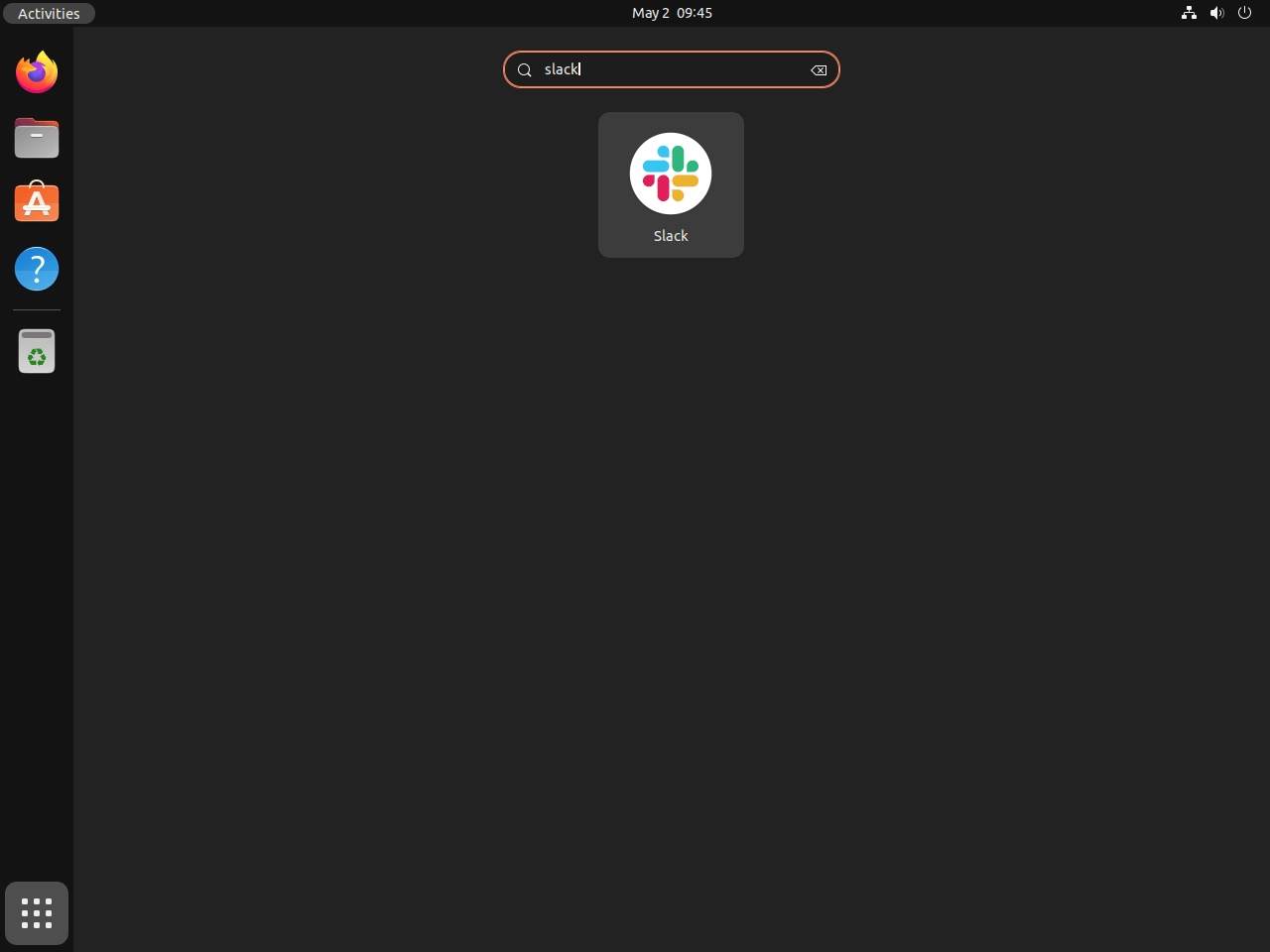
Launch Slack from the application menu, or use the terminal command that matches your install method:
# APT repository or official DEB package
slack

# Snap package
snap run slack
If the menu icon does not open Slack, start it from a terminal with the matching command above. For APT or DEB installs, rerun dpkg -l slack-desktop | grep '^ii' and command -v slack to confirm the native package and launcher exist. For Snap installs, rerun snap list slack and launch with snap run slack so the command does not depend on /snap/bin being present in your shell path.
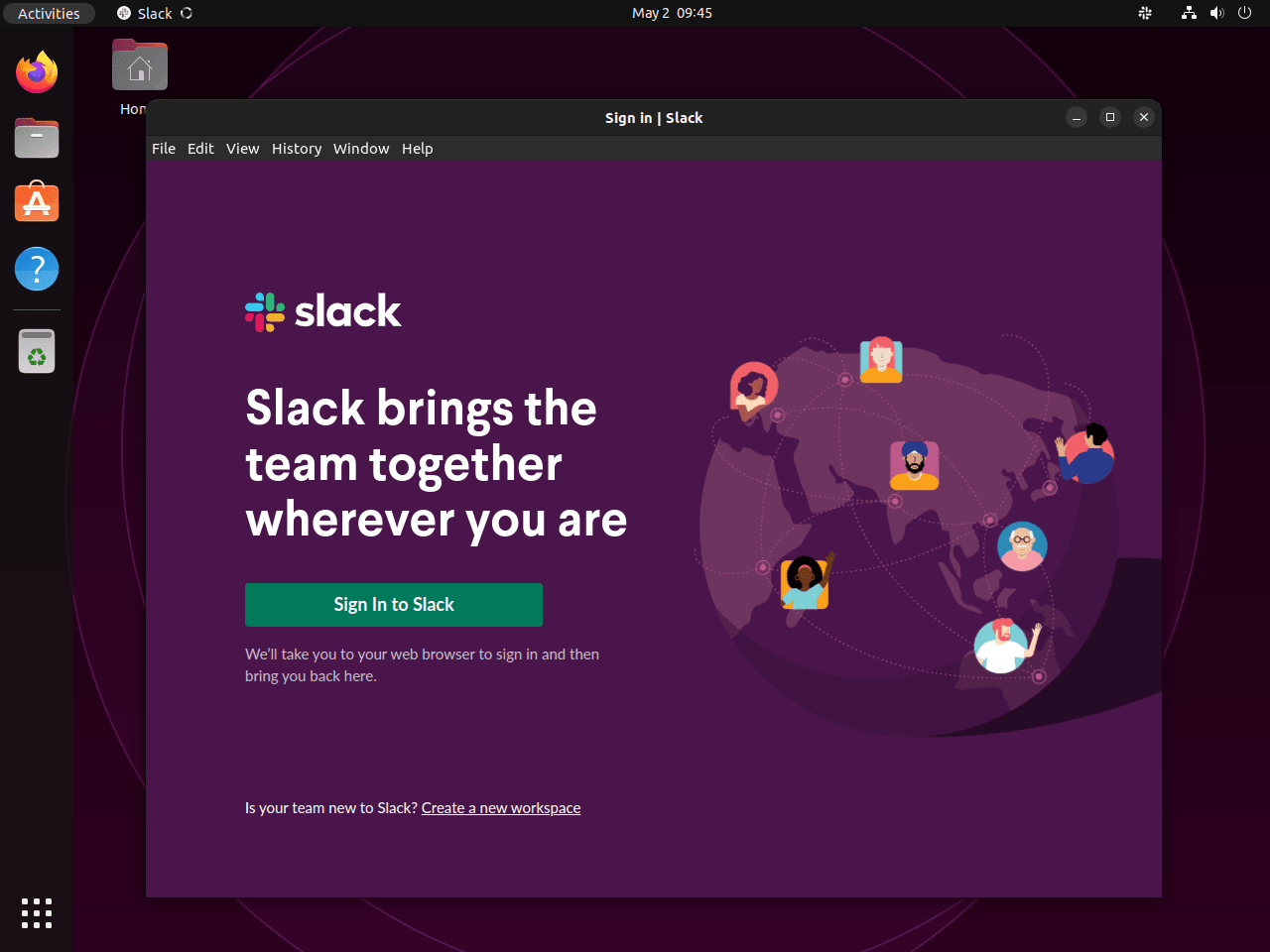
At first launch, sign in with your workspace URL or email address. If your organization uses single sign-on, Slack opens the browser to complete the login flow and then returns to the desktop app.
Update Slack on Ubuntu
Use the update command for the method you installed.
For the APT repository method, refresh package metadata and upgrade only Slack:
sudo apt update
sudo apt install --only-upgrade slack-desktop
For the official .deb download method, rerun the helper script:
update-slack-debFor the Snap method, refresh Slack manually when you do not want to wait for Snap’s automatic refresh cycle:
sudo snap refresh slackRemove Slack from Ubuntu
Follow the removal path that matches your installation method.
Remove APT Repository or DEB Package Installs
Remove the native Slack package first:
sudo apt purge slack-desktopIf you used the APT repository method, remove the article-created source and keyring:
sudo rm -f /etc/apt/sources.list.d/slack.sources
sudo rm -f /usr/share/keyrings/slack-archive-keyring.gpg
sudo apt update
If you used the manual .deb helper, remove that helper as well:
sudo rm -f /usr/local/bin/update-slack-debReview any orphaned dependencies before removing them. Continue only if the preview lists packages you recognize and want to remove:
sudo apt autoremove --dry-runsudo apt autoremoveRemove the Slack Snap
Remove the Snap package without saving a recovery snapshot:
sudo snap remove --purge slackConfirm the snap is gone:
snap list slack 2>/dev/null || echo "Slack snap not installed"Remove Slack User Data
Slack stores workspace sign-ins, cache files, and local app state under your home directory after you launch the app. Delete these paths only when you want a full reset.
These cleanup commands permanently delete local Slack desktop data, including saved workspace sessions and cached files. Export or back up anything you still need before running them.
rm -rf ~/.config/Slack
rm -rf ~/.cache/Slack
rm -rf ~/.local/share/Slack
rm -rf ~/snap/slack
Next Steps After Installing Slack
Slack Desktop is ready on Ubuntu with the update path you chose: APT for native package-manager upgrades, the official .deb helper for manual refreshes, or Snap for store-managed refreshes. For nearby communication tools, see how to install Microsoft Teams on Ubuntu, set up Signal on Ubuntu, or add Telegram on Ubuntu.


Formatting tips for your comment
You can use basic HTML to format your comment. Useful tags currently allowed in published comments:
<code>command</code>command<strong>bold</strong><em>italic</em><blockquote>quote</blockquote>