
Microsoft no longer ships a native Teams desktop client for Linux, so the supported way to install Microsoft Teams on Ubuntu is the Teams PWA in a browser. If you want a separate desktop launcher, tray behavior, and package-manager updates, use the unofficial teams-for-linux wrapper instead.
These steps cover Ubuntu 26.04 LTS, 24.04 LTS, and 22.04 LTS. The Snap package name is teams-for-linux, not teams or microsoft-teams; Snap, Flatpak, and the project APT repository all install the same community wrapper around Teams for Web.
Update Ubuntu Before Installing Teams
Refresh APT metadata and apply pending package updates before adding any packaged Teams method:
sudo apt update && sudo apt upgrade -yThese commands use
sudofor tasks that need administrator privileges. If your user cannot runsudoyet, run the commands as root or follow the guide to add a new user to sudoers on Ubuntu.
Install Microsoft Teams on Ubuntu
Choose one installation path. The PWA is Microsoft’s official Linux-facing option, while the other methods install teams-for-linux, an unofficial wrapper maintained outside Microsoft.
| Method | Package or source | Status | Updates | Use when |
|---|---|---|---|---|
| Teams PWA | Microsoft Teams download page | Official Microsoft Linux route | Browser-managed | You need the Microsoft-supported web/PWA path |
| Snap | teams-for-linux on Snapcraft | Unofficial wrapper by Ismael Martinez Ramos | snap refresh | You want the simplest packaged wrapper on Ubuntu |
| Flatpak | com.github.IsmaelMartinez.teams_for_linux on Flathub | Unofficial wrapper, Flathub-verified project page | flatpak update | You prefer a sandboxed desktop app from Flathub |
| APT repository | teams-for-linux project repository | Unofficial project DEB repository | apt upgrade | You want a native DEB package managed by APT |
Do not install multiple
teams-for-linuxpackage formats at the same time. Choose Snap, Flatpak, or APT for the wrapper. Keeping more than one installed can create duplicate launchers, separate settings, and confusing update behavior.
Microsoft does not publish an official Teams Snap for Linux. The Snap command for the unofficial wrapper is sudo snap install teams-for-linux; commands such as sudo snap install teams or sudo snap install microsoft-teams target the wrong package name.
Use the Official Teams PWA
The Microsoft-supported Linux path is the Teams PWA. Microsoft documents Teams for Web support on current Edge, Chrome, and Firefox releases on Linux, while the Linux download section sends users to the PWA instead of a native desktop package.
- Open Microsoft Edge or Google Chrome and visit teams.microsoft.com.
- Sign in with your Microsoft account, work account, or school account.
- Use the browser’s install-app option from the address bar or application menu, then launch Teams from your Ubuntu applications menu.
If your Ubuntu desktop does not already have a Chromium-based browser, install Microsoft Edge on Ubuntu or Google Chrome on Ubuntu first. Firefox can run Teams for Web, but Edge and Chrome usually provide the clearest PWA install workflow.
Install Teams via Snap
Snap is the easiest packaged teams-for-linux method on Ubuntu because snapd is already installed on standard Ubuntu desktops. Install the stable Snap package with:
sudo snap install teams-for-linuxCheck the Snap package metadata so you know you installed the unofficial wrapper, not a Microsoft-published Snap:
snap info teams-for-linux | sed -n '1,8p'Relevant output includes:
name:      teams-for-linux
summary:   Teams for Linux
publisher: Ismael Martinez Ramos (ismaelmartinez)
store-url: https://snapcraft.io/teams-for-linux
Confirm the installed Snap row with a trimmed check that focuses on the stable channel and publisher instead of volatile version and revision columns:
snap list teams-for-linux | awk 'NR==1 {print $1, $4, $5} NR==2 {print $1, $4, $5}'Name Tracking Publisher teams-for-linux latest/stable ismaelmartinez
Install Teams via Flatpak
Flatpak is useful when you want the Flathub package and sandboxed desktop-app behavior. Ubuntu does not install Flatpak by default, so add Flatpak and the Flathub remote first:
For a fuller Flatpak setup walkthrough, including desktop integration and Flathub details, use the Flatpak installation guide for Ubuntu.
sudo apt install flatpak -y
sudo flatpak remote-add --if-not-exists flathub https://dl.flathub.org/repo/flathub.flatpakrepo
Verify that the system-level Flathub remote exists before installing the app:
flatpak remotes --columns=name,urlflathub https://dl.flathub.org/repo/
Install the Flathub app ID for teams-for-linux:
sudo flatpak install flathub com.github.IsmaelMartinez.teams_for_linux -yConfirm that Flatpak can see the installed application:
flatpak info com.github.IsmaelMartinez.teams_for_linux | sed -n '1,10p'Teams for Linux - Unofficial Microsoft Teams client for Linux
ID: com.github.IsmaelMartinez.teams_for_linux
Ref: app/com.github.IsmaelMartinez.teams_for_linux/x86_64/stable
Arch: x86_64
Branch: stable
Origin: flathub
Install Teams via APT Repository
The teams-for-linux project also publishes standalone .deb files on GitHub Releases, but the APT repository is better for routine use because updates arrive through normal package upgrades. Install the repository prerequisites first:
sudo apt install ca-certificates curl gpg -yDownload the repository signing key and store it in a dedicated APT keyring. The curl command downloads the ASCII-armored key, and gpg --dearmor converts it into the binary keyring format APT expects:
curl -fsSL https://repo.teamsforlinux.de/teams-for-linux.asc | sudo gpg --dearmor --yes -o /usr/share/keyrings/teams-for-linux.gpgCreate the DEB822 source file. The printf and sudo tee pattern writes the file as root, while $(dpkg --print-architecture) records your system architecture in the source stanza:
printf '%s\n' \
'Types: deb' \
'URIs: https://repo.teamsforlinux.de/debian/' \
'Suites: stable' \
'Components: main' \
"Architectures: $(dpkg --print-architecture)" \
'Signed-By: /usr/share/keyrings/teams-for-linux.gpg' \
| sudo tee /etc/apt/sources.list.d/teams-for-linux.sources > /dev/null
Review the source file before refreshing APT. On an amd64 Ubuntu system, the file should look like this; on arm64 or armhf, the Architectures line changes to match your hardware:
cat /etc/apt/sources.list.d/teams-for-linux.sourcesTypes: deb URIs: https://repo.teamsforlinux.de/debian/ Suites: stable Components: main Architectures: amd64 Signed-By: /usr/share/keyrings/teams-for-linux.gpg
Update APT and confirm the repository provides a package candidate. Version numbers change as the project publishes new releases, so the important signals are the candidate line and the teamsforlinux.de source line:
sudo apt update
apt-cache policy teams-for-linux
teams-for-linux:
Installed: (none)
Candidate: 2.x.x
Version table:
2.x.x 500
500 https://repo.teamsforlinux.de/debian stable/main amd64 Packages
Install the package:
sudo apt install teams-for-linux -yThe APT package creates /usr/bin/teams-for-linux as the launcher for the application under /opt/teams-for-linux/. Verify the launcher command:
command -v teams-for-linux/usr/bin/teams-for-linux
Launch Teams on Ubuntu
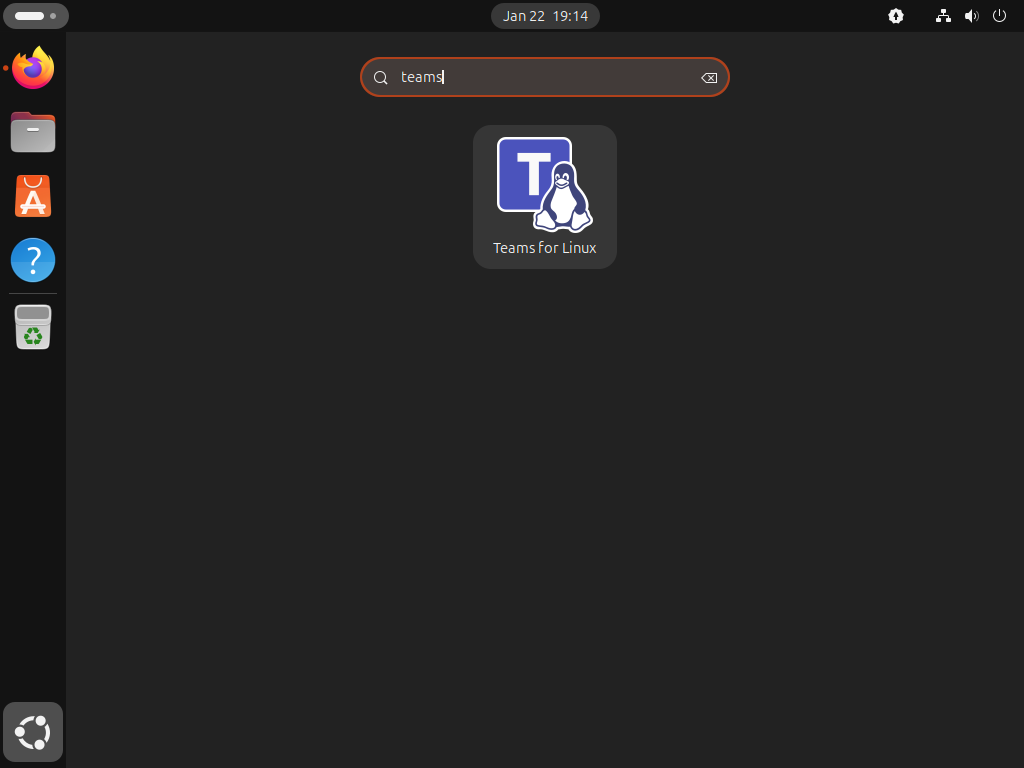
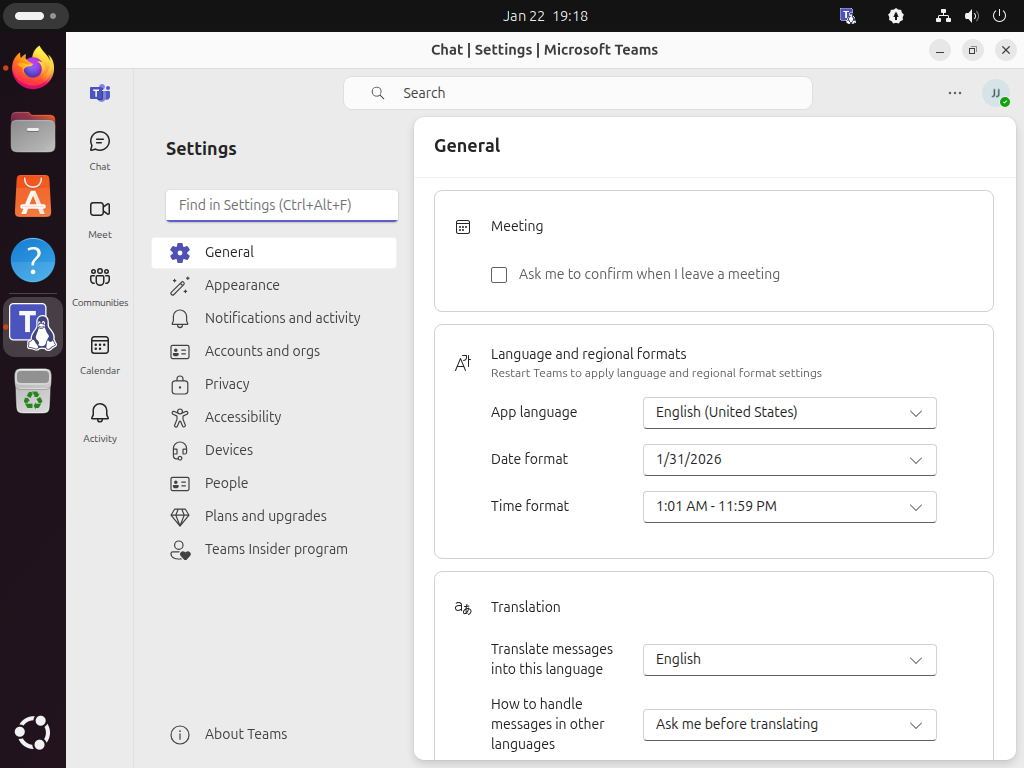
After installation, launch Teams from your applications menu. The PWA appears under the name set by your browser, usually Microsoft Teams, while the packaged wrapper appears as Teams for Linux.
For terminal launches, use the command that matches your packaged install method:
APT repository:
teams-for-linuxSnap:
snap run teams-for-linuxFlatpak:
flatpak run com.github.IsmaelMartinez.teams_for_linuxManage Teams Updates on Ubuntu
The PWA updates with your browser and the Teams web service. For packaged teams-for-linux installs, use the package manager that installed it.
Update the Snap Package
Snap refreshes apps automatically, but you can trigger an immediate check:
sudo snap refresh teams-for-linuxUpdate the Flatpak Package
Update only the Teams for Linux Flatpak package:
sudo flatpak update com.github.IsmaelMartinez.teams_for_linux -yTo update every system-level Flatpak app and runtime at once, run:
sudo flatpak update -yUpdate the APT Package
Update only the APT repository package:
sudo apt update
sudo apt install --only-upgrade teams-for-linux -y
Remove Teams from Ubuntu
Use the removal steps that match your install method. The PWA is removed from the browser, while Snap, Flatpak, and APT use their own package-manager cleanup commands.
Remove the Teams PWA
Open the installed Teams PWA, then use your browser’s app management menu to uninstall or remove the app. In Edge or Chrome, installed web apps also appear in the browser’s app management page, where you can remove the Teams PWA without deleting your browser profile.
Remove the Snap Package
Remove the Snap package without saving snapd’s automatic recovery snapshot:
sudo snap remove --purge teams-for-linuxConfirm the Snap package is gone:
snap list teams-for-linux 2>/dev/null || echo "teams-for-linux not installed"teams-for-linux not installed
Remove the Flatpak Package
Uninstall the Flatpak app and then remove unused runtimes that no other Flatpak app needs:
sudo flatpak uninstall com.github.IsmaelMartinez.teams_for_linux -y
sudo flatpak uninstall --unused -y
Confirm the Flatpak app ID is gone:
flatpak list --app --columns=application | grep -Fx com.github.IsmaelMartinez.teams_for_linux || echo "teams-for-linux flatpak not installed"teams-for-linux flatpak not installed
Flatpak user data lives under ~/.var/app/com.github.IsmaelMartinez.teams_for_linux/. Remove it only if you want to delete cached data and login state:
The next command permanently deletes the Teams for Linux Flatpak profile for your user, including cached data and login sessions. Skip it if you plan to reinstall and want to keep that state.
rm -rf ~/.var/app/com.github.IsmaelMartinez.teams_for_linuxRemove the APT Package and Repository
Remove the APT package first:
sudo apt remove --purge teams-for-linux -yConfirm the package is no longer installed:
dpkg-query -s teams-for-linux 2>/dev/null | grep '^Status: install ok installed' || echo "teams-for-linux package not installed"teams-for-linux package not installed
Delete the repository source file and signing key you created for the APT method:
sudo rm -f /etc/apt/sources.list.d/teams-for-linux.sources
sudo rm -f /usr/share/keyrings/teams-for-linux.gpg
sudo apt update
Verify that the source file and keyring were removed:
test ! -e /etc/apt/sources.list.d/teams-for-linux.sources && echo "teams-for-linux source removed"
test ! -e /usr/share/keyrings/teams-for-linux.gpg && echo "teams-for-linux key removed"
teams-for-linux source removed teams-for-linux key removed
Optionally remove the Teams for Linux user profile directory from your home folder:
The next command permanently deletes Teams for Linux settings, cached data, and login sessions for your user. Skip it if you plan to reinstall and want to keep your configuration.
rm -rf ~/.config/teams-for-linuxTroubleshoot Teams on Ubuntu
Official Microsoft Packages vs teams-for-linux
Microsoft’s official Linux-facing Teams option is the PWA, not a Snap, Flatpak, or APT package. The teams-for-linux packages are community-maintained wrappers around Teams for Web, so use them when the wrapper workflow is useful and use the PWA when your workplace expects the Microsoft-supported path.
If you searched for an official Microsoft Teams .deb download, the Microsoft Teams download page currently points Linux users to the PWA. The teams-for-linux project publishes its own .deb assets, but the APT repository section is easier to maintain than repeatedly downloading standalone package files.
Camera and Microphone Access with Snap
If the Snap install opens but Teams cannot access your camera or microphone, inspect the Snap interfaces:
snap connections teams-for-linux | grep -E 'camera|audio-record'audio-record teams-for-linux:audio-record - - camera teams-for-linux:camera :camera -
The camera interface is normally connected automatically. If audio-record shows a dash in the Slot column, connect microphone access manually:
sudo snap connect teams-for-linux:audio-recordWork or School Account Sign-In
Teams for Linux signs in through the same Teams web service as the browser app, so personal, work, and school accounts can all use the normal Microsoft sign-in flow. Organization policies can still affect browser choice, Conditional Access, device compliance, or tenant switching, so use the official PWA in Edge if your administrator requires that route.
GNOME Tray Icon and Notifications
Teams for Linux can show desktop notifications and a tray icon when the desktop session allows them. If the tray icon is missing on GNOME, check that AppIndicator support is enabled and that Ubuntu notification permissions allow Teams or Teams for Linux to show alerts.
Teams Web Feature Limits
Because both the PWA and teams-for-linux depend on Teams for Web, some desktop-client features can differ from Windows or macOS. Microsoft documents web-client gaps such as simultaneous notifications across multiple accounts and some meeting visual effects, so keep a supported browser available if a meeting feature behaves differently inside the wrapper.
Conclusion
Microsoft Teams is available on Ubuntu through the official PWA, while teams-for-linux supplies a packaged desktop wrapper through Snap, Flatpak, or the project APT repository. Keep one wrapper package installed at a time, and use the PWA when your organization wants the Microsoft-supported Linux path. For related communication tools, see the Ubuntu guides for Slack, Discord, Signal, or Telegram.


Formatting tips for your comment
You can use basic HTML to format your comment. Useful tags currently allowed in published comments:
<code>command</code>command<strong>bold</strong><em>italic</em><a href="https://example.com">link</a><blockquote>quote</blockquote>