Broken Word layouts and unexpected font substitutions usually mean Linux Mint is falling back to Liberation or DejaVu instead of Microsoft’s proprietary typefaces. You can install Microsoft fonts on Linux Mint 22.x and 21.x with the ttf-mscorefonts-installer package when shared files still expect Windows fonts such as Arial, Times New Roman, and Verdana.
ttf-mscorefonts-installer does not include newer Windows and Office fonts like Calibri, Cambria, or Consolas. If a document still needs those typefaces, use the separate PowerPoint Viewer workflow for the newer Microsoft fonts.
Install Microsoft Fonts on Linux Mint
The APT package installs the original Microsoft Core Fonts for the Web collection. That gives you the font families most often missing from Word documents, Office templates, and older websites:
- Arial and Arial Black: sans-serif families commonly used in business documents and older templates
- Times New Roman and Georgia: serif fonts often used in formal documents and older websites
- Verdana, Trebuchet MS, and Comic Sans MS: Windows-era web and presentation fonts
- Courier New and Andale Mono: monospace fonts used in code samples and technical documents
- Impact and Webdings: older display and symbol fonts that still show up in some legacy content
Calibri, Cambria, and Consolas are not part of this package. Use the separate PowerPoint Viewer workflow if a document still calls for those newer Microsoft Office fonts.
Refresh APT Metadata Before Installing Microsoft Fonts
Open a terminal from the applications menu, or use the shortcut configured on your system, then refresh APT metadata before installing the package:
sudo apt updateAPT package-management commands use
sudobecause they need administrator privileges. If your account is not in the sudoers group yet, follow the guide to create and add users to sudoers on Linux Mint first.
Refreshing metadata helps APT see the current ttf-mscorefonts-installer build and avoids stale dependency metadata during installation.
Install Microsoft Core Fonts on Linux Mint
The ttf-mscorefonts-installer package is available from Ubuntu’s multiverse component on Linux Mint 22.x and 21.x. Install it through APT:
sudo apt install ttf-mscorefonts-installerAccept the Microsoft Fonts EULA
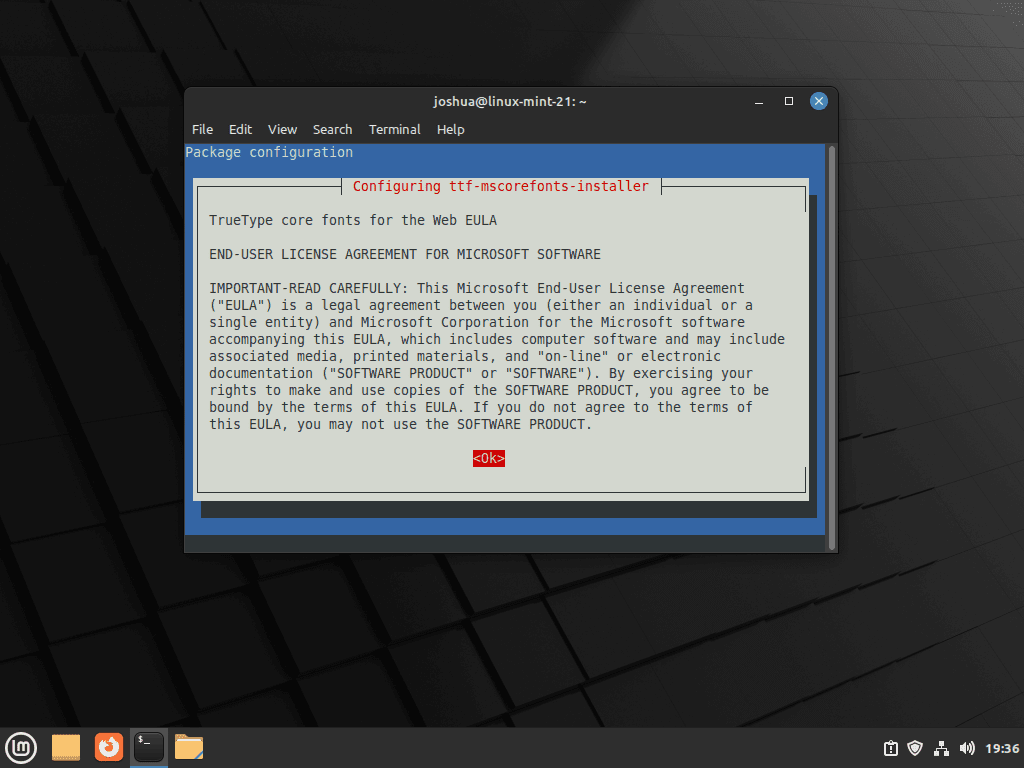
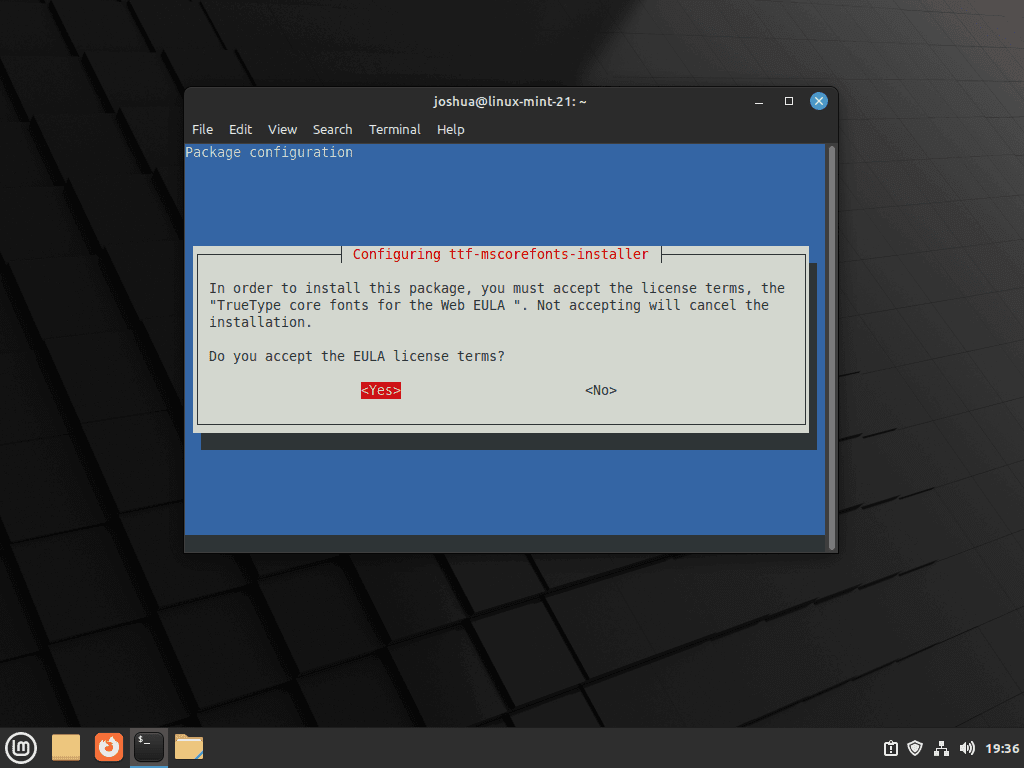
During installation, a dialog appears requiring you to accept the Microsoft End User License Agreement (EULA). This is a legal requirement because Microsoft owns these fonts and permits their use only under specific terms. Use the Tab key to navigate to the “OK” button and press Enter. On the following screen, navigate to “Yes” and press Enter to accept the license agreement.
After you accept the EULA, the package downloads the font archives from SourceForge and installs the extracted files in /usr/share/fonts/truetype/msttcorefonts/. On both Mint 22.x and 21.x, fc-match resolves Arial, Arial Black, and Times New Roman to the Microsoft font files as soon as the install finishes.
Verify Core Microsoft Fonts on Linux Mint
Verify Core Microsoft Fonts from the Terminal
A quick terminal check confirms that fontconfig now sees the Microsoft families instead of the default substitutes:
fc-match Arial
fc-match "Arial Black"
fc-match "Times New Roman"
Relevant output includes:
Arial.ttf: "Arial" "Regular"
Arial_Black.ttf: "Arial Black" "Regular"
Times_New_Roman.ttf: "Times New Roman" "Regular"
Verify Core Microsoft Fonts in Applications
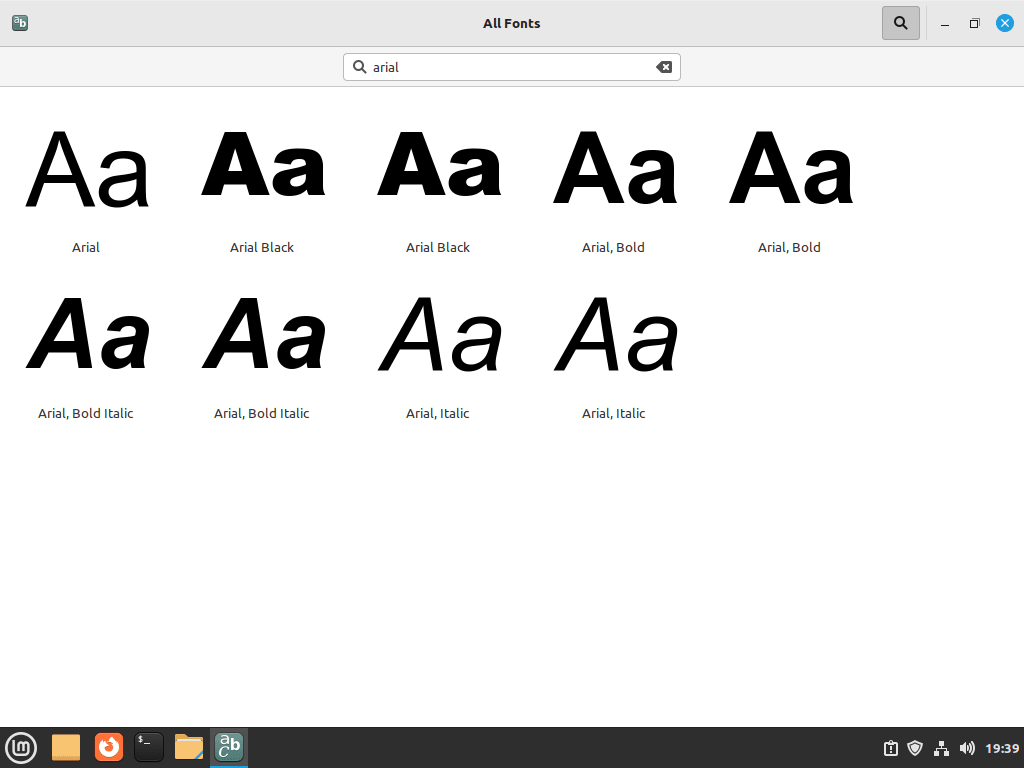
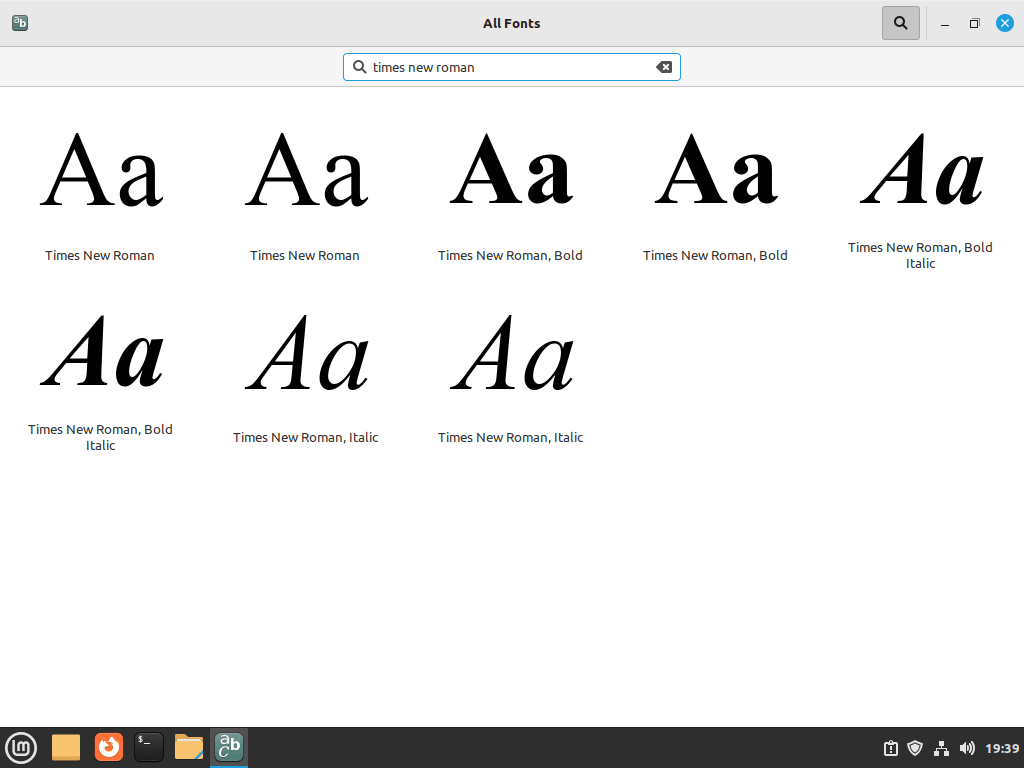
Open LibreOffice Writer, or use the guide to install LibreOffice on Linux Mint first, then confirm Arial and Times New Roman appear in the font picker. The Fonts application is another quick visual check if you only want to confirm the families are registered system-wide.
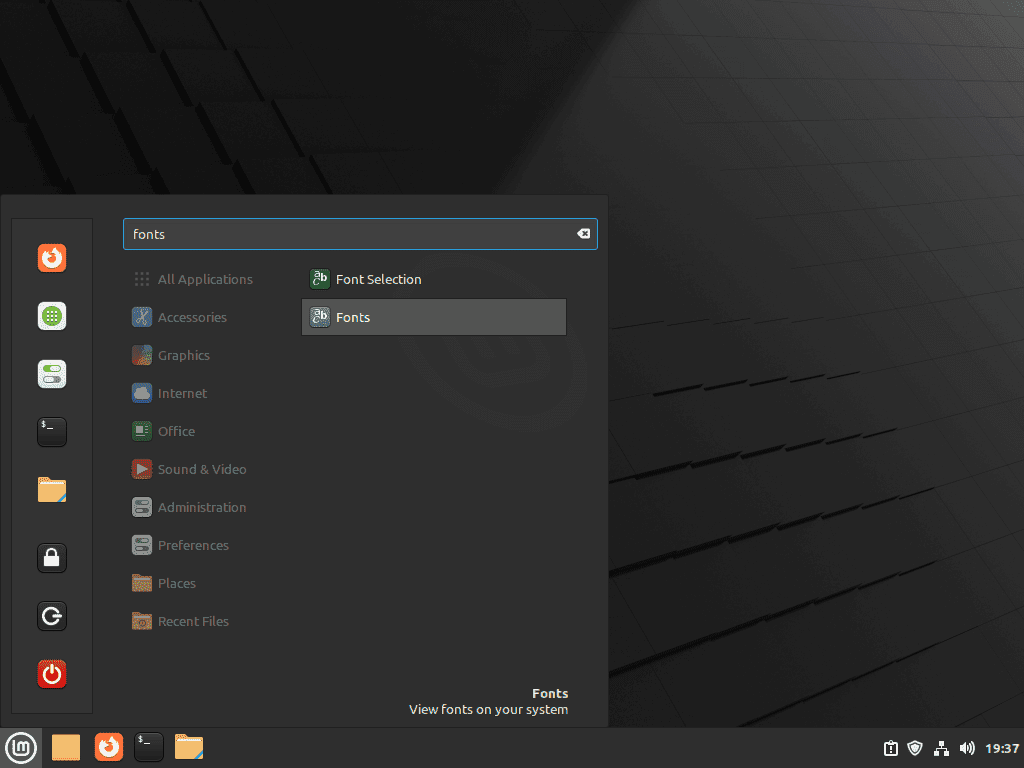
Search for Arial and Times New Roman in the Fonts application or LibreOffice. If both families appear, the package is ready for documents, browsers, and other desktop apps.
Install Modern Microsoft Fonts on Linux Mint
Calibri, Cambria, and Consolas are not bundled with ttf-mscorefonts-installer, and Microsoft does not publish a maintained Linux package for them. The practical workaround is extracting those newer Office fonts from the archived PowerPoint Viewer installer and storing them in your user font directory.
These files still belong to Microsoft. This workflow is useful for document compatibility, but review the licensing terms yourself before using the fonts in a business, redistribution, or packaged-software workflow.
Check the Modern Microsoft Font Families
The archived PowerPoint Viewer includes the newer ClearType families most often missing from modern Office documents:
- Calibri: the default body font in Microsoft Office documents created since Office 2007
- Cambria: a serif family commonly used in headings, body text, and academic templates
- Consolas: a monospace font frequently used in code listings and developer-oriented documentation
- Candara, Constantia, and Corbel: newer Microsoft UI and document fonts that some Office themes still call
Install cabextract and wget for the Microsoft Fonts Archive
PowerPoint Viewer is distributed as a Windows installer, so you need cabextract to unpack the embedded cabinet files. Install wget at the same time so the download command is available even on a minimal Mint system:
sudo apt install cabextract wgetDownload and Verify the PowerPoint Viewer Archive
Download the archived installer into a cache directory under your home folder so the extraction stays isolated from the rest of your files:
mkdir -p "$HOME/.cache/microsoft-fonts"
wget -q -O "$HOME/.cache/microsoft-fonts/PowerPointViewer.exe" https://archive.org/download/PowerPointViewer_201801/PowerPointViewer.exe
The -O flag saves the file with a predictable name so the checksum and extraction steps match exactly. If you want more download patterns beyond this one quiet save, see the wget command examples guide. Change into the cache directory before checking the archive so the output uses the same filename readers should compare:
cd "$HOME/.cache/microsoft-fonts"
sha256sum PowerPointViewer.exe
Relevant output includes:
249473568eba7a1e4f95498acba594e0f42e6581add4dead70c1dfb908a09423 PowerPointViewer.exe
Extract and Register the Modern Microsoft Fonts
The hash must match exactly before you extract the archive. Extract the embedded cabinet file first, then unpack the viewer payload into the same cache directory:
cd "$HOME/.cache/microsoft-fonts"
cabextract -q PowerPointViewer.exe -F ppviewer.cab
cabextract -q ppviewer.cab -F '*'
If cabextract warns about possible extra bytes at the end of ppviewer.cab, that is expected with this archived installer and does not stop the font files from extracting.
Confirm the expected font files are present before moving anything into your font directory:
cd "$HOME/.cache/microsoft-fonts"
ls -1 CALIBRI.TTF CAMBRIA.TTC CONSOLA.TTF
Relevant output includes:
CALIBRI.TTF
CAMBRIA.TTC
CONSOLA.TTF
Do not continue if any filename is missing; repeat the download and checksum phase first.
Move only the .ttf and .ttc files into your user font directory, then rebuild the cache. The find step keeps the extra PowerPoint Viewer DLLs out of your font folder:
mkdir -p "$HOME/.local/share/fonts/microsoft"
find "$HOME/.cache/microsoft-fonts" -maxdepth 1 -type f \( -iname '*.ttf' -o -iname '*.ttc' \) -exec mv {} "$HOME/.local/share/fonts/microsoft/" \;
fc-cache -f
rm -rf -- "$HOME/.cache/microsoft-fonts"
The find ... -exec form filters the extracted files down to actual fonts before it moves anything. If that pattern is new to you, the guide to use the find -exec command option in Linux breaks it down.
Verify Calibri, Cambria, and Consolas on Linux Mint
Check that fontconfig now resolves the newer Office families from your user font directory:
fc-match Calibri
fc-match Cambria
fc-match Consolas
Relevant output includes:
CALIBRI.TTF: "Calibri" "Regular"
CAMBRIA.TTC: "Cambria" "Regular"
CONSOLA.TTF: "Consolas" "Regular"
Update Microsoft Fonts on Linux Mint
The core Microsoft fonts package follows APT updates. Refresh package metadata, then upgrade only the package if a newer build is available for your Mint base:
sudo apt update
sudo apt install --only-upgrade ttf-mscorefonts-installer
The PowerPoint Viewer workflow is a static user-font install, not an APT-managed package or maintained upstream update channel. There is no useful updater script for this archive because each refresh should repeat the checksum check before any files are replaced. If you intentionally repair or refresh those files later, repeat the archive download, checksum, extraction, and font-cache steps so the installed fonts still come from the verified archive.
Remove Microsoft Fonts from Linux Mint
Remove each workflow separately. The PowerPoint Viewer fonts live under your home directory, while the classic core fonts are tracked by APT.
Remove Calibri, Cambria, and Consolas
Delete the user font directory and rebuild the cache:
The next command permanently removes everything under
~/.local/share/fonts/microsoft. If you stored unrelated fonts in that folder, move them somewhere else first.
rm -rf -- "$HOME/.local/share/fonts/microsoft" "$HOME/.cache/microsoft-fonts"
fc-cache -f
Verify that the user font directory is gone:
test ! -d "$HOME/.local/share/fonts/microsoft" && echo "Manual Microsoft font directory removed"Relevant output includes:
Manual Microsoft font directory removed
Remove the Core Microsoft Fonts Package
Remove the package first, then rebuild the system font cache:
sudo apt remove ttf-mscorefonts-installer
sudo fc-cache -f
APT may mark helper packages such as cabextract, wget, or update-notifier-common as removable if they were installed only for this package. Preview the list before you accept any cleanup:
sudo apt-get -s autoremoveIf the simulated transaction lists only packages you no longer need, run the cleanup interactively and review the final prompt before confirming:
sudo apt autoremoveRun the package policy check after removal so you can confirm the package is gone while the Ubuntu archive still exposes the candidate version for your Mint base:
apt-cache policy ttf-mscorefonts-installer | sed -n '1,6p'Relevant output after removal on Mint 22.x includes:
ttf-mscorefonts-installer:
  Installed: (none)
  Candidate: 3.8.1ubuntu1
  Version table:
    3.8.1ubuntu1 500
Mint 21.x still shows candidate 3.8ubuntu2 after removal and can leave an empty /usr/share/fonts/truetype/msttcorefonts/ directory with only a .uuid marker. Inspect that directory before deleting it:
if [ -d /usr/share/fonts/truetype/msttcorefonts ]; then
  sudo find /usr/share/fonts/truetype/msttcorefonts -maxdepth 1 -mindepth 1 -printf '%f\n'
fi
The next command permanently removes the leftover system font directory. Run it only after package removal and only when the inspection step shows no Microsoft font files you still need.
sudo rm -rf -- /usr/share/fonts/truetype/msttcorefonts/Troubleshoot Microsoft Fonts on Linux Mint
Use these checks when the package installs but applications still show fallback fonts, the download phase fails, or the license prompt did not appear.
Refresh the Microsoft Fonts Cache
If applications still show fallback fonts after a successful install, rebuild the font cache and restart the affected app:
sudo fc-cache -f -vThe -f flag forces a full rebuild, and -v prints the directories fontconfig is scanning. Once the command finishes, close and reopen LibreOffice, your browser, or any other app that was already running.
Fix Documents That Still Need Calibri or Cambria
If Arial and Times New Roman verify correctly but a Word document still shifts, check whether the file is asking for a newer Office family:
fc-match Calibri
fc-match Cambria
If those checks return Carlito, Caladea, Liberation, or another substitute, the classic package is working but the document needs the modern Office fonts workflow. Install Calibri and Cambria with the PowerPoint Viewer method, then close and reopen the document.
Retry a Failed Microsoft Fonts Download
SourceForge mirror hiccups can leave the package installed without the actual font files. Check for one known core font file first:
test -f /usr/share/fonts/truetype/msttcorefonts/Arial.ttf && echo "Arial core font file is present"If the command prints nothing, re-run the package configuration to fetch the archives again:
sudo dpkg-reconfigure ttf-mscorefonts-installerThis command retries the download without forcing you to remove and reinstall the whole package. If the mirrors are still unavailable, wait a few minutes and try again.
Reopen the Microsoft Fonts EULA Prompt
If the installer ran in a noninteractive session and never showed the license prompt, open it again with the same reconfiguration command:
sudo dpkg-reconfigure ttf-mscorefonts-installerAccept the EULA when prompted, and the package will continue with the Microsoft font download.
Conclusion
Arial, Times New Roman, and the rest of the Microsoft core fonts are now registered in Linux Mint’s font cache, and the optional PowerPoint Viewer workflow adds Calibri, Cambria, and Consolas when newer Office documents need them. For a local editor that benefits from those fonts, install LibreOffice on Linux Mint. If your workflow stays in Microsoft 365, install Microsoft Edge on Linux Mint for the web apps.


Formatting tips for your comment
You can use basic HTML to format your comment. Useful tags currently allowed in published comments:
<code>command</code>command<strong>bold</strong><em>italic</em><a href="https://example.com">link</a><blockquote>quote</blockquote>