
Small LaTeX documents are easier to edit when the source pane, compile button, and PDF preview live in one lightweight window. To install TeXworks on Linux Mint, use the default repository package for the cleanest APT-managed setup, add the TeXworks stable PPA when you want a newer APT-managed build, or install the upstream GitHub AppImage with a reusable helper when you want the current AppImage outside Mint’s package cadence.
TeXworks is the editor, not the full TeX toolchain. The repository and PPA paths install a recommended TeX Live subset with TeXworks, while the AppImage method keeps the editor current and lets you add the compiler packages separately when you want local PDF builds.
Install TeXworks on Linux Mint
Open a terminal from the applications menu before running the install commands. The default repository path is simplest, the TeXworks stable PPA keeps APT ownership while providing a newer editor, and the GitHub AppImage path is better when you want the upstream AppImage release without adding a PPA.
Compare TeXworks Installation Methods
| Method | Source | Update Owner | Best For |
|---|---|---|---|
| Linux Mint repository | Ubuntu base repository through Mint | APT | Stable installs with the least maintenance |
| TeXworks stable PPA | TeXworks Launchpad PPA | APT through Launchpad | Newer APT-managed TeXworks on Mint 22.x and 21.x |
| GitHub AppImage helper | TeXworks GitHub releases | update-texworks | Current upstream TeXworks on x86_64 Mint desktops |
The repository package currently differs by Mint series: Linux Mint 22.x installs TeXworks 0.6.8 from the Ubuntu 24.04 base, while Linux Mint 21.x installs TeXworks 0.6.6 from the Ubuntu 22.04 base. The TeXworks stable PPA currently publishes TeXworks 0.6.11 for the Ubuntu 24.04/noble and Ubuntu 22.04/jammy bases used by Mint 22.x and 21.x. The GitHub helper resolves the latest upstream AppImage at runtime and verifies the release asset digest before replacing the local copy.
Install TeXworks from the Linux Mint Repository
The repository package is the best default when you prefer normal Mint updates and do not need the newest upstream editor build. Install TeXworks with a practical TeX Live compiler subset so the default pdflatex profile works after launch:
sudo apt update
sudo apt install texworks texlive-latex-recommended -y
These commands use
sudofor package changes. If your account cannot run administrator commands yet, create a sudo user on Linux Mint before continuing.
Use
texlive-fullonly when you need a very broad local TeX Live installation for large templates, uncommon fonts, or offline academic workflows. It can add several gigabytes compared withtexlive-latex-recommended.
Verify that the TeXworks package is installed:
dpkg-query -W -f='${Package} ${Version} ${db:Status-Status}\n' texworksConfirm that the LaTeX compiler is available:
command -v pdflatex/usr/bin/pdflatex
Install TeXworks from the TeXworks Stable PPA
Use the TeXworks stable PPA when you want the newer editor build while keeping APT-managed updates. Because a PPA is a third-party Launchpad package source, use this method only when you trust that archive for TeXworks packages. Linux Mint’s repository helper maps Mint 22.x to the Ubuntu 24.04 noble base and Mint 21.x to the Ubuntu 22.04 jammy base, so avoid hand-editing the Ubuntu codename.
Make sure the repository helper is available:
sudo apt update
command -v add-apt-repository >/dev/null 2>&1 || sudo apt install mintsources -y
Add the TeXworks stable PPA and refresh APT metadata:
sudo add-apt-repository ppa:texworks/stable -y
sudo apt update
Confirm that APT selects the PPA package before installing it:
apt-cache policy texworksThe policy output should show ppa.launchpadcontent.net/texworks/stable as a package source. Install TeXworks with the same recommended TeX Live compiler subset used by the repository method:
sudo apt install texworks texlive-latex-recommended -yVerify the installed package and compiler command:
dpkg-query -W -f='${Package} ${Version} ${db:Status-Status}\n' texworks
command -v pdflatex
Install the Latest TeXworks AppImage from GitHub
The upstream TeXworks project publishes a Linux AppImage for x86_64 systems. The current AppImage requires a glibc baseline that Linux Mint 22.x and 21.x meet, plus host runtime packages for FUSE and Qt’s XCB platform plugin.
Install the helper tools and Qt runtime dependency first:
sudo apt update
sudo apt install curl ca-certificates python3 libxcb-cursor0 -y
Install the FUSE2 compatibility package for your Mint base. Linux Mint 22.x uses the renamed libfuse2t64 package, while Linux Mint 21.x still uses libfuse2:
if apt-cache policy libfuse2t64 | grep -q 'Candidate: [0-9]'; then
    sudo apt install libfuse2t64 -y
else
    sudo apt install libfuse2 -y
fi
Create the reusable installer and updater script. It reads the latest release metadata from the GitHub API, selects the x86_64 AppImage, verifies GitHub’s release-asset SHA256 digest, installs the AppImage under /opt/texworks-appimage, and adds a separate texworks-github launcher so it does not replace the APT package command.
nano install-texworks-github.shPaste the script into the file:
#!/usr/bin/env bash
set -euo pipefail

repo_api="https://api.github.com/repos/TeXworks/texworks/releases/latest"
install_dir="/opt/texworks-appimage"
appimage_path="$install_dir/TeXworks.AppImage"
launcher_path="/usr/local/bin/texworks-github"
updater_path="/usr/local/bin/update-texworks"
desktop_dir="/usr/local/share/applications"
desktop_path="$desktop_dir/texworks-github.desktop"
icon_dir="/usr/local/share/icons/hicolor/64x64/apps"
icon_path="$icon_dir/texworks-github.png"

if [ "$(uname -m)" != "x86_64" ]; then
    printf 'The upstream TeXworks AppImage currently targets x86_64 Linux systems only.\n' >&2
    exit 1
fi

for cmd in curl python3 sha256sum sudo install; do
    if ! command -v "$cmd" >/dev/null 2>&1; then
        printf 'Missing required command: %s\n' "$cmd" >&2
        exit 1
    fi
done

tmpdir="$(mktemp -d)"
cleanup() {
    rm -rf "$tmpdir"
}
trap cleanup EXIT

release_json="$tmpdir/release.json"
curl -fsSL --retry 3 "$repo_api" -o "$release_json"

mapfile -t release_info < <(python3 - "$release_json" <<'PY'
import json
import re
import sys
from pathlib import Path

release_path = Path(sys.argv[1])
data = json.loads(release_path.read_text(encoding="utf-8"))
assets = data.get("assets") or []
appimages = [
    asset for asset in assets
    if asset.get("name", "").endswith(".AppImage") and "x86_64" in asset.get("name", "")
]
if not appimages:
    print("No x86_64 TeXworks AppImage was found in the latest GitHub release.", file=sys.stderr)
    sys.exit(1)
asset = appimages[0]
name = asset.get("name", "")
url = asset.get("browser_download_url", "")
digest = asset.get("digest", "")
if not url:
    print("The selected AppImage asset does not include a download URL.", file=sys.stderr)
    sys.exit(1)
if not digest.startswith("sha256:"):
    print("The selected AppImage asset does not include a sha256 digest in the GitHub API.", file=sys.stderr)
    sys.exit(1)
sha256 = digest.split(":", 1)[1]
if not re.fullmatch(r"[0-9a-fA-F]{64}", sha256):
    print("The GitHub API returned an invalid sha256 digest for the AppImage.", file=sys.stderr)
    sys.exit(1)
version = data.get("name") or data.get("tag_name") or "unknown release"
print(name)
print(url)
print(sha256.lower())
print(version)
PY
)

if [ "${#release_info[@]}" -ne 4 ]; then
    printf 'Could not parse the TeXworks release metadata.\n' >&2
    exit 1
fi

asset_name="${release_info[0]}"
asset_url="${release_info[1]}"
asset_sha256="${release_info[2]}"
release_name="${release_info[3]}"
asset_path="$tmpdir/$asset_name"

curl -fL --retry 3 -o "$asset_path" "$asset_url"
printf '%s  %s\n' "$asset_sha256" "$asset_path" | sha256sum -c -
chmod 0755 "$asset_path"

(
    cd "$tmpdir"
    "./$asset_name" --appimage-extract >/dev/null
)

sudo install -d -m 0755 "$install_dir" "$desktop_dir" "$icon_dir"
sudo install -m 0755 "$asset_path" "$appimage_path"

icon_source="$tmpdir/squashfs-root/usr/share/icons/hicolor/64x64/apps/TeXworks.png"
if [ -f "$icon_source" ]; then
    sudo install -m 0644 "$icon_source" "$icon_path"
fi

cat > "$tmpdir/texworks-github" <<'EOF'
#!/usr/bin/env bash
exec /opt/texworks-appimage/TeXworks.AppImage "$@"
EOF
sudo install -m 0755 "$tmpdir/texworks-github" "$launcher_path"

cat > "$tmpdir/texworks-github.desktop" <<'EOF'
[Desktop Entry]
Type=Application
Name=TeXworks (GitHub AppImage)
GenericName=LaTeX Editor
Comment=Edit, typeset, and preview TeX documents
Exec=/usr/local/bin/texworks-github %F
Icon=texworks-github
Terminal=false
MimeType=text/x-tex;application/pdf;
Categories=Office;Qt;
Keywords=TeX;LaTeX;ConTeXt;XeTeX;PDF;editor;
StartupWMClass=org.tug.texworks
EOF
sudo install -m 0644 "$tmpdir/texworks-github.desktop" "$desktop_path"

printf 'Version: %s\nAsset: %s\nURL: %s\nSHA256: %s\n' \
    "$release_name" "$asset_name" "$asset_url" "$asset_sha256" > "$tmpdir/release.txt"
sudo install -m 0644 "$tmpdir/release.txt" "$install_dir/release.txt"

script_source="${BASH_SOURCE[0]}"
if [ -f "$script_source" ] && [ "$(readlink -f "$script_source")" != "$updater_path" ]; then
    sudo install -m 0755 "$script_source" "$updater_path"
fi

sudo update-desktop-database "$desktop_dir" >/dev/null 2>&1 || true
sudo gtk-update-icon-cache -q /usr/local/share/icons/hicolor >/dev/null 2>&1 || true

printf 'Installed %s from %s\n' "$release_name" "$asset_name"
printf 'Run TeXworks with: texworks-github\n'
printf 'Update later with: sudo update-texworks\n'
Check the script syntax, run it, and refresh the current shell’s command cache:
bash -n install-texworks-github.sh
bash install-texworks-github.sh
hash -r
Verify the AppImage release record installed by the helper:
cat /opt/texworks-appimage/release.txtCheck the upstream AppImage version from a terminal inside your Mint desktop session:
texworks-github --versionThe version command starts the Qt application far enough to read version metadata, so use a local desktop terminal for that check. The release record command verifies the installed AppImage asset without starting the GUI.
Add LaTeX Compiler Support for the AppImage
The AppImage installs the TeXworks editor only. Install the same recommended TeX Live subset when you want the AppImage build to compile standard LaTeX documents with pdflatex:
sudo apt install texlive-latex-recommended -yVerify the compiler command:
command -v pdflatex/usr/bin/pdflatex
Launch TeXworks on Linux Mint
APT and AppImage installs use different terminal commands. Repository and PPA installs use the same APT build command, while the AppImage helper uses its own launcher.
Launch the Repository or PPA Build
texworksLaunch the GitHub AppImage Build
texworks-githubThe helper installs a desktop entry named TeXworks (GitHub AppImage) for the applications menu. If the launcher does not appear immediately, close and reopen the menu or start a new desktop session.
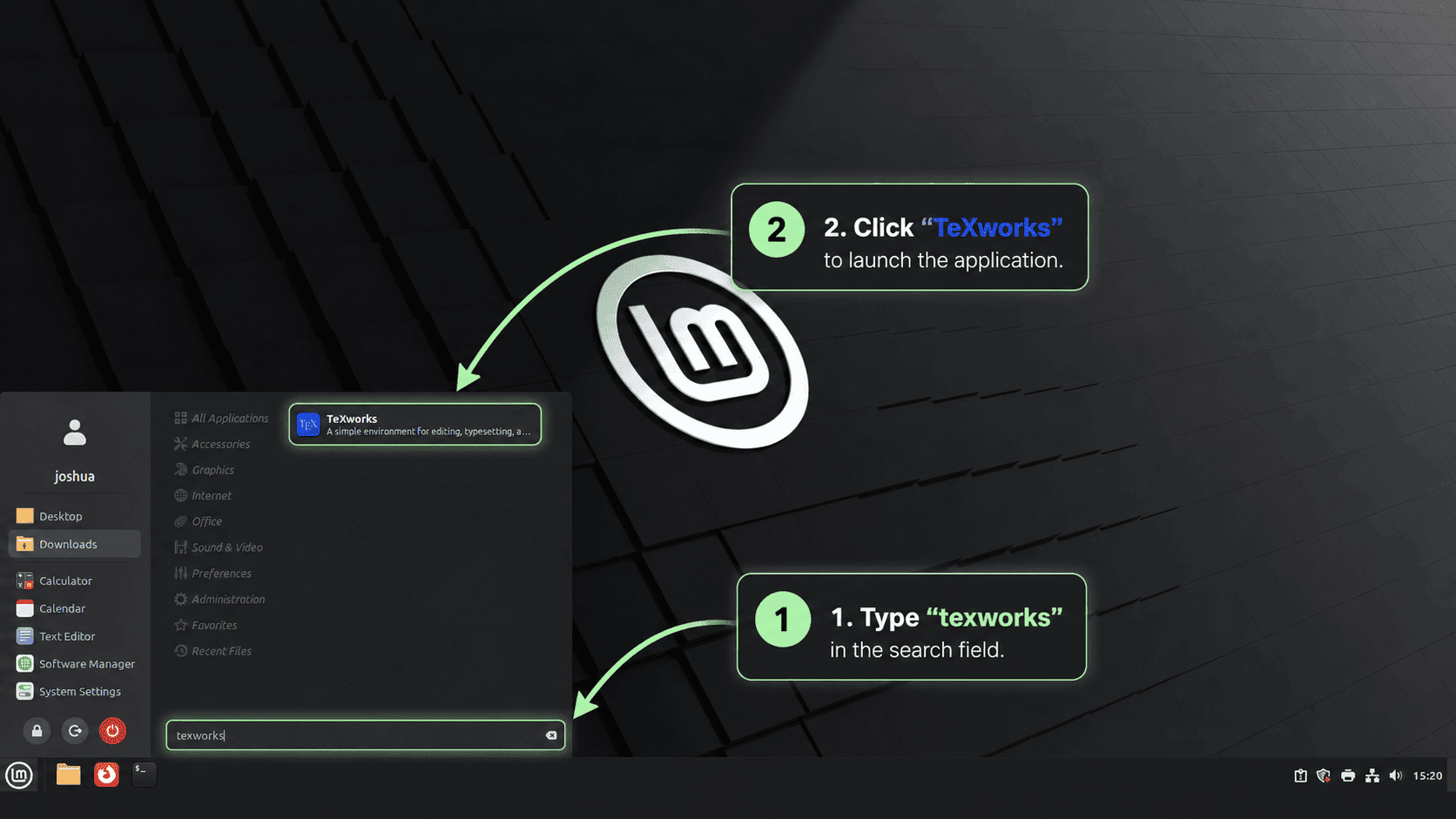
Use TeXworks for LaTeX Documents
TeXworks keeps the editor and PDF preview close together, which is useful for notes, small papers, and documents where fast compile cycles matter more than a larger project-management interface.
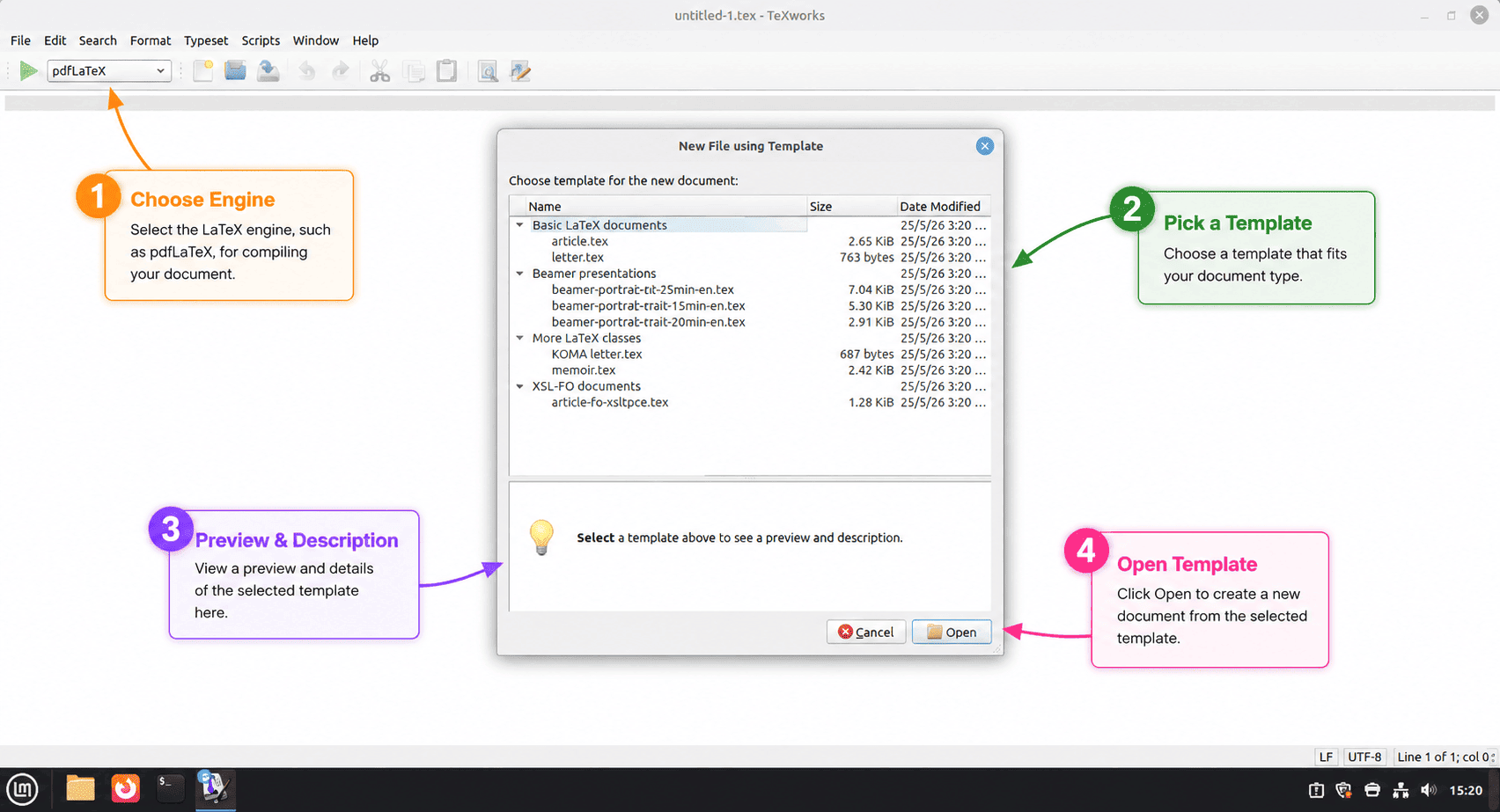
Create a Small TeX File
Create a new document with File, New, then save it with a .tex extension. A minimal test document is enough to confirm the editor and compiler path:
\documentclass{article}
\begin{document}
Hello from TeXworks on Linux Mint.
\end{document}
Compile and Preview the PDF
Click the green play button or press Ctrl+T to typeset the file. TeXworks uses pdflatex by default, then opens the generated PDF in the preview pane when compilation succeeds.
Navigate with SyncTeX
SyncTeX connects source lines to PDF positions. Use Ctrl+Click in the PDF preview to return to the source line, or use Ctrl+Click from the editor to jump toward the matching preview location.
Update TeXworks on Linux Mint
Update TeXworks with the tool that owns your install method. APT updates the repository and PPA builds, while the AppImage helper manages only the GitHub AppImage install.
Update Repository or PPA TeXworks
sudo apt update
sudo apt install --only-upgrade texworks -y
Update the GitHub AppImage
The helper installed during the AppImage method repeats the release lookup, download, digest verification, desktop-entry refresh, and replacement workflow:
sudo update-texworksRemove TeXworks from Linux Mint
Use the removal path that matches the package source you installed. Removing TeXworks does not remove your .tex documents. If you added the PPA, remove its APT source after removing the package.
Remove the APT Package
sudo apt remove texworks texworks-help-en -yConfirm that the package is no longer installed:
dpkg -l texworks | grep '^ii' || echo "texworks not installed"texworks not installed
If you installed texlive-latex-recommended only for TeXworks and no longer need local LaTeX compilation tools, remove that package separately after checking that no other editor or workflow depends on it:
sudo apt remove texlive-latex-recommended -yRemove the TeXworks PPA Source
If you added the TeXworks stable PPA and no longer want that package source on the system, remove it after uninstalling the PPA package:
sudo add-apt-repository --remove ppa:texworks/stable -y
sudo apt update
Confirm that APT has returned to the Mint and Ubuntu base repositories and that no TeXworks PPA source or keyring file remains:
apt-cache policy texworks
find /etc/apt/sources.list.d /etc/apt/keyrings -maxdepth 1 \
    \( -iname '*texworks*' -o -iname '*A98D4ED8D23202763CA304071DA52140DFAAA8E5*' \) -print
The policy output should no longer list ppa.launchpadcontent.net/texworks/stable. The find command should print nothing when the PPA source and keyring files are gone.
Remove the GitHub AppImage Install
The AppImage method created files under /opt/texworks-appimage, /usr/local/bin, and /usr/local/share. Remove those article-owned files:
This cleanup deletes the GitHub AppImage install, helper command, desktop launcher, and icon created by the AppImage method. Close TeXworks first; your separate
.texdocuments are not removed by these paths.
sudo rm -rf /opt/texworks-appimage
sudo rm -f /usr/local/bin/texworks-github /usr/local/bin/update-texworks
sudo rm -f /usr/local/share/applications/texworks-github.desktop
sudo rm -f /usr/local/share/icons/hicolor/64x64/apps/texworks-github.png
sudo update-desktop-database /usr/local/share/applications >/dev/null 2>&1 || true
sudo gtk-update-icon-cache -q /usr/local/share/icons/hicolor >/dev/null 2>&1 || true
Check for leftover AppImage files:
remaining=0
for path in \
    /opt/texworks-appimage \
    /usr/local/bin/texworks-github \
    /usr/local/bin/update-texworks \
    /usr/local/share/applications/texworks-github.desktop \
    /usr/local/share/icons/hicolor/64x64/apps/texworks-github.png; do
    if [ -e "$path" ]; then
        printf 'Still present: %s\n' "$path"
        remaining=1
    fi
done

[ "$remaining" -eq 0 ] && printf 'TeXworks AppImage files removed.\n'
TeXworks AppImage files removed.
Leave libxcb-cursor0 and the FUSE package in place unless you know no other AppImage or Qt desktop application uses them.
Troubleshoot TeXworks on Linux Mint
Start with the symptom that matches your install method, then rerun the verification command after applying the fix.
Fix pdflatex Not Found Errors
If TeXworks opens but cannot compile the document, the editor usually cannot find the LaTeX compiler. Check the compiler path first:
command -v pdflatexIf the command prints nothing, install the recommended TeX Live package and check again:
sudo apt install texlive-latex-recommended -y
command -v pdflatex
Fix TeXworks PPA Candidate Problems
If the PPA install still selects the older repository package, inspect the package source and the generated source file:
apt-cache policy texworks
grep -RIn 'texworks/stable' /etc/apt/sources.list.d
Mint 22.x should use a noble PPA entry, and Mint 21.x should use a jammy PPA entry. If the PPA source is missing or points at the wrong base, remove and add the PPA again so Linux Mint regenerates the source file:
if grep -Rql 'texworks/stable' /etc/apt/sources.list.d; then
    sudo add-apt-repository --remove ppa:texworks/stable -y
fi
sudo add-apt-repository ppa:texworks/stable -y
sudo apt update
apt-cache policy texworks
Fix AppImage Qt Platform Plugin Errors
If the AppImage exits with an XCB platform plugin error, first confirm the command is running inside a graphical desktop session. A blank display value means the shell is not connected to Cinnamon, Xfce, or MATE:
printf '%s\n' "$DISPLAY"If the command prints nothing, open a terminal from the Linux Mint applications menu and run the TeXworks command again there before installing more packages.
If the command prints a display such as :0 and the error mentions xcb-cursor0 or libxcb-cursor0, reinstall the Qt XCB cursor dependency and retry the desktop-session version check:
sudo apt install libxcb-cursor0 -y
texworks-github --version
If the error mentions FUSE instead, reinstall the matching FUSE2 compatibility package:
if apt-cache policy libfuse2t64 | grep -q 'Candidate: [0-9]'; then
    sudo apt install libfuse2t64 -y
else
    sudo apt install libfuse2 -y
fi
Fix GitHub Download or Digest Failures
A download failure usually points to network access, DNS, GitHub availability, or an interrupted transfer. Check that the release API is reachable before rerunning the helper:
curl -fsI https://api.github.com/repos/TeXworks/texworks/releases/latestIf the check returns a DNS error, the troubleshooting path in fix curl could not resolve host errors can help separate local resolver problems from an upstream outage. If checksum verification fails during the first install, rerun bash install-texworks-github.sh from the directory where you saved the script. If the AppImage method was already installed, use sudo update-texworks instead so the helper fetches a fresh temporary copy and rechecks the current GitHub asset digest.
Fix a Missing AppImage Menu Launcher
If texworks-github works from a terminal but the menu entry is missing, refresh the desktop database and reopen the applications menu:
sudo update-desktop-database /usr/local/share/applications >/dev/null 2>&1 || true
sudo gtk-update-icon-cache -q /usr/local/share/icons/hicolor >/dev/null 2>&1 || true
Conclusion
TeXworks is ready on Linux Mint from the low-maintenance repository package, the newer APT-managed stable PPA, or the current upstream GitHub AppImage. Keep the matching update command in mind, add the TeX Live packages when local compilation matters, and use the SyncTeX preview workflow for quick movement between source lines and rendered PDF output.


Formatting tips for your comment
You can use basic HTML to format your comment. Useful tags currently allowed in published comments:
<code>command</code>command<strong>bold</strong><em>italic</em><a href="https://example.com">link</a><blockquote>quote</blockquote>