
Fedora’s built-in archive tools are fine for quick ZIP and TAR work, but PeaZip gives you a fuller desktop workspace for browsing archives, creating 7Z or ZIP files, checking hashes, splitting files, and extracting RAR files from one window. To install PeaZip on Fedora, use the Fedora-packaged Qt6 build for the cleanest system integration, Flathub for upstream updates, or the portable GitHub release when you want a user-local install with toolkit switching.
PeaZip is open source and supports more than 200 archive types through 7-Zip, p7zip, Brotli, Zstandard, ZPAQ, PEA, and other backends. The upstream Linux download page also offers generic RPM files, but Fedora’s repositories and Flathub are better default choices because updates stay attached to a package manager.
Install PeaZip on Fedora Linux
Start by choosing the package source that matches how you want PeaZip updated. Fedora packages several PeaZip builds, and the Qt6 variant is the best fit for Fedora 44 desktops.
| Method | Package or App ID | Source | Updates | Best For |
|---|---|---|---|---|
| DNF | peazip-qt6 | Fedora repositories | Included with normal Fedora package upgrades | Most Fedora Workstation users |
| Flatpak | io.github.peazip.PeaZip | Flathub | Updated with Flatpak apps and runtimes | Users who want Flathub’s current upstream build |
| GitHub portable | peazip_portable-*.tar.gz | PeaZip GitHub releases | Updated with the helper script in this section | Advanced x86_64 users who want a user-local install and Qt6, GTK3, or GTK2 selection |
The DNF method is the recommended starting point on Fedora. Flathub is useful when PeaZip’s upstream release has moved ahead of Fedora’s stable package, but the Flatpak build is a packaging and update choice rather than a tighter sandbox because its permissions include host filesystem access. The GitHub portable method is more hands-on because it manages files under your home directory, verifies the selected release asset, and builds its own launcher.
PeaZip’s generic upstream RPMs are available from the official Linux download page, but they require manual refreshes. Prefer DNF or Flathub unless you have a specific reason to test the upstream RPM directly.
Update Fedora Before Installing PeaZip
Refresh Fedora’s package metadata and apply pending updates before installing a new desktop application. If DNF downloads feel slow, the DNF speed guide for Fedora covers mirror and parallel-download tuning.
sudo dnf upgrade --refreshCommands that change system packages or system Flatpak remotes use
sudo. If your account cannot run sudo yet, add the user to Fedora’s wheel-based sudo setup with the guide to add a user to sudoers on Fedora.
Install PeaZip from Fedora Repositories
Install the Qt6 package explicitly. A plain dnf install peazip resolves to a GTK provider on Fedora 44, while peazip-qt6 keeps the install aligned with modern Fedora desktops.
sudo dnf install peazip-qt6Confirm that Fedora installed the application package and shared PeaZip data files:
rpm -q --qf '%{NAME}\n' peazip-qt6 peazip-commonpeazip-qt6 peazip-common
Check the desktop command path as a second proof:
command -v peazip/usr/bin/peazip
The DNF5 install examples for Fedora explain package names, provider choices, local RPM installs, and install previews when you want deeper package-manager context.
Install PeaZip from Flathub
Fedora Workstation includes Flatpak, but minimal Fedora installs may not. On traditional mutable Fedora installs where the flatpak command is missing, install it first:
sudo dnf install flatpakAdd Flathub as a system remote. The --if-not-exists option makes the command safe to rerun when Flathub is already configured.
sudo flatpak remote-add --if-not-exists flathub https://dl.flathub.org/repo/flathub.flatpakrepoInstall PeaZip from Flathub:
sudo flatpak install flathub io.github.peazip.PeaZipVerify the Flatpak app ID after installation:
flatpak list --app --columns=application | grep -Fx io.github.peazip.PeaZipio.github.peazip.PeaZip
The Flathub manifest grants PeaZip host filesystem access so it can work with archives in normal user folders. Treat this method as a Flathub packaging choice, not as a tightly isolated sandbox.
Install Portable PeaZip from GitHub Releases
Use the portable method on x86_64 Fedora systems when you want PeaZip under your home directory, want to test the upstream release before Fedora packages it, or need to switch between Qt6, GTK3, and GTK2 builds without replacing system packages. The helper script queries the latest GitHub release, asks which toolkit to use on every update, verifies the GitHub SHA256 digest, creates command wrappers, installs a desktop launcher, copies the icon, and runs restorecon when SELinux tools are available. Use a package-manager method on other architectures.
| Toolkit | Best Desktop Fit | Fedora Notes |
|---|---|---|
| Qt6 | KDE Plasma, LXQt, and most users who want the safest default | Recommended default. The portable archive includes libQt6Pas, and the wrapper sets LD_LIBRARY_PATH for it. |
| GTK3 alpha | GNOME, Cinnamon, MATE, and Xfce users who want a more GTK-like look | Marked alpha upstream. The script offers it, checks runtime libraries, and leaves the current install unchanged if dependencies are missing. |
| GTK2 | Legacy GTK or lightweight desktop fallback | Fedora may need sudo dnf install gtk2 before this build can run. |
Install the small tools the script uses for downloads, checksum validation, extraction, desktop integration, and file discovery:
sudo dnf install curl python3 tar coreutils sed findutils desktop-file-utils hicolor-icon-themeCreate the updater script in your user PATH:
mkdir -p ~/.local/bin
tee ~/.local/bin/update-peazip-portable >/dev/null <<'PEAZIP_SCRIPT'
#!/usr/bin/env bash
set -euo pipefail

repo="peazip/PeaZip"
api_url="https://api.github.com/repos/${repo}/releases/latest"
install_root="${PEAZIP_PORTABLE_ROOT:-$HOME/.local/share/peazip-portable}"
versions_dir="$install_root/versions"
current_link="$install_root/current"
state_file="$install_root/toolkit"
bin_dir="$HOME/.local/bin"
launcher="$bin_dir/peazip-portable"
pea_launcher="$bin_dir/pea-portable"
updater="$bin_dir/update-peazip-portable"
applications_dir="$HOME/.local/share/applications"
desktop_file="$applications_dir/io.github.peazip.PeaZip-portable.desktop"
icon_dir="$HOME/.local/share/icons/hicolor/256x256/apps"
icon_file="$icon_dir/peazip-portable.png"
tmp_dir=""

usage() {
  printf "Usage: %s [update|remove]\n" "$(basename "$0")"
  printf "  update  Download the latest portable PeaZip release and refresh launchers.\n"
  printf "  remove  Remove the portable install and desktop integration files.\n"
}

need_tools() {
  local missing=()
  local tool
  for tool in curl python3 tar sha256sum sed find install readlink ldd; do
    if ! command -v "$tool" >/dev/null 2>&1; then
      missing+=("$tool")
    fi
  done
  if ((${#missing[@]})); then
    printf "Missing required tools: %s\n" "${missing[*]}" >&2
    printf "Install prerequisites with: sudo dnf install curl python3 tar coreutils sed findutils\n" >&2
    exit 1
  fi
}

desktop_name() {
  printf "%s" "${XDG_CURRENT_DESKTOP:-}${DESKTOP_SESSION:+:$DESKTOP_SESSION}" | tr "[:upper:]" "[:lower:]"
}

suggestion_text() {
  local desktop
  desktop="$(desktop_name)"
  case "$desktop" in
    *kde*|*plasma*|*lxqt*)
      printf "Detected a Qt-style desktop. Qt6 should fit KDE Plasma or LXQt best."
      ;;
    *gnome*|*cinnamon*|*mate*|*xfce*)
      printf "Detected a GTK-style desktop. GTK3-alpha may match the theme best, but Qt6 is the conservative default."
      ;;
    "")
      printf "No desktop session detected. Qt6 is the conservative default."
      ;;
    *)
      printf "Detected desktop: %s. Qt6 is the conservative default." "$desktop"
      ;;
  esac
}

choose_toolkit() {
  local current default answer normalized
  current=""
  if [[ -f "$state_file" ]]; then
    current="$(sed -n "1p" "$state_file")"
  fi
  default="${current:-qt6}"
  {
    printf "\nPeaZip portable toolkit selection\n"
    printf "Suggestion: %s\n\n" "$(suggestion_text)"
    printf "1) qt6  - recommended default; best fit for KDE Plasma/LXQt and safest on current Fedora.\n"
    printf "2) gtk3 - GTK3 alpha build; useful for GNOME, Cinnamon, MATE, or Xfce theme matching.\n"
    printf "3) gtk2 - legacy GTK fallback for older or lightweight GTK desktops.\n"
    printf "\n"
    printf "Choose toolkit [%s]: " "$default"
  } >&2
  read -r answer
  normalized="${answer,,}"
  case "$normalized" in
    "") printf "%s\n" "$default" ;;
    1|q|qt|qt6) printf "qt6\n" ;;
    2|g3|gtk3|gtk3-alpha) printf "gtk3\n" ;;
    3|g2|gt2|gtk2) printf "gtk2\n" ;;
    *) printf "Invalid toolkit choice: %s\n" "$answer" >&2; exit 1 ;;
  esac
}

release_asset_info() {
  local release_json toolkit
  release_json="$1"
  toolkit="$2"
  RELEASE_JSON="$release_json" TOOLKIT="$toolkit" python3 - <<'PY'
import json
import os
import sys

patterns = {
    "qt6": ".LINUX.Qt6.x86_64.tar.gz",
    "gtk2": ".LINUX.GTK2.x86_64.tar.gz",
    "gtk3": ".LINUX.GTK3-alpha.x86_64.tar.gz",
}
release = json.loads(os.environ["RELEASE_JSON"])
toolkit = os.environ["TOOLKIT"]
pattern = patterns[toolkit]
for asset in release.get("assets", []):
    name = asset.get("name", "")
    if name.startswith("peazip_portable-") and name.endswith(pattern):
        digest = asset.get("digest") or ""
        if digest.startswith("sha256:"):
            digest = digest.split(":", 1)[1]
        if not digest:
            sys.exit("Selected GitHub asset has no SHA256 digest")
        print(name)
        print(asset["browser_download_url"])
        print(digest)
        sys.exit(0)
sys.exit(f"No portable {toolkit} x86_64 asset found in the latest release")
PY
}

runtime_hint() {
  case "$1" in
    gtk2) printf "Install the GTK2 runtime first with: sudo dnf install gtk2\n" ;;
    gtk3) printf "Install the GTK3 runtime first with: sudo dnf install gtk3\n" ;;
    qt6) printf "Install missing Qt/X11 runtime libraries first, then rerun the updater.\n" ;;
  esac
}

check_runtime_libs() {
  local app_dir toolkit missing
  app_dir="$1"
  toolkit="$2"
  missing="$(LD_LIBRARY_PATH="$app_dir:${LD_LIBRARY_PATH:-}" ldd "$app_dir/peazip" 2>/dev/null | sed -n 's/^[[:space:]]*\([^[:space:]]\+\)[[:space:]]*=> not found.*/\1/p' || true)"
  if [[ -n "$missing" ]]; then
    printf "The selected %s build is missing runtime libraries:\n%s\n" "$toolkit" "$missing" >&2
    runtime_hint "$toolkit" >&2
    printf "The current PeaZip portable selection was not changed.\n" >&2
    return 1
  fi
}

write_launchers() {
  local app_dir mime_line icon_source
  app_dir="$1"
  mkdir -p "$bin_dir" "$applications_dir" "$icon_dir"

  cat > "$launcher" <<EOF
#!/usr/bin/env bash
set -euo pipefail
app_dir="\$(readlink -f "$current_link")"
if [[ ! -x "\$app_dir/peazip" ]]; then
  printf "PeaZip portable is not installed under %s\\n" "$current_link" >&2
  exit 1
fi
export LD_LIBRARY_PATH="\$app_dir:\${LD_LIBRARY_PATH:-}"
exec "\$app_dir/peazip" "\$@"
EOF
  chmod +x "$launcher"

  cat > "$pea_launcher" <<EOF
#!/usr/bin/env bash
set -euo pipefail
app_dir="\$(readlink -f "$current_link")"
if [[ ! -x "\$app_dir/pea" ]]; then
  printf "Pea portable is not installed under %s\\n" "$current_link" >&2
  exit 1
fi
export LD_LIBRARY_PATH="\$app_dir:\${LD_LIBRARY_PATH:-}"
exec "\$app_dir/pea" "\$@"
EOF
  chmod +x "$pea_launcher"

  icon_source="$app_dir/res/share/batch/freedesktop_integration/peazip.png"
  if [[ ! -f "$icon_source" ]]; then
    icon_source="$app_dir/res/share/icons/peazip.png"
  fi
  if [[ -f "$icon_source" ]]; then
    install -m 0644 "$icon_source" "$icon_file"
  fi

  mime_line="$(grep '^MimeType=' "$app_dir/res/share/batch/freedesktop_integration/peazip.desktop" 2>/dev/null || true)"
  if [[ -z "$mime_line" ]]; then
    mime_line="MimeType=application/zip;application/x-7z-compressed;application/x-rar;application/x-tar;application/gzip;"
  fi

  cat > "$desktop_file" <<EOF
[Desktop Entry]
Name=PeaZip Portable
Comment=PeaZip archive manager
Exec=$launcher %F
TryExec=$launcher
Icon=peazip-portable
Type=Application
Terminal=false
Categories=Utility;Archiving;Compression;
Keywords=zip;rar;tar;compress;extract;unpack;
$mime_line
Actions=add;extract;extracthere;extractheresmart;

[Desktop Action add]
Name=PeaZip Portable, add to archive
Exec=$launcher -add2archive %F
Icon=peazip-portable

[Desktop Action extract]
Name=PeaZip Portable, extract archive(s)
Exec=$launcher -ext2main %F
Icon=peazip-portable

[Desktop Action extracthere]
Name=PeaZip Portable, extract here
Exec=$launcher -ext2here %F
Icon=peazip-portable

[Desktop Action extractheresmart]
Name=PeaZip Portable, extract here (smart new folder)
Exec=$launcher -ext2folder %F
Icon=peazip-portable
EOF

  if command -v desktop-file-validate >/dev/null 2>&1; then
    desktop-file-validate "$desktop_file"
  fi
  if command -v update-desktop-database >/dev/null 2>&1; then
    update-desktop-database "$applications_dir" >/dev/null 2>&1 || true
  fi
}

install_or_update() {
  need_tools
  if [[ "$(uname -m)" != "x86_64" ]]; then
    printf "This portable method expects x86_64 GitHub assets. Use a package-manager method on this architecture.\n" >&2
    exit 1
  fi

  local toolkit release_json version asset_info asset_name asset_url asset_sha archive extract_dir extracted_dir version_dir current_target
  toolkit="$(choose_toolkit)"
  printf "Fetching latest PeaZip release metadata from GitHub...\n"
  release_json="$(curl -fsSL "$api_url")"
  version="$(RELEASE_JSON="$release_json" python3 -c 'import json, os; print(json.loads(os.environ["RELEASE_JSON"])["tag_name"])')"
  asset_info="$(release_asset_info "$release_json" "$toolkit")"
  asset_name="$(printf "%s\n" "$asset_info" | sed -n "1p")"
  asset_url="$(printf "%s\n" "$asset_info" | sed -n "2p")"
  asset_sha="$(printf "%s\n" "$asset_info" | sed -n "3p")"
  version_dir="$versions_dir/${version}-${toolkit}"

  current_target="$(readlink -f "$current_link" 2>/dev/null || true)"
  if [[ "$current_target" == "$version_dir" && -x "$version_dir/peazip" ]]; then
    write_launchers "$version_dir"
    if command -v restorecon >/dev/null 2>&1; then
      restorecon -R "$install_root" "$launcher" "$pea_launcher" "$updater" "$desktop_file" "$icon_file" >/dev/null 2>&1 || true
    fi
    printf "PeaZip %s portable (%s) is already current.\n" "$version" "$toolkit"
    printf "Launch it from Activities or run: peazip-portable\n"
    return 0
  fi

  tmp_dir="$(mktemp -d)"
  trap 'rm -rf "${tmp_dir:-}"' EXIT
  archive="$tmp_dir/$asset_name"
  extract_dir="$tmp_dir/extract"
  mkdir -p "$extract_dir" "$versions_dir"

  printf "Downloading %s...\n" "$asset_name"
  curl -fL --retry 3 -o "$archive" "$asset_url"
  printf "%s  %s\n" "$asset_sha" "$archive" | sha256sum -c -

  tar -xzf "$archive" -C "$extract_dir"
  extracted_dir="$(find "$extract_dir" -mindepth 1 -maxdepth 1 -type d -name 'peazip_portable-*' -print -quit)"
  if [[ -z "$extracted_dir" || ! -x "$extracted_dir/peazip" ]]; then
    printf "The archive did not contain an executable PeaZip directory.\n" >&2
    exit 1
  fi

  check_runtime_libs "$extracted_dir" "$toolkit"

  if [[ -e "$current_link" && ! -L "$current_link" ]]; then
    printf "Refusing to replace non-symlink path: %s\n" "$current_link" >&2
    exit 1
  fi

  rm -rf "${version_dir}.new"
  mv "$extracted_dir" "${version_dir}.new"
  rm -rf "$version_dir"
  mv "${version_dir}.new" "$version_dir"
  ln -sfn "$version_dir" "$current_link"
  printf "%s\n" "$toolkit" > "$state_file"

  write_launchers "$version_dir"
  if command -v restorecon >/dev/null 2>&1; then
    restorecon -R "$install_root" "$launcher" "$pea_launcher" "$updater" "$desktop_file" "$icon_file" >/dev/null 2>&1 || true
  fi
  find "$versions_dir" -mindepth 1 -maxdepth 1 -type d ! -name "${version}-${toolkit}" -exec rm -rf -- {} +

  printf "PeaZip %s portable (%s) is installed.\n" "$version" "$toolkit"
  printf "Launch it from Activities or run: peazip-portable\n"
}

remove_portable() {
  local answer
  read -r -p "Remove PeaZip portable from $install_root? [y/N]: " answer
  case "${answer,,}" in
    y|yes) ;;
    *) printf "Removal cancelled.\n"; exit 0 ;;
  esac
  rm -rf "$install_root" "$launcher" "$pea_launcher" "$updater" "$desktop_file" "$icon_file"
  if command -v update-desktop-database >/dev/null 2>&1; then
    update-desktop-database "$applications_dir" >/dev/null 2>&1 || true
  fi
  printf "PeaZip portable was removed.\n"
}

case "${1:-update}" in
  update|install) install_or_update ;;
  remove|uninstall) remove_portable ;;
  -h|--help|help) usage ;;
  *) usage >&2; exit 1 ;;
esac
PEAZIP_SCRIPT
chmod +x ~/.local/bin/update-peazip-portable
Run the updater. Fedora’s default user path includes ~/.local/bin, so the short command should work in a normal terminal. If a customized shell cannot find it, open a new terminal or run ~/.local/bin/update-peazip-portable once. Press Enter to use Qt6, or choose another toolkit when the prompt appears:
update-peazip-portableA successful first run ends by naming the installed release, selected toolkit, and launch command:
PeaZip 11.1.0 portable (qt6) is installed.
Launch it from Activities or run: peazip-portable
The portable method creates ~/.local/share/peazip-portable/current, plus the commands update-peazip-portable, peazip-portable, and pea-portable. It also writes a desktop entry at ~/.local/share/applications/io.github.peazip.PeaZip-portable.desktop so PeaZip Portable appears in Activities after the desktop database refreshes.
Launch PeaZip on Fedora
When you want to start the desktop app, open PeaZip from Fedora’s application launcher or use a local graphical terminal. Search for PeaZip in Activities; Fedora may show the standard launcher, the portable launcher, or both depending on which methods are installed.
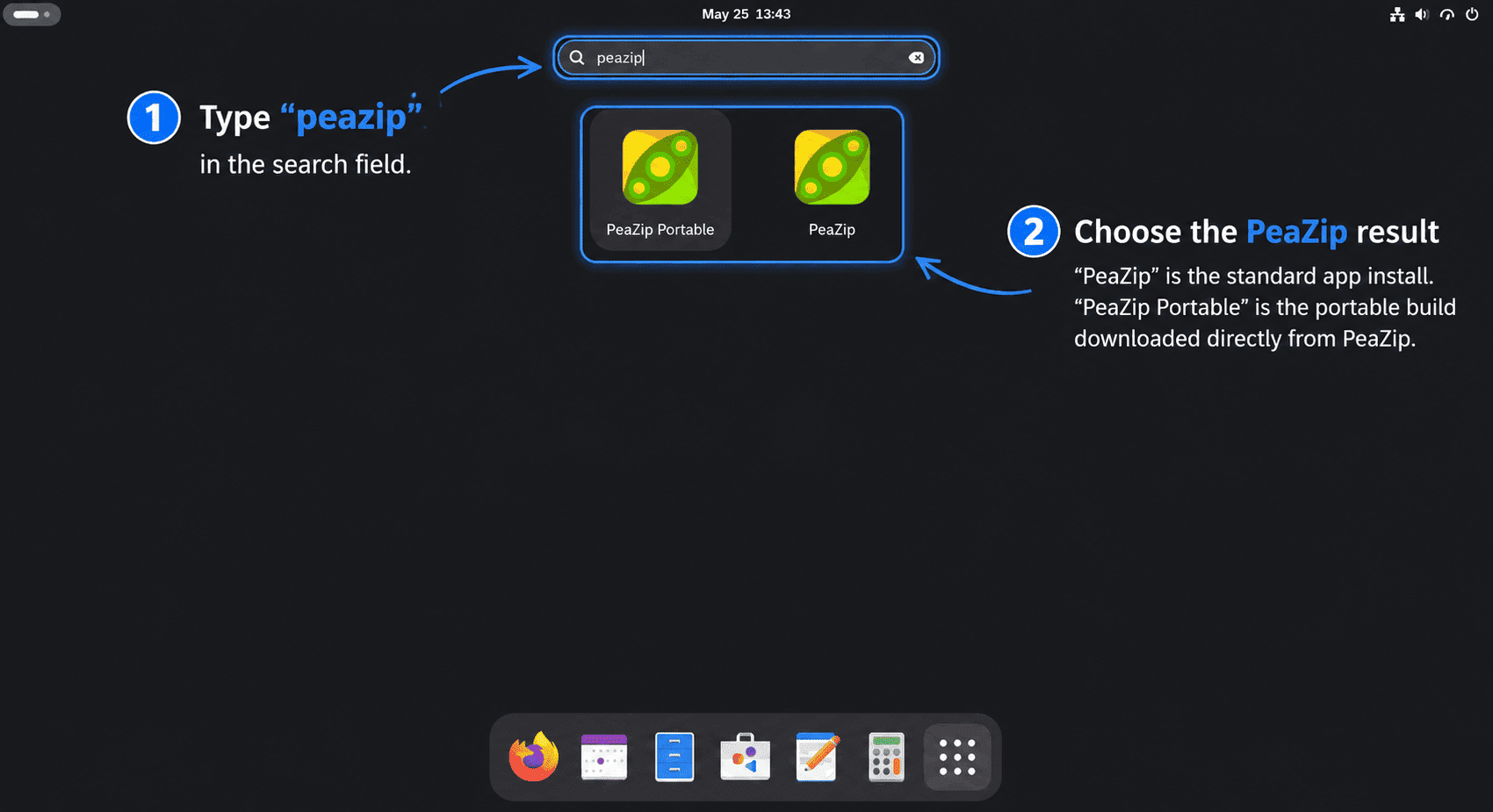
Launch PeaZip from the Terminal
For the Fedora repository package, run:
peazipFor the Flathub package, run:
flatpak run io.github.peazip.PeaZipFor the portable helper install, run:
peazip-portablePeaZip is a graphical application. If you run the launcher over SSH or from a shell without an active desktop session, it may fail because no display server is available.
Get Started with PeaZip on Fedora
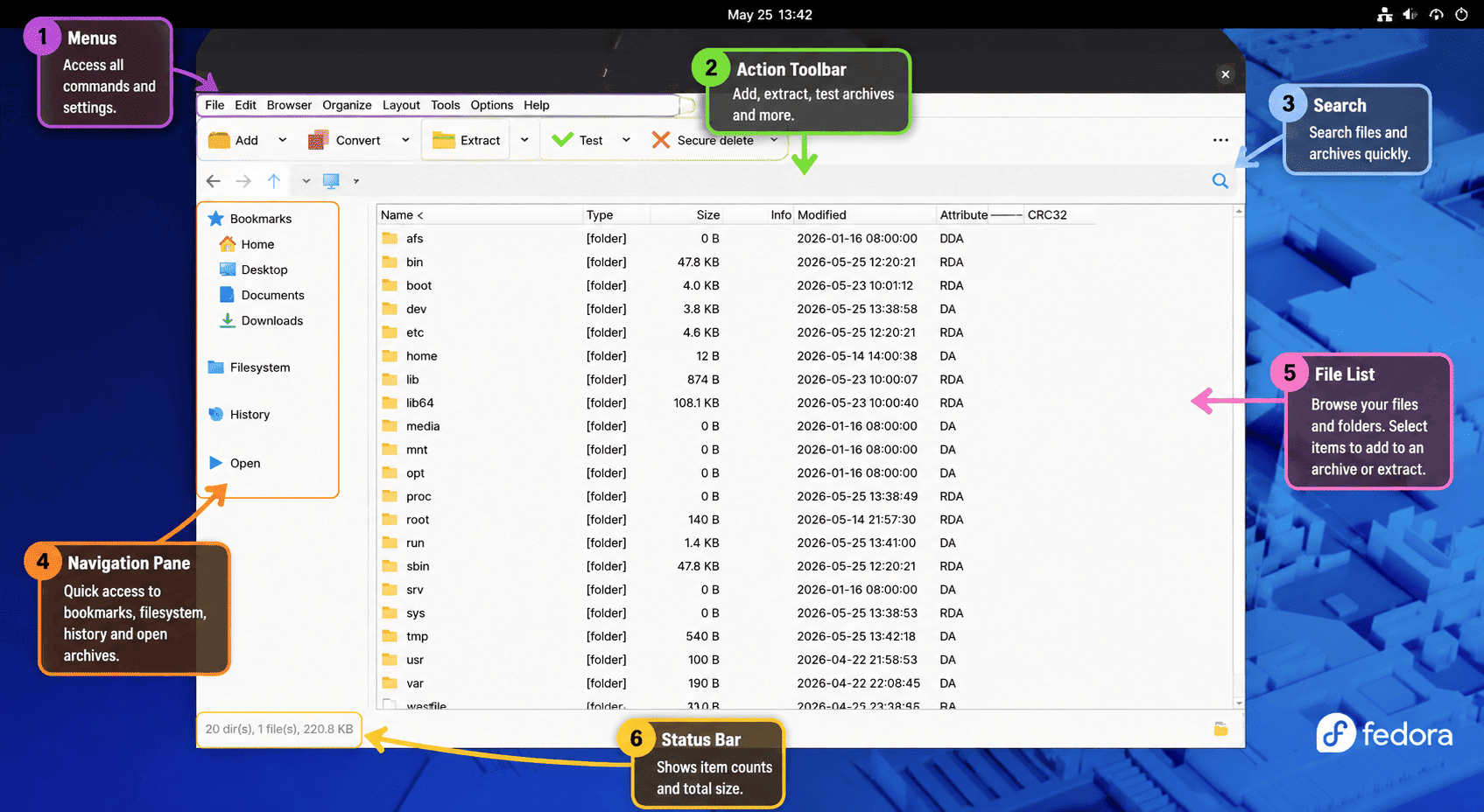
PeaZip works as both an archive browser and a file manager. The first useful habit is choosing the archive format that matches your goal before you start compressing files.
Choose the Right Archive Format
- ZIP: Best for sharing with other desktop users, especially when the receiver may not know Linux archive tools.
- 7Z: Best for smaller archives, stronger compression, and optional encryption when every receiver has a compatible extractor.
- TAR, TAR.XZ, or TAR.ZST: Best for Linux folders, source trees, and backups where preserving Unix-style metadata matters.
- RAR: Use PeaZip to open and extract RAR files, but choose another format when creating new archives. RAR compression is not supported by default because the format is closed.
For command-line 7Z work outside the PeaZip interface, the Fedora guide to install 7-Zip on Fedora covers the package path and terminal tools.
If you only need command-line RAR extraction, the dedicated guide to install unrar on Fedora explains Fedora’s open-source wrapper and RPM Fusion options.
Create Your First Archive in PeaZip
Open PeaZip, browse to the folder that contains your files, select the files or directories you want to compress, then choose Add. In the archive creation window, set the output name, destination folder, archive format, and compression level.
Use the password or padlock control before starting the job when the archive should be encrypted. For broad compatibility, ZIP is easier to share; for stronger compression and encryption, 7Z is usually the better choice.
Extract Archives with PeaZip
Open an archive in PeaZip, review the contents, then choose Extract. Pick an output folder and decide how PeaZip should handle filename conflicts, such as skipping, overwriting, or renaming files that already exist.
PeaZip can also extract multiple archives in one pass. Add the archives to the extraction list, confirm the destination, and keep mixed formats together only when you want them unpacked into the same working area.
Use Hashes, Preview, and Search Tools
PeaZip’s file manager can preview supported text and image files inside archives, search archive contents, and calculate checksums or hashes for selected files. Those tools help when you need to inspect a download before extraction or compare a file against a published checksum.
For simple command-line ZIP extraction outside PeaZip, the Linux guide to unzip a directory with practical examples covers the common unzip workflows.
Update PeaZip on Fedora
Update PeaZip with the same package manager used for installation. Fedora repository installs update with normal system packages:
sudo dnf upgrade --refreshFlathub installs update through Flatpak:
sudo flatpak update io.github.peazip.PeaZipPortable GitHub installs update with the helper script. It asks for the toolkit again, using your current selection as the default. If the selected latest build is already installed, it refreshes the launchers and reports that PeaZip is current.
update-peazip-portableWhen the selected release and toolkit are already installed, the helper refreshes the launchers and reports the no-op state:
PeaZip 11.1.0 portable (qt6) is already current.
Launch it from Activities or run: peazip-portable
If you manually installed an upstream RPM, refresh it manually from PeaZip’s official Linux downloads or the GitHub releases page. That path stays separate from Fedora’s DNF package and the Flathub build.
Troubleshoot PeaZip on Fedora
PeaZip Command Not Found After DNF Installation
If the desktop launcher exists but the terminal cannot find peazip, check the package state first:
rpm -q --qf '%{NAME}\n' peazip-qt6 peazip-commonReinstall the Qt6 package if either package name is missing:
sudo dnf install peazip-qt6Flathub Remote Is Missing or Disabled
If Flatpak reports that it cannot load the Flathub summary, recreate the system remote if needed, enable it, and verify that Flatpak sees it.
sudo flatpak remote-add --if-not-exists flathub https://dl.flathub.org/repo/flathub.flatpakrepo
sudo flatpak remote-modify --enable flathub
flatpak remotes --columns=name,options | grep -E '^flathub[[:space:]]'
flathub system
PeaZip Can Extract RAR but Cannot Create RAR Files
PeaZip can open and extract RAR archives, including modern RAR5 archives through open-source extraction backends. Creating new RAR archives is different because RAR compression depends on proprietary tooling, so use 7Z, ZIP, TAR.XZ, or another open format for new archives unless you have a separate RAR compressor installed.
PeaZip Does Not Match Your Desktop Theme
PeaZip can follow system colors, but theme handoff is not always perfect when the app uses a different widget toolkit or runs as a Flatpak. Open the style menu inside PeaZip and choose a lighter, darker, or cleaner interface style if the default theme looks mismatched.
Portable GTK2 Build Reports Missing Libraries
Fedora Workstation may not include GTK2 libraries by default. If the portable updater refuses the GTK2 build and reports missing libgtk-x11-2.0.so.0 or libgdk-x11-2.0.so.0, install the GTK2 runtime and rerun the updater.
sudo dnf install gtk2
update-peazip-portable
Portable PeaZip and SELinux Labels
The portable updater extracts releases under /tmp, moves them into ~/.local/share/peazip-portable/, then runs restorecon when available so Fedora does not leave the executable tree with temporary-file labels. If you move the portable directory manually and PeaZip fails with a permission-style error, restore the normal home-directory labels.
restorecon -R ~/.local/share/peazip-portable ~/.local/bin/peazip-portable ~/.local/bin/pea-portable ~/.local/bin/update-peazip-portableRemove PeaZip from Fedora
Remove PeaZip with the package manager that installed it. For the Fedora repository package, remove the Qt6 package:
sudo dnf remove peazip-qt6DNF removes PeaZip’s unused helper packages in the same transaction when nothing else needs them. Verify that the main package and shared data package are gone:
rpm -q peazip-qt6 peazip-commonpackage peazip-qt6 is not installed package peazip-common is not installed
For the system Flatpak install, remove the app ID:
sudo flatpak uninstall io.github.peazip.PeaZipCheck that the app entry is gone:
flatpak list --app --columns=application | grep -Fx io.github.peazip.PeaZip || echo "NOT_INSTALLED"NOT_INSTALLED
The following command permanently deletes PeaZip’s Flatpak settings for your user account from
~/.var/app/io.github.peazip.PeaZip/. Keep the directory if you plan to reinstall PeaZip and want to preserve preferences.
rm -rf ~/.var/app/io.github.peazip.PeaZip/Remove unused Flatpak runtimes afterward only if Flatpak offers runtime cleanup you no longer need:
sudo flatpak uninstall --unusedFor the portable GitHub install, use the updater’s removal mode. It removes the portable tree, wrappers, updater script, desktop entry, and icon after confirmation.
update-peazip-portable removePeaZip portable was removed.
Conclusion
PeaZip is ready on Fedora for 7Z, ZIP, TAR, RAR extraction, encrypted archives, checksums, and batch jobs. The Fedora Qt6 package stays the simplest desktop choice, while Flathub and the portable helper fit upstream-tracking or toolkit-testing needs. For terminal-only TAR and Gzip workflows, the guide to open GZ and TGZ files in Linux pairs well with PeaZip’s desktop workflow.


Formatting tips for your comment
You can use basic HTML to format your comment. Useful tags currently allowed in published comments:
<code>command</code>command<strong>bold</strong><em>italic</em><a href="https://example.com">link</a><blockquote>quote</blockquote>