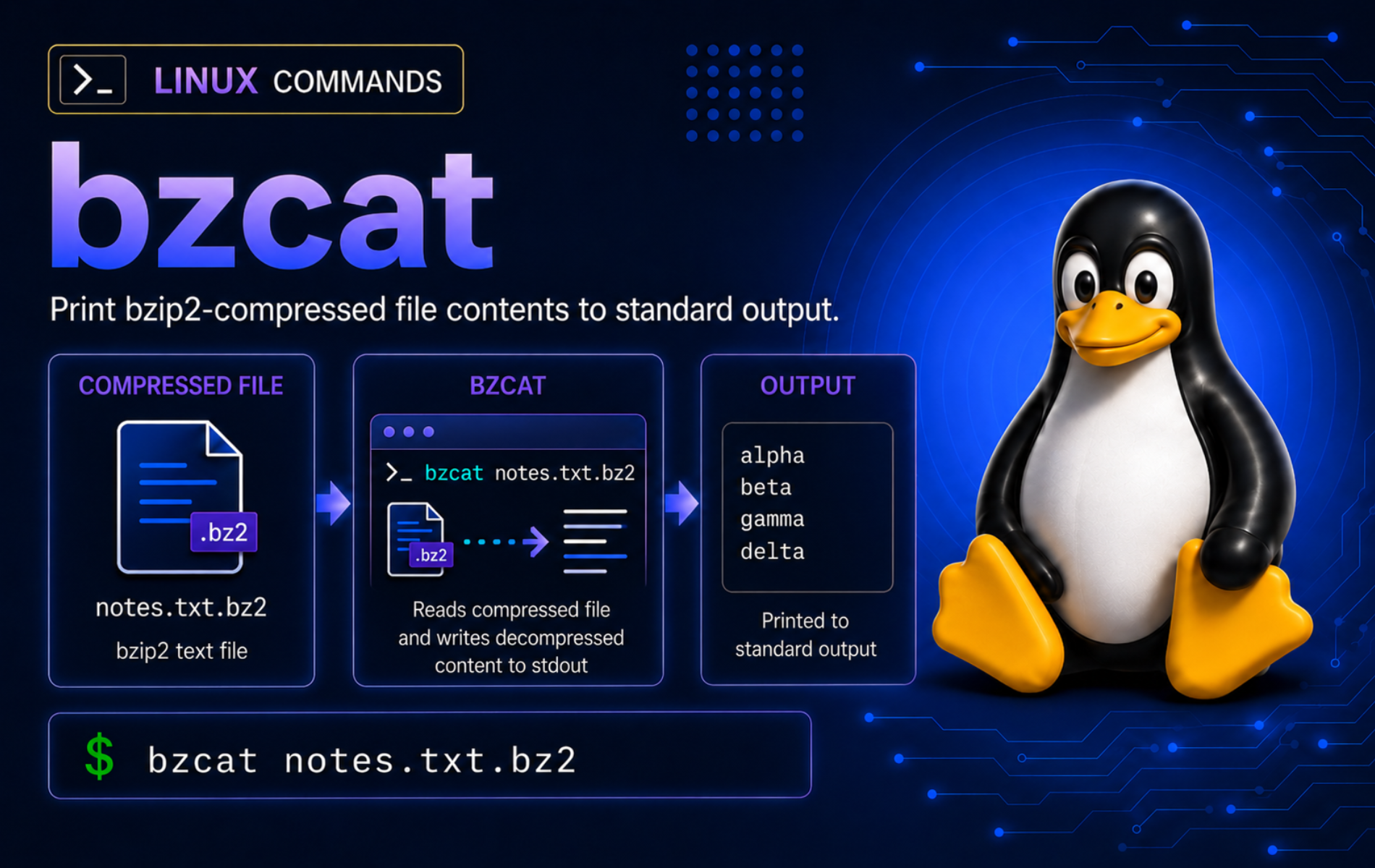
Compressed logs, SQL dumps, and text exports are often worth inspecting before you unpack or restore them. The bzcat command in Linux reads bzip2-compressed .bz2 data and prints the decompressed content to standard output, so the compressed file stays in place while you view, search, page, or redirect the stream.
bzcat belongs to the same utility family as the bzip2 command. It is the right tool for bzip2 streams, not gzip data, and it does not read member names from a tar archive wrapped in bzip2 compression. Keep that boundary clear before using it on files such as archive.tar.bz2.
Understand the bzcat Command in Linux
bzcat is equivalent to running bzip2 -dc or using the bunzip2 decompression workflow with -c. The command forces decompression and standard output, which means it normally does not write a restored file unless you redirect the output yourself.
The basic syntax accepts options and one or more input files:
bzcat [OPTION]... [FILE]...OPTIONchanges how bzip2 reads the input, such as-ffor forced pass-through of non-bzip2 files or-sfor lower-memory decompression.FILEis usually a.bz2file. When no file is named,bzcatreads compressed data from standard input.- Use a pipeline or shell redirection when the decompressed stream should go somewhere other than the terminal.
The official bzip2 manual documents the full utility family, including bzip2, bunzip2, bzcat, and bzip2recover.
Choose the Right bzcat Command Pattern
Start with the pattern that matches the result you need. The important decision is whether the decompressed stream should only appear on screen, flow into another command, or be written to a file you choose.
| Task | Command Pattern | What It Does |
|---|---|---|
| Print one bzip2 file | bzcat app.log.bz2 | Streams decompressed text to the terminal and leaves app.log.bz2 unchanged. |
| Page through a long file | bzcat app.log.bz2 | less | Lets you scroll through decompressed text when less is installed. |
| Search compressed text | bzcat app.log.bz2 | grep -n 'ERROR' | Finds matching lines without creating an uncompressed copy first. |
| Show the end of a file | bzcat app.log.bz2 | tail -n 20 | Prints the last 20 decompressed lines. |
| Write a restored copy | bzcat app.log.bz2 > restore/app.log | Writes decompressed output to a path you control. |
| Join several compressed streams | bzcat first.log.bz2 second.log.bz2 | Prints each decompressed input in the order supplied. |
| Read from standard input | bzip2 -c notes.txt | bzcat | Decompresses a bzip2 stream received through a pipe. |
| Test integrity before reading | bzip2 -t app.log.bz2 | Checks the compressed stream without printing content. |
| Use lower memory | bzcat -s app.log.bz2 | Uses a smaller decompression memory mode, usually with slower performance. |
| Pass through plain input | bzcat -f mixed-input | Prints non-bzip2 input instead of failing, useful only for deliberate mixed-input scripts. |
bzcatalready keeps its input files because it writes to standard output. Adding-kis normally redundant, andbzcat -t file.bz2fails becausebzcatalso implies-c. Usebzip2 -t file.bz2when you want an integrity test.
Verify or Install bzcat on Linux
Many Linux installations provide bzcat through the bzip2 package, but minimal containers, stripped-down server images, and trimmed desktop installs can omit it. Check the active command paths first:
command -v bzcat bzip2 bunzip2Example output shows the tools on your PATH:
/usr/bin/bzcat
/usr/bin/bzip2
/usr/bin/bunzip2
Confirm the installed bzip2 implementation when option behavior matters:
bzcat --help 2>&1 | head -n 3GNU bzip2 output starts with a version banner and a bzcat usage line:
bzip2, a block-sorting file compressor.  Version 1.0.8, 13-Jul-2019.

   usage: bzcat [flags and input files in any order]
Older enterprise releases can show version 1.0.6 instead of 1.0.8. The command family and usage: bzcat line are the important checks.
If bzcat is missing, install the package named bzip2 with your system package manager. These commands use sudo because they change system packages; if the lookup already returned a bzcat path, skip the install command and start with the practice directory.
Install bzip2 with APT
sudo apt update
sudo apt install bzip2
Install bzip2 with DNF
sudo dnf install bzip2Install bzip2 with Pacman
sudo pacman -S bzip2Install bzip2 with Zypper
sudo zypper install bzip2After installation, repeat command -v bzcat. The package name is bzip2 even though the command name is bzcat, because several helpers ship together in the same utility family. Normal system updates maintain these tools afterward; avoid removing bzip2 from a workstation or server only to practice cleanup because build tools, source-package workflows, and archive utilities often expect it to exist.
Create a Disposable bzcat Practice Directory
A small practice directory keeps decompression, redirection, pipeline, and troubleshooting examples away from real logs or backups. Choose another path if ~/bzcat-demo already contains files you want to keep.
mkdir -p ~/bzcat-demo/{restore,parts}
cd ~/bzcat-demo
printf 'INFO start\nERROR disk full\nINFO done\n' > app.log
printf 'alpha\nbeta\n' > notes.txt
printf 'first\n' > parts/first.log
printf 'second\n' > parts/second.log
bzip2 -k app.log notes.txt parts/first.log parts/second.log
find . -type f | sort
The -k option belongs to bzip2 here, not bzcat. It keeps each original plain-text file while creating the matching .bz2 copy for the examples.
./app.log
./app.log.bz2
./notes.txt
./notes.txt.bz2
./parts/first.log
./parts/first.log.bz2
./parts/second.log
./parts/second.log.bz2
Read bzip2 Files with bzcat
Use bzcat directly when the compressed file contains text-like data that is safe to print, such as logs, CSV files, SQL dumps, configuration exports, or release notes. For binary data, redirect to a file or use a tool that understands the file format.
Print One Compressed File
Print the decompressed log without removing app.log.bz2:
bzcat app.log.bz2INFO start ERROR disk full INFO done
This is the bzip2 equivalent of using cat to print a short text file, except the decompression happens before the stream reaches your terminal.
Page Through a Long Compressed File
Pipe long output into less so the terminal does not flood with the full decompressed file at once:
bzcat app.log.bz2 | lessPress q to leave less. The less command guide covers searching, jumping, and navigation inside the pager. If you prefer a wrapper around the pager, use bzless to view .bz2 files when available, or bzmore for a simpler forward pager.
Search Compressed Content with grep or bzgrep
Pipe bzcat into grep when you need matching lines but do not want a restored file left behind:
bzcat app.log.bz2 | grep -n 'ERROR'2:ERROR disk full
The -n option prints the matching line number. Use the grep command guide when you need regular expressions, multiple patterns, or quiet status checks.
When the task is only a compressed-file grep search, the companion bzgrep command is shorter and produces the same match for this fixture:
bzgrep -n 'ERROR' app.log.bz22:ERROR disk full
Keep the bzcat | grep pattern when you want the decompressed stream to pass through more than one filter, such as grep, awk, sed, or a custom script.
Show the End of a Compressed Log
For log triage, pipe the decompressed stream into tail and keep only the newest lines from that stream:
bzcat app.log.bz2 | tail -n 2ERROR disk full INFO done
tail receives the full decompressed stream and prints the final two lines. For live files and follow mode, use tail command examples on the active plain-text log instead of a static compressed snapshot.
Write bzcat Output Safely
bzcat does not create a restored file by itself. Shell redirection chooses the destination, so treat > as an overwrite operation and write into a known directory.
Restore a Copy to a Chosen Path
Redirect the decompressed stream into the restore directory, then compare the restored file with the original practice file:
bzcat app.log.bz2 > restore/app.log
cmp -s app.log restore/app.log && printf 'restore/app.log matches app.log\n'
restore/app.log matches app.log
This pattern is safer than running an in-place decompression command when you need to inspect or process a restored copy while preserving the compressed source.
Join Multiple bzip2 Streams in Order
Pass several compressed files when each one contains a separate text stream and order matters:
bzcat parts/first.log.bz2 parts/second.log.bz2 > restore/combined.log
cat restore/combined.log
first second
bzcat does not insert separators between files. If boundaries matter, print separators yourself or restore each file to a separate output path.
Read bzip2 Data from Standard Input
When no file operand is supplied, bzcat reads compressed data from standard input. This works well inside pipelines:
bzip2 -c notes.txt | bzcatalpha beta
The -c option on bzip2 writes compressed data to standard output instead of replacing notes.txt, then bzcat decodes that stream.
Use bzcat Options and Boundaries
Most bzcat workflows need no options beyond filenames and pipelines. Use options only when they change a real constraint, such as memory pressure or mixed compressed and plain input.
Use Lower-Memory Decompression
Add -s on memory-constrained systems. The output is the same, but decompression can be slower:
bzcat -s app.log.bz2 | tail -n 1INFO done
This is a niche option for small systems and constrained containers. On normal desktops and servers, plain bzcat file.bz2 is simpler and faster.
Force Pass-Through for Mixed Input
By default, bzcat rejects a plain-text file because the input is not bzip2-compressed. Use -f only when a script intentionally accepts a mix of compressed and uncompressed inputs:
bzcat -f app.logINFO start ERROR disk full INFO done
Do not use -f as a corruption workaround. If a file should be compressed but fails to decode, test it with bzip2 -t and replace the damaged source.
Use the Right Tool for gzip and tar Files
bzcat reads bzip2 streams. It is not the gzip viewer, and it is not a full archive extractor. Use zcat or gunzip -c for .gz data; the gunzip command examples cover gzip restore behavior. Use tar -tjf archive.tar.bz2 to list files inside a bzip2-compressed tar archive, and use the tar command guide when the archive members matter.
If you only need to compare two compressed bzip2 text files, use the dedicated bzdiff command examples instead of manually piping two bzcat streams into separate files.
Troubleshoot Common bzcat Errors
Most bzcat failures come from a missing bzip2 package, the wrong file format, a damaged compressed stream, or using a bzip2 option that conflicts with bzcat standard-output mode.
Fix bzcat Command Not Found
If your shell reports bzcat: command not found, confirm the command is missing before changing packages:
command -v bzcat || printf 'bzcat is not on PATH\n'bzcat is not on PATH
Install the bzip2 package with the command that matches your distribution, then retest the path and help banner:
command -v bzcat
bzcat --help 2>&1 | sed -n '1p'
Example output may show a different version number, but it should print a bzcat path and a bzip2 banner:
/usr/bin/bzcat
bzip2, a block-sorting file compressor.  Version 1.0.8, 13-Jul-2019.
If the path still does not print after installation, open a new terminal and confirm that /usr/bin is present in $PATH.
Fix “not a bzip2 file” Errors
This error means the input exists, but bzcat did not find a bzip2 stream:
bzcat: app.log is not a bzip2 file.
Check the matching filenames before adding force options:
ls -1 app.log*app.log app.log.bz2
Use the compressed file when that is the source you meant to inspect:
bzcat app.log.bz2If a mixed-input script should accept either plain text or bzip2 data, use bzcat -f deliberately and document that behavior in the script.
Fix -c and -t Cannot Be Used Together
bzcat already implies -c, so trying to test integrity with bzcat -t fails:
bzcat -t app.log.bz2bzcat: -c and -t cannot be used together.
Use bzip2 -t for the integrity check, then run bzcat only after the test passes:
bzip2 -t app.log.bz2 && printf 'app.log.bz2: ok\n'
bzcat app.log.bz2 > /dev/null
app.log.bz2: ok
The second command prints nothing because its output is redirected to /dev/null. A zero exit status means bzcat could read the stream successfully.
Fix Compressed File Ends Unexpectedly
A truncated or damaged bzip2 file usually prints a longer diagnostic. Relevant output includes the corruption signal before the recovery advice:
bzcat: Compressed file ends unexpectedly;
	perhaps it is corrupted?  *Possible* reason follows.
Test the file without printing its content:
bzip2 -t broken.bz2No output from bzip2 -t and exit status 0 means the file passed the integrity check. If the test prints a corruption error, replace the file from the original source, retry the transfer, or restore a clean backup before using bzcat again.
The longer diagnostic may mention the bzip2recover recovery workflow. Treat that as a last resort for important files with no clean source; it can split recoverable blocks out of a damaged stream, but it may not produce a complete replacement for the original file.
Clean Up bzcat Practice Files
Remove the practice directory when you no longer need the demo files.
The cleanup command permanently deletes
~/bzcat-demo. Keep or move anything you added to that directory before removing it.
cd ~
rm -rf -- ~/bzcat-demo
Conclusion
bzcat gives bzip2-compressed text a safe stream workflow: inspect it, page it, search it, or redirect it without replacing the compressed source. Use bzip2 -t when integrity matters, bzdiff for compressed comparisons, and tar or gzip-specific tools when the file format is not a plain bzip2 stream.


Formatting tips for your comment
You can use basic HTML to format your comment. Useful tags currently allowed in published comments:
<code>command</code>command<strong>bold</strong><em>italic</em><a href="https://example.com">link</a><blockquote>quote</blockquote>