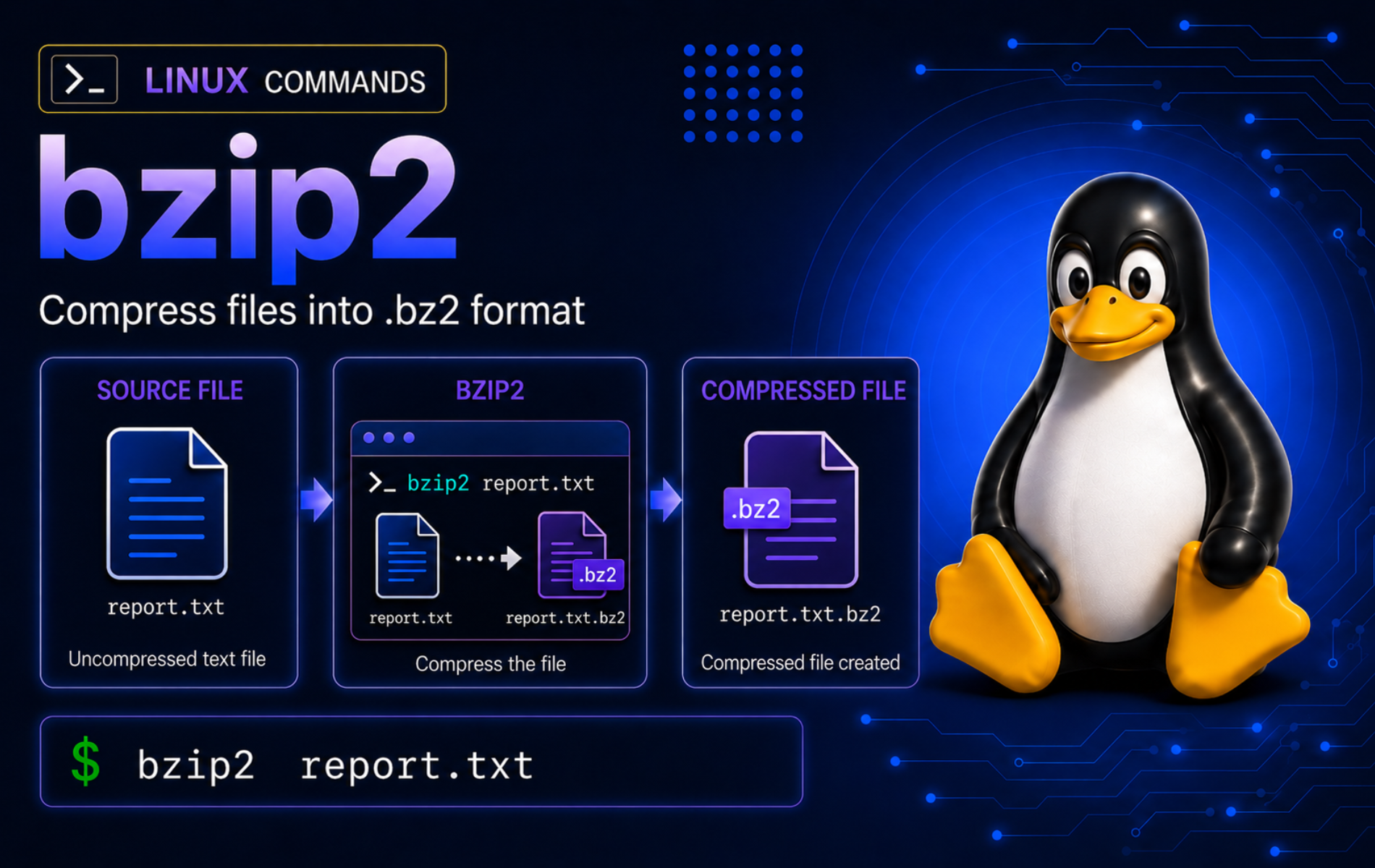
The bzip2 command in Linux compresses one file or stream into .bz2 format, but it does not build a directory archive by itself. That lifecycle matters: plain bzip2 replaces the readable input, -k keeps it, -c writes to standard output, and tar owns the directory-tree workflow when the file ends in .tar.bz2 or .tbz2.
Most mainstream distributions ship GNU bzip2; minimal containers and BusyBox-style systems can expose a smaller command set. Check the active command before relying on helper tools such as bzgrep, bzdiff, or bzip2recover. The official bzip2 manual documents the full option behavior, memory notes, and recovery utility.
Understand the bzip2 Command in Linux
bzip2 works on regular files and streams. It usually writes a new file with the .bz2 suffix, then removes the original only after successful compression. The companion bunzip2 decompression command and bzcat streaming command are decompression-focused entry points for the same bzip2 format.
The basic syntax follows this pattern:
bzip2 [OPTION]... [FILE]...[OPTION]...: Compression, decompression, output, test, overwrite, and block-size options such as-k,-c,-d,-t,-f,-1, or-9.[FILE]...: One or more regular files. When no file is named,bzip2can read standard input, but file operands are safer for ordinary terminal examples and scripts.
Choose the pattern by what should happen to the input and output:
| Task | Command Pattern | What It Does |
|---|---|---|
| Compress and replace original | bzip2 file.txt | Creates file.txt.bz2 and removes file.txt after success. |
| Compress and keep original | bzip2 -k file.txt | Creates file.txt.bz2 while leaving file.txt in place. |
| Write compressed output | bzip2 -c file.txt > file.txt.bz2 | Sends compressed data to a filename or pipeline you choose. |
| Restore and remove archive | bunzip2 file.txt.bz2 | Creates file.txt and removes file.txt.bz2 after success. |
| Restore and keep archive | bunzip2 -k file.txt.bz2 | Restores the readable file while preserving the compressed copy. |
| Restore to chosen path | bzip2 -dc file.txt.bz2 > restored/file.txt | Writes decompressed output without changing the archive. |
| Test bzip2 integrity | bzip2 -t file.txt.bz2 | Checks whether the compressed stream can be read. |
| Read compressed text | bzcat file.txt.bz2 | Prints decompressed content without creating a restored file. |
| Search compressed text | bzgrep -n 'ERROR' file.txt.bz2 | Searches decompressed text and prints matching line numbers. |
| Create a directory archive | tar -cjf project.tar.bz2 project | Stores the directory tree with tar, then compresses that archive with bzip2. |
If your file ends in .gz instead of .bz2, use gzip command examples for compression. Gzip decompression belongs to gunzip rather than bzip2; the formats are different even though the lifecycle choices look similar.
Install or Verify bzip2 on Linux
Many Linux installations include the bzip2 package because build tools, package managers, and archive workflows depend on it. Fresh desktop images, minimal cloud systems, containers, and test VMs can still omit it, so check the command family before installing anything:
command -v bzip2 bunzip2 bzcat bzgrep bzdiff bzip2recoverExample output on most distro packages shows each helper on your PATH:
/usr/bin/bzip2
/usr/bin/bunzip2
/usr/bin/bzcat
/usr/bin/bzgrep
/usr/bin/bzdiff
/usr/bin/bzip2recover
The exact directory can vary. Continue when every helper prints a path, and install the package when one or more names print nothing.
Use a help option that exits immediately, then print only the first line. Avoid bare no-file bzip2 probes in scripts because the command can read standard input:
bzip2 --help 2>&1 | sed -n '1p'GNU bzip2 1.0.8 prints a version line like this:
bzip2, a block-sorting file compressor. Version 1.0.8, 13-Jul-2019.
Older maintained distributions may print a different version line, such as 1.0.6 on Rocky Linux 8. The workflows rely on stable command behavior, not that exact banner.
If the command is missing, install the package named bzip2 from your distribution repositories.
APT-Based Distributions
sudo apt update
sudo apt install bzip2
Fedora and RHEL-Family Distributions
sudo dnf install bzip2Arch Linux and Manjaro
sudo pacman -S bzip2openSUSE
sudo zypper install bzip2Updates arrive with normal system updates from the same package manager. Avoid removing bzip2 from a normal workstation or server only to practice cleanup, because package-build, source-archive, and recovery workflows can expect the command family to exist.
Create a Disposable bzip2 Practice Directory
A small practice directory keeps the compression, decompression, tar, overwrite, and troubleshooting examples away from real logs or backups. Create it in your home directory, then work from that directory:
mkdir -p ~/bzip2-demo/{restore,batch,logs,tar-source,tar-restore}
printf 'INFO start\nERROR disk full\nINFO done\n' > ~/bzip2-demo/app.log
printf 'alpha\nbeta\n' > ~/bzip2-demo/notes.txt
printf 'first backup line\n' > ~/bzip2-demo/batch/one.log
printf 'second backup line\n' > ~/bzip2-demo/batch/two.log
printf 'access ok\n' > ~/bzip2-demo/logs/access.log
printf 'error one\n' > ~/bzip2-demo/logs/error.log
printf 'project config\n' > ~/bzip2-demo/tar-source/config.ini
printf 'project readme\n' > ~/bzip2-demo/tar-source/readme.txt
cd ~/bzip2-demo
find . -type f | sort
The directory contains single files, batch targets, a directory-error example, and a small directory tree for tar:
./app.log
./batch/one.log
./batch/two.log
./logs/access.log
./logs/error.log
./notes.txt
./tar-source/config.ini
./tar-source/readme.txt
The mkdir command guide covers nested directory creation and -p behavior in more detail. The find command examples cover deeper file-selection patterns once you move beyond this disposable practice directory.
Compress Files with bzip2
The first compression decision is whether the original file should remain readable after the command succeeds. Use default replacement only when the original is disposable or already backed up.
Compress a File and Replace the Original
Work on a copy so the replacement behavior is visible:
cp notes.txt replace.txt
bzip2 replace.txt
ls -1 replace.txt*
Only the compressed file remains after successful default compression:
replace.txt.bz2
Keep the Original File
Add -k when the readable original should stay beside the compressed copy:
bzip2 -k app.log
ls -1 app.log*
The original and compressed copy are both present:
app.log
app.log.bz2
Use -k for downloads, logs, backups, and transfer checks where losing the plain source would make recovery harder.
Write Compressed Output to Another Path
The -c option sends compressed data to standard output and leaves the input file unchanged. Redirect that stream when a script should control the exact output name:
bzip2 -c app.log > stream.log.bz2
ls -1 app.log stream.log.bz2
bzcat stream.log.bz2
The readable input still exists, and bzcat can print the compressed copy without restoring it first:
app.log
stream.log.bz2
INFO start
ERROR disk full
INFO done
Compress Multiple Files as Separate Outputs
Multiple file operands create one .bz2 file per input. Preview shell globs before using them on important paths, because the shell chooses the file list before bzip2 starts.
printf '%s\n' batch/*.log
bzip2 -k batch/*.log
find batch -maxdepth 1 -type f -printf '%f\n' | sort
The command leaves each original file and creates one compressed copy per match:
batch/one.log
batch/two.log
one.log
one.log.bz2
two.log
two.log.bz2
Use Compression Levels Deliberately
The -1 through -9 options change the compression block size. Higher values can improve compression on some large inputs, while lower values reduce memory pressure. Small or repetitive files may compress to the same size either way, so treat levels as a tuning option, not a guaranteed size switch.
for i in $(seq 1 500); do printf 'alpha beta gamma %03d\n' "$i"; done > repeated.txt
bzip2 -1 -c repeated.txt > repeated-1.bz2
bzip2 -9 -c repeated.txt > repeated-9.bz2
wc -c repeated.txt repeated-1.bz2 repeated-9.bz2
This small practice file compresses identically at both levels, which is a useful reminder to measure real data before trading memory for expected savings:
10500 repeated.txt
  488 repeated-1.bz2
  488 repeated-9.bz2
11476 total
Decompress and Read bzip2 Files
Decompression has the same lifecycle question in reverse: should the compressed input disappear, stay in place, or feed another command through standard output? Use bzless to view .bz2 files or bzmore for quick paging when the next task is interactive reading instead of restoration.
Restore a File with bunzip2
bunzip2 restores the readable file and removes the .bz2 input by default. Work on a copy while learning that behavior:
cp app.log.bz2 restore/default.log.bz2
bunzip2 restore/default.log.bz2
find restore -maxdepth 1 -type f -printf '%f\n' | sort
The restored file remains and the copied compressed input is gone:
default.log
Keep the Archive During Decompression
Add -k when you need both the restored file and the compressed source:
cp app.log.bz2 restore/keep.log.bz2
bunzip2 -k restore/keep.log.bz2
find restore -maxdepth 1 -type f -printf '%f\n' | sort
The restored file and archive now sit side by side:
default.log
keep.log
keep.log.bz2
Restore to a Chosen Path with Standard Output
Use bzip2 -dc when the restored data should go somewhere other than the inferred filename. The -d option decompresses, and -c writes the result to standard output:
bzip2 -dc app.log.bz2 > restore/stdout.log
cat restore/stdout.log
The restored content lands in the path you selected:
INFO start
ERROR disk full
INFO done
Search Compressed Text with bzgrep
The bzgrep command searches decompressed text without creating a temporary restored file. Use it for rotated logs, old exports, and compressed config snapshots:
bzgrep -n 'ERROR' app.log.bz22:ERROR disk full
For broader pattern matching and exit-status behavior, see the grep command guide. To compare compressed bzip2 text snapshots instead of searching them, use bzdiff command examples.
Use bzip2 with tar Archives and Directories
bzip2 compresses files, not directory trees. If you point it at a directory, it refuses the input instead of walking the tree:
bzip2 logsbzip2: Input file logs is a directory.
Use tar when the task is one compressed archive that contains a directory. The -j option tells GNU tar to use bzip2 compression, and --sort=name keeps this practice archive’s listing stable:
tar --sort=name -cjf project.tar.bz2 tar-source
tar -tjf project.tar.bz2
The archive listing shows the members without extracting them:
tar-source/
tar-source/config.ini
tar-source/readme.txt
Extract into a directory you control so unfamiliar archives do not scatter files into your current working directory:
mkdir -p tar-restore
tar -xjf project.tar.bz2 -C tar-restore
find tar-restore -type f | sort
tar-restore/tar-source/config.ini tar-restore/tar-source/readme.txt
Stream a tar Archive Through bzip2
Some backup and transfer workflows write an archive to standard output instead of a named tar file first. In that pattern, tar -cf - writes the tar stream, bzip2 -c compresses it, and the reverse pipeline lists the archive without extracting it:
tar --sort=name -cf - tar-source | bzip2 -c > project-pipe.tar.bz2
bzip2 -dc project-pipe.tar.bz2 | tar -tf -
tar-source/ tar-source/config.ini tar-source/readme.txt
Use the direct tar archive form when you only need a local file. Use the pipeline form when another command must produce or consume the archive stream.
The tar command examples explain archive creation, listing, extraction, exclusions, and destination handling in more detail.
Test, Overwrite, and Recover bzip2 Files Safely
Integrity checks and overwrite behavior are where bzip2 prevents many mistakes. Keep the diagnostic separate from the fix so you know whether the file is readable, missing, already present, or damaged before changing anything.
Test a bzip2 File Before Restoring It
The -t option tests the compressed stream and writes no restored output. Use -v when you want a visible success line:
bzip2 -t app.log.bz2 && printf '%s\n' 'app.log.bz2: OK'
bzip2 -tv app.log.bz2 2>&1
app.log.bz2: OK app.log.bz2: ok
Understand Overwrite Refusals
By default, bzip2 refuses to overwrite an existing output file. That is safer than silently replacing a compressed backup, but it can confuse scripts that rerun the same command:
printf 'new text\n' > existing.txt
bzip2 -k existing.txt
bzip2 existing.txt
bzip2: Output file existing.txt.bz2 already exists.
Use a different output name with -c when you need to preserve both compressed copies:
bzip2 -c existing.txt > existing-copy.txt.bz2
ls -1 existing*.bz2
existing-copy.txt.bz2 existing.txt.bz2
Use -f only when you have confirmed the existing compressed output can be replaced:
printf 'newer text\n' > existing.txt
bzip2 -f existing.txt
ls -1 existing.txt*
existing.txt.bz2
Handle Corrupted bzip2 Files
When testing or decompressing fails with a truncated stream, stop treating the file as a normal archive. Work on a copy, verify whether a clean source exists, then try recovery only as a last resort:
cp app.log.bz2 corrupt.bz2
truncate -s 20 corrupt.bz2
bzip2 -t corrupt.bz2
bzip2: corrupt.bz2: file ends unexpectedly You can use the `bzip2recover' program to attempt to recover data from undamaged sections of corrupted files.
The bzip2recover command can split recoverable blocks from some damaged files, especially larger files with multiple compressed blocks. It cannot repair every truncation or replace a verified backup:
cp corrupt.bz2 corrupt-work.bz2
bzip2recover corrupt-work.bz2 || printf '%s\n' 'bzip2recover did not write complete blocks'
ls -1 rec[0-9][0-9][0-9][0-9][0-9]*.bz2 2>/dev/null || printf '%s\n' 'no recoverable blocks written'
On this deliberately tiny truncated file, GNU bzip2recover finds only an incomplete block and writes no usable recovery part. The first line can show a different version on older maintained distributions:
bzip2recover 1.0.8: extracts blocks from damaged .bz2 files.
bzip2recover: searching for block boundaries ...
   block 1 runs from 80 to 160 (incomplete)
bzip2recover: sorry, I couldn't find any block boundaries.
bzip2recover did not write complete blocks
no recoverable blocks written
The numbered recovery-file pattern keeps the listing focused on files written by bzip2recover, rather than every .bz2 name that happens to start with rec.
Troubleshoot Common bzip2 Errors
Most bzip2 failures come from one of five layers: the command is missing, the input is the wrong kind of path, the output already exists, the file is not bzip2 data, or the compressed stream is damaged. Start with a read-only check, then choose the smallest fix.
bzip2 Command Not Found
If your shell reports bzip2: command not found, confirm the command is absent before installing anything:
command -v bzip2 || printf '%s\n' 'bzip2 is not on PATH'Install the bzip2 package with your distribution package manager, then rerun the command check with the short help proof:
command -v bzip2 && bzip2 --help 2>&1 | sed -n '1p'/usr/bin/bzip2 bzip2, a block-sorting file compressor. Version 1.0.8, 13-Jul-2019.
If command -v bzip2 still prints nothing after installation, open a new terminal and verify that standard system binary directories such as /usr/bin and /usr/sbin are present in $PATH.
Input File Is a Directory
This error means the input path is a directory, not a regular file. Confirm the path type first:
test -d logs && printf '%s\n' 'logs is a directory'
bzip2 logs
logs is a directory bzip2: Input file logs is a directory.
Create a tar archive, then list it to prove the directory members are inside the compressed archive:
tar --sort=name -cjf logs.tar.bz2 logs
tar -tjf logs.tar.bz2
logs/ logs/access.log logs/error.log
Output File Already Exists
Check the existing files before deciding whether to rename, keep both, or force replacement. This self-contained example recreates the refusal:
printf 'rerun example\n' > rerun.txt
bzip2 -k rerun.txt
ls -1 rerun.txt rerun.txt.bz2
bzip2 rerun.txt
rerun.txt rerun.txt.bz2 bzip2: Output file rerun.txt.bz2 already exists.
Use -c with a new filename when the old compressed output still matters, then test the new file before trusting it:
bzip2 -c rerun.txt > rerun-safe-copy.txt.bz2
bzip2 -t rerun-safe-copy.txt.bz2 && printf '%s\n' 'rerun-safe-copy.txt.bz2: OK'
rerun-safe-copy.txt.bz2: OK
Use -f only after confirming the existing .bz2 file is safe to overwrite.
File Is Not a bzip2 Archive
A file extension can be wrong. If bzip2 -t reports bad magic number, the file was not created by bzip2 or the wrong file was renamed with a .bz2 suffix:
printf 'plain text\n' > mislabeled.txt.bz2
bzip2 -t mislabeled.txt.bz2
bzip2: mislabeled.txt.bz2: bad magic number (file not created by bzip2) You can use the `bzip2recover' program to attempt to recover data from undamaged sections of corrupted files.
Check the file type before retrying recovery:
file mislabeled.txt.bz2mislabeled.txt.bz2: ASCII text
If the file is gzip data, use gunzip command examples; if it is a ZIP archive, use unzip command examples. For plain text or another format, retrieve the correct file or rename it accurately instead of forcing bzip2recover.
File Ends Unexpectedly
A truncated download, interrupted copy, or damaged disk can make bzip2 stop with file ends unexpectedly. Test the file before trying to restore it:
bzip2 -t corrupt.bz2bzip2: corrupt.bz2: file ends unexpectedly You can use the `bzip2recover' program to attempt to recover data from undamaged sections of corrupted files.
If the test fails, download or copy the file again when possible. If no clean source exists, work on a copy and try bzip2recover, then test any numbered recovery parts before trusting their output:
for part in rec[0-9][0-9][0-9][0-9][0-9]*.bz2; do
    [ -e "$part" ] || { printf '%s\n' 'no recovered parts to test'; break; }
    bzip2 -t "$part" && printf '%s: OK\n' "$part"
done
no recovered parts to test
A recovered part is only useful when bzip2 -t succeeds. Treat any failing part as partial data, not as a restored backup.
Clean Up Practice Files
This practice workflow created files only under ~/bzip2-demo. Remove that directory when you are finished practicing:
This command permanently deletes the disposable
~/bzip2-demodirectory and everything inside it. Check the path before running it if you reused the same directory name for real files.
cd ~
rm -rf -- ~/bzip2-demo
For broader deletion safety, see the rm command guide before adapting this cleanup pattern to real directories.
Conclusion
After practicing on disposable files, choose the safer bzip2 path before touching real data: replace only disposable originals, keep or stream important inputs, test archives before restoring them, and hand directory trees to tar before compressing them. When a .bz2 file fails, identify whether it is the wrong format, an overwrite conflict, or real stream damage before trying recovery.


Formatting tips for your comment
You can use basic HTML to format your comment. Useful tags currently allowed in published comments:
<code>command</code>command<strong>bold</strong><em>italic</em><a href="https://example.com">link</a><blockquote>quote</blockquote>