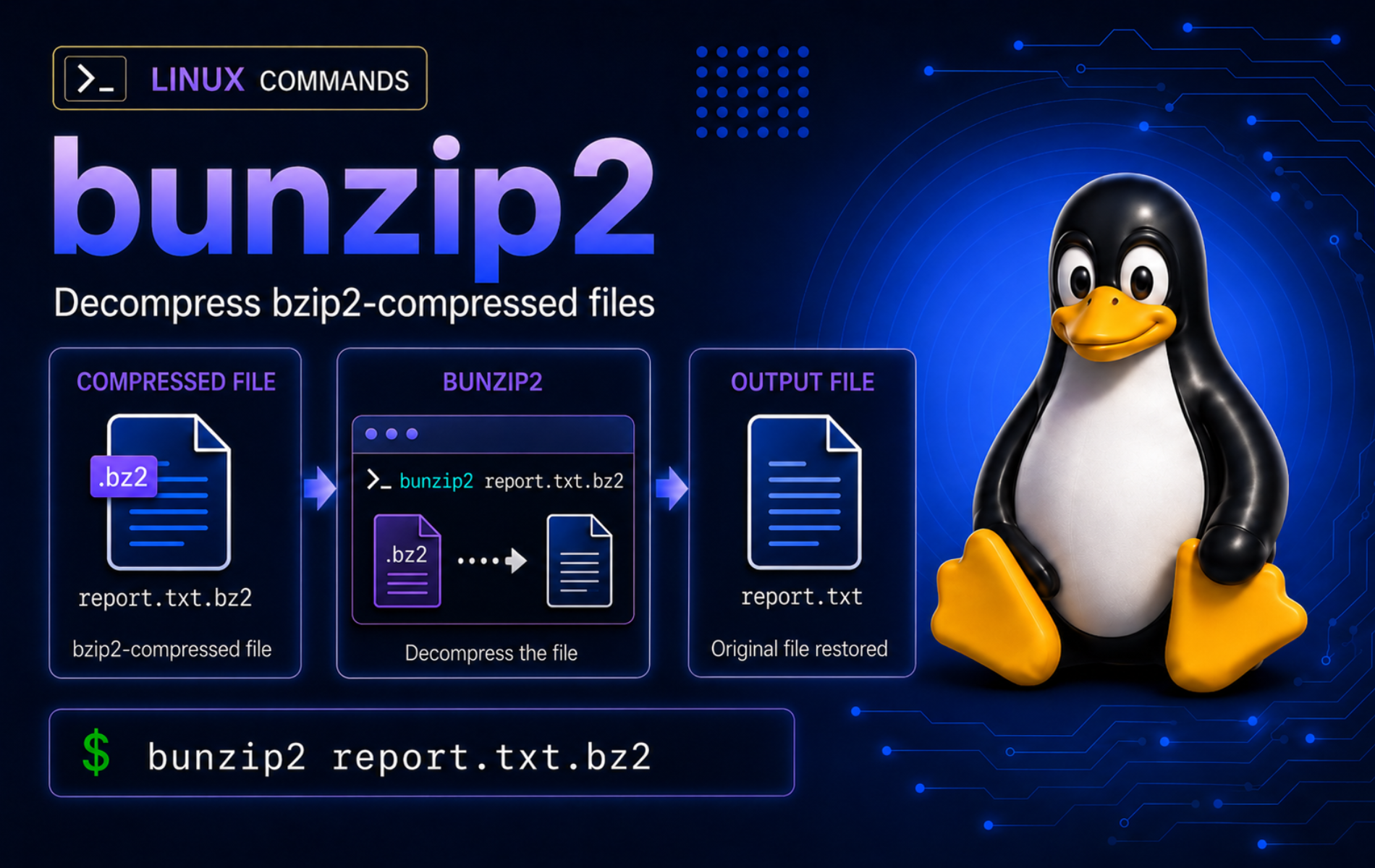
A .bz2 file is easy to unpack in the wrong layer. The bunzip2 command in Linux restores one compressed stream, removes that compressed input by default, and leaves .tar.bz2 archive extraction to tar. Choose the restore pattern before touching downloaded source archives, rotated logs, database dumps, or old backup bundles.
Use bunzip2 for bzip2-compressed files or streams. Use tar for archives such as .tar.bz2 or .tbz2, and switch to format-specific tools when the file is really .gz, .zip, or another type with the wrong extension.
Choose the Right bunzip2 Pattern
bunzip2 is the decompression command from the same utility family as the bzip2 command. It is equivalent to bzip2 -d, so most behavior comes from the same program: default decompression replaces the .bz2 file with the restored file, -k keeps the compressed input, and -c writes restored data to standard output.
For a disposable compressed file where the restored file can be written in the current directory, the common path is a direct restore:
bunzip2 file.log.bz2That command creates file.log and removes file.log.bz2 after success, so important downloads and backups usually need -k or -c instead.
The basic syntax follows this pattern:
bunzip2 [OPTION]... [FILE]...[OPTION]...: Decompression, output, overwrite, test, verbosity, or memory flags such as-k,-c,-t,-f,-v, or-s.[FILE]...: One or more bzip2-compressed files. When no file is named,bunzip2reads compressed data from standard input and writes decompressed data to standard output.
The official bzip2 manual documents the full utility family. These command patterns cover the decompression choices most readers need first:
| Task | Command Pattern | What It Does |
|---|---|---|
| Restore one file | bunzip2 file.log.bz2 | Creates file.log and removes file.log.bz2 after success. |
| Keep the compressed copy | bunzip2 -k file.log.bz2 | Creates file.log while leaving file.log.bz2 in place. |
| Write to a chosen path | bunzip2 -c file.log.bz2 > restored/file.log | Sends decompressed data to standard output so redirection controls the destination. |
| Test integrity | bunzip2 -t file.log.bz2 | Checks whether the stream can be decompressed without writing a restored file. |
| Print decompressed text | bzcat file.log.bz2 | Reads the file to standard output without changing files on disk. |
| Search compressed text | bzgrep -n 'ERROR' file.log.bz2 | Searches decompressed text without writing a restored copy first. |
| Decompress multiple files | bunzip2 -k *.log.bz2 | Restores each matched file while preserving each compressed source. |
| Extract a tar.bz2 archive | tar -xjf source.tar.bz2 | Extracts the tar archive and decompresses the bzip2 layer in one step. |
| Convert a tbz2 file to tar | bunzip2 -k archive.tbz2 | Restores archive.tar while keeping archive.tbz2 available for another test or extraction. |
| Restore data with no suffix | bunzip2 -c download > restored.log | Avoids the automatic .out filename when the input lacks a recognized suffix. |
| Use less memory | bunzip2 -ks old-backup.bz2 | Uses the low-memory decompressor and keeps the backup source. |
Default
bunzip2removes the compressed input after a successful restore. Use-kor-cfor downloads, backups, forensic copies, and logs that you may need to test or restore again.
Verify or Install bunzip2 on Linux
The package is usually named bzip2, even when the command you need is bunzip2. That package provides bunzip2, bzip2, bzcat, bzdiff, bzgrep, and bzip2recover on mainstream Linux distributions. Some full installs include it already, but minimal images and some fresh desktop or server installs may need the package first.
Check the active commands before troubleshooting a missing utility or reduced BusyBox environment:
command -v bunzip2 bzip2 bzcat bzgrep bzip2recoverA typical distro install returns helper paths like these:
/usr/bin/bunzip2
/usr/bin/bzip2
/usr/bin/bzcat
/usr/bin/bzgrep
/usr/bin/bzip2recover
Confirm the implementation when you need the full bzip2 utility behavior rather than a reduced applet. Redirecting standard input from /dev/null keeps scripted checks from accidentally feeding later shell input to bzip2, and the sed filter prints only the first version line:
bzip2 -V </dev/null 2>&1 | sed -n '1p'Example output from newer bzip2 1.0.8 packages:
bzip2, a block-sorting file compressor. Version 1.0.8, 13-Jul-2019.
Older enterprise releases can print Version 1.0.6 instead. The restore, test, stream, and safety workflows use long-standing options that are present in both older 1.0.6 packages and newer 1.0.8 packages.
If bunzip2 is missing, install the package named bzip2. On Ubuntu, Debian, Linux Mint, and other APT-based systems, update package metadata and install the utility package:
These package-manager commands use sudo because they change system packages. If the lookup already returned a bunzip2 path, skip the install step and start with the practice directory.
sudo apt update
sudo apt install bzip2
On Fedora, Rocky Linux, AlmaLinux, CentOS Stream, and other DNF-based systems, install the same package name:
sudo dnf install bzip2On Arch Linux and Manjaro, use pacman:
sudo pacman -S bzip2On openSUSE, install bzip2 with zypper:
sudo zypper install bzip2Package manager updates maintain bzip2 after installation. Do not remove the package from a normal workstation or server only to practice cleanup; build tools, source-package workflows, and archive utilities often expect it to exist.
Create a Disposable bunzip2 Practice Directory
A small practice tree keeps decompression examples away from real backups and downloaded source archives. Choose another path if ~/bunzip2-demo already contains files you care about, because the cleanup command uses that exact directory.
mkdir -p ~/bunzip2-demo/{batch,restore,project,extracted,stream}
printf 'INFO start\nERROR quota\nINFO done\n' > ~/bunzip2-demo/app.log
printf 'alpha\n' > ~/bunzip2-demo/batch/alpha.log
printf 'beta\n' > ~/bunzip2-demo/batch/beta.log
printf 'first stream\n' > ~/bunzip2-demo/stream/one.txt
printf 'second stream\n' > ~/bunzip2-demo/stream/two.txt
printf 'config=true\n' > ~/bunzip2-demo/project/config.txt
printf 'readme\n' > ~/bunzip2-demo/project/readme.txt
bzip2 -k ~/bunzip2-demo/app.log ~/bunzip2-demo/batch/alpha.log ~/bunzip2-demo/batch/beta.log ~/bunzip2-demo/stream/one.txt ~/bunzip2-demo/stream/two.txt
tar -cf ~/bunzip2-demo/bundle.tar -C ~/bunzip2-demo project
bzip2 -k ~/bunzip2-demo/bundle.tar
cd ~/bunzip2-demo
find . -maxdepth 2 -type f | sort
The practice tree now has plain files, matching .bz2 files, and a small .tar.bz2 archive:
./app.log
./app.log.bz2
./batch/alpha.log
./batch/alpha.log.bz2
./batch/beta.log
./batch/beta.log.bz2
./bundle.tar
./bundle.tar.bz2
./project/config.txt
./project/readme.txt
./stream/one.txt
./stream/one.txt.bz2
./stream/two.txt
./stream/two.txt.bz2
Decompress bzip2 Files with bunzip2
The main bunzip2 decision is what should happen to the compressed input after the restored file is written. Work on copies first so the replacement behavior is visible without risking the original practice file.
Restore a File and Remove the Compressed Input
Default decompression restores the original name and removes the compressed copy after success:
cp app.log.bz2 default.log.bz2
bunzip2 default.log.bz2
ls -1 default.log*
Only the restored file remains:
default.log
This pattern is fine when the compressed file is disposable. It is risky for one-time downloads, source releases, and backups because the compressed source is gone after a successful restore.
Keep the Compressed Copy with -k
Add -k when the restored file and compressed file should stay side by side:
cp app.log.bz2 keep.log.bz2
bunzip2 -k keep.log.bz2
ls -1 keep.log*
Both files are present after the restore:
keep.log
keep.log.bz2
Use -k when you want a quick readable copy but still need the original compressed artifact for checksums, comparison, or transfer retries.
Write Restored Output to Another Path
The -c option writes decompressed bytes to standard output and leaves the input unchanged. Redirect that stream when a script needs a specific output location:
bunzip2 -c app.log.bz2 > restore/app.log
cat restore/app.log
The restored text appears in the destination file:
INFO start
ERROR quota
INFO done
The bzcat command is the shorter read-only form when you only need to view or pipe decompressed content. Use bunzip2 -c when the decompression step should stay explicit in a restore script.
Test a bzip2 File Before Restoring It
Use -t before overwriting an existing restore path or before trusting a downloaded .bz2 file. The test performs a trial decompression without writing output:
bunzip2 -t app.log.bz2 && printf '%s\n' 'app.log.bz2: OK'A clean stream returns success:
app.log.bz2: OK
The integrity check proves the compressed stream can be read. It does not prove the restored content is the file you expected, so keep checksums or signatures for downloaded release artifacts when upstream publishes them.
Decompress Multiple .bz2 Files
Preview a shell glob before decompressing several files. In Bash, an unmatched glob can pass through literally, and a broad pattern may match more files than intended:
printf '%s\n' batch/*.bz2The preview should show only the files you intend to restore:
batch/alpha.log.bz2
batch/beta.log.bz2
Remove the plain copies from the practice tree, then restore each compressed file while keeping the compressed sources:
rm -f batch/alpha.log batch/beta.log
bunzip2 -k batch/*.bz2
find batch -maxdepth 1 -type f -printf '%f\n' | sort
The directory contains each restored file and each compressed source:
alpha.log
alpha.log.bz2
beta.log
beta.log.bz2
Work with tar.bz2 Archives and File Names
A .bz2 file is one compressed stream. A .tar.bz2 file is usually a tar archive compressed as one bzip2 stream, so bunzip2 can remove the compression layer but does not unpack the files inside the tar archive.
List and Extract a tar.bz2 Archive
Use tar when the goal is to inspect or extract archive members. The -j option tells GNU tar to use bzip2 compression explicitly:
tar -tjf bundle.tar.bz2 | sortThe list shows the files inside the archive, not only the compressed stream name:
project/
project/config.txt
project/readme.txt
Extract the archive to the practice destination:
tar -xjf bundle.tar.bz2 -C extracted
find extracted -type f -printf '%P\n' | sort
The extracted files keep their paths under the archive’s top-level directory:
project/config.txt
project/readme.txt
The tar command examples cover creation, listing, extraction, and safer destination handling for tar archives.
Restore tbz2 and tbz Files to Tar
bunzip2 maps .tbz2 and .tbz suffixes back to .tar. That is useful when you need the uncompressed tar archive as a separate file:
cp bundle.tar.bz2 bundle.tbz2
rm -f bundle.tar
bunzip2 -k bundle.tbz2
file bundle.tar
The restored file is a tar archive:
bundle.tar: POSIX tar archive (GNU)
If you only want the archive contents, skip the intermediate tar file and use tar -xjf bundle.tbz2 instead.
Handle bzip2 Streams Without a Suffix
When the input name does not end in .bz2, .bz, .tbz2, or .tbz, bunzip2 cannot infer the original name and falls back to .out:
cp app.log.bz2 raw-bzip-stream
bunzip2 -k raw-bzip-stream 2>raw-name.err
cat raw-name.err
ls -1 raw-bzip-stream*
The warning names the fallback output:
bunzip2: Can't guess original name for raw-bzip-stream -- using raw-bzip-stream.out
raw-bzip-stream
raw-bzip-stream.out
Use -c and redirection when a stream has no suffix but you know the destination name:
bunzip2 -c raw-bzip-stream > restore/raw.log
cat restore/raw.log
The chosen destination uses the expected restored content:
INFO start
ERROR quota
INFO done
Stream and Inspect bzip2 Data
Streaming is safer than restoring when you only need to inspect content, pipe it to another command, or combine several bzip2 streams into one output file. Use bzless to view .bz2 files or bzmore for quick paging when the next step is interactive reading instead of a saved restore.
Print Decompressed Text Without Writing a File
bzcat is equivalent to bzip2 -dc for normal reading. It leaves the compressed file untouched:
bzcat app.log.bz2The decompressed content is written to the terminal:
INFO start
ERROR quota
INFO done
Search a Compressed Log Before Restoring It
The bzgrep command searches bzip2-compressed text without creating an uncompressed copy. Use it when you need a quick match from a rotated log, SQL dump, or text export before deciding whether to restore the full file:
bzgrep -n 'ERROR' app.log.bz2The -n option prints the decompressed line number beside each match:
2:ERROR quota
For content comparison without a restore step, use bzdiff command examples when both inputs are bzip2-compressed text files.
Restore bzip2 Data from Standard Input
bunzip2 reads standard input when no file operand is supplied. That pattern fits pipelines and saved downloads where you want to choose the output filename yourself:
bunzip2 < app.log.bz2 > restore/stdin.log
cat restore/stdin.log
The restored text lands in the redirected file:
INFO start
ERROR quota
INFO done
Decompress Concatenated bzip2 Streams
bunzip2 can read concatenated bzip2 streams and write the decompressed data sequentially. This creates one output stream, not separate filenames:
bzip2 -c stream/one.txt > combined.bz2
bzip2 -c stream/two.txt >> combined.bz2
bunzip2 -c combined.bz2
The output is the two decompressed streams in order:
first stream
second stream
Use tar when file boundaries and names matter. A concatenated bzip2 stream preserves byte order, but it does not preserve a directory tree, filenames, permissions, or member metadata.
Use bunzip2 Safely
Most bunzip2 mistakes come from replacement behavior, shell expansion, and filenames that look like options. Keep the safety checks close to the command that changes files.
Avoid Accidental Overwrites
bunzip2 refuses to overwrite an existing output file unless you force it. Create a conflict to see the normal refusal:
printf 'new content\n' > conflict.txt
bzip2 -k conflict.txt
printf 'existing content\n' > conflict.txt
bunzip2 conflict.txt.bz2
The existing restored file protects the current content:
bunzip2: Output file conflict.txt already exists.
-freplaces the existing output file. Read or back up the current file before forcing a restore, especially when the target is a log, dump, source archive, or file from another system.
Force the restore only when the existing output is safe to replace:
bunzip2 -f conflict.txt.bz2
cat conflict.txt
The restored content replaces the previous file:
new content
Decompress Filenames That Start with a Dash
A filename that begins with - can be mistaken for an option. Use an explicit ./ path and the -- option terminator:
printf 'dash file\n' > ./-report.log
bzip2 -k -- ./-report.log
rm -f -- ./-report.log
bunzip2 -k -- ./-report.log.bz2
ls -1 -- ./-report.log*
The restored file and compressed copy both remain:
./-report.log
./-report.log.bz2
Use Less Memory on Constrained Systems
The -s option switches to a lower-memory decompressor. It is slower, so keep it for old hardware, memory-limited containers, rescue shells, or oversized archives that fail under normal decompression:
cp app.log.bz2 low-memory.log.bz2
bunzip2 -ks low-memory.log.bz2
ls -1 low-memory.log*
The restored file appears while the compressed source remains available for another attempt:
low-memory.log
low-memory.log.bz2
Troubleshoot Common bunzip2 Errors
Start with read-only checks. The same visible failure can come from a missing package, a non-regular input, an existing output file, a wrong archive format, or corrupted bzip2 data.
bunzip2 Command Not Found
A missing command usually means the bzip2 package is absent or the current shell has a broken PATH. Confirm the lookup first:
command -v bunzip2 || printf '%s\n' 'bunzip2 is not installed or not on PATH'On a system without the command, the fallback message gives the next branch:
bunzip2 is not installed or not on PATH
Install bzip2 with your distribution’s package manager, then open a new terminal or rerun the lookup. On systems where a reduced BusyBox applet exists, check bunzip2 --help before relying on full utility options such as -s.
Input File Is Not a Normal File
bunzip2 expects a normal file when it writes an output file beside the input. Symlinks can trigger the Input file ... is not a normal file error, which is common with package source links and generated archive shortcuts:
rm -f app-link.log.bz2
ln -s app.log.bz2 app-link.log.bz2
bunzip2 app-link.log.bz2
The error points at the symlink path:
bunzip2: Input file app-link.log.bz2 is not a normal file.
Inspect the input type before choosing a fix:
file app-link.log.bz2A symlink reports its target instead of normal bzip2 data:
app-link.log.bz2: symbolic link to app.log.bz2
If you only need a readable copy, stream from the resolved target so the symlink target is not replaced:
bunzip2 -c "$(readlink -f app-link.log.bz2)" > restore/app-link.log
cat restore/app-link.log
The streamed copy contains the target file content without changing the symlink or its destination:
INFO start
ERROR quota
INFO done
For a .tar.bz2 symlink where the goal is extraction, point tar at the link or its resolved target instead of using plain bunzip2.
Output File Already Exists
An existing output file blocks default decompression. Recreate the conflict with a fresh practice file, then prove both paths exist before deciding whether to keep, rename, or overwrite the current output:
printf 'new content\n' > retry-conflict.txt
bzip2 -k retry-conflict.txt
printf 'existing content\n' > retry-conflict.txt
test -e retry-conflict.txt && test -e retry-conflict.txt.bz2 && printf '%s\n' 'both files exist'
The diagnostic confirms the restore would collide with an existing output file:
both files exist
Use -c to restore to a different path without changing the existing file:
bunzip2 -c retry-conflict.txt.bz2 > restore/retry-conflict.txt
cat restore/retry-conflict.txt
The restored copy uses the compressed source content while the existing output remains untouched:
new content
Use -f only when the existing output is disposable or backed up.
Bad Magic Number or Wrong File Type
A .bz2 suffix does not prove the file contains bzip2 data. Test the file before trying repair steps:
printf 'not bzip2 data\n' > bad.bz2
bunzip2 -t bad.bz2
Invalid data returns status 2 and prints a stable bad-magic message:
bunzip2: bad.bz2: bad magic number (file not created by bzip2)

You can use the `bzip2recover' program to attempt to recover
data from undamaged sections of corrupted files.
Check the real file type before recovering or redownloading:
file bad.bz2A plain text fixture reports as text instead of bzip2-compressed data:
bad.bz2: ASCII text
If the file is gzip data, use gunzip command examples. If it is a ZIP archive, use unzip command examples. If it is a damaged bzip2 file, retrieve a fresh copy when possible; the bzip2recover command can split recoverable blocks from large damaged streams, but it cannot recreate missing data.
Clean Up bunzip2 Practice Files
The demo cleanup removes only the practice tree created under your home directory. Move any files you want to keep before deleting it, and use recursive deletion with rm before adapting this pattern to non-demo paths.
cd ~
rm -rf -- ~/bunzip2-demo
test ! -e ~/bunzip2-demo && printf '%s\n' 'bunzip2-demo removed'
The final check confirms the disposable practice directory is gone:
bunzip2-demo removed
Conclusion
The bunzip2 workflow is safest when default replacement, -k, and -c are deliberate choices. Test important streams before writing output, keep compressed sources for downloads and backups, and switch to tar, gzip, or ZIP tools when the file format points outside plain bzip2 data.


Formatting tips for your comment
You can use basic HTML to format your comment. Useful tags currently allowed in published comments:
<code>command</code>command<strong>bold</strong><em>italic</em><a href="https://example.com">link</a><blockquote>quote</blockquote>