
Jami’s Ubuntu install path is a package-source decision before it is a chat-client decision. To install Jami on Ubuntu with current upstream packages, use Jami’s official APT repository for APT-managed updates, or use the Snap package when you prefer Snap Store refreshes and a shorter setup.
The Jami APT repository publishes separate Ubuntu 26.04, 24.04, and 22.04 builds for amd64. Jami separates stable from beta/testing channels: the beta APT path uses the nightly repository, while the Snap beta/testing path uses Snapcraft’s latest/edge channel.
Install Jami on Ubuntu
Choose a Jami Installation Method
Pick one method and one channel. Stable is the safer default for daily messaging, calls, and SIP use; beta or edge builds are better reserved for testing fixes or preview features, and older release feeds may not advance at the same pace as newer ones.
| Method | Channel | Supported Ubuntu Scope | Updates | Best For |
|---|---|---|---|---|
| Jami APT repository | Stable | Ubuntu 26.04, 24.04, and 22.04 on amd64 | APT upgrades | Most Ubuntu desktop users who want upstream packages and visible repository cleanup |
| Jami APT repository | Beta/nightly | Ubuntu 26.04, 24.04, and 22.04 on amd64 | APT upgrades from the nightly repository | Testing preview APT builds when the nightly feed is ahead of stable |
| Snap package | latest/stable | Ubuntu with Snap support; Jami documents the GNU/Linux Snap for amd64 | Automatic Snap refreshes | Quick installs that avoid adding an APT repository |
| Snap package | latest/edge | Ubuntu with Snap support; Jami documents the GNU/Linux Snap for amd64 | Automatic Snap refreshes from edge | Testing preview Snap builds |
Use only one Jami package source at a time. The stable and nightly APT repositories both install the same
jamipackage names, so switching channels means replacing the source file, refreshing APT, and reinstalling or upgrading from the selected channel.
Jami’s Ubuntu page can also offer direct DEB downloads. Treat those as one-off installer artifacts; the repository method is the repeatable path when you want APT-managed upgrades and visible source cleanup.
A bare sudo apt install jami is not consistent across supported Ubuntu LTS releases. Ubuntu 24.04 currently has an older Universe package, while Ubuntu 26.04 and 22.04 do not currently expose the same default Ubuntu archive candidate. Use Jami’s official repository when you want the current upstream APT package family.
Prepare Ubuntu for Jami
Refresh package metadata and install the small tools used by the repository setup. The gnupg package lets you inspect the signing key if you want an extra local check, while the curl command in Linux downloads the key file over HTTPS.
sudo apt update
sudo apt install ca-certificates curl gnupg --no-install-recommends
These commands use
sudofor package installation and root-owned repository files. If your account does not have administrator access yet, add a new user to sudoers on Ubuntu before continuing.
Check the Ubuntu Release and Architecture
Jami’s APT package stanzas are currently present for Ubuntu 26.04, 24.04, and 22.04 on amd64. Confirm your system before adding the repository:
. /etc/os-release
printf 'Ubuntu %s (%s), %s\n' "$VERSION_ID" "${VERSION_CODENAME:-unknown}" "$(dpkg --print-architecture)"
Ubuntu 26.04 (resolute), amd64
Ubuntu 24.04 prints noble, and Ubuntu 22.04 prints jammy. If your system prints another release or architecture, use the Snap method or check Jami’s current Ubuntu documentation before adapting the APT source manually.
Install Jami from the Official APT Repository
This source file uses the same repository and signing key as Jami’s official Ubuntu instructions, but stores the repository in DEB822 format so the fields are easier to audit and remove later. Before adding the repository, choose one channel by setting the jami_channel shell variable in your current terminal.
Most users should select the stable channel for normal desktop use:
jami_channel=stableSelect the beta/nightly channel instead only when you deliberately want preview builds:
jami_channel=nightlyDo not run both channel commands. If you change your mind before adding the repository, rerun the one you want so jami_channel contains the final channel. Nightly is a separate package source, but it is not a guarantee that every supported Ubuntu release has a newer build on the same day.
After choosing one channel, keep using the same terminal session for the repository setup. The guard checks the channel, release, and architecture before writing a source file, and the source is created only after the signing key downloads and installs successfully. After refreshing APT, use the policy check to confirm which repository and package version your system will install.
. /etc/os-release
ubuntu_version="${VERSION_ID:-}"
arch="$(dpkg --print-architecture)"

case "${jami_channel:-}" in
stable | nightly)
  case "${ubuntu_version}:${arch}" in
  26.04:amd64 | 24.04:amd64 | 22.04:amd64)
    if curl -fsSLo jami-archive-keyring.gpg https://dl.jami.net/public-key.gpg && sudo install -m 0644 jami-archive-keyring.gpg /usr/share/keyrings/jami-archive-keyring.gpg; then
      rm -f jami-archive-keyring.gpg

      printf '%s\n' \
        'Types: deb' \
        "URIs: https://dl.jami.net/${jami_channel}/ubuntu_${ubuntu_version}" \
        'Suites: jami' \
        'Components: main' \
        "Architectures: ${arch}" \
        'Signed-By: /usr/share/keyrings/jami-archive-keyring.gpg' | sudo tee /etc/apt/sources.list.d/jami.sources >/dev/null
    else
      rm -f jami-archive-keyring.gpg
      printf 'Failed to download or install the Jami signing key.\n' >&2
      false
    fi
    ;;
  *)
    printf 'The Jami APT repository method currently supports Ubuntu 26.04, 24.04, or 22.04 on amd64.\n' >&2
    false
    ;;
  esac
  ;;
*)
  printf 'Set jami_channel to stable or nightly before adding the Jami repository.\n' >&2
  false
  ;;
esac
Print the source file before refreshing APT so you can confirm the channel and Ubuntu-specific path:
cat /etc/apt/sources.list.d/jami.sourcesTypes: deb URIs: https://dl.jami.net/stable/ubuntu_26.04 Suites: jami Components: main Architectures: amd64 Signed-By: /usr/share/keyrings/jami-archive-keyring.gpg
Inspect the saved signing key before refreshing APT if you want to confirm the local trust file:
gpg --quiet --show-keys --with-fingerprint /usr/share/keyrings/jami-archive-keyring.gpgpub rsa2048 2015-05-12 [SC]
A295 D773 307D 25A3 3AE7 2F2F 64CD 5FA1 7534 8F84
uid Ring - Savoir-Faire Linux, Inc <ring@lists.savoirfairelinux.net>
sub rsa2048 2015-05-12 [E]
Refresh package metadata and confirm that APT sees Jami from dl.jami.net:
sudo apt update
apt-cache policy jami | sed -n '/dl\.jami\.net/p'
500 https://dl.jami.net/stable/ubuntu_26.04 jami/main amd64 Packages
Install Jami after the repository candidate appears. Review the package transaction before confirming, especially on reused desktop systems where APT may also install video, database, or Qt-related dependencies needed by the Jami desktop package.
sudo apt install jamiVerify the package set and terminal launcher:
dpkg-query -W -f='${db:Status-Abbrev} ${binary:Package}\n' jami jami-daemon libqt-jami
command -v jami
ii jami ii jami-daemon ii libqt-jami /usr/bin/jami
The APT package also installs the desktop entry used by Ubuntu’s application menu:
grep -E '^(Name|Exec|Icon)=' /usr/share/applications/net.jami.Jami.desktopName=Jami Exec=jami %u Icon=net.jami.Jami
Install Jami with Snap
The Snap method is shorter because it does not add an APT source. Jami’s Snap Store setup note states that the GNU/Linux Snap is intended for 64-bit amd64 systems, and the Jami Snapcraft listing currently exposes stable and edge channels.
Ubuntu usually includes Snap support, but minimal or customized installs can be missing the command. Install snapd only when snap is unavailable:
command -v snap >/dev/null || sudo apt install snapd
sudo snap wait system seed.loaded
Install the stable Jami Snap for regular use:
sudo snap install jamiInstall the edge channel instead when you want the Snap preview build:
sudo snap install jami --channel=latest/edgeIf Jami is already installed as a Snap and you want to switch channels, refresh it onto the target channel:
sudo snap refresh jami --channel=latest/stable
sudo snap refresh jami --channel=latest/edge
Verify the installed Snap and its tracked channel without depending on a fast-moving version number:
snap list jami | awk 'NR == 1 {print $1, $4, $5} NR == 2 {print $1, $4, $5}'Name Tracking Publisher jami latest/stable sfljami
Launch Jami on Ubuntu
Launch Jami from the Ubuntu Desktop
Jami is a desktop application, so launch it from a logged-in graphical Ubuntu session. Open the Activities overview or application menu, search for Jami, and start the app from the launcher.
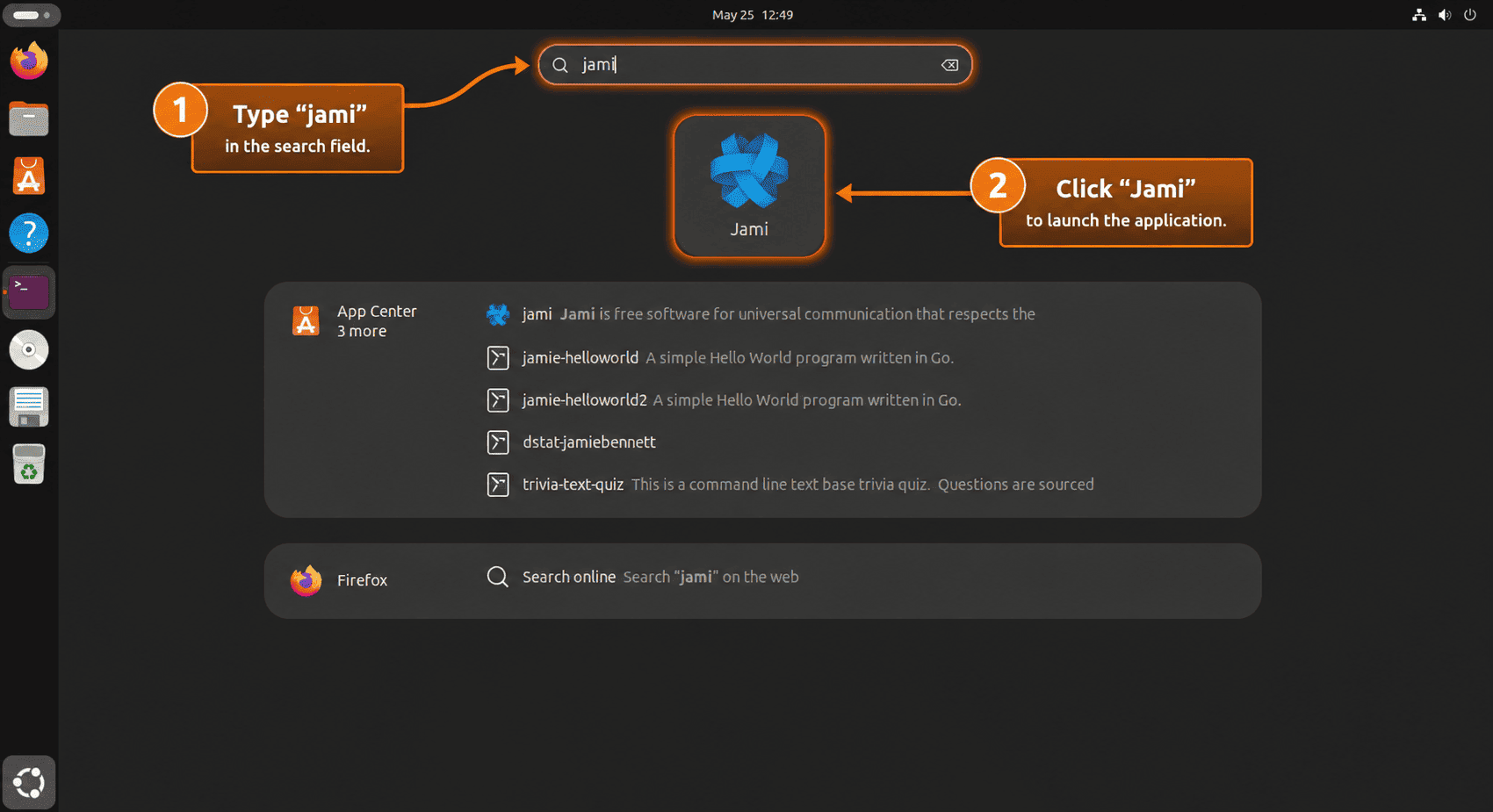
Start Jami from the Terminal
For an APT installation, you can also start Jami from a terminal emulator inside the desktop session:
jamiFor a Snap installation, use the Snap runtime launcher when a fresh shell does not yet have Snap’s desktop path state:
snap run jamiComplete the First Jami Launch
On first launch, create a Jami account, import an existing account archive, or link another device. Ubuntu may also prompt for microphone, camera, notification, or keyring access depending on your desktop session and chosen package method.
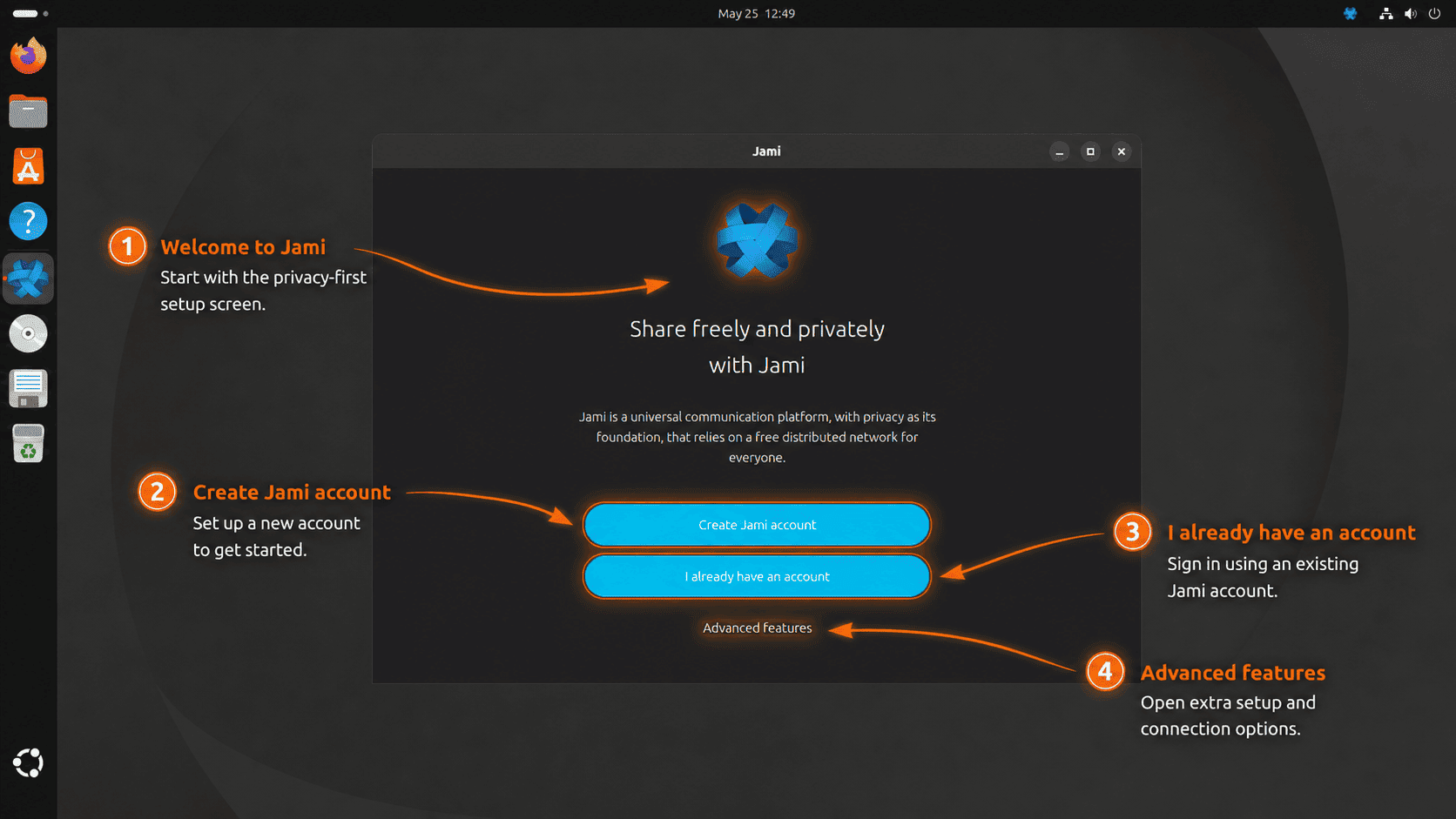
After an account is active, the main window shows contact search, your Jami ID, tips, and account settings. That screen confirms the desktop client is ready for normal use.
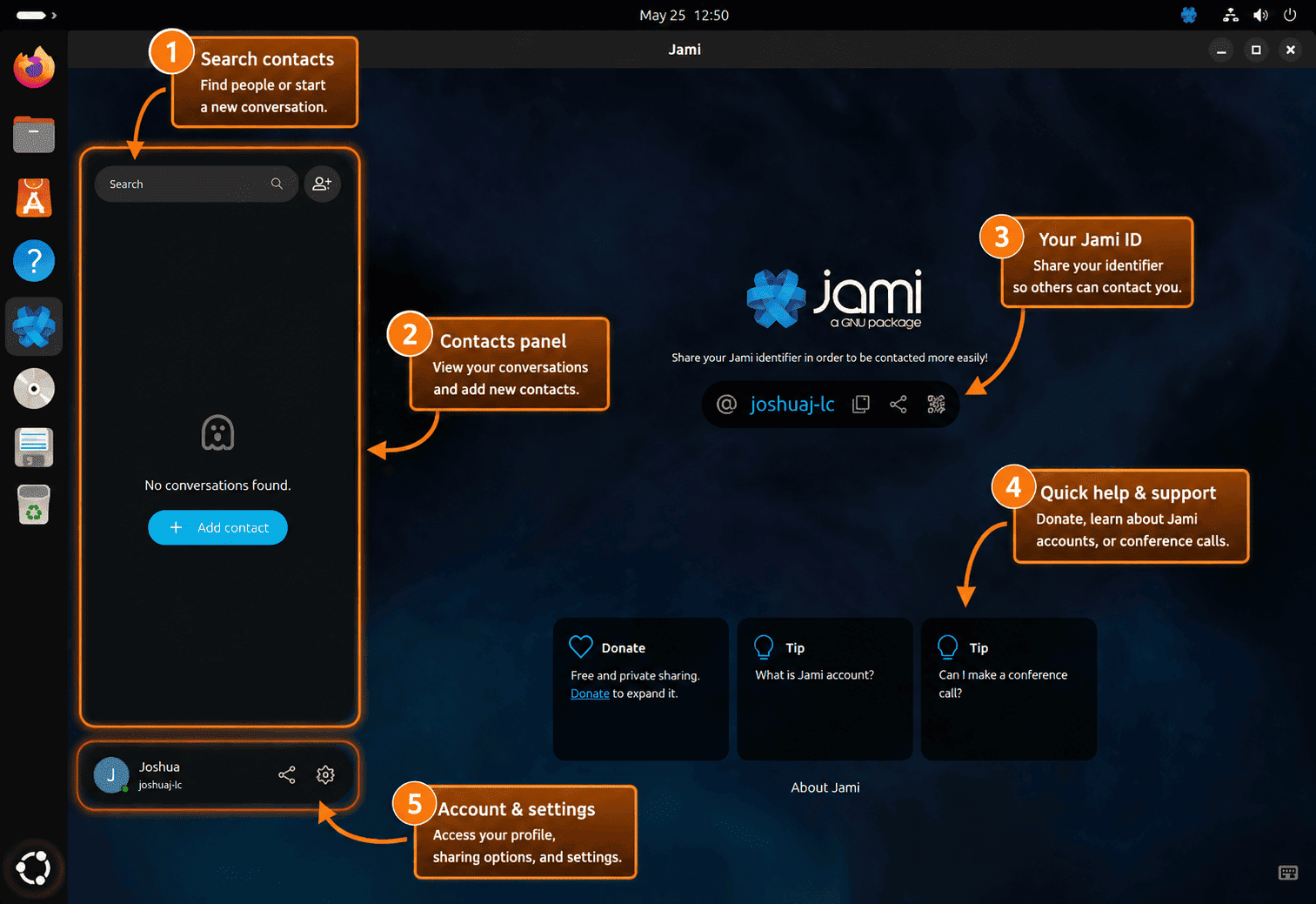
Once this window appears, the install and launch path is complete. Keep the package source or Snap channel you chose in mind when you update or remove Jami later.
Update or Remove Jami on Ubuntu
Update Jami Installed with APT
APT manages updates for the stable or nightly repository you configured. Refresh metadata, then upgrade only Jami when you do not want a broader system upgrade:
sudo apt update
sudo apt install --only-upgrade jami
To switch between stable and nightly APT builds, set jami_channel to the channel you want, recreate /etc/apt/sources.list.d/jami.sources with the repository setup commands, refresh APT, and reinstall or upgrade jami. The package names remain the same; the source URI decides which channel APT follows.
Update Jami Installed with Snap
Snap refreshes Jami automatically, but you can request a manual refresh from the current channel:
sudo snap refresh jamiUse a channel flag when you want to move between stable and edge:
sudo snap refresh jami --channel=latest/stable
sudo snap refresh jami --channel=latest/edge
Remove Jami Installed with APT
Remove the Jami packages first, then remove the repository source and signing key:
sudo apt purge jami jami-daemon libqt-jami
sudo rm -f /etc/apt/sources.list.d/jami.sources /etc/apt/sources.list.d/jami.list /usr/share/keyrings/jami-archive-keyring.gpg
sudo apt update
Preview dependency cleanup before removing any automatically installed libraries. Reused desktops can have unrelated autoremovable packages, so review the list before confirming a real cleanup:
sudo apt autoremove --dry-runIf the preview lists only packages you no longer need, run the cleanup interactively:
sudo apt autoremoveConfirm that the Jami APT packages, source files, and signing key are gone:
dpkg-query -W -f='${db:Status-Abbrev} ${binary:Package}\n' jami jami-daemon libqt-jami 2>/dev/null | grep '^ii' || echo "jami apt packages not installed"
for path in /etc/apt/sources.list.d/jami.sources /etc/apt/sources.list.d/jami.list /usr/share/keyrings/jami-archive-keyring.gpg; do
  if test -e "$path"; then
    printf '%s still exists\n' "$path"
  else
    printf '%s removed\n' "$path"
  fi
done
jami apt packages not installed /etc/apt/sources.list.d/jami.sources removed /etc/apt/sources.list.d/jami.list removed /usr/share/keyrings/jami-archive-keyring.gpg removed
Remove Jami Installed with Snap
Remove the Jami Snap and its Snap-managed app data when you do not want a recovery snapshot:
sudo snap remove --purge jamiVerify that the Snap is gone:
snap list jami 2>/dev/null || echo "jami snap not installed"jami snap not installed
Remove Local Jami Account Data
Package removal does not automatically erase local account data, received files, or profile state. Export or back up any Jami account and media you still need before deleting these paths. Preview matching paths first:
for path in "$HOME/.config/jami" "$HOME/.config/jami.net" "$HOME/.cache/Jami" "$HOME/.local/share/Jami" "$HOME/.local/share/jami" "$HOME/Videos/Jami" "$HOME/snap/jami"; do
  test -e "$path" && printf '%s\n' "$path"
done
If the preview lists only Jami data you no longer need, remove those paths for your current user account:
This cleanup deletes local Jami profiles, account configuration, cached data, and the default Jami videos directory for your user account. Do not run it unless you want a clean local profile.
rm -rf "$HOME/.config/jami" "$HOME/.config/jami.net" "$HOME/.cache/Jami" "$HOME/.local/share/Jami" "$HOME/.local/share/jami" "$HOME/Videos/Jami" "$HOME/snap/jami"Troubleshoot Jami on Ubuntu
Fix APT Installing an Old Jami Package or Finding No Candidate
If APT offers an old Ubuntu archive package or no package at all, the official Jami source is missing, disabled, or pointing at the wrong channel. Check the candidate source first:
apt-cache policy jamiA working official source includes a dl.jami.net row similar to this:
500 https://dl.jami.net/stable/ubuntu_26.04 jami/main amd64 Packages
If the row is missing, first confirm whether the source file exists. When it does, check the URIs:, Suites:, Architectures:, and Signed-By: fields before refreshing APT again:
if test -r /etc/apt/sources.list.d/jami.sources; then
  cat /etc/apt/sources.list.d/jami.sources
else
  echo "jami.sources is missing"
fi
sudo apt update
Fix Conflicting Stable and Nightly APT Sources
APT can complain about duplicate or conflicting Jami sources if older one-line source files remain beside the DEB822 source. Remove the Jami source files, refresh APT, then recreate only the channel you want:
sudo rm -f /etc/apt/sources.list.d/jami.sources /etc/apt/sources.list.d/jami.list
sudo apt update
After cleanup, add either stable or nightly, not both.
Fix Snap Command Not Found or Snapd Not Ready
If snap is missing on a minimal Ubuntu system, install snapd and wait for initial seeding before installing Jami:
sudo apt update
sudo apt install snapd
sudo snap wait system seed.loaded
snap version
If the desktop launcher is not immediately visible after a Snap install, log out and back in, or launch Jami directly with snap run jami from a terminal inside your desktop session.
Fix Jami Not Opening from SSH or a Text Console
Jami needs a graphical desktop session. A shell reached through SSH, a TTY, or a headless server often has no display variables, so the app cannot open a window.
printf 'DISPLAY=%s\nWAYLAND_DISPLAY=%s\n' "${DISPLAY:-unset}" "${WAYLAND_DISPLAY:-unset}"DISPLAY=unset WAYLAND_DISPLAY=unset
If both values are unset, return to a local Ubuntu desktop login and launch Jami from the application menu or a terminal emulator inside that session.
Conclusion
Jami is ready on Ubuntu with either APT-managed upstream packages or Snap Store refreshes. Keep the stable APT repository for the most predictable desktop setup, switch to nightly or edge only for testing, and remove the package source or Snap cleanly when you no longer need the client.


Formatting tips for your comment
You can use basic HTML to format your comment. Useful tags currently allowed in published comments:
<code>command</code>command<strong>bold</strong><em>italic</em><a href="https://example.com">link</a><blockquote>quote</blockquote>