
Slack’s desktop app is useful on Debian when workspace notifications, calls, and links need to stay in your local session instead of a browser tab. To install Slack on Debian cleanly, choose a package source that keeps slack-desktop updated after the first install.
Use Slack’s Packagecloud APT repository on Debian 13, Debian 12, and Debian 11 amd64 desktops. Use the Flathub build only when you prefer Flatpak packaging, and use Slack in a web browser on ARM or 32-bit Debian systems.
Install Slack on Debian
Two practical installation paths are available on Debian. Use the APT repository when you want Slack managed by Debian’s package tools, or use Flatpak when you prefer an app runtime managed outside Debian’s system libraries.
| Method | Source | Updates | Best For |
|---|---|---|---|
| Slack APT Repository | Slack Packagecloud slack-desktop package | APT-managed package updates | Debian 13, Debian 12, and Debian 11 amd64 desktops |
| Flatpak | Flathub app ID com.slack.Slack | Flatpak app and runtime updates | x86_64 desktops where you already manage apps through Flathub |
Slack’s Linux download page is useful for one-off .deb retrieval, but the APT repository is the better long-term setup on the amd64 Debian desktops covered here because APT can see, upgrade, and remove slack-desktop cleanly. Slack does not publish a Debian PPA; the Slack Packagecloud source uses the universal jessie suite name.
These commands use
sudofor tasks that need root privileges. If your account is not configured for sudo yet, follow how to add a user to sudoers on Debian.
Refresh Debian’s package index before installing prerequisites for either method:
sudo apt updateMethod 1: Install Slack from the APT Repository on Debian
Use this APT method on Debian 13, Debian 12, or Debian 11
amd64systems. If your Debian machine usesarm64,armhf,i386, or another architecture, use Slack in a browser instead.
Install Slack Repository Prerequisites
Install the tools needed to fetch Slack’s signing key and create a scoped APT source file:
sudo apt install ca-certificates curl gpgThe ca-certificates package validates HTTPS connections, curl downloads the key, and gpg converts Slack’s ASCII-armored key into a binary keyring for APT.
Add the Slack Packagecloud Signing Key
Import the Packagecloud signing key into a dedicated keyring under /etc/apt/keyrings/:
sudo install -m 0755 -d /etc/apt/keyrings
tmp_gpg_home="$(mktemp -d)"

curl -fsSLo slacktechnologies_slack.asc https://packagecloud.io/slacktechnologies/slack/gpgkey \
  && gpg --homedir "$tmp_gpg_home" --dearmor --yes -o slacktechnologies_slack.gpg slacktechnologies_slack.asc \
  && sudo install -m 0644 slacktechnologies_slack.gpg /etc/apt/keyrings/slacktechnologies_slack-archive-keyring.gpg

result=$?
rm -f slacktechnologies_slack.asc slacktechnologies_slack.gpg
rm -rf "$tmp_gpg_home"
[ "$result" -eq 0 ]
The temporary GPG home keeps the conversion separate from your normal keyrings. The final install command writes a root-owned keyring file that APT can reference through Signed-By.
Create the Slack DEB822 Source File
Create Slack’s APT source using the modern DEB822 .sources format. This block writes the source only on Debian 13, Debian 12, or Debian 11 amd64 systems:
. /etc/os-release
arch="$(dpkg --print-architecture)"

case "$VERSION_ID:$arch" in
  13:amd64|12:amd64|11:amd64)
    printf '%s\n' \
    'Types: deb' \
    'URIs: https://packagecloud.io/slacktechnologies/slack/debian/' \
    'Suites: jessie' \
    'Components: main' \
    'Architectures: amd64' \
    'Signed-By: /etc/apt/keyrings/slacktechnologies_slack-archive-keyring.gpg' | sudo tee /etc/apt/sources.list.d/slack.sources > /dev/null
    ;;
  *)
    printf 'Use Slack in a web browser on Debian %s %s.\n' "$VERSION_ID" "$arch" >&2
    false
    ;;
esac
The jessie suite name is expected. Slack uses it as a universal Packagecloud suite for the Debian releases covered here rather than as a Debian 8 support statement.
Verify the source file before refreshing APT:
cat /etc/apt/sources.list.d/slack.sourcesTypes: deb URIs: https://packagecloud.io/slacktechnologies/slack/debian/ Suites: jessie Components: main Architectures: amd64 Signed-By: /etc/apt/keyrings/slacktechnologies_slack-archive-keyring.gpg
Verify the Slack APT Repository
Refresh APT and confirm that slack-desktop comes from Slack’s Packagecloud repository:
sudo apt update
apt-cache policy slack-desktop
Relevant output includes:
slack-desktop:
  Installed: (none)
  Candidate: 4.50.143
  Version table:
     4.50.143 500
        500 https://packagecloud.io/slacktechnologies/slack/debian jessie/main amd64 Packages
Debian 13, Debian 12, and Debian 11 amd64 systems resolve slack-desktop from this same jessie repository. Your exact version can be newer than the example after Slack publishes another release.
Install the Slack Desktop Package
Install Slack after the repository candidate appears:
sudo apt install slack-desktopVerify the installed package:
dpkg-query -W -f='${Package} ${Version} ${Architecture}\n' slack-desktopslack-desktop 4.50.143 amd64
The Debian package installs the terminal launcher at /usr/bin/slack and the desktop entry at /usr/share/applications/slack.desktop.
Method 2: Install Slack Flatpak on Debian
The Flatpak method installs Slack from Flathub and keeps the application separated from Debian’s system libraries. Use this path when you already prefer Flathub-managed applications. Debian includes Flatpak in the default repositories, but minimal installs may not have it yet.
The Flathub listing marks the Slack Flatpak as unverified and describes it as a wrapper that is not Slack-verified or Slack-supported. Use the Slack APT repository when vendor-managed packaging matters more than the Flatpak runtime.
Install Flatpak first if the command is missing:
For full setup details, including desktop integration and Flathub background, see how to install Flatpak on Debian.
sudo apt install flatpakAdd Flathub for Slack
Add the Flathub remote at system scope so every desktop user can launch the installed app:
sudo flatpak remote-add --if-not-exists flathub https://dl.flathub.org/repo/flathub.flatpakrepoConfirm that the remote exists:
flatpak remotes | grep '^flathub'flathub system
Install Slack from Flathub
Install the Slack Flatpak app:
sudo flatpak install flathub com.slack.Slack -yThe -y flag accepts Flatpak’s install prompt, including any required runtimes. Relevant fields from flatpak info should include:
flatpak info com.slack.Slack ID: com.slack.Slack
Ref: app/com.slack.Slack/x86_64/stable
Arch: x86_64
Branch: stable
Origin: flathub
Installation: system
Launch Slack on Debian
Launch Slack from the terminal with the command that matches your installation method.
APT repository installation:
slackFlatpak installation:
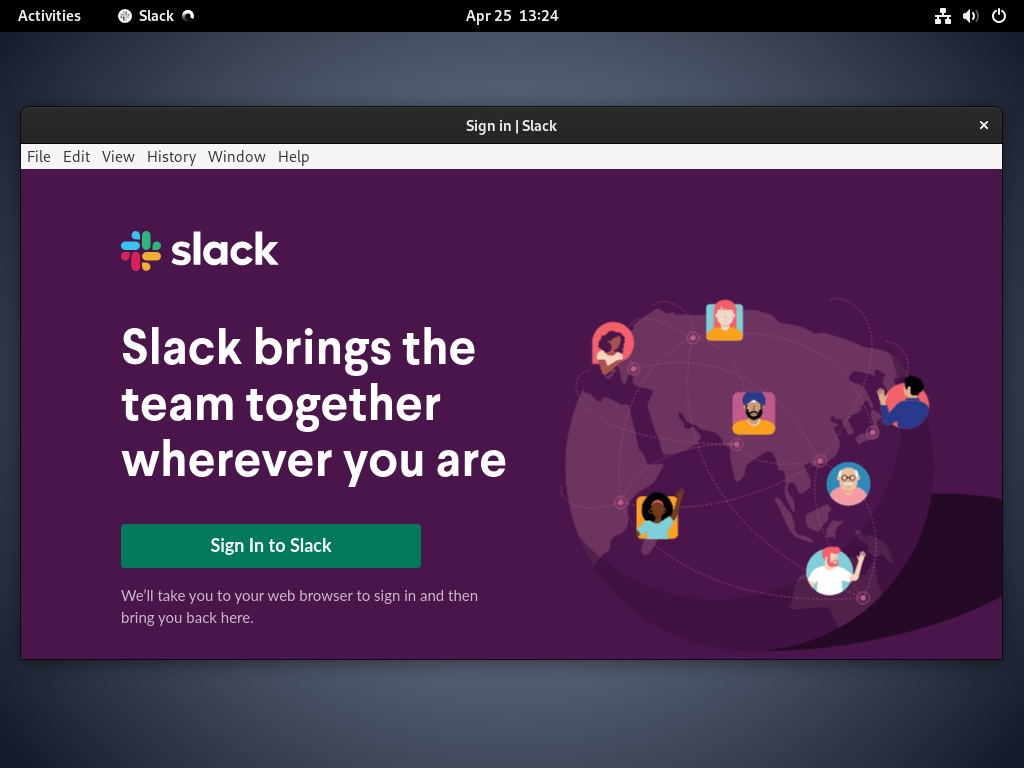
flatpak run com.slack.SlackYou can also open the Debian application menu and search for Slack. The desktop app needs a graphical session to sign in, open links, and handle notifications normally.
Update Slack on Debian
Use the update command that matches the packaging method you installed.
Update Slack from the APT Repository
Refresh package metadata, then upgrade only Slack:
sudo apt update
sudo apt install --only-upgrade slack-desktop
The --only-upgrade flag upgrades Slack only if it is already installed, which avoids accidentally turning an update command into a fresh install on another system.
Update Slack from Flathub
Update the Slack Flatpak app and any required runtimes from Flathub:
sudo flatpak update com.slack.Slack -yRemove Slack from Debian
Remove Slack with the command set that matches your installation method. Keep APT, Flatpak, and user-data cleanup separate so you do not remove files from a method you never used.
Remove the Slack APT Package and Repository
Remove the APT package first:
sudo apt remove slack-desktopAfter Slack is removed, APT may report orphaned packages that came from Slack or from older system maintenance, including stale kernels on reused desktops. Review sudo apt autoremove separately before confirming so unrelated packages are not removed by surprise.
Remove the Slack repository, keyring, and any older legacy source files that may exist from previous installs:
sudo rm -f /etc/apt/sources.list.d/slack.sources /etc/apt/sources.list.d/slack.list /etc/apt/sources.list.d/extrepo_slack.sources
sudo rm -f /usr/share/keyrings/slacktechnologies_slack-archive-keyring.gpg /etc/apt/keyrings/slacktechnologies_slack-archive-keyring.gpg
sudo apt update
Verify that the package is no longer installed:
dpkg-query -W -f='${db:Status-Abbrev} ${binary:Package}\n' slack-desktop 2>/dev/null | grep '^ii'No output from this command means the Slack package is not installed. The final filter checks for Debian’s installed package state, which starts with
ii.
Remove the Slack Flatpak App
Remove the system-wide Flatpak app, then clean up unused runtimes. User account data is covered in the next section because it lives under the logged-in user’s home directory.
sudo flatpak remove com.slack.Slack -y
sudo flatpak uninstall --unused -y
Verify the app is gone from the system Flatpak installation:
sudo flatpak list --app --columns=application | grep -Fx com.slack.Slack || echo "NOT_INSTALLED"NOT_INSTALLED
Remove Slack User Data on Debian
Slack can leave local workspace settings, cache files, and downloaded content in your home directory. Check which paths exist before deleting anything:
for dir in "$HOME/.config" "$HOME/.cache" "$HOME/.var/app"; do
  [ -d "$dir" ] && find "$dir" -maxdepth 1 -type d \( -name 'Slack' -o -name 'com.slack.Slack' \) -print
done
The next command permanently deletes local Slack settings, cached workspace data, and sandboxed Flatpak data for your user account. Export or back up anything you need before removing these directories.
Remove only the paths you confirmed above:
rm -rf "$HOME/.config/Slack" "$HOME/.cache/Slack" "$HOME/.var/app/com.slack.Slack"Troubleshoot Slack on Debian
Fix Slack Repository Signed-By Conflicts
If APT reports a missing Signed-By value or conflicting Slack source entries, an older slack.list or extrepo_slack.sources file is usually still present beside the newer DEB822 source.
Common messages include:
N: Missing Signed-By in the sources.list(5) entry for 'https://packagecloud.io/slacktechnologies/slack/debian'
E: Conflicting values set for option Signed-By regarding source https://packagecloud.io/slacktechnologies/slack/debian/ jessie
Remove the older source files, then refresh APT:
sudo rm -f /etc/apt/sources.list.d/slack.list /etc/apt/sources.list.d/extrepo_slack.sources
sudo apt update
If /etc/apt/sources.list.d/slack.sources is missing after cleanup, repeat the APT repository setup section above.
If Debian reports SHA1 is not considered secure since 2026-02-01T00:00:00Z, APT is usually still reading an older Slack key or an extrepo-created source. Check which Slack source and keyring files are still present:
find /etc/apt/sources.list.d /etc/apt/keyrings /usr/share/keyrings -maxdepth 1 -type f \( -iname '*slack*' -o -name 'extrepo_slack.sources' \) -print 2>/dev/null
grep -RInI 'packagecloud.io/slacktechnologies/slack' /etc/apt/sources.list /etc/apt/sources.list.d 2>/dev/null
Remove Slack’s source and keyring files together, then repeat the signing-key and DEB822 source setup above before running sudo apt update again:
sudo rm -f /etc/apt/sources.list.d/slack.sources /etc/apt/sources.list.d/slack.list /etc/apt/sources.list.d/extrepo_slack.sources
sudo rm -f /etc/apt/keyrings/slacktechnologies_slack-archive-keyring.gpg /usr/share/keyrings/slacktechnologies_slack-archive-keyring.gpg
Fix Unable to Locate Package slack-desktop
If APT cannot locate slack-desktop, first confirm that the machine is using the required amd64 architecture:
dpkg --print-architectureamd64
If the command prints arm64, armhf, i386, or another architecture, Slack does not provide a native desktop package for that Debian system. If it prints amd64, rerun the repository verification commands and check that apt-cache policy slack-desktop shows the Packagecloud source.
Conclusion
Slack is installed on Debian through the Slack Packagecloud APT repository when you use an amd64 desktop, while Flatpak remains available for users who prefer Flathub-managed apps. For adjacent communication tools, see install Discord on Debian or install Zoom on Debian.


It looks like the Slack GPG key is using SHA1, which gives the following error: `SHA1 is not considered secure since 2026-02-01T00:00:00Z`
Did they change their key to a more secure one or are we waiting on them to do this? I have been seeing this error for a while now and Slack has not been updated since then.
Hey Dan, I rechecked this against the current Packagecloud key and source before replying. The current key endpoint still serves fingerprint
DB08 5A08 CA13 B8AC B917 E0F6 D938 EC0D 0386 51BD, and Debian 13’sapt/sqvaccepted the fresh key and source in an isolated test.That SHA1 error usually means APT is still reading older Slack key material. This is the quick check I would run first:
If that shows
extrepo_slack.sources,slack.list, or an older Slack keyring, the updated troubleshooting section now removes those stale files and recreates the current DEB822 setup.What do you keep reïnstalling with `sudo apt install ./slack-desktop-*.*.*-amd64.deb`?
Just do `sudo apt update -y && sudo apt upgrade -y` as part of your normal update process. The deb install will also add an aptitude source in `/etc/apt/sources.list.d/slack.list` which will be used to update.
Thanks for catching that, Hendrik. You were absolutely right. The previous version of this guide incorrectly showed reinstalling the .deb file for updates, even though the Slack repository was already configured to handle updates automatically through the standard APT workflow.
I have updated the guide to use the official APT repository as the primary installation method with proper DEB822 configuration. Updates now arrive through your regular system upgrade process without any manual intervention needed.
Thanks for pointing this out so we could improve the guide for other readers.