
Debian already includes Flatpak in the default repositories, so you can install Flatpak on Debian and run desktop apps from Flathub without replacing core system libraries. The Flatpak app and runtime model is useful when you want newer desktop applications while leaving Debian’s base packages alone.
The same setup works on Debian 13 (Trixie), Debian 12 (Bookworm), and Debian 11 (Bullseye). After enabling Flathub, you can install apps through GNOME Software, KDE Discover, or the terminal, then update or remove them from the same Flatpak source.
Update Debian Before Installing Flatpak
Before installing new packages, refresh the APT package index so Debian uses the current repository metadata:
sudo apt updateThese commands use
sudofor tasks that need root privileges. If your account is not configured for sudo yet, follow how to add a user to sudoers on Debian.
Install Flatpak on Debian
Debian includes Flatpak in its standard repositories, but minimal or server installs often omit it. Install the package with APT:
sudo apt install flatpakCheck the installed Flatpak version:
flatpak --versionFlatpak 1.16.6
Current package versions differ by Debian release. Debian 13 ships Flatpak 1.16.x, Debian 12 ships 1.14.x, and Debian 11 ships 1.10.x.
Add the Flathub Repository for Flatpak on Debian
Flathub is the primary repository for Flatpak applications, hosting apps from individual developers, open-source projects, and commercial vendors. Add the Flathub remote system-wide so every user can install from the same source:
sudo flatpak remote-add --if-not-exists flathub https://dl.flathub.org/repo/flathub.flatpakrepoFlatpak uses the default system-wide installation for this command. The --if-not-exists flag avoids errors if the remote is already configured.
Confirm that Flatpak sees the Flathub remote:
flatpak --system remotes --columns=nameflathub
If flathub appears in the output, the system-wide remote is active.
Apply Flatpak Desktop Paths on Debian
Flatpak exports desktop entries through standard XDG paths, but desktop sessions can cache application menus. Log out and back in after installing Flatpak apps. If new applications still do not appear, reboot once to refresh the session state:
sudo rebootServer or minimal installs without a desktop session can skip this step.
Install Flatpak Applications with GNOME Software on Debian
GNOME Software can browse, install, update, and remove Flathub apps after the Flatpak plugin is installed. For additional GNOME customization options, see Install GNOME Tweaks on Debian.
Install the GNOME Software Flatpak Plugin on Debian
Install the Flatpak plugin so GNOME Software can display Flathub apps:
sudo apt install gnome-software-plugin-flatpakAfter installation, restart GNOME Software or log out and back in for the plugin to take effect.
Browse and Install Flatpak Applications in GNOME Software
Once the plugin is active, open GNOME Software from your application menu (labeled “Software”). With the Flatpak plugin installed, you can browse Flathub applications directly:
- Use the search bar to find a specific application or browse categories.
- Click an application to view its description, screenshots, and reviews.
- Click “Install” to download and install the application.
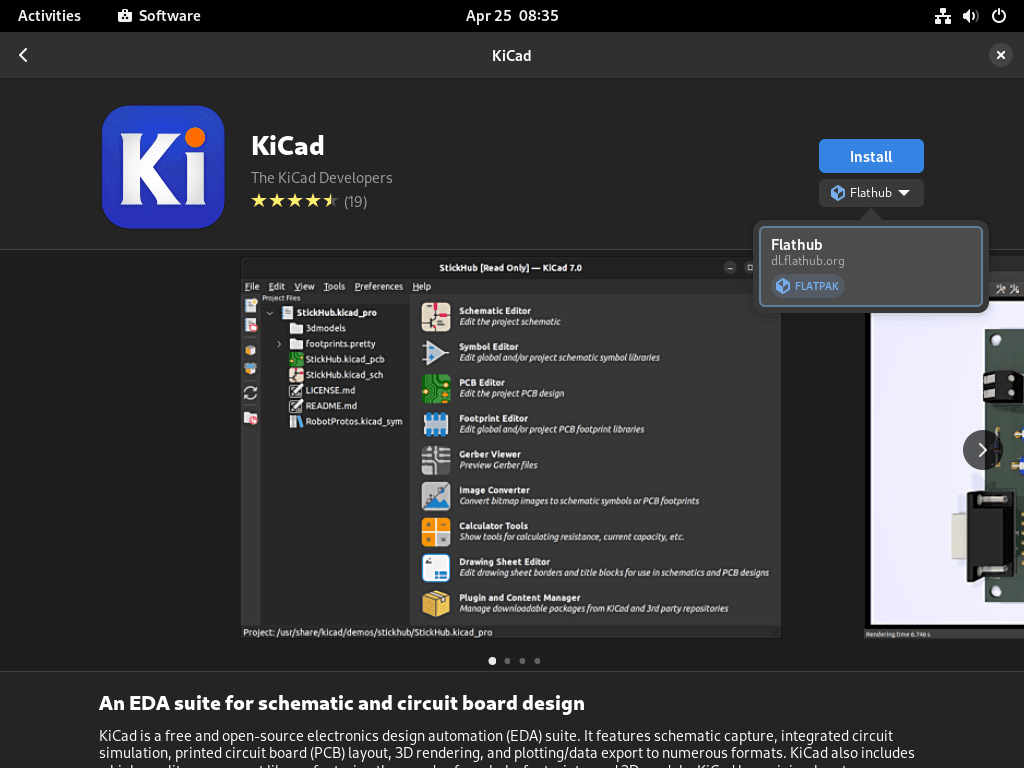
Once installation completes, applications appear in your system’s application menu. From there, you can launch, update, or remove them through GNOME Software.
Install Flatpak Applications with KDE Discover on Debian
If you use KDE Plasma, Discover can manage Flatpak apps alongside Debian packages. If you still need the desktop environment, see Install KDE Plasma on Debian. Install the Flatpak backend package:
sudo apt install plasma-discover-backend-flatpakAfter installation, restart Discover or log out and back in. Flathub apps should then appear alongside Debian packages in search results.
Manage Flatpak Applications from Terminal on Debian
The Flatpak command-line interface gives you direct control over application management and works across Debian desktop environments.
| Task | Command |
|---|---|
| Search Flathub apps | flatpak search <keyword> |
| Install an app system-wide | sudo flatpak install flathub <app-id> |
Install from a trusted .flatpakref file | sudo flatpak install --from ~/Downloads/app.flatpakref |
| Update installed apps | sudo flatpak update |
| Remove an app | sudo flatpak uninstall <app-id> |
Search for Flatpak Applications
Use search to find applications by name or keyword:
flatpak search gimpRelevant output includes the main application row:
GNU Image Manipulation Program High-end image creation and manipulation org.gimp.GIMP 3.2.4 stable flathub
The results use tab-separated columns for name, description, application ID, version, branch, and remote. You may also see manuals or plugins, so use the application ID for the main app, such as org.gimp.GIMP, in install commands.
Install Flatpak Applications
Once you find an application, install it using the application ID from the search results:
sudo flatpak install flathub org.gimp.GIMPDuring installation, Flatpak prompts you to confirm the app and any required runtimes that will be downloaded.
For full app-specific walkthroughs after setup, see Install Discord on Debian and Install Steam on Debian.
Using
sudokeeps the app in Flatpak’s default system-wide installation so all users can launch it. To install for the current user only, dropsudoand add--user:flatpak install --user flathub org.gimp.GIMP.
Install a Downloaded Flatpakref File
Most users should install apps by application ID from Flathub. Use a downloaded .flatpakref file only when a trusted application publisher provides it directly, such as for a beta, snapshot, or app not listed in your configured remote.
sudo flatpak install --from ~/Downloads/app.flatpakrefFor a current-user install instead of a system-wide install, add --user and omit sudo:
flatpak install --user --from ~/Downloads/app.flatpakrefFor a system-wide install, verify that the app appears in Flatpak’s system list:
flatpak list --app --system --columns=application,origin,installationAfter installation, use the application ID shown by Flatpak to update or remove the app with the normal commands:
sudo flatpak update <app-id>sudo flatpak uninstall <app-id>View Flatpak Application Details
Preview package details from Flathub before installing:
flatpak remote-info flathub org.gimp.GIMPGNU Image Manipulation Program - High-end image creation and manipulation
ID: org.gimp.GIMP
Ref: app/org.gimp.GIMP/x86_64/stable
Runtime: org.gnome.Platform/x86_64/50
...
This output confirms the application ID, branch, and runtime published by Flathub. Some Flatpak versions also show the current app version. For installed apps, use flatpak info org.gimp.GIMP to inspect local details such as installation scope and commit state.
List Installed Flatpak Applications
List installed Flatpak applications:
flatpak list --app --system --columns=application,origin,installationThe --app flag filters the output to show only applications, excluding runtimes and extensions. A system-wide app from Flathub should show its application ID, flathub as the origin, and system in the final column. If the list is empty, no system-wide Flatpak apps are installed yet.
Update Flatpak Applications
Update all installed Flatpak applications and runtimes:
sudo flatpak updateThis updates system-wide Flatpak apps and runtimes from every configured remote.
To update only one application:
sudo flatpak update org.gimp.GIMPRemove Flatpak Applications
Remove a Flatpak application:
sudo flatpak uninstall org.gimp.GIMPClean up unused runtimes and dependencies:
sudo flatpak uninstall --unusedThis command removes shared runtimes that are no longer required by any installed application, freeing disk space.
Run Flatpak Applications from Terminal
Launch a Flatpak application directly from the terminal:
flatpak run org.gimp.GIMPRun this as your normal user (not with sudo). The app window should open, which is useful for debugging or when an application does not appear in your desktop menu.
Flatpak Application Data Location on Debian
Flatpak stores per-user data, configuration files, and cache in ~/.var/app/.
System-wide installs keep application files and runtimes under /var/lib/flatpak/, while each app’s user data still lives in ~/.var/app/<app-id>/ (for example, ~/.var/app/org.gimp.GIMP/).
Back up any directories you want to keep before a full removal.
Troubleshoot Common Flatpak Issues on Debian
Fix No Remote Refs Found for Flathub
If flatpak search returns no results after adding Flathub, local AppStream metadata is usually stale. If Flathub was not added correctly, install or search commands can also report that no remote refs were found for flathub.
No matches found
error: No remote refs found for 'flathub'
First check the system-wide remote list:
flatpak --system remotes --columns=nameIf flathub is missing, add the remote again. The --if-not-exists flag keeps the command safe when the remote is already present:
sudo flatpak remote-add --if-not-exists flathub https://dl.flathub.org/repo/flathub.flatpakrepoRefresh Flathub AppStream metadata, then repeat the search:
sudo flatpak update --appstream flathubflatpak search gimpRelevant output includes the main application row:
GNU Image Manipulation Program High-end image creation and manipulation org.gimp.GIMP 3.2.4 stable flathub
Flatpak Application Does Not Appear in Debian Menu
If a newly installed application does not appear in your desktop menu, the desktop environment may not have detected the new .desktop file. Confirm that the app is installed:
flatpak list --app --system --columns=application,origin,installationWhen the list is empty, reinstall the app. If the app appears with system in the final column, the Flatpak installation is present and the issue is usually the desktop menu cache.
sudo flatpak install flathub org.gimp.GIMPOnce the app appears, launch it from the terminal to confirm it works:
flatpak run org.gimp.GIMPAfter it launches successfully, log out and back in to refresh the menu. If the menu still does not update, reboot once.
Flatpak Portal Errors on Debian
Flatpak applications use XDG Desktop Portals to interact with system features like file dialogs and screen sharing. If you see errors like the following when launching applications:
No portal found for org.freedesktop.portal.FileChooser
Failed to create portal proxy: No such interface
To fix this, install the portal package for your desktop environment:
sudo apt install xdg-desktop-portal-gtkHowever, for KDE Plasma, install the KDE-specific portal instead:
sudo apt install xdg-desktop-portal-kdeAfter installing the portal package, log out and back in to start the portal services. Then verify the portal is running:
systemctl --user status xdg-desktop-portalLook for Active: active (running) in the service output.
Flatpak Permission Issues with Files or Devices
Flatpak applications use sandbox permissions that can limit access to files, devices, sockets, or desktop features. If an application cannot access a specific path or device, you may see errors like:
Permission denied: /home/user/Documents/file.txt
Cannot access /dev/video0: Operation not permitted
Check the app’s current permissions before adding an override:
flatpak info --show-permissions <app-id>If the app does not already have the access it needs, grant the narrowest folder or device access that matches the task. For example, give the app access to one folder rather than the entire home directory:
flatpak override --user --filesystem=/path/to/folder <app-id>Show the user override for that application:
flatpak override --user --show <app-id>The
--userflag applies the override for the current user only. To apply an override system-wide, replace--userwith--systemand run the command withsudo.
Remove the user override if it no longer applies:
flatpak override --user --reset <app-id>If you prefer a GUI for permission control, install Flatseal from Flathub.
Remove Flatpak from Debian
If you decide to remove Flatpak from your system, begin by uninstalling the system-wide Flatpak applications and runtimes:
sudo flatpak uninstall --system --allThis removes every system-wide Flatpak app and runtime. Review the list when prompted before you confirm.
Remove the system-wide Flathub remote:
sudo flatpak remote-delete --system flathubRemove Flatpak and the software center plugins:
sudo apt remove --purge flatpak gnome-software-plugin-flatpak plasma-discover-backend-flatpakClean up orphaned dependencies:
sudo apt autoremoveReview the package list before confirming, especially on desktops where other applications may share the same libraries.
Remove Flatpak User Data
Flatpak application data remains in ~/.var/app/ after uninstalling applications and Flatpak itself. Check the directories first:
find ~/.var/app -mindepth 1 -maxdepth 1 -print 2>/dev/null || trueNo output means this account does not have Flatpak app data in that location. To remove all Flatpak-related user data for the current account:
This permanently deletes configuration, saves, and cache data for every Flatpak application under the current account. Back up anything you want to keep before running the removal command.
rm -rf ~/.var/app/Remove System Flatpak Data
System-wide Flatpak apps and runtimes remain in /var/lib/flatpak/ after you remove the package. Inspect the directory before deleting it:
sudo find /var/lib/flatpak -mindepth 1 -maxdepth 2 -print 2>/dev/null || trueRemove this directory only if you no longer need any system-wide Flatpak apps or runtimes:
This permanently deletes all system-wide Flatpak apps and runtimes. If you want a backup, copy the directory first with
sudo cp -a /var/lib/flatpak /var/lib/flatpak-backup.
sudo rm -rf /var/lib/flatpakVerify Flatpak Removal
Finally, confirm the Flatpak package is no longer installed:
dpkg-query -W -f='${db:Status-Abbrev} ${binary:Package}\n' flatpak 2>/dev/null | grep -E '^(ii|rc)' || echo "flatpak package not installed"flatpak package not installed
If the command prints an ii or rc row for flatpak, rerun the removal command and check again.
The grep filter keeps Debian’s harmless un package state from being treated as a failed removal. For more filtering examples, see grep command in Linux with examples.
Conclusion
Flatpak is installed on Debian with Flathub available for system-wide app installs, terminal updates, and desktop software-center workflows. For more desktop app choices, see Install Firefox on Debian or Install Snapd and Snap Store on Debian.


Formatting tips for your comment
You can use basic HTML to format your comment. Useful tags currently allowed in published comments:
<code>command</code>command<strong>bold</strong><em>italic</em><a href="https://example.com">link</a><blockquote>quote</blockquote>