
Discord on Debian is a package-source decision before it is a desktop login step. To install Discord on Debian, choose between Discord’s official .deb download, the Snap Store package, or the Flathub app, because each path handles updates, desktop integration, and sandboxing differently.
These commands apply to Debian 13 (Trixie), Debian 12 (Bookworm), and Debian 11 (Bullseye) on amd64/x86_64 desktop systems. Discord is a hosted service, so this workflow installs the desktop client used to join servers and calls; Debian does not provide a local Discord server package.
Install Discord on Debian
Choose a Discord Installation Method
Start with the official .deb package when you want Discord’s own Linux download and the most direct desktop integration. Use Snap if you already manage apps with snapd and want automatic snap refreshes. Use Flatpak if you prefer Flathub packaging and can accept the feature limits Flathub documents for the sandboxed build.
| Method | Source | Update Path | Best Fit | Important Limits |
|---|---|---|---|---|
| .deb package | Discord official download | Run the optional update-discord helper or reinstall the current .deb package manually | Most Debian desktops and readers who want Discord’s direct Linux package | amd64 only; no Discord APT repository is added |
| Snap | Snap Store package by Snapcrafters | Automatic snap refreshes through snapd | Readers who already use Snap on Debian | amd64 stable channel; publisher is Snapcrafters, not Discord Inc. |
| Flatpak | Flathub app by Discord Inc. | Flatpak app and runtime updates through Flathub | Readers who prefer Flathub app management | x86_64 only; Flathub lists broad permissions and feature limits |
Discord’s Linux download page also offers a tar.gz archive, but this Debian install article does not use it as a full method because extraction, launcher placement, updates, and cleanup remain self-managed. Use the .deb package when you want Discord’s direct download with an APT package record, or use Snap or Flatpak when you want a store-managed package.
Discord’s current Linux package options are 64-bit only. If dpkg --print-architecture does not return amd64, use Discord in a browser such as Firefox on Debian or Chromium Browser on Debian instead of trying to force the desktop packages onto ARM or 32-bit Debian.
dpkg --print-architectureamd64
Refresh APT before installing the official package so dependency resolution uses current Debian metadata:
sudo apt updateThese commands use
sudofor tasks that need root privileges. If your user is not in the sudoers file yet, run the commands as root or follow the guide on how to add a user to sudoers on Debian.
Install Discord with the Official .deb Package on Debian
The current official .deb package installs the /usr/bin/discord launcher, a desktop entry, an AppArmor profile under /etc/apparmor.d/discord, and a bootstrapper that prepares Discord in the user’s profile on first launch. The launcher can refresh the per-user Discord payload under ~/.config/discord, but the Debian package itself does not add an APT repository, so APT can remove the package but cannot fetch future Discord package versions by itself.
Install wget and certificate support if this Debian system does not already include them. The wget command examples guide is useful later if you need resume, timestamp, or mirror options for other downloads.
sudo apt install wget ca-certificatesDownload the latest stable Discord .deb package from Discord’s Linux download endpoint:
wget "https://discord.com/api/download?platform=linux&format=deb" -O discord.debThe -O discord.deb option keeps the local filename stable even though Discord redirects to a versioned package name. Inspect the package metadata before installation:
dpkg-deb -f discord.deb Package Version Architecture Installed-SizeThe package should identify as discord with Architecture: amd64. Install it with APT so Debian resolves required libraries from the enabled repositories:
sudo apt install ./discord.debConfirm the launcher exists:
command -v discord/usr/bin/discord
Check the installed package record without freezing Discord’s moving version number:
dpkg-query -W -f='${binary:Package} ${Architecture} ${db:Status-Abbrev}\n' discorddiscord amd64 ii
After APT installs the package successfully, you can delete the downloaded installer file. Removing discord.deb only deletes the local package file; it does not uninstall Discord.
rm -f discord.debCreate a Discord .deb Update Helper
The direct .deb method stays manual unless you add a small helper. This script downloads Discord’s current package to a temporary directory, confirms the package name and architecture, compares it with the installed version, and uses APT for the install or update. It skips a same-version reinstall unless you pass --reinstall.
sudo tee /usr/local/bin/update-discord > /dev/null <<'EOF'
#!/usr/bin/env bash
set -euo pipefail

url='https://discord.com/api/download?platform=linux&format=deb'
tmpdir=$(mktemp -d)
package_file="$tmpdir/discord.deb"
force_reinstall=no

if [ "${1:-}" = "--reinstall" ]; then
  force_reinstall=yes
elif [ "$#" -gt 0 ]; then
  printf 'Usage: update-discord [--reinstall]\n' >&2
  exit 2
fi

need_command() {
  if ! command -v "$1" >/dev/null 2>&1; then
    printf 'Missing required command: %s\n' "$1" >&2
    exit 1
  fi
}

need_command wget
need_command dpkg
need_command dpkg-deb
need_command dpkg-query
need_command apt-get

if [ "$(id -u)" -ne 0 ]; then
  need_command sudo
fi

cleanup() {
  rm -rf "$tmpdir"
}
trap cleanup EXIT

arch=$(dpkg --print-architecture)
if [ "$arch" != "amd64" ]; then
  printf 'Discord publishes the Linux .deb package for amd64, but this system reports %s.\n' "$arch" >&2
  exit 1
fi

printf 'Downloading current Discord .deb package...\n'
wget -O "$package_file" "$url"

package_name=$(dpkg-deb -f "$package_file" Package)
package_version=$(dpkg-deb -f "$package_file" Version)
package_arch=$(dpkg-deb -f "$package_file" Architecture)

if [ "$package_name" != "discord" ]; then
  printf 'Downloaded package is %s, not discord. Aborting.\n' "$package_name" >&2
  exit 1
fi

if [ "$package_arch" != "amd64" ]; then
  printf 'Downloaded package architecture is %s, not amd64. Aborting.\n' "$package_arch" >&2
  exit 1
fi

printf 'Downloaded Discord package:\n'
printf '  Package: %s\n' "$package_name"
printf '  Version: %s\n' "$package_version"
printf '  Architecture: %s\n' "$package_arch"

installed_version=$(dpkg-query -W -f='${Version}' discord 2>/dev/null || true)

if [ -n "$installed_version" ] && dpkg --compare-versions "$installed_version" gt "$package_version"; then
  printf 'Installed Discord version %s is newer than downloaded version %s. Not downgrading.\n' "$installed_version" "$package_version" >&2
  exit 1
fi

if [ -n "$installed_version" ] && [ "$installed_version" = "$package_version" ] && [ "$force_reinstall" = "no" ]; then
  printf 'Discord %s is already installed. Use update-discord --reinstall to reinstall the same package.\n' "$installed_version"
  exit 0
fi

if [ -n "$installed_version" ]; then
  printf 'Installed version: %s\n' "$installed_version"
else
  printf 'Discord is not installed; installing the downloaded package.\n'
fi

apt_args=(install)
if [ "$force_reinstall" = "yes" ] && [ -n "$installed_version" ]; then
  apt_args=(install --reinstall)
fi

if [ "$(id -u)" -eq 0 ]; then
  apt-get "${apt_args[@]}" "$package_file"
else
  sudo apt-get "${apt_args[@]}" "$package_file"
fi
EOF
Make the helper executable and confirm the shell can find it:
sudo chmod 0755 /usr/local/bin/update-discord
command -v update-discord
/usr/local/bin/update-discord
Run the helper whenever Discord prompts for a Linux package update or when you want to check for a newer direct package:
update-discordInstall Discord with Snap on Debian
Use the Snap method when snapd is already part of your Debian desktop workflow. Debian provides the snapd package in its default repositories, but it is not installed on a default Debian system.
If snapd is not installed yet, follow the Snapd installation guide for Debian before installing the Discord snap. That setup owns the snapd service, socket, and first-run seeding steps.
The Discord snap is published in the stable amd64 channel by Snapcrafters. Install it with:
sudo snap install discordVerify that snapd registered the app:
snap list discordUse the Snap-specific launch and update commands instead of mixing the snap with the .deb package on the same system.
Install Discord with Flatpak on Debian
Use Flatpak when Flathub is already your preferred desktop app source. Flathub currently publishes Discord for x86_64, and its metadata shows broad device and session permissions for the app. The listing also notes that the sandbox can limit Game Activity, unrestricted file access, and Rich Presence.
If Flatpak is not installed or Flathub is not configured, follow the Flatpak installation guide for Debian first.
Add the Flathub remote at system scope if it is not already present:
sudo flatpak remote-add --if-not-exists flathub https://dl.flathub.org/repo/flathub.flatpakrepoInstall Discord from Flathub:
sudo flatpak install flathub com.discordapp.DiscordFlatpak may ask you to confirm the app and its required runtime. Verify the installed reference after the command completes:
flatpak info --show-ref com.discordapp.Discordapp/com.discordapp.Discord/x86_64/stable
Launch Discord on Debian
Discord is a graphical desktop app, so launch it from a signed-in Debian desktop session. The official .deb package may download or refresh the per-user Discord payload under ~/.config/discord the first time the launcher runs, so keep network access available for first launch.
Launch Discord from the Terminal on Debian
Use the launch command for the installation method you chose:
| Installation Method | Terminal Launch Command |
|---|---|
| .deb package | discord |
| Snap | snap run discord |
| Flatpak | flatpak run com.discordapp.Discord |
Launch Discord from the Applications Menu on Debian
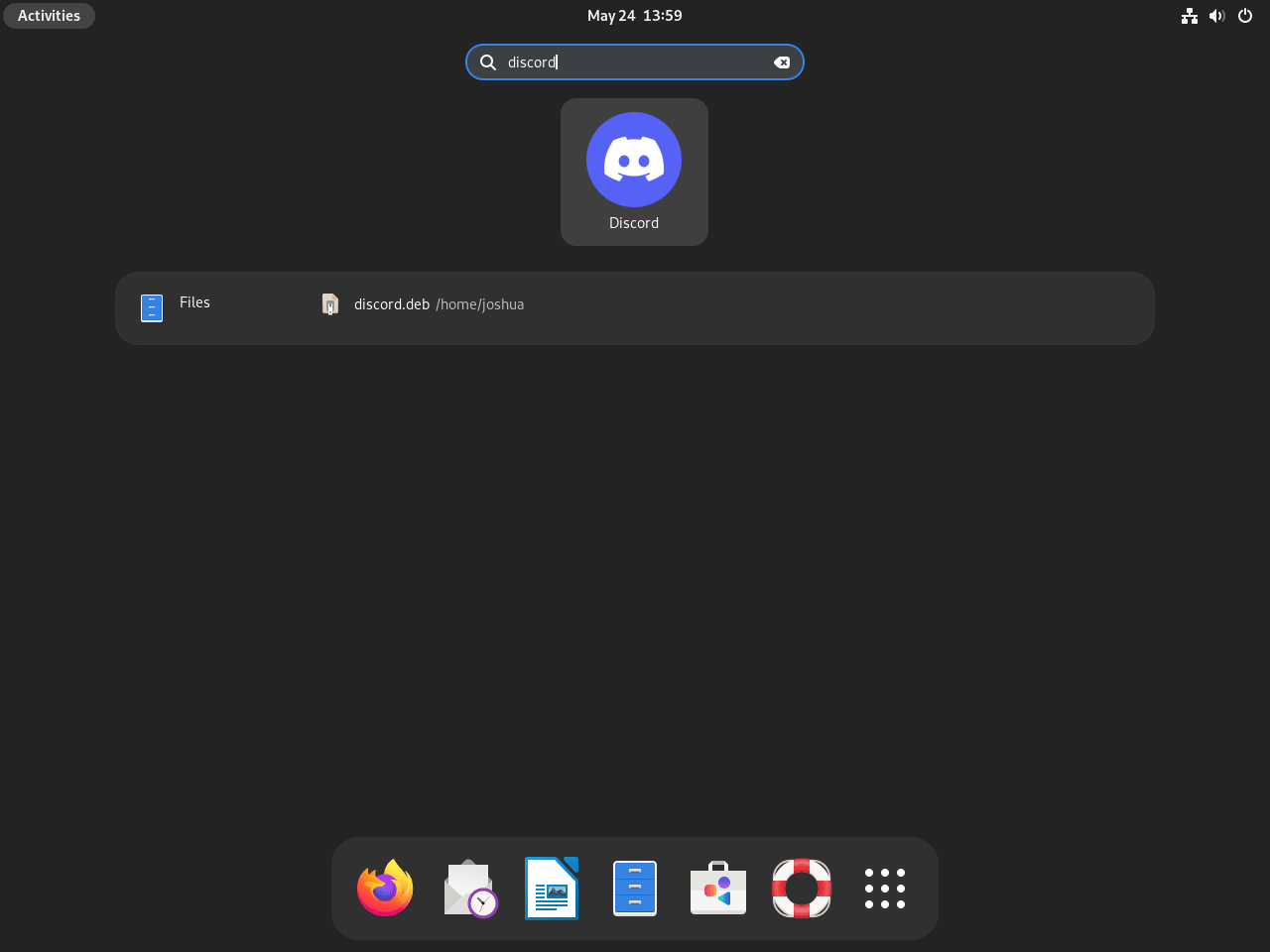
Open Activities, select Show Applications, and choose Discord. If the launcher does not appear immediately after installation, sign out and sign back in so the desktop session refreshes exported application entries.

Update Discord on Debian
The update owner depends on the package source. The official .deb package does not add a Discord repository, so sudo apt update alone cannot pull new Discord package files. Snap and Flatpak updates come from their respective stores.
Update the .deb Discord Installation
Download and reinstall the current .deb package when Discord prompts for a newer Linux package or when you want to refresh the package-owned launcher, desktop file, and AppArmor profile. This update flow stays outside normal APT upgrades because Discord does not publish a Debian repository for the direct package.
If you created the helper from the official .deb method, run:
update-discordThe helper checks the downloaded package metadata before calling APT. If the installed version already matches the downloaded version, it stops without reinstalling. Without the helper, repeat the manual download and install sequence:
wget "https://discord.com/api/download?platform=linux&format=deb" -O discord.deb
dpkg-deb -f discord.deb Package Version Architecture
sudo apt install ./discord.deb
Remove the downloaded package file only after the reinstall succeeds:
rm -f discord.debUpdate the Snap Discord Installation
Snapd refreshes installed snaps automatically. To request an immediate Discord refresh, run:
sudo snap refresh discordUpdate the Flatpak Discord Installation
Update the Discord Flatpak and any required runtime changes from Flathub:
sudo flatpak update com.discordapp.DiscordRemove Discord from Debian
Use the removal command for the package format you installed. Package removal does not automatically remove every per-user login token, cache, or sandbox profile, so review the user-data cleanup section separately.
Remove the .deb Discord Installation
Remove the Debian package and its package-owned configuration files:
sudo apt purge discordIf you created the updater helper or disabled Discord’s incompatible AppArmor profile during troubleshooting, remove the local helper and disable link after the package is gone:
sudo rm -f /usr/local/bin/update-discord /etc/apparmor.d/disable/discord
if systemctl is-active --quiet apparmor; then
  sudo systemctl reload apparmor
fi
Check whether APT sees any dependency packages that are no longer needed:
sudo apt autoremove --dry-runIf the dry run lists only packages you are comfortable removing, run the cleanup interactively:
sudo apt autoremoveRemove the Snap Discord Installation
The purge command removes Discord’s snap package data instead of keeping snapd’s automatic recovery snapshot. Keep a normal
sudo snap remove discordremoval if you want snapd to retain a snapshot for recovery.
sudo snap remove --purge discordConfirm the snap no longer appears:
snap list discord 2>/dev/null || echo "Discord snap is not installed"Discord snap is not installed
Remove the Flatpak Discord Installation
Remove the system-scoped Flatpak app first:
sudo flatpak uninstall com.discordapp.DiscordVerify that the Flatpak app ID no longer appears in the system app list:
flatpak list --system --app --columns=application | grep -Fx com.discordapp.Discord || echo "Discord Flatpak is not installed"Discord Flatpak is not installed
Clean unused Flatpak runtimes only after reviewing the prompt, because the runtime list can include items used by other Flatpak apps:
sudo flatpak uninstall --unusedClean Up Discord User Data on Debian
Check for Discord profile and cache directories before deleting anything. If Discord was never launched after installation, this command may return no output.
find "$HOME" -maxdepth 3 \( -path "$HOME/.config/discord" -o -path "$HOME/.cache/discord" -o -path "$HOME/snap/discord" -o -path "$HOME/.var/app/com.discordapp.Discord" \) -printThe cleanup command uses find -exec to remove only the paths located by the check.
The next command permanently deletes local Discord settings, caches, and saved session data for your user account. Keep any listed directory you want to preserve before running it.
find "$HOME" -maxdepth 3 \( -path "$HOME/.config/discord" -o -path "$HOME/.cache/discord" -o -path "$HOME/snap/discord" -o -path "$HOME/.var/app/com.discordapp.Discord" \) -exec rm -rf {} +Troubleshoot Discord on Debian
Most Discord installation problems on Debian fall into package architecture, a missing graphical session, store-specific sandbox permissions, AppArmor profile reload warnings, or a stale local cache after an update.
Discord Does Not Open from SSH or a Headless Shell
Discord can be installed from an SSH shell, but the desktop client needs a graphical session to open its window. If a terminal launch prints display or portal errors, sign in to GNOME, KDE, Xfce, or another Debian desktop session and launch Discord from that terminal or the application menu.
APT Shows an AppArmor Reload Warning During .deb Updates
Discord’s current .deb package ships an AppArmor profile that loads cleanly on Debian 13 but can trigger a parser warning on Debian 12 or Debian 11. If APT finishes installing Discord and only the AppArmor reload prints a warning, first confirm the package installed:
dpkg-query -W -f='${binary:Package} ${Architecture} ${db:Status-Abbrev}\n' discorddiscord amd64 ii
Check the AppArmor journal for a Discord profile parser message such as Could not open 'abi/4.0' on Debian 12 or Invalid profile flag: unconfined on Debian 11:
sudo journalctl -u apparmor --no-pager -n 50 | grep -E 'discord|abi/4\.0|unconfined'When that exact Discord profile warning appears, disable only Discord’s package-owned profile and reload AppArmor. This keeps AppArmor active for the rest of the system while avoiding repeated reload failures from the incompatible Discord profile:
sudo install -d /etc/apparmor.d/disable
sudo ln -sfn /etc/apparmor.d/discord /etc/apparmor.d/disable/discord
sudo systemctl reload apparmor
systemctl is-active apparmor
active
Remove the disable link after uninstalling the .deb package or after a future Discord package ships a profile your Debian release can parse.
Discord Audio or Microphone Does Not Work
For the .deb package, first check Discord’s Voice & Video settings and the desktop sound settings for the correct input and output devices. For Snap installations, check whether the audio interfaces are connected:
snap connections discord | grep -E 'audio-playback|audio-record'For Flatpak installations, confirm the Flathub build exposes the PulseAudio socket:
flatpak info --show-permissions com.discordapp.Discord | grep pulseaudiosockets=x11;wayland;pulseaudio;pcsc;
Discord Screen Share Shows a Black Window on Wayland
Wayland screen sharing depends on XDG Desktop Portal and the backend for your desktop environment. On Debian 12 and Debian 13 GNOME desktops, confirm the base portal package and GNOME backend are installed:
dpkg-query -W -f='${binary:Package}\n' xdg-desktop-portal xdg-desktop-portal-gnomexdg-desktop-portal xdg-desktop-portal-gnome
On Debian 11 or GTK-based desktops, check the GTK portal backend instead:
dpkg-query -W -f='${binary:Package}\n' xdg-desktop-portal xdg-desktop-portal-gtkxdg-desktop-portal xdg-desktop-portal-gtk
If the Debian 12 or Debian 13 GNOME backend is missing, install it and restart the graphical session:
sudo apt install xdg-desktop-portal xdg-desktop-portal-gnomeIf the Debian 11 or GTK backend is missing, install this pair instead:
sudo apt install xdg-desktop-portal xdg-desktop-portal-gtkDiscord Gets Stuck After an Update Prompt
For the .deb package, clear Discord’s local cache first:
rm -rf ~/.config/discord/Cache ~/.config/discord/GPUCacheThen run the helper with --reinstall so APT reinstalls the same package instead of stopping at the already-current check:
update-discord --reinstallIf you did not create the helper, reinstall the current package manually:
wget "https://discord.com/api/download?platform=linux&format=deb" -O discord.deb
dpkg-deb -f discord.deb Package Version Architecture
sudo apt install ./discord.deb
Delete the downloaded package file after the reinstall completes:
rm -f discord.debUpdate Snap and Flatpak installations with sudo snap refresh discord or sudo flatpak update com.discordapp.Discord instead of using the .deb reinstall path.
Conclusion
Discord is ready on Debian with the package source that matches your update and trust priorities: the official .deb package, the automatically refreshed Snap, or the Flathub app. For adjacent chat and meeting tools, install Telegram on Debian, Slack on Debian, or Zoom on Debian.


Formatting tips for your comment
You can use basic HTML to format your comment. Useful tags currently allowed in published comments:
<code>command</code>command<strong>bold</strong><em>italic</em><blockquote>quote</blockquote>