
Telegram Desktop on Debian is easiest to maintain when the install source matches your update expectations. Flatpak gives most desktop users the newest upstream release with Flathub-managed updates, Debian’s APT package keeps Telegram inside Debian package management where available, Snap uses the Snap Store, and the official Telegram binary is a portable x86_64 build for users who prefer upstream’s direct download.
Debian 13 (Trixie) changes the decision because telegram-desktop is not in the default stable suite, but it is available from trixie-backports. Debian 12 (Bookworm) and Debian 11 (Bullseye) still provide older APT packages from their default repositories, while Flatpak, Snap, and the official binary remain useful when you want a newer Telegram Desktop build.
Install Telegram Desktop on Debian
Start by choosing one method. Mixing methods can leave multiple launchers or different telegram-desktop commands on the same account, which makes updates and removal harder to reason about.
Choose a Telegram Installation Method
| Method | Source or Channel | Update Behavior | Best For | Trade-offs |
|---|---|---|---|---|
| Flatpak | Flathub | Updates with flatpak update | Most Debian desktop users who want a current Telegram release | Requires Flatpak and Flathub; the app still has broad desktop permissions for display, audio, network, and device access |
| APT | Debian archive or Debian 13 backports | Updates with normal APT upgrades; Debian 13 needs the backports target | Users who prefer Debian-packaged software and package-manager cleanup | Debian packages can lag behind upstream Telegram; Debian 13 requires backports instead of the default suite |
| Snap | Snapcraft | Updates automatically through snapd | Users who already use Snap packages on Debian | Requires snapd setup, background refresh behavior, and Snap-specific data paths |
| Official binary | Telegram Desktop download | Can self-update; the helper created here can also refresh it manually | x86_64 users who want Telegram’s portable upstream build without APT, Flatpak, or Snap | Not managed by Debian package tools; launcher, helper, and cleanup are local to your user account |
Telegram does not publish an official Debian APT repository or official
.debpackage for this workflow. The Debian APT package is maintained in Debian, while the upstream-maintained desktop choices are Flathub, Snapcraft, and the official Linux tarball.
Choose Flatpak unless you specifically want Debian’s APT package, already rely on Snap, or need the portable official binary. The Flatpak package is verified on Flathub and supports both x86_64 and aarch64, which makes it the most practical default for mixed Debian desktop hardware.
Install Telegram with Flatpak
Flatpak installs Telegram Desktop as the Flathub app ID org.telegram.desktop. Use this method when you want a current upstream release without adding a Debian backports source or managing a manual binary under your home directory.
Prepare Flatpak and Flathub
Debian may not include Flatpak on minimal or customized installs. If flatpak --version fails or Flathub is not configured, complete Flatpak setup on Debian first, then return to the Telegram install command.
flatpak --version
flatpak remotes
Install Telegram from Flathub
Install Telegram Desktop from Flathub into the default system-wide Flatpak installation:
sudo flatpak install flathub org.telegram.desktopFlatpak may ask you to confirm the app, runtime, and permissions. Review the prompt before accepting, especially on shared systems where device, audio, display, and notification access matter.
Verify Flatpak Telegram
Check the installed Flatpak record. A successful result shows Application ID: org.telegram.desktop, the branch, installation scope, and runtime information.
flatpak info org.telegram.desktopInstall Telegram with APT
The APT method is best when you want Debian to own the package transaction, dependencies, and removal path. Debian 12 and Debian 11 can install telegram-desktop from the default main repository, while Debian 13 needs trixie-backports.
Check Debian APT Availability
Refresh package metadata before checking the candidate. These commands use sudo for APT operations that need root privileges; new administrator accounts can use the Debian sudoers setup guide if sudo is not ready yet.
sudo apt update
apt-cache policy telegram-desktop
On Debian 12 or Debian 11, the candidate should come from the matching default suite. On Debian 13 without backports enabled, the package has no candidate because telegram-desktop is not in the default Trixie stable repository.
Install Telegram on Debian 12 or Debian 11
Use the standard APT install command on Debian 12 (Bookworm) or Debian 11 (Bullseye):
sudo apt install telegram-desktopInstall Telegram on Debian 13 from Backports
Debian 13 users can install the Debian-packaged build from trixie-backports. Backports are opt-in, so install only the package you need from that suite instead of turning backports into the default source for all packages. For broader background, see the Debian Backports and Experimental repository guide.
bash <<'EOF'
set -euo pipefail
. /etc/os-release

if [ "${VERSION_CODENAME:-}" != "trixie" ]; then
  printf '%s\n' 'This APT backports setup is only for Debian 13 (Trixie).' >&2
  exit 1
fi

if grep -Rqs 'trixie-backports' /etc/apt/sources.list /etc/apt/sources.list.d 2>/dev/null; then
  printf '%s\n' 'A trixie-backports source is already configured.'
else
  printf '%s\n' \
    'Types: deb' \
    'URIs: http://deb.debian.org/debian' \
    'Suites: trixie-backports' \
    'Components: main' \
    'Enabled: yes' \
    'Signed-By: /usr/share/keyrings/debian-archive-keyring.gpg' | sudo tee /etc/apt/sources.list.d/debian-backports.sources > /dev/null
fi

sudo apt update
sudo apt install -t trixie-backports telegram-desktop
EOF
The -t trixie-backports option tells APT to install Telegram and any required backported dependencies from that suite for this transaction. Routine upgrades will still prefer normal Debian packages unless a backported package is already installed and has a newer backports update.
Verify APT Telegram
Verify the installed package state. The status abbreviation should begin with ii, followed by the package name and installed version.
dpkg-query -W -f='${db:Status-Abbrev} ${binary:Package} ${Version}\n' telegram-desktopInstall Telegram with Snap
Snap is a reasonable choice if you already use snapd on Debian or want Snap Store refresh behavior. Debian does not install snapd by default, so this method has a longer setup path than Flatpak or APT.
Prepare snapd on Debian
Install the Debian snapd package, then install the current snapd snap used by Snapcraft’s Debian setup flow. The dedicated Snapd on Debian guide covers App Center, Snap Store, PATH behavior, and full snapd removal.
sudo apt update
sudo apt install snapd
sudo snap install snapd
sudo snap wait system seed.loaded
Confirm snapd is ready before installing Telegram:
snap versionInstall Telegram from Snapcraft
Install the verified Telegram Desktop snap from the stable channel:
sudo snap install telegram-desktopVerify Snap Telegram
Check the installed snap. The output should list telegram-desktop, its version, revision, tracking channel, and publisher.
snap list telegram-desktopInstall the Official Telegram Binary
The official Telegram Linux download is a portable .tar.xz archive for x86_64 systems. This method keeps Telegram under your home directory, creates a local update helper, and avoids system package-manager state.
Use this method only on x86_64 Debian systems. On ARM or other architectures, use Flatpak when Flathub supports the architecture, or use Debian’s APT package when available for your release.
Install Direct Download Prerequisites
Install curl for the download and xz-utils for extraction:
sudo apt update
sudo apt install curl xz-utils
Create the Telegram Update Helper
Create a small helper that downloads the current Linux build from telegram.org, checks the extracted archive layout, replaces the local application directory, and refreshes the telegram-desktop command symlink. The same helper handles initial install and future manual updates.
mkdir -p "$HOME/.local/bin"

cat > "$HOME/.local/bin/update-telegram-desktop" <<'SCRIPT'
#!/usr/bin/env bash
set -euo pipefail

if [ "$(uname -m)" != "x86_64" ]; then
  printf '%s\n' 'The official Telegram Linux binary supports x86_64 systems only. Use Flatpak or the Debian package method on this architecture.' >&2
  exit 1
fi

install_dir="$HOME/.local/share/Telegram"
bin_dir="$HOME/.local/bin"
link_path="$bin_dir/telegram-desktop"
work_dir=$(mktemp -d)
trap 'rm -rf "$work_dir"' EXIT

mkdir -p "$HOME/.local/share" "$bin_dir"
if [ -e "$link_path" ] && [ ! -L "$link_path" ]; then
  printf 'Refusing to replace existing non-symlink at %s\n' "$link_path" >&2
  exit 1
fi

printf '%s\n' 'Downloading Telegram Desktop from telegram.org...'
curl -fL -o "$work_dir/tsetup.tar.xz" https://telegram.org/dl/desktop/linux
tar -xJf "$work_dir/tsetup.tar.xz" -C "$work_dir"
if [ ! -x "$work_dir/Telegram/Telegram" ]; then
  printf '%s\n' 'Downloaded archive did not contain the expected Telegram binary.' >&2
  exit 1
fi

rm -rf "$install_dir"
mv "$work_dir/Telegram" "$install_dir"
ln -sfn "$install_dir/Telegram" "$link_path"
printf 'Telegram Desktop is installed at %s\n' "$install_dir"
SCRIPT

chmod +x "$HOME/.local/bin/update-telegram-desktop"
export PATH="$HOME/.local/bin:$PATH"
Run the helper once to install Telegram Desktop. The temporary PATH refresh in the setup block makes the helper available in this terminal, and future login sessions should pick it up from Debian’s normal profile behavior.
update-telegram-desktopAfter your next login session, the telegram-desktop command should resolve automatically. If an old terminal still cannot find it, open a new terminal session before launching Telegram from the command line.
Create a Desktop Launcher
Create a user-local desktop entry so Telegram appears in GNOME, KDE Plasma, XFCE, and other desktop application menus:
apps_dir="$HOME/.local/share/applications"
bin_dir="$HOME/.local/bin"
install_dir="$HOME/.local/share/Telegram"
mkdir -p "$apps_dir"

cat > "$apps_dir/telegram-desktop.desktop" <<DESKTOP
[Desktop Entry]
Version=1.0
Name=Telegram Desktop
Comment=Official Telegram Desktop client
Exec=$bin_dir/telegram-desktop -- %u
Icon=$install_dir/Telegram
Terminal=false
Type=Application
Categories=Network;InstantMessaging;
MimeType=x-scheme-handler/tg;
StartupWMClass=TelegramDesktop
X-GNOME-UsesNotifications=true
DESKTOP

if command -v update-desktop-database >/dev/null 2>&1; then
  update-desktop-database "$apps_dir"
fi
Verify the Official Binary
Check that the launch command and update helper are available:
command -v telegram-desktop
command -v update-telegram-desktop
Launch and Sign In to Telegram Desktop
Launch Telegram from the terminal with the command that matches your installation method. If you installed more than one method, run command -v telegram-desktop first so you know which binary your shell will start.
# APT package or official binary symlink
telegram-desktop

# Flatpak package
flatpak run org.telegram.desktop

# Snap package
snap run telegram-desktop
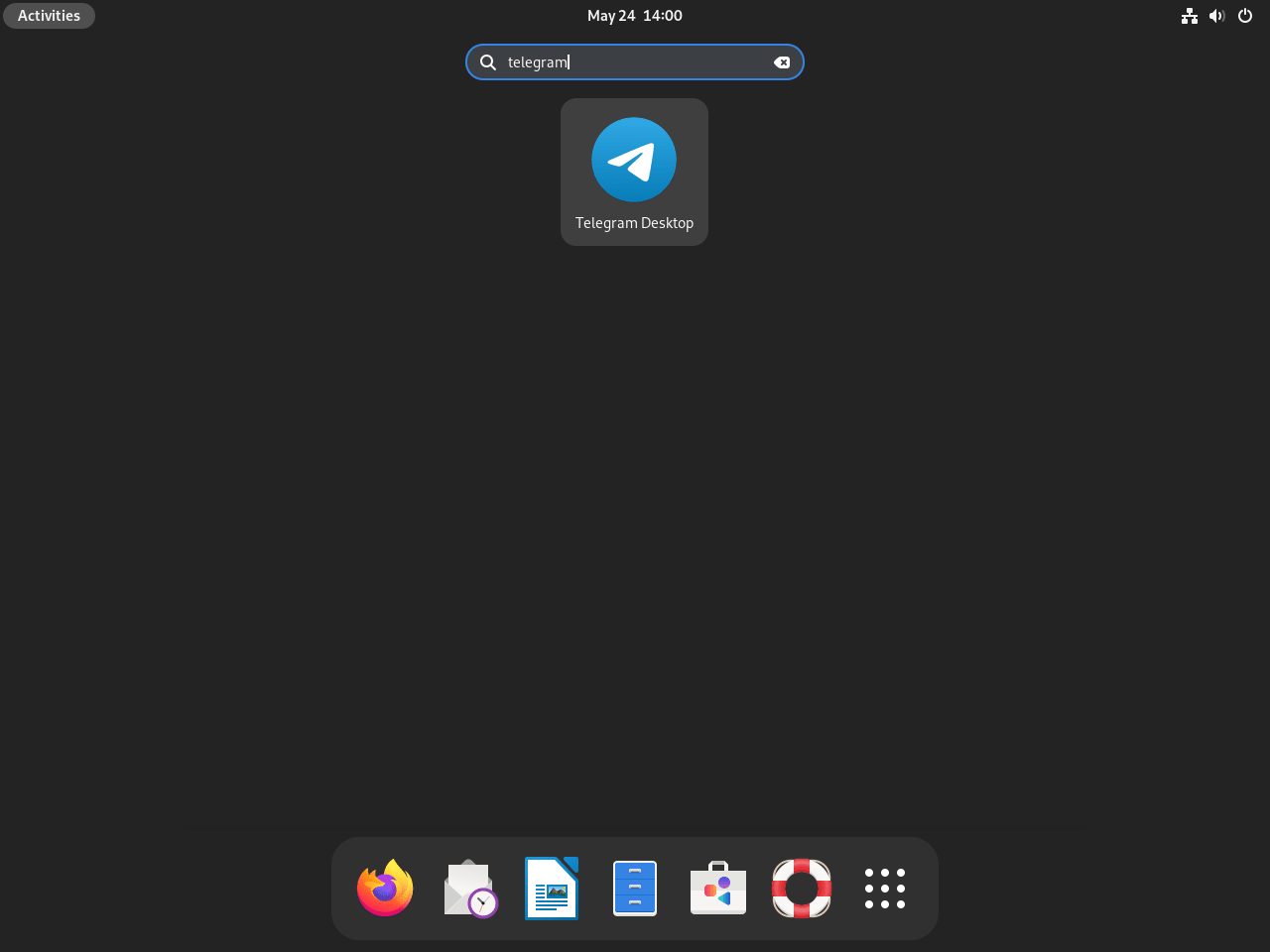
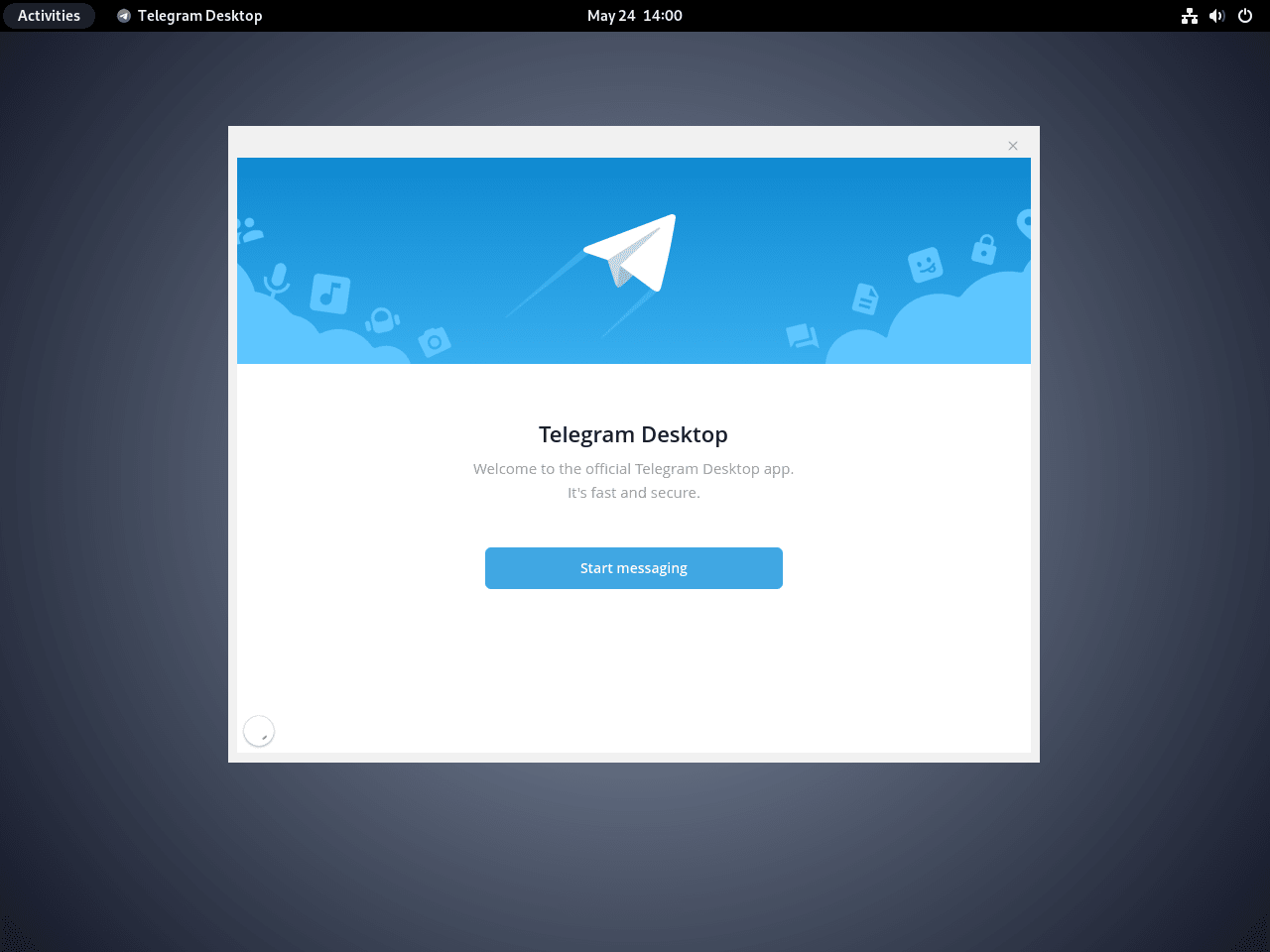
From the desktop menu, search for Telegram Desktop under the Internet or Network category. The first launch asks for a phone number or a QR-code login from an existing Telegram mobile session. After sign-in, review notifications, media auto-downloads, and proxy settings before leaving the app running in the background.
Update Telegram Desktop on Debian
Telegram update ownership follows the install method. Use the same manager that installed the app so package records, launchers, and user data stay predictable.
Update Flatpak Telegram
sudo flatpak update org.telegram.desktopUpdate APT Telegram
For Debian 12 or Debian 11 default packages, normal APT upgrades are enough:
sudo apt update
sudo apt install --only-upgrade telegram-desktop
For Debian 13 backports, keep the target release explicit when you want to refresh Telegram from trixie-backports:
sudo apt update
sudo apt install -t trixie-backports --only-upgrade telegram-desktop
Update Snap Telegram
sudo snap refresh telegram-desktopUpdate the Official Telegram Binary
The official binary includes Telegram’s own updater, but the local helper gives you a deliberate manual refresh path and repairs the launcher command if it was removed.
update-telegram-desktopTroubleshoot Telegram Desktop on Debian
Most Telegram install problems come from using the wrong method for the Debian release, missing desktop integration packages, or launching a different package source than expected.
Fix APT Package Not Found on Debian 13
If sudo apt install telegram-desktop returns E: Unable to locate package telegram-desktop on Debian 13, the system is using the default Trixie suite without backports. Either install the Flatpak package, use Snap or the official binary, or enable trixie-backports and install with sudo apt install -t trixie-backports telegram-desktop.
. /etc/os-release
printf '%s\n' "$VERSION_CODENAME"
apt-cache policy telegram-desktop
Check Which Telegram Command Runs
If Telegram opens the wrong copy or still launches after you removed one method, inspect command resolution and installed package records:
command -v telegram-desktop
dpkg-query -W -f='${db:Status-Abbrev} ${binary:Package}\n' telegram-desktop 2>/dev/null || true
flatpak info org.telegram.desktop 2>/dev/null || true
snap list telegram-desktop 2>/dev/null || true
User-local paths such as $HOME/.local/bin/telegram-desktop can take precedence over /usr/bin/telegram-desktop. Remove the method you no longer want, then start a new terminal session or run hash -r so the shell forgets stale command locations.
Repair Flatpak Portal Errors
Flatpak desktop apps need an xdg-desktop-portal service for file pickers, notifications, and desktop integration. Restart the user portal when Telegram fails with a remote peer or portal activation error:
systemctl --user restart xdg-desktop-portalIf the portal service is missing, install the backend that matches your desktop environment. Choose one package, then log out and back in before launching Telegram again.
# GNOME
sudo apt install xdg-desktop-portal-gnome

# KDE Plasma
sudo apt install xdg-desktop-portal-kde

# XFCE, LXDE, LXQt, and other GTK-based sessions
sudo apt install xdg-desktop-portal-gtk
Reset Flatpak Permissions
If Telegram opens but file dialogs, notifications, or media access behave strangely after custom permission changes, reset the app’s Flatpak permissions for your user account:
flatpak permission-reset org.telegram.desktopFix Missing Application Menu Icons
Application menus can cache launchers. Log out and back in first. For the official binary method, confirm the desktop file exists and refresh the user application database when the helper is available:
test -f "$HOME/.local/share/applications/telegram-desktop.desktop" && printf '%s\n' 'Telegram launcher exists.'

if command -v update-desktop-database >/dev/null 2>&1; then
  update-desktop-database "$HOME/.local/share/applications"
fi
Resolve Telegram Connection Problems
Telegram can fail to connect on networks that block Telegram traffic or require a proxy. First confirm basic DNS resolution, then configure a proxy inside Telegram from Settings if your network blocks direct access.
getent hosts telegram.orgIf DNS works but Telegram still cannot connect, check local firewall rules only if you intentionally restrict outbound desktop traffic. Most Debian desktop installations do not block outbound Telegram connections by default.
Remove Telegram Desktop from Debian
Remove Telegram with the same method that installed it. Application removal does not always remove chat cache, downloads, login sessions, or settings stored under your home directory, so handle user data separately.
Remove Flatpak Telegram
sudo flatpak uninstall org.telegram.desktopRemove APT Telegram
sudo apt remove --purge telegram-desktop
sudo apt autoremove --dry-run
If the dry run lists only unused dependencies you are ready to remove, run the real cleanup command:
sudo apt autoremoveIf you created /etc/apt/sources.list.d/debian-backports.sources only for Telegram on Debian 13 and no longer use any backports packages, remove that source and refresh APT metadata:
sudo rm -f /etc/apt/sources.list.d/debian-backports.sources
sudo apt update
Do not remove the backports source if other packages on the system depend on it for updates.
Remove Snap Telegram
sudo snap remove --purge telegram-desktopThis removes the Telegram snap. Full snapd cleanup is a separate system-level task because other snaps, base snaps, and snapd itself may still be in use.
Remove the Official Binary
rm -rf -- "$HOME/.local/share/Telegram"
rm -f -- "$HOME/.local/bin/telegram-desktop"
rm -f -- "$HOME/.local/bin/update-telegram-desktop"
rm -f -- "$HOME/.local/share/applications/telegram-desktop.desktop"

if command -v update-desktop-database >/dev/null 2>&1; then
  update-desktop-database "$HOME/.local/share/applications"
fi
Remove Telegram User Data
Deleting Telegram user data removes local sessions, settings, media cache, and downloaded files for the matching package source. Export anything you need from Telegram before running these commands.
# APT package or official binary data
rm -rf -- "$HOME/.local/share/TelegramDesktop"

# Flatpak data
rm -rf -- "$HOME/.var/app/org.telegram.desktop"

# Snap data
rm -rf -- "$HOME/snap/telegram-desktop"
Verify Telegram Removal
Run the checks that match the methods you used. Removed packages should either print no app record or report that the package is not installed.
dpkg-query -W -f='${db:Status-Abbrev} ${binary:Package}\n' telegram-desktop 2>/dev/null || printf '%s\n' 'APT package not installed'
flatpak info org.telegram.desktop >/dev/null 2>&1 || printf '%s\n' 'Flatpak app not installed'
snap list telegram-desktop >/dev/null 2>&1 || printf '%s\n' 'Snap app not installed'
test ! -e "$HOME/.local/bin/telegram-desktop" && printf '%s\n' 'Official binary command removed'
test ! -d "$HOME/.local/share/Telegram" && printf '%s\n' 'Official binary directory removed'
Conclusion
Telegram Desktop is installed on Debian through the source that matches your update model: Flatpak for most current desktop installs, APT for Debian-managed packages, Snap for snapd systems, or the official x86_64 binary for a user-local upstream build. For adjacent desktop communication tools, compare the Debian install paths for Discord, Slack, and Zoom.


maa Shaa ALLAH the best