A Debian system can move to KDE Plasma without reinstalling, but the metapackage you choose controls how much of the KDE application stack APT adds. To install KDE Plasma on Debian, use Debian’s archive packages: Debian 13 (Trixie) provides Plasma 6, while Debian 12 (Bookworm) and Debian 11 (Bullseye) remain on Plasma 5 branches.
The main choice is between a minimal Plasma desktop, the balanced KDE Standard package set, the full KDE application suite, or the same KDE task package used by Debian Installer and tasksel.
Install KDE Plasma on Debian
Update Debian Packages Before KDE Plasma
Refresh the package index and apply pending updates before adding a full desktop environment. A current base system reduces avoidable dependency conflicts during the KDE transaction.
sudo apt update
sudo apt upgrade
These commands use sudo for package-manager tasks that require root privileges. If the first package command fails with a sudo permission error, add the user to sudoers on Debian before continuing.
Choose a KDE Plasma Package
Debian publishes four practical KDE package paths. Expect a large APT transaction on a clean system, even for the minimal package, because a desktop environment pulls in display, session, file-manager, audio, policy, and application dependencies.
| Package | What Debian Installs | Best For | Notes |
|---|---|---|---|
kde-plasma-desktop | Plasma desktop, workspace, and minimal KDE base applications | Small installs where you will choose applications later | Includes Dolphin through kde-baseapps; SDDM and Xorg are recommended packages |
kde-standard | Plasma desktop plus common KDE applications and tools | Most desktop users who want a usable KDE session immediately | Balanced default for this workflow |
kde-full | Broad KDE application suite from Debian’s KDE metapackage set | Systems with enough disk space that should receive most applications in Debian’s KDE package set | Largest package set; avoid it when you only need the desktop shell |
task-kde-desktop | tasksel KDE task with kde-standard, SDDM, desktop task packages, and recommended productivity tools | Systems meant to match Debian Installer’s KDE desktop selection | Recommended packages include LibreOffice, GIMP, print support, and accessibility tools |
Choose kde-standard unless you have a specific reason to go smaller or larger. Choose kde-plasma-desktop for a lean base, kde-full for the broadest KDE application set, or task-kde-desktop when you want the installer-style desktop task.
| Debian Release | KDE Plasma Branch | Package Note |
|---|---|---|
| Debian 13 (Trixie) | Plasma 6.3.x | plasma-workspace provides the Plasma 6 workspace; no separate plasma-workspace-wayland package is available |
| Debian 12 (Bookworm) | Plasma 5.27.x | plasma-workspace-wayland is available when the Wayland session is missing |
| Debian 11 (Bullseye) | Plasma 5.20.x | plasma-workspace-wayland is available, but plasma-firewall is not packaged |
Install the Minimal KDE Plasma Desktop
The minimal package installs the Plasma desktop and a small base application set. It is the cleanest choice when you want to add only the applications you actually use.
sudo apt install kde-plasma-desktopInstall KDE Standard on Debian
KDE Standard adds a fuller day-to-day desktop set, including common KDE applications such as Kate, Okular, KMail, Akregator, Gwenview, widgets, and wallet tools.
sudo apt install kde-standardInstall the Full KDE Suite
The full package installs the broad KDE metapackage set from Debian. Use it on systems where disk space is not a constraint and you want most KDE applications installed from the start.
sudo apt install kde-fullInstall the Debian KDE Desktop Task
The KDE task package mirrors the Debian Installer desktop task more closely than the standalone KDE metapackages. It pulls in kde-standard, SDDM, the general desktop task, and recommended productivity packages.
sudo apt install task-kde-desktopSelect SDDM as the Display Manager
KDE Plasma integrates best with SDDM. When Debian asks which display manager should handle graphical logins, select sddm, press Tab to move to the confirmation button, and press Enter.
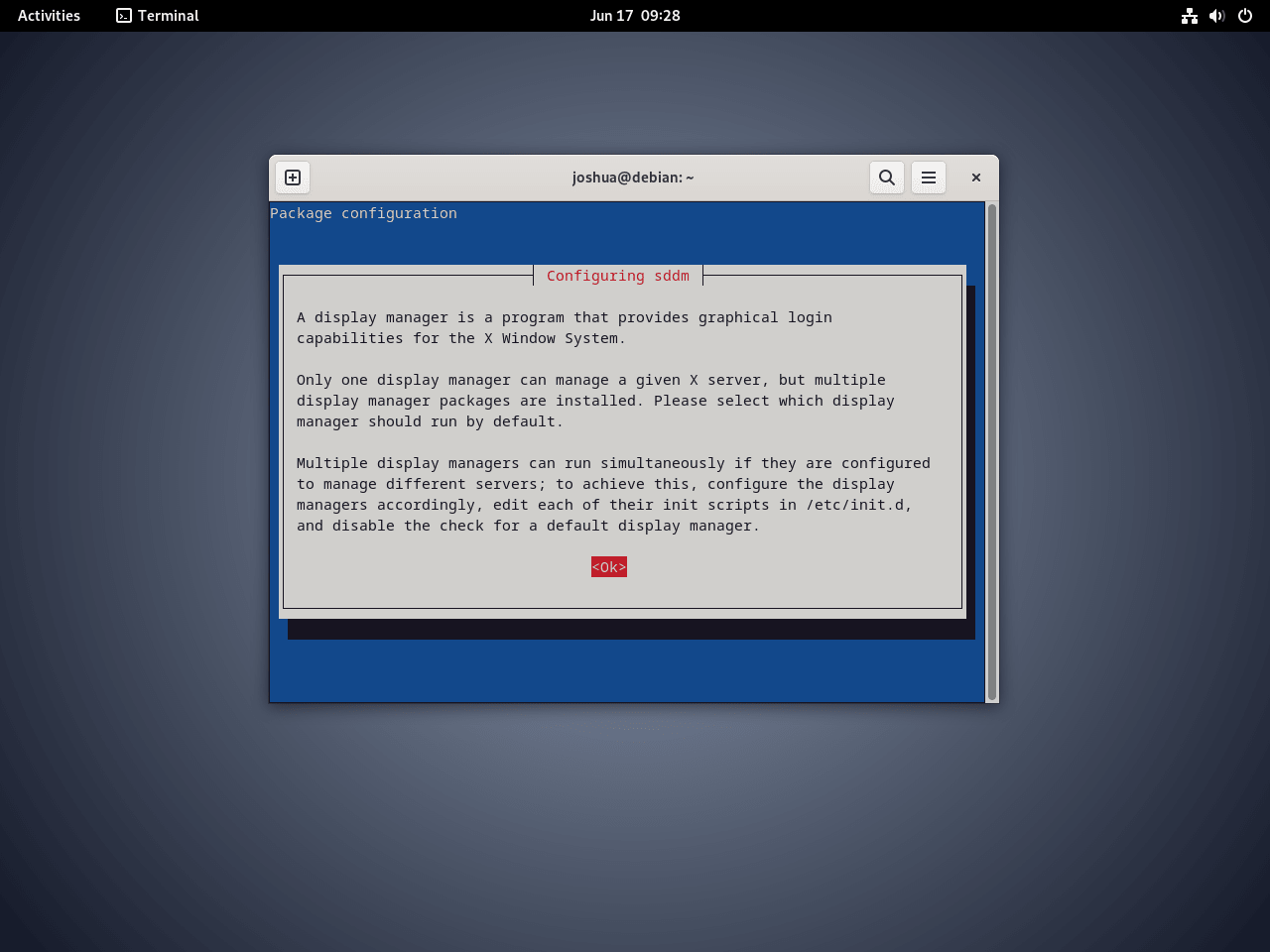
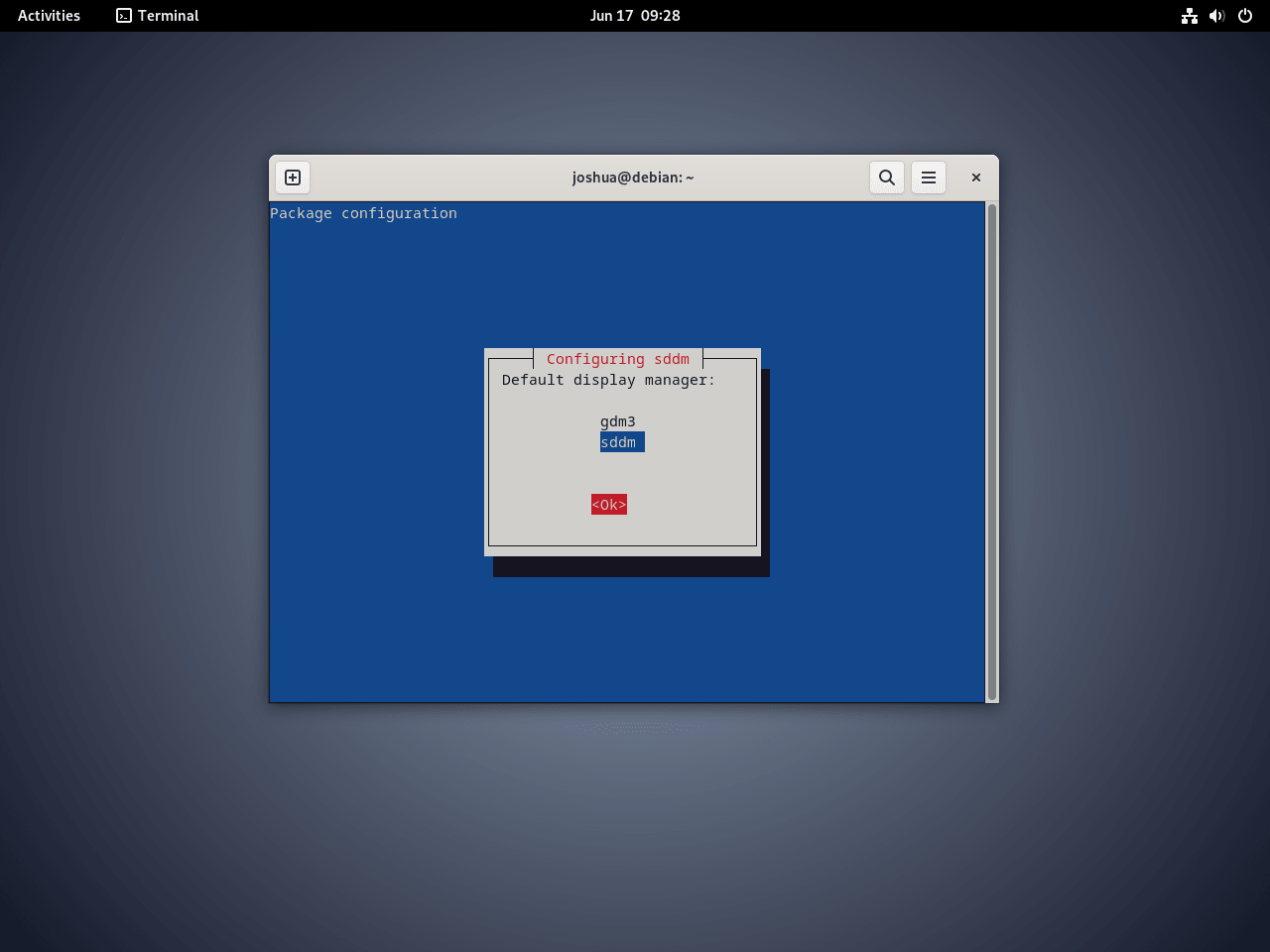
If Debian does not show the prompt, or if another display manager was selected earlier, reopen the display-manager selector after the KDE package finishes installing:
sudo dpkg-reconfigure sddmReboot into the KDE Plasma Login Screen
Reboot after the package transaction finishes so SDDM can start a clean graphical login session.
sudo rebootVerify KDE Plasma on Debian
Choose Wayland or X11 at Login
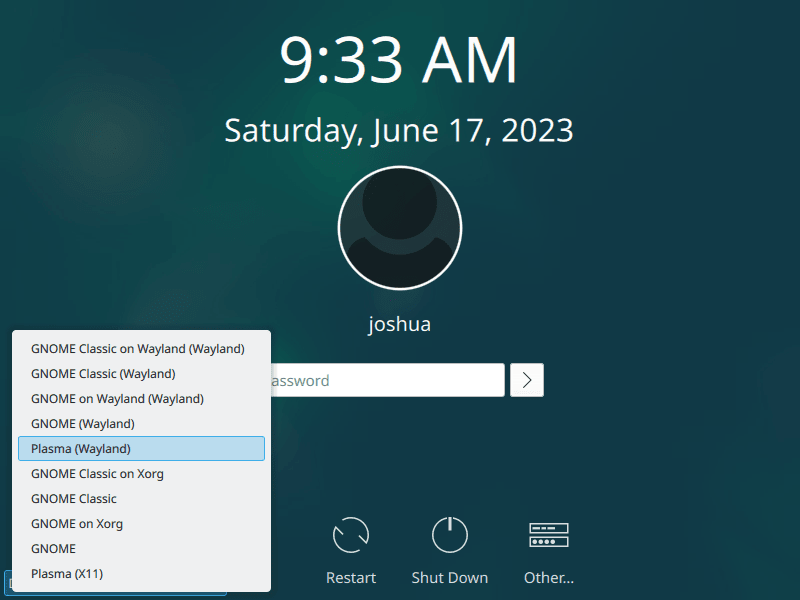
At the graphical login screen, open the session selector before entering the password. The menu location differs by display manager, but Debian KDE installs can expose Plasma (Wayland), Plasma (X11), or both depending on the release and package set.
- Plasma (Wayland) is the best first choice on modern hardware, especially Debian 13 with Plasma 6.
- Plasma (X11) remains useful for older remote desktop tools, older proprietary NVIDIA setups, and applications that still behave better outside Wayland.
KDE tracks remaining Wayland limitations on the KDE Plasma Wayland status page.
Confirm the Plasma Version
Open Konsole after logging in and confirm the active Plasma shell version:
plasmashell --versionThe command prints the installed shell version. Debian’s package branches map to these major Plasma releases:
| Debian Release | Expected Plasma Branch | Typical Version Pattern |
|---|---|---|
| Debian 13 (Trixie) | Plasma 6 | plasmashell 6.3.x |
| Debian 12 (Bookworm) | Plasma 5.27 | plasmashell 5.27.x |
| Debian 11 (Bullseye) | Plasma 5.20 | plasmashell 5.20.x |
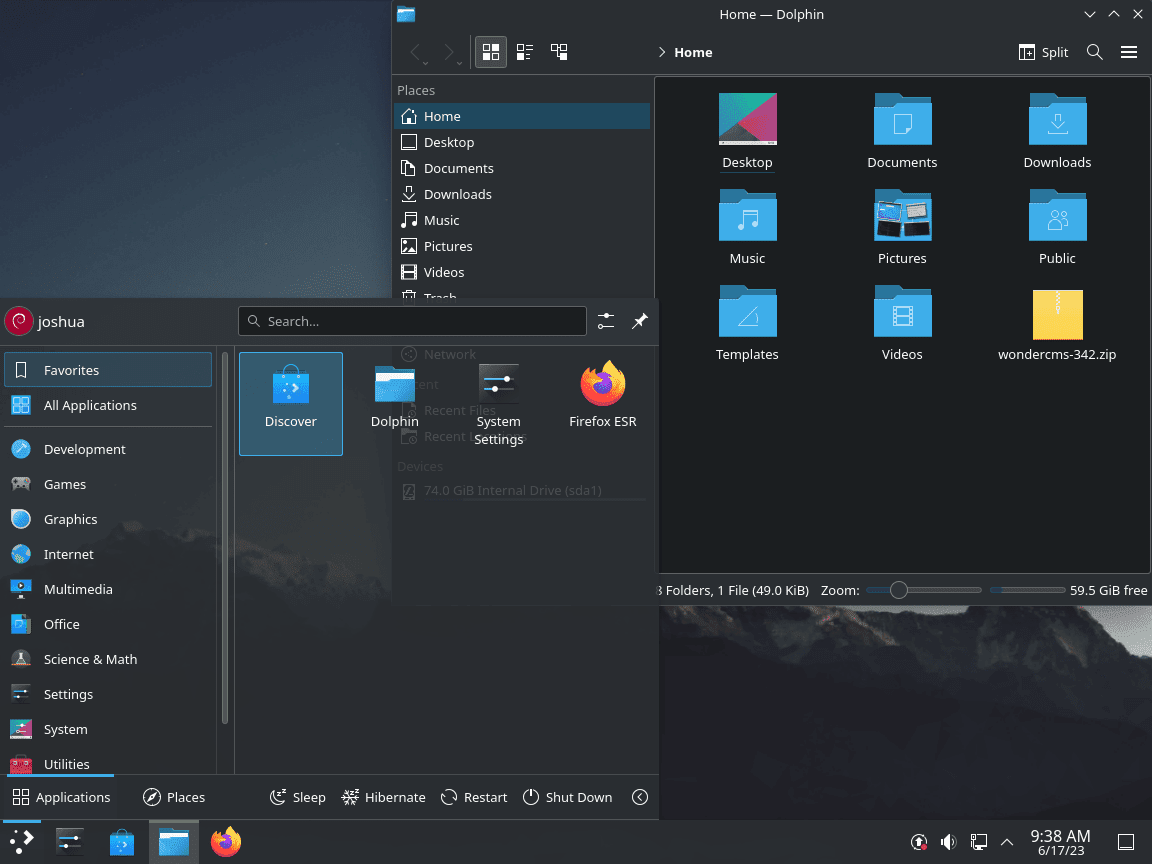
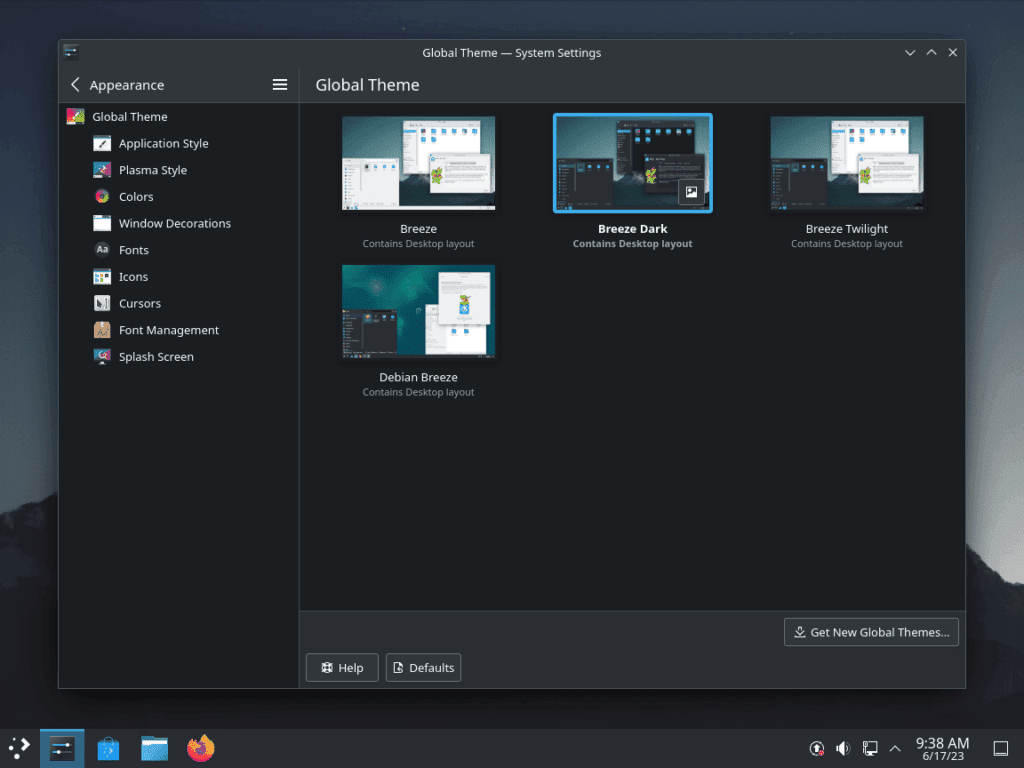
Install Optional KDE Plasma Components on Debian
Install optional Plasma packages only after the base desktop works. These packages extend browser integration, widgets, encrypted folders, firewall management, and graphical software management.
Install Plasma Browser Integration
Plasma Browser Integration connects supported browsers to KDE notifications, media controls, and download handling. The APT package installs the desktop-side component; the browser still needs the matching extension from its extension store.
sudo apt install plasma-browser-integrationInstall Extra Plasma Widgets
Extra widgets add more desktop applets, monitors, and productivity tools to Plasma’s widget picker.
sudo apt install plasma-widgets-addonsInstall Plasma Vault
Plasma Vault adds encrypted folder handling from the Plasma desktop. Use it when you want encrypted containers available from the tray without installing a separate desktop utility.
sudo apt install plasma-vaultInstall Plasma Firewall on Debian 12 or 13
plasma-firewall is packaged for Debian 13 and Debian 12, but not Debian 11. It provides a Plasma settings module for firewall management; it does not replace the need to install and configure UFW or firewalld first.
sudo apt install plasma-firewallUse UFW on Debian for a simpler firewall workflow, or Firewalld on Debian when you need zone-based firewall management.
Install Discover with Flatpak Support
Discover provides KDE’s graphical software center. The Flatpak backend lets Discover handle Flatpak apps after Flatpak and Flathub are configured on the system.
sudo apt install plasma-discover plasma-discover-backend-flatpakConfigure the Flatpak application source separately if Discover should browse Flathub apps: install Flatpak and enable Flathub on Debian.
Manage KDE Plasma on Debian
Switch Display Managers
Use Debian’s display-manager selector when you need to switch between SDDM, GDM3, LightDM, or another installed login manager.
sudo dpkg-reconfigure sddmSelect the preferred display manager, confirm the prompt, and reboot so the new login manager handles the next graphical session.
Update KDE Plasma Packages
KDE Plasma updates arrive through Debian package updates. For routine maintenance, upgrade the system normally so Plasma, KDE applications, Qt libraries, and shared desktop dependencies stay aligned.
sudo apt update
sudo apt upgrade
For a narrow Plasma workspace refresh on a system that is otherwise current, upgrade the core packages directly:
sudo apt update
sudo apt install --only-upgrade plasma-desktop plasma-workspace
Troubleshoot KDE Plasma on Debian
SDDM Does Not Show a Plasma Session
Check whether SDDM and the Plasma workspace package are installed before reinstalling anything.
for pkg in sddm plasma-workspace; do
    dpkg-query -W -f='${db:Status-Abbrev} ${binary:Package}\n' "$pkg" 2>/dev/null || printf 'missing %s\n' "$pkg"
done
Installed packages show rows that start with ii. If the command prints missing for either package, install the missing display-manager or workspace package, then reopen the display-manager selector:
sudo apt install sddm plasma-workspace
sudo dpkg-reconfigure sddm
Wayland Session Is Missing
List the installed Plasma session files first. This separates a missing session package from a display-manager selection issue.
find /usr/share/wayland-sessions /usr/share/xsessions -maxdepth 1 -type f -name '*plasma*' -printf '%p\n' 2>/dev/nullNo output means the system does not currently expose Plasma session files.
On Debian 12 and Debian 11, install the separate Wayland session package if the Plasma Wayland session is absent:
sudo apt install plasma-workspace-waylandOn Debian 13, Plasma 6 does not use a separate plasma-workspace-wayland package. Reinstall the workspace package instead:
sudo apt install --reinstall plasma-workspaceIf only systems with proprietary NVIDIA drivers lose the Wayland session, review the driver stack before editing bootloader parameters. The same-distro driver workflow is covered in install NVIDIA drivers on Debian.
SDDM Virtual Keyboard Covers a VM Login Screen
Some virtual machines can show an oversized on-screen keyboard at SDDM. Disable SDDM’s virtual keyboard input method with a drop-in file instead of appending duplicate settings to the main configuration file.

sudo install -d -m 0755 /etc/sddm.conf.d
printf '[General]\nInputMethod=\n' | sudo tee /etc/sddm.conf.d/10-disable-virtual-keyboard.conf
Restart SDDM after saving the drop-in. This closes the current graphical session, so run it only when you are ready to return to the login screen.
sudo systemctl restart sddmPlasma Crashes or Freezes After Login
Corrupted Plasma cache files can cause repeated crashes after login. Log out, switch to a TTY with Ctrl+Alt+F3, sign in there, and clear only Plasma cache files.
rm -rf -- "$HOME"/.cache/plasmashell* "$HOME"/.cache/plasma*Restart SDDM to return to the graphical login screen:
sudo systemctl restart sddmScreen Tearing in the X11 Session
X11 tearing is usually a compositor or driver issue rather than a package-install failure. Open System Settings, go to Display and Monitor, then Compositor, and test the available rendering backend and tearing-prevention options for the installed Plasma branch.
Remove KDE Plasma from Debian
Remove KDE in phases: choose a different display manager first, remove the KDE metapackage, review the autoremoval transaction, and delete user configuration only when you no longer need that account’s Plasma settings.
Switch Away from SDDM Before Removal
If another desktop environment remains installed, select its display manager before removing KDE packages. For GNOME systems, choose GDM3 when the selector opens.
sudo dpkg-reconfigure sddmRemove KDE Metapackages
Remove the KDE metapackages that may have been installed by this workflow. APT ignores package names that are available but not installed.
sudo apt remove kde-plasma-desktop kde-standard kde-full task-kde-desktopReview the proposed autoremoval list before confirming. Cancel if APT proposes removing another desktop environment, display manager, or application stack you still need.
sudo apt autoremove --purgeRemove SDDM only after another display manager is selected and working:
sudo apt remove sddmRestore GNOME Packages if Needed
If the system should return to a GNOME desktop, reinstall the GNOME task and GDM3 after the KDE removal transaction is complete.
sudo apt install --reinstall gnome gdm3 task-gnome-desktopRemove KDE User Configuration
These cleanup commands permanently delete KDE and Plasma settings for the current user, including panel layouts, widget configuration, cached theme data, and KDE application preferences. Back up settings you may want to reuse.
Print the matching paths before deleting them. No output means the account has no matching KDE or Plasma paths.
for path in "$HOME/.kde" "$HOME"/.config/kde* "$HOME"/.config/plasma* "$HOME"/.local/share/plasma* "$HOME"/.cache/plasma*; do
    [ -e "$path" ] && printf '%s\n' "$path"
done
Delete the listed paths only when you are sure the current account no longer needs KDE settings.
rm -rf -- "$HOME/.kde" "$HOME"/.config/kde* "$HOME"/.config/plasma* "$HOME"/.local/share/plasma* "$HOME"/.cache/plasma*Reboot after package and profile cleanup:
sudo rebootRelated Debian Desktop Guides
If KDE Plasma is not the right fit, compare it with other Debian desktop guides before changing the system again.
- Install XFCE on Debian for a lighter GTK desktop environment.
- Install LXQt on Debian for a lighter Qt-based desktop.
- Install Cinnamon on Debian for a traditional desktop layout.
- Install Budgie on Debian for a panel-based GNOME-family desktop.
For upstream KDE references, use the KDE project site and the KDE Community Wiki.
Conclusion
After installation, SDDM handles graphical logins and Plasma updates arrive with normal Debian package upgrades. Use the session selector to choose Wayland or X11, and keep the removal path reviewable if you later switch back to another Debian desktop.


Hi, thank you so much for this neat tutorial. It worked great.
Thank you. Installation was a snap (no pun intended) on Debian 12.6 on my Ryzen 7600 rig. I got tired of buggy Cinnamon (and never used GNOME — what a kludge). I like Plasma/Wayland; the graphics are a leap better than the predecessor (X11), so I’m pretty certain I’m going to stick to it.