Google Chrome is not included in Debian’s default repositories, but Google provides a signed amd64 package and APT source for Debian 13, 12, and 11. You can verify and add that repository directly or bootstrap it with Google’s official DEB, then use APT for updates and optional preview channels.
Google’s Linux system requirements list 64-bit Debian 10 or later and an SSE3-capable processor. Because Google’s Debian package supports only amd64, use Chromium or Firefox on Debian when the architecture check below reports another value.
Install Google Chrome on Debian
Use the repository method when you want to verify Google’s signing-key fingerprint before installation. Choose the official DEB for a quicker bootstrap. Both methods install google-chrome-stable and enable APT-managed updates.
| Method | Best For | Trust Check |
|---|---|---|
| Google APT repository (recommended) | Inspecting the key and source before installation | Verify Google’s full 40-character fingerprint |
Official Google .deb | Bootstrapping the Stable repository from a local installer | Use Google’s HTTPS endpoint and verify package fields; no separate rolling-file checksum is published |
Method 1: Install Chrome from Google’s APT Repository
This method keeps the key and DEB822 source visible before installation. It is the recommended route for a new setup.
Check Debian Architecture for Chrome
Confirm the system architecture before downloading the key or writing an APT source:
dpkg --print-architectureamd64
Continue only when the output is amd64. Google’s package does not support Debian installations whose native architecture is arm64, i386, or another value.
Install Google Chrome Repository Tools
Install the packages needed to download and inspect Google’s signing key:
sudo apt update &&
sudo apt install ca-certificates curl gpg
The commands use sudo because APT configuration is system-wide. If your account cannot use it, add the account to sudoers on Debian before continuing. The curl command guide explains the download options used below.
Import Google’s APT Signing Key
Google publishes the active primary fingerprint on its Linux repositories page. Download the current export to a temporary file, require the complete fingerprint, convert it to a binary keyring, and install it for APT:
(
GOOGLE_LINUX_FINGERPRINT='EB4C1BFD4F042F6DDDCCEC917721F63BD38B4796'
key_workdir="$(mktemp -d)" || exit 1
gpg_home="$key_workdir/gnupg"
key_file="$key_workdir/google.asc"
keyring_file="$key_workdir/google-chrome.gpg"
keyring_path='/usr/share/keyrings/google-chrome.gpg'
trap 'rm -rf -- "$key_workdir"' EXIT

if { [ -L "$keyring_path" ] ||
     { [ -e "$keyring_path" ] && [ ! -f "$keyring_path" ]; }; }; then
  printf 'Unsafe keyring path; not replacing: %s\n' "$keyring_path" >&2
  false
elif mkdir -m 0700 "$gpg_home" &&
   curl --fail --show-error --silent --location \
     --proto '=https' --tlsv1.2 \
     --output "$key_file" \
     https://dl.google.com/linux/linux_signing_key.pub &&
   gpg --homedir "$gpg_home" --batch --quiet --import "$key_file" &&
   key_listing="$(gpg --homedir "$gpg_home" --batch \
     --with-colons --list-keys)" &&
   fingerprint="$(awk -F: -v expected="$GOOGLE_LINUX_FINGERPRINT" \
     -v now="$(date +%s)" '
       $1 == "pub" {
         primary_count++
         if ($2 ~ /^[redi]$/ || ($7 ~ /^[0-9]+$/ && $7 != "" && $7 <= now)) bad=1
         awaiting_fingerprint=1
         next
       }
       awaiting_fingerprint && $1 == "fpr" {
         fingerprint_count++
         fingerprint=toupper($10)
         if (fingerprint != expected) bad=1
         awaiting_fingerprint=0
       }
       END {
         if (primary_count != 1 || fingerprint_count != 1 ||
             awaiting_fingerprint || bad) exit 1
         print fingerprint
       }
     ' <<< "$key_listing")" &&
   gpg --homedir "$gpg_home" --batch \
     --export "$GOOGLE_LINUX_FINGERPRINT" > "$keyring_file" &&
   [ -s "$keyring_file" ] &&
   sudo install -m 0644 "$keyring_file" "$keyring_path"; then
  printf 'Google key fingerprint verified: %s\n' "$fingerprint"
else
  printf 'Google key download or verification failed.\n' >&2
  false
fi
)
The successful message must show all 40 characters of the expected fingerprint. The block rejects extra primary keys, exports only the verified primary and its signing subkeys, and removes its isolated GPG home on exit. The resulting keyring is readable by APT without adding Google keys to your personal keyring.
Add the Google Chrome APT Source
Write Google’s Stable repository as a DEB822 source. The architecture field prevents APT from requesting Google’s unavailable i386 index. If the target already exists, inspect it instead of overwriting it:
source_file='/etc/apt/sources.list.d/google-chrome.sources'

if [ -e "$source_file" ] || [ -L "$source_file" ]; then
  printf 'Source already exists; inspect it before making changes: %s\n' \
    "$source_file" >&2
  false
else
  sudo tee "$source_file" > /dev/null <<'EOF'
X-Repolib-Name: Google Chrome
Types: deb
URIs: https://dl.google.com/linux/chrome-stable/deb/
Suites: stable
Components: main
Architectures: amd64
Signed-By: /usr/share/keyrings/google-chrome.gpg
EOF
fi
The source uses HTTPS, limits packages to amd64, and scopes trust to the verified Chrome keyring rather than trusting that key for every APT repository.
Confirm Google Chrome Is Available from the Repository
Refresh APT metadata, inspect the candidate, and ask APT to print its selected download URL without downloading the package:
sudo apt update &&
apt-cache policy google-chrome-stable &&
apt-get --print-uris download google-chrome-stable
Continue when Candidate contains a version, the version table names dl.google.com/linux/chrome-stable/deb, and the printed package URL begins with that same HTTPS endpoint and ends in an amd64.deb file. Stop if APT selects another origin.
Install Google Chrome Stable on Debian
Install the Stable package:
sudo apt install google-chrome-stableAPT should propose Chrome and its required libraries without removing unrelated desktop packages. Stop and inspect your sources if the transaction proposes unrelated removals.
Method 2: Install Chrome from Google’s Official DEB
Google’s Chrome for Linux download page provides a 64-bit DEB for Debian and Ubuntu. Installing it bootstraps the same Stable APT source used by Method 1, so later updates still use APT.
Install Direct-Download Requirements
sudo apt update &&
sudo apt install ca-certificates curl
Download and Inspect the Chrome DEB
Integrity limitation: Google does not publish a separate checksum beside the rolling Chrome DEB, and the file has no independently verifiable package signature. HTTPS identifies Google’s download endpoint, while the package-field checks below detect an unexpected package but do not authenticate it. Use Method 1 when you want fingerprint verification before installation.
Download the current Stable package through Google’s HTTPS endpoint. The partial filename prevents an interrupted transfer from looking complete, and the command refuses to overwrite an existing installer:
chrome_deb='google-chrome-stable_current_amd64.deb'
partial_deb="$chrome_deb.part"

if [ -e "$chrome_deb" ] || [ -L "$chrome_deb" ] ||
   [ -e "$partial_deb" ] || [ -L "$partial_deb" ]; then
  printf 'Remove or rename the existing Chrome download first.\n' >&2
  false
elif curl --fail --show-error --location --proto '=https' --tlsv1.2 \
     --output "$partial_deb" \
     https://dl.google.com/linux/direct/google-chrome-stable_current_amd64.deb; then
  mv -- "$partial_deb" "$chrome_deb"
else
  rm -f -- "$partial_deb"
  false
fi
Require the expected package name, a nonempty version, and amd64 architecture before installing:
chrome_deb='google-chrome-stable_current_amd64.deb'
native_architecture="$(dpkg --print-architecture)"
package_name="$(dpkg-deb -f "$chrome_deb" Package)"
package_version="$(dpkg-deb -f "$chrome_deb" Version)"
package_architecture="$(dpkg-deb -f "$chrome_deb" Architecture)"

printf 'Native architecture: %s\nPackage: %s\nVersion: %s\nPackage architecture: %s\n' \
  "$native_architecture" "$package_name" "$package_version" "$package_architecture"
[ "$native_architecture" = 'amd64' ] &&
  [ "$package_name" = 'google-chrome-stable' ] &&
  [ -n "$package_version" ] &&
  [ "$package_architecture" = 'amd64' ]
Do not continue unless the block exits successfully and prints native and package architectures of amd64, Package: google-chrome-stable, and a nonempty version.
Install the Chrome DEB with APT
Recheck the package and native architectures immediately before installation, then let APT resolve dependencies. The installer is deleted only after a successful transaction:
chrome_deb='google-chrome-stable_current_amd64.deb'
native_architecture="$(dpkg --print-architecture)"
package_name="$(dpkg-deb -f "$chrome_deb" Package)"
package_version="$(dpkg-deb -f "$chrome_deb" Version)"
package_architecture="$(dpkg-deb -f "$chrome_deb" Architecture)"

if [ "$native_architecture" = 'amd64' ] &&
   [ "$package_name" = 'google-chrome-stable' ] &&
   [ -n "$package_version" ] &&
   [ "$package_architecture" = 'amd64' ]; then
  sudo apt install "./$chrome_deb" && rm -f -- "$chrome_deb"
else
  printf 'Chrome package or architecture check failed; not installing.\n' >&2
  false
fi
The leading ./ tells APT that this is a local package. A successful installation creates /etc/apt/sources.list.d/google-chrome.sources and /usr/share/keyrings/google-chrome.gpg, so later updates come from Google’s signed Stable repository.
Verify Google Chrome Installation on Debian
After either method, verify the installed package, command path, and version response:
dpkg-query -W -f='${Package}: ${Status}\nArchitecture: ${Architecture}\n' google-chrome-stable
command -v google-chrome-stable
google-chrome-stable --version
Then refresh APT and compare the installed and candidate versions:
sudo apt update &&
apt-cache policy google-chrome-stable
The package check should report an installed amd64 package, /usr/bin/google-chrome-stable, and a Chrome version. The policy table should name Google’s Stable repository. Chrome versions change frequently, so do not compare the result with a fixed value from this article.
Launch Google Chrome on Debian
The Debian package installs a desktop launcher. On GNOME, open it as follows:
- Click Activities in the top-left corner.
- Type Chrome in the search field.
- Click the Google Chrome icon.
You can also start Stable from a terminal inside an active graphical session:
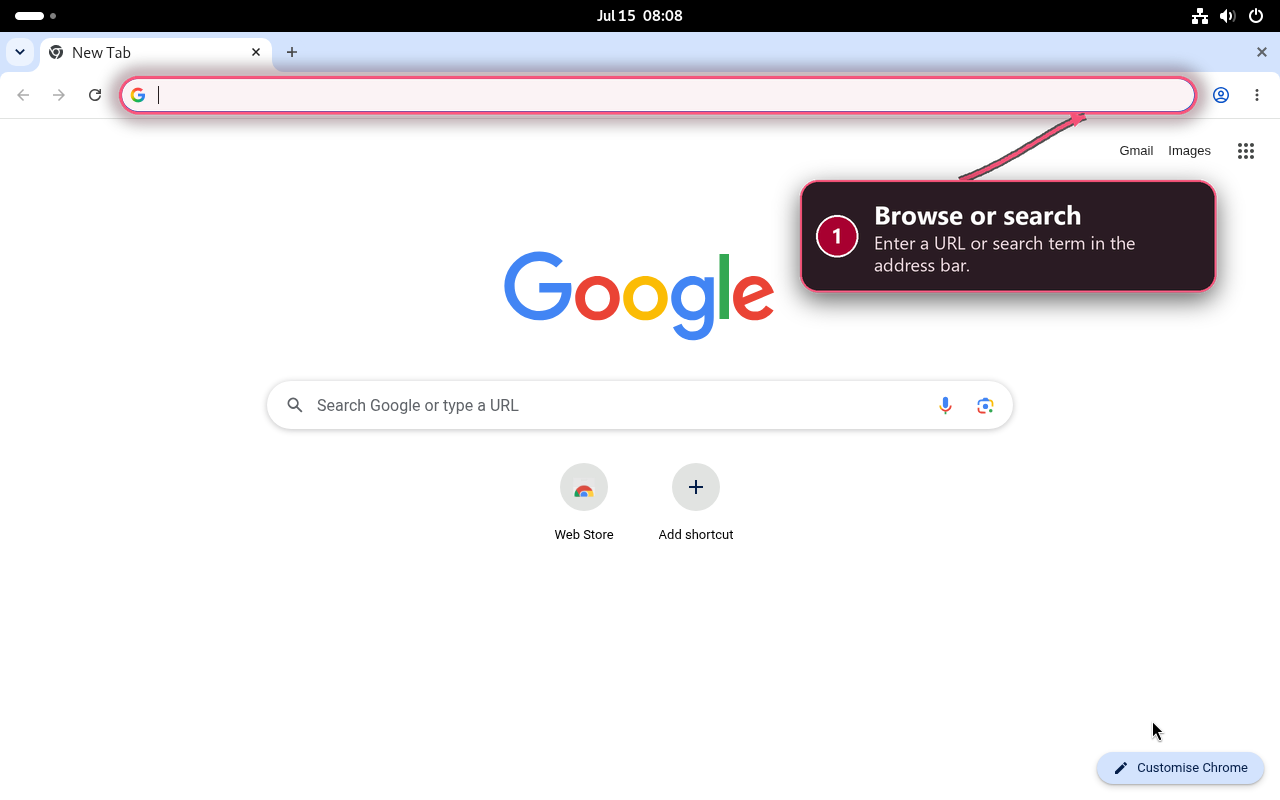
google-chrome-stableA visible New Tab page confirms that Chrome launched successfully. The screenshot below shows that ready state on Debian 13 after the Stable package was installed.
Complete Google Chrome First Launch Setup on Debian
Chrome’s first-run screens can change between releases. Review each optional decision instead of accepting every default:
- Default browser: accept only when you want other applications to open links in Chrome.
- Usage statistics and crash reports: enable diagnostics only if you want Chrome to send that data to Google.
- Sign-in and sync: sign in to synchronize browser data, or continue with a local profile.
- Desktop keyring: GNOME Keyring or another Secret Service provider may request a password to protect stored credentials.
If you selected Chrome as the default browser, check the desktop setting and URL handlers:
xdg-settings get default-web-browser
xdg-mime query default x-scheme-handler/http
xdg-mime query default x-scheme-handler/https
google-chrome.desktop indicates that Stable is the graphical default. Another desktop filename means Chrome installed successfully but is not the current handler for web links.
Install Google Chrome Preview Channels on Debian
Google publishes Beta, Dev, and Canary for testing upcoming changes. Most readers need only Stable. Each preview channel uses a separate package, launcher, profile, and update source, so install one only when its lower stability suits your testing work.
Install Chrome Preview Channels from Google’s APT Repository
Check Chrome Preview Channel Availability
The verified Stable source indexes all four channel packages on Debian 13, 12, and 11. Check the candidate and print-only download URL for the channel you want. This Beta example can be repeated with google-chrome-unstable or google-chrome-canary:
sudo apt update &&
apt-cache policy google-chrome-beta &&
apt-get --print-uris download google-chrome-beta
Continue when the candidate has a version and the printed amd64.deb URL comes from https://dl.google.com/linux/chrome-stable/deb/. Stop if APT selects another origin.
Install Google Chrome Beta on Debian
Beta previews the next release line:
sudo apt install google-chrome-betaInstall Google Chrome Dev on Debian
Install the Dev channel, whose package name is google-chrome-unstable:
sudo apt install google-chrome-unstableInstall Google Chrome Canary on Debian
Install Canary for the earliest and least stable preview:
sudo apt install google-chrome-canaryEach preview package creates a channel-specific source, keyring, defaults file, and launcher. Some package-and-release combinations also create an AppArmor profile. Do not copy a profile from another Debian release; let the installed package manage its own files.
Verify Chrome Channels Side by Side
Stable, Beta, Dev, and Canary can coexist because they use separate commands and profile directories. Print the version for each installed channel:
for command_name in \
  google-chrome-stable \
  google-chrome-beta \
  google-chrome-unstable \
  google-chrome-canary; do
  if command -v "$command_name" > /dev/null 2>&1; then
    "$command_name" --version
  fi
done
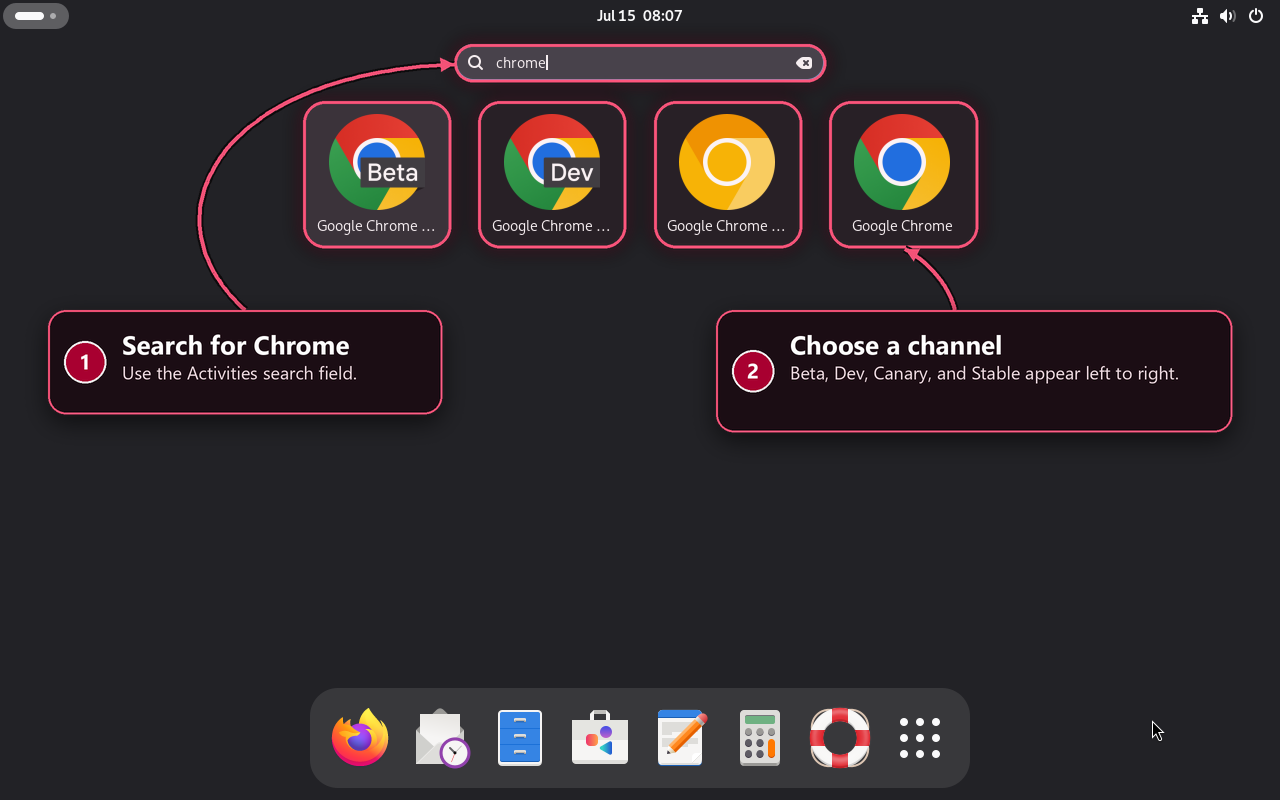
The Debian 13 Activities search below shows the four launchers side by side in the visible order Beta, Dev, Canary, and Stable. GNOME shortens some labels, but each icon launches its separately installed channel. This layout demonstrates coexistence; it is not a recommendation to use every preview for daily browsing.
Chrome channels also register with Debian’s browser alternatives. Inspect the generic browser selection before changing it:
update-alternatives --display x-www-browserChoose a different generic browser only when needed:
sudo update-alternatives --config x-www-browserThe alternatives selection and GNOME’s MIME defaults are separate. Use the xdg checks in the launch section to confirm which browser opens graphical links. Google’s Chrome release channels overview explains the stability trade-offs, while the Chrome Releases blog records current updates.
Update Google Chrome on Debian
Google’s source updates every installed Chrome channel through the same package-manager workflow as the rest of Debian.
Update all available packages, including Chrome:
sudo apt update &&
sudo apt upgrade
To update only Stable, use:
sudo apt update &&
sudo apt install --only-upgrade google-chrome-stable
Replace the package name with google-chrome-beta, google-chrome-unstable, or google-chrome-canary for another installed channel. Verify Stable afterward:
apt-cache policy google-chrome-stable
google-chrome-stable --version
The installed and candidate versions should match after a completed upgrade. For automated system patching, see how to configure unattended upgrades on Debian.
Uninstall Google Chrome from Debian
Remove the installed channels first. Repository files and browser profiles are separate cleanup surfaces.
Remove Chrome Packages from Debian
List Chrome package records before changing anything:
dpkg-query -W -f='${binary:Package}\t${db:Status-Status}\n' 'google-chrome-*' 2>/dev/nullPurge Stable when it appears in the inventory:
sudo apt purge google-chrome-stableRepeat the command only for installed preview packages shown by the inventory, replacing the name with google-chrome-beta, google-chrome-unstable, or google-chrome-canary. Use purge for package-owned cleanup. With current packages, plain apt remove leaves the channel’s source, keyring, defaults file, and a config-files record; purge removes those remaining package files.
Preview automatic dependency cleanup before accepting it:
sudo apt autoremove --simulateVerify Chrome Package and Repository Cleanup
Check for package records and Chrome repository references after the purge:
dpkg-query -W -f='${binary:Package}\t${db:Status-Status}\n' 'google-chrome-*' 2>/dev/null
grep -RInE 'dl.google.com/linux/chrome|/usr/share/keyrings/google-chrome.gpg' \
  /etc/apt/sources.list /etc/apt/sources.list.d 2>/dev/null
find /usr/share/keyrings -maxdepth 1 \
  \( -type f -o -type l \) -name 'google-chrome*.gpg' -print
A successful purge of every installed channel normally leaves no Chrome package record, source, or keyring. If Method 1 created the Stable source and key before installation failed, remove only those two exact files after confirming that no remaining Chrome source references the keyring:
Warning: Do not run this manual cleanup while any Chrome channel remains installed or while another APT source references
/usr/share/keyrings/google-chrome.gpg. Do not delete extrepo-owned files by hand.
sudo rm -f -- \
  /etc/apt/sources.list.d/google-chrome.sources \
  /usr/share/keyrings/google-chrome.gpg &&
sudo apt update
If the inventory shows a legacy google-chrome.list or extrepo_google_chrome.sources, identify its owner first. Manage an extrepo source through extrepo rather than including it in the exact-file cleanup above.
Remove Chrome Profile Data
Package removal preserves browser data. Discover existing profile and cache directories first:
find "$HOME/.config" "$HOME/.cache" -maxdepth 1 \
  -type d -name 'google-chrome*' -print 2>/dev/null
Profile deletion is permanent: it can remove local bookmarks, saved passwords, extensions, cookies, and browsing history. Back up the exact directory you need, close every Chrome channel, and delete only paths shown by the discovery command.
Confirm that no Chrome process is using a profile:
pgrep -u "$(id -u)" -a -f '/opt/google/chrome(-beta|-unstable|-canary)?/'No output means no matching process was found. To delete only Stable’s profile and cache after backing them up, use:
rm -rf -- "$HOME/.config/google-chrome" "$HOME/.cache/google-chrome"Preview channels use separate directories. Match the exact pair to the discovery output instead of using a broad wildcard:
| Channel | Profile Directory | Cache Directory |
|---|---|---|
| Beta | ~/.config/google-chrome-beta | ~/.cache/google-chrome-beta |
| Dev | ~/.config/google-chrome-unstable | ~/.cache/google-chrome-unstable |
| Canary | ~/.config/google-chrome-canary | ~/.cache/google-chrome-canary |
Troubleshoot Google Chrome Issues on Debian
Fix Unable to Locate google-chrome-stable
If APT cannot find the package, inspect the native architecture, enabled Chrome sources, keyring path, and candidate:
dpkg --print-architecture
grep -RIn "dl.google.com/linux/chrome" \
  /etc/apt/sources.list /etc/apt/sources.list.d 2>/dev/null
ls -l /usr/share/keyrings/google-chrome.gpg
apt-cache policy google-chrome-stable
Chrome requires native amd64. On that architecture, recreate a missing key with Import Google’s APT Signing Key and a missing source with Add the Google Chrome APT Source. Then run sudo apt update and check the policy table again.
Fix Google Chrome Stable GPG Key Errors on Debian
A NO_PUBKEY or signature error from the Stable source is a repository trust failure. Never bypass it with trusted=yes, --allow-unauthenticated, or apt-key. Inspect the active source and Stable keyring:
grep -RInE 'dl.google.com/linux/chrome|Signed-By|signed-by' \
  /etc/apt/sources.list /etc/apt/sources.list.d 2>/dev/null
gpg --batch --no-options --no-default-keyring \
  --keyring /usr/share/keyrings/google-chrome.gpg \
  --with-fingerprint --list-keys
A matching primary fingerprint does not prove that an old keyring contains Google’s current signing subkeys. When the keyring exists, preserve a backup before rerunning the verified import block:
backup='/usr/share/keyrings/google-chrome.gpg.before-refresh'

if [ -L /usr/share/keyrings/google-chrome.gpg ] ||
   [ ! -f /usr/share/keyrings/google-chrome.gpg ]; then
  printf 'Stable keyring is missing or has an unsafe type.\n' >&2
  false
elif [ -e "$backup" ] || [ -L "$backup" ]; then
  printf 'Backup already exists; inspect it before continuing: %s\n' \
    "$backup" >&2
  false
elif sudo cp --archive -- \
     /usr/share/keyrings/google-chrome.gpg "$backup" &&
     cmp -s /usr/share/keyrings/google-chrome.gpg "$backup"; then
  printf 'Current Stable keyring backed up to %s\n' "$backup"
else
  printf 'Stable keyring backup failed.\n' >&2
  false
fi
Now rerun Import Google’s APT Signing Key, which fetches the current official export and replaces the installed keyring only after verifying its full primary fingerprint. Test APT, then remove the backup only after the update succeeds:
sudo apt update &&
sudo rm -f -- /usr/share/keyrings/google-chrome.gpg.before-refresh
If the refreshed key does not fix APT, restore the prior file while you investigate the source mismatch:
sudo mv -f -- \
  /usr/share/keyrings/google-chrome.gpg.before-refresh \
  /usr/share/keyrings/google-chrome.gpg &&
sudo apt update
This repair applies only to Stable’s google-chrome.sources and google-chrome.gpg. If the error names Beta, Dev, or Canary, do not copy the Stable key into that channel’s keyring. Purge only the affected preview package, refresh APT with the verified Stable source, and reinstall that preview after its print-only package URL passes the availability check. Repair or disable a legacy .list or extrepo source through its owner.
Fix Duplicate Chrome Repository Warnings on Debian
Inventory every Chrome source before changing one:
grep -RIn "dl.google.com/linux/chrome" \
  /etc/apt/sources.list /etc/apt/sources.list.d 2>/dev/null
Keep one source owner for each channel. Current Google packages use channel-specific DEB822 .sources files. Disable a confirmed legacy .list only after comparing its endpoint and Signed-By value with the current file. If extrepo owns a duplicate, manage it through extrepo; do not publish a second hand-written source beside it. Rerun sudo apt update after resolving the duplicate.
Fix i386 Architecture Notices from Chrome Repository
An amd64 system with i386 multiarch enabled can request an index Google does not publish. Check the native architecture and the DEB822 restriction:
dpkg --print-architecture
grep -RIn "dl.google.com/linux/chrome" \
  /etc/apt/sources.list /etc/apt/sources.list.d 2>/dev/null
grep -Hn '^Architectures:' \
  /etc/apt/sources.list.d/google-chrome*.sources 2>/dev/null
The native architecture must be amd64, and every active Chrome DEB822 source should contain Architectures: amd64. A legacy one-line .list source can cause the notice when it lacks an [arch=amd64] option; compare and migrate or disable that entry through the duplicate-source owner workflow instead of leaving it active beside DEB822. If the Stable DEB822 field is missing, preserve the damaged file for comparison, then recreate the current source with the exact Method 1 block. Do not remove i386 system-wide when other installed software needs it.
Repair an Interrupted Chrome DEB Installation
If a local DEB transaction was interrupted, refresh package metadata and let APT finish the incomplete dependency state:
sudo apt update &&
sudo apt --fix-broken install &&
dpkg-query -W -f='${db:Status-Status}\n' google-chrome-stable
The final command should print installed. If it does not, check apt-cache policy google-chrome-stable and reinstall only when the candidate comes from Google’s Stable repository. When no verified candidate exists, return to the direct-DEB download and package-field checks rather than installing an uninspected local file.
Google Chrome vs Chromium on Debian
Chromium is the open-source browser project on which Chrome is based. Google Chrome adds Google’s proprietary sync integration, bundled media components, branded release channels, and its own APT repository. If you prefer a browser available through Debian or Flathub without Google’s proprietary package, install Chromium on Debian instead.
Conclusion
Chrome Stable now updates with the rest of Debian through Google’s signed APT source, whether you added that source first or bootstrapped it with the official DEB. Use Stable for everyday browsing; add Beta, Dev, or Canary only for testing because each channel installs its own launcher, profile, and package source. If you later remove Chrome, purge every installed channel before deleting any leftover repository or profile data.


Thank you. It works ! 🙂
Thanks a lot.
Your explanations work perfectly for debian 13 trixie.
Thanks again
Can this instruction be use for Debian 13?
Hi JQ,
Yes it can be used to install Google Chrome with Debian 13 Trixie release.
Can I have an instruction for debian 13? I tried to download from google chrome and after install it freeze after a while of use. Thanks
Great, I have Google on my debian 12.