
Vivaldi is worth installing on Debian when a normal Chromium-style browser feels too rigid. Its tab stacks, workspaces, side-by-side tab tiling, notes panel, mail client, calendar, feeds, screenshots, and tracker blocking are built into the browser instead of being stitched together from extensions.
To install Vivaldi browser on Debian 13 (Trixie), Debian 12 (Bookworm), or Debian 11 (Bullseye), use the official Vivaldi APT repository for the cleanest desktop integration and APT-managed updates on current 64-bit desktop systems. Flatpak is also available through Flathub, but the Flathub listing is currently unverified and marked potentially unsafe, so treat it as a convenience packaging path rather than a stronger trust or isolation choice.
Install Vivaldi Browser on Debian
Choose a Vivaldi Installation Method
Most Debian desktop users should use the APT repository. It gives Vivaldi a normal package-manager lifecycle, keeps the browser visible to APT security and upgrade workflows, and avoids repeating a manual .deb download for every release.
| Method | Source or Channel | Update Behavior | Best For | Trade-offs |
|---|---|---|---|---|
| APT Repository | Official Vivaldi repository | Updates through apt upgrade or apt install --only-upgrade | Most Debian desktops that should receive browser updates with system packages | Adds a third-party source and signing key; snapshot packages are available for normal 64-bit desktop architectures |
| Flatpak | Flathub app | Updates through flatpak update | Systems that already use Flatpak or avoid extra APT sources | Flathub currently labels the app unverified and potentially unsafe; permissions can be broad for a browser |
The official Vivaldi download page also offers direct Linux .deb packages for 64-bit Intel/AMD and ARM64 systems, but that path is best kept as a fallback. A one-off package install can configure Vivaldi’s own legacy source file, while the DEB822 repository method keeps the source, signing key, update path, and cleanup steps explicit.
Install Vivaldi from the Official APT Repository
Prepare Debian for the Vivaldi Repository
Refresh APT metadata before adding the new repository:
sudo apt updateThese commands use
sudofor tasks that need root privileges. If your account cannot use sudo yet, run the commands as root or follow the Debian sudoers setup guide to add a user to sudoers on Debian.
Install the small tools needed to download the signing key, dearmor it for APT, and use HTTPS package sources on minimal Debian systems:
sudo apt install curl gpg ca-certificates -yAdd the Vivaldi Signing Key
Download the current Vivaldi Linux signing key and store it as a dedicated APT keyring. The curl command fetches the key over HTTPS, while gpg --dearmor --yes writes a binary keyring and safely overwrites an older copy during reruns:
curl -fsSL https://repo.vivaldi.com/stable/linux_signing_key.pub | sudo gpg --dearmor --yes -o /usr/share/keyrings/vivaldi.gpgCheck the key fingerprint before trusting it for repository updates:
gpg --show-keys --with-fingerprint /usr/share/keyrings/vivaldi.gpgRelevant output should show Vivaldi’s current package composer key:
pub   rsa4096 2024-12-19 [SC] [expires: 2027-02-07]
      8D1F A52A EF58 A09D 889D  D422 1256 C347 16BD 9233
uid                      Vivaldi Package Composer KEY11 <packager@vivaldi.com>
Add the Vivaldi DEB822 Source
Create an empty Vivaldi defaults file before installing the package. Vivaldi’s Debian package still includes a legacy cron hook that can write its own vivaldi.list source file; an empty defaults file disables that automatic source writer so the DEB822 source remains the only Vivaldi update path.
sudo install -m 0644 /dev/null /etc/default/vivaldiWrite the Vivaldi repository as a DEB822 source file. The command uses your system architecture so APT requests only the package index your Debian install can use. Current stable and snapshot packages are available for amd64 and arm64; older 32-bit ARM packages exist in the repository, but they are not part of the current stable-and-snapshot desktop flow.
arch=$(dpkg --print-architecture)

if [ "$arch" = "amd64" ] || [ "$arch" = "arm64" ]; then
  printf '%s\n' \
  'Types: deb' \
  'URIs: https://repo.vivaldi.com/archive/deb/' \
  'Suites: stable' \
  'Components: main' \
  "Architectures: $arch" \
  'Signed-By: /usr/share/keyrings/vivaldi.gpg' | sudo tee /etc/apt/sources.list.d/vivaldi.sources > /dev/null
else
  printf 'Current Vivaldi stable and snapshot packages are not available for %s through this setup.\n' "$arch"
fi
Inspect the source file before refreshing APT. This catches paste mistakes before the package manager consumes the new source:
cat /etc/apt/sources.list.d/vivaldi.sourcesOn an amd64 Debian system, the file should look like this. On ARM64, the Architectures: field should show arm64 instead:
Types: deb
URIs: https://repo.vivaldi.com/archive/deb/
Suites: stable
Components: main
Architectures: amd64
Signed-By: /usr/share/keyrings/vivaldi.gpg
Refresh APT and Verify the Vivaldi Package
Refresh APT so Debian can read the new Vivaldi repository metadata:
sudo apt updateConfirm that vivaldi-stable resolves from the Vivaldi repository:
apt-cache policy vivaldi-stableThe version changes as Vivaldi releases new builds, but the source should point to repo.vivaldi.com/archive/deb. On amd64, the policy output should resemble this example:
vivaldi-stable:
  Installed: (none)
  Candidate: 7.9.3970.67-1
  Version table:
     7.9.3970.67-1 500
        500 https://repo.vivaldi.com/archive/deb stable/main amd64 Packages
Install Vivaldi Stable or Snapshot
Install the stable package for normal browsing, sync, mail, calendar, and daily web use:
sudo apt install vivaldi-stableInstall the snapshot channel only when you deliberately want upcoming features before they reach stable:
sudo apt install vivaldi-snapshotStable and snapshot can be installed side by side. Use stable for regular browsing and sensitive sessions; use snapshot for testing UI changes, web compatibility, and new Vivaldi features with the expectation that development builds can break.
Verify the stable package. The exact version changes as Vivaldi releases updates, but the output should end with stable:
vivaldi --versionVivaldi 7.9.3970.67 stable
If you installed the snapshot package, verify that command separately. Snapshot output should end with snapshot:
vivaldi-snapshot --versionVivaldi 8.0.4033.19 snapshot
Install Vivaldi with Flatpak
Use the Flatpak method when your Debian desktop already manages apps through Flathub or when you prefer not to add a Vivaldi APT source. Before choosing it, note that Flathub currently marks the Vivaldi app as unverified and potentially unsafe, even though the listing names Vivaldi Technologies as the developer.
If Flatpak and Flathub are not configured yet, install Flatpak and add the Flathub remote. For more background on Flatpak setup, see the Debian-specific guide to install Flatpak on Debian.
sudo apt update
sudo apt install flatpak -y
sudo flatpak remote-add --if-not-exists flathub https://dl.flathub.org/repo/flathub.flatpakrepo
Install Vivaldi from Flathub:
sudo flatpak install flathub com.vivaldi.VivaldiVerify the installed system-wide Flatpak record with stable metadata fields:
flatpak info --system com.vivaldi.Vivaldi | grep -E '^[[:space:]]*(ID|Ref|Arch|Branch|Version|Origin|Installation):' ID: com.vivaldi.Vivaldi
Ref: app/com.vivaldi.Vivaldi/x86_64/stable
Arch: x86_64
Branch: stable
Version: 7.9.3970.67
Origin: flathub
Installation: system
Launch the Flatpak build from the terminal with flatpak run com.vivaldi.Vivaldi, or open the desktop launcher from your applications menu.
Launch and Set Up Vivaldi Browser on Debian
Launch Vivaldi from the Terminal
Run the stable APT package from a terminal with:
vivaldiRun the snapshot package with:
vivaldi-snapshotRun the Flatpak package with:
flatpak run com.vivaldi.VivaldiLaunch Vivaldi from the Applications Menu
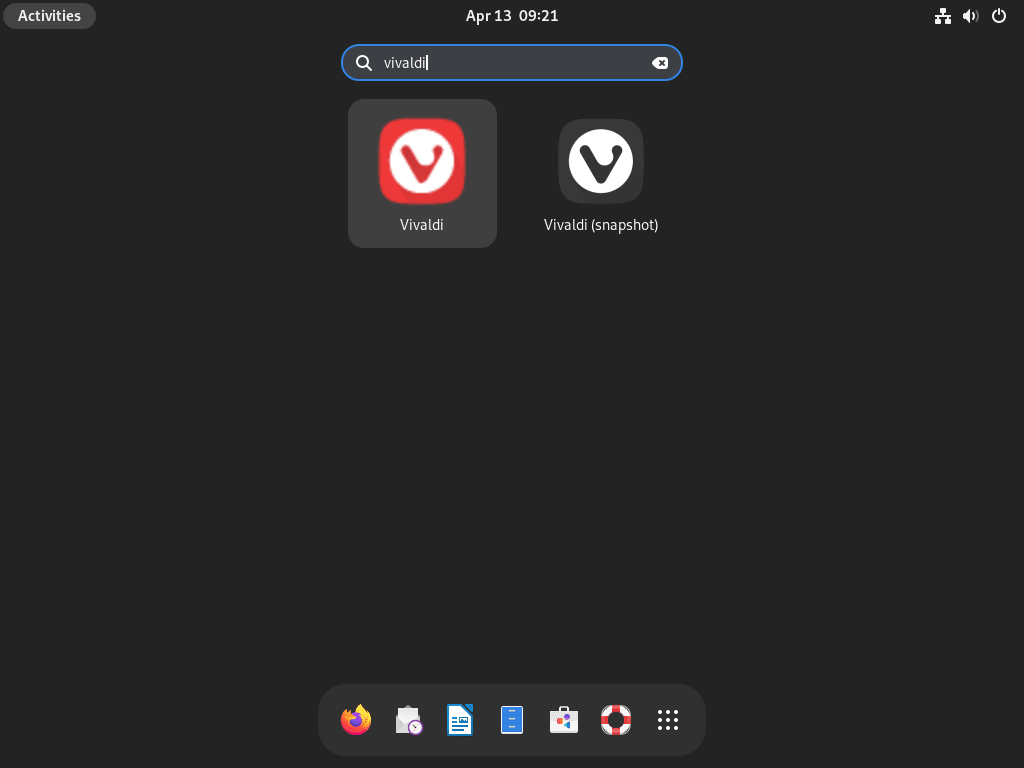
Open your desktop environment’s application menu and search for “Vivaldi.” Common Debian desktop launch paths are:
- GNOME: Open Activities, then search for “Vivaldi”
- KDE Plasma: Open the Application Launcher, then search for “Vivaldi”
- Xfce: Open the Whisker Menu or Applications Menu, then check the Internet category
If stable and snapshot are both installed, Debian shows separate launchers for Vivaldi and Vivaldi Snapshot.
Complete the First-Run Setup
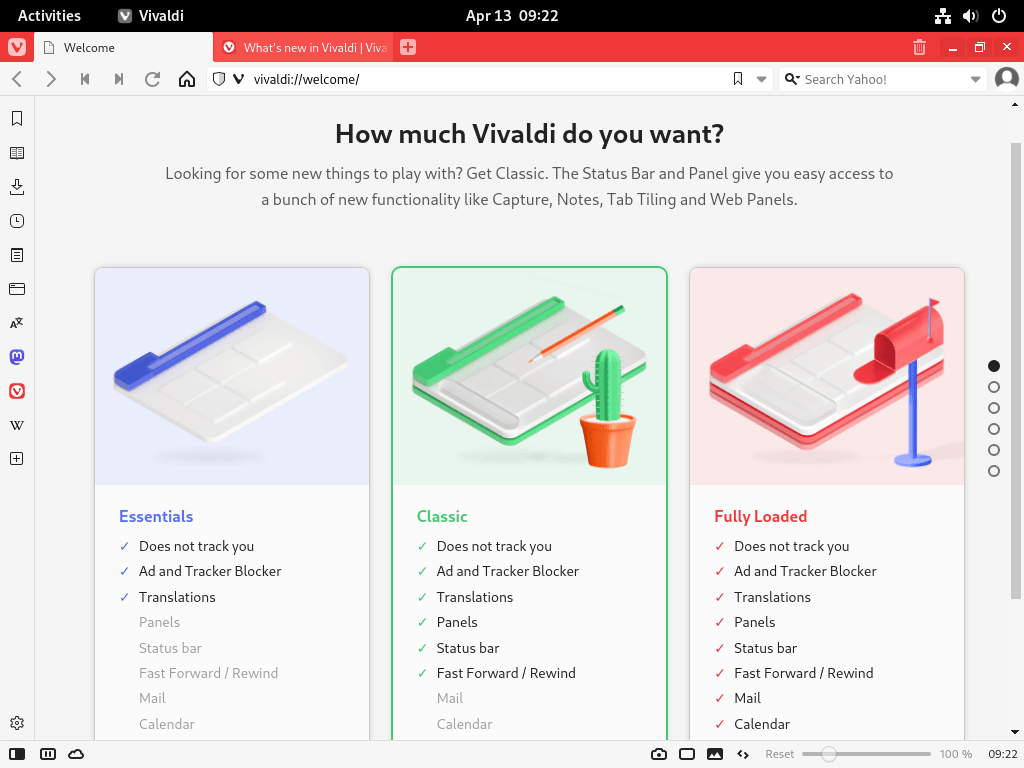
On first launch, Vivaldi asks how much interface it should enable. The Essentials-style setup keeps the browser quieter, while fuller layouts expose panels for notes, mail, calendar, feeds, and web panels immediately.
- Choose a tab layout that matches your screen size; left or right vertical tabs work well on wide monitors, while top tabs are simpler on laptops.
- Enable Workspaces when you separate tasks such as writing, admin panels, research, and personal browsing.
- Use Tab Tiling after selecting two or more tabs to compare documentation, dashboards, logs, or web apps side by side.
- Sign in to Vivaldi Sync only if you want bookmarks, passwords, notes, settings, and history shared with other Vivaldi devices.
Import Browser Data into Vivaldi
Vivaldi can import bookmarks, browsing history, saved passwords, and other browser data from its built-in import wizard. Open File > Import from Applications or Files, then choose the source browser or exported file.
Common Debian source browsers include Firefox on Debian, Chromium on Debian, and Google Chrome on Debian. If you plan to remove another browser afterward, export or sync important data before deleting its profile.
Manage Vivaldi Browser on Debian
Update APT-Installed Vivaldi
APT-managed Vivaldi updates arrive through the Vivaldi repository. Update all available packages with the normal Debian workflow:
sudo apt update
sudo apt upgrade
Update only Vivaldi stable without upgrading unrelated packages:
sudo apt update
sudo apt install --only-upgrade vivaldi-stable
If you installed snapshot instead, update that package name:
sudo apt update
sudo apt install --only-upgrade vivaldi-snapshot
For unattended browser updates through APT, configure the system’s unattended-upgrades policy carefully and include third-party origins only when you intend to trust that source for automatic upgrades. The Debian article on unattended upgrades on Debian explains the service and timer workflow.
Update Flatpak-Installed Vivaldi
Update the Vivaldi Flatpak from Flathub with:
sudo flatpak update com.vivaldi.VivaldiUpdate every system-wide Flatpak app and runtime with:
sudo flatpak updateRemove APT-Installed Vivaldi
Remove the stable package and its package configuration with:
sudo apt purge vivaldi-stableRemove the snapshot package with:
sudo apt purge vivaldi-snapshotAfter removing the package, delete the repository, the DEB822 keyring, the defaults file created earlier, and any Vivaldi keyring files the package created under APT’s trusted keyring directory:
sudo rm -f /etc/apt/sources.list.d/vivaldi.sources /etc/apt/sources.list.d/vivaldi.list
sudo rm -f /usr/share/keyrings/vivaldi.gpg
sudo rm -f /etc/apt/trusted.gpg.d/vivaldi-16BD9233.gpg /etc/apt/trusted.gpg.d/vivaldi-5220E3E9.gpg
sudo rm -f /etc/default/vivaldi
sudo apt update
Confirm that APT no longer sees a Vivaldi repository candidate:
apt-cache policy vivaldi-stable | grep -E 'Candidate:|repo.vivaldi.com' || echo "No Vivaldi repository candidate found"No Vivaldi repository candidate found
If Vivaldi installed extra dependencies that no other package needs, review the normal APT cleanup preview before removing them:
sudo apt autoremove --dry-runRun the actual autoremove only when the preview lists packages you are comfortable deleting:
sudo apt autoremoveRemove Flatpak-Installed Vivaldi
Uninstall the Vivaldi Flatpak:
sudo flatpak uninstall com.vivaldi.VivaldiRemove unused Flatpak runtimes only after checking that other Flatpak apps do not need them:
sudo flatpak uninstall --unusedVerify that the system-wide Flatpak app is gone:
flatpak list --system --app --columns=application | grep -Fx com.vivaldi.Vivaldi || echo "NOT_INSTALLED"NOT_INSTALLED
Remove Vivaldi User Data
Profile cleanup permanently deletes bookmarks, passwords, history, cookies, sessions, notes, mail data, custom panels, and settings stored on this Debian account. Export data or confirm Vivaldi Sync is complete before deleting these directories.
Remove profile and cache data for the APT-installed stable and snapshot builds:
rm -rf ~/.config/vivaldi ~/.config/vivaldi-snapshot
rm -rf ~/.cache/vivaldi ~/.cache/vivaldi-snapshot
Remove the Flatpak profile directory:
rm -rf ~/.var/app/com.vivaldi.VivaldiTroubleshoot Vivaldi Browser on Debian
APT Reports a Vivaldi Repository 404
If sudo apt update reports a Vivaldi repository error for repo.vivaldi.com/stable/deb, an older package-created source file is still enabled. Your DEB822 source should use repo.vivaldi.com/archive/deb/.
Find any old Vivaldi source entries:
grep -R "repo.vivaldi.com/stable/deb" /etc/apt/sources.list /etc/apt/sources.list.d 2>/dev/nullRemove the legacy list file, keep the package defaults file empty so the cron hook does not recreate it, then refresh APT:
sudo rm -f /etc/apt/sources.list.d/vivaldi.list
sudo install -m 0644 /dev/null /etc/default/vivaldi
sudo apt update
APT Cannot Find the Vivaldi Package
If apt-cache policy vivaldi-stable shows no candidate, confirm the source file exists and points to the current repository path:
cat /etc/apt/sources.list.d/vivaldi.sourcesThen refresh APT and check the candidate again:
sudo apt update
apt-cache policy vivaldi-stable
On unsupported architectures, the source-writing command prints a message instead of creating the file. Use dpkg --print-architecture to confirm whether the system is amd64 or arm64.
Repository Key Errors During APT Update
If APT reports NO_PUBKEY, BADSIG, or a signature verification failure for the Vivaldi repository, refresh the dedicated keyring and rerun the update:
curl -fsSL https://repo.vivaldi.com/stable/linux_signing_key.pub | sudo gpg --dearmor --yes -o /usr/share/keyrings/vivaldi.gpg
sudo apt update
If the error continues immediately after a verified key refresh, wait and retry before changing trust settings. Repository signature problems can be temporary upstream publishing issues, and disabling APT signature checks is not a safe routine fix.
Proprietary Media Codecs Warning
When Vivaldi starts from a terminal, you may see a proprietary media message while the browser downloads its extra codec bundle:
'Proprietary media' support is not installed. Attempting to fix this now.
If the automatic download fails, install xz-utils and run Vivaldi’s codec helper directly for your user account. The Vivaldi launcher uses the same per-user codec path during normal desktop startup:
sudo apt install xz-utils
/opt/vivaldi/update-ffmpeg --user
Restart Vivaldi after the helper completes.
Hardware Acceleration or GPU Rendering Issues
If video playback stutters, browser windows flicker, or pages render incorrectly, open vivaldi://gpu in the address bar and check which features are hardware accelerated. NVIDIA systems may need the proprietary driver; for Debian driver setup, see install NVIDIA drivers on Debian.
For a one-launch diagnostic, start the APT package with GPU acceleration disabled:
vivaldi --disable-gpuFor the Flatpak package, pass the same flag through flatpak run:
flatpak run com.vivaldi.Vivaldi --disable-gpuVivaldi Does Not Launch
Start Vivaldi from a terminal so Debian shows the first error instead of silently returning to the desktop:
vivaldiFor Flatpak, run:
flatpak run com.vivaldi.VivaldiIf the APT package appears missing or broken, confirm the installed package state. The status abbreviation should begin with ii for the channel you installed:
dpkg-query -W -f='${db:Status-Abbrev} ${Version}\n' vivaldi-stable 2>/dev/null || echo "vivaldi-stable is not installed"
dpkg-query -W -f='${db:Status-Abbrev} ${Version}\n' vivaldi-snapshot 2>/dev/null || echo "vivaldi-snapshot is not installed"
Reinstall the channel you use. For stable, run:
sudo apt install --reinstall vivaldi-stableFor snapshot, run:
sudo apt install --reinstall vivaldi-snapshotFor the Flatpak package, confirm the system-wide app record exists before troubleshooting desktop launcher entries:
flatpak info --system com.vivaldi.VivaldiConclusion
Vivaldi is installed on Debian with either APT-managed updates from the official repository or Flatpak updates from Flathub. After the first launch, set up workspaces, tab tiling, sync, and imports around the way you browse. For other Debian browser options, compare Brave on Debian or Firefox on Debian.


Formatting tips for your comment
You can use basic HTML to format your comment. Useful tags currently allowed in published comments:
<code>command</code>command<strong>bold</strong><em>italic</em><a href="https://example.com">link</a><blockquote>quote</blockquote>