
Firefox Beta gives Debian desktop users the next Firefox release cycle without the daily churn of Nightly. You can install Firefox Beta on Debian from Mozilla’s official APT repository, which keeps browser updates inside APT and avoids a manually managed tarball.
This page is for the Beta channel. Debian’s default repositories provide Firefox ESR, and Mozilla’s stable channel is covered separately in the guide to install Firefox on Debian. Mozilla’s current APT metadata provides firefox-beta for amd64 and arm64; 32-bit i386 systems should use Debian’s firefox-esr package instead.
Install Firefox Beta on Debian
Mozilla packages Firefox Beta separately from Debian’s Firefox ESR track, so installing firefox-beta adds the preview channel without removing Debian’s firefox-esr package.
Update Debian and Install Firefox Beta Prerequisites
Refresh APT metadata before adding Mozilla’s repository:
sudo apt updateThese commands use
sudofor tasks that need root privileges. If your account does not have sudo access yet, follow the guide on how to add a user to sudoers on Debian.
Install the packages used to download the signing key, verify the fingerprint, and read HTTPS APT sources. The -y flag accepts APT’s package-install prompt.
sudo apt install ca-certificates curl gpg -yAdd the Mozilla APT Repository for Firefox Beta
Mozilla documents the same packages.mozilla.org repository in its Firefox Linux installation instructions. The commands here keep the source in DEB822 format and store the key under /etc/apt/keyrings/, which matches Mozilla’s current key path while remaining easy to audit and remove.
Mozilla also publishes tarball builds, but the APT repository is the cleaner Debian workflow for most users because APT owns updates, desktop integration, and package removal. Use a tarball only when you deliberately want a manual Firefox install outside Debian’s package database.
sudo install -d -m 0755 /etc/apt/keyrings
curl -fsSL https://packages.mozilla.org/apt/repo-signing-key.gpg | sudo tee /etc/apt/keyrings/packages.mozilla.org.asc >/dev/null
For the broader download syntax, learn the curl command in Linux. Here, -fsSL makes curl fail on HTTP errors, stay quiet unless something breaks, and follow redirects.
Verify the signing key fingerprint before trusting the repository:
gpg --quiet --show-keys --with-fingerprint /etc/apt/keyrings/packages.mozilla.org.ascpub rsa2048 2021-05-04 [SC]
35BA A0B3 3E9E B396 F59C A838 C0BA 5CE6 DC63 15A3
uid Artifact Registry Repository Signer <artifact-registry-repository-signer@google.com>
Create the Mozilla source file with an architecture guard. If the command reports an unsupported architecture, stop here because APT will not have a usable firefox-beta candidate for that system.
(
  arch="$(dpkg --print-architecture)"

  case "$arch" in
  amd64 | arm64)
    printf '%s\n' \
      'Types: deb' \
      'URIs: https://packages.mozilla.org/apt' \
      'Suites: mozilla' \
      'Components: main' \
      "Architectures: $arch" \
      'Signed-By: /etc/apt/keyrings/packages.mozilla.org.asc' | sudo tee /etc/apt/sources.list.d/mozilla.sources >/dev/null
    ;;
  *)
    printf 'Firefox Beta from Mozilla APT currently supports amd64 and arm64, not %s.\n' "$arch" >&2
    exit 1
    ;;
  esac
)
Add a channel-aware APT pin for Mozilla’s repository. The first stanza keeps Firefox Beta and its Beta language packs preferred from Mozilla, while the second stanza keeps other Mozilla Firefox packages below Debian’s own packages unless you deliberately install another channel.
printf '%s\n' \
  'Package: firefox-beta*' \
  'Pin: origin packages.mozilla.org' \
  'Pin-Priority: 1000' \
  '' \
  'Package: firefox*' \
  'Pin: origin packages.mozilla.org' \
  'Pin-Priority: 100' | sudo tee /etc/apt/preferences.d/mozilla >/dev/null
Refresh APT and confirm that firefox-beta is visible from Mozilla’s repository:
sudo apt update
apt-cache policy firefox-beta | grep -m1 -F 'packages.mozilla.org'
500 https://packages.mozilla.org/apt mozilla/main amd64 Packages
The version number changes during each Beta cycle, but the repository row should point to https://packages.mozilla.org/apt. On arm64, the row ends with arm64 Packages instead.
Install Firefox Beta with APT
Install the Beta package from Mozilla’s repository:
sudo apt install firefox-beta -yVerify that APT registered the installed package:
dpkg-query -W -f='${db:Status-Abbrev} ${binary:Package}\n' firefox-betaii firefox-beta
Check the command and desktop launcher files that the package installed:
dpkg -L firefox-beta | grep -E '/usr/bin/firefox-beta|/usr/share/applications/firefox-beta.desktop'/usr/share/applications/firefox-beta.desktop /usr/bin/firefox-beta
Mozilla’s repository also carries
firefox,firefox-esr,firefox-nightly, andfirefox-devedition. Firefox Beta uses its own package name and launcher, so it can coexist with Debian’s Firefox ESR package, but local Firefox profiles still live under Mozilla directories in your home folder.
Install Firefox Beta Language Packs
Mozilla ships Firefox Beta language packs as separate packages. Search the available Beta language-pack names before installing one:
apt-cache search '^firefox-beta-l10n' | grep -Eo '^firefox-beta-l10n-(de|fr|ja)'firefox-beta-l10n-de firefox-beta-l10n-fr firefox-beta-l10n-ja
Install the language pack you want by replacing the locale code with your own:
sudo apt install firefox-beta-l10n-de -yConfirm the language-pack package is installed:
dpkg-query -W -f='${db:Status-Abbrev} ${binary:Package}\n' firefox-beta-l10n-deii firefox-beta-l10n-de
After the package installs, open Firefox Beta and switch the interface language under Settings > General > Language. Restart the browser if the new language does not appear immediately.
Launch Firefox Beta on Debian
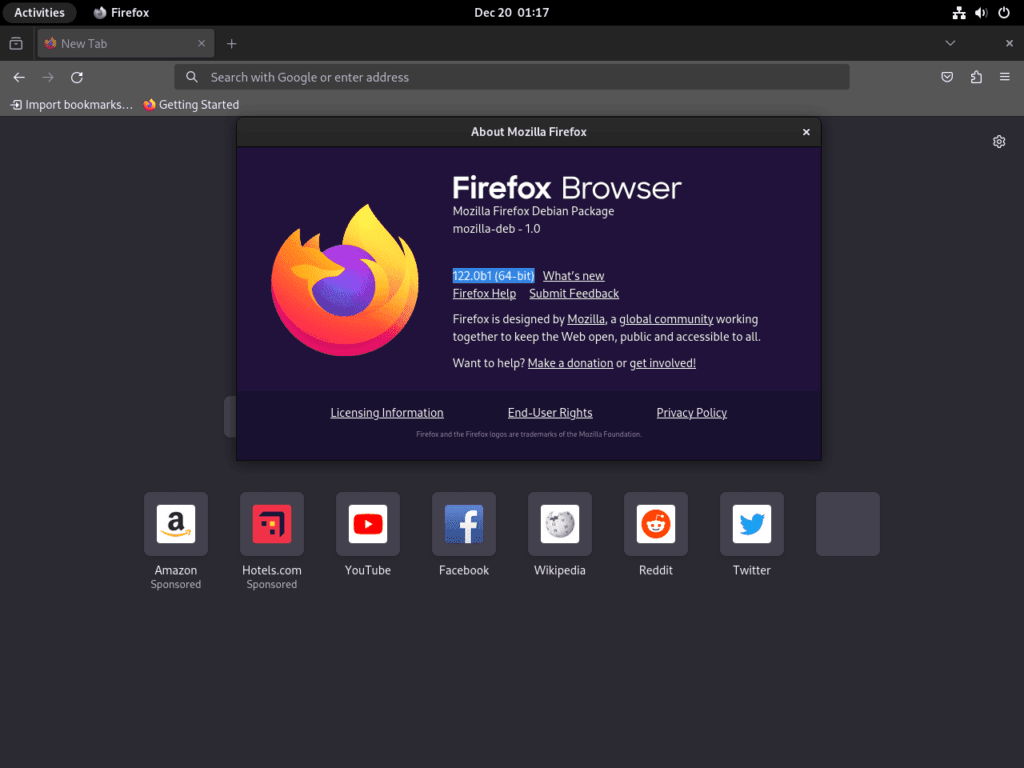
Launch Firefox Beta from a graphical Debian desktop session after the package install finishes. The repository setup and package install can run over SSH, but the browser window still needs a local display session.
Launch Firefox Beta from the Terminal
Run Firefox Beta from a terminal inside your desktop session when you want a quick launcher command or need to pass extra arguments. If you try this over SSH without a display, Firefox Beta returns a display error instead of opening.
firefox-betaAdd an ampersand to return your shell prompt immediately while the browser keeps running:
firefox-beta &Launch Firefox Beta from the Applications Menu
Open your desktop’s applications menu, search for Firefox Beta, and start it from there. The Debian package installs the desktop launcher automatically, so you do not need to create one by hand.
Manage Firefox Beta on Debian
Because Firefox Beta comes from an APT repository, updates and package removal stay in the normal Debian package workflow. Keep source cleanup separate from package removal so you do not break another Firefox channel that still uses Mozilla’s repository.
Update Firefox Beta
Refresh the package lists first, then upgrade only the Beta package when you want the latest Beta build without touching unrelated packages:
sudo apt update
sudo apt install --only-upgrade firefox-beta
If you installed language packs, APT updates them through the same Mozilla repository when their matching Beta build is available.
Remove Firefox Beta
Remove the Beta package and any Beta language packs you installed. Replace or omit the language-pack package name to match your system.
sudo apt remove firefox-beta firefox-beta-l10n-de
sudo apt autoremove
Confirm no Firefox Beta package remains installed:
if dpkg-query -W -f='${db:Status-Abbrev} ${binary:Package}\n' firefox-beta firefox-beta-l10n-de 2>/dev/null | grep '^ii'; then
  printf 'Firefox Beta packages are still installed.\n'
else
  printf 'Firefox Beta packages are not installed.\n'
fi
Firefox Beta packages are not installed.
Use purge only when you also want APT to delete residual package configuration for the Beta packages:
sudo apt purge firefox-beta firefox-beta-l10n-deKeep Mozilla’s repository if you still use
firefox,firefox-esr,firefox-nightly, orfirefox-deveditionfrom the same source.
If you no longer need any Firefox package from Mozilla’s APT repository, remove the source file, old source-file variant, pin, and keyrings, then refresh APT:
sudo rm -f /etc/apt/sources.list.d/mozilla.sources /etc/apt/sources.list.d/mozilla.list /etc/apt/preferences.d/mozilla
sudo rm -f /etc/apt/keyrings/packages.mozilla.org.asc /usr/share/keyrings/packages.mozilla.org.gpg
sudo apt update
Confirm the Mozilla source no longer provides a Firefox Beta candidate:
apt-cache policy firefox-beta | sed -n '/Candidate:/p;/packages.mozilla.org/p'Candidate: (none)
Firefox profile data can be shared by Beta, ESR, stable, Developer Edition, and Nightly for the same Linux account. Package removal does not delete bookmarks, passwords, sessions, extensions, or cached files.
Check which local Mozilla paths exist before deleting profile or cache data:
find ~/.mozilla/firefox ~/.cache/mozilla -maxdepth 0 -print 2>/dev/nullDeleting these paths permanently removes local Firefox profiles, bookmarks, saved passwords, sessions, extensions, and cache data for the current user account. Export anything you need first, and remove any path from the command that you want to keep.
rm -rf ~/.mozilla/firefox ~/.cache/mozillaConclusion
Firefox Beta is installed on Debian with Mozilla-managed APT updates and a separate desktop launcher. Report reproducible Beta issues through Mozilla Bugzilla. For a non-Beta browser path, install Firefox on Debian from Mozilla’s stable channel or install Chromium on Debian.


Formatting tips for your comment
You can use basic HTML to format your comment. Useful tags currently allowed in published comments:
<code>command</code>command<strong>bold</strong><em>italic</em><a href="https://example.com">link</a><blockquote>quote</blockquote>