
Krita works well on Linux Mint when you need a painting-focused editor for concept art, comics, texture work, or tablet drawing rather than a general photo retouching app. You can install Krita on Linux Mint through APT, Flathub, or the official AppImage download, so the best method comes down to how closely you want updates tied to Mint itself.
Linux Mint 22.x ships the Krita 5.2.2 series in APT, Linux Mint 21.x ships the 5.0.2 series, and Flathub currently provides Krita 5.3.1 across both supported Mint releases. Krita’s official download page currently lists Krita 5.3.2.1 as the stable Linux AppImage, which is the best direct-download path when you want the newest upstream stable build without using Flatpak.
Install Krita on Linux Mint
Linux Mint keeps three practical Krita paths in scope. APT fits the default Mint desktop workflow, Flathub keeps both Mint branches on the same newer stable release, and the AppImage is the direct download option from Krita’s own site.
| Method | Channel | Version Track | Updates | Best For |
|---|---|---|---|---|
| APT | Ubuntu packages | 5.2.2 on Mint 22.x, 5.0.2 on Mint 21.x | Managed through APT and Update Manager | Users who want the simplest Mint-managed install |
| Flatpak | Flathub | Flathub stable, currently 5.3.1 | Managed through Flatpak | Users who want the same newer stable build on Mint 22.x and 21.x |
| AppImage | Official Krita download | Official stable AppImage, currently 5.3.2.1 | Manual helper script | Portable installs, signature checks, and direct-download workflows |
- Use APT if you want Krita managed entirely through Linux Mint’s normal package updates.
- Use Flatpak if you want the same newer stable Krita release on both supported Linux Mint branches.
- Use the AppImage if you prefer Krita’s direct Linux download, want to verify the upstream signature, and do not mind replacing one file manually when a new release appears.
Install Krita from Linux Mint repositories
The APT method keeps Krita inside Linux Mint’s normal package tools and installs the translation pack at the same time. It is the cleanest choice when you want Update Manager handling the application alongside the rest of the system.
sudo apt updateThese commands use
sudofor system changes. If your account does not have sudo access yet, follow the guide on create and add users to sudoers on Linux Mint.
sudo apt install krita krita-l10n -yThe krita-l10n package adds translated interface files. If you only use English, you can omit it and install just krita.
Use apt-cache policy here instead of a headless version probe. Krita is a graphical application, and package state is the reliable APT-side confirmation.
apt-cache policy kritaExpected output on Linux Mint 22.x:
krita:
  Installed: 1:5.2.2+dfsg-2build8
  Candidate: 1:5.2.2+dfsg-2build8
  Version table:
 *** 1:5.2.2+dfsg-2build8 500
        500 http://archive.ubuntu.com/ubuntu noble/universe amd64 Packages
        100 /var/lib/dpkg/status
Expected output on Linux Mint 21.x:
krita:
  Installed: 1:5.0.2+dfsg-1build1
  Candidate: 1:5.0.2+dfsg-1build1
  Version table:
 *** 1:5.0.2+dfsg-1build1 500
        500 http://archive.ubuntu.com/ubuntu jammy/universe amd64 Packages
        100 /var/lib/dpkg/status
If you want a newer Krita release than Mint currently packages, switch to the Flathub or AppImage methods instead of forcing extra repositories into the system.
Install Krita from Flathub
Standard Linux Mint desktop installs already include Flatpak with Flathub enabled, so most readers can go straight to the app install. This is the simplest way to get the same newer stable Krita release on both Mint 22.x and 21.x.
flatpak remotes --columns=name,options | grep '^flathub'Expected output:
flathub system
If the command prints nothing because the system was customized, restore the remote first.
sudo flatpak remote-add --if-not-exists flathub https://dl.flathub.org/repo/flathub.flatpakreposudo flatpak install flathub org.kde.krita -yflatpak info confirms the installed build without trying to open a graphical session.
flatpak info org.kde.kritaRelevant output includes:
Krita - Digital Painting, Creative Freedom

          ID: org.kde.krita
         Ref: app/org.kde.krita/x86_64/stable
        Arch: x86_64
      Branch: stable
     Version: 5.3.1
     License: GPL-3.0-only
      Origin: flathub
Installation: system
Install Krita from the official AppImage
The AppImage method is Krita’s direct Linux download path. It works well when you want a portable build in your home directory or prefer not to manage this application through APT or Flatpak.
Install the FUSE compatibility package only if the AppImage reports missing FUSE support. Linux Mint 22.x uses libfuse2t64, while Linux Mint 21.x uses libfuse2.
Linux Mint 22.x:
sudo apt install libfuse2t64 -yLinux Mint 21.x:
sudo apt install libfuse2 -yResolve the stable AppImage URL from Krita’s official download page. Do not sort the raw KDE directory and assume the highest numbered folder is the stable download, because that directory can list other release branches alongside the official stable link. The curl command guide and grep command guide explain the download and filtering syntax if you want a deeper reference.
APPIMAGE_URL=$(curl -fsSL https://krita.org/en/download/ | grep -oE 'https://download\.kde\.org/stable/krita/[0-9][^" ]*/krita-[0-9][^" ]*-x86_64\.AppImage' | head -n 1)
test -n "$APPIMAGE_URL" || { echo "Could not find the current Krita AppImage URL"; exit 1; }
printf '%s\n' "$APPIMAGE_URL"
Current stable output:
https://download.kde.org/stable/krita/5.3.2.1/krita-5.3.2.1-x86_64.AppImage
Keep the same terminal session open so the APPIMAGE_URL variable stays available for the download and signature commands.
mkdir -p "$HOME/Applications"
curl -fLo "$HOME/Applications/krita-latest.AppImage" "$APPIMAGE_URL"
curl -fLo "$HOME/Applications/krita-latest.AppImage.sig" "${APPIMAGE_URL}.sig"
chmod +x "$HOME/Applications/krita-latest.AppImage"
The chmod command guide explains the execute bit if Mint refuses to run the file after download.
Krita publishes GPG signatures for release downloads. Import the Krita signing key into a temporary keyring, verify the AppImage, then remove the temporary keyring.
GNUPGHOME=$(mktemp -d)
chmod 700 "$GNUPGHOME"
curl -fsSL https://files.kde.org/krita/dmitry_kazakov.gpg | GNUPGHOME="$GNUPGHOME" gpg --import
GNUPGHOME="$GNUPGHOME" gpg --verify "$HOME/Applications/krita-latest.AppImage.sig" "$HOME/Applications/krita-latest.AppImage"
rm -rf "$GNUPGHOME"
Relevant output includes Good signature and the fingerprint E9FB 29E7 4ADE ACC5 E303 5B8A B69E B4CF 7468 332F. A trust warning is normal when the key was imported only for this verification step.
test -x "$HOME/Applications/krita-latest.AppImage" && echo "AppImage ready"Expected output:
AppImage ready
Add a Krita AppImage launcher on Linux Mint
The AppImage runs without a desktop launcher, but a manual launcher gives Cinnamon a stable menu entry, fixed executable path, and local icon. Create it after the AppImage is in $HOME/Applications/krita-latest.AppImage.
Extract Krita’s 256px icon from the AppImage and save it under your local icon theme.
EXTRACT_DIR=$(mktemp -d)
(
  cd "$EXTRACT_DIR" || exit
  "$HOME/Applications/krita-latest.AppImage" --appimage-extract >/dev/null
)
install -Dm644 "$EXTRACT_DIR/squashfs-root/usr/share/icons/hicolor/256x256/apps/krita.png" "$HOME/.local/share/icons/hicolor/256x256/apps/krita-appimage.png"
rm -rf "$EXTRACT_DIR"
Create the launcher file with an absolute Exec path and the local icon name.
mkdir -p "$HOME/.local/share/applications"
cat > "$HOME/.local/share/applications/krita-appimage.desktop" <<EOF
[Desktop Entry]
Type=Application
Name=Krita AppImage
Comment=Digital Painting, Creative Freedom
Exec=$HOME/Applications/krita-latest.AppImage %F
Icon=krita-appimage
Categories=Graphics;2DGraphics;RasterGraphics;
Terminal=false
StartupNotify=true
MimeType=application/x-krita;image/openraster;image/png;image/jpeg;image/tiff;image/x-xcf;application/x-photoshop;
EOF
if command -v update-desktop-database >/dev/null 2>&1; then
update-desktop-database "$HOME/.local/share/applications"
fi
if command -v gtk-update-icon-cache >/dev/null 2>&1; then
gtk-update-icon-cache -q "$HOME/.local/share/icons/hicolor" 2>/dev/null || true
fiConfirm that the launcher points to the AppImage and that the icon file exists.
grep -E '^(Name|Exec|Icon)=' "$HOME/.local/share/applications/krita-appimage.desktop"
test -s "$HOME/.local/share/icons/hicolor/256x256/apps/krita-appimage.png" && echo "AppImage launcher ready"
Expected output:
Name=Krita AppImage
Exec=/home/username/Applications/krita-latest.AppImage %F
Icon=krita-appimage
AppImage launcher ready
Launch Krita on Linux Mint
Krita installs from a terminal, but it still needs an active graphical session when you open it. The launch command depends on the package format you chose.
Launch Krita from the terminal on Linux Mint
Run the launcher that matches your installation method.
APT package:
kritaFlatpak package:
flatpak run org.kde.kritaAppImage download:
"$HOME/Applications/krita-latest.AppImage"Launch Krita from the Linux Mint menu
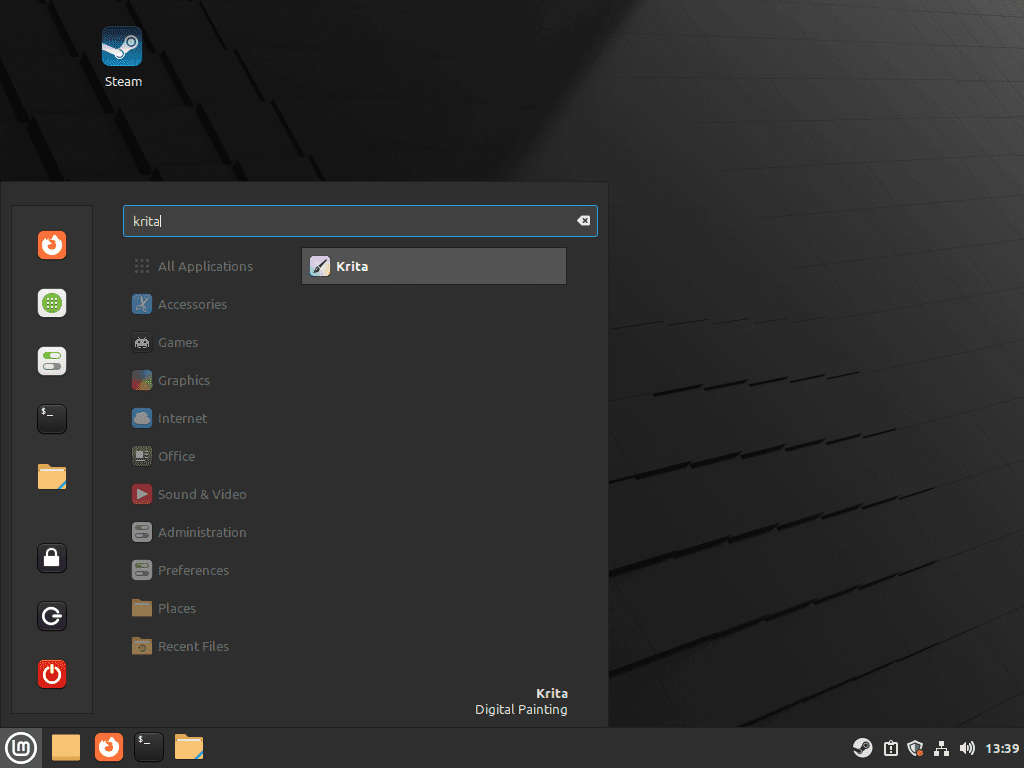
Open the Linux Mint applications menu and search for Krita. APT and Flatpak installs create the normal Krita menu launcher automatically. AppImage installs appear as Krita AppImage after you create the manual launcher.
First steps with Krita on Linux Mint
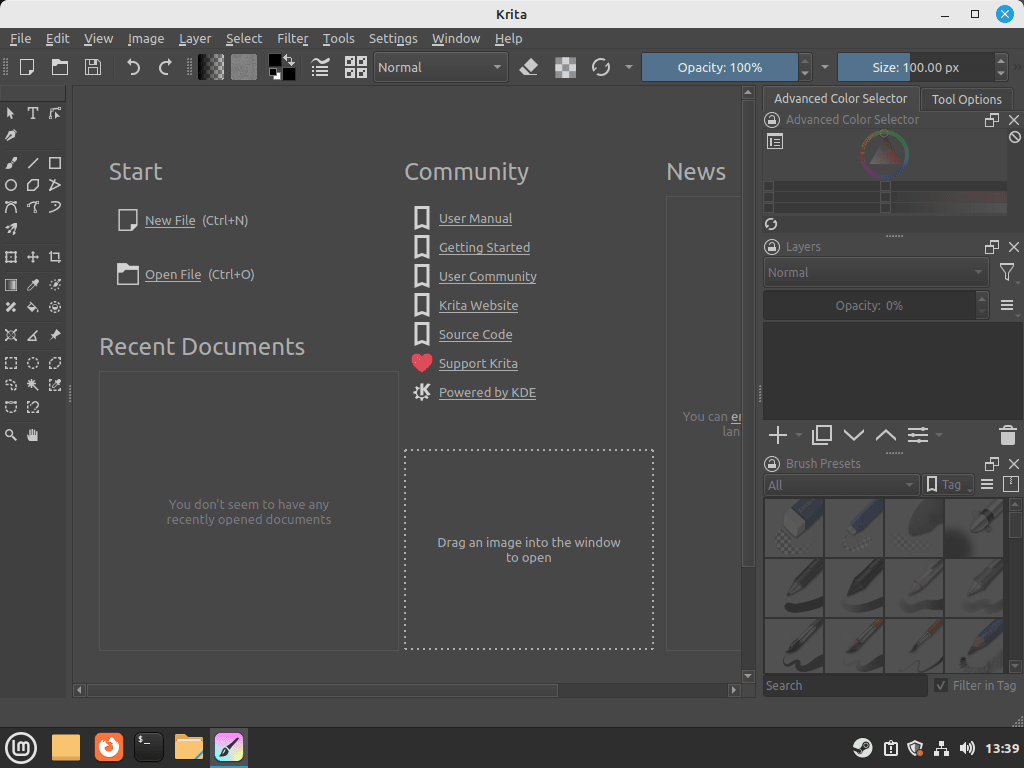
Krita can open and save the formats most Linux Mint artists care about, but a few early habits make day-to-day work smoother. The same shortcuts and file workflows apply no matter which package format you installed.
Use Krita’s basic shortcuts on Linux Mint
These shortcuts cover the tools most people reach for first.
Bswitches to the Brush Tool.Etoggles the eraser behavior for the current brush.Ctrl+Zundoes the last action.Ctrl+Shift+Zredoes an undone action.- Hold
Spaceto pan around the canvas. Tabhides or restores the dockers for a cleaner drawing view.
You can change any of them later under Settings > Configure Krita > Keyboard Shortcuts.
Open and save Krita files on Linux Mint
Use File > Open or drag an image onto the canvas when you want to start from an existing PNG, JPEG, or PSD. Save work in progress as .kra so layers, masks, and painting data stay editable, then export finished artwork to PNG, JPEG, or PSD when you need a shareable file.
Update or remove Krita on Linux Mint
Keep update and removal commands tied to the package format that installed Krita. That avoids stale files, broken launchers, and version confusion later.
Update Krita on Linux Mint
APT, Flatpak, and the AppImage each update Krita differently.
APT package:
sudo apt update
sudo apt install --only-upgrade krita krita-l10n -y
Flatpak package:
sudo flatpak update org.kde.krita -yIf Flatpak is your main desktop app path, the guide on how to upgrade Flatpak on Linux Mint helps keep the rest of your runtimes and applications in sync too.
AppImage helper script:
This helper automates the repeatable AppImage replacement: it resolves the official stable URL, downloads the AppImage and signature, verifies the signature, then replaces $HOME/Applications/krita-latest.AppImage. It does not run in the background, so you choose when Krita changes.
mkdir -p "$HOME/.local/bin"

cat > "$HOME/.local/bin/update-krita-appimage" <<'EOF'
#!/usr/bin/env bash
set -euo pipefail

app_dir="$HOME/Applications"
app_path="$app_dir/krita-latest.AppImage"
sig_path="$app_path.sig"
download_page="https://krita.org/en/download/"
key_url="https://files.kde.org/krita/dmitry_kazakov.gpg"

mkdir -p "$app_dir"

appimage_url=$(
  curl -fsSL "$download_page" |
  grep -oE 'https://download\.kde\.org/stable/krita/[0-9][^" ]*/krita-[0-9][^" ]*-x86_64\.AppImage' |
  awk 'NR == 1 { print }'
) || true

if [ -z "$appimage_url" ]; then
  echo "Could not find the current Krita AppImage URL" >&2
  exit 1
fi

tmpdir=$(mktemp -d)
tmp_app="$app_path.new.$$"
tmp_sig="$sig_path.new.$$"

cleanup() {
  rm -rf "$tmpdir"
  rm -f "$tmp_app" "$tmp_sig"
}
trap cleanup EXIT

curl -fL -o "$tmpdir/krita.AppImage" "$appimage_url"
curl -fL -o "$tmpdir/krita.AppImage.sig" "${appimage_url}.sig"

gpg_home="$tmpdir/gnupg"
mkdir -m 700 "$gpg_home"
curl -fsSL "$key_url" | GNUPGHOME="$gpg_home" gpg --import
GNUPGHOME="$gpg_home" gpg --verify "$tmpdir/krita.AppImage.sig" "$tmpdir/krita.AppImage"

install -m 755 "$tmpdir/krita.AppImage" "$tmp_app"
install -m 644 "$tmpdir/krita.AppImage.sig" "$tmp_sig"
mv -f "$tmp_app" "$app_path"
mv -f "$tmp_sig" "$sig_path"

printf 'Krita AppImage updated: %s\n' "$app_path"
printf 'Source: %s\n' "$appimage_url"
EOF

chmod +x "$HOME/.local/bin/update-krita-appimage"

case ":$PATH:" in
  *":$HOME/.local/bin:"*) ;;
  *) export PATH="$HOME/.local/bin:$PATH" ;;
esac

hash -r
command -v update-krita-appimage
Expected output shows the helper command in your local binary directory:
/home/username/.local/bin/update-krita-appimage
Close Krita before replacing the AppImage, then run the helper.
update-krita-appimageRelevant output includes:
gpg: Good signature from "Dmitry Kazakov (main key) <dimula73@gmail.com>" [unknown]
Krita AppImage updated: /home/username/Applications/krita-latest.AppImage
Source: https://download.kde.org/stable/krita/5.3.2.1/krita-5.3.2.1-x86_64.AppImage
The manual AppImage launcher does not need to change as long as the helper keeps writing to $HOME/Applications/krita-latest.AppImage.
Remove Krita on Linux Mint
Remove Krita with the same tool that installed it, then clear user data only if you actually want to reset brushes, settings, and local files.
APT package:
sudo apt remove --autoremove krita krita-l10n -yapt-cache policy kritaRelevant output includes:
krita:
  Installed: (none)
  Candidate: 1:5.2.2+dfsg-2build8
Linux Mint 21.x shows 1:5.0.2+dfsg-1build1 as the candidate instead, but Installed: (none) is the line that confirms the package is gone.
Flatpak package:
sudo flatpak uninstall org.kde.krita
sudo flatpak uninstall --unused
flatpak list --app --columns=application | grep -Fx org.kde.krita || echo "not installed"Expected output:
not installed
AppImage download and manual launcher:
rm -f "$HOME/Applications/krita-latest.AppImage" "$HOME/Applications/krita-latest.AppImage.sig" "$HOME/.local/bin/update-krita-appimage" "$HOME/.local/share/applications/krita-appimage.desktop" "$HOME/.local/share/icons/hicolor/256x256/apps/krita-appimage.png"

if command -v update-desktop-database >/dev/null 2>&1; then
  update-desktop-database "$HOME/.local/share/applications"
fi

test ! -e "$HOME/Applications/krita-latest.AppImage" && echo "AppImage removed"
Expected output:
AppImage removed
Krita does not always create its user-data directories until you actually open the application. Check what exists first instead of deleting paths blindly on an account that never launched Krita.
find "$HOME" \( -path "$HOME/.config/krita" -o -path "$HOME/.config/kritarc" -o -path "$HOME/.config/kritadisplayrc" -o -path "$HOME/.local/share/krita" -o -path "$HOME/.var/app/org.kde.krita" \) -print 2>/dev/nullIf the command prints one or more paths, remove only the locations you want to reset.
rm -rf "$HOME/.config/krita" "$HOME/.config/kritarc" "$HOME/.config/kritadisplayrc" "$HOME/.local/share/krita" "$HOME/.var/app/org.kde.krita"Troubleshoot Krita on Linux Mint
Most Linux Mint-side Krita problems come from package visibility, AppImage runtime requirements, graphics drivers, or assumptions about Flatpak permissions. Start with those checks before you assume the application itself is broken.
Fix missing Krita packages on Linux Mint
If APT reports Unable to locate package krita, refresh package metadata and confirm Mint still sees a real candidate. Stock Mint desktop installs already expose the package, so an empty candidate usually points to stale metadata or a customized repository setup.
sudo apt update && apt-cache policy kritaA healthy result shows a real candidate instead of (none). Mint 22.x currently reports the 5.2.2 series, while Mint 21.x reports the 5.0.2 series.
Fix AppImage download or FUSE errors
If the AppImage URL command prints nothing, open Krita’s official download page and confirm that the Linux AppImage link still uses the expected KDE download format. If the AppImage starts with a FUSE error, check which FUSE compatibility package your Mint release provides.
apt-cache policy libfuse2t64 libfuse2Linux Mint 22.x provides libfuse2t64. Linux Mint 21.x provides libfuse2, so Unable to locate package libfuse2t64 is expected on 21.x systems.
test -x "$HOME/Applications/krita-latest.AppImage" && echo "AppImage executable"Fix a missing Krita AppImage menu launcher
If the manual AppImage launcher does not appear in Cinnamon’s menu, verify the desktop file and icon path first. The Exec line must point to the AppImage location you actually use.
grep -E '^(Name|Exec|Icon)=' "$HOME/.local/share/applications/krita-appimage.desktop"
test -s "$HOME/.local/share/icons/hicolor/256x256/apps/krita-appimage.png" && echo "icon present"
If those checks pass but the menu still has a stale entry, sign out and back in so Cinnamon reloads its application cache.
Check Krita Flatpak permissions on Linux Mint
If the Flathub build cannot see files or use the GPU the way you expect, inspect the live permission set before adding overrides. Krita’s current Flathub package already requests broad host filesystem access and DRI device access.
flatpak info --show-permissions org.kde.kritaRelevant output includes:
[Context]
shared=network;ipc;
sockets=x11;pulseaudio;
devices=dri;
filesystems=host;xdg-run/gvfs;
When those lines are already present, a blanket --filesystem=home override usually adds nothing. File access problems are more often tied to the mounted path itself or an older local override than to Krita shipping with no access at all.
Fix graphics-stack issues before blaming Krita on Linux Mint
If Krita opens with rendering glitches, crashes as soon as the canvas loads, or behaves the same way across APT, Flatpak, and the AppImage, the graphics stack is the next place to look. For systems using proprietary NVIDIA hardware, install NVIDIA drivers on Linux Mint before you spend time chasing application-level fixes.
Conclusion
Krita is ready on Linux Mint for sketching, painting, and layered illustration whether you kept the Mint package, moved to Flathub, or downloaded the portable AppImage. APT is the least surprising path, Flatpak keeps both supported Mint branches on the same newer stable release, and the AppImage gives you the direct upstream build with a manual launcher when you want one.


Formatting tips for your comment
You can use basic HTML to format your comment. Useful tags currently allowed in published comments:
<code>command</code>command<strong>bold</strong><em>italic</em><a href="https://example.com">link</a><blockquote>quote</blockquote>