Chromium gives Debian users a Chrome-compatible browser without installing Google’s proprietary package. You can install Chromium on Debian from the default APT repositories, use Flathub for a newer stable build, or add a separate manual snapshot build when you need the latest bleeding-edge Chromium for testing.
Debian 13 and Debian 12 currently receive modern Chromium security builds through the Debian archive, while Debian 11 remains on an older LTS-maintained branch. The manual snapshot method is deliberately isolated under its own launcher and profile so it does not overwrite the normal Debian or Flatpak browser profile.
Install Chromium Browser on Debian
Choose a Chromium Installation Method
Pick the method that matches how you want Chromium updated and how much risk you can accept.
| Method | Source | Release Channel | Updates | Best For |
|---|---|---|---|---|
| APT | Debian repositories | Debian-maintained stable branch | Normal apt upgrade | Most users who want Debian integration and security updates |
| Flatpak | Flathub | Latest stable Flathub build | flatpak update | Users who want a newer stable browser or Flatpak sandboxing |
| Manual snapshot | Chromium Linux x64 snapshots | Bleeding-edge continuous build | Rerun sudo update-chromium-snapshot | Developers and testers who need the newest Chromium code |
APT is the recommended method for daily browsing because Debian handles dependency resolution, security updates, and removal. Flatpak is the better managed alternative when you want a newer stable build, especially on Debian 11. Use the manual snapshot only for testing current Chromium development builds because it is not a Debian package, does not receive automatic APT security maintenance, and can break between snapshots.
Debian’s browser package name is chromium, not chromium-browser. Install chromium-driver separately only when Selenium, WebDriver, or another automation workflow needs ChromeDriver. Chromium also differs from Google Chrome: Chrome adds proprietary Google components, Google account sync integration, and extra media or DRM pieces that open-source Chromium does not ship.
Install Chromium via APT
Refresh Debian’s package index before installing the repository build:
sudo apt updateThese commands use
sudofor administrative tasks. If your account is not configured for sudo yet, use the root account or follow the Debian guide to add and manage sudo users.
Install Chromium from Debian’s default repositories:
sudo apt install chromiumConfirm that the Debian package installed correctly:
chromium --versionThe command prints a Chromium version line. Debian 13 and Debian 12 currently show a newer branch from the security archive, while Debian 11 shows its older LTS-maintained branch.
Install Chromium via Flatpak and Flathub
Flatpak keeps Chromium separate from Debian’s APT package database and updates it through Flathub. Install Flatpak first if it is not already present:
sudo apt update
sudo apt install flatpak
For a fuller setup walkthrough, including desktop portal notes, use the Debian guide to install Flatpak and enable Flathub.
Add Flathub at system scope:
sudo flatpak remote-add --if-not-exists flathub https://dl.flathub.org/repo/flathub.flatpakrepoInstall the Chromium Flatpak:
sudo flatpak install flathub org.chromium.Chromium -yVerify the installed Flatpak record:
flatpak info org.chromium.ChromiumThe version and runtime branch change over time, but the output should identify org.chromium.Chromium from the flathub origin.
Install the Latest Chromium Snapshot Manually
The Chromium GitHub tags track source revisions, not Debian packages. For a runnable bleeding-edge browser, use Chromium’s Linux x64 snapshot archive with a local updater script. Chromium does not publish a snapshot .deb installer there, and this manual method supports Debian amd64 systems only. On Debian arm64, use the APT package instead.
Snapshot builds can change profile data before stable Chromium understands it. The wrapper defaults to
~/.config/chromium-snapshotso your normal~/.config/chromiumprofile stays separate.
Install the download and runtime prerequisites. Debian 13 uses time64 library package names, while Debian 12 and Debian 11 use the older names:
sudo apt update
sudo apt install ca-certificates curl unzip libnss3 libxss1 libgbm1

. /etc/os-release
case "$VERSION_ID" in
  13)
    sudo apt install libgtk-3-0t64 libatk-bridge2.0-0t64 libasound2t64
    ;;
  12|11)
    sudo apt install libgtk-3-0 libatk-bridge2.0-0 libasound2
    ;;
  *)
    echo "Use Debian 13, 12, or 11 for this command set."
    ;;
esac
The updater uses the curl command to read Chromium’s current snapshot revision, downloads the matching archive over HTTPS, installs it under /opt/chromium-snapshot, creates a chromium-snapshot launcher, and configures the bundled SUID sandbox helper.
sudo tee /usr/local/bin/update-chromium-snapshot > /dev/null <<'EOF'
#!/usr/bin/env bash
set -euo pipefail

if [ "$(id -u)" -ne 0 ]; then
  echo "Run this updater with sudo: sudo update-chromium-snapshot" >&2
  exit 1
fi

if [ "$(dpkg --print-architecture)" != "amd64" ]; then
  echo "This Chromium snapshot method supports Debian amd64 only." >&2
  exit 1
fi

for cmd in curl unzip install; do
  if ! command -v "$cmd" >/dev/null 2>&1; then
    echo "Missing required command: $cmd" >&2
    exit 1
  fi
done

BASE_URL="https://storage.googleapis.com/chromium-browser-snapshots/Linux_x64"
INSTALL_DIR="/opt/chromium-snapshot"
TMP_DIR="$(mktemp -d)"

cleanup() {
  rm -rf "$TMP_DIR"
}
trap cleanup EXIT

LATEST="$(curl -fsSL "$BASE_URL/LAST_CHANGE" | tr -d '[:space:]')"
case "$LATEST" in
  ''|*[!0-9]*)
    echo "Unexpected Chromium snapshot revision: $LATEST" >&2
    exit 1
    ;;
esac

CURRENT=""
if [ -r "$INSTALL_DIR/.revision" ]; then
  CURRENT="$(tr -d '[:space:]' < "$INSTALL_DIR/.revision")"
fi
case "$CURRENT" in
  ''|*[!0-9]*) CURRENT="" ;;
esac

if [ -n "$CURRENT" ] && [ -x "$INSTALL_DIR/chrome-linux/chrome" ]; then
  if [ "$LATEST" = "$CURRENT" ]; then
    echo "Chromium snapshot $LATEST is already installed."
    exit 0
  fi
  if [ "$LATEST" -lt "$CURRENT" ]; then
    echo "Installed Chromium snapshot $CURRENT is newer than resolved snapshot $LATEST; keeping current install."
    exit 0
  fi
fi

ZIP_FILE="$TMP_DIR/chrome-linux.zip"
echo "Downloading Chromium snapshot $LATEST..."
curl -fL --progress-bar -o "$ZIP_FILE" "$BASE_URL/$LATEST/chrome-linux.zip"

unzip -q "$ZIP_FILE" -d "$TMP_DIR"
if [ ! -x "$TMP_DIR/chrome-linux/chrome" ]; then
  echo "Downloaded archive did not contain chrome-linux/chrome." >&2
  exit 1
fi

install -d -m 0755 "$INSTALL_DIR"
NEW_DIR="$INSTALL_DIR/chrome-linux.new"
OLD_DIR="$INSTALL_DIR/chrome-linux.old"
rm -rf "$NEW_DIR" "$OLD_DIR"
cp -a "$TMP_DIR/chrome-linux" "$NEW_DIR"
chown -R root:root "$NEW_DIR"

if [ -f "$NEW_DIR/chrome_sandbox" ]; then
  chown root:root "$NEW_DIR/chrome_sandbox"
  chmod 4755 "$NEW_DIR/chrome_sandbox"
fi

if [ -d "$INSTALL_DIR/chrome-linux" ]; then
  mv "$INSTALL_DIR/chrome-linux" "$OLD_DIR"
fi
mv "$NEW_DIR" "$INSTALL_DIR/chrome-linux"
rm -rf "$OLD_DIR"

printf '%s\n' "$LATEST" > "$INSTALL_DIR/.revision"

cat > /usr/local/bin/chromium-snapshot <<'WRAPPER'
#!/usr/bin/env bash
SANDBOX="/opt/chromium-snapshot/chrome-linux/chrome_sandbox"
if [ -x "$SANDBOX" ]; then
  export CHROME_DEVEL_SANDBOX="$SANDBOX"
fi

has_user_data_dir=0
for arg in "$@"; do
  case "$arg" in
    --user-data-dir|--user-data-dir=*) has_user_data_dir=1 ;;
  esac
done

if [ "$has_user_data_dir" -eq 0 ]; then
  set -- --user-data-dir="${CHROMIUM_SNAPSHOT_USER_DATA_DIR:-$HOME/.config/chromium-snapshot}" "$@"
fi

exec /opt/chromium-snapshot/chrome-linux/chrome "$@"
WRAPPER
chmod 0755 /usr/local/bin/chromium-snapshot

cat > /usr/share/applications/chromium-snapshot.desktop <<'DESKTOP'
[Desktop Entry]
Type=Application
Name=Chromium Snapshot
Comment=Bleeding-edge Chromium snapshot
Exec=chromium-snapshot %U
Terminal=false
Icon=/opt/chromium-snapshot/chrome-linux/product_logo_256.png
Categories=Network;WebBrowser;
MimeType=text/html;text/xml;application/xhtml+xml;x-scheme-handler/http;x-scheme-handler/https;
StartupNotify=true
DESKTOP
chmod 0644 /usr/share/applications/chromium-snapshot.desktop

if command -v update-desktop-database >/dev/null 2>&1; then
  update-desktop-database /usr/share/applications >/dev/null 2>&1 || true
fi

echo "Installed Chromium snapshot $LATEST."
echo "Run it with: chromium-snapshot"
EOF

sudo chmod 0755 /usr/local/bin/update-chromium-snapshot
Run the updater to install the current snapshot:
sudo update-chromium-snapshotThe updater prints the current snapshot revision, installs the archive, and ends by naming the chromium-snapshot launcher.
Check the snapshot browser version:
chromium-snapshot --versionThe version should be newer than Debian’s stable branch and will change as new Chromium snapshots land.
Launch Chromium Browser on Debian
Launch Chromium from Terminal
Use the launcher that matches your installation method.
APT package:
chromiumFlatpak package:
flatpak run org.chromium.ChromiumManual snapshot:
chromium-snapshotLaunch Chromium from Applications Menu
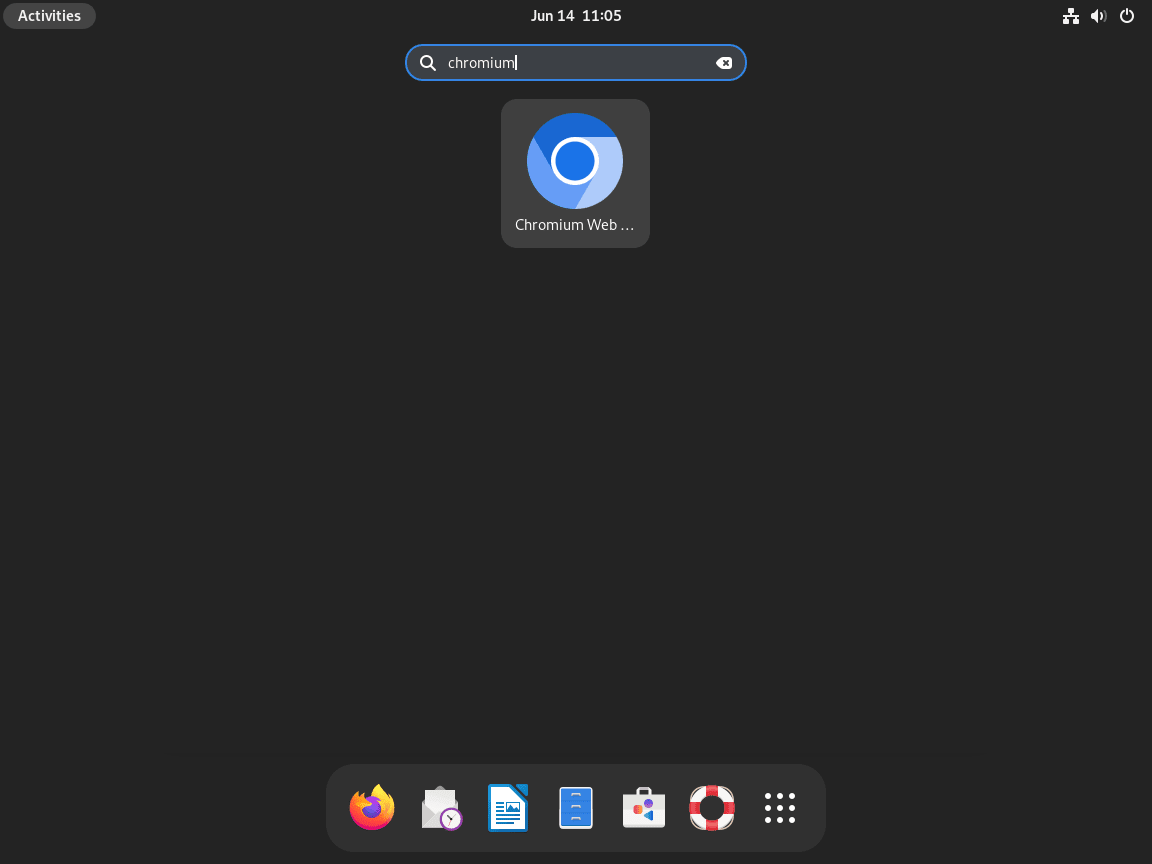
Desktop environments list the APT and Flatpak browser as Chromium Web Browser. The manual method appears as Chromium Snapshot.
- Open the application menu.
- Search for Chromium Web Browser or Chromium Snapshot.
- Select the launcher that matches the method you installed.

Manage Chromium Browser on Debian
Update Chromium Browser
Use the update command for the method you installed.
Update Chromium via APT
Refresh APT metadata and review available package upgrades:
sudo apt update
sudo apt upgrade
Update Chromium via Flatpak
Update the Flathub Chromium package:
sudo flatpak update org.chromium.ChromiumUpdate the Manual Chromium Snapshot
Rerun the updater whenever you want to pull the newest continuous build:
sudo update-chromium-snapshotIf your installed snapshot already matches the current revision, or the upstream marker temporarily resolves to an older revision, the script exits without reinstalling the archive.
Remove Chromium Browser
Remove Chromium with the command set that matches the method you used.
Remove Chromium via APT
sudo apt remove chromiumPreview unused dependency cleanup before removing anything else:
sudo apt autoremove --dry-runIf the preview contains only packages you no longer need, run the cleanup:
sudo apt autoremoveRemove Chromium via Flatpak
sudo flatpak uninstall org.chromium.ChromiumRemove the Flatpak profile for your account only if you no longer need its Chromium data:
rm -rf ~/.var/app/org.chromium.ChromiumRemove unused Flatpak runtimes only after reviewing the list Flatpak prints:
sudo flatpak uninstall --unusedRemove the Manual Chromium Snapshot
Delete the snapshot files, updater, launcher, and desktop entry:
sudo rm -f /usr/local/bin/update-chromium-snapshot
sudo rm -f /usr/local/bin/chromium-snapshot
sudo rm -f /usr/share/applications/chromium-snapshot.desktop
sudo rm -rf /opt/chromium-snapshot
Remove the separate snapshot profile only if you no longer need its bookmarks, extensions, or test data:
rm -rf ~/.config/chromium-snapshot ~/.cache/chromium-snapshotAPT Chromium stores profile data under
~/.config/chromium/and~/.cache/chromium/. Back up bookmarks, passwords, and other browser data before deleting those directories manually.
Troubleshoot Chromium Browser on Debian
APT Cannot Find chromium-browser
Debian uses the package name chromium. If a command such as sudo apt install chromium-browser fails, install the Debian package name instead:
sudo apt install chromiumChromium Fails to Launch
If the APT package fails to start after an interrupted install or partial upgrade, repair package state first:
sudo apt --fix-broken installThen start Chromium from a terminal to read the error message directly:
chromiumFor temporary graphics-driver testing, launch with GPU acceleration disabled:
chromium --disable-gpuManual Snapshot Reports Sandbox or AppArmor Errors
The snapshot updater configures the bundled chrome_sandbox helper with root ownership and the setuid bit, so the browser does not have to rely only on unprivileged user namespaces. Do not work around sandbox failures by launching the browser with --no-sandbox.
Re-run the updater first because it resets the sandbox helper permissions:
sudo update-chromium-snapshotCheck the helper if the error continues:
ls -l /opt/chromium-snapshot/chrome-linux/chrome_sandboxThe permissions should start with -rws, and the owner and group should both be root. If the helper is missing, the snapshot archive changed unexpectedly; remove the manual method files and use APT or Flatpak until the upstream snapshot is usable again.
If the helper permissions look correct but Chromium still reports that the sandbox is unusable, check whether the filesystem that contains /opt was mounted with nosuid:
findmnt -n -o OPTIONS --target /optA nosuid mount option prevents the SUID sandbox helper from working. Move the snapshot to a suitable local filesystem or use APT or Flatpak instead.
Manual Snapshot Has Missing Shared Libraries
Raw snapshots are not Debian packages, so they cannot ask APT to resolve runtime libraries automatically. Use ldd to identify missing libraries:
ldd /opt/chromium-snapshot/chrome-linux/chrome | grep 'not found'If the command prints missing libraries, install the matching Debian packages or switch back to APT or Flatpak. On supported Debian desktop systems, the prerequisite packages listed in the manual method cover the libraries required by the current Linux x64 snapshot.
Hardware Acceleration Issues
If Chromium shows graphical glitches or crashes during page rendering, test with software rendering before changing browser flags permanently:
chromium --disable-gpu-compositingFor the manual snapshot, use its launcher name instead:
chromium-snapshot --disable-gpu-compositingFlatpak Chromium Cannot Access Files
Flatpak limits filesystem access by default. If the file picker cannot reach a directory you need, grant a user override for your home directory:
flatpak override --user --filesystem=home org.chromium.ChromiumConclusion
Chromium is ready on Debian through the Debian package, the Flathub build, or a separate bleeding-edge snapshot profile. APT remains the sensible everyday choice, while Flatpak and the snapshot updater cover newer stable builds and current Chromium testing. For other browser paths, compare the Debian guides for Firefox, Brave Browser, and Google Chrome.


Formatting tips for your comment
You can use basic HTML to format your comment. Useful tags currently allowed in published comments:
<code>command</code>command<strong>bold</strong><em>italic</em><a href="https://example.com">link</a><blockquote>quote</blockquote>