
Discord on Linux Mint is now a package-source decision as much as an install command. To install Discord on Linux Mint, choose between Discord’s official .deb package, which uses Discord’s Linux updater and direct desktop integration, or the Flathub app with the ID com.discordapp.Discord.
These steps work on Linux Mint 22.x and 21.x, and they install the Discord desktop client used to join servers, calls, and screen shares from Mint. Discord is a hosted service, so Linux Mint does not provide a local Discord server package in its repositories. Snap is disabled by default on Linux Mint, so if you specifically want that package format later, install and enable Snap on Linux Mint first.
Install Discord on Linux Mint
Choose a Discord Installation Method
Start with the official .deb package when you want Discord’s own Linux package, launcher, and built-in Linux updater. Use Flatpak when you prefer Mint’s preconfigured Flathub workflow and can accept the integration limits Flathub documents for the sandboxed build.
| Method | Source | Update Path | Best Fit | Important Limits |
|---|---|---|---|---|
Official .deb | Discord official download | Discord’s Linux updater refreshes the app payload; reinstall the current .deb only to refresh the installed launcher or recover a broken update | Most Linux Mint desktops and readers who want Discord’s direct Linux package | amd64 only; APT records the package but no Discord APT repository is added |
| Flatpak | Flathub app by Discord Inc. | Flatpak app and runtime updates through Flathub | Readers who prefer Flathub app management on Mint | x86_64 only; broad permissions and feature limits for Game Activity, unrestricted file access, and Rich Presence |
Discord’s official package is the better default for most Linux Mint desktops because it avoids the Flatpak feature limits and now uses Discord’s Linux updater. Discord’s May 2026 patch notes say the new updater was ported to Linux, replacing the old manual-install update prompt behavior. Flatpak remains useful when you want Flathub-managed app and runtime updates.
Discord’s current Linux desktop packages are 64-bit only. The official
.debpackage installs onamd64, and the Flathub build is published forx86_64. If your Linux Mint system runs on ARM hardware or a 32-bit install, use Discord in a browser with Google Chrome on Linux Mint or Chromium Browser on Linux Mint.
Check the package architecture label before using the official .deb method:
dpkg --print-architectureamd64
Update Linux Mint Before Installing Discord
Open a terminal from the applications menu or by using the shortcut configured on your system, then refresh your package lists before installing Discord.
sudo apt update && sudo apt upgradeThese commands use
sudofor tasks that need root privileges. If your account does not have sudo access yet, follow the guide to add a user to sudoers on Linux Mint before continuing.
Install Discord from the Official .deb Package on Linux Mint
The current official .deb package installs the /usr/bin/discord launcher, a desktop entry, an AppArmor profile under /etc/apparmor.d/discord, and a first-launch updater that prepares the real Discord app under ~/.config/discord. APT can remove the package record, but it does not fetch future Discord package files from a repository.
Install wget and certificate support if this Mint system does not already include them. The wget command examples guide is useful later if you need resume, timestamp, or mirror options for other downloads.
sudo apt install wget ca-certificatesDownload the current Discord .deb package from Discord’s Linux download endpoint:
wget "https://discord.com/api/download?platform=linux&format=deb" -O discord.debThe -O discord.deb option keeps the local filename stable even though Discord redirects to a versioned package file. Inspect the package name and architecture before installation:
dpkg-deb -f discord.deb Package ArchitecturePackage: discord Architecture: amd64
Install the downloaded package with APT so Linux Mint resolves required libraries from the enabled repositories:
sudo apt install ./discord.debConfirm that the package installed the terminal launcher:
command -v discord/usr/bin/discord
Check the package record without freezing Discord’s moving version number:
dpkg-query -W -f='${binary:Package} ${Architecture} ${db:Status-Abbrev}\n' discorddiscord amd64 ii
Delete the downloaded package file after APT finishes. Removing this file does not uninstall Discord.
rm -f discord.debInstall Discord from Flathub on Linux Mint
Linux Mint desktop editions normally include Flatpak with Flathub enabled, so this method does not need the usual remote setup.
Confirm that the Flathub remote is already present at system scope:
flatpak remotes --columns=name,options | grep '^flathub'flathub system
Install Discord from Flathub. Flatpak may ask you to confirm the app and required runtime before it downloads anything.
sudo flatpak install flathub com.discordapp.DiscordVerify the installed Flatpak reference:
flatpak info --show-ref com.discordapp.Discordapp/com.discordapp.Discord/x86_64/stable
Flathub marks the Discord listing as potentially unsafe and notes that its sandbox prevents Game Activity, unrestricted file access, and Rich Presence from working out of the box. Treat this method as a Flathub-managed package path, not as a stronger isolation guarantee.
Launch Discord on Linux Mint
Discord is a graphical desktop app, so launch it from a signed-in Cinnamon, Xfce, or MATE session. The official .deb package may download or refresh the per-user Discord payload under ~/.config/discord the first time the launcher runs, so keep network access available for first launch.
Launch Discord from the Terminal on Linux Mint
Use the launch command for the installation method you chose:
| Installation Method | Terminal Launch Command |
|---|---|
.deb package | discord |
| Flatpak | flatpak run com.discordapp.Discord |
Launch Discord from the Applications Menu on Linux Mint
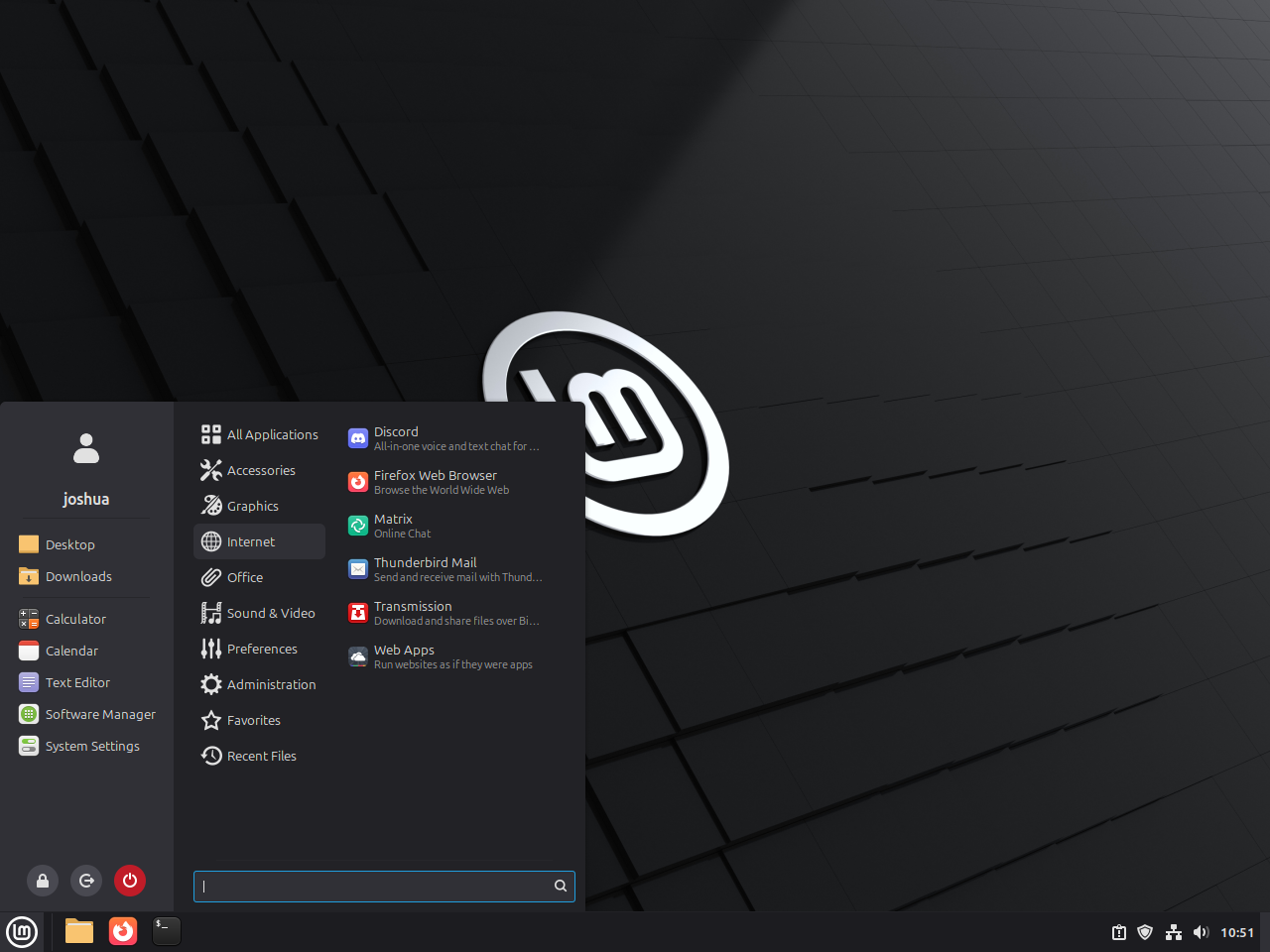
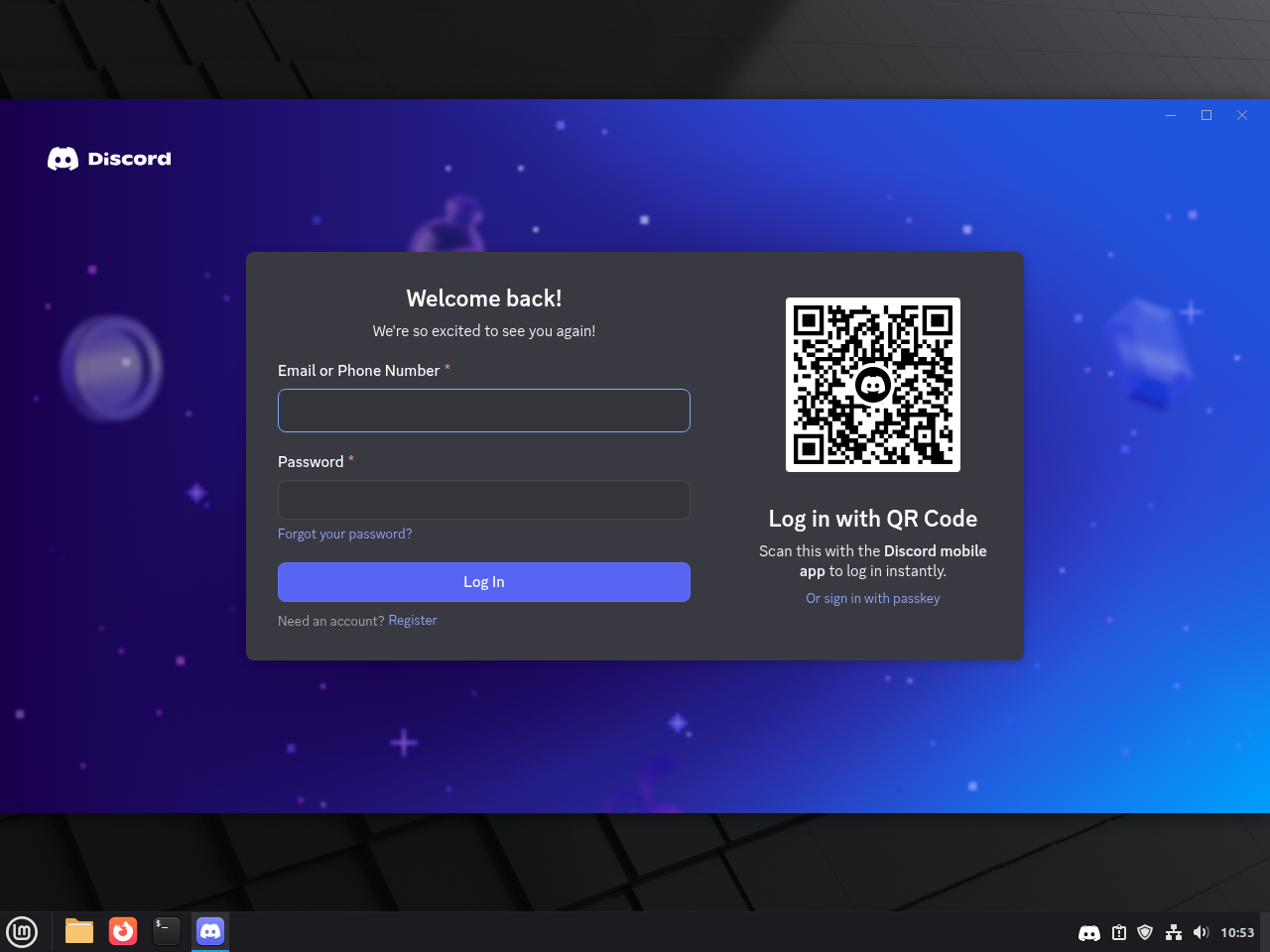
Open the applications menu, search for Discord, and start it like any other Linux Mint desktop app. Both installation methods create a launcher automatically.
Update or Remove Discord on Linux Mint
The update and removal commands depend on whether you installed the official package or the Flatpak build. Package removal does not remove every local login token, cache, or sandbox profile, so review the user-data cleanup step separately.
Update the Discord .deb Package on Linux Mint
Discord’s Linux updater refreshes the app payload after first launch, so routine Discord updates do not come from sudo apt update. Reinstall the current .deb only when you need to refresh the installed launcher, desktop file, or AppArmor profile, or when a broken update needs a clean package reinstall. The --reinstall option matters when the downloaded package version matches the installed version.
wget "https://discord.com/api/download?platform=linux&format=deb" -O discord.deb
dpkg-deb -f discord.deb Package Version Architecture
sudo apt install --reinstall ./discord.deb
rm -f discord.deb
Update the Discord Flatpak on Linux Mint
Flatpak updates Discord separately from APT. The broader workflow to update Flatpak apps on Linux Mint is useful if you keep several desktop apps on Flathub.
sudo flatpak update com.discordapp.DiscordRemove the Discord .deb Package from Linux Mint
Remove the Debian package and its package-owned configuration files first. If you disabled Discord’s AppArmor profile during troubleshooting, remove that local override after the package is gone.
sudo apt purge discord
sudo rm -f /etc/apparmor.d/disable/discord
if systemctl is-active --quiet apparmor; then
  sudo systemctl reload apparmor
fi
Check whether APT sees any dependencies that are no longer needed:
sudo apt autoremove --dry-runIf the dry run lists only packages you are comfortable removing, run the cleanup interactively:
sudo apt autoremoveConfirm that the package record is gone:
dpkg-query -W -f='${binary:Package} ${db:Status-Abbrev}\n' discord 2>/dev/null || echo "Discord package not installed"Discord package not installed
Remove the Discord Flatpak from Linux Mint
Remove the system-scoped Discord Flatpak first, then check user data separately in the next section instead of assuming one command cleared every sandbox path.
sudo flatpak uninstall com.discordapp.DiscordVerify that the Flatpak app ID no longer appears in the system app list:
flatpak list --system --app --columns=application | grep -Fx com.discordapp.Discord || echo "Discord Flatpak not installed"Discord Flatpak not installed
Clean unused Flatpak runtimes only after reviewing the prompt, because the runtime list can include items used by other Flatpak apps:
sudo flatpak uninstall --unusedRemove Leftover Discord User Data on Linux Mint
Check for per-user Discord directories before deleting anything. If Discord was never launched after installation, this command may return no output.
find "$HOME" -maxdepth 3 \( -path "$HOME/.config/discord" -o -path "$HOME/.cache/discord" -o -path "$HOME/.var/app/com.discordapp.Discord" \) -printThe cleanup command uses find -exec to remove only the paths located by the check.
The next command permanently deletes local Discord settings, caches, saved session data, and Flatpak sandbox data for your user account. Keep any listed directory you want to preserve before running it.
find "$HOME" -maxdepth 3 \( -path "$HOME/.config/discord" -o -path "$HOME/.cache/discord" -o -path "$HOME/.var/app/com.discordapp.Discord" \) -exec rm -rf -- {} +Troubleshoot Discord on Linux Mint
Most Discord installation problems on Linux Mint fall into package architecture, a missing graphical session, Flatpak sandbox permissions, a Mint 21.x AppArmor profile reload warning, or a stale local cache after an update.
APT Shows an AppArmor Reload Failure on Linux Mint 21.x
Discord’s current .deb package ships an AppArmor profile that parses on Linux Mint 22.x but can fail to reload on Linux Mint 21.x because the profile references abi/4.0. If APT finishes installing Discord and only the AppArmor reload fails, first confirm the package installed:
dpkg-query -W -f='${binary:Package} ${Architecture} ${db:Status-Abbrev}\n' discorddiscord amd64 ii
Confirm that the Discord profile is the reload problem:
sudo apparmor_parser -Q /etc/apparmor.d/discordRelevant output on affected Mint 21.x systems includes:
AppArmor parser error for /etc/apparmor.d/discord in profile /etc/apparmor.d/discord at line 1: Could not open 'abi/4.0': No such file or directory
When that exact Discord profile error appears, disable only Discord’s package-owned profile and reload AppArmor. This keeps AppArmor active for the rest of the system while avoiding repeated reload failures from the incompatible Discord profile:
sudo install -d /etc/apparmor.d/disable
if [ -e /etc/apparmor.d/disable/discord ] && [ ! -L /etc/apparmor.d/disable/discord ]; then
  echo "Remove or rename the existing non-symlink path first: /etc/apparmor.d/disable/discord" >&2
else
  sudo ln -sfn /etc/apparmor.d/discord /etc/apparmor.d/disable/discord
  sudo systemctl reload apparmor
  systemctl is-active apparmor
fi
active
Remove the disable link after uninstalling the .deb package or after a future Discord package ships a profile your Mint 21.x system can parse.
Check Discord Flatpak Permissions on Linux Mint
If the Flathub build cannot see files or misses integration features you expect, inspect the current sandbox permissions first.
flatpak info --show-permissions com.discordapp.DiscordRelevant output includes:
[Context]
shared=network;ipc;
sockets=x11;wayland;pulseaudio;pcsc;
devices=all;
filesystems=xdg-download;xdg-pictures:ro;xdg-videos:ro;xdg-run/pipewire-0;
If you still need broader file access, Game Activity, or Rich Presence after checking these permissions, the official .deb package is the better Linux Mint fit.
Discord Gets Stuck After an Update Prompt
For the official .deb package, clear Discord’s local cache first, then reinstall the package if needed. This does not delete your full Discord profile directory.
rm -rf "$HOME/.config/discord/Cache" "$HOME/.config/discord/GPUCache"If cache cleanup is not enough, reinstall the current package manually:
wget "https://discord.com/api/download?platform=linux&format=deb" -O discord.deb
dpkg-deb -f discord.deb Package Version Architecture
sudo apt install --reinstall ./discord.deb
rm -f discord.deb
Update Flatpak installations with sudo flatpak update com.discordapp.Discord instead of using the .deb reinstall path.
Open Discord Only from a Graphical Linux Mint Session
Discord can be installed from an SSH shell, but it will not open correctly without a running desktop session. If a terminal launch prints display-related errors, sign in to Cinnamon, MATE, or Xfce locally and launch Discord from the applications menu or a terminal inside that desktop session.
Conclusion
Discord is ready on Linux Mint through the official .deb package or the Flathub build, with update ownership matched to the source you chose. The official package is the direct desktop path, while Flatpak users can keep Flatpak app updates on Linux Mint nearby for routine maintenance.


Formatting tips for your comment
You can use basic HTML to format your comment. Useful tags currently allowed in published comments:
<code>command</code>command<strong>bold</strong><em>italic</em><a href="https://example.com">link</a><blockquote>quote</blockquote>