Telegram Desktop is most useful on Linux Mint when the install source matches how you want the app to update. Linux Mint 22.x does not provide a default telegram-desktop package, while Linux Mint 21.x still exposes an older default-repository build, so the best way to install Telegram on Linux Mint is usually Flatpak, a maintained third-party PPA, or Telegram’s official Linux tarball.
For most Mint desktop users, Flathub is the cleanest starting point because Linux Mint already ships Flatpak with Flathub enabled on standard desktop installs. The Atareao PPA is useful when you want an APT-managed native package, and the official tarball is useful when you specifically want Telegram’s direct upstream Linux x64 build without adding another package source.
Install Telegram on Linux Mint
Choose a Telegram Installation Method
Use one install method per user account. Multiple Telegram Desktop packages can work at the same time, but they create duplicate menu entries and make update ownership harder to understand.
| Method | Source | Works On | Update Behavior | Best For | Trade-off |
|---|---|---|---|---|---|
Flatpak (org.telegram.desktop) | Flathub | Linux Mint 22.x and 21.x | Updated with flatpak update | Most Mint desktops, especially when you want the same command on both supported Mint series | Convenient packaging, but not a strong isolation promise because Telegram still needs normal desktop, notification, network, and device integration |
Atareao PPA (telegram) | Third-party Launchpad PPA | Linux Mint 22.x and 21.x | Updated through APT after the PPA is added | Users who want a native package and APT-managed updates | Adds a third-party repository and uses /opt/telegram/Telegram rather than a plain telegram terminal command |
| Official tarball | Telegram Desktop Linux x64 download | Linux Mint 22.x and 21.x on x86_64 | Uses Telegram’s own updater inside the user-owned install directory, or a manual fresh download | Users who want the direct upstream build without adding an APT source | Manual user-level install, manual menu entry, and no package-manager inventory |
Default repositories (telegram-desktop) | Linux Mint 21.x default repositories | Linux Mint 21.x only | Updated through normal APT upgrades | Mint 21.x users who require only default repositories | Older build and unavailable from the Mint 22.x default package sources |
Confirm Linux Mint Version and Snap Scope
These commands target standard Linux Mint 22.x and 21.x desktop releases. Before installing Telegram, decide whether you want the same package source across both Mint series or a method tied to the package set available on your exact Mint release.
Linux Mint 22.x uses the Ubuntu 24.04 noble package base, while Linux Mint 21.x uses the Ubuntu 22.04 jammy package base. That distinction matters for PPAs and default APT packages. Flatpak and Telegram’s official tarball avoid Mint codename handling because they do not depend on Mint’s APT package set.
Snap is also available upstream as telegram-desktop on Snapcraft, published by Telegram FZ-LLC. Linux Mint blocks snapd by default, so Snap is not the normal Mint path here. If you intentionally want Snap packages on Mint, configure snapd first with the Linux Mint Snap setup guide, then use Snapcraft’s current Telegram instructions.
Telegram Desktop is the graphical client. Terminal-only Telegram clients, bots, and the Telegram CLI are different tools with different packages, commands, and account behavior.
Update Linux Mint Before Installing Telegram
Open a terminal from the applications menu or with the shortcut configured on your Mint edition, then refresh package metadata and apply pending updates:
sudo apt update && sudo apt upgradePackage-management commands use
sudo. If your account cannot run administrative commands yet, set that up first with the Linux Mint sudoers guide.
When you need to confirm which Mint series you are using, print the Mint release and Ubuntu-base codename:
. /etc/os-release
printf '%s uses the Ubuntu %s package base\n' "$PRETTY_NAME" "$UBUNTU_CODENAME"
Linux Mint 22.3 uses the Ubuntu noble package base
Linux Mint 22.x maps to Ubuntu 24.04 noble, while Linux Mint 21.x maps to Ubuntu 22.04 jammy. The PPA helper handles this mapping automatically, but the distinction explains why the default telegram-desktop package appears on Mint 21.x and not on Mint 22.x.
Install Telegram with Flatpak on Linux Mint
Flatpak is the recommended first method for a standard Linux Mint desktop because Mint normally includes Flatpak and Flathub already. Check the current remote first so the install, update, and removal commands stay in the same system scope:
flatpak remotes --columns=name,optionsflathub system
If Flathub is missing on a customized Mint install, restore the system remote:
sudo flatpak remote-add --if-not-exists flathub https://dl.flathub.org/repo/flathub.flatpakrepoInstall Telegram Desktop from Flathub:
sudo flatpak install flathub org.telegram.desktop -yVerify the installed Flatpak app ID, branch, version, source, and scope:
flatpak info org.telegram.desktopTelegram FZ-LLC - New era of messaging
ID: org.telegram.desktop
Ref: app/org.telegram.desktop/x86_64/stable
Branch: stable
Version: 6.8.2
Origin: flathub
Installation: system
The Flatpak terminal launch command is flatpak run org.telegram.desktop. The applications menu entry still appears as Telegram Desktop.
Install Telegram via the Atareao PPA on Linux Mint
The Atareao PPA publishes a newer native telegram package for the Ubuntu bases used by Linux Mint 22.x and 21.x. This is not Telegram’s official APT repository; it is a third-party Launchpad package source that keeps Telegram Desktop managed by APT.
Linux Mint normally provides add-apt-repository through mintsources. If the command is missing on a minimal or repaired install, add the Mint package that supplies it:
command -v add-apt-repository >/dev/null 2>&1 || sudo apt install mintsourcesAdd the PPA:
sudo add-apt-repository ppa:atareao/telegram -yRefresh APT so Mint reads the new package metadata:
sudo apt updateRelevant output includes the PPA row for your Ubuntu base:
Linux Mint 22.x:
Get: https://ppa.launchpadcontent.net/atareao/telegram/ubuntu noble InRelease

Linux Mint 21.x:
Get: https://ppa.launchpadcontent.net/atareao/telegram/ubuntu jammy InRelease
Install the PPA package:
sudo apt install telegramThe PPA package name is
telegram. The older Mint 21.x default-repository package usestelegram-desktop, so package-name confusion is the most common mistake when switching between methods.
Verify that the PPA package is installed and selected by APT. On Linux Mint 22.x, relevant output includes:
apt-cache policy telegramtelegram:
Installed: 6.8.2-0ubuntu0
Candidate: 6.8.2-0ubuntu0
Version table:
*** 6.8.2-0ubuntu0 500
500 https://ppa.launchpadcontent.net/atareao/telegram/ubuntu noble/main amd64 Packages
On Linux Mint 21.x, the same PPA verification row uses jammy instead of noble.
The PPA package installs the desktop file at /usr/share/applications/telegram.desktop and runs Telegram from /opt/telegram/Telegram. It does not add a plain telegram command to PATH, so use the menu launcher or the full path when launching from a terminal.
Install Official Telegram Desktop Tarball on Linux Mint
Telegram’s official Linux download currently redirects to a .tar.xz archive such as tsetup.6.8.2.tar.xz. This method installs the extracted app under your home directory so Telegram’s own updater can write to its files without root permissions.
Install the tools needed for the download and extraction step:
sudo apt install curl xz-utilsCreate a small helper that downloads the current official Linux x64 archive, installs it under your account, and writes a user-level applications-menu entry. The same helper is used later when you want to refresh the official tarball install manually:
mkdir -p "$HOME/.local/bin"
helper_file="$HOME/.local/bin/update-telegram-desktop-official"

cat > "$helper_file" <<'EOF'
#!/usr/bin/env bash
set -euo pipefail

download_url="https://telegram.org/dl/desktop/linux"
install_dir="$HOME/.local/opt/telegram-desktop"
desktop_dir="$HOME/.local/share/applications"
desktop_file="$desktop_dir/telegram-desktop-official.desktop"
tmp_dir=$(mktemp -d)

cleanup() {
  rm -rf "$tmp_dir"
}
trap cleanup EXIT

archive="$tmp_dir/telegram-desktop.tar.xz"
stage_dir="$install_dir.new"
old_dir="$install_dir.old"

printf 'Downloading official Telegram Desktop archive...\n'
curl -fsSL "$download_url" -o "$archive"

printf 'Extracting archive...\n'
tar -xJf "$archive" -C "$tmp_dir"
test -x "$tmp_dir/Telegram/Telegram"

printf 'Installing Telegram Desktop...\n'
mkdir -p "$(dirname "$install_dir")" "$desktop_dir"
rm -rf "$stage_dir" "$old_dir"
mv "$tmp_dir/Telegram" "$stage_dir"

if [ -d "$install_dir" ]; then
  mv "$install_dir" "$old_dir"
fi

mv "$stage_dir" "$install_dir"
rm -rf "$old_dir"

printf 'Writing desktop launcher...\n'
cat > "$desktop_file" <<DESKTOP
[Desktop Entry]
Version=1.0
Type=Application
Name=Telegram Desktop (Official)
Comment=Official Telegram Desktop client
Exec=$install_dir/Telegram -- %u
Icon=$install_dir/Telegram
Terminal=false
Categories=Network;InstantMessaging;
MimeType=x-scheme-handler/tg;
StartupWMClass=TelegramDesktop
DESKTOP
printf 'Telegram Desktop official install/update complete.\n'
EOF
chmod +x "$helper_file"
"$helper_file"
Downloading official Telegram Desktop archive... Extracting archive... Installing Telegram Desktop... Writing desktop launcher... Telegram Desktop official install/update complete.
Verify that the binary exists and is executable:
test -x "$HOME/.local/opt/telegram-desktop/Telegram" && echo "Official Telegram binary is installed"Official Telegram binary is installed
The official tarball terminal launch command is "$HOME/.local/opt/telegram-desktop/Telegram". The menu entry appears as Telegram Desktop (Official) so it is easy to distinguish from APT or Flatpak installs.
Install Telegram from Linux Mint 21.x Default Repositories
Linux Mint 21.x still ships an older telegram-desktop package in its default repositories. This method is simple and stays inside Mint’s normal APT package flow, but it is not current and does not apply to Linux Mint 22.x.
sudo apt install telegram-desktopConfirm that Mint 21.x installed the default-repository package:
apt-cache policy telegram-desktoptelegram-desktop:
Installed: 3.6.1+ds-2build1
Candidate: 3.6.1+ds-2build1
Version table:
*** 3.6.1+ds-2build1 500
500 http://archive.ubuntu.com/ubuntu jammy/universe amd64 Packages
100 /var/lib/dpkg/status
This package adds the telegram-desktop command to PATH and creates a Telegram Desktop menu entry. If you are on Mint 22.x, use Flatpak, the PPA, or the official tarball instead.
Launch and Set Up Telegram on Linux Mint
Launch Telegram from the Terminal
The terminal command depends on the package source you installed. Use the matching command so you do not accidentally launch a different Telegram build.
Flatpak install:
flatpak run org.telegram.desktopAtareao PPA install:
/opt/telegram/TelegramOfficial tarball install:
"$HOME/.local/opt/telegram-desktop/Telegram"Linux Mint 21.x default-repository install:
telegram-desktopLaunch Telegram from the Applications Menu
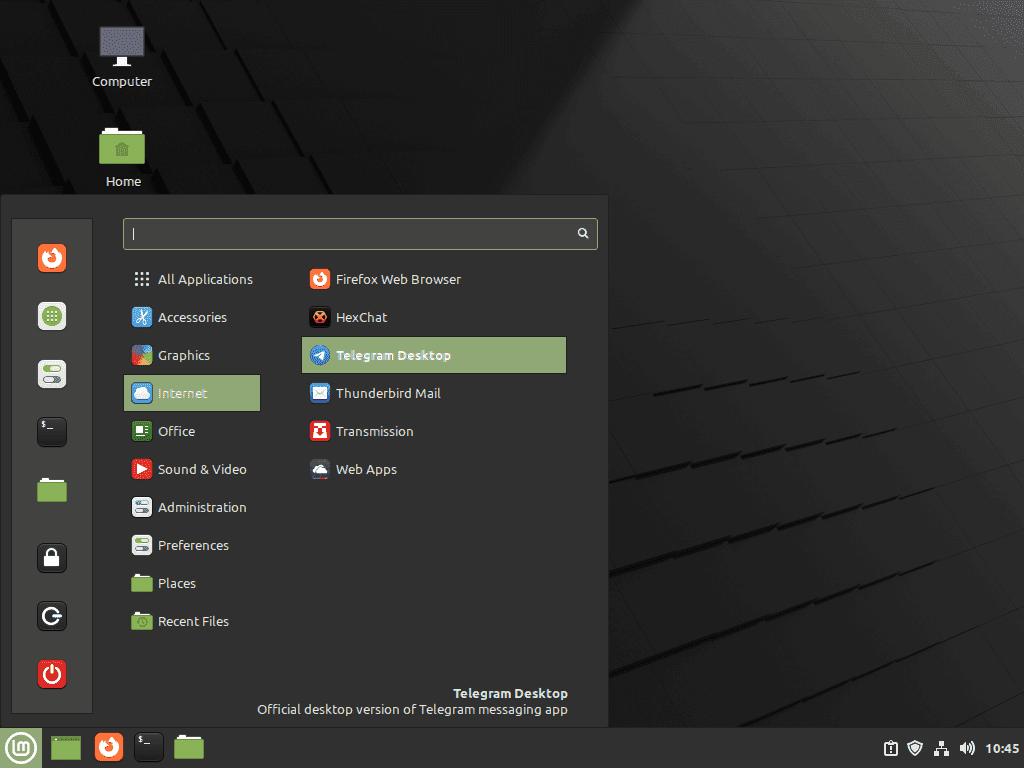
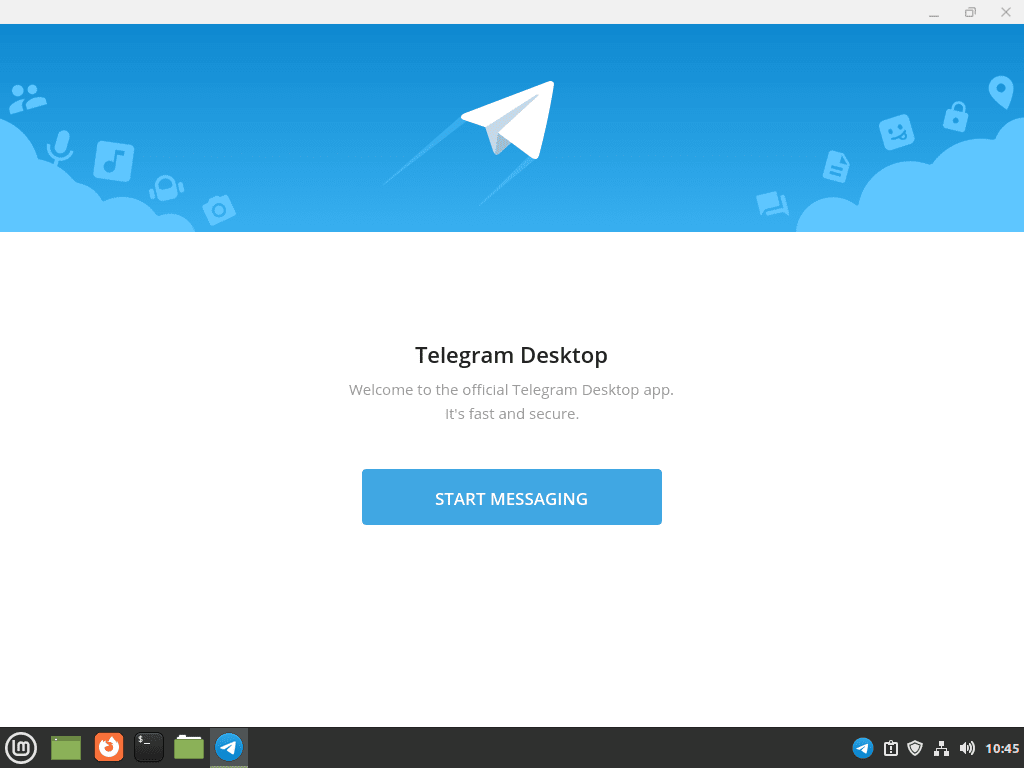
Open the applications menu and search for Telegram Desktop. The Flatpak, PPA, and Mint 21.x default package use that launcher name. The official tarball method creates Telegram Desktop (Official) so you can recognize the upstream user-level install if another method is also present.
Complete First Login and Basic Setup
Telegram Desktop usually offers two login paths: scan the QR code with Telegram on your phone, or sign in with your phone number and confirmation code. QR login is faster when your phone is already signed in because it avoids typing an SMS or in-app code on the desktop.
After login, open Settings > Advanced and review download behavior before joining large groups or channels. Telegram can cache media locally even though chats remain cloud-synced, so heavy file transfers can grow the local data directory over time.
Enable Telegram Autostart and Notifications
To start Telegram automatically when you log in, open Telegram and enable Settings > Advanced > Launch Telegram when system starts. You can also manage the same behavior from Linux Mint’s Session and Startup tools if you prefer controlling autostart entries from the desktop environment.
For notifications, open Settings > Notifications and Sounds in Telegram and confirm desktop notifications are enabled. If the Flatpak build does not show notifications after that, check the desktop portal packages.
Manage Telegram on Linux Mint
Update Telegram on Linux Mint
Update Flatpak Telegram
Update only Telegram Desktop from Flathub:
sudo flatpak update org.telegram.desktop -yWhen you want to update all Flatpak apps and runtimes together, use the broader Flatpak upgrade workflow for Linux Mint.
Update Telegram from the Atareao PPA
Refresh APT and upgrade the PPA package:
sudo apt update && sudo apt install --only-upgrade telegramUpdate Official Tarball Telegram
The official tarball method installs Telegram under ~/.local/opt/telegram-desktop, which keeps the application files writable by your account. Telegram can update itself from that location, but the helper created during installation gives you a visible manual refresh path.
"$HOME/.local/bin/update-telegram-desktop-official"The helper downloads the current official archive, stages it under ~/.local/opt/telegram-desktop.new, replaces the active app directory, and rewrites the desktop launcher. Use this path when Telegram’s internal updater is disabled, blocked, or you want a clean copy from the current upstream download.
Update Default Repository Telegram on Linux Mint 21.x
Refresh APT and upgrade the Mint 21.x default-repository package:
sudo apt update && sudo apt install --only-upgrade telegram-desktopTelegram’s built-in updater does not replace APT or Flatpak ownership. If you installed Telegram through APT or Flatpak, keep using the same package manager for updates.
Remove Telegram on Linux Mint
Remove Flatpak Telegram
Remove the system-scope Flatpak app:
sudo flatpak uninstall org.telegram.desktop -yVerify the Flatpak app is gone:
flatpak info org.telegram.desktop >/dev/null 2>&1 || echo "Telegram Flatpak is not installed"Telegram Flatpak is not installed
Remove Telegram from the Atareao PPA
Purge the package first so APT removes package-owned system files:
sudo apt purge telegramRemove the PPA and refresh package metadata:
sudo add-apt-repository --remove ppa:atareao/telegram -y
sudo apt update
Confirm the telegram package is not installed:
dpkg-query -W telegram 2>/dev/null || echo "telegram package is not installed"telegram package is not installed
Remove Official Tarball Telegram
Remove the user-owned app directory, desktop launcher, and update helper created by the official tarball method:
rm -rf "$HOME/.local/opt/telegram-desktop"
rm -f "$HOME/.local/share/applications/telegram-desktop-official.desktop"
rm -f "$HOME/.local/bin/update-telegram-desktop-official"
Verify the binary is gone:
test ! -e "$HOME/.local/opt/telegram-desktop/Telegram" && echo "Official Telegram binary is removed"Official Telegram binary is removed
Remove Default Repository Telegram on Linux Mint 21.x
Remove the Mint 21.x default-repository package:
sudo apt remove telegram-desktopVerify the package is removed:
apt-cache policy telegram-desktoptelegram-desktop: Installed: (none) Candidate: 3.6.1+ds-2build1
Mint 21.x still shows a candidate because the package remains available in the default repositories. The Installed: (none) line confirms that the local package was removed.
Remove Telegram User Data on Linux Mint
Removing the app does not delete local Telegram caches, downloaded files, or per-user settings in every method. Cloud-synced chats remain attached to your Telegram account, but local downloads and cached media can be deleted from this machine.
These commands permanently delete local Telegram downloads, cached media, and settings for the current Linux user. Export anything you still need before removing the directories.
Inspect local Telegram data directories first:
find "$HOME" -maxdepth 4 \( -path "$HOME/.local/share/TelegramDesktop" -o -path "$HOME/.var/app/org.telegram.desktop" \) -printRemove native-package and official-tarball data:
rm -rf "$HOME/.local/share/TelegramDesktop"Remove Flatpak Telegram data:
rm -rf "$HOME/.var/app/org.telegram.desktop"Troubleshoot Telegram on Linux Mint
Package telegram-desktop Is Missing on Linux Mint 22.x
Linux Mint 22.x does not expose the old telegram-desktop package from the default package sources. If an older command fails on Mint 22.x, use Flatpak, the Atareao PPA, or the official tarball method instead.
apt-cache show telegram-desktop >/dev/null 2>&1 || echo "telegram-desktop is not available from the current APT sources"telegram-desktop is not available from the current APT sources
PPA Package Does Not Appear After Adding the Source
After adding the Atareao PPA, run sudo apt update before installing telegram. If APT still cannot find the package, check whether the PPA source file exists and whether the package has a candidate:
ls /etc/apt/sources.list.d/*atareao*telegram* 2>/dev/null || echo "Atareao Telegram PPA source file is missing"
apt-cache policy telegram
On Mint 22.x, the PPA source should use Ubuntu noble. On Mint 21.x, it should use Ubuntu jammy. The add-apt-repository helper normally writes the correct source for the Mint series, which is why manual source-file editing is unnecessary for this PPA method.
Telegram Command Is Not Found
A missing telegram or telegram-desktop command usually means the wrong launch command is being used for the installed method. The PPA package is named telegram in APT, but it launches from /opt/telegram/Telegram. The Flatpak build launches with flatpak run org.telegram.desktop. The official tarball launches from ~/.local/opt/telegram-desktop/Telegram.
Check which methods are present:
apt_installed=$(dpkg-query -W -f='${binary:Package}\n' telegram telegram-desktop 2>/dev/null || true)
if [ -n "$apt_installed" ]; then
  printf '%s\n' "$apt_installed"
else
  echo "No APT Telegram packages are installed"
fi
flatpak info org.telegram.desktop >/dev/null 2>&1 && echo "Flatpak Telegram is installed" || echo "Telegram Flatpak is not installed"
test -x "$HOME/.local/opt/telegram-desktop/Telegram" && echo "Official tarball install is present" || echo "Official tarball install is not present"
Duplicate Telegram Menu Entries Appear
Duplicate menu entries mean more than one Telegram Desktop method is installed for the same user or system. Remove the method you do not want, then reopen the applications menu. Keeping a single method makes updates, launch commands, and user-data cleanup easier to reason about.
Flatpak Telegram Notifications Do Not Appear
Flatpak desktop notifications depend on the desktop portal service. Standard Mint desktops normally include the needed portal packages, but customized installs can be missing the GTK backend.
dpkg-query -W xdg-desktop-portal xdg-desktop-portal-gtk 2>/dev/null || echo "A desktop portal package is missing"If the GTK portal package is missing, install it and log out and back in:
sudo apt install xdg-desktop-portal-gtkAfter logging back in, open Settings > Notifications and Sounds inside Telegram and confirm desktop notifications are enabled.
Telegram Cannot Connect or a Network Blocks Telegram
If Telegram opens but cannot connect, the installation is usually not the problem. Some networks block Telegram domains or traffic. Open Settings > Advanced > Connection type in Telegram and configure a proxy only if your network or provider requires one.
When testing from a terminal, use the launch command for your install method and look for connection, proxy, or display-session errors. Package removal and reinstalling rarely fixes a network policy block.
Conclusion
Telegram Desktop is installed on Linux Mint with an update path that matches its source: Flatpak for the default Mint-friendly path, the Atareao PPA for APT-managed native packaging, the official tarball for a direct upstream build, or the older default package on Mint 21.x. Keep one method active, then manage updates and cleanup through that same source.


Thanks Joshua