VSCodium gives you the VS Code editing workflow without Microsoft’s telemetry, branding, or Marketplace defaults. To install VSCodium on Linux Mint, choose the APT repository when you want the normal codium launcher and APT-managed updates, or choose the verified Flathub package when you already manage desktop apps through Flatpak.
The editor tracks the same open-source codebase as Visual Studio Code, but it uses the Open VSX registry instead of Microsoft’s marketplace and account integrations. You can still install a .vsix file manually when an extension is not mirrored. If you need Microsoft-signed VS Code features such as Remote - SSH or Live Share, use our guide to install VS Code on Linux Mint.
Install VSCodium on Linux Mint
Choose Your VSCodium Installation Method
The APT repository keeps VSCodium inside the normal package workflow and adds the codium launcher to your PATH. Flatpak keeps the editor in Flathub’s runtime and update model, which is useful when you already manage desktop apps through Flathub or want the same Flatpak behavior across multiple Linux installs. If you already maintain Mint Flatpaks from the terminal, our guide to upgrade Flatpak on Linux Mint covers the matching update flow.
| Method | Source or Channel | Update Behavior | Best For | Trade-offs |
|---|---|---|---|---|
| APT Repository | VSCodium deb/rpm repository | sudo apt update && sudo apt install --only-upgrade codium | Most Mint users who want codium on PATH and desktop files from the package | Adds a third-party APT source and keyring that should be removed if you stop using it |
| Flatpak | Verified Flathub stable listing | sudo flatpak update com.vscodium.codium | Readers who already manage desktop apps through Flathub or want Flatpak runtime updates | Does not add a host-side codium command; current permissions include host file and device access |
VSCodium also publishes direct GitHub release downloads, including .deb packages. For normal Mint installs, the APT repository is cleaner because it preserves package-manager updates and a clear source cleanup path; use direct downloads only when you intentionally need an offline or recovery install and accept manual updates.
APT is usually the better fit on Mint if you want tighter desktop integration and the shortest launch path from the terminal. Flatpak makes more sense when you want VSCodium in the Flathub update stream or already keep most desktop apps in Flathub.
The VSCodium Flatpak is verified on Flathub, but its current permissions include host filesystem and device access. Treat it as a Flathub packaging choice, not as a strict isolation boundary.
Install VSCodium via APT Repository
The repository build is the closest match to a native Mint package. It adds the codium launcher to your PATH and keeps future updates inside the same APT workflow you already use for the rest of the system.
Update Linux Mint Before Installing VSCodium
Before adding the repository, refresh your package index and apply any pending updates so the install starts from a clean Mint package state:
sudo apt update && sudo apt upgradeIf you still need elevated package-management access, follow our guide to add your user to sudoers on Linux Mint before you continue.
Install VSCodium Repository Dependencies
Install the small package set needed for HTTPS downloads and repository validation:
sudo apt install curl ca-certificates gnupg -yThis makes sure the curl command in Linux is available for the key download, the CA bundle is current enough for HTTPS verification, and gpg can dearmor the repository key. Stock Mint desktops usually already have these packages, so this step mainly keeps the repository setup reproducible on customized systems.
Import the VSCodium GPG Key
Download the repository key and store it in the keyring file that the upcoming Signed-By line will reference:
curl -fsSL https://gitlab.com/paulcarroty/vscodium-deb-rpm-repo/raw/master/pub.gpg | sudo gpg --dearmor --yes -o /usr/share/keyrings/vscodium-archive-keyring.gpgThe -fsSL curl flags stop on HTTP errors while still following redirects, and --yes lets you rerun the command later without an interactive overwrite prompt.
Add the VSCodium APT Repository
Create the DEB822 source file for the repository:
printf '%s\n' \
'Types: deb' \
'URIs: https://download.vscodium.com/debs' \
'Suites: vscodium' \
'Components: main' \
'Architectures: amd64' \
'Signed-By: /usr/share/keyrings/vscodium-archive-keyring.gpg' | sudo tee /etc/apt/sources.list.d/vscodium.sources > /dev/null
Using sudo tee writes the file as root. A plain > redirection would still run in your current shell and fail unless the whole command was already running with elevated privileges.
The VSCodium repository uses the same
vscodiumsuite on Mint 22.x and 21.x, so this setup does not need a Mint-to-Ubuntu codename mapping table. TheArchitectures: amd64line matches standard 64-bit Intel/AMD Mint desktops.
Install VSCodium via APT
Refresh APT so Mint reads the new source file. Relevant lines look like this, although line numbers and mirror ordering can vary:
sudo apt updateGet:3 https://download.vscodium.com/debs vscodium InRelease Get:6 https://download.vscodium.com/debs vscodium/main amd64 Packages [981 B]
Next, confirm that APT resolves the codium package from that repository before you install anything:
apt-cache policy codiumcodium:
Installed: (none)
Candidate: 1.121.03429
Version table:
1.121.03429 500
500 https://download.vscodium.com/debs vscodium/main amd64 Packages
If the repository URL does not appear in the version table, recheck the keyring path and the contents of the vscodium.sources file before you continue.
Install VSCodium with its package name, codium:
sudo apt install codium -yAPT can also install socat as a recommended companion package for the current codium build. That is normal, and it is why the removal section uses apt autoremove after removing VSCodium.
Verify the VSCodium APT Installation
Check the installed version once the package finishes:
codium --version1.121.03429 824c4c46a288b839f13b24022655329c2aeb9f81 x64
The first line is the VSCodium release, the second is the build commit, and the third confirms the architecture. Your exact version and commit will differ as new builds land in the repository.
Install VSCodium via Flatpak and Flathub
The Flatpak build fits readers who already use Mint’s default Flathub setup for desktop apps or prefer Flatpak’s runtime and update workflow. Because the current Flathub permissions are broad, the practical reason to choose this method is packaging behavior, not strict isolation.
Confirm Flatpak Availability for VSCodium
Linux Mint desktop editions ship with Flatpak enabled, but it is still worth confirming the command is present before you rely on the Flathub method:
flatpak --versionFlatpak 1.x.x
Mint 22.x uses the Flatpak 1.14.x branch, while Mint 21.x uses 1.12.x. Both branches install the current VSCodium Flathub package without extra compatibility work.
Confirm the Flathub Remote for VSCodium
Stock Linux Mint desktops already enable Flathub at system scope. Check that the default remote is still in place:
flatpak remotes --columns=name,optionsflathub system
If you do not see a flathub system line because the remote was removed earlier, restore it with:
sudo flatpak remote-add --if-not-exists flathub https://dl.flathub.org/repo/flathub.flatpakrepoThe --if-not-exists flag keeps the command idempotent, and using sudo matches Mint’s default shared Flathub scope.
Install VSCodium via Flatpak
Install the Flathub package at system scope so it matches the default Mint Flatpak layout:
sudo flatpak install flathub com.vscodium.codiumUsing sudo keeps the app in the shared system installation. Review the runtime and permission prompt before confirming, especially the host file and device access shown for the current Flathub build.
Verify the VSCodium Flatpak Installation
Confirm the app ID, branch, and installed version after the Flatpak install:
flatpak info com.vscodium.codiumVSCodium - Telemetry-less code editing
ID: com.vscodium.codium
Ref: app/com.vscodium.codium/x86_64/stable
Arch: x86_64
Branch: stable
Version: 1.121.03429
Origin: flathub
Installation: system
Runtime: org.freedesktop.Sdk/x86_64/25.08
The ID, Ref, Branch, Version, Origin, and Installation lines confirm that Flatpak registered the correct VSCodium app, stable channel, Flathub source, and system scope. On normal Mint desktops, x86_64 is the Flatpak label for the same 64-bit Intel/AMD systems that APT labels as amd64.
Launch VSCodium on Linux Mint
Launch VSCodium from the Terminal
APT installs add codium to your host PATH, so you can start the editor directly:
codiumOpen a project folder at the same time by passing its path as an argument:
codium ~/Projects/my-appFlatpak installs do not place the host-side codium command in your PATH, so use the app ID instead:
flatpak run com.vscodium.codiumLaunch VSCodium from the Applications Menu
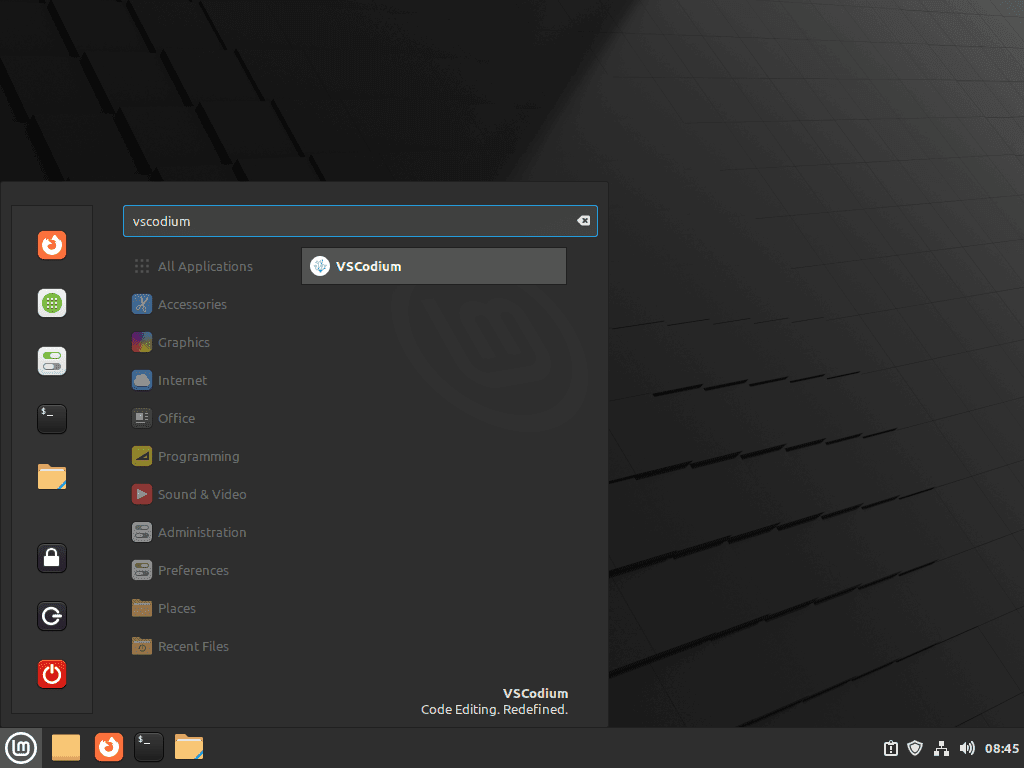
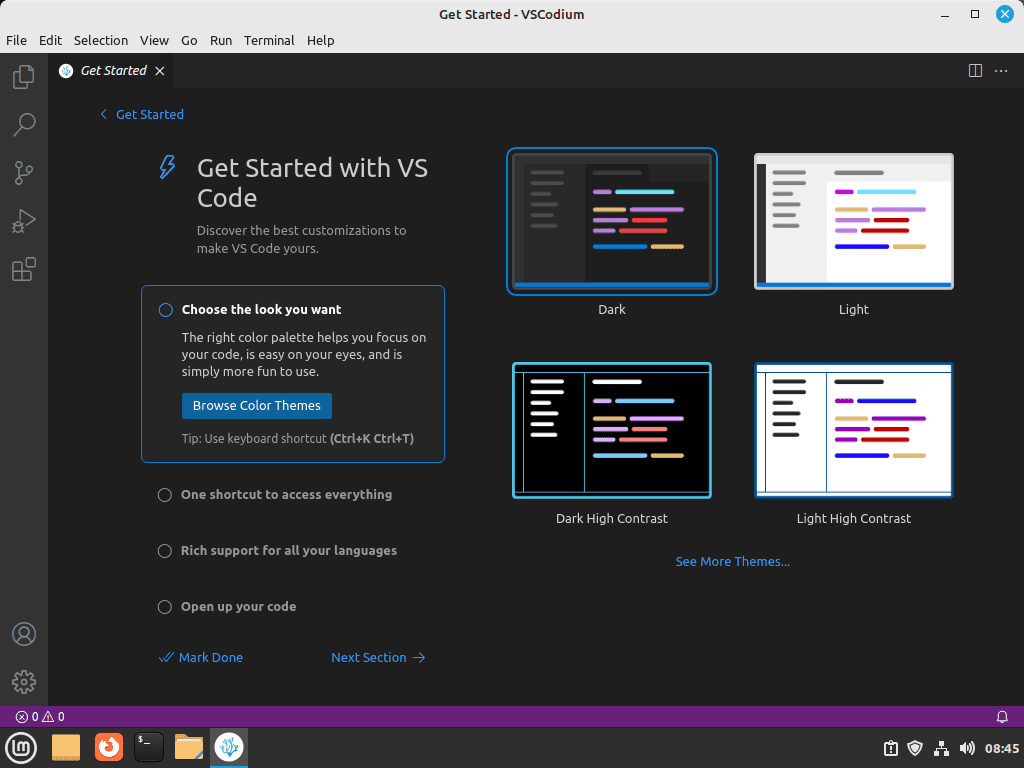
You can also start VSCodium from the Linux Mint applications menu. Search for VSCodium directly if the Programming category is arranged differently on Cinnamon, MATE, or Xfce.
Manage VSCodium on Linux Mint
After installation, keep the update and removal commands matched to the package source you chose. The APT build and the Flathub build do not share the same update path, and personal settings cleanup is separate from removing the application package.
Update VSCodium on Linux Mint
Update VSCodium via APT on Linux Mint
Refresh package metadata and upgrade only the VSCodium package when you want the repository build to stay current without turning the section into a full system-upgrade walkthrough:
sudo apt update && sudo apt install --only-upgrade codiumUpdate VSCodium via Flatpak on Linux Mint
If you installed the Flathub build, update just that application with:
sudo flatpak update com.vscodium.codiumRemove VSCodium on Linux Mint
Remove the VSCodium APT Installation
Remove the package first, then clear leftover dependency packages that APT no longer needs. Review the autoremove list before confirming because APT can include older automatic packages unrelated to VSCodium on systems that already had cleanup pending.
sudo apt remove codium
sudo apt autoremove
After the package is gone, remove the repository file and keyrings so APT stops checking the VSCodium source. The final keyring line handles the older path used by previous VSCodium repository instructions.
sudo rm -f /etc/apt/sources.list.d/vscodium.sources
sudo rm -f /usr/share/keyrings/vscodium-archive-keyring.gpg
sudo rm -f /usr/share/keyrings/vscodium.gpg
sudo apt update
Remove the VSCodium Flatpak Installation
For the Flatpak build, remove the shared application first:
sudo flatpak uninstall com.vscodium.codiumFlatpak can also leave runtimes that no installed app still uses. Review the prompt before removing unused runtimes because they may belong to other Flatpak apps:
sudo flatpak uninstall --unusedThat unregisters the app itself, but the per-user Flatpak data directory can still remain under ~/.var/app/com.vscodium.codium/. Remove it separately when you want the Flatpak settings gone too:
rm -rf ~/.var/app/com.vscodium.codiumRemove VSCodium User Configuration (Optional)
The following commands permanently delete your VSCodium settings, extensions, and cached data. Export anything you want to keep before you run them.
For repository installs, remove the user data directories from your home folder only when you want a true clean start:
rm -rf ~/.config/VSCodium
rm -rf ~/.vscode-oss
rm -rf ~/.cache/VSCodium
Verify VSCodium Removal on Linux Mint
Start with the APT package state because a missing command path alone does not prove package cleanup:
dpkg-query -W -f='${db:Status-Abbrev} ${binary:Package}\n' codium 2>/dev/null | grep '^ii' || echo "NOT_INSTALLED"NOT_INSTALLED
For the APT method, verify that removing the repository also removed the live package candidate:
apt-cache policy codiumThe cleanup worked when Candidate shows (none) or the command no longer prints a package entry from https://download.vscodium.com/debs. For Flatpak removals, check the system app list:
flatpak list --system --app --columns=application | grep -Fx com.vscodium.codium || echo "NOT_INSTALLED"NOT_INSTALLED
Troubleshooting VSCodium Issues on Linux Mint
Start with the package source that changed most recently: repository key problems affect APT installs, while stale appstream metadata affects Flatpak updates. The desktop-specific fixes address launch or menu issues after the package itself is installed.
Fix VSCodium Repository GPG Key Errors on Linux Mint
If apt update reports a signature problem, first print the source file and confirm that Signed-By points to the same keyring path created earlier:
cat /etc/apt/sources.list.d/vscodium.sourcesIf the source file points to /usr/share/keyrings/vscodium-archive-keyring.gpg, rebuild that keyring and refresh package metadata:
sudo rm -f /usr/share/keyrings/vscodium-archive-keyring.gpg
curl -fsSL https://gitlab.com/paulcarroty/vscodium-deb-rpm-repo/raw/master/pub.gpg | sudo gpg --dearmor --yes -o /usr/share/keyrings/vscodium-archive-keyring.gpg
sudo apt update
If the file still points to the older /usr/share/keyrings/vscodium.gpg path, rerun the repository source-file command from the APT method so the Signed-By field and keyring path match.
Fix VSCodium Launch Failures on Linux Mint
If the repository build stops opening after an extension update or a broken settings change, start by disabling extensions for one test launch:
codium --disable-extensionsFor the Flathub build, pass the same option through flatpak run:
flatpak run com.vscodium.codium --disable-extensionsIf either test launch works, the editor itself is fine and you can remove or update the offending extension from the Extensions panel.
Fix Old VSCodium Flatpak Metadata on Linux Mint
If the Flathub package still reports an older build than the current stable release, refresh the appstream metadata first and then update the app itself:
sudo flatpak update --appstream
sudo flatpak update com.vscodium.codium
Check the app details again afterward:
flatpak info com.vscodium.codiumFix VSCodium File Menu Crashes on Linux Mint
If VSCodium crashes when you open the File menu while the other menus still work, switch the title bar style inside the editor settings:
- Open Settings with
Ctrl + ,or click the gear icon in the lower-left corner. - Search for
title bar style. - Change Window: Title Bar Style to
custom.
If the problem is tied to Mint’s native title bar integration on your desktop, switching to the custom title bar avoids it.
Run VSCodium on the NVIDIA GPU on Linux Mint
If the Mint desktop still launches VSCodium on the integrated GPU after you choose the dedicated adapter, start the repository build with PRIME render offload variables set explicitly. If the proprietary NVIDIA driver is not installed yet, finish that setup first with the guide to install NVIDIA drivers on Linux Mint.
__NV_PRIME_RENDER_OFFLOAD=1 __GLX_VENDOR_LIBRARY_NAME=nvidia codiumAfter the editor opens, check nvtop or nvidia-smi to confirm the discrete GPU is actually in use.
Create a custom launcher if you need this often. Copy
/usr/share/applications/codium.desktopto~/.local/share/applications/codium-nvidia.desktopand prepend the same environment variables to theExec=line.
Conclusion
VSCodium is installed through the package source you chose: the APT build gives Mint a host-side codium launcher, while the Flathub build stays in Flatpak’s app and runtime workflow. For a fuller development workstation, install Git on Linux Mint before cloning projects, then add GitHub Desktop on Linux Mint if you want a graphical Git workflow.


Formatting tips for your comment
You can use basic HTML to format your comment. Useful tags currently allowed in published comments:
<code>command</code>command<strong>bold</strong><em>italic</em><a href="https://example.com">link</a><blockquote>quote</blockquote>