
Optical-disc backups on Debian work best when MakeMKV stays current with upstream’s short beta release cycle. To install MakeMKV on Debian, choose an APT-managed community repository for normal amd64 desktops, the Flathub package when you already use Flatpak, or a source build when you need to compile the upstream Linux release yourself.
MakeMKV can read DVDs and Blu-ray discs, preserve video, audio, subtitles, chapters, and metadata in MKV files, and stream decrypted content to tools such as Plex Media Server on Debian or Jellyfin Media Server on Debian. Only convert discs and files you are allowed to copy under your local law and license terms.
Install MakeMKV on Debian
Choose a MakeMKV Installation Method
MakeMKV has three practical Debian paths, but they do not have the same trust, update, or architecture model.
| Method | Source | Update Behavior | Best For | Main Caveat |
|---|---|---|---|---|
| APT repository | hjmooses Debian repository | APT-managed MakeMKV package updates while the repository remains enabled | Most Debian 13, 12, and 11 amd64 desktop systems | Third-party repository trust and amd64-focused package metadata |
| Flatpak | Flathub community package | Flatpak app and runtime updates from Flathub | Users who prefer Flathub packaging or need a non-APT app path | Flathub currently marks the package as unverified and potentially unsafe because it needs broad device access |
| Source build | MakeMKV Linux release forum | Manual rebuild when upstream publishes a new release | Advanced users who need the upstream source workflow | Manual EULA prompt, build dependencies, and manual cleanup |
Use the APT repository method unless you have a reason to choose another path. It keeps MakeMKV updates inside Debian’s normal package workflow while still using the current community packages. Choose Flatpak for Flathub-managed app delivery, and keep source builds for cases where you are comfortable maintaining manually installed files.
Refresh Debian Package Metadata
Start by refreshing APT metadata so dependency checks use the current Debian package lists:
sudo apt updateThese commands use sudo for package, repository, and system-file changes. If your account cannot run administrative commands yet, set that up first with the Debian sudoers setup guide.
Install MakeMKV from the hjmooses APT Repository
The hjmooses repository currently publishes MakeMKV 1.18.3 packages for Debian 13 (Trixie), Debian 12 (Bookworm), and Debian 11 (Bullseye) on amd64. This method installs makemkv-oss for the GUI and open-source libraries plus makemkv-bin for the proprietary binary components.
Install Repository Tools
Install the small tool set needed for HTTPS downloads, signing-key handling, and repository setup. The curl command downloads both the repository keys and the source archives later in the article; use the curl command examples if you need more detail on its options.
sudo apt install ca-certificates curl gpgImport the Repository Signing Keys
The repository uses the original hjmooses key for Debian 11 and 12 metadata and a newer 2025 key for Debian 13. Store both in one dedicated keyring so the MakeMKV source does not depend on global trusted-key storage:
tmp_key_dir="$(mktemp -d)"

if curl -fsSLo "$tmp_key_dir/hjmooses.pgp" https://ramses.hjramses.com/deb/hjmooses.pgp &&
    curl -fsSLo "$tmp_key_dir/hjmooses-2025.pgp" https://ramses.hjramses.com/deb/hjmooses-2025.pgp &&
    cat "$tmp_key_dir/hjmooses.pgp" "$tmp_key_dir/hjmooses-2025.pgp" >"$tmp_key_dir/makemkv-keys.asc" &&
    gpg --dearmor --yes --output "$tmp_key_dir/makemkv.gpg" "$tmp_key_dir/makemkv-keys.asc" &&
    sudo install -m 0644 "$tmp_key_dir/makemkv.gpg" /usr/share/keyrings/makemkv.gpg; then
    rm -rf "$tmp_key_dir"
else
    rm -rf "$tmp_key_dir"
    printf 'Failed to import the MakeMKV repository keys.\n' >&2
    false
fi
Add the MakeMKV APT Source
Add the repository as a DEB822 source using the same repository host and signing keys as the maintainer page. The guard keeps unsupported releases or non-amd64 systems from writing a source file that cannot provide the documented packages:
. /etc/os-release
debian_codename="${VERSION_CODENAME:-}"
debian_arch="$(dpkg --print-architecture)"

if [ "$debian_arch" != "amd64" ]; then
    printf 'The hjmooses APT repository method is documented for amd64 systems.\n' >&2
elif [ "$debian_codename" != "trixie" ] && [ "$debian_codename" != "bookworm" ] && [ "$debian_codename" != "bullseye" ]; then
    printf 'This MakeMKV APT source is documented for Debian 13, 12, and 11 only.\n' >&2
else
    printf '%s\n' \
        'Types: deb' \
        'URIs: https://ramses.hjramses.com/deb/makemkv' \
        "Suites: $debian_codename" \
        'Components: main' \
        'Architectures: amd64' \
        'Signed-By: /usr/share/keyrings/makemkv.gpg' | sudo tee /etc/apt/sources.list.d/makemkv.sources >/dev/null
fi
If the command prints one of the unsupported-system messages, use the Flatpak method instead, or use the source build only if upstream’s Linux release supports your architecture.
Refresh APT and Check the MakeMKV Candidate
Refresh APT after adding the source, then confirm the MakeMKV packages come from the hjmooses repository:
sudo apt update
apt-cache policy makemkv-bin makemkv-oss
Relevant Debian 13 output includes the trixie/main amd64 repository line. Debian 12 and 11 show bookworm/main amd64 or bullseye/main amd64 instead:
makemkv-bin:
  Installed: (none)
  Candidate: 1.18.3-1~trixie
  Version table:
     1.18.3-1~trixie 500
        500 https://ramses.hjramses.com/deb/makemkv trixie/main amd64 Packages
Install the APT Packages
Install both MakeMKV packages from the repository:
sudo apt install makemkv-oss makemkv-binmakemkv-oss supplies the GUI, desktop entry, and open-source libraries. makemkv-bin supplies the proprietary makemkvcon binary and data files that MakeMKV needs for disc processing.
Verify the APT Installation
Check the installed package state and confirm Debian can find both MakeMKV commands:
dpkg-query -W -f='${db:Status-Abbrev} ${binary:Package} ${Version}\n' makemkv-oss makemkv-bin
command -v makemkv makemkvcon
The package rows should start with ii, and the command check should return paths under /usr/bin/.
Install MakeMKV with Flatpak
The Flathub package is useful when you want Flatpak’s app/runtime update model or a non-APT delivery path. Treat it as a community package: Flathub currently lists it as unverified, not officially supported by GuinpinSoft inc., and potentially unsafe because it grants broad device access for optical drives.
If Flatpak or Flathub is not configured yet, install Flatpak on Debian first. Otherwise, make sure the Flathub remote exists with the current remote descriptor:
sudo flatpak remote-add --if-not-exists flathub https://dl.flathub.org/repo/flathub.flatpakrepoInstall the MakeMKV app ID from Flathub:
sudo flatpak install flathub com.makemkv.MakeMKVFlatpak may show the KDE runtime, app permissions, and the package’s EULA-related information before it asks for confirmation. Review those prompts before continuing.
Verify the installed Flatpak ref and origin:
flatpak info --show-ref com.makemkv.MakeMKV
flatpak info --show-origin com.makemkv.MakeMKV
Compile MakeMKV from Source
Use the source build only when you need the upstream Linux tarballs and are comfortable maintaining files outside APT or Flatpak. The MakeMKV binary package prompts for EULA acceptance during the build, and future releases can change dependencies or build behavior.
Install Build Dependencies
Install the compiler, Qt5 headers, FFmpeg headers, OpenSSL headers, the less pager used by the EULA prompt, and download tools used by the upstream build instructions:
sudo apt install build-essential pkg-config libc6-dev libssl-dev libexpat1-dev libavcodec-dev libgl1-mesa-dev qtbase5-dev zlib1g-dev less curl ca-certificatesDownload and Verify the Source Archives
Create a build directory, resolve the current Linux release from the MakeMKV forum page, and download both required tarballs plus the signed checksum file. The downloaded files are gzip-compressed tar archives; use the gzip and tar extraction guide if you want the extraction flags explained.
mkdir -p "$HOME/makemkv-build"
cd "$HOME/makemkv-build" || exit

MAKEMKV_VERSION="$(curl -fsSL --retry 3 --retry-delay 2 'https://forum.makemkv.com/forum/viewtopic.php?f=3&t=224' | grep -oE 'makemkv-(oss|bin)-[0-9]+\.[0-9]+\.[0-9]+\.tar\.gz' | sed -E 's/makemkv-(oss|bin)-//; s/\.tar\.gz//' | sort -Vu | tail -1)"

if [ -z "$MAKEMKV_VERSION" ]; then
    printf 'Could not detect the current MakeMKV Linux version.\n' >&2
else
    printf 'Detected MakeMKV version: %s\n' "$MAKEMKV_VERSION"
    curl --retry 3 --retry-delay 2 -fSLO "https://www.makemkv.com/download/makemkv-oss-${MAKEMKV_VERSION}.tar.gz"
    curl --retry 3 --retry-delay 2 -fSLO "https://www.makemkv.com/download/makemkv-bin-${MAKEMKV_VERSION}.tar.gz"
    curl --retry 3 --retry-delay 2 -fSLO "https://www.makemkv.com/download/makemkv-sha-${MAKEMKV_VERSION}.txt"
fi
Check the downloaded Linux tarballs against the upstream checksum file before extracting them:
grep -E "makemkv-(oss|bin)-${MAKEMKV_VERSION}\.tar\.gz" "makemkv-sha-${MAKEMKV_VERSION}.txt" | sha256sum -c -Expected output for the current 1.18.3 archives is:
makemkv-bin-1.18.3.tar.gz: OK
makemkv-oss-1.18.3.tar.gz: OK
Build and Install the Open-Source Package
Keep the same terminal open so MAKEMKV_VERSION remains available, then build and install the open-source package first:
cd "$HOME/makemkv-build" || exit
tar -xzf "makemkv-oss-${MAKEMKV_VERSION}.tar.gz"
cd "makemkv-oss-${MAKEMKV_VERSION}" || exit
./configure
make
sudo make install
The open-source install places the GUI, helper binaries, libraries, desktop entry, and icons under /usr.
Build and Install the Binary Package
Return to the build directory and install the proprietary binary package. The make step displays the EULA and asks you to accept it before installation can continue:
cd "$HOME/makemkv-build" || exit
tar -xzf "makemkv-bin-${MAKEMKV_VERSION}.tar.gz"
cd "makemkv-bin-${MAKEMKV_VERSION}" || exit
make
sudo make install
The binary package installs makemkvcon, the sdftool symlink, and MakeMKV data files under /usr/share/MakeMKV/.
Verify the Source Build
Confirm both the graphical launcher command and the console helper are available:
command -v makemkv
command -v makemkvcon
Both commands should resolve under /usr/bin/ after the source install.
Launch MakeMKV on Debian
APT and source installations provide the normal makemkv command:
makemkvFlatpak installations use the Flatpak app ID:
flatpak run com.makemkv.MakeMKVFrom a desktop session, open the application grid, search for MakeMKV, and select the launcher.
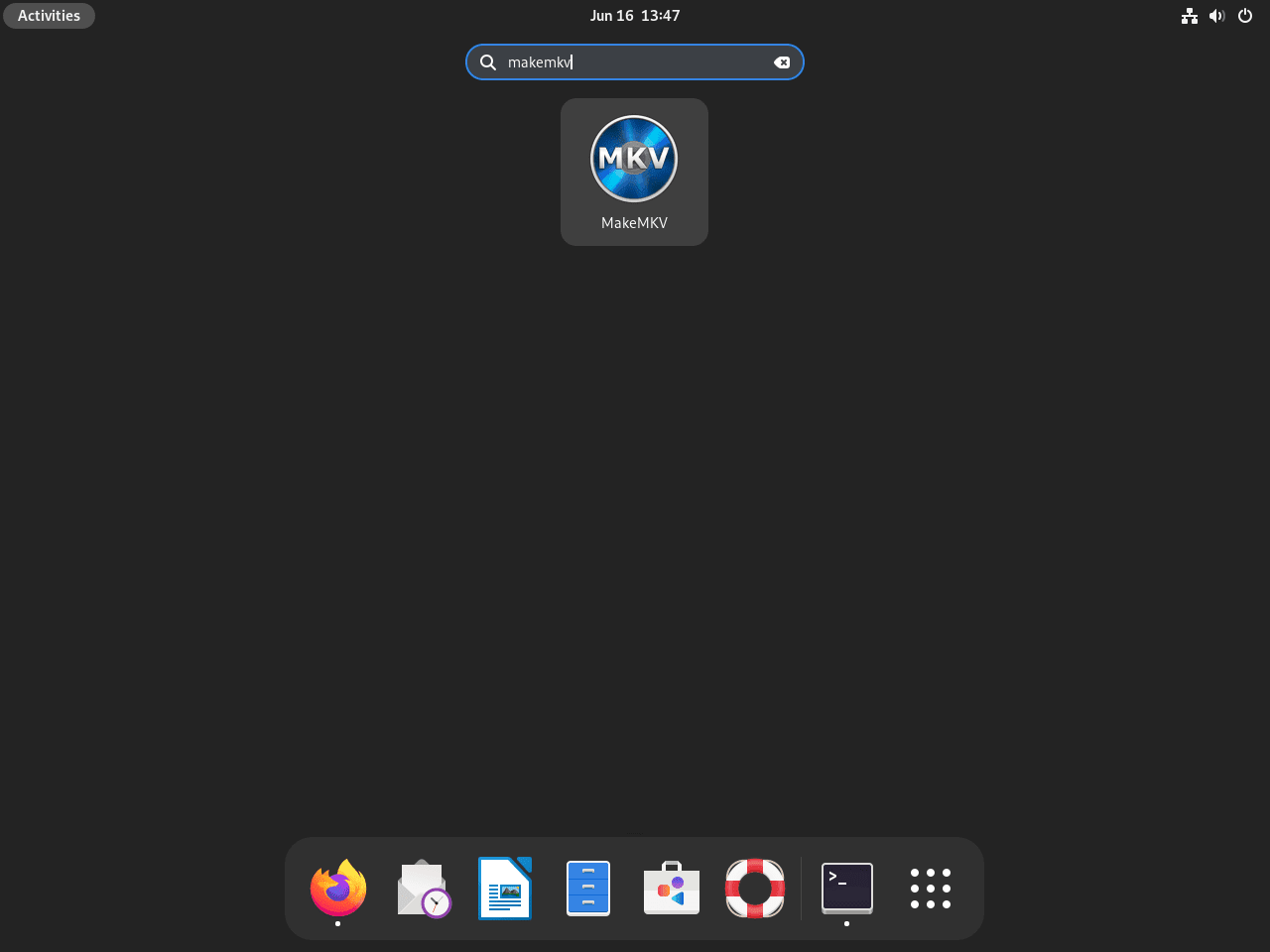
Update MakeMKV on Debian
Update the APT Repository Installation
APT updates MakeMKV from the hjmooses repository while the source file remains enabled. Upgrade only the MakeMKV packages with:
sudo apt update
sudo apt install --only-upgrade makemkv-oss makemkv-bin
Update the Flatpak Installation
Update the MakeMKV Flatpak and its runtime dependencies with:
sudo flatpak update com.makemkv.MakeMKVUpdate the Source Build
Source builds are not tracked by APT or Flatpak, so use a local updater script if you want repeatable source upgrades. Run this only for a source installation; if makemkv-oss and makemkv-bin came from APT, use the APT update command instead.
Create the updater script in ~/bin. It detects the current MakeMKV Linux version, refuses to run over an APT package installation, verifies the Linux tarballs against the upstream checksum file, builds both upstream components, and records the completed source-build version in ~/makemkv-build/.source-build-version:
mkdir -p "$HOME/bin"

cat >"$HOME/bin/update-makemkv-source" <<'EOF'
#!/usr/bin/env bash
set -euo pipefail

download_page='https://forum.makemkv.com/forum/viewtopic.php?f=3&t=224'
build_root="${MAKEMKV_BUILD_ROOT:-$HOME/makemkv-build}"
state_file="$build_root/.source-build-version"
make_jobs="${MAKE_JOBS:-2}"
force_update=false

if [ "$#" -gt 1 ]; then
    printf 'Usage: %s [--force]\n' "${0##*/}" >&2
    exit 2
elif [ "${1:-}" = "--force" ]; then
    force_update=true
elif [ "$#" -eq 1 ]; then
    printf 'Usage: %s [--force]\n' "${0##*/}" >&2
    exit 2
fi

if [ ! -t 0 ]; then
    printf 'Run this updater from an interactive terminal so the MakeMKV EULA prompt can be answered.\n' >&2
    exit 1
fi

case "$make_jobs" in
'' | *[!0-9]*)
    printf 'MAKE_JOBS must be a positive integer.\n' >&2
    exit 2
    ;;
esac

if [ "$make_jobs" -lt 1 ]; then
    printf 'MAKE_JOBS must be at least 1.\n' >&2
    exit 2
fi

for command_name in curl dpkg-query grep sed sort tail tar make sudo sha256sum; do
    if ! command -v "$command_name" >/dev/null 2>&1; then
        printf 'Missing required command: %s\n' "$command_name" >&2
        exit 1
    fi
done

if dpkg-query -W -f='${db:Status-Abbrev} ${binary:Package}\n' makemkv-oss makemkv-bin 2>/dev/null | grep -q '^ii '; then
    printf 'APT MakeMKV packages are installed. Use APT updates instead of the source updater.\n' >&2
    exit 1
fi

mkdir -p "$build_root"

latest_version="$(
    curl -fsSL --retry 3 --retry-delay 2 "$download_page" |
        grep -oE 'makemkv-(oss|bin)-[0-9]+\.[0-9]+\.[0-9]+\.tar\.gz' |
        sed -E 's/makemkv-(oss|bin)-//; s/\.tar\.gz//' |
        sort -Vu |
        tail -1
)" || latest_version=""

if [ -z "$latest_version" ]; then
    printf 'Could not detect the current MakeMKV Linux version.\n' >&2
    exit 1
fi

tracked_version="unknown"
if [ -s "$state_file" ]; then
    tracked_version="$(tr -d '\n' <"$state_file")"
fi

printf 'Latest MakeMKV Linux version: %s\n' "$latest_version"
printf 'Tracked source-build version: %s\n' "$tracked_version"

if [ "$force_update" = false ] && [ "$tracked_version" = "$latest_version" ]; then
    printf 'MakeMKV source build is already current. Use --force to rebuild the same version.\n'
    exit 0
fi

sudo -v

work_dir="$build_root/makemkv-$latest_version"
rm -rf "$work_dir"
mkdir -p "$work_dir"
cd "$work_dir" || exit 1

printf 'Downloading MakeMKV %s source archives...\n' "$latest_version"
curl --retry 3 --retry-delay 2 -fSLO "https://www.makemkv.com/download/makemkv-oss-${latest_version}.tar.gz"
curl --retry 3 --retry-delay 2 -fSLO "https://www.makemkv.com/download/makemkv-bin-${latest_version}.tar.gz"
curl --retry 3 --retry-delay 2 -fSLO "https://www.makemkv.com/download/makemkv-sha-${latest_version}.txt"

checksum_lines="$(grep -E "makemkv-(oss|bin)-${latest_version}\.tar\.gz" "makemkv-sha-${latest_version}.txt" || true)"
checksum_count="$(printf '%s\n' "$checksum_lines" | grep -c 'makemkv-' || true)"

if [ "$checksum_count" -ne 2 ]; then
    printf 'Could not find both Linux tarball checksums for MakeMKV %s.\n' "$latest_version" >&2
    exit 1
fi

printf '%s\n' "$checksum_lines" | sha256sum -c -

tar -xzf "makemkv-oss-${latest_version}.tar.gz"
tar -xzf "makemkv-bin-${latest_version}.tar.gz"

printf 'Building makemkv-oss with %s make job(s)...\n' "$make_jobs"
cd "$work_dir/makemkv-oss-${latest_version}" || exit 1
./configure
make -j"$make_jobs"
sudo make install

printf 'Building makemkv-bin. Type yes at the license prompt if you accept the EULA.\n'
cd "$work_dir/makemkv-bin-${latest_version}" || exit 1
make
sudo make install

printf '%s\n' "$latest_version" >"$state_file"
sudo ldconfig

printf 'MakeMKV source build updated to %s.\n' "$latest_version"
printf 'Build files kept in: %s\n' "$work_dir"
EOF

chmod +x "$HOME/bin/update-makemkv-source"
Run the updater from an interactive terminal so the binary package can display the EULA prompt:
"$HOME/bin/update-makemkv-source"A successful first run for the current 1.18.3 release includes output like this. The compiler prints many additional lines between the build messages and the final confirmation:
Latest MakeMKV Linux version: 1.18.3
Tracked source-build version: unknown
Downloading MakeMKV 1.18.3 source archives...
makemkv-bin-1.18.3.tar.gz: OK
makemkv-oss-1.18.3.tar.gz: OK
Building makemkv-oss with 2 make job(s)...
Building makemkv-bin. Type yes at the license prompt if you accept the EULA.
MakeMKV source build updated to 1.18.3.
Build files kept in: /home/example/makemkv-build/makemkv-1.18.3
When the tracked source build already matches the current upstream release, the script exits before downloading or compiling:
Latest MakeMKV Linux version: 1.18.3
Tracked source-build version: 1.18.3
MakeMKV source build is already current. Use --force to rebuild the same version.
Use --force only when you intentionally want to rebuild the same release after changing dependencies or recovering from a partial manual install:
"$HOME/bin/update-makemkv-source" --forceConfirm the source-installed commands still resolve after the update:
command -v makemkv
command -v makemkvcon
/usr/bin/makemkv /usr/bin/makemkvcon
Troubleshoot MakeMKV on Debian
APT Cannot Find makemkv-bin
If APT cannot find makemkv-bin, first verify that the source file exists and points at the expected Debian codename:
cat /etc/apt/sources.list.d/makemkv.sources
apt-cache policy makemkv-bin
The Suites: value should match trixie, bookworm, or bullseye, and the policy output should show a candidate from https://ramses.hjramses.com/deb/makemkv. If the policy output is empty, rerun sudo apt update and recheck the source file, keyring path, and architecture guard.
Optical Drive Is Not Detected
First confirm Debian can see the optical drive:
lsblk -o NAME,TYPE,MODEL | grep -E 'rom|sr'Example output for a detected drive looks like this:
sr0 rom DVD-RW
If no device appears, check the cable, USB enclosure, virtual-machine passthrough, or system log after reconnecting the drive:
dmesg | tail -20If the drive appears but MakeMKV cannot open it, check whether your account belongs to the cdrom group:
groups "$USER"Add your account to the group when it is missing, then log out and back in so the new group membership reaches your desktop session:
sudo usermod -aG cdrom "$USER"MakeMKV Asks for a Beta Key or Says the Version Is Too Old
MakeMKV beta builds are time-limited. If the application asks for a registration key, check the official MakeMKV beta key thread; MakeMKV refreshes that stable forum thread periodically when beta keys expire. Use a paid registration key, or update to the current MakeMKV release from the package source you installed. Avoid third-party key pages when the official thread is delayed or stale.
Flatpak Cannot Access the Optical Drive
The current Flathub manifest already grants broad device access, so start with host drive detection and group membership before adding overrides. Inspect the installed Flatpak permissions with:
flatpak info --show-permissions com.makemkv.MakeMKVIf a user override removed device access, restore it for your account:
flatpak override --user --device=all com.makemkv.MakeMKVLaunch MakeMKV again after applying the override:
flatpak run com.makemkv.MakeMKVRemove MakeMKV from Debian
Use the removal path that matches the installation method you used. Keep user-data deletion separate unless you intentionally want to remove saved preferences and registration data.
Remove the APT Repository Installation
Remove the MakeMKV packages first:
sudo apt remove makemkv-oss makemkv-binReview and remove now-unused dependencies only if APT lists packages you no longer need:
sudo apt autoremoveRemove the MakeMKV source file, then search existing APT source files before deleting the keyring:
sudo rm -f /etc/apt/sources.list.d/makemkv.sources

source_paths=()

[ -f /etc/apt/sources.list ] && source_paths+=(/etc/apt/sources.list)

while IFS= read -r -d '' file; do
    source_paths+=("$file")
done < <(find /etc/apt/sources.list.d -maxdepth 1 -type f \( -name '*.sources' -o -name '*.list' \) -print0 2>/dev/null)

if [ "${#source_paths[@]}" -eq 0 ]; then
    sudo rm -f /usr/share/keyrings/makemkv.gpg
elif sudo grep -Fq '/usr/share/keyrings/makemkv.gpg' "${source_paths[@]}"; then
    printf 'Keeping /usr/share/keyrings/makemkv.gpg because another APT source still references it.\n'
else
    grep_status=$?
    if [ "$grep_status" -eq 1 ]; then
        sudo rm -f /usr/share/keyrings/makemkv.gpg
    else
        printf 'Could not inspect remaining APT sources; leaving the keyring in place.\n' >&2
        false
    fi
fi

sudo apt update
Confirm the packages are no longer installed and the repository candidate is gone:
dpkg-query -W -f='${db:Status-Abbrev} ${binary:Package}\n' makemkv-oss makemkv-bin 2>/dev/null | grep '^ii ' || echo "No MakeMKV APT packages are installed."
apt-cache policy makemkv-bin
Remove the Flatpak Installation
Uninstall the MakeMKV Flatpak:
sudo flatpak uninstall com.makemkv.MakeMKVClean unused Flatpak runtimes only after reviewing the list Flatpak presents:
sudo flatpak uninstall --unusedVerify system-scope removal with a list-based absence check:
flatpak list --system --app --columns=application | grep -Fx com.makemkv.MakeMKV || echo "NOT_INSTALLED"Deleting Flatpak app data permanently removes MakeMKV settings saved for your user account. Keep the directory if you plan to reinstall and want to preserve preferences.
Check for leftover Flatpak user data before deleting it:
if [ -e "$HOME/.var/app/com.makemkv.MakeMKV" ]; then
    printf '%s\n' "$HOME/.var/app/com.makemkv.MakeMKV"
else
    printf 'No Flatpak MakeMKV user data found.\n'
fi
Delete the directory only if you no longer need that data:
rm -rf "$HOME/.var/app/com.makemkv.MakeMKV"Remove a Source Build
Source builds install files directly under /usr and do not register with APT. Inspect the expected source-build files before removing them:
for path in \
    /usr/bin/makemkv \
    /usr/bin/makemkvcon \
    /usr/bin/mmccextr \
    /usr/bin/mmgplsrv \
    /usr/bin/sdftool \
    /usr/lib/libdriveio.so.0 \
    /usr/lib/libmakemkv.so.1 \
    /usr/lib/libmmbd.so.0 \
    /usr/share/applications/makemkv.desktop \
    /usr/share/MakeMKV \
    "$HOME/bin/update-makemkv-source" \
    "$HOME/makemkv-build"; do
    [ -e "$path" ] && printf '%s\n' "$path"
done
The next commands permanently delete MakeMKV binaries, libraries, desktop integration files, shared MakeMKV data, the optional source updater script, and the build directory created by the source method. Do not run them if any listed path belongs to a custom install you want to keep.
Remove the source-installed files:
sudo rm -f /usr/bin/makemkv /usr/bin/makemkvcon /usr/bin/mmccextr /usr/bin/mmgplsrv /usr/bin/sdftool
sudo rm -f /usr/lib/libdriveio.so.0 /usr/lib/libmakemkv.so.1 /usr/lib/libmmbd.so.0
sudo rm -f /usr/share/applications/makemkv.desktop
sudo rm -f /usr/share/icons/hicolor/{16x16,22x22,32x32,64x64,128x128,256x256}/apps/makemkv.png
sudo rm -rf /usr/share/MakeMKV
rm -f "$HOME/bin/update-makemkv-source"
rm -rf "$HOME/makemkv-build"
sudo ldconfig
hash -r
Verify the graphical command is gone from your shell path:
command -v makemkv || echo "makemkv not found"Remove Native MakeMKV User Settings
APT and source installations store native MakeMKV settings in ~/.MakeMKV. Check for that directory before deleting it:
if [ -e "$HOME/.MakeMKV" ]; then
    printf '%s\n' "$HOME/.MakeMKV"
else
    printf 'No native MakeMKV profile found.\n'
fi
Deleting the native profile permanently removes saved MakeMKV preferences and registration data for your user account.
Delete the native profile only when you no longer need it:
rm -rf "$HOME/.MakeMKV"Conclusion
MakeMKV is ready on Debian through the package source that matches your maintenance model. Use the APT repository for normal amd64 desktop updates, Flatpak for Flathub-managed app delivery, or source builds when you can maintain the manual EULA and cleanup path yourself. After launch, check the beta or registration state before starting a long disc conversion.


Is software-properties-common still a dependency?
Does this work with VLC or handbrake?
MakeMKV flatpak may work (stream to) with VLC flatpak if special VLC add-on included.
Even if it works, PPA or repository install is unlikely to survive update due to lack of maintenance,
due in turn to media cartel harassment.
Source install instructions rarely include all necessary details neatly organized in one place.
Debian 12.2
stop at install
message
The following packages have unmet dependencies:
makemkv-oss : Depends: libavcodec59 (= 7:5.1.3-1)
E: Unable to correct problems, you have held broken packages.
libavcodec59 installed.
Hi Igor,
Thanks for the message, I just re-installed MakeMKV fine on a fresh Debian 12 installation.
Did you refresh the package index after importing the gpg key and repository? Other things come to mind is it AMD64 system?
Can you actually check if libavcodec59 is present also,
apt search libavcodec59You could also try the following command:
apt policy libacodec59Should be on version libavcodec59 (= 7:5.1.3-1)
Seems like a step has not been done, or something else is missing or added that is affecting the installation, just need to go through the process.
Hi Joshua,
here a log from terminal
riv@client:~$ sudo apt install makemkv-oss makemkv-bin
Reading package lists… Done
Building dependency tree… Done
Reading state information… Done
Some packages could not be installed. This may mean that you have
requested an impossible situation or if you are using the unstable
distribution that some required packages have not yet been created
or been moved out of Incoming.
The following information may help to resolve the situation:
The following packages have unmet dependencies:
makemkv-oss : Depends: libavcodec59 (= 7:5.1.3-1)
E: Unable to correct problems, you have held broken packages.
riv@client:~$ sudo apt search libavcodec59
Sorting… Done
Full Text Search… Done
libavcodec59/stable-security,now 7:5.1.4-0+deb12u1 amd64 [installed,automatic]
FFmpeg library with de/encoders for audio/video codecs – runtime files
riv@client:~$ sudo apt install libavcodec59
Reading package lists… Done
Building dependency tree… Done
Reading state information… Done
libavcodec59 is already the newest version (7:5.1.4-0+deb12u1).
libavcodec59 set to manually installed.
0 upgraded, 0 newly installed, 0 to remove and 2 not upgraded.
riv@client:~$
I went exactly on steps, except one step sudo gpg --list-keys
instead I did gpg -k,
on step of adding a key, I got errors kinda there is not directory etc.
I have searched thought interned and gpg -k was a soludion and that created a folder etc.
I newbie in Linux, do know not much.
I just installed Debian core without gui and add Cinamonn Core.
Could I do anything to get makemkv installed ? it is very very helpfull tool, to save DVD disks library.
Any suggestions or help would be a much appreciated.
prev. message was truncated.
Hi Joshua,
Thanks a lot to helping me.
here is what I got.
iv@client:~$ sudo apt-get reinstall libavcodec59=7:5.1.3-1
Reading package lists… Done
Building dependency tree… Done
Reading state information… Done
Some packages could not be installed. This may mean that you have
requested an impossible situation or if you are using the unstable
distribution that some required packages have not yet been created
or been moved out of Incoming.
The following information may help to resolve the situation:
The following packages have unmet dependencies:
libavcodec59 : Depends: libavutil57 (= 7:5.1.3-1) but 7:5.1.4-0+deb12u1 is to be installed
E: Unable to correct problems, you have held broken packages.
riv@client:~$ sudo apt --fix-broken install
Reading package lists… Done
Building dependency tree… Done
Reading state information… Done
0 upgraded, 0 newly installed, 0 to remove and 0 not upgraded.
riv@client:~$
maybe is is important but version Debian on my side 12.2 bookworm.
meanwhile I tried to install makemkv on Linux Mint 21.2 Cinnamon (installed on ProxMox) with success.
the only but, it is without icon in GUI 🙁 it is now that big problem, but annoying.
I’m going to try to compile makemkv on Debian 12.2 and may you could help me how I can add icon to that installation ?
What is also interesting Mint does not have libavutil59 al all. it is not installed.
I would take your advice in order to get further. Should I try to compile makemkv on Debian 12.2 or may be there is any other way ?