When a video needs a smaller file size, a different container, or a device-friendly preset, HandBrake gives you a graphical transcoder without requiring a hand-built FFmpeg command. To install HandBrake on Ubuntu, use the official Flathub release for the current upstream release or Ubuntu’s Universe packages for a distro-managed installation. The upstream Linux download path centers on Flatpak and Flathub rather than a native Ubuntu .deb or AppImage, so the practical choice is Flatpak for official upstream releases or APT for Ubuntu-packaged builds.
Ubuntu 26.04 LTS, 24.04 LTS, and 22.04 LTS are in scope. Flatpak provides the current HandBrake Team release across that range, while APT installs the Ubuntu Universe package available for each release.
Install HandBrake on Ubuntu
Two practical installation paths are available on Ubuntu. The HandBrake installation documentation points Linux users to Flathub for the maintained upstream release, and the project’s download source guidance warns that some distribution builds can be modified. Ubuntu’s APT package remains useful when you prefer repository-managed software and accept the version supplied by each Ubuntu release.
| Method | Package or App ID | Version Pattern | Best For |
|---|---|---|---|
| Flatpak | fr.handbrake.ghb | Current upstream stable release | Most desktop users who want the official HandBrake Team build |
| APT | handbrake, optional handbrake-cli | 26.04: 1.11.x; 24.04: 1.7.x; 22.04: 1.5.x | Systems that need Ubuntu Universe packages and normal APT updates |
Snapcraft has a community handbrake-jz listing, but it is not published by the HandBrake Team and its stable channel is years behind current HandBrake releases. For that reason, this Ubuntu guide does not recommend the Snap package.
The HandBrake project also publishes manual Linux Flatpak bundles for direct download, but Flathub is the cleaner Ubuntu path because Flatpak handles the remote, install, and update workflow. Older HandBrake PPA workflows are not part of this guide; use Flathub for the upstream build or Ubuntu Universe for the distro package.
For most desktop installations, use Flatpak. Use APT when your organization requires packages from Ubuntu repositories or when you want HandBrake managed only through the system package manager.
Install HandBrake via Flatpak on Ubuntu
The Flatpak method installs the official HandBrake release from Flathub. It uses the application ID fr.handbrake.ghb, which is also useful when checking Flatpak permissions, launching the app from a terminal, or running the bundled CLI.
Flatpak is not preinstalled on Ubuntu. If your system does not have it yet, install Flatpak first, then return here to add Flathub and install HandBrake. For the full setup process, use our guide to install Flatpak on Ubuntu.
Enable Flathub for HandBrake
Add the Flathub remote if it is not already configured. The --if-not-exists option keeps the command rerun-safe on systems where Flathub is already present.
sudo flatpak remote-add --if-not-exists flathub https://dl.flathub.org/repo/flathub.flatpakrepoConfirm that the system Flathub remote is available before installing HandBrake:
flatpak remotes | grep '^flathub'flathub system
Install HandBrake from Flathub
Install HandBrake from Flathub with the application ID used by the official package:
sudo flatpak install flathub fr.handbrake.ghb -yFlatpak’s default system installation makes the app available to all users. The -y option confirms the install prompt after Flatpak lists the HandBrake app, GNOME runtime, and related runtime components.
Verify the HandBrake Flatpak Install
Check the installed Flatpak metadata to confirm the application ID, branch, version, origin, and installation scope:
flatpak info fr.handbrake.ghbHandBrake - Video Transcoder
ID: fr.handbrake.ghb
Ref: app/fr.handbrake.ghb/x86_64/stable
Arch: x86_64
Branch: stable
Version: 1.11.1
Origin: flathub
Installation: system
Runtime: org.gnome.Platform/x86_64/49
Your installed version can be newer than the example output as Flathub publishes future HandBrake releases.
Install HandBrake via APT on Ubuntu
Ubuntu provides HandBrake through the Universe component. This method installs the Ubuntu-packaged GUI application and, if needed, the separate CLI package that provides the HandBrakeCLI command.
Update the Package Index
Refresh APT metadata before installing HandBrake:
sudo apt updateIf your user account does not have sudo privileges, configure sudo access on Ubuntu before continuing.
Install the HandBrake GUI Package
Install the HandBrake GUI package from Ubuntu Universe:
sudo apt install handbrakeThe APT GUI package provides the desktop launcher plus terminal commands named handbrake and ghb. It does not provide HandBrakeCLI.
Optional: Install HandBrakeCLI from APT
If you want batch encoding, shell scripts, or terminal-only workflows, install the CLI companion package:
sudo apt install handbrake-cliThe package name is handbrake-cli, but the command it installs is HandBrakeCLI.
Verify the HandBrake APT Install
Confirm the installed package version and repository origin:
apt-cache policy handbrakeUbuntu 26.04 LTS example output:
handbrake:
  Installed: 1.11.0~us1-0ubuntu1
  Candidate: 1.11.0~us1-0ubuntu1
  Version table:
 *** 1.11.0~us1-0ubuntu1 500
        500 http://au.archive.ubuntu.com/ubuntu resolute/universe amd64 Packages
        100 /var/lib/dpkg/status
Ubuntu 24.04 LTS example output:
handbrake:
  Installed: 1.7.2+ds1-1build2
  Candidate: 1.7.2+ds1-1build2
  Version table:
 *** 1.7.2+ds1-1build2 500
        500 http://au.archive.ubuntu.com/ubuntu noble/universe amd64 Packages
        100 /var/lib/dpkg/status
Ubuntu 22.04 LTS example output:
handbrake:
  Installed: 1.5.1+ds1-1build1
  Candidate: 1.5.1+ds1-1build1
  Version table:
 *** 1.5.1+ds1-1build1 500
        500 http://au.archive.ubuntu.com/ubuntu jammy/universe amd64 Packages
        100 /var/lib/dpkg/status
Your mirror hostname can differ from the examples, but the package should still come from the universe component. If APT cannot locate the package, use the troubleshooting section below to enable Universe.
If you installed the CLI package, verify the command separately:
HandBrakeCLI --versionHandBrake 1.11.0
Launch HandBrake on Ubuntu
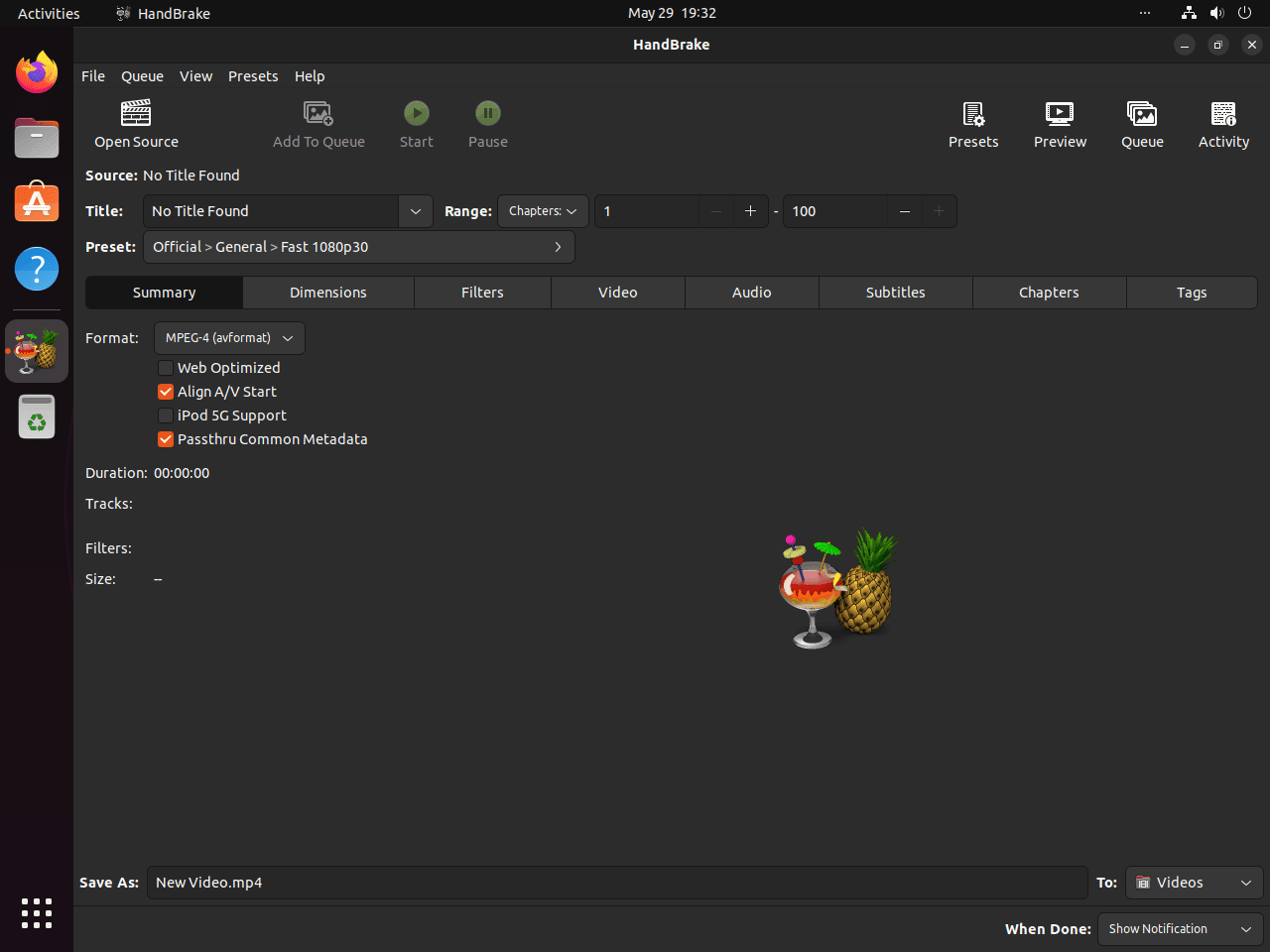
After installation, launch HandBrake from the terminal or from Ubuntu’s application menu. The command depends on the installation method.
Launch HandBrake from the Terminal
For Flatpak installations, run the app through its Flatpak ID:
flatpak run fr.handbrake.ghbFor APT installations, use either GUI command:
handbrakeghbUse HandBrakeCLI on Ubuntu
The CLI command is useful for scripts, repeat encodes, and server-style workflows where you already know the input file, output path, and preset.
For APT installations, install handbrake-cli first, then run HandBrakeCLI directly:
HandBrakeCLI --input input.mp4 --output output.mkv --preset "Fast 1080p30"For Flatpak installations, run the same CLI inside the Flatpak app environment:
flatpak run --command=HandBrakeCLI fr.handbrake.ghb --input input.mp4 --output output.mkv --preset "Fast 1080p30"Launch HandBrake from the Application Menu
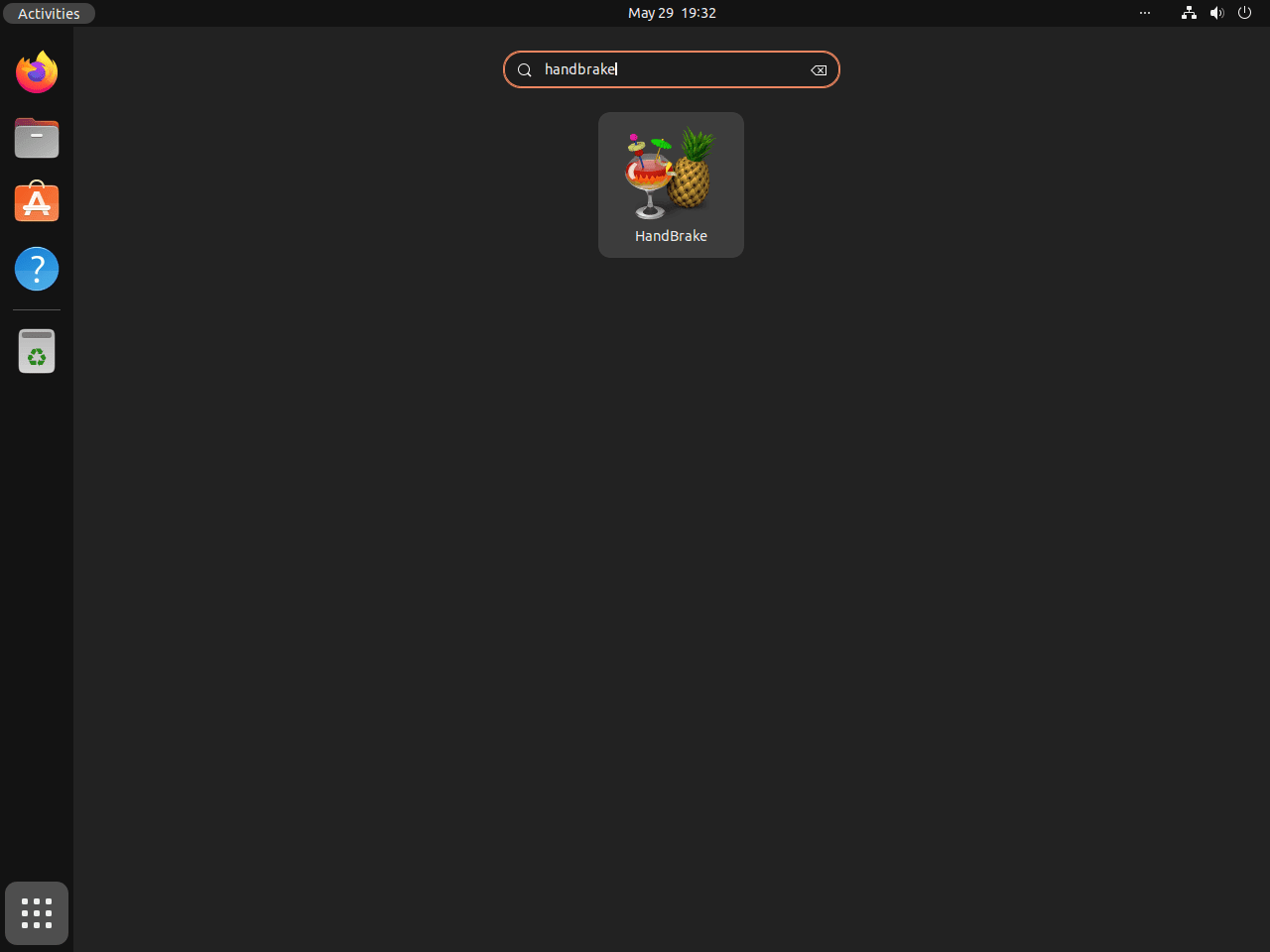
HandBrake appears in the Ubuntu application menu after installation. If the icon does not appear immediately after a Flatpak installation, log out and back in to refresh the desktop session.
- Open Activities from the top-left corner of the GNOME desktop.
- Select Show Applications or search from the Activities overview.
- Search for HandBrake, then click the HandBrake icon.
Manage HandBrake on Ubuntu
Update HandBrake
The update command depends on how you installed HandBrake.
Update the HandBrake Flatpak
Update only the HandBrake Flatpak package:
sudo flatpak update fr.handbrake.ghb -yTo update all system Flatpak apps and runtimes, run:
sudo flatpak update -yUpdate the HandBrake APT Packages
Update the APT GUI and CLI packages without upgrading the rest of the system:
sudo apt update && sudo apt install --only-upgrade handbrake handbrake-cliIf you did not install handbrake-cli, remove it from the command. A normal sudo apt update && sudo apt upgrade also includes HandBrake when Ubuntu publishes an updated package.
Uninstall HandBrake
Use the removal path that matches your installation method.
Remove the HandBrake Flatpak
Remove the Flatpak application:
sudo flatpak remove fr.handbrake.ghb -yThen remove Flatpak runtimes that are no longer used by any installed Flatpak app:
sudo flatpak uninstall --unused -yVerify that the app ID no longer appears in the installed Flatpak app list:
flatpak list --app --columns=application | grep -Fx fr.handbrake.ghb || echo "NOT_INSTALLED"NOT_INSTALLED
Flatpak stores per-user HandBrake settings and queue data under ~/.var/app/fr.handbrake.ghb/. Remove that directory only when you intentionally want to delete saved presets and application data:
rm -rf ~/.var/app/fr.handbrake.ghb/Remove the HandBrake APT Packages
Remove the GUI and CLI packages. If you did not install the CLI package, APT will report that handbrake-cli is not installed and continue.
sudo apt remove --purge handbrake handbrake-cliIf APT reports orphaned dependencies after removal, review them before running autoremove:
sudo apt autoremoveVerify that neither package remains installed:
dpkg -l handbrake handbrake-cli | grep '^ii'No output means the APT packages are no longer installed.
The APT build stores user-specific GUI settings under ~/.config/ghb/. Remove that directory only if you also want to delete saved preferences and presets:
rm -rf ~/.config/ghb/Troubleshoot HandBrake on Ubuntu
HandBrake Does Not Appear in the Application Menu
Flatpak applications can require a fresh desktop session before their launchers appear. Log out and back in, then search for HandBrake again from the Activities overview.
APT Cannot Locate the HandBrake Package
If APT returns Unable to locate package handbrake, the Universe component may be disabled. The package name is handbrake, not handbrake-gtk. Enable Universe, refresh APT, then retry the install command.
sudo apt update
sudo apt install software-properties-common -y
sudo add-apt-repository universe -y
sudo apt update
For more context on Ubuntu’s optional repositories, see our guide to enable Universe and Multiverse on Ubuntu.
HandBrakeCLI Command Is Missing
APT splits the GUI and CLI into separate packages. If HandBrakeCLI is missing after an APT install, install handbrake-cli:
sudo apt install handbrake-cliFor Flatpak installations, use the bundled command through the app ID:
flatpak run --command=HandBrakeCLI fr.handbrake.ghb --versionHardware Encoding Is Not Available
HandBrake can use hardware encoders such as Intel QSV, NVIDIA NVENC, and AMD VCN or VCE when the GPU, driver stack, and selected video encoder support them. The Flathub package already requests device access, so start by checking the selected Video Encoder option in HandBrake and verifying your host GPU drivers instead of adding broad Flatpak overrides.
You can confirm the Flatpak device permission with:
flatpak info --show-permissions fr.handbrake.ghb | grep '^devices='devices=all;
APT Build Has Missing Features or Codec Differences
The HandBrake project warns that some distribution packages can be modified. If you run into missing features, codec differences, or behavior that does not match upstream HandBrake documentation, remove the APT package and install the Flathub build instead.
Conclusion
Flatpak is the better default when you want the official upstream HandBrake release, while APT keeps HandBrake tied to Ubuntu’s Universe packages. Use the GUI for interactive transcodes, HandBrakeCLI for repeat jobs, and the matching update or removal command for your installation method. For adjacent media workflows, use our guide to install VLC Media Player on Ubuntu to test playback or install Videomass on Ubuntu when you want another FFmpeg-focused interface.


Formatting tips for your comment
You can use basic HTML to format your comment. Useful tags currently allowed in published comments:
<code>command</code>command<strong>bold</strong><em>italic</em><blockquote>quote</blockquote>