
Ungoogled Chromium gives Ubuntu users Chromium’s browser engine without Google account hooks or background Google service calls. To install Ungoogled Chromium on Ubuntu, use the XtraDeb PPA for APT-managed packages, Flathub for a Flatpak app, or the community portable Linux binary when you want the current contributor build outside APT and Flatpak. The browser stays close to the normal Chromium experience while blocking many internal Google requests and adding privacy and control tweaks that standard Chromium does not include.
Ubuntu 26.04, 24.04, and 22.04 can use the same managed package paths, and amd64 systems can also use the upstream community portable Linux build with a local helper script. The XtraDeb package page and Flathub listing provide package-manager sources. The upstream binary page warns that submitted binaries are community-provided rather than official, so use the portable method only when you accept that trust model and want a self-contained browser under /opt.
Install Ungoogled Chromium on Ubuntu
Choose an Ungoogled Chromium Install Method
Three practical methods are available on supported Ubuntu releases. Use the PPA when you want a .deb package that updates through APT, use Flatpak when you already manage desktop apps through Flathub, or use the portable method when you want the latest community tarball and are comfortable with a local update helper.
| Method | Channel | Package Surface | Updates | Best For |
|---|---|---|---|---|
| XtraDeb PPA | XtraDeb PPA (ppa:xtradeb/apps) | ungoogled-chromium, common files, and sandbox helper packages | Via APT | Users who want a .deb package with system package-manager updates |
| Flatpak | Flathub | io.github.ungoogled_software.ungoogled_chromium on the stable branch | Via Flatpak | Users who already use Flathub or do not want to add a PPA |
| Portable Linux binary | Community contributor binaries | Self-contained amd64 tarball under /opt/ungoogled-chromium-portable, local wrapper, hicolor icon, desktop entry, and AppArmor profile when needed | By rerunning the local update helper | Users who want the current community portable build without adding a PPA or Flatpak remote |
For most Ubuntu users who want a .deb package, the PPA method is the cleanest APT-managed path because it installs the browser with its matching ungoogled-chromium-common and ungoogled-chromium-sandbox packages. Choose Flatpak when you prefer Flathub packaging, want to avoid third-party APT sources, or already manage desktop apps through Flatpak. Choose the portable method only when you want the current community tarball and accept manual update responsibility.
If you searched for an official Ubuntu download, note that the Ungoogled Chromium binary page treats submitted binaries as community-provided downloads rather than official packages. The portable method below verifies the page-published SHA256 before installing, but that checksum proves only that the file matches the binary listing; it is not the same as an official project-signed Ubuntu package.
Looking for standard Chromium instead of the privacy-focused fork? Use the separate Chromium Browser on Ubuntu guide so you do not mix package names or update channels.
Install Ungoogled Chromium via XtraDeb PPA
Update Ubuntu Before Installation
Refresh your package index and apply available upgrades before adding the PPA. This reduces dependency conflicts during the browser install.
sudo apt update && sudo apt upgradeIf your account cannot use
sudoyet, configure administrator access first with the add a user to sudoers on Ubuntu guide, then return to these commands.
If the upgrade includes kernel updates or other core components, reboot your system before continuing so the new packages take effect.
On trimmed Ubuntu installs, make sure the helper package that provides add-apt-repository is available before importing the PPA:
sudo apt install software-properties-commonImport the XtraDeb PPA
XtraDeb is a third-party Ubuntu PPA, so add it only when you trust that package source and want APT-managed browser updates. The XtraDeb Ungoogled Chromium package page lists the package set used in this method and links to its Launchpad project. Add the repository with the standard Ubuntu PPA helper:
sudo add-apt-repository ppa:xtradeb/apps -yThe XtraDeb PPA contains many desktop applications, not only Ungoogled Chromium. Pin the PPA before installing the browser so unrelated XtraDeb packages do not become preferred candidates by accident:
printf '%s\n' \
'Package: *' \
'Pin: release o=LP-PPA-xtradeb-apps' \
'Pin-Priority: 100' \
'' \
'Package: ungoogled-chromium*' \
'Pin: release o=LP-PPA-xtradeb-apps' \
'Pin-Priority: 700' \
| sudo tee /etc/apt/preferences.d/ungoogled-chromium-pin
The first stanza keeps the rest of the PPA at priority 100. The second stanza gives Ungoogled Chromium packages priority 700, so APT can still select the browser from XtraDeb. If you already use XtraDeb for other applications, adjust the package list before expecting those applications to update from the PPA.
Refresh your package index after adding the PPA and pin file:
sudo apt updateInstall Ungoogled Chromium from XtraDeb
Install the browser from the pinned XtraDeb package set with APT:
sudo apt install ungoogled-chromiumVerify the PPA Installation
Confirm the browser is accessible by checking its version after installation completes:
ungoogled-chromium --versionThe exact Chromium build changes as XtraDeb publishes updates. Relevant output should show a Chromium version built for your Ubuntu release:
Chromium 149.x built on Ubuntu 26.04 LTS
Install Ungoogled Chromium via Flatpak
Flatpak provides an app and runtime installation that works independently of Ubuntu’s APT sources. Use this method when you prefer Flathub packaging, want to avoid adding the XtraDeb PPA, or already manage desktop apps with Flatpak.
Flatpak is not pre-installed on Ubuntu. If you have not set it up yet, follow the Flatpak installation guide for Ubuntu to install Flatpak and prepare Flathub before continuing.
Enable Flathub Repository
Ensure the Flathub repository is available before installing the app. The --if-not-exists flag prevents errors if you already added it:
sudo flatpak remote-add --if-not-exists flathub https://dl.flathub.org/repo/flathub.flatpakrepoConfirm that Flathub is available at system scope before installing the browser:
flatpak remotes --columns=name,options | grep '^flathub'A system-scope Flathub remote should appear as:
flathub system
Install Ungoogled Chromium from Flathub
Install the Flathub app ID and review the runtime list when prompted before confirming:
sudo flatpak install flathub io.github.ungoogled_software.ungoogled_chromiumDuring installation, Flatpak will download the application and any required runtimes. This process may take a few minutes depending on your internet connection.
Verify the Flatpak Installation
Once installation completes, inspect the installed Flatpak metadata:
flatpak info io.github.ungoogled_software.ungoogled_chromiumRelevant lines include the app ID, stable branch, current version, and system installation scope:
ID: io.github.ungoogled_software.ungoogled_chromium
Ref: app/io.github.ungoogled_software.ungoogled_chromium/x86_64/stable
Branch: stable
Version: 149.x
Installation: system
Install Ungoogled Chromium Portable Binary
The portable Linux build is a community contributor binary published through the Ungoogled Chromium binary index. Use this method on amd64 Ubuntu systems when you want the current portable tarball installed under /opt without adding a PPA or Flatpak remote.
The portable binary is not an official Ubuntu package. The helper below resolves the current x86_64 portable tarball, verifies the SHA256 listed on the same binary page, installs a launcher and icon, and creates an AppArmor user-namespace compatibility profile on Ubuntu releases that need it. Do not use this method if you require repository-signed packages and automatic system updates.
Install the small set of tools needed to download, verify, and extract the portable archive:
sudo apt install ca-certificates curl xz-utilsCreate a local update helper. The script checks that the system architecture is amd64, downloads the current portable Linux archive, verifies its SHA256, installs it to /opt/ungoogled-chromium-portable, writes a terminal wrapper, installs a hicolor icon, creates a desktop launcher, and adds an AppArmor profile only when Ubuntu’s user-namespace restriction is enabled:
sudo tee /usr/local/bin/update-ungoogled-chromium-portable >/dev/null <<'EOF'
#!/usr/bin/env bash
set -Eeuo pipefail

app_dir=/opt/ungoogled-chromium-portable
app_bin="$app_dir/chrome"
wrapper=/usr/local/bin/ungoogled-chromium-portable
desktop_file=/usr/share/applications/ungoogled-chromium-portable.desktop
icon_name=ungoogled-chromium-portable
icon_theme=/usr/share/icons/hicolor
pixmap_icon=/usr/share/pixmaps/${icon_name}.png
apparmor_profile=/etc/apparmor.d/opt.ungoogled-chromium-portable.chrome
index_url=https://ungoogled-software.github.io/ungoogled-chromium-binaries/

if [[ "$EUID" -ne 0 ]]; then
    echo "Run this updater with sudo." >&2
    exit 1
fi

arch=$(dpkg --print-architecture)
if [[ "$arch" != "amd64" ]]; then
    echo "This helper targets the x86_64/amd64 portable Linux build. Detected: $arch" >&2
    exit 1
fi

for command_name in curl find grep install sed sha256sum sort tail tar tr; do
    if ! command -v "$command_name" >/dev/null 2>&1; then
        echo "Missing required command: $command_name" >&2
        exit 1
    fi
done

tmpdir=$(mktemp -d)
cleanup() {
    rm -rf "$tmpdir"
}
trap cleanup EXIT

index_html=$(curl -fsSL "$index_url")
detail_path=$(printf '%s' "$index_html" |
    grep -Eo 'href="[^"]*releases/linux_portable/64bit/[^"]+"' |
    sed -E 's/^href="([^"]+)".*/\1/' |
    head -n 1)

if [[ -z "${detail_path:-}" ]]; then
    echo "Could not locate the Linux portable 64-bit release page." >&2
    exit 1
fi

case "$detail_path" in
    http*) detail_url="$detail_path" ;;
    /*) detail_url="https://ungoogled-software.github.io$detail_path" ;;
    *) detail_url="https://ungoogled-software.github.io/ungoogled-chromium-binaries/$detail_path" ;;
esac

detail_html=$(curl -fsSL "$detail_url")
archive_url=$(printf '%s' "$detail_html" |
    grep -Eo 'https://github.com/ungoogled-software/ungoogled-chromium-portablelinux/releases/download/[^"]+x86_64_linux\.tar\.xz' |
    head -n 1)
sha256=$(printf '%s' "$detail_html" | grep -Eo '[A-Fa-f0-9]{64}' | head -n 1)

if [[ -z "${archive_url:-}" || -z "${sha256:-}" ]]; then
    echo "Could not resolve the portable archive URL or SHA256 checksum." >&2
    exit 1
fi

version=$(basename "$archive_url" | sed -E 's/^ungoogled-chromium-(.*)-x86_64_linux\.tar\.xz$/\1/')
archive="$tmpdir/ungoogled-chromium.tar.xz"

curl -fL --retry 3 "$archive_url" -o "$archive"
printf '%s  %s\n' "$sha256" "$archive" | sha256sum -c -
tar -xf "$archive" -C "$tmpdir"
extract_root=$(find "$tmpdir" -mindepth 1 -maxdepth 1 -type d | head -n 1)

if [[ ! -x "$extract_root/chrome" ]]; then
    echo "Extracted archive does not contain an executable chrome binary." >&2
    exit 1
fi

rm -rf "$app_dir"
install -d -m 0755 "$app_dir"
cp -a "$extract_root"/. "$app_dir"/
printf '%s\n' "$version" >"$app_dir/.version"

find "$icon_theme" -path "*/apps/$icon_name.png" -type f -delete 2>/dev/null || true
rm -f "$pixmap_icon"

installed_icon=0
hicolor_supports_dir() {
    local icon_dir=$1
    [[ -f "$icon_theme/index.theme" ]] &&
        sed -n 's/^Directories=//p' "$icon_theme/index.theme" |
        tr ',' '\n' |
        grep -Fxq "$icon_dir"
}

for size in 16 22 24 32 48 64 128 256; do
    src_icon="$app_dir/product_logo_${size}.png"
    icon_dir="${size}x${size}/apps"
    if [[ -f "$src_icon" ]] && hicolor_supports_dir "$icon_dir"; then
        install -D -m 0644 "$src_icon" "$icon_theme/$icon_dir/$icon_name.png"
        installed_icon=1
    fi
done

if [[ "$installed_icon" -eq 0 ]]; then
    fallback_icon=$(find "$app_dir" -maxdepth 2 -type f \( -iname '*logo*.png' -o -iname '*icon*.png' \) | sort -V | tail -n 1)
    if [[ -z "${fallback_icon:-}" ]]; then
        echo "Could not locate a reusable browser icon in the portable archive." >&2
        exit 1
    fi
    install -D -m 0644 "$fallback_icon" "$pixmap_icon"
fi

if command -v gtk-update-icon-cache >/dev/null 2>&1; then
    gtk-update-icon-cache -q "$icon_theme" >/dev/null 2>&1 || true
fi

cat >"$wrapper" <<'WRAPPER_EOF'
#!/usr/bin/env bash
set -euo pipefail

app=/opt/ungoogled-chromium-portable/chrome
profile_dir=${UNGOOGLED_CHROMIUM_PORTABLE_PROFILE:-"$HOME/.config/ungoogled-chromium-portable"}
export XDG_CONFIG_HOME=${XDG_CONFIG_HOME:-"$HOME/.config/ungoogled-chromium-portable-xdg"}
export XDG_CACHE_HOME=${XDG_CACHE_HOME:-"$HOME/.cache/ungoogled-chromium-portable"}

has_user_data_dir=0
for arg in "$@"; do
    case "$arg" in
        --user-data-dir|--user-data-dir=*)
            has_user_data_dir=1
            ;;
    esac
done

if [[ "$has_user_data_dir" -eq 0 ]]; then
    exec "$app" "--user-data-dir=$profile_dir" "$@"
fi
exec "$app" "$@"
WRAPPER_EOF
chmod 0755 "$wrapper"

cat >"$desktop_file" <<DESKTOP_EOF
[Desktop Entry]
Name=Ungoogled Chromium Portable
GenericName=Web Browser
Comment=Access the Internet without Google web-service integration
Exec=$wrapper %U
Terminal=false
Icon=$icon_name
Type=Application
Categories=Network;WebBrowser;
StartupNotify=true
StartupWMClass=Chromium-browser
DESKTOP_EOF

restrict_userns=$(sysctl -n kernel.apparmor_restrict_unprivileged_userns 2>/dev/null || printf '0')
if [[ "$restrict_userns" == "1" ]] && command -v apparmor_parser >/dev/null 2>&1; then
    abi=3.0
    for candidate in 5.0 4.0 3.0; do
        if [[ -e "/etc/apparmor.d/abi/$candidate" ]]; then
            abi=$candidate
            break
        fi
    done

    cat >"$apparmor_profile" <<PROFILE_EOF
abi <abi/$abi>,
include <tunables/global>

profile ungoogled-chromium-portable $app_bin flags=(unconfined) {
  userns,
  $app_bin mr,

  include if exists <local/opt.ungoogled-chromium-portable.chrome>
}
PROFILE_EOF
    apparmor_parser -Q -T -K "$apparmor_profile"
    apparmor_parser -r "$apparmor_profile"
fi

if command -v update-desktop-database >/dev/null 2>&1; then
    update-desktop-database /usr/share/applications >/dev/null 2>&1 || true
fi

echo "Installed Ungoogled Chromium Portable $version"
echo "Installed desktop icon: $icon_name"
"$wrapper" --version
EOF

sudo chmod 0755 /usr/local/bin/update-ungoogled-chromium-portable
Run the helper to download, verify, and install the current portable build:
sudo update-ungoogled-chromium-portableSuccessful output should include the verified archive and the installed Chromium version:
/tmp/tmp.xxxxx/ungoogled-chromium.tar.xz: OK
Installed Ungoogled Chromium Portable 149.0.7827.200-1
Installed desktop icon: ungoogled-chromium-portable
Chromium 149.0.7827.200
Verify the wrapper and installed portable version after the helper finishes:
ungoogled-chromium-portable --version
cat /opt/ungoogled-chromium-portable/.version
Verify that the desktop entry uses the installed icon name and that at least one matching icon file exists in the system icon paths:
grep -E '^(Name|Exec|Icon|StartupWMClass)=' /usr/share/applications/ungoogled-chromium-portable.desktop
find /usr/share/icons/hicolor /usr/share/pixmaps -name 'ungoogled-chromium-portable.png' -print
On Ubuntu 26.04 and 24.04 systems where AppArmor restricts unprivileged user namespaces, confirm that the profile parses cleanly:
if [ -f /etc/apparmor.d/opt.ungoogled-chromium-portable.chrome ]; then
    sudo apparmor_parser -Q -T -K /etc/apparmor.d/opt.ungoogled-chromium-portable.chrome
fi
Ubuntu 22.04 normally reports kernel.apparmor_restrict_unprivileged_userns=0, so the helper may skip the profile there. Ubuntu 24.04 and 26.04 commonly report 1, so the helper installs the profile to allow Chromium’s sandbox to create user namespaces without disabling AppArmor globally.
Launch Ungoogled Chromium
Launch from Terminal
If you installed via the PPA, launch the browser directly from your terminal:
ungoogled-chromiumFor Flatpak installations, use the Flatpak run command instead:
flatpak run io.github.ungoogled_software.ungoogled_chromiumFor the portable binary method, use the local wrapper created by the update helper:
ungoogled-chromium-portable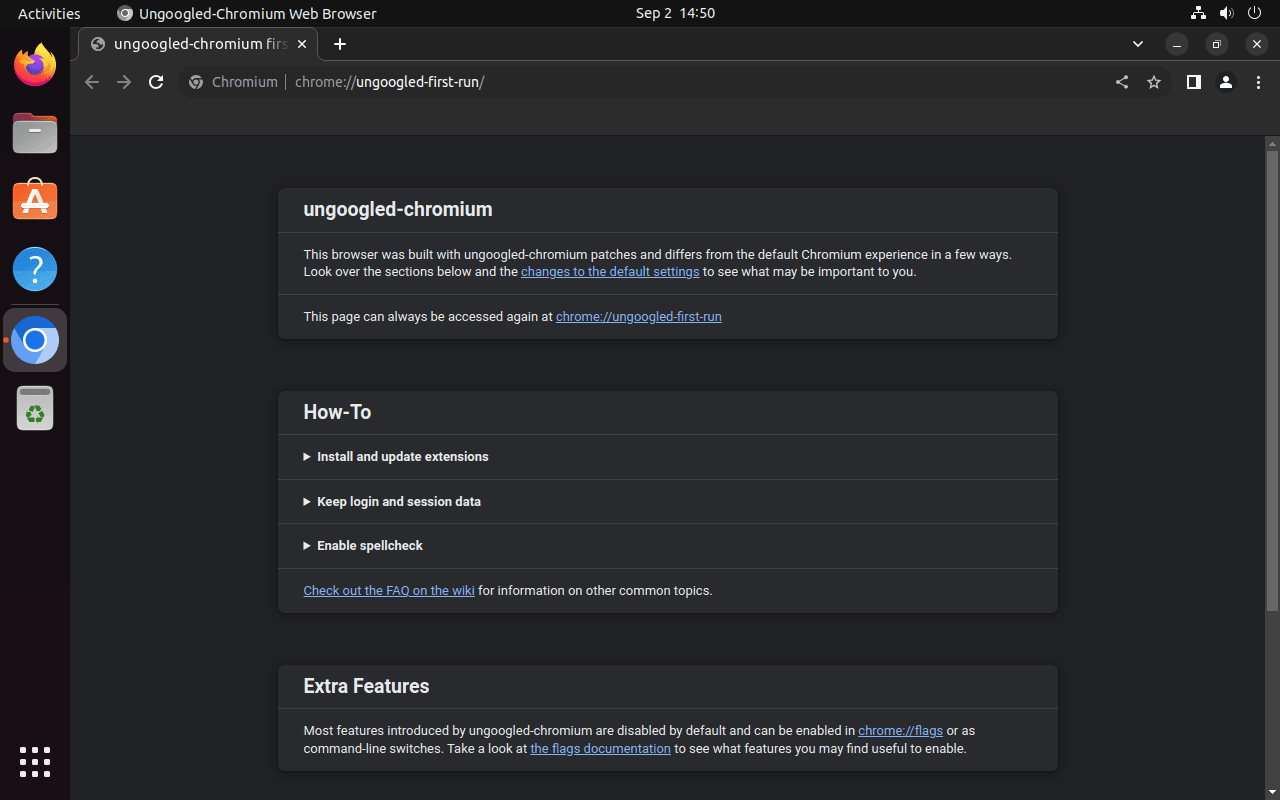
Launch from Applications Menu
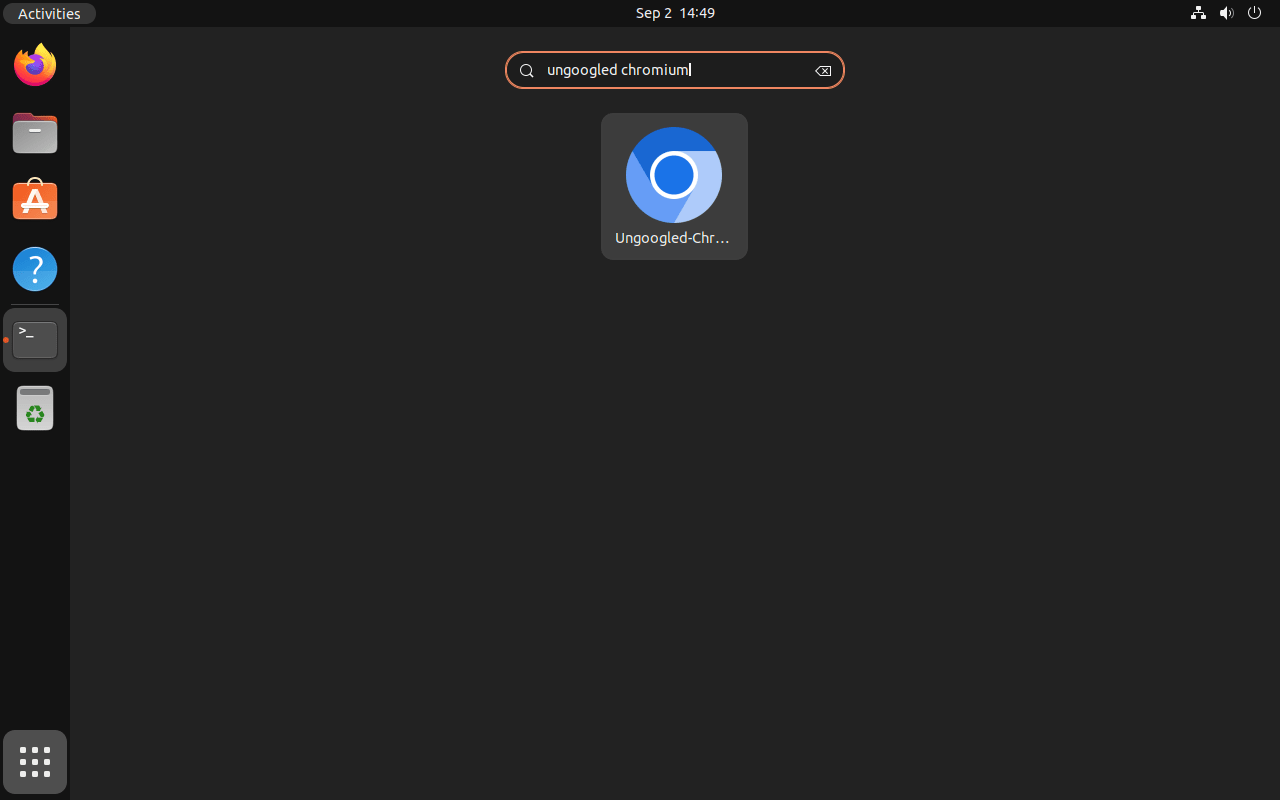
All three installation methods create a desktop entry. To launch graphically, open Activities, select Show Applications, and search for “Ungoogled Chromium.” The PPA package may display the launcher as “Ungoogled-Chromium Web Browser,” while the portable helper creates “Ungoogled Chromium Portable.”
Update and Remove Ungoogled Chromium
Update Ungoogled Chromium
Keep the browser updated through the same source you used for installation. Do not mix APT, Flatpak, and portable-helper update commands for the same install.
Update via APT (PPA Installation)
If you installed via the XtraDeb PPA, Ungoogled Chromium updates automatically when you run your regular system updates:
sudo apt update && sudo apt upgradeTo update only Ungoogled Chromium without upgrading other packages, use the --only-upgrade flag:
sudo apt install --only-upgrade ungoogled-chromiumUpdate via Flatpak
For Flatpak installations, update the Ungoogled Chromium app and its required runtime components with:
sudo flatpak update io.github.ungoogled_software.ungoogled_chromiumUpdate Portable Binary Installation
For the portable method, rerun the local helper. It resolves the current portable Linux build and verifies the SHA256 before replacing the files under /opt/ungoogled-chromium-portable:
sudo update-ungoogled-chromium-portableRemove Ungoogled Chromium
If you decide to remove Ungoogled Chromium, follow the instructions matching your installation method.
Remove APT Installation
Remove the Ungoogled Chromium package first:
sudo apt remove ungoogled-chromiumAfter package removal, review any orphaned dependencies APT offers to remove. Confirm the list belongs to packages you no longer need before accepting:
sudo apt autoremoveIf you added the XtraDeb PPA only for Ungoogled Chromium, remove the repository and the narrow pin file, then refresh APT:
sudo add-apt-repository --remove ppa:xtradeb/apps -y
sudo rm -f /etc/apt/preferences.d/ungoogled-chromium-pin
sudo apt update
If you installed other applications from the XtraDeb PPA, keep the repository and adjust the pin file for those packages instead of deleting the source outright. For more repository cleanup background, see the guide to remove a PPA from Ubuntu.
Remove Flatpak Installation
Remove the system-wide Flatpak app first:
sudo flatpak uninstall io.github.ungoogled_software.ungoogled_chromiumConfirm the app is no longer installed:
flatpak list --system --app --columns=application | grep -Fx io.github.ungoogled_software.ungoogled_chromium || echo "NOT_INSTALLED"After successful removal, the check should return:
NOT_INSTALLED
Removing the system app does not necessarily delete browser profile data under your user account. If you want to remove that data too, inspect the per-user Flatpak data directory first:
ls -ld "$HOME/.var/app/io.github.ungoogled_software.ungoogled_chromium"The next command permanently deletes the Ungoogled Chromium Flatpak profile for your current user, including browser settings and local profile data. Run it only after confirming you no longer need that data.
rm -rf -- "$HOME/.var/app/io.github.ungoogled_software.ungoogled_chromium"Then remove unused runtimes and extensions that no remaining Flatpak app needs:
sudo flatpak uninstall --unusedRemove Portable Binary Installation
Remove the portable wrapper, updater, desktop entry, icon files, AppArmor profile, and installed files when you no longer want the community binary method:
sudo rm -f /usr/local/bin/update-ungoogled-chromium-portable
sudo rm -f /usr/local/bin/ungoogled-chromium-portable
sudo rm -f /usr/share/applications/ungoogled-chromium-portable.desktop
sudo find /usr/share/icons/hicolor -path '*/apps/ungoogled-chromium-portable.png' -type f -delete
sudo rm -f /usr/share/pixmaps/ungoogled-chromium-portable.png

if command -v gtk-update-icon-cache >/dev/null 2>&1; then
    sudo gtk-update-icon-cache -q /usr/share/icons/hicolor >/dev/null 2>&1 || true
fi

if command -v update-desktop-database >/dev/null 2>&1; then
    sudo update-desktop-database /usr/share/applications >/dev/null 2>&1 || true
fi

if [ -f /etc/apparmor.d/opt.ungoogled-chromium-portable.chrome ]; then
    sudo apparmor_parser -R /etc/apparmor.d/opt.ungoogled-chromium-portable.chrome 2>/dev/null || true
    sudo rm -f /etc/apparmor.d/opt.ungoogled-chromium-portable.chrome
fi

sudo rm -rf /opt/ungoogled-chromium-portable
The portable wrapper keeps its browser profile separate from your normal Chromium profile. Inspect those directories before deleting them:
ls -ld "$HOME/.config/ungoogled-chromium-portable" \
       "$HOME/.config/ungoogled-chromium-portable-xdg" \
       "$HOME/.cache/ungoogled-chromium-portable" 2>/dev/null
The next command permanently deletes the portable browser profile, including local settings, cookies, cache, and any saved profile data. Run it only after confirming you no longer need that data.
rm -rf -- "$HOME/.config/ungoogled-chromium-portable" \
          "$HOME/.config/ungoogled-chromium-portable-xdg" \
          "$HOME/.cache/ungoogled-chromium-portable"
Troubleshooting Common Issues
Installing Extensions from Chrome Web Store
Ungoogled Chromium does not include Chrome Web Store integration by default. The Chromium Web Store extension can add Web Store browsing and semi-automatic extension updates, but review its README and permissions before installing it. You can also download CRX files manually and load them from chrome://extensions with Developer Mode enabled.
WebRTC Leak Testing
If WebRTC exposure matters for your threat model, test it after installation with your preferred leak-test site and review any flags or extensions you enable. Ungoogled Chromium removes Google integration, but browser privacy still depends on your settings, extensions, and network environment.
APT Cannot Locate the Ungoogled Chromium Package
If APT cannot locate ungoogled-chromium after adding the PPA, refresh your package metadata and check the package candidate:
sudo apt update
apt-cache policy ungoogled-chromium
The policy output should show a candidate from ppa.launchpadcontent.net/xtradeb/apps. If it does not, re-check that the PPA source exists, the pin file was created correctly, and you are using Ubuntu 26.04, 24.04, or 22.04. On unsupported Ubuntu releases or derivatives with different repository behavior, the Flatpak method is usually the safer fallback.
Portable Build Reports No Usable Sandbox
On Ubuntu releases that restrict unprivileged user namespaces through AppArmor, a direct portable Chromium launch can fail with a sandbox error. The portable helper avoids that by creating a profile for /opt/ungoogled-chromium-portable/chrome when kernel.apparmor_restrict_unprivileged_userns is enabled.
Check the current setting and verify that the profile file exists:
sysctl -n kernel.apparmor_restrict_unprivileged_userns
ls -l /etc/apparmor.d/opt.ungoogled-chromium-portable.chrome
If the sysctl returns 1 and the profile is missing or damaged, rerun the updater to recreate and reload it:
sudo update-ungoogled-chromium-portableDo not work around this by disabling AppArmor globally or changing the system-wide user-namespace sysctl for a browser. A narrow executable profile is safer and matches the behavior validated for the portable method.
Related Browser Resources
For project details and adjacent browser choices on Ubuntu, use these resources:
- Ungoogled Chromium project on GitHub – source code, issue tracker, and project documentation
- Install Brave Browser on Ubuntu – another privacy-focused Chromium-based browser with its own upstream repository
- Install Tor Browser on Ubuntu – separate browser for Tor network access
Conclusion
Ungoogled Chromium is installed on Ubuntu through the update path you chose: XtraDeb for APT-managed .deb packages, Flathub for the Flatpak app and runtime model, or the portable helper for the current community Linux tarball. Keep that source updated, avoid mixing install methods for the same browser profile, and switch to another browser guide only when you need a different privacy, extension, or packaging tradeoff.


thanks. this is the correct way for ubuntu 24.04
also xtradeb PPA is maintained by a trusted developer (https://github.com/ungoogled-software/ungoogled-chromium-debian/issues/344#issuecomment-2092643669)
for luna/jammy use: https://software.opensuse.org//download.html?project=home%3Aungoogled_chromium&package=ungoogled-chromium