E-book collections get messy quickly when EPUB reading, metadata cleanup, format conversion, and device syncing all live in separate tools. You can install Calibre on Fedora through DNF for Fedora-managed packages, upstream’s official binary installer for the current Linux release, or Flathub when a Flatpak workflow fits your desktop.
The package source matters after installation. DNF stays inside Fedora’s package database, the official installer owns files under /opt/calibre, and the Flatpak build runs from Flathub with broad host-file and device permissions rather than a tight sandbox.
Install Calibre on Fedora
Choose the package source first, then keep the matching update and removal commands for the rest of the workflow.
Choose a Calibre Installation Method on Fedora
The Fedora package is the cleanest default for most Workstation installs. Use the official binary installer when you want Calibre’s newest upstream Linux release, or use Flathub when you already manage desktop apps through Flatpak.
| Method | Source | Update Track | Best Fit |
|---|---|---|---|
| DNF package | Fedora repositories | Fedora package updates through dnf upgrade | Most users who want Fedora-managed packages and desktop integration |
| Official binary installer | Calibre upstream Linux download | Current upstream release through update-calibre-official | Readers who want the newest upstream Calibre build |
| Flatpak | Flathub | Flathub stable release through flatpak update | Flatpak users who prefer an app/runtime package path |
At the current Fedora 44 package snapshot, DNF provides Calibre 9.6, Flathub provides 9.7, and the official Linux installer provides 9.8. Treat those as version checkpoints, not fixed promises; each source can move forward with normal updates.
Update Fedora Before Installing Calibre
Refresh Fedora’s package metadata before the DNF or official-installer prerequisite steps. If DNF feels slow on your system, the guide on increasing DNF speed on Fedora covers the usual tuning options.
sudo dnf upgrade --refreshCommands that install packages, write to
/usr/local/bin, or change system Flatpak remotes needsudo. If your account is not ready for administrative commands yet, follow the guide on adding a user to sudoers on Fedora first.
Install Calibre from Fedora Repositories
The Fedora package keeps Calibre in the normal DNF workflow and exposes the desktop launchers plus terminal helpers such as ebook-convert and calibre-server. If you want a broader package-manager reference, see DNF5 install examples on Fedora.
sudo dnf install calibreVerify the installed Fedora package:
calibre --version
rpm -q calibre
command -v ebook-convert
Expected output on Fedora 44 shows the package branch and the helper command path:
calibre (calibre 9.6)
calibre-9.6.0-1.fc44.x86_64
/usr/bin/ebook-convert
Install Calibre with the Official Binary Installer
Calibre upstream’s Linux installer is the direct path to the newest official build. It installs into /opt/calibre, creates system command symlinks such as /usr/bin/calibre, and bundles Calibre’s runtime stack instead of using Fedora’s packaged Python and Qt libraries.
Install Official Installer Prerequisites
Install the tools and desktop libraries the upstream installer expects. Fedora may already have several of these packages on Workstation systems.
sudo dnf install wget xdg-utils xz python3 xcb-util-cursor libxkbcommon-x11 mesa-libEGL mesa-libGLThe installer is downloaded with wget; the wget command examples reference covers common download flags if you use the tool often.
Run the Official Calibre Installer
Download Calibre’s current Linux installer and pipe it to a root shell after a sudo check:
sudo -v && wget -nv -O- https://download.calibre-ebook.com/linux-installer.sh | sudo sh /dev/stdinThe installer downloads the matching 64-bit Linux tarball, checks the downloaded file, extracts Calibre into /opt/calibre, and creates the system launchers.
Add an Official Calibre Updater Command
The upstream installer also handles future updates. Add a short helper so you do not have to remember the full installer pipeline later:
sudo tee /usr/local/bin/update-calibre-official > /dev/null <<'EOF'
#!/usr/bin/env bash
set -euo pipefail

if ! command -v wget >/dev/null 2>&1; then
    printf 'wget is required. Install it with: sudo dnf install wget\n' >&2
    exit 1
fi

sudo -v
wget -nv -O- https://download.calibre-ebook.com/linux-installer.sh | sudo sh /dev/stdin
EOF
sudo chmod 755 /usr/local/bin/update-calibre-official
command -v update-calibre-official/usr/local/bin/update-calibre-official
Verify the Official Installer
Check the version and confirm the main commands are in your path:
calibre --version
command -v calibre
command -v ebook-convert
command -v calibre-uninstall
calibre (calibre 9.8) /usr/bin/calibre /usr/bin/ebook-convert /usr/bin/calibre-uninstall
Install Calibre from Flathub
The Flathub build is useful when you already use Flatpak for desktop apps. The current Flathub listing is not verified by Flathub and grants broad access such as host filesystem and device permissions, so treat this method as a packaging choice rather than a stronger isolation boundary.
Enable Flathub for Calibre
Fedora Workstation includes Flatpak, but Flathub is opt-in. Add the Flathub remote at system scope:
sudo flatpak remote-add --if-not-exists flathub https://dl.flathub.org/repo/flathub.flatpakrepoConfirm that the remote is available before installing Calibre:
flatpak remotes --columns=name,options | grep -E '^flathub[[:space:]]'flathub system
The grep filter narrows the remote list to Flathub; the grep command examples in Linux reference covers more filtering patterns.
Install the Calibre Flatpak
Install the Calibre app ID from Flathub. Flatpak may ask you to review runtime downloads and permissions before it proceeds.
sudo flatpak install flathub com.calibre_ebook.calibreVerify the Calibre Flatpak
Check the installed Flatpak record:
flatpak info com.calibre_ebook.calibreRelevant output includes:
ID: com.calibre_ebook.calibre
Version: 9.7.0
Installation: system
Runtime: org.freedesktop.Platform/x86_64/25.08
Review the Flatpak permissions when sandbox access matters to your workflow:
flatpak info --show-permissions com.calibre_ebook.calibreRelevant permission lines include:
devices=all;
filesystems=xdg-config/kdeglobals:ro;xdg-run/speech-dispatcher:ro;host;xdg-data/Trash;
Launch Calibre on Fedora
Open Calibre from the terminal or from Fedora’s application launcher after the install finishes.
Launch Calibre from the Terminal on Fedora
DNF and official binary installs expose the normal calibre command:
calibreStart the Flathub build through Flatpak:
flatpak run com.calibre_ebook.calibreUse Calibre Terminal Tools on Fedora
DNF and official binary installs also expose companion commands such as ebook-convert, ebook-viewer, calibredb, and calibre-server. Calibre-Web and Docker-based library stacks are separate server workflows; they are not required for the local Calibre desktop app or its built-in content server.
command -v ebook-convert calibre-server calibredb/usr/bin/ebook-convert /usr/bin/calibre-server /usr/bin/calibredb
Launch Calibre from Activities on Fedora
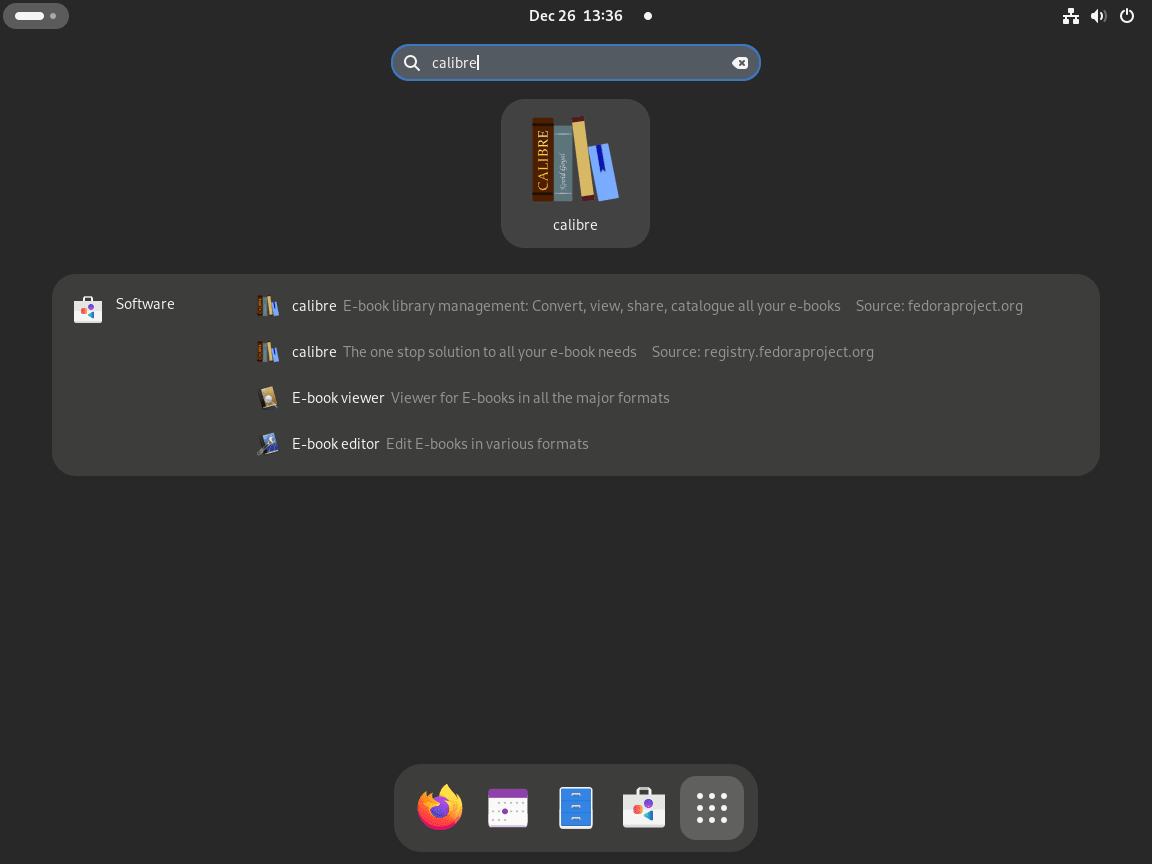
On Fedora GNOME, search for the app directly in Activities.
- Open Activities.
- Select Show Applications.
- Type Calibre in the search field.
- Open the Calibre launcher.
Complete the Calibre Setup Wizard on Fedora
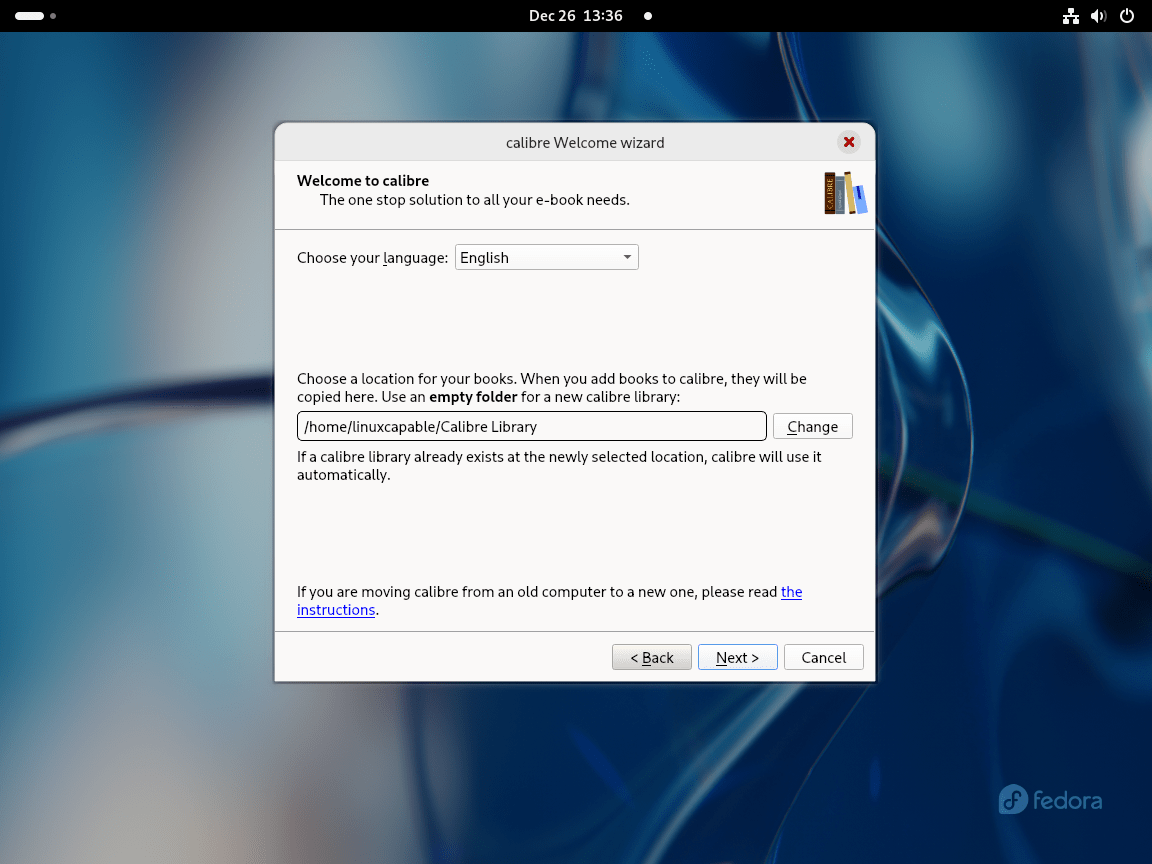
The first launch wizard sets the library location and device profile. These choices are easy to change later, so accept the defaults if you just want to start reading and organizing books.
Choose the Calibre Library Directory on Fedora
Calibre’s standard library folder is ~/Calibre Library/. Keep that default if you want the simplest layout, or point the wizard at a different location if you already store books on another drive.
- Default folder: Use
~/Calibre Library/when you want Calibre to manage everything in one place. - Custom folder: Select Change, browse to the target location, and confirm the new path.
Select an E-Reader Profile in Calibre
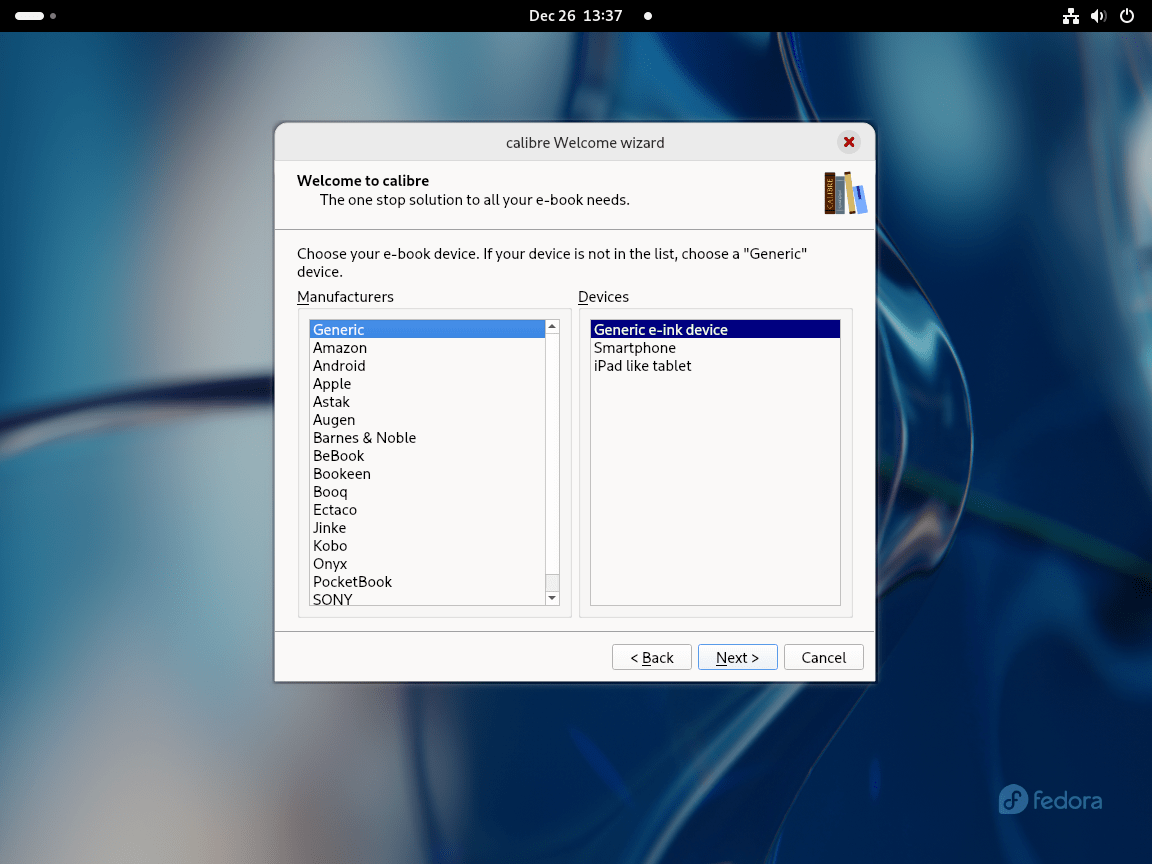
The device list adjusts conversion defaults for readers such as Kindle, Kobo, and Nook. Pick your exact device when it appears in the list, or use the generic profile when you are not sure yet.
- Generic profile: Use it when you have not chosen a device or when your reader is not listed.
- Specific profile: Choose your exact reader to get better defaults for format conversion and syncing.
Finish the Calibre Setup Wizard
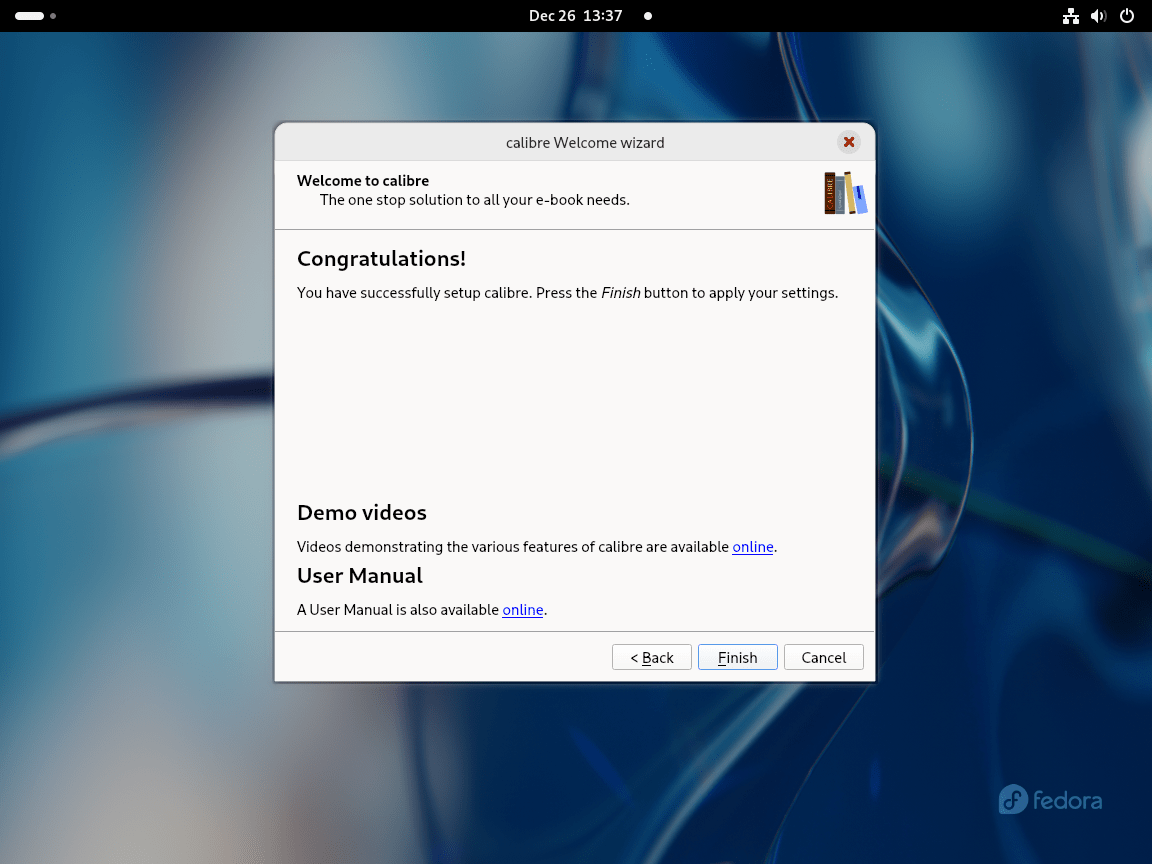
Review the summary, click Finish, and let Calibre open the main window. The bundled quick-start content in the library is useful if you want a fast tour of adding books, converting formats, and sending titles to a device.
Update Calibre on Fedora
Update Calibre with the same source used for installation.
Update the Fedora Package for Calibre
DNF updates Calibre with the rest of your Fedora packages.
sudo dnf upgrade --refreshUpdate the Official Binary Install
Run the helper created during the official installer method. It downloads the current upstream installer and refreshes the /opt/calibre build.
update-calibre-officialAfter the helper finishes, verify the refreshed upstream build:
calibre --versioncalibre (calibre 9.8)
Update the Flatpak Build of Calibre
Flatpak updates the Calibre app and any required runtimes from Flathub.
sudo flatpak update com.calibre_ebook.calibreRemove Calibre from Fedora
Remove the application with the source that installed it, then delete the library or settings only when you no longer need them.
Remove the Fedora Package for Calibre
DNF removes the Fedora package and its unused dependencies in the same transaction.
sudo dnf remove calibreVerify that Fedora no longer sees the package:
rpm -q calibrepackage calibre is not installed
Remove the Official Binary Install
The upstream uninstaller asks for confirmation in a real terminal, including whether to remove e-book format icons. Run it from your desktop terminal instead of a non-interactive SSH pipe.
sudo calibre-uninstallRemove the helper command and confirm the official installer commands are gone:
sudo rm -f /usr/local/bin/update-calibre-official
hash -r
command -v calibre || echo "official Calibre command removed"
command -v update-calibre-official || echo "updater command removed"
official Calibre command removed updater command removed
Remove the Flatpak Build of Calibre
Remove the Flathub app from the system Flatpak installation:
sudo flatpak uninstall com.calibre_ebook.calibreCheck that the Flatpak app ID is gone:
flatpak list --system --app --columns=application | grep -Fx com.calibre_ebook.calibre || echo "Calibre Flatpak removed"Calibre Flatpak removed
Remove unused runtimes only after you confirm no other Flatpak apps still need them. Flatpak may also report pinned runtimes or nothing unused.
sudo flatpak uninstall --unusedRemove Calibre Libraries and Settings on Fedora
Application removal does not delete your books automatically. Clean up the library or settings only after you confirm you no longer need the metadata database, covers, or imported books.
These commands permanently delete Calibre data. Back up any books or library folders you want to keep before you continue.
List the default Calibre data paths that exist for your account before deleting anything:
for path in "$HOME/Calibre Library" "$HOME/.config/calibre" "$HOME/.var/app/com.calibre_ebook.calibre"; do
    if [ -e "$path" ]; then
        printf '%s\n' "$path"
    fi
done
No output means those default paths are already absent. If the library path appears and you want to delete imported books, remove it with:
rm -rf "$HOME/Calibre Library"The Fedora package and official binary installer store settings under ~/.config/calibre/.
rm -rf "$HOME/.config/calibre"The Flatpak build stores sandbox data under ~/.var/app/com.calibre_ebook.calibre/.
rm -rf "$HOME/.var/app/com.calibre_ebook.calibre"Troubleshoot Calibre on Fedora
Most Calibre install problems on Fedora come from a missing prerequisite, a disabled Flatpak remote, or mixing commands from different install methods.
Official Installer Reports a Missing Library
If the official installer reports a missing XCB, OpenGL, or XKB library, rerun the Fedora prerequisite command and then repeat the installer.
sudo dnf install wget xdg-utils xz python3 xcb-util-cursor libxkbcommon-x11 mesa-libEGL mesa-libGLFlatpak Cannot Find Calibre on Flathub
If Flatpak reports that no refs match com.calibre_ebook.calibre or cannot load the Flathub summary, confirm that the Flathub remote exists and is enabled.
sudo flatpak remote-add --if-not-exists flathub https://dl.flathub.org/repo/flathub.flatpakrepo
sudo flatpak remote-modify --enable flathub
flatpak remotes --columns=name,options | grep -E '^flathub[[:space:]]'
flathub system
Flatpak Install Does Not Add the calibre Command
The Flatpak method does not add a host-side calibre command. Start that build with the Flatpak app ID instead.
flatpak run com.calibre_ebook.calibreConclusion
Calibre is ready on Fedora through the package source that best fits your update model: DNF for Fedora-managed packages, the official installer for the newest upstream build, or Flathub for Flatpak-managed desktops. Keep the cleanup commands aligned with that source, and back up the full Calibre library folder before deleting books or settings.


Formatting tips for your comment
You can use basic HTML to format your comment. Useful tags currently allowed in published comments:
<code>command</code>command<strong>bold</strong><em>italic</em><a href="https://example.com">link</a><blockquote>quote</blockquote>