

Audacious is a lightweight, open-source audio player descended from XMMS. It plays music without consuming excessive system resources, supports lossless audio formats like FLAC and OGG alongside common formats like MP3 and AAC, and offers both a modern GTK interface and classic Winamp skins. Audacious includes a built-in equalizer, gapless playback for live recordings and concept albums, internet radio streaming, and plugin support for visualizations and lyrics display.
Choose Your Audacious Installation Method
Ubuntu offers multiple ways to install Audacious, each with different trade-offs for version freshness, update management, and system integration.
| Method | Channel | Version | Updates | Best For |
|---|---|---|---|---|
| APT (Default) | Ubuntu Repos | Distribution default | Automatic via apt upgrade | Most users who prefer stability |
| APT (PPA) | ubuntuhandbook1 PPA | Latest stable | Automatic via apt upgrade | Users on 22.04/24.04 who want newer releases |
| Snap | Snapcraft | Latest stable | Automatic via snapd | Users who prefer sandboxed apps |
| Flatpak | Flathub | Latest stable | Automatic via flatpak update | Users who prefer Flatpak ecosystem |
For most users, the default APT method is recommended because it integrates with system updates and requires no additional configuration. The PPA provides newer Audacious releases for Ubuntu 22.04 and 24.04 LTS, though Ubuntu 26.04 already includes the latest version in its default repositories.
This guide covers Ubuntu 26.04 LTS, 24.04 LTS, and 22.04 LTS. All installation methods work identically across these releases unless noted otherwise.
Install Audacious via APT (Default Repository)
Ubuntu’s default repositories include a stable Audacious release that receives security updates through standard system maintenance. This method requires no additional repository configuration.
Refresh the package index and install Audacious with its plugins:
sudo apt update
sudo apt install audacious audacious-plugins
Verify the installation by checking the installed version:
audacious --versionAudacious 4.5.1 (Ubuntu package)
Version numbers vary by Ubuntu release: 26.04 includes 4.5.1, 24.04 includes 4.3.1, and 22.04 includes 4.1. All versions are functionally complete for everyday use.
Install Audacious via PPA (Newer Releases)
The ubuntuhandbook1 PPA provides the latest stable Audacious release. This PPA is maintained by Panda Jim, who runs the UbuntuHandbook tutorial site and maintains packages for many popular applications.
The PPA is most beneficial on Ubuntu 22.04 and 24.04 LTS, where it provides Audacious 4.5.1 compared to the older repository versions. Ubuntu 26.04 already includes 4.5.1 in its default repositories, so the PPA offers no version advantage on that release.
Add the PPA to your system:
sudo add-apt-repository ppa:ubuntuhandbook1/apps -yInstall Audacious and its plugins:
sudo apt install audacious audacious-pluginsVerify the PPA version is installed:
audacious --versionAudacious 4.5.1 (Ubuntu package)
Install Audacious via Snap
Snap provides Audacious in a sandboxed container with automatic background updates. Ubuntu includes Snap by default on standard desktop installations.
Install Audacious from the Snap Store:
sudo snap install audaciousaudacious 4.5.1 from Panda Jim (ubuntuhandbook1) installed
Verify the installation:
snap run audacious --versionAudacious 4.5.1 (Snapcraft)
If Snap is missing (minimal installations, WSL, or containers), install it with
sudo apt install snapd.
Install Audacious via Flatpak
Flatpak provides Audacious from Flathub with sandboxing and cross-distribution compatibility. Ubuntu does not include Flatpak by default, so you must install it first.
If Flatpak is not installed, follow our Flatpak installation guide for Ubuntu to set up Flatpak and the Flathub repository.
Install Audacious:
flatpak install flathub org.atheme.audacious -yVerify the installation:
flatpak run org.atheme.audacious --versionAudacious 4.5.1
Launch Audacious
After installation, launch Audacious from the terminal or the applications menu.
Launch from Terminal
The command depends on your installation method:
APT or PPA installation:
audaciousSnap installation:
snap run audaciousFlatpak installation:
flatpak run org.atheme.audaciousLaunch from Applications Menu
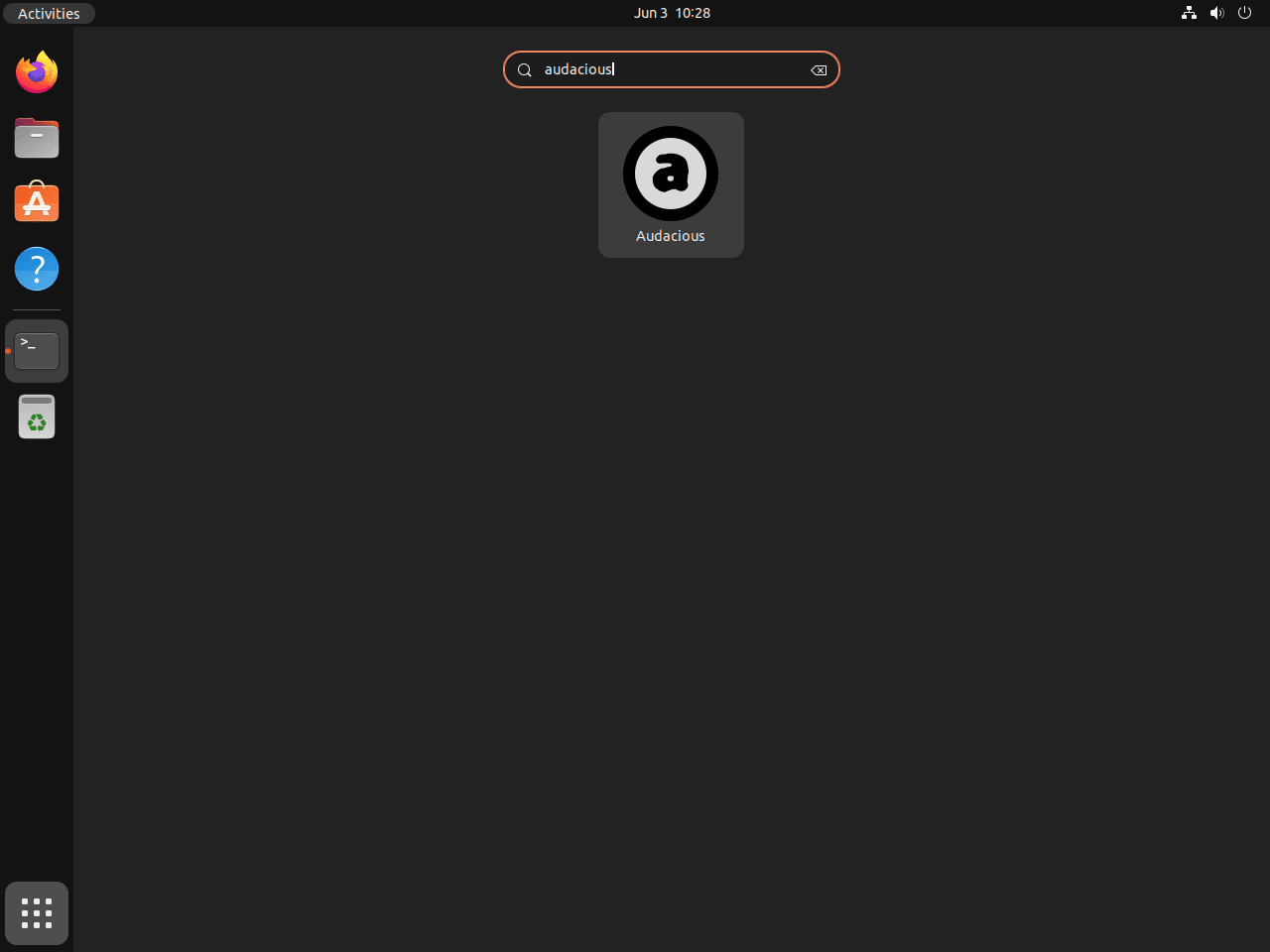
Open Activities, search for “Audacious”, and click the application icon. All installation methods create a desktop entry that appears in the applications menu.
Configure Audacious
Audacious works immediately after installation with sensible defaults. These configuration options help you customize the experience.
Switch Interface Modes
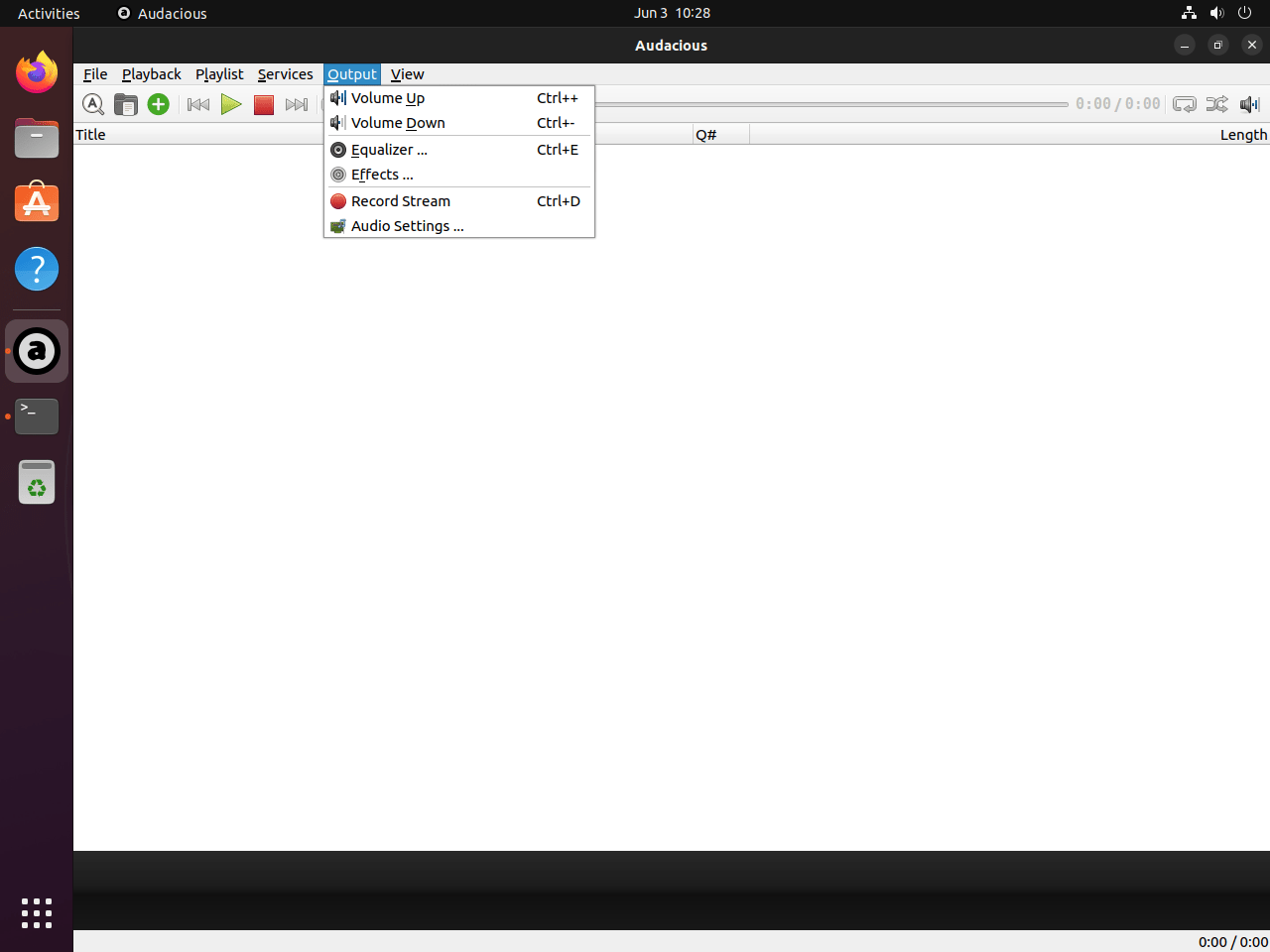
Audacious offers two interface modes: a modern GTK interface that matches your desktop theme, and a classic Winamp-style interface with skin support. Switch between them using View > Interface in the menu bar.
Configure the Equalizer
Access the built-in equalizer through View > Equalizer or press Ctrl+E. The equalizer includes presets for common genres and allows custom frequency adjustments to compensate for speaker or headphone characteristics.
Keyboard Shortcuts
Audacious supports keyboard shortcuts for playback control:
Ctrl+Ptoggles play and pauseCtrl+Nskips to the next trackCtrl+Breturns to the previous trackCtrl+Stoggles shuffle modeCtrl+Rtoggles repeat modeCtrl+UpandCtrl+Downadjust volume
Customize shortcuts through Settings > Preferences > Plugins > General > Global Hotkeys.
Update Audacious
Update methods differ by installation type.
APT and PPA Updates
Standard system updates include Audacious:
sudo apt update
sudo apt upgrade
Snap Updates
Snap automatically updates applications in the background. Force an immediate update with:
sudo snap refresh audaciousFlatpak Updates
Update all Flatpak applications:
flatpak updateRemove Audacious
Uninstall Audacious using the method that matches your installation.
Remove APT Installation
Remove Audacious and its plugins:
sudo apt remove audacious audacious-pluginsRemove orphaned dependencies:
sudo apt autoremoveIf you installed via the PPA and no longer need it, remove the repository:
sudo add-apt-repository --remove ppa:ubuntuhandbook1/apps -yRemove Snap Installation
sudo snap remove audaciousRemove Flatpak Installation
flatpak uninstall org.atheme.audaciousRemove User Configuration
The following command permanently deletes your Audacious settings, playlists, and equalizer presets. Back up
~/.config/audaciousfirst if you want to preserve these.
Remove Audacious configuration files:
rm -rf ~/.config/audaciousFor Flatpak installations, also remove the sandboxed data directory:
rm -rf ~/.var/app/org.atheme.audaciousConclusion
Audacious provides lightweight audio playback with support for lossless formats, an equalizer, gapless playback, and both modern and classic interfaces. The default APT installation suits most users, while the PPA delivers newer releases on older Ubuntu LTS versions. Snap and Flatpak offer sandboxed alternatives with automatic updates. Explore the plugins menu under Settings to enable visualizations, lyrics display, and additional audio effects.

Formatting tips for your comment
You can use basic HTML to format your comment. Useful tags currently allowed:
<code>command</code>command<strong>bold</strong><em>italic</em><blockquote>quote</blockquote>