Install Deluge on Ubuntu when you want a BitTorrent client that can run as a GTK desktop app, a browser-managed daemon, or a Flatpak app. The Ubuntu repository is the cleanest path on Ubuntu 26.04, while Ubuntu 24.04 and 22.04 can use the Deluge Team stable PPA when they need Deluge 2.2.0 through APT.
Flatpak and the headless deluged/deluge-web packages cover different workflows, so choose the package source before copying commands. Keep desktop, PPA, Flatpak, and server maintenance separate so update and cleanup commands stay aligned with the install path.
Install Deluge on Ubuntu
Choose the method that matches how you want Deluge to run. The package source affects the available version, update path, and web-interface management.
| Method | Source | Package or Ref | Updates | Best For |
|---|---|---|---|---|
| Ubuntu repository | Ubuntu Universe | Release package | Standard APT updates | Desktop installs, especially Ubuntu 26.04 |
| Stable PPA | Deluge Team Launchpad PPA | Deluge 2.2.0 on Ubuntu 24.04 and 22.04 | APT updates from the PPA | Newer Deluge on older supported LTS releases |
| Flatpak | Flathub | org.deluge_torrent.deluge 2.2.0 | flatpak update | Version-consistent desktop installs with Flatpak permissions |
| Headless packages | Ubuntu Universe | deluged and deluge-web | Standard APT updates | Ubuntu Server, NAS, and always-on torrent boxes |
Current package snapshot: Ubuntu 26.04 ships deluge 2.2.1~dev0+20250824-3 from Universe, Ubuntu 24.04 ships 2.1.2~dev0+20240121-1, Ubuntu 22.04 ships 2.0.3-3.1, and the stable PPA moves Ubuntu 24.04 and 22.04 to Deluge 2.2.0.
- Use the Ubuntu repository on 26.04 if you want the newest Ubuntu-packaged Deluge without adding another source.
- Use the stable PPA on Ubuntu 24.04 or 22.04 if you want Deluge 2.2.0 with normal APT updates.
- Use Flatpak if you want the same Flathub build on every supported Ubuntu LTS release and accept the package’s current permission/provenance tradeoffs.
- Use
delugedand Deluge Web when the machine runs without a graphical session and you plan to manage torrents from a browser.
These commands target Ubuntu 26.04, 24.04, and 22.04. The Ubuntu repository and Flatpak methods work on all three releases. The Deluge Team stable PPA publishes
nobleandjammybuilds but notresolute, so Ubuntu 26.04 should stay on the default repository. Headless packages install on all three LTS releases, but Ubuntu 22.04 needs a customdeluge-web.serviceunit for persistent Deluge Web management.
Update Ubuntu Before Installing Deluge
Refresh package metadata before you choose an installation method. Deluge and its server packages come from Ubuntu’s Universe component.
sudo apt update && sudo apt upgrade -yThese commands use
sudo. If your account is not in the sudoers file yet, follow the guide on add a new user to sudoers on Ubuntu first. Deluge only needs Universe, but the Ubuntu components guide shows how to re-enable it whenaptcannot find the package.
Install Deluge from Ubuntu’s Default Repository
The deluge package installs the GTK desktop client from Ubuntu Universe. On Ubuntu 26.04 it is also the newest Ubuntu-packaged option, so there is no reason to add a PPA there.
sudo apt install deluge -yVerify the installed package version with APT:
apt-cache policy delugedeluge:
Installed: 2.2.1~dev0+20250824-3
Candidate: 2.2.1~dev0+20250824-3
Version table:
*** 2.2.1~dev0+20250824-3 500
500 http://archive.ubuntu.com/ubuntu resolute/universe amd64 Packages
100 /var/lib/dpkg/status
Ubuntu 24.04 reports 2.1.2~dev0+20240121-1, and Ubuntu 22.04 reports 2.0.3-3.1. All three releases install the package from universe/net.
Install Deluge from the Stable PPA on Ubuntu 24.04 or 22.04
The Deluge Team’s stable Launchpad PPA is the right APT alternative when Ubuntu 24.04 or 22.04 needs a newer release than the default repository. Ubuntu 26.04 should skip this method because the PPA does not publish a resolute build and Ubuntu already packages a newer release there.
If you are looking for an official Ubuntu download, this is the upstream-documented path. The Deluge installation documentation points Ubuntu users to the stable Launchpad PPA rather than a standalone official .deb installer.
sudo apt install software-properties-common -yAdd the stable PPA only on Ubuntu 24.04 or 22.04. The guard prevents Ubuntu 26.04 from writing a broken resolute source.
. /etc/os-release
case "$VERSION_CODENAME" in
  noble|jammy)
    sudo add-apt-repository -y ppa:deluge-team/stable
    ;;
  *)
    printf 'The Deluge stable PPA does not publish packages for %s. Use the Ubuntu repository or Flatpak method instead.\n' "$VERSION_CODENAME"
    ;;
esac
Continue only when the command added the noble or jammy PPA source, then refresh the package index so Ubuntu reads the new Launchpad source:
sudo apt updateRelevant output includes: Hit:4 https://ppa.launchpadcontent.net/deluge-team/stable/ubuntu noble InRelease
Check that the PPA package is now the active candidate before installing:
apt-cache policy delugedeluge:
Installed: (none)
Candidate: 2.2.0-0~202504282307~ubuntu24.04.1
Version table:
2.2.0-0~202504282307~ubuntu24.04.1 500
500 https://ppa.launchpadcontent.net/deluge-team/stable/ubuntu noble/main amd64 Packages
2.1.2~dev0+20240121-1 500
500 http://archive.ubuntu.com/ubuntu noble/universe amd64 Packages
Ubuntu 22.04 sees the same stable PPA release line with the ubuntu22.04.1 suffix. Install Deluge after the candidate points to the PPA:
sudo apt install deluge -yInstall Deluge from Flathub on Ubuntu
Deluge Flatpak on Ubuntu is useful when you want the same Flathub build on every supported LTS release. Flathub currently lists the app as unverified and potentially unsafe; its metadata grants network and display access plus access to the Downloads folder, so treat this as a packaging and update-cadence choice rather than a stronger provenance claim.
Flatpak is not pre-installed on Ubuntu. If you have not set it up yet, follow the guide to install Flatpak on Ubuntu before continuing.
Add Flathub at system scope so every user on the machine can access the same remote:
sudo flatpak remote-add --if-not-exists flathub https://dl.flathub.org/repo/flathub.flatpakrepoVerify the remote before installing Deluge:
flatpak remotesflathub system
Install the Deluge Flatpak:
sudo flatpak install flathub org.deluge_torrent.deluge -yCheck the installed build with Flatpak’s metadata view:
flatpak info org.deluge_torrent.delugeRelevant output includes:
Deluge - A fully-featured BitTorrent Client
ID: org.deluge_torrent.deluge
Ref: app/org.deluge_torrent.deluge/x86_64/stable
Branch: stable
Origin: flathub
Version: 2.2.0
The current Flathub build is Deluge 2.2.0 and installs at system scope in this workflow.
Install Deluge Headless on Ubuntu
The headless stack uses deluged for torrent handling and Deluge Web for browser access. This method fits Ubuntu Server, NAS hosts, and always-on seedboxes where the desktop client is not needed.
sudo apt install deluged deluge-web -yEnable Deluge Services on Ubuntu 26.04 or 24.04
Ubuntu 26.04 and 24.04 ship both systemd units, so you can enable the daemon and the web interface directly.
sudo systemctl enable --now deluged
sudo systemctl enable --now deluge-web
sleep 3
systemctl is-active deluged deluge-web
ss -lntp | grep ':8112'
active active LISTEN 0 50 0.0.0.0:8112 0.0.0.0:*
For broader output-filtering patterns, see grep command in Linux with examples.
Create a Deluge Web Service on Ubuntu 22.04
Ubuntu 22.04 installs deluged with a generated systemd service, but the deluge-web package does not include deluge-web.service. Create a small unit that runs Deluge Web as the package-managed debian-deluged user and uses the same /var/lib/deluged/config path as the daemon.
sudo systemctl enable --now deluged

sudo tee /etc/systemd/system/deluge-web.service > /dev/null <<'EOF'
[Unit]
Description=Deluge Bittorrent Client Web Interface
Documentation=man:deluge-web
After=deluged.service
Wants=deluged.service

[Service]
Type=simple
UMask=027
User=debian-deluged
Group=debian-deluged
ExecStart=/usr/bin/deluge-web -d -c /var/lib/deluged/config
Restart=on-failure

[Install]
WantedBy=multi-user.target
EOF

sudo systemctl daemon-reload
sudo systemctl enable --now deluge-web
sleep 3
systemctl is-active deluged deluge-web
ss -lntp | grep ':8112'
active active LISTEN 0 50 0.0.0.0:8112 0.0.0.0:*
Open Deluge Web on Ubuntu
Deluge Web listens on TCP port 8112 by default. Open the interface from another machine with the server IP address and that port.
http://your-server-ip:8112
If the server uses a firewall, allow that port before testing remote access. The guide to install and configure UFW on Ubuntu covers the broader firewall workflow.
sudo ufw allow 8112/tcpLaunch Deluge on Ubuntu Desktop
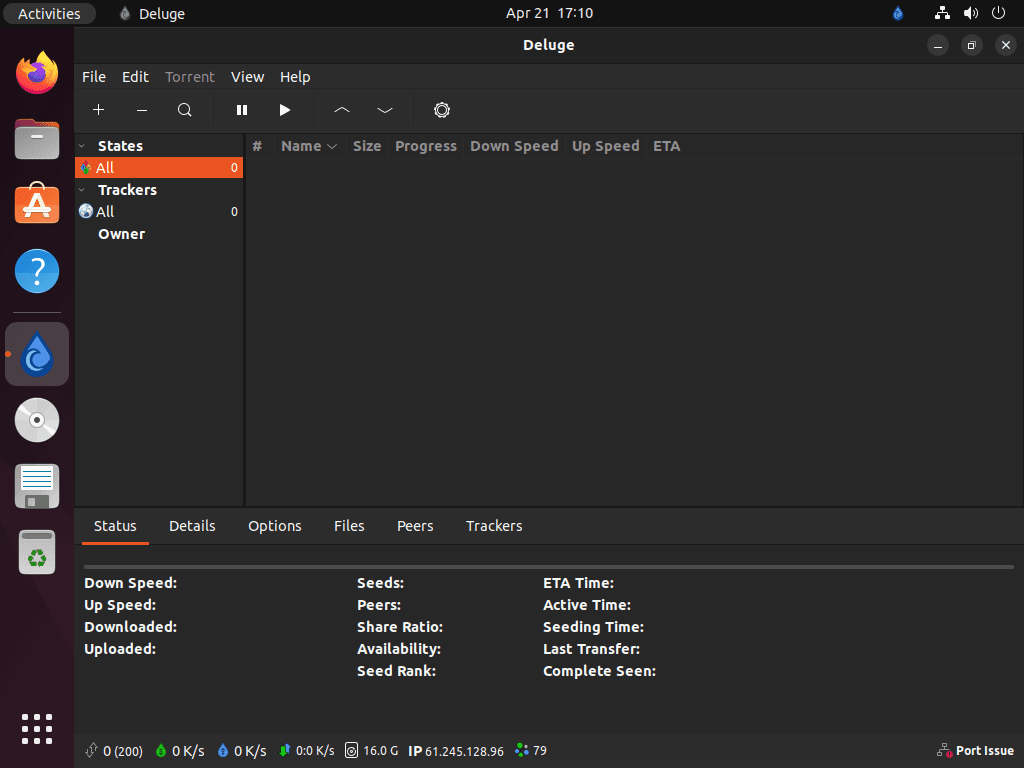
The desktop client still needs an active graphical session even though the package installs cleanly from a terminal. Use the command that matches your package source, or start Deluge from the applications menu.
Launch the Deluge Desktop Client on Ubuntu
APT and PPA installs launch with the same command name. Flatpak uses its application ID instead, and Ubuntu packages the text interface separately as deluge-console rather than bundling it with the GTK client.
APT or stable PPA install:
delugeFlatpak install:
flatpak run org.deluge_torrent.delugeYou can also press the Super key, search for Deluge, and launch it from the applications menu.
If you need Deluge’s text interface, install the companion console package from the same APT source as your desktop or PPA install:
sudo apt install deluge-console -y
deluge-console --help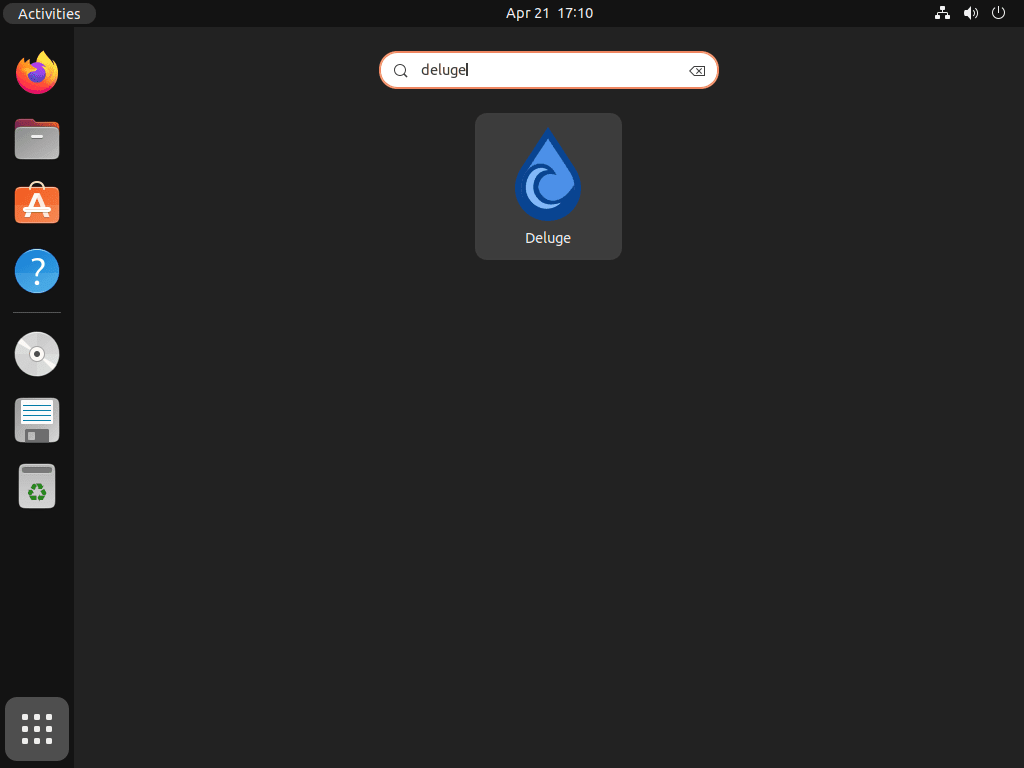
Troubleshoot Deluge on Ubuntu
The most common problems are a missing Universe package source and a web UI that never starts listening on port 8112. Start with those checks before digging into torrent-level issues.
Fix Missing Deluge Packages on Ubuntu
If apt install deluge returns Unable to locate package, Universe is usually disabled. Re-enable it, refresh APT, and confirm that Deluge now has a candidate version.
sudo add-apt-repository universe -y
sudo apt update
apt-cache policy deluge
Relevant output includes: deluge: Installed: (none) Candidate: 2.2.1~dev0+20250824-3
Fix Deluge Web on Ubuntu 22.04
Ubuntu 22.04 does not include a packaged deluge-web.service, so systemctl enable --now deluge-web fails until you create the unit from the headless setup section. Confirm the service list before recreating it.
systemctl list-unit-files 'deluge*'
systemctl is-active deluged deluge-web
ss -lntp | grep ':8112'
Relevant output after the Ubuntu 22.04 unit is created: deluge-web.service enabled enabled deluged.service generated - active active LISTEN 0 50 0.0.0.0:8112 0.0.0.0:*
Update or Remove Deluge on Ubuntu
APT, the stable PPA, and Flatpak each have their own maintenance path. Keep the command aligned with the package source you used during installation.
Update Deluge on Ubuntu
Use the matching update command for the package source on your system:
APT or stable PPA desktop install:
sudo apt install --only-upgrade deluge -yHeadless packages:
sudo apt install --only-upgrade deluged deluge-web -yFlatpak install:
sudo flatpak update org.deluge_torrent.deluge -yRemove Deluge APT Packages on Ubuntu
Remove the desktop, console, or headless APT packages first. If you used the stable PPA, drop the Launchpad source afterward so APT falls back to Ubuntu Universe.
Desktop package:
sudo apt remove deluge deluge-gtk -yConsole package, if installed separately:
sudo apt remove deluge-console -yHeadless packages:
sudo systemctl disable --now deluge-web 2>/dev/null || true
sudo systemctl disable --now deluged 2>/dev/null || true
if sudo grep -q '/usr/bin/deluge-web -d -c /var/lib/deluged/config' /etc/systemd/system/deluge-web.service 2>/dev/null; then
  sudo rm -f /etc/systemd/system/deluge-web.service
  sudo systemctl daemon-reload
fi
sudo apt remove deluged deluge-web -y
Confirm that no active Deluge APT package remains installed. This check filters for installed packages instead of relying on command lookup or repository candidates. Shared dependencies such as deluge-common can remain until the optional autoremove review below, and removed package configuration can still exist until you purge it.
dpkg-query -W -f='${db:Status-Abbrev} ${binary:Package}\n' deluge deluge-gtk deluged deluge-web deluge-console 2>/dev/null | grep '^ii' || echo "not installed"not installed
If you removed the Ubuntu 22.04 headless packages and want to clear package-owned service configuration too, purge those packages after backing up any daemon state you still need. The purge removes the old init-script configuration that can keep a generated deluged.service visible after a plain package removal.
sudo apt purge deluged deluge-web -y
systemctl list-unit-files 'deluge*' --no-legend
No output from the service-list command means no Deluge service unit remains registered.
If the stable PPA was part of your install, remove it and refresh APT. Ubuntu 22.04 can leave helper-generated trust files behind after the PPA source is removed, so the rm -f lines clean those exact Deluge Team files when they exist.
sudo add-apt-repository --remove -y ppa:deluge-team/stable
sudo rm -f /etc/apt/trusted.gpg.d/deluge-team-ubuntu-stable.gpg
sudo rm -f /etc/apt/trusted.gpg.d/deluge-team-ubuntu-stable.gpg~
sudo apt update
Check that the package is gone and that the candidate version now comes from Ubuntu again:
apt-cache policy delugeRelevant output includes: deluge: Installed: (none) Candidate: 2.1.2~dev0+20240121-1
Review optional dependency cleanup separately. Continue only if the dry run lists Deluge-related packages that you no longer need.
sudo apt autoremove --dry-runsudo apt autoremoveRemove Deluge Flatpak on Ubuntu
Flatpak removal is separate from APT and does not touch the Ubuntu packages.
sudo flatpak remove org.deluge_torrent.deluge -y
flatpak list --system --app --columns=application | grep -Fx org.deluge_torrent.deluge || echo "not installed"
not installed
If Deluge was the only app using some Flatpak runtimes, review unused runtime cleanup separately. Leave the command interactive so you can see what Flatpak plans to remove.
sudo flatpak uninstall --unusedRemove Deluge Data on Ubuntu
These cleanup steps delete saved torrents, authentication data, and Deluge settings if the directories still exist. Back up anything you want to keep before removing the profile.
Native desktop launches usually store user settings under ~/.config/deluge, while Flatpak stores per-user data under ~/.var/app/org.deluge_torrent.deluge. Check which paths exist before removing anything manually:
find "$HOME" -maxdepth 3 \( -path "$HOME/.config/deluge" -o -path "$HOME/.var/app/org.deluge_torrent.deluge" \) -printDelete only the paths the check prints on your system. If it prints nothing, there is nothing else to remove for that account.
rm -rf "$HOME/.config/deluge"If the check also prints the Flatpak sandbox path, remove it separately:
rm -rf "$HOME/.var/app/org.deluge_torrent.deluge"For the headless service method, check the service-owned paths separately before deleting server-side state:
sudo find /var/lib/deluged /var/log/deluged -maxdepth 0 -print 2>/dev/nullIf those paths remain and you want to delete the daemon configuration, logs, and authentication data, remove them explicitly:
sudo rm -rf /var/lib/deluged /var/log/delugedConclusion
Deluge is running on Ubuntu with the package source that fits your release, whether that is the default repository on 26.04, the stable PPA on 24.04 or 22.04, or Flathub across all three LTS releases. If you want a different BitTorrent workflow on the same distro, install qBittorrent on Ubuntu for built-in search and RSS support, or install KTorrent on Ubuntu for a KDE-focused desktop client.


Formatting tips for your comment
You can use basic HTML to format your comment. Useful tags currently allowed in published comments:
<code>command</code>command<strong>bold</strong><em>italic</em><a href="https://example.com">link</a><blockquote>quote</blockquote>