
Krita gives Ubuntu users several workable install paths, but the package source changes both the version line and the update owner. Install Krita on Ubuntu from the distro repositories for APT-managed packaging, use the official AppImage for Krita’s current production AppImage line, or choose Flatpak or Snap when you prefer store-managed desktop packages.
Krita is built for digital painting, concept art, comics, texture work, and 2D animation rather than general photo retouching. The Krita 5.3.2 release notes list the 5.3.2 AppImage as suitable for productive work and the 6.0.2 Qt 6 line as more experimental, so the best Ubuntu method depends on whether you want distro packaging, the official stable AppImage, or store-managed updates.
Install Krita on Ubuntu
Krita is available through Ubuntu’s repositories, KDE’s official AppImage downloads, Flathub, and Snapcraft. The best choice depends on whether you want Ubuntu-managed packages, the official AppImage stable channel, Flathub packaging, or a package format you already use elsewhere on your system.
| Method | Channel | Release Track | Updates | Best For |
|---|---|---|---|---|
| APT | Ubuntu Packages | Distribution package | Managed through APT | Ubuntu-managed installs and readers who prefer distro packages over store remotes |
| AppImage | Krita downloads | Official stable AppImage | Managed by a local updater helper | Readers who want Krita’s current official 5.3.2 production AppImage outside APT, Flatpak, and Snap |
| Flatpak | Flathub | Flathub stable | Managed through Flatpak | Readers who want Flathub packaging and can accept that the Flathub channel may trail the official AppImage |
| Snap | Snapcraft | Store stable channel | Automatic background refreshes | Ubuntu users who already rely on snapd and accept Snap’s current channel cadence |
Ubuntu’s own package changes by release: Ubuntu 26.04 currently provides Krita 1:6.0.1~ufsg-0ubuntu2, Ubuntu 24.04 provides 1:5.2.2+dfsg-2build8, and Ubuntu 22.04 provides 1:5.0.2+dfsg-1build1. KDE’s stable AppImage metadata currently resolves to Krita 5.3.2, Flathub currently lists Krita 5.3.1, and the Snap stable channel currently ships Krita 5.2.11.
No Krita PPA is needed for these Ubuntu install paths. For most Ubuntu users, the practical choices are the Ubuntu package, the official AppImage with a local updater helper, the Flathub package, or the Snap package.
- Choose APT if you want Krita managed entirely through Ubuntu’s package tools and you are comfortable with the version that ships for your release.
- Choose AppImage if you want Krita’s official stable 5.3.2 Linux build and are comfortable maintaining a per-user download outside Ubuntu’s package database.
- Choose Flatpak if you want Flathub packaging and updates across Ubuntu 26.04, 24.04, and 22.04 without managing AppImage files yourself.
- Choose Snap if you already use snapd and prefer automatic background refreshes, even when the Snap stable channel trails the official download and Flathub builds.
Install Krita from Ubuntu Repositories
The APT method keeps Krita inside Ubuntu’s package manager and installs the translation pack at the same time. Ubuntu 26.04 currently carries a newer 6.0.1 package, while Ubuntu 24.04 and 22.04 stay on older 5.x packages.
sudo apt update && sudo apt upgradeThese commands use
sudofor system changes. If your account does not have sudo access yet, follow add a new user to sudoers on Ubuntu. Krita also comes from Ubuntu’suniversecomponent, so if APT cannot find the package, enable Universe and Multiverse on Ubuntu first.
sudo apt install krita krita-l10n -yUse dpkg-query here instead of krita --version. Krita is a GUI application, and the version flag aborts in a headless session with Qt display errors.
dpkg-query -W -f='${db:Status-Abbrev} ${binary:Package} ${Version}\n' krita krita-data krita-l10nExpected output on Ubuntu 26.04:
ii  krita 1:6.0.1~ufsg-0ubuntu2
ii  krita-data 1:6.0.1~ufsg-0ubuntu2
ii  krita-l10n 1:6.0.1~ufsg-0ubuntu2
Ubuntu 24.04 shows 1:5.2.2+dfsg-2build8 for all three packages, and Ubuntu 22.04 shows 1:5.0.2+dfsg-1build1. If you prefer Krita’s official 5.3.2 stable AppImage line, use the AppImage method instead.
Install Krita from AppImage
The AppImage method follows KDE’s stable AppImage metadata, downloads the current Linux 64-bit AppImage, checks the published SHA-1 from the zsync file, verifies the matching .sig file with Krita’s release signing key, and creates a stable krita-appimage launch command. Use this method when you specifically want the official AppImage outside Ubuntu’s package database.
Install the helper dependencies first. Ubuntu 26.04 and 24.04 use libfuse2t64 for FUSE 2 AppImage compatibility, while Ubuntu 22.04 uses libfuse2.
sudo apt update
. /etc/os-release
case "$VERSION_ID" in
    26.04|24.04) sudo apt install curl ca-certificates gnupg libfuse2t64 -y ;;
    22.04) sudo apt install curl ca-certificates gnupg libfuse2 -y ;;
    *) echo "Check the FUSE 2 compatibility package for your Ubuntu release." ;;
esac
Create a reusable updater command under ~/.local/bin. The script intentionally follows KDE’s stable zsync metadata instead of hardcoding one versioned download URL, so future Krita AppImage updates only require rerunning update-krita-appimage.
mkdir -p "$HOME/.local/bin"
helper_path="$HOME/.local/bin/update-krita-appimage"
helper_marker="linuxcapable-krita-appimage-helper"
if [ -e "$helper_path" ] && ! grep -q "$helper_marker" "$helper_path"; then
    printf 'Refusing to replace existing helper without the expected marker: %s\n' "$helper_path" >&2
else
    cat <<'EOF' > "$helper_path"
#!/usr/bin/env bash
# linuxcapable-krita-appimage-helper
set -euo pipefail

metadata_url="https://download.kde.org/stable/krita/updates/Krita-Stable-x86_64.appimage.zsync"
key_url="https://files.kde.org/krita/dmitry_kazakov.gpg"
expected_fingerprint="E9FB29E74ADEACC5E3035B8AB69EB4CF7468332F"
helper_marker="linuxcapable-krita-appimage-helper"
install_dir="${HOME}/.local/share/krita-appimage"
bin_dir="${HOME}/.local/bin"
bin_path="${bin_dir}/krita-appimage"
desktop_dir="${HOME}/.local/share/applications"
desktop_file="${desktop_dir}/krita-appimage.desktop"
keyring_dir="${install_dir}/keys"
keyring="${keyring_dir}/krita-release-signing-key.gpg"

require_commands() {
    local missing=0
    for cmd in awk curl find gpg grep install ln mkdir mktemp readlink rm sha1sum; do
        if ! command -v "$cmd" >/dev/null 2>&1; then
            printf 'Missing required command: %s\n' "$cmd" >&2
            missing=1
        fi
    done
    if [ "$missing" -ne 0 ]; then
        printf 'Install the missing commands, then rerun this updater.\n' >&2
        exit 1
    fi
}

fetch_field() {
    awk -F': ' -v key="$1" '$1 == key { print $2; exit }' "$metadata"
}

cleanup() {
    rm -rf "$work_dir"
}

require_commands
mkdir -p "$install_dir" "$bin_dir" "$desktop_dir" "$keyring_dir"
if [ -e "$bin_path" ] && [ ! -L "$bin_path" ]; then
    printf 'Refusing to replace non-symlink path: %s\n' "$bin_path" >&2
    exit 1
fi
if [ -L "$bin_path" ]; then
    current_link_target="$(readlink -f "$bin_path" || true)"
    case "$current_link_target" in
    "$install_dir"/* | "") ;;
    *)
        printf 'Refusing to replace symlink outside %s: %s\n' "$install_dir" "$bin_path" >&2
        exit 1
        ;;
    esac
fi
if [ -e "$desktop_file" ] && ! grep -q "$helper_marker" "$desktop_file"; then
    printf 'Refusing to replace existing desktop entry without the expected marker: %s\n' "$desktop_file" >&2
    exit 1
fi
work_dir="$(mktemp -d)"
trap cleanup EXIT
metadata="${work_dir}/Krita-Stable-x86_64.appimage.zsync"
appimage_tmp="${work_dir}/krita.AppImage"
signature_tmp="${appimage_tmp}.sig"
key_tmp="${work_dir}/krita-release-key.gpg"

printf 'Fetching Krita stable metadata...\n'
curl -fsSL "$metadata_url" -o "$metadata"
filename="$(fetch_field Filename)"
appimage_url="$(fetch_field URL)"
expected_sha1="$(fetch_field SHA-1)"

if [ -z "$filename" ] || [ -z "$appimage_url" ] || [ -z "$expected_sha1" ]; then
    printf 'KDE metadata did not include Filename, URL, and SHA-1 fields.\n' >&2
    exit 1
fi
case "$appimage_url" in
https://download.kde.org/stable/krita/*) ;;
*)
    printf 'Unexpected AppImage URL in KDE metadata: %s\n' "$appimage_url" >&2
    exit 1
    ;;
esac

target_path="${install_dir}/${filename}"
downloaded=no
if [ -f "$target_path" ]; then
    current_sha1="$(sha1sum "$target_path" | awk '{ print $1 }')"
    if [ "$current_sha1" = "$expected_sha1" ]; then
        printf 'Krita AppImage is already current: %s\n' "$filename"
    else
        printf 'Existing AppImage checksum changed; downloading a fresh copy.\n'
        rm -f "$target_path"
    fi
fi

verify_path="$target_path"
if [ ! -f "$target_path" ]; then
    printf 'Downloading %s...\n' "$filename"
    curl -fL "$appimage_url" -o "$appimage_tmp"
    actual_sha1="$(sha1sum "$appimage_tmp" | awk '{ print $1 }')"
    if [ "$actual_sha1" != "$expected_sha1" ]; then
        printf 'Checksum mismatch for %s.\n' "$filename" >&2
        exit 1
    fi
    verify_path="$appimage_tmp"
    downloaded=yes
fi

printf 'Checking Krita release signing key...\n'
curl -fsSL "$key_url" -o "$key_tmp"
key_fingerprint="$(gpg --show-keys --with-colons "$key_tmp" | awk -F: '$1 == "fpr" { print $10; exit }')"
if [ "$key_fingerprint" != "$expected_fingerprint" ]; then
    printf 'Unexpected signing key fingerprint: %s\n' "$key_fingerprint" >&2
    exit 1
fi
gpg --batch --yes --no-default-keyring --keyring "$keyring" --import "$key_tmp" >/dev/null

printf 'Verifying GPG signature...\n'
curl -fsSL "${appimage_url}.sig" -o "$signature_tmp"
gpg --batch --no-default-keyring --keyring "$keyring" --verify "$signature_tmp" "$verify_path"

if [ "$downloaded" = yes ]; then
    install -m 0755 "$appimage_tmp" "$target_path"
fi

if [ -e "$bin_path" ] && [ ! -L "$bin_path" ]; then
    printf 'Refusing to replace non-symlink path: %s\n' "$bin_path" >&2
    exit 1
fi
if [ -L "$bin_path" ]; then
    current_link_target="$(readlink -f "$bin_path" || true)"
    case "$current_link_target" in
    "$install_dir"/* | "") ;;
    *)
        printf 'Refusing to replace symlink outside %s: %s\n' "$install_dir" "$bin_path" >&2
        exit 1
        ;;
    esac
fi
ln -sfn "$target_path" "$bin_path"

find "$install_dir" -maxdepth 1 -type f -name 'krita-*-x86_64.AppImage' ! -name "$filename" -exec rm -f {} +

escaped_bin_path="${bin_path//\\/\\\\}"
escaped_bin_path="${escaped_bin_path//\"/\\\"}"
if [ -e "$desktop_file" ] && ! grep -q "$helper_marker" "$desktop_file"; then
    printf 'Refusing to replace existing desktop entry without the expected marker: %s\n' "$desktop_file" >&2
    exit 1
fi
cat >"$desktop_file" <<DESKTOP
[Desktop Entry]
# linuxcapable-krita-appimage-helper
Type=Application
Name=Krita AppImage
Comment=Digital painting and illustration
Exec="${escaped_bin_path}" %U
Icon=krita
Terminal=false
Categories=Graphics;2DGraphics;RasterGraphics;
MimeType=application/x-krita;image/openraster;
DESKTOP

update-desktop-database "$desktop_dir" >/dev/null 2>&1 || true
printf 'Installed Krita AppImage: %s\n' "$target_path"
printf 'Launch command: %s\n' "$bin_path"
EOF
    chmod +x "$helper_path"
    case ":$PATH:" in
        *":$HOME/.local/bin:"*) ;;
        *) export PATH="$HOME/.local/bin:$PATH" ;;
    esac
    hash -r
fi
Confirm that the updater command is visible in the current shell and matches the helper created by the setup block. If the setup block printed a refusal message, rename the existing file before rerunning the block instead of overwriting it manually.
if helper_path="$(command -v update-krita-appimage)"; then
    printf '%s\n' "$helper_path"
    grep -q "linuxcapable-krita-appimage-helper" "$helper_path" && echo "helper marker found"
else
    echo "helper not found"
fi
The command should print the helper path under your account’s ~/.local/bin directory, followed by helper marker found.
Download or update the AppImage. On the current stable metadata, the helper resolves to krita-5.3.2-x86_64.AppImage.
update-krita-appimageThe first run downloads the AppImage and ends with the installed file path and launch command.
Fetching Krita stable metadata...
Downloading krita-5.3.2-x86_64.AppImage...
Checking Krita release signing key...
Verifying GPG signature...
Installed Krita AppImage: /home/username/.local/share/krita-appimage/krita-5.3.2-x86_64.AppImage
Launch command: /home/username/.local/bin/krita-appimage
After the helper finishes, verify that the stable launcher points to a downloaded AppImage file under your account.
readlink -f "$HOME/.local/bin/krita-appimage"The resolved path should be under $HOME/.local/share/krita-appimage/. Open a new terminal if krita-appimage is not on $PATH after creating ~/.local/bin for the first time.
Install Krita from Flathub
The Flathub build gives Ubuntu 26.04, 24.04, and 22.04 the same Krita package line through Flatpak. It is the cleanest store-managed choice when you prefer Flathub updates over a local AppImage helper, but the Flathub channel can trail KDE’s official AppImage download.
Flatpak is not pre-installed on Ubuntu. If you have not set it up yet, follow install Flatpak on Ubuntu before continuing.
sudo flatpak remote-add --if-not-exists flathub https://dl.flathub.org/repo/flathub.flatpakrepoConfirm that Flathub exists at system scope before you install Krita from it.
flatpak remotes --columns=name,options | grep '^flathub'Expected output:
flathub system
sudo flatpak install flathub org.kde.krita -yAfter the install finishes, flatpak info gives you a stable verification command that works for GUI apps without trying to open the desktop session.
flatpak info org.kde.kritaRelevant output includes:
Krita - Digital Painting, Creative Freedom

          ID: org.kde.krita
         Ref: app/org.kde.krita/x86_64/stable
        Arch: x86_64
      Branch: stable
     Version: 5.3.1
     License: GPL-3.0-only
      Origin: flathub
Installation: system
Install Krita from Snap Store
The Snap build is another self-contained package with automatic background refreshes. Standard Ubuntu desktop installs already include snapd, but minimal or customized systems may need it installed first. The Snap stable channel currently trails Flathub and the official AppImage, so treat it as a convenience option rather than the freshest Krita package.
If your system reports snap: command not found, install snapd first.
sudo apt update && sudo apt install snapd -yThen install Krita from the Snap Store.
sudo snap install kritaUse snap list to confirm the installed revision and tracking channel.
snap list kritaRelevant current output includes:
Name   Version  Rev  Tracking       Publisher  Notes
krita  5.2.11   109  latest/stable  krita**    -
The version and revision can change as the Snap publisher updates the stable channel. The key checks are the latest/stable tracking channel and the verified krita** publisher marker.
Launch Krita on Ubuntu
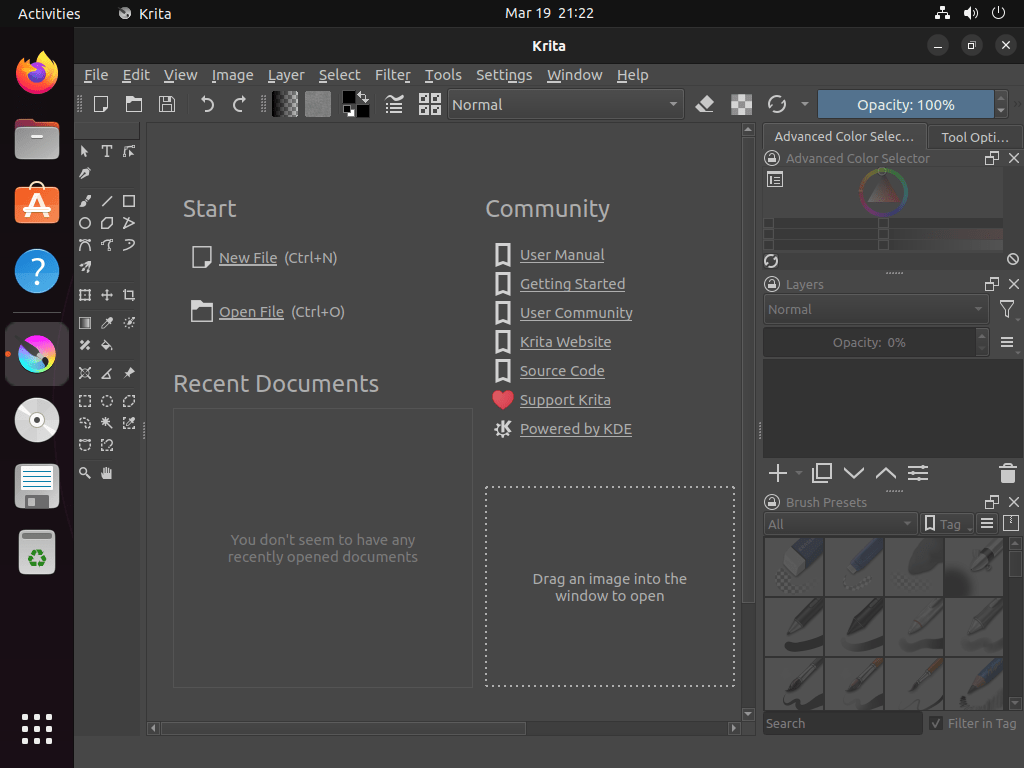
Krita installs from the terminal, but it still needs an active graphical session when you open the application. The launch command depends on the package format you used.
Launch Krita from the Terminal on Ubuntu
Run the command that matches your installation method.
APT package:
kritaAppImage helper:
krita-appimageFlatpak package:
flatpak run org.kde.kritaSnap package:
snap run kritaLaunch Krita from Ubuntu’s Applications Menu
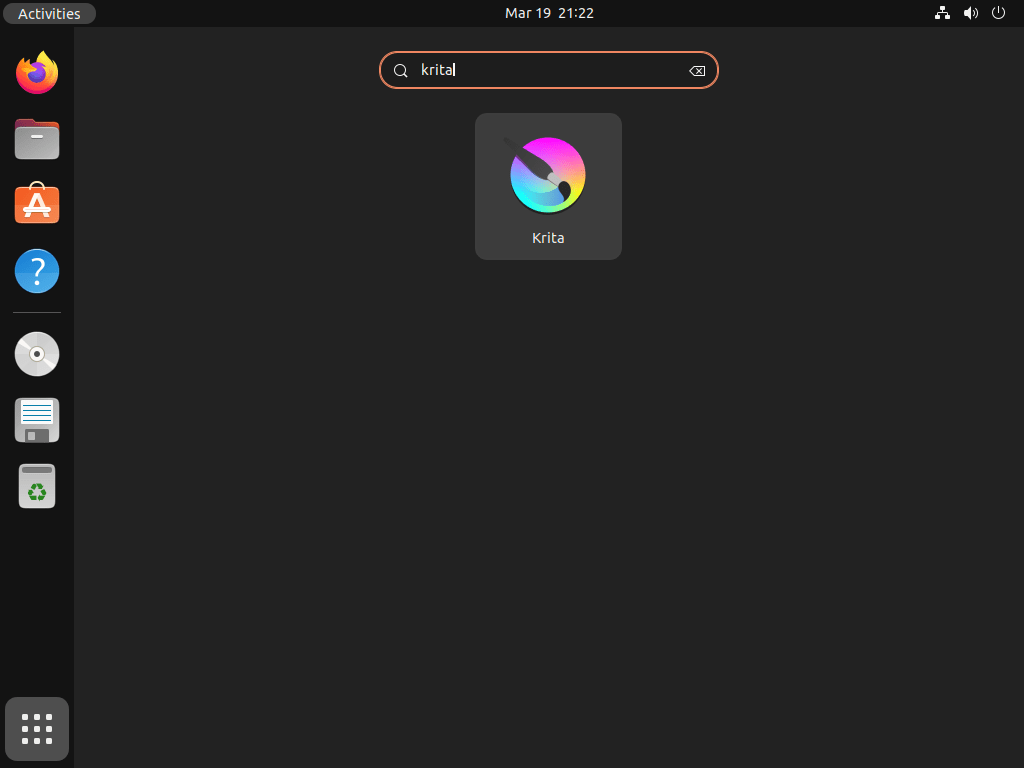
Open the Ubuntu applications menu, then look for Krita. On GNOME desktops, the usual path is Activities > Show Apps > Krita. The AppImage helper creates a Krita AppImage desktop entry so it does not have to overwrite launchers from APT, Flatpak, or Snap.
If you use Krita regularly, add it to your dock or favorites menu so the launcher stays one click away.
Update or Remove Krita on Ubuntu
Use the management command that matches the package format you installed. Krita’s update and removal workflow is straightforward once you stay inside the same package manager.
Update Krita on Ubuntu
APT, AppImage, Flatpak, and Snap each update Krita through the source that installed it.
APT package:
sudo apt update && sudo apt install --only-upgrade krita krita-l10n -yAppImage helper:
update-krita-appimageWhen the installed AppImage already matches KDE’s stable metadata, the updater reports the current file and still verifies the signature.
Krita AppImage is already current: krita-5.3.2-x86_64.AppImage
Flatpak package:
sudo flatpak update org.kde.krita -ySnap package:
sudo snap refresh kritaRemove Krita on Ubuntu
Remove Krita with the package manager that installed it, then verify the package state before you clean up any leftover user files.
APT package:
sudo apt remove krita krita-l10n -yConfirm that the main packages are no longer installed before you clean up unused dependencies.
dpkg-query -W -f='${db:Status-Abbrev} ${binary:Package}\n' krita krita-l10n 2>/dev/null | grep '^ii' || echo "not installed"Expected output:
not installed
Preview dependency cleanup next. Continue only if APT lists packages that belong to Krita or other software you already meant to remove.
sudo apt autoremove --dry-runIf the preview only lists packages you intend to remove, run the cleanup interactively:
sudo apt autoremoveAppImage helper:
List the AppImage helper files before deleting them.
for path in "$HOME/.local/bin/krita-appimage" "$HOME/.local/bin/update-krita-appimage" "$HOME/.local/share/krita-appimage" "$HOME/.local/share/applications/krita-appimage.desktop"; do
    [ -e "$path" ] && printf '%s\n' "$path"
done
The next command removes the downloaded AppImage, the updater helper, and the AppImage desktop entry for your account. It skips helper and launcher files that do not match the marker written by the setup block, and it does not remove drawings or Krita profile data unless you also run the separate user-data cleanup later.
install_dir="$HOME/.local/share/krita-appimage"
bin_path="$HOME/.local/bin/krita-appimage"
helper_path="$HOME/.local/bin/update-krita-appimage"
desktop_file="$HOME/.local/share/applications/krita-appimage.desktop"
helper_marker="linuxcapable-krita-appimage-helper"

if [ -L "$bin_path" ]; then
    link_target="$(readlink -f "$bin_path" || true)"
    case "$link_target" in
    "$install_dir"/* | "") rm -f "$bin_path" ;;
    *) printf 'Skipping symlink outside %s: %s\n' "$install_dir" "$bin_path" >&2 ;;
    esac
elif [ -e "$bin_path" ]; then
    printf 'Skipping non-symlink launch path: %s\n' "$bin_path" >&2
fi

if [ -f "$helper_path" ] && grep -q "$helper_marker" "$helper_path"; then
    rm -f "$helper_path"
elif [ -e "$helper_path" ]; then
    printf 'Skipping helper without the expected marker: %s\n' "$helper_path" >&2
fi

if [ -f "$desktop_file" ] && grep -q "$helper_marker" "$desktop_file"; then
    rm -f "$desktop_file"
elif [ -e "$desktop_file" ]; then
    printf 'Skipping desktop entry without the expected marker: %s\n' "$desktop_file" >&2
fi

rm -rf "$install_dir"
hash -r
update-desktop-database "$HOME/.local/share/applications" >/dev/null 2>&1 || true
[ ! -e "$HOME/.local/bin/krita-appimage" ] && [ ! -e "$HOME/.local/bin/update-krita-appimage" ] && [ ! -e "$HOME/.local/share/krita-appimage" ] && [ ! -e "$HOME/.local/share/applications/krita-appimage.desktop" ] && echo "not installed"Expected output:
not installed
Flatpak package:
sudo flatpak uninstall org.kde.krita -yflatpak list --app --columns=application | grep -Fx org.kde.krita || echo "not installed"Expected output:
not installed
After the app is gone, clean up unused Flatpak runtimes interactively.
sudo flatpak uninstall --unusedSnap package:
sudo snap remove --purge kritasnap list krita 2>/dev/null || echo "not installed"Expected output:
not installed
Krita does not create its user-data directories until you launch the application. If you want a clean reset after using Krita, check which paths actually exist first instead of deleting them blindly.
for path in "$HOME/.config/krita" "$HOME/.local/share/krita" "$HOME/.var/app/org.kde.krita" "$HOME/snap/krita"; do
    [ -e "$path" ] && printf '%s\n' "$path"
done
If the command prints one or more paths, remove only the locations you actually want to clear.
rm -rf "$HOME/.config/krita" "$HOME/.local/share/krita" "$HOME/.var/app/org.kde.krita" "$HOME/snap/krita"Troubleshoot Krita on Ubuntu
Most Ubuntu-side Krita problems come down to package visibility, graphics-stack issues, or package-format permissions. Start with the package manager and permission checks before you assume Krita itself is broken.
Fix Missing Krita Packages on Ubuntu
If APT returns Unable to locate package krita, Ubuntu usually cannot see the universe component yet. Check the package record first, then enable Universe if the candidate is missing.
apt-cache policy kritaA healthy Ubuntu package source shows a real Candidate value instead of (none). The exact version changes by release.
krita:
  Installed: (none)
  Candidate: 1:6.0.1~ufsg-0ubuntu2
This example matches Ubuntu 26.04. If the candidate stays empty on your release, follow enable Universe and Multiverse on Ubuntu, refresh APT, and check again.
Fix Krita AppImage Launch or Update Failures on Ubuntu
If krita-appimage does not launch, check that the AppImage helper exists and that the release-appropriate FUSE 2 compatibility package is available. A missing FUSE 2 library is a common cause of AppImage launch failures on fresh Ubuntu installs.
command -v krita-appimage
. /etc/os-release
case "$VERSION_ID" in
    26.04|24.04) apt-cache policy libfuse2t64 ;;
    22.04) apt-cache policy libfuse2 ;;
esac
If the FUSE package is missing, install the package for your Ubuntu release and rerun the updater so the launcher and desktop entry are refreshed.
. /etc/os-release
case "$VERSION_ID" in
    26.04|24.04) sudo apt install libfuse2t64 -y ;;
    22.04) sudo apt install libfuse2 -y ;;
esac
update-krita-appimage
If the updater stops at the signing-key or signature step, do not run the partially downloaded file. Re-run update-krita-appimage after confirming your network can reach download.kde.org and files.kde.org.
Check Krita Flatpak Permissions on Ubuntu
If the Flatpak build cannot see files, GPU access, or desktop integration you expect, inspect the live permission set before you add overrides. Krita’s current Flathub package already requests host filesystem access and DRI device access.
flatpak info --show-permissions org.kde.kritaRelevant output includes:
[Context]
shared=network;ipc;
sockets=x11;pulseaudio;
devices=dri;
filesystems=host;xdg-run/gvfs;
If the permissions already look like this, Krita has broad filesystem and DRI device access, so do not treat the Flatpak package as a tight sandbox. When Krita still renders slowly or falls back to software rendering, upgrade Mesa drivers on Ubuntu before you dig deeper into the app package.
Conclusion
Krita is installed on Ubuntu through the package workflow you chose: APT for distro-managed packages, AppImage for KDE’s official stable download, Flatpak for Flathub updates, or Snap for snapd-managed refreshes. For deeper workspace tuning, the official Krita manual is the best next stop. For companion tools, install GIMP on Ubuntu covers photo editing and install Inkscape on Ubuntu covers vector work.


Formatting tips for your comment
You can use basic HTML to format your comment. Useful tags currently allowed in published comments:
<code>command</code>command<strong>bold</strong><em>italic</em><a href="https://example.com">link</a><blockquote>quote</blockquote>