
digiKam helps you turn a loose folder of photos into a searchable desktop library with tags, ratings, metadata editing, geotagging, face recognition, and RAW workflow tools. This guide shows how to install digiKam on Ubuntu 26.04, 24.04, or 22.04 with APT, the official AppImage, Flatpak, or Snap, then covers launch commands, first-run setup, updates, troubleshooting, and clean removal. No PPA is needed because Ubuntu already packages digiKam in the Universe repository component.
Install digiKam on Ubuntu
Start with a standard package index refresh, then choose your installation method below.
Update Ubuntu Before Installing digiKam
sudo apt update && sudo apt upgradeThis guide uses
sudofor commands that require elevated privileges. If your account is not configured forsudo, follow the LinuxCapable guide on how to add a new user to sudoers on Ubuntu.
Install digiKam with APT (Recommended)
The APT method is the most stable option for Ubuntu desktop users and integrates cleanly with system libraries.
digiKam is packaged in Ubuntu’s
universecomponent. If a customized or minimal system cannot find the package, enable the component first with the LinuxCapable guide on how to enable Universe and Multiverse on Ubuntu.
sudo apt install digikamVerify the APT digiKam Installation
dpkg-query -W -f='${Package} ${Version}\n' digikamOn Ubuntu 26.04, current output includes the 9.0 package branch. Ubuntu 24.04 and 22.04 show their own repository versions, as listed in the comparison section.
digikam 4:9.0.0-0ubuntu1
Choose Your digiKam Installation Method on Ubuntu
Use this comparison table to choose the right digiKam installation channel for your workflow.
| Method | Source | Channel | Updates | Best Fit |
|---|---|---|---|---|
| APT | Ubuntu Universe | Ubuntu release package | Through normal APT updates | Most users who want the lowest maintenance path |
| Official AppImage | digiKam download page | Current upstream Linux AppImage | Manual replacement | Users who want the official portable bundle |
| Flatpak | Flathub | Flathub stable | Through Flatpak updates | Users who want a sandboxed store package and Flathub’s release cadence |
| Snap | Snapcraft (KDE publisher) | latest/stable | Automatic Snap refreshes | Users already using Snap packages |
For most users, the APT method is recommended because it has the lowest maintenance cost and tracks Ubuntu package updates. Use the official AppImage or Flatpak when you prefer an upstream or store-managed release cadence, especially on older Ubuntu LTS releases where the APT package trails the current 9.0 branch.
Compare Default digiKam Versions by Ubuntu Release
APT package versions differ by Ubuntu release, while Flatpak and Snap use their own distribution channels.
| Ubuntu Release | Default digiKam Package | Repository | Notes |
|---|---|---|---|
| Ubuntu 26.04 | 4:9.0.x | resolute/universe | Current Ubuntu default package branch |
| Ubuntu 24.04 | 4:8.2.x | noble-updates/universe | Stable LTS branch with updates |
| Ubuntu 22.04 | 4:7.5.x | jammy/universe | Older LTS branch |
The install commands are the same across Ubuntu 26.04, 24.04, and 22.04, but APT delivers different digiKam versions by release.
Download the Official digiKam AppImage on Ubuntu
The official digiKam download page currently publishes a Linux x86_64 AppImage for digiKam 9.0.0. Use this method when you want the upstream portable bundle instead of a package-manager installation.
The official Linux download is an AppImage, not a native Ubuntu .deb installer. Use APT when you want a native Ubuntu package, or use the AppImage when you want the upstream portable bundle.
The current AppImage requires glibc 2.31 or newer. Ubuntu 26.04, 24.04, and 22.04 meet that requirement. If the AppImage does not start, install the FUSE compatibility package for your Ubuntu release.
On Ubuntu 26.04 or 24.04, install the FUSE compatibility package and curl:
sudo apt install libfuse2t64 curlOn Ubuntu 22.04, use the older FUSE package name:
sudo apt install libfuse2 curlDownload the AppImage and its SHA256 checksum into ~/Applications:
mkdir -p "$HOME/Applications"
cd "$HOME/Applications"
DIGIKAM_VERSION="9.0.0"
DIGIKAM_FILE="digiKam-${DIGIKAM_VERSION}-Qt6-x86-64.appimage"
curl -fLO "https://download.kde.org/stable/digikam/${DIGIKAM_VERSION}/${DIGIKAM_FILE}"
curl -fLO "https://download.kde.org/stable/digikam/${DIGIKAM_VERSION}/${DIGIKAM_FILE}.sha256"
sha256sum -c "${DIGIKAM_FILE}.sha256"
chmod +x "$DIGIKAM_FILE"
ln -sfn "$DIGIKAM_FILE" digiKam.AppImage
digiKam-9.0.0-Qt6-x86-64.appimage: OK
Start the AppImage from the same folder or use the stable symlink created above:
"$HOME/Applications/digiKam.AppImage"The AppImage is a direct upstream download, so it does not update through APT, Flatpak, or Snap. Replace the file when digiKam publishes a newer AppImage.
Create a digiKam AppImage Update Helper on Ubuntu
If you plan to use the AppImage long term, create a memorable helper command named update-digikam. The helper reads KDE’s stable digiKam directory, selects the newest stable version folder, downloads the matching Qt6 x86_64 AppImage and SHA256 file, verifies the checksum, installs the file in ~/Applications, and refreshes the digiKam.AppImage symlink. Older AppImage files stay in place so you can roll back manually if needed.
sudo tee /usr/local/bin/update-digikam > /dev/null <<'EOF'
#!/usr/bin/env bash
set -euo pipefail

base_url="https://download.kde.org/stable/digikam"
app_dir="$HOME/Applications"
mkdir -p "$app_dir"

if ! command -v curl >/dev/null 2>&1; then
  echo "curl is required. Install it with: sudo apt install curl"
  exit 1
fi

version="$(
  curl -fsSL "$base_url/" |
    awk '{
      while (match($0, /href="[0-9]+\.[0-9]+\.[0-9]+\//)) {
        version = substr($0, RSTART + 6, RLENGTH - 6)
        sub(/\/$/, "", version)
        print version
        $0 = substr($0, RSTART + RLENGTH)
      }
    }' |
    sort -V |
    tail -n 1
)"

if [ -z "$version" ]; then
  echo "Could not resolve the latest stable digiKam AppImage version."
  exit 1
fi

file_name="digiKam-${version}-Qt6-x86-64.appimage"
appimage_url="$base_url/$version/$file_name"
checksum_url="$appimage_url.sha256"
tmp_dir="$(mktemp -d)"
trap 'rm -rf "$tmp_dir"' EXIT

echo "Resolved digiKam AppImage $version"
curl -fL --progress-bar -o "$tmp_dir/$file_name.sha256" "$checksum_url"
expected_sum="$(awk '{print $1; exit}' "$tmp_dir/$file_name.sha256")"

if [ -z "$expected_sum" ]; then
  echo "Checksum file did not contain a SHA256 value."
  exit 1
fi

target_file="$app_dir/$file_name"

if [ -f "$target_file" ]; then
  current_sum="$(sha256sum "$target_file" | awk '{print $1}')"
  if [ "$current_sum" = "$expected_sum" ]; then
    chmod +x "$target_file"
    ln -sfn "$file_name" "$app_dir/digiKam.AppImage"
    echo "digiKam AppImage $version is already current."
    echo "Launcher: $app_dir/digiKam.AppImage"
    exit 0
  fi
fi

curl -fL --progress-bar -o "$tmp_dir/$file_name" "$appimage_url"
(
  cd "$tmp_dir"
  sha256sum -c "$file_name.sha256"
)
install -m 755 "$tmp_dir/$file_name" "$target_file"
ln -sfn "$file_name" "$app_dir/digiKam.AppImage"
echo "Installed digiKam AppImage $version."
echo "Launcher: $app_dir/digiKam.AppImage"
EOF

sudo chmod +x /usr/local/bin/update-digikam
Run the helper once after creating it. The command prints the resolved version, the checksum result, and the launcher path.
update-digikamInstall digiKam with Flatpak on Ubuntu
Flatpak is not installed by default on Ubuntu. The package comes from the Universe component, and the LinuxCapable guide on how to install Flatpak on Ubuntu covers the desktop-session details if you need a fuller walkthrough.
sudo apt install flatpaksudo flatpak remote-add --if-not-exists --system flathub https://flathub.org/repo/flathub.flatpakrepoThe --system flag installs the Flathub remote for all local users, which matches the system-wide Flatpak commands used in this guide.
flatpak remotes --system | grep flathubflathub system
sudo flatpak install --system flathub org.kde.digikamflatpak list --app --system --columns=application,version,branch,installation | grep '^org.kde.digikam'org.kde.digikam 9.0.0 stable system
Install digiKam with Snap on Ubuntu
Ubuntu includes Snap by default on standard installations. If
snapis missing in minimal, WSL, or container environments, install it first withsudo apt install snapd.
sudo snap install digikamsnap list digikamName Version Rev Tracking Publisher Notes digikam 8.8.0 103 latest/stable kde** -
Snap versions and revisions can change as the store refreshes. Confirm the row exists and the Tracking column shows latest/stable.
Use digiKam Source Code on Ubuntu
If you need a development build, plugin development workflow, or contribution checkout, follow the upstream digiKam Git build documentation. Source builds are advanced, can change when digiKam updates its Qt or KDE Frameworks requirements, and are usually unnecessary for normal Ubuntu desktop installs.
Launch digiKam on Ubuntu
Use the launch command that matches your install method.
Launch digiKam from Terminal on Ubuntu
APT installs use the standard command name:
digikamAppImage launch command:
"$HOME/Applications/digiKam.AppImage"Flatpak launch command:
flatpak run org.kde.digikamSnap launch command:
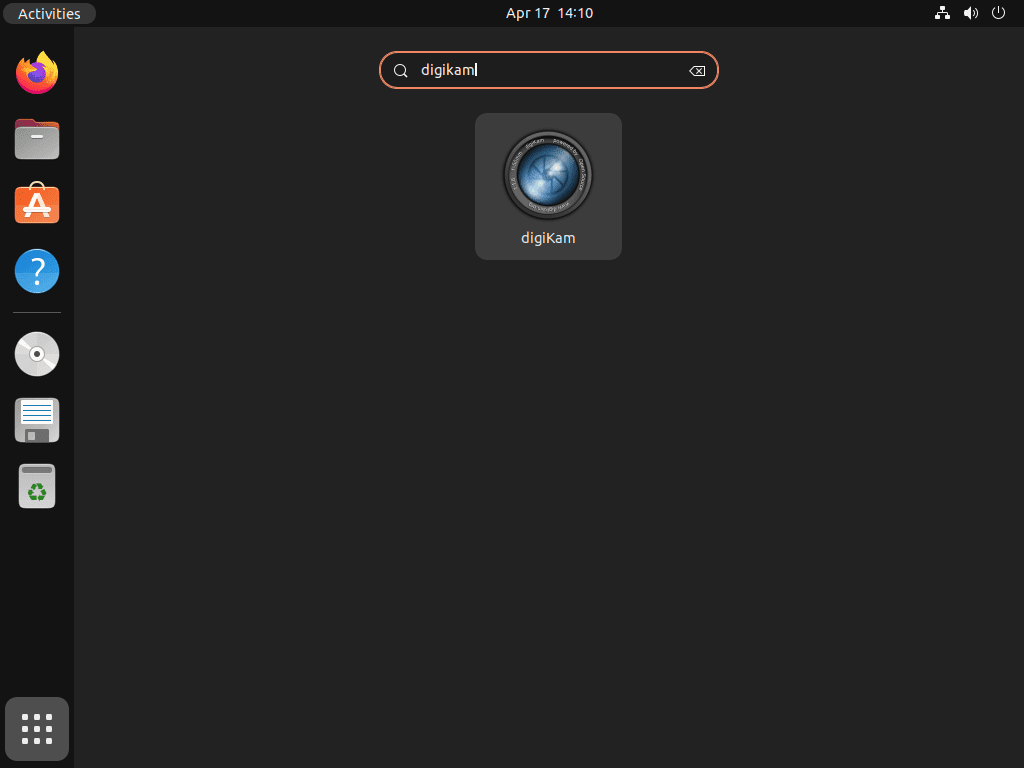
snap run digikamLaunch digiKam from the Ubuntu Applications Menu
Open the applications menu, search for digiKam, and start the app from its launcher icon.
Configure digiKam After Installation on Ubuntu
On first launch, digiKam starts a setup wizard for collections, database location, and optional binary components.
Set the digiKam Collection Location on Ubuntu
Choose where digiKam stores your photo library database and where your image folders live. You can add or change collection paths later in digiKam settings.
Download Optional digiKam Binary Components for Face Recognition
If prompted, allow digiKam to download optional binary components for machine-learning features such as face recognition.
Start Managing Photos in digiKam on Ubuntu
After setup, digiKam indexes your configured collection and opens the main workspace for albums, tags, ratings, search, and metadata editing.
digiKam runs on GNOME, KDE Plasma, and other Linux desktop environments. If you want tighter KDE integration, see the LinuxCapable guide on how to install KDE Plasma on Ubuntu.
Update digiKam on Ubuntu
Use the update command that matches your install method.
Update APT digiKam on Ubuntu
sudo apt update
sudo apt install --only-upgrade digikam
dpkg-query -W -f='${Package} ${Version}\n' digikamdigikam 4:9.0.0-0ubuntu1
Update AppImage digiKam on Ubuntu
If you created the AppImage update helper, run it whenever you want to check for a newer official stable AppImage. It downloads a new file only when the current checksum differs; otherwise, it refreshes the executable bit and symlink.
update-digikamIf you did not create the helper, repeat the manual AppImage download and checksum steps from the AppImage installation section with the current upstream version.
Update Flatpak digiKam on Ubuntu
sudo flatpak update --system org.kde.digikamflatpak list --app --system --columns=application,version,branch,installation | grep '^org.kde.digikam'org.kde.digikam 9.0.0 stable system
Update Snap digiKam on Ubuntu
sudo snap refresh digikamsnap list digikamName Version Rev Tracking Publisher Notes digikam 8.8.0 103 latest/stable kde** -
Remove digiKam from Ubuntu
Use the uninstall path for the method you originally chose.
Remove APT digiKam from Ubuntu
sudo apt remove --purge digikamPreview dependency cleanup before removing anything else:
sudo apt autoremove --dry-runIf the preview lists only packages you no longer need, run the real cleanup:
sudo apt autoremoveif dpkg -l digikam | grep -q '^ii'; then echo "digikam package is still installed"; else echo "digikam package not installed"; fidigikam package not installed
Remove AppImage digiKam from Ubuntu
If you created the update helper, remove it first:
sudo rm -f /usr/local/bin/update-digikam
hash -r 2>/dev/null || true
if [ -e /usr/local/bin/update-digikam ]; then echo "digiKam AppImage helper still exists"; else echo "digiKam AppImage helper removed"; fidigiKam AppImage helper removed
Review the files that match the AppImage install path before removing them:
ls -1 "$HOME/Applications"/digiKam-*-Qt6-x86-64.appimage* "$HOME/Applications/digiKam.AppImage" 2>/dev/nullIf the list only contains digiKam AppImage files, remove them:
rm -f "$HOME/Applications"/digiKam-*-Qt6-x86-64.appimage "$HOME/Applications"/digiKam-*-Qt6-x86-64.appimage.sha256 "$HOME/Applications/digiKam.AppImage"if [ -e "$HOME/Applications/digiKam.AppImage" ]; then echo "digiKam AppImage still exists"; else echo "digiKam AppImage removed"; fidigiKam AppImage removed
Remove Flatpak digiKam from Ubuntu
sudo flatpak uninstall --system --delete-data org.kde.digikamflatpak list --app --system --columns=application | grep '^org.kde.digikam' || echo "org.kde.digikam not installed"org.kde.digikam not installed
Remove Snap digiKam from Ubuntu
sudo snap remove digikamsnap list digikam || echo "digikam snap package not installed"digikam snap package not installed
Remove digiKam User Data from Ubuntu
These commands permanently delete local digiKam settings, databases, and thumbnails. Export metadata or back up your digiKam database first if you need to keep your catalog state.
rm -rf ~/.config/digikamrc ~/.config/digikam/
rm -rf ~/.local/share/digikam/ ~/.cache/digikam/
rm -rf ~/.var/app/org.kde.digikam/
These removals do not delete your original photo files unless your photo library is stored inside one of the deleted digiKam data paths.
Troubleshoot digiKam on Ubuntu
Fix AppImage FUSE Errors on Ubuntu
If the official AppImage fails before digiKam opens, the most common cause is a missing FUSE compatibility library. Install the package for your Ubuntu release, then run the AppImage again.
Ubuntu 26.04 and 24.04 use libfuse2t64:
sudo apt install libfuse2t64Ubuntu 22.04 uses libfuse2:
sudo apt install libfuse2Fix “digikam: command not found” After Ubuntu Installation
If you installed digiKam from AppImage, Flatpak, or Snap, the digikam command may not exist in your shell path.
bash: digikam: command not found
Flatpak launch command:
flatpak run org.kde.digikamAppImage launch command:
"$HOME/Applications/digiKam.AppImage"Snap launch command:
snap run digikamFor Flatpak or Snap installs, verify the package source you installed. Run the command that matches your package format:
flatpak list --app --system --columns=application,version,branch,installation | grep '^org.kde.digikam'org.kde.digikam 9.0.0 stable system
snap list digikamName Version Rev Tracking Publisher Notes digikam 8.8.0 103 latest/stable kde** -
Conclusion on Installing digiKam on Ubuntu
You can now install digiKam on Ubuntu with a method that matches your maintenance style: APT for the lowest maintenance path, the official AppImage with a checksum-verified update helper, Flatpak for Flathub updates, or Snap for automatic refreshes. For broader photo workflows, review LinuxCapable guides for Darktable on Ubuntu and GIMP on Ubuntu.


Formatting tips for your comment
You can use basic HTML to format your comment. Useful tags currently allowed in published comments:
<code>command</code>command<strong>bold</strong><em>italic</em><a href="https://example.com">link</a><blockquote>quote</blockquote>