
Large local music libraries are easier to manage in a player that treats tags, ratings, smart playlists, and internet radio as first-class features. To install Exaile music player on Ubuntu, use the Universe package on Ubuntu 26.04 or 24.04, or use the Exaile Developers PPA on Ubuntu 22.04 and on 24.04 when you want the newer 4.2.0 build.
Package availability differs by release: Ubuntu 26.04 (Resolute Raccoon) has Exaile 4.2.1+dfsg-1 in Universe, Ubuntu 24.04 (Noble Numbat) has 4.1.3+dfsg-2ubuntu1 in Universe and 4.2.0 through the PPA, and Ubuntu 22.04 (Jammy Jellyfish) needs the PPA because Universe does not publish an Exaile package.
Install Exaile Music Player on Ubuntu
Two APT-based installation paths are useful, but they are not equal on every supported Ubuntu release. Choose by release and package source before installing.
| Method | Use This Method When | Verified Package Version | Best For |
|---|---|---|---|
| Ubuntu Universe | Ubuntu 26.04 and 24.04 | 4.2.1+dfsg-1 on 26.04; 4.1.3+dfsg-2ubuntu1 on 24.04 | Recommended on 26.04 and safest when you prefer Ubuntu-maintained packages |
| Exaile Developers PPA | Ubuntu 22.04, or Ubuntu 24.04 when you want 4.2.0; skip on 26.04 unless the PPA becomes newer later | 4.2.0-0ubuntu0 | Required on 22.04 and useful on 24.04 when you want Exaile 4.2.0 |
Use Universe on 26.04 for the highest package version and the Ubuntu-maintained source. On 24.04, choose Universe for distro packaging or the PPA for Exaile 4.2.0. On 22.04, use the PPA. Upstream GitHub source archives may be newer than both APT paths, but source builds are a separate workflow and are not covered here.
Update Ubuntu Before Installing Exaile
Refresh your package index before installing Exaile or adding the PPA:
sudo apt updateThese commands use
sudofor package-management tasks. If your account does not have admin rights yet, follow the guide on how to add a new user to sudoers on Ubuntu before continuing.
Install Exaile from Ubuntu Universe
Use this method on Ubuntu 26.04 or 24.04 when you want the distro-maintained package. Exaile comes from the Ubuntu Universe repository, so enable Universe first if your system was installed with a minimal repository set.
sudo apt install exaile -yVerify the installed package with Exaile’s version command:
exaile --versionExpected output on Ubuntu 26.04:
Exaile 4.2.1
Ubuntu 24.04 prints Exaile 4.1.3 from the default package. Ubuntu 22.04 users should use the PPA method below because the default repositories do not provide an Exaile package.
Install Exaile from Exaile Developers PPA
Use the PPA on Ubuntu 22.04, or on Ubuntu 24.04 if you want Exaile 4.2.0 instead of Ubuntu’s 4.1.3 package. On Ubuntu 26.04, adding the PPA is unnecessary because APT selects Universe’s higher 4.2.1 package.
Install the repository helper package first. It provides add-apt-repository, which imports the Launchpad signing key and creates the PPA source entry for you:
sudo apt install software-properties-common -yAdd the Exaile Developers PPA, then refresh the package index:
sudo add-apt-repository ppa:exaile-devel/ppa -y
sudo apt update
Check the package candidate before installing so you can confirm APT sees the PPA build:
apt-cache policy exaileRelevant lines on Ubuntu 24.04 include:
  Candidate: 4.2.0-0ubuntu0
     4.2.0-0ubuntu0 500
        500 https://ppa.launchpadcontent.net/exaile-devel/ppa/ubuntu noble/main amd64 Packages
Install Exaile from the selected candidate:
sudo apt install exaile -yConfirm the PPA build:
exaile --versionExaile 4.2.0
Launch Exaile on Ubuntu
Exaile installs the exaile terminal command and the Exaile desktop launcher. The version command works from any terminal, but the full music player needs an active graphical desktop session to open its window.
Launch from Terminal
Start Exaile from a terminal when you want to see startup messages or plugin warnings:
exaileLaunch from Applications Menu
Ubuntu desktop users can also open Exaile from the graphical launcher:
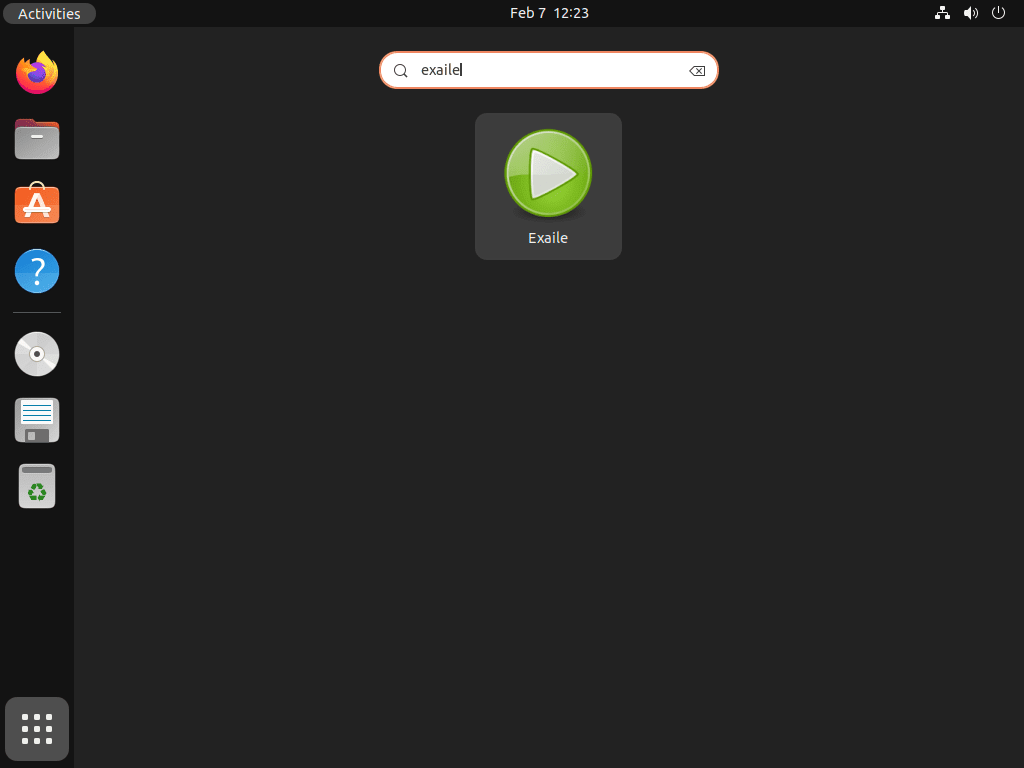
- Click Activities in the top-left corner of the desktop.
- Type Exaile in the search field.
- Click the Exaile launcher.
Configure Exaile for First Use
Exaile can play common formats immediately after installation, but large libraries and mixed audio collections usually benefit from a few first-use checks.
Install Additional GStreamer Plugins
Exaile uses GStreamer for playback. The base install already pulls in gstreamer1.0-plugins-good, but the following packages add broader codec coverage for files that need FFmpeg-backed decoding or the bad and ugly plugin sets:
sudo apt install gstreamer1.0-libav gstreamer1.0-plugins-bad gstreamer1.0-plugins-ugly -yRestart Exaile after installing extra plugins so the player can load the new playback support.
Import Your Music Library
Open File > Import Files or File > Import Folders, then select the folder that contains your music. Exaile scans the files, builds its local library database, and lets you sort the collection by artist, album, genre, rating, and custom playlists.
Customize the Interface
Exaile keeps most user-facing controls inside its preferences window:
- Appearance: Open Edit > Preferences > Appearance to adjust the theme and visual layout.
- Panels: Drag side panels and playlist areas into a layout that works for your library.
- Plugins: Open Edit > Preferences > Plugins to enable features such as lyrics, cover art, Last.fm scrobbling, and MusicBrainz metadata support.
Listen to Internet Radio
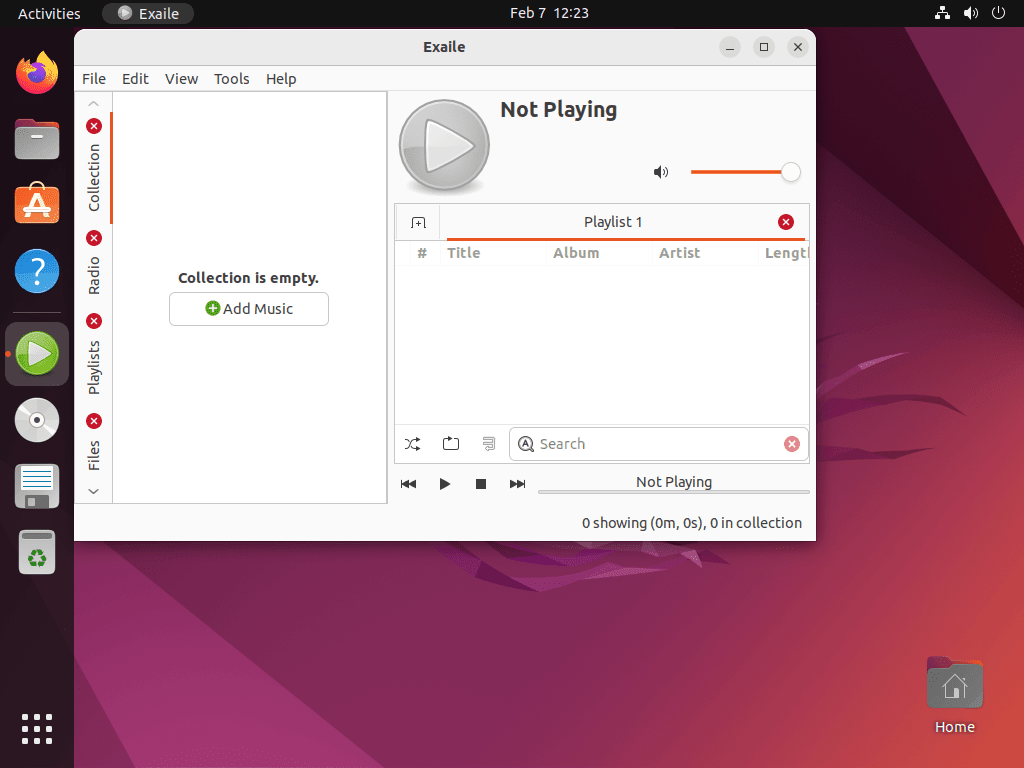
Use the Radio tab in the left panel to browse preset stations or add your own streams. To add a custom stream, right-click the Radio section and select Add Stream.
Update or Remove Exaile
Update Exaile
Exaile updates through APT. The same command works whether the installed package came from Ubuntu Universe or the Exaile PPA:
sudo apt update
sudo apt install --only-upgrade exaile -y
If you installed from the PPA, APT checks that source during the same update cycle.
Remove Exaile
Remove the Exaile package first:
sudo apt remove exaile -yPreview orphaned dependencies before removing them. APT can list packages left behind by older installs, so continue only if the preview contains packages you intend to remove:
sudo apt autoremove --simulateIf the preview looks correct, run the cleanup without auto-confirming the prompt:
sudo apt autoremoveIf you added the PPA, remove it as well so Ubuntu stops checking that repository. The dedicated guide on how to remove a PPA from Ubuntu covers broader cleanup options; the commands here remove the Exaile source entry and the generated Launchpad key files that can remain after add-apt-repository --remove:
sudo add-apt-repository --remove ppa:exaile-devel/ppa -y
sudo rm -f /etc/apt/trusted.gpg.d/exaile-devel-ubuntu-ppa.gpg /etc/apt/trusted.gpg.d/exaile-devel-ubuntu-ppa.gpg~
sudo apt update
If you removed the PPA, confirm no Exaile PPA source or generated key file remains. No output is the expected result after cleanup:
find /etc/apt/sources.list.d /etc/apt/trusted.gpg.d -maxdepth 1 -name '*exaile-devel*' -printOptional user-data cleanup removes Exaile configuration, library data, and cache files under
~/.config/exaile/,~/.local/share/exaile/, and~/.cache/exaile/. Remove these directories only if you do not want to keep your library database, plugin settings, or cached artwork for a future reinstall.
Preview those paths before deleting them. No output means this account has no Exaile user-data directories to remove:
for path in ~/.config/exaile ~/.local/share/exaile ~/.cache/exaile; do
    [ -e "$path" ] && printf '%s\n' "$path"
done
If the preview only lists Exaile data you no longer need, delete the directories:
rm -rf -- ~/.config/exaile ~/.local/share/exaile ~/.cache/exaileVerify Removal
Confirm that the launcher command is gone:
command -v exaile || echo "exaile removed"exaile removed
Troubleshooting Exaile on Ubuntu
Exaile Package Not Found
If APT cannot find exaile, check the package candidate first:
apt-cache policy exaileUbuntu 22.04 shows no default candidate:
exaile:
  Installed: (none)
  Candidate: (none)
  Version table:
On Ubuntu 22.04, use the PPA method. On Ubuntu 26.04 or 24.04, a missing candidate usually means Universe is disabled. Enable Universe, refresh APT, then rerun the install command:
sudo apt install software-properties-common -y
sudo add-apt-repository universe -y
sudo apt update
The Ubuntu Universe repository guide explains the repository component in more detail if you are working on a minimal or customized system.
PPA Does Not Upgrade Exaile on Ubuntu 26.04
Do not force the PPA on Ubuntu 26.04 just because it appears in APT. Universe provides Exaile 4.2.1+dfsg-1, while the PPA provides 4.2.0-0ubuntu0, so APT correctly keeps the higher Universe package. Recheck the active candidate with apt-cache policy exaile before changing package pins or forcing a source.
No Sound or Playback Problems
If Exaile opens but cannot play a specific file type, install the optional GStreamer plugin packages and restart the player:
sudo apt install gstreamer1.0-libav gstreamer1.0-plugins-bad gstreamer1.0-plugins-ugly -yReset a Broken Exaile Configuration
If Exaile crashes after opening or behaves strangely after a plugin change, move the existing settings directory out of the way and start Exaile again. The Linux mv command renames the folder instead of deleting it, so you can restore files from the backup if needed.
if [ -d ~/.config/exaile ]; then
    mv ~/.config/exaile ~/.config/exaile.backup.$(date +%Y%m%d-%H%M%S)
fi
exaile
If Exaile starts normally after the reset, recreate only the settings you still need instead of copying the whole backup directory back into place.
Further Reading and Resources
- Exaile official website: project news, release posts, and downloads
- Exaile documentation: user guide and plugin documentation
- Exaile GitHub releases: source archives, release assets, and published checksums
- Install Audacious on Ubuntu: lightweight audio player with a simpler playlist-focused interface
- Install VLC Media Player on Ubuntu: general-purpose media player for local files, subtitles, DVDs, and network streams
Conclusion
Exaile is installed on Ubuntu with the package source that fits your release: Universe for the cleanest path on 26.04 and 24.04, or the Exaile Developers PPA when 22.04 needs a package or 24.04 needs the newer build. After the first launch, import your library, add any missing GStreamer plugins, and keep updates tied to APT.


Formatting tips for your comment
You can use basic HTML to format your comment. Useful tags currently allowed in published comments:
<code>command</code>command<strong>bold</strong><em>italic</em><a href="https://example.com">link</a><blockquote>quote</blockquote>