
VLC is the easiest way to make Ubuntu handle awkward media files without chasing separate codec packs. If you need to install VLC Media Player on Ubuntu for MP4, MKV, FLAC, DVD playback, subtitles, or network streams, the Ubuntu repository package is the clean default and works on current LTS releases.
Ubuntu 26.04 LTS (Resolute Raccoon), Ubuntu 24.04 LTS (Noble Numbat), and Ubuntu 22.04 LTS (Jammy Jellyfish) all support the APT workflow. Flatpak, Snap, and the VideoLAN development PPA are also available when their tradeoffs fit your setup.
Install VLC Media Player on Ubuntu with APT, Flatpak, Snap, or PPA
Choose one installation method. Installing multiple copies at the same time can leave you with duplicate launchers or make troubleshooting harder later.
If you are looking for a VLC download for Ubuntu, you do not need a standalone VLC .deb file. The official VideoLAN Ubuntu download page points Ubuntu users to Snap and also notes that the traditional package is available through APT, so APT is the normal Ubuntu download path.
| Method | Source | Channel | Updates | Best Fit |
|---|---|---|---|---|
| APT | Ubuntu Universe package | Stable 3.0.x branch | With system updates | Most desktops and no-Snap installs |
| VideoLAN development PPA | Launchpad master-daily PPA | VLC 4.0 release-candidate or daily development builds | With APT after adding the PPA | Testers and developers only |
| Flatpak | Flathub | Stable Flathub package | With flatpak update or desktop software tools | Users who prefer Flathub packaging and app/runtime updates |
| Snap | Snapcraft | latest/stable Snap channel | Automatic Snap refreshes | Users who prefer Snap on Ubuntu |
APT from Ubuntu’s repository is the safest default because it uses Ubuntu package metadata, integrates with normal system updates, and does not require a browser download or separate .deb file. APT downloads VLC, resolves dependencies, and installs the package in one workflow.
VLC is packaged in Ubuntu’s Universe repository. Most desktop systems already have Universe enabled, but minimal or heavily customized systems may need it enabled first. The guide to enable Universe and Multiverse on Ubuntu also helps later if you install DVD playback helpers such as
libdvd-pkg.
Install VLC on Ubuntu with APT
Update Ubuntu Before Installing VLC
Refresh your package index and apply pending updates so APT resolves VLC against current repository metadata:
sudo apt update && sudo apt upgradeThese commands use
sudofor system-wide package changes. If your account does not have sudo access yet, follow the guide on adding a new user to sudoers on Ubuntu before continuing.
Install VLC from Ubuntu Repositories
The Ubuntu repository package is stable, integrates cleanly with desktop launchers, and receives updates through the same APT workflow as the rest of the system. Install it with one command:
sudo apt install vlcCurrent Ubuntu repository candidates are shown here for release context. Package revisions can change as Ubuntu publishes updates, so use apt-cache policy vlc on your own system if you need the exact candidate before installing.
| Ubuntu Release | APT Candidate | Repository Component |
|---|---|---|
| Ubuntu 26.04 LTS | 3.0.23-1 | Universe |
| Ubuntu 24.04 LTS | 3.0.20-3build6 | Universe |
| Ubuntu 22.04 LTS | 3.0.16-1build7 | Universe |
The main vlc package pulls in the core VLC plugin packages, including vlc-bin, vlc-plugin-base, vlc-plugin-qt, and vlc-plugin-video-output. A normal APT install also includes recommended plugin packages unless you have disabled APT recommends. Optional packages such as vlc-plugin-fluidsynth, vlc-plugin-jack, or vlc-plugin-svg are only needed for matching feature support.
Add Optional VLC Plugin Packages on Ubuntu
The default APT install already covers normal MP4, MKV, subtitle, playlist, network-stream, and desktop playback. Add optional plugin packages only when you need their matching features, such as FluidSynth MIDI playback, JACK audio output, SVG rendering, or PipeWire output.
sudo apt install vlc-plugin-fluidsynth vlc-plugin-jack vlc-plugin-svgUbuntu 26.04 and 24.04 also package the PipeWire VLC plugin. Ubuntu 22.04 does not currently provide this package, so leave this command out on 22.04:
sudo apt install vlc-plugin-pipewireVerify the installation by checking the first version line:
vlc --version | head -n 1VLC version 3.0.x Vetinari
Install VLC from the VideoLAN Development PPA on Ubuntu
The Launchpad page for the VideoLAN
master-dailyPPA states the archive is fully automated and not maintained by VideoLAN developers. Use it only when you specifically need VLC 4.0 release-candidate or development builds for testing.
The master-daily PPA currently publishes VLC 4.0 builds for Ubuntu 26.04 and 24.04. Ubuntu 22.04 also has a jammy archive, but its package metadata currently points to older 2024 builds, so avoid it unless that older development snapshot is intentional. The older ppa:videolan/stable-daily path does not currently publish supported Release metadata for these Ubuntu releases.
Minimal Ubuntu installs may not include the helper that adds PPAs. Install it first if add-apt-repository is missing:
sudo apt install software-properties-commonAdd the VideoLAN master-daily PPA to your system:
sudo add-apt-repository ppa:videolan/master-daily -yRefresh APT metadata after adding the PPA:
sudo apt updateConfirm that the PPA is now the selected source before installing:
apt-cache policy vlcvlc:
Installed: (none)
Candidate: 4.0.0~rc1~~git20260501+r109805+432~ubuntu24.04.1
Version table:
4.0.0~rc1~~git20260501+r109805+432~ubuntu24.04.1 500
500 https://ppa.launchpadcontent.net/videolan/master-daily/ubuntu noble/main amd64 Packages
If apt-cache policy still selects the Ubuntu 3.0.x package after adding the PPA, stop and fix the PPA source before continuing. Installing at that point would use the normal Ubuntu repository package, not the development build.
Install VLC after confirming the PPA candidate. Daily build strings differ by Ubuntu release and build date, so your exact version may not match the example output.
sudo apt install vlcVerify that VLC starts from the development branch:
vlc --version | head -n 1Install VLC Media Player on Ubuntu with Flatpak and Flathub
Flatpak installs VLC from Flathub with its own application runtime, which keeps the package source separate from Ubuntu’s APT repositories. This method is useful when you prefer Flathub packaging or want the same VLC Flatpak across multiple Linux distributions.
The current Flathub manifest grants VLC broad filesystem and device access for local media and hardware playback, so treat this method as a packaging and update choice rather than strong isolation from your home files.
Ubuntu does not include Flatpak by default. If you have not set it up yet, install it with
sudo apt install flatpakand restart your session before continuing. For full setup including the Flathub repository, follow our guide to install Flatpak on Ubuntu.
Add the Flathub Repository for VLC on Ubuntu
Ensure the Flathub repository is configured on your system. The --if-not-exists flag skips this step if Flathub is already added:
sudo flatpak remote-add --if-not-exists flathub https://dl.flathub.org/repo/flathub.flatpakrepoInstall VLC via Flatpak on Ubuntu
With Flathub configured, install VLC. The -y flag auto-confirms the installation prompt:
sudo flatpak install flathub org.videolan.VLC -yVerify the installed Flatpak application details:
flatpak info org.videolan.VLC | grep -E '^[[:space:]]*(ID|Ref|Arch|Branch|Version|Origin|Installation):' ID: org.videolan.VLC
Ref: app/org.videolan.VLC/x86_64/stable
Arch: x86_64
Branch: stable
Version: 3.0.23
Origin: flathub
Installation: system
Install VLC Media Player on Ubuntu with Snap
Snap packages update automatically through snapd. Ubuntu desktop installations include Snap by default, so most users can install VLC from Snapcraft without additional setup.
Ubuntu includes Snap by default on standard desktop installs. If
snapis missing on a customized or minimal installation, install it first withsudo apt install snapd.
Install VLC from Snapcraft:
sudo snap install vlcVerify the Snap installation by listing the installed package:
snap list vlcName Version Rev Tracking Publisher Notes vlc 3.0.20-1-g2617de71b6 3777 latest/stable videolan** -
Launch VLC Media Player on Ubuntu
Launch VLC from the terminal or through your desktop environment’s application menu, depending on your preference.
Launch VLC from Terminal on Ubuntu
For an APT installation, launch VLC directly:
vlcFor a Flatpak installation, use the Flatpak run command:
flatpak run org.videolan.VLCFor a Snap installation, use the snap run command:
snap run vlcLaunch VLC from the Ubuntu Applications Menu
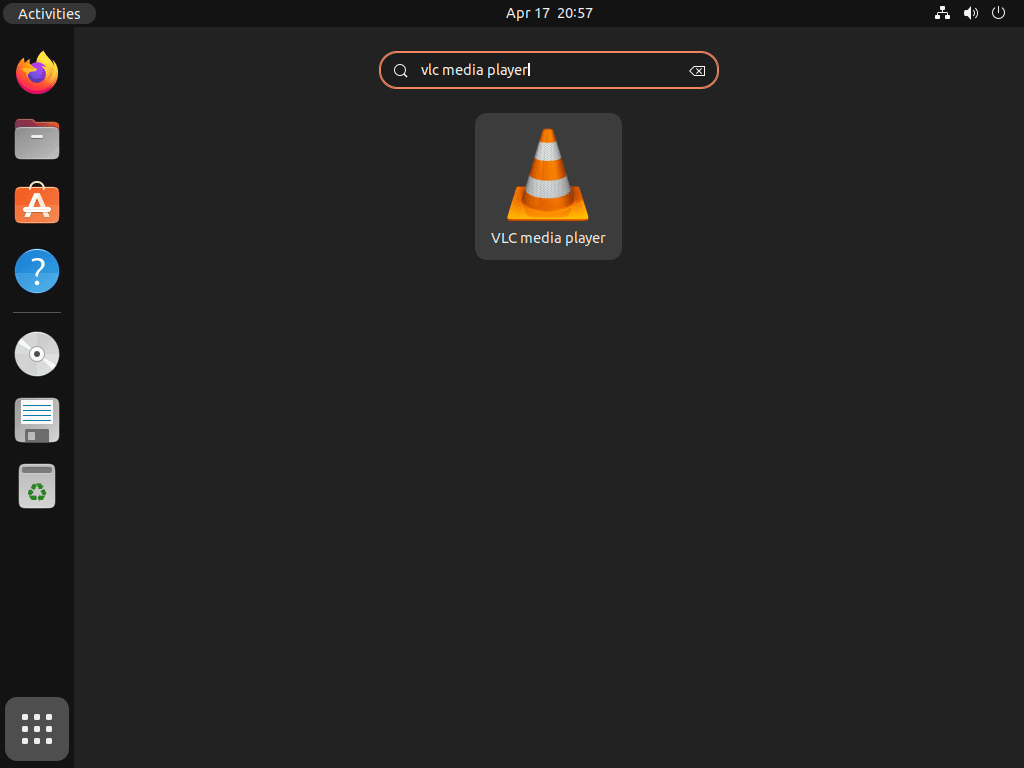
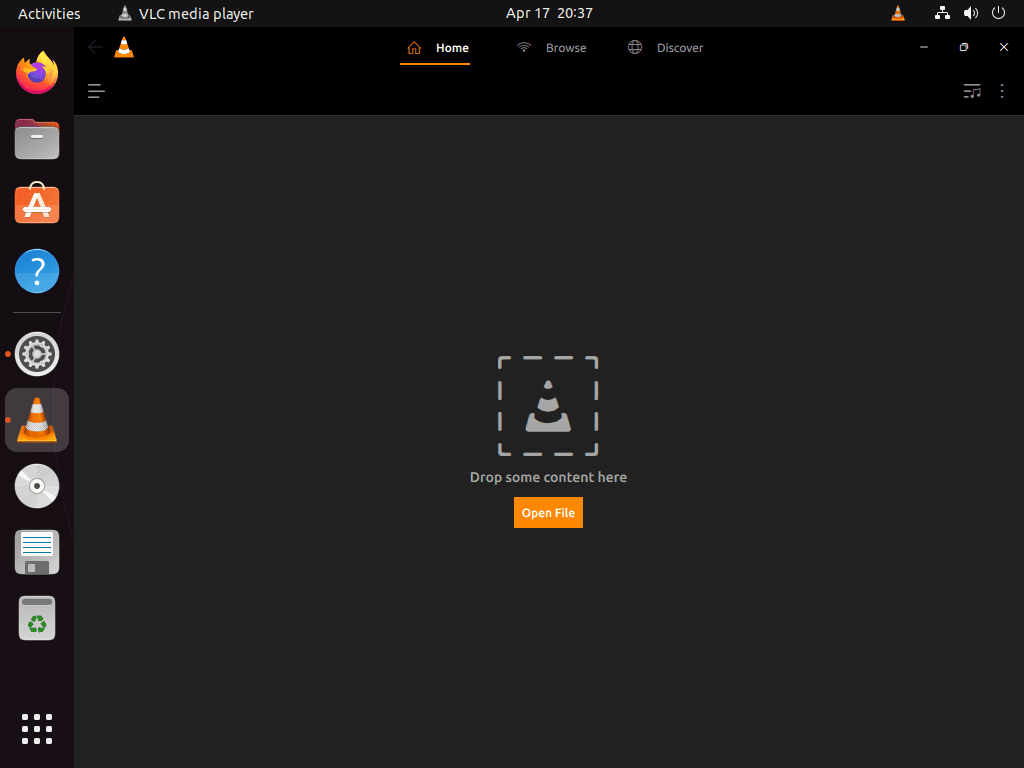
Open VLC from your desktop environment. In GNOME, click Activities, then Show Applications, and select VLC media player from the application grid.
Troubleshoot VLC Media Player Not Opening on Ubuntu
If VLC does not open from the application menu, identify which package source is installed and launch that copy from a terminal. The terminal output usually shows whether the issue is a missing package, stale launcher, Flatpak runtime problem, or Snap refresh state.
Check Which VLC Installation Method Is Installed on Ubuntu
command -v vlc || echo "APT or PPA VLC command not found"
snap list vlc 2>/dev/null || echo "Snap VLC not installed"
flatpak list --app --columns=application,version,installation | grep -F org.videolan.VLC || echo "Flatpak VLC not installed"
/usr/bin/vlc Snap VLC not installed Flatpak VLC not installed
Identify the active package source from the output, then run the matching launch command from a terminal to read the actual error. If more than one method appears installed at the same time, remove the copy you are not using to avoid launcher confusion.
# APT package
vlc

# Snap package
snap run vlc

# Flatpak package
flatpak run org.videolan.VLC
If the error mentions DISPLAY, WAYLAND_DISPLAY, xcb, or a missing graphical session, confirm you are launching VLC from a desktop terminal rather than an SSH-only shell or TTY:
printf 'Session: %s\nDISPLAY: %s\nWayland: %s\n' "$XDG_SESSION_TYPE" "$DISPLAY" "$WAYLAND_DISPLAY"Refresh or Reinstall VLC on Ubuntu by Installation Method
Run only the command that matches your installation method. Reinstalling one method while launching another is a common reason VLC still fails to open afterward.
# APT (Ubuntu repository or PPA)
sudo apt install --reinstall vlc vlc-bin

# Snap
sudo snap refresh vlc

# Flatpak
sudo flatpak update org.videolan.VLC
After applying the matching command, launch VLC again from the terminal first. If it opens successfully there, the application-menu launcher should work again as well.
VLC Codecs and DVD Playback on Ubuntu
VLC on Ubuntu already handles most common audio and video formats, including MP4 files that use H.264 and AAC, so you usually do not need a separate codec pack. If playback still fails, launch VLC from a terminal first to read the actual error and confirm you are troubleshooting the same package source that is installed.
For encrypted DVD playback, VLC may require additional DVD libraries that are not enabled by default for legal or licensing reasons in some regions. On Ubuntu, this usually means installing libdvd-pkg from Multiverse, then letting it configure libdvdcss where permitted.
sudo apt install libdvd-pkg
sudo dpkg-reconfigure libdvd-pkg
Compare VLC with Other Ubuntu Media Players
VLC is the broadest default choice because it handles local files, subtitles, discs, playlists, and network streams from one interface. Other players can still be better when you want a lighter interface or a specific desktop style.
| Player | Strength | Ubuntu Guide |
|---|---|---|
| VLC | Broad codec, DVD, subtitle, playlist, and network-stream support | APT, Flatpak, Snap, and PPA methods |
| MPV | Lightweight playback with strong keyboard control | Install MPV on Ubuntu |
| Celluloid | GNOME-friendly GTK front-end for MPV | Install Celluloid on Ubuntu |
| SMPlayer | Traditional desktop interface with remembered playback settings | Install SMPlayer on Ubuntu |
Manage VLC Media Player on Ubuntu
Update VLC Media Player on Ubuntu
The update process depends on which installation method you used.
Update VLC with APT
To update only VLC with APT, refresh package metadata and upgrade the package directly. Regular full-system upgrades also update VLC.
sudo apt update && sudo apt install --only-upgrade vlcUpdate VLC with Flatpak
To update only VLC with Flatpak:
sudo flatpak update org.videolan.VLCUpdate VLC with Snap
Since Snap packages update automatically, you typically do not need to take action. However, you can trigger a manual refresh if needed:
sudo snap refresh vlcRemove VLC Media Player from Ubuntu
If you no longer need VLC, remove it using the method that matches your original installation.
Remove VLC with APT
Remove both vlc and vlc-bin. Removing only vlc can leave the /usr/bin/vlc binary behind until the companion package is removed:
sudo apt remove vlc vlc-binReview orphaned dependencies before removing them. Reused systems can already have unrelated autoremovable packages, so check the dry run first and run the real cleanup only if the list is acceptable:
sudo apt autoremove --dry-runsudo apt autoremoveIf you installed VLC from the VideoLAN PPA, remove the repository and refresh APT metadata so Ubuntu falls back to the archive package source:
sudo add-apt-repository --remove ppa:videolan/master-daily -y
sudo apt update
On Ubuntu 22.04, the PPA helper can leave the imported VideoLAN key behind after removing the source file. Remove those leftover key files if they exist:
sudo rm -f /etc/apt/trusted.gpg.d/videolan-ubuntu-master-daily.gpg /etc/apt/trusted.gpg.d/videolan-ubuntu-master-daily.gpg~Confirm the candidate now comes from Ubuntu’s Universe repository again:
apt-cache policy vlcVerify the removal completed successfully:
dpkg-query -W -f='${db:Status-Abbrev} ${binary:Package}\n' vlc vlc-bin 2>/dev/null | grep '^ii' || echo "VLC APT packages removed"
hash -r
command -v vlc || echo "vlc command removed"
VLC APT packages removed vlc command removed
Remove VLC with Flatpak
To remove the system Flatpak installation, use the Flatpak application ID:
sudo flatpak remove org.videolan.VLC -yVLC Flatpak settings and cache can remain in your user profile after the app is removed. If you want a full reset and have saved anything you need from the Flatpak profile, remove that user data directory:
rm -rf ~/.var/app/org.videolan.VLCThen remove unused Flatpak runtimes if the review list is acceptable:
sudo flatpak remove --unusedVerify the removal completed successfully:
sudo flatpak list --app --columns=application | grep -Fx org.videolan.VLC || echo "Flatpak VLC app removed"Flatpak VLC app removed
Remove VLC with Snap
Remove the Snap installation. The --purge flag deletes the snap without saving a data snapshot:
sudo snap remove --purge vlcVerify the removal:
snap list vlc 2>/dev/null || echo "VLC Snap removed"VLC Snap removed
Conclusion
VLC is ready on Ubuntu for local files, MP4 playback, DVDs, subtitles, and network streams, with APT as the clean default and Flatpak, Snap, or the development PPA available when their tradeoffs fit. For conversion work rather than playback, install HandBrake on Ubuntu or install FFmpeg on Ubuntu.


Formatting tips for your comment
You can use basic HTML to format your comment. Useful tags currently allowed in published comments:
<code>command</code>command<strong>bold</strong><em>italic</em><a href="https://example.com">link</a><blockquote>quote</blockquote>