When you want mpv’s playback engine in a normal GTK video player, Celluloid gives Ubuntu a lighter desktop front end without losing playlist, subtitle, and broad codec handling. You can install Celluloid on Ubuntu from the Ubuntu archive, the upstream-documented xuzhen666 PPA, Snapcraft, or Flathub, and the best choice depends on how current you need the package to be.
Celluloid is available for Ubuntu 26.04, 24.04, and 22.04 through four package paths. Ubuntu’s package is simplest, the PPA gives the newest APT-managed build for each release, Flathub currently tracks Celluloid 0.30, and Snapcraft is still on 0.29. GitHub releases provide source tarballs rather than an official Ubuntu .deb installer.
Install Celluloid on Ubuntu
Package choice depends on how you balance Ubuntu integration, APT-managed PPA updates, store-packaged freshness, and automatic refresh behavior.
| Method | Source | Channel | Updates | Best Fit |
|---|---|---|---|---|
| APT | Ubuntu Universe | Distribution default | Automatic via apt upgrade | Clean desktop integration |
| APT PPA | xuzhen666 PPA | Release-specific APT builds | Automatic via apt upgrade | Newest APT-managed Celluloid build |
| Snap | Snapcraft | Store stable channel | Automatic background updates | Hands-off store updates |
| Flatpak | Flathub | Flathub stable channel | Manual via sudo flatpak update | Same app build across supported LTS releases |
Start with Ubuntu’s repository package when integration matters more than the newest upstream release. Use the PPA when you want APT-managed builds newer than Ubuntu’s archive, choose Flathub for the current 0.30 Flatpak build, or use Snap when automatic background updates matter more than matching the newest upstream release.
- Choose the Ubuntu repository when you want the least maintenance and the best fit with the rest of your desktop.
- Choose the xuzhen666 PPA when you want the newest APT-managed Celluloid build available for your Ubuntu release.
- Choose Snap when automatic background updates matter more than using the newest upstream release.
- Choose Flathub when you want the current 0.30 app build across Ubuntu 26.04, 24.04, and 22.04.
| Ubuntu Release | Default Celluloid | Newer Package Option | What Changes |
|---|---|---|---|
| Ubuntu 26.04 | 0.29.x | 0.30.x from the xuzhen666 PPA or Flathub | The PPA and Flathub move beyond Ubuntu’s archive package. |
| Ubuntu 24.04 | 0.26.x | 0.27.x from the xuzhen666 PPA, or 0.30.x from Flathub | The PPA stays inside APT, while Flathub reaches the current upstream branch. |
| Ubuntu 22.04 | 0.20.x | 0.24.x from the xuzhen666 PPA, or 0.30.x from Flathub | The older archive package makes alternate sources more useful. |
The xuzhen666 PPA currently publishes packages for Ubuntu 26.04, 24.04, and 22.04, but the packaged version differs by release. Flathub is the consistent 0.30 option across the supported LTS set, while Snapcraft currently provides 0.29.
Refresh APT package metadata before using an APT-based method or installing prerequisites such as snapd or software-properties-common.
sudo apt updateIf your account cannot use
sudoyet, follow add a new user to sudoers on Ubuntu before continuing.
Install Celluloid from Ubuntu’s Default Repository
Ubuntu’s Universe repository gives you the cleanest package-manager experience, and on Ubuntu 26.04 it ships Celluloid 0.29. The package name and the launcher name are both celluloid, so the install and launch commands stay simple.
Install the package after the metadata refresh finishes.
sudo apt install celluloidVerify the installed package with apt-cache policy. For GUI apps, this is more dependable than assuming a version flag stays headless-safe in every environment.
apt-cache policy celluloidcelluloid:
Installed: 0.29-3
Candidate: 0.29-3
Version table:
*** 0.29-3 500
500 http://au.archive.ubuntu.com/ubuntu resolute/universe amd64 Packages
100 /var/lib/dpkg/status
Ubuntu 24.04 reports 0.26-1build2 after installation, and Ubuntu 22.04 reports 0.20-2. If you need a newer release after installing the archive package, add the PPA for an APT-managed upgrade or use Flathub for the current 0.30 build. If you would rather use the playback engine without the GTK layer, install mpv media player on Ubuntu instead.
Install Celluloid from the xuzhen666 PPA on Ubuntu
The xuzhen666 PPA still uses its older gnome-mpv name, but it packages Celluloid. It currently provides Celluloid 0.30 for Ubuntu 26.04, 0.27 for Ubuntu 24.04, and 0.24 for Ubuntu 22.04, so it is the APT-managed path when Ubuntu’s archive package is older than you want.
Minimal Ubuntu images may not include add-apt-repository. Install software-properties-common first only when that helper command is missing.
sudo apt install software-properties-commonAdd the PPA next. The -y flag accepts the repository prompt automatically.
sudo add-apt-repository ppa:xuzhen666/gnome-mpv -yRefresh APT again so Ubuntu can read the new Launchpad source.
sudo apt updateInstall Celluloid after APT has refreshed the new Launchpad source.
sudo apt install celluloidConfirm that APT selected the PPA build instead of the Ubuntu archive package.
apt-cache policy celluloidcelluloid:
Installed: 0.30-1~26.04~ppa1
Candidate: 0.30-1~26.04~ppa1
Version table:
*** 0.30-1~26.04~ppa1 500
500 https://ppa.launchpadcontent.net/xuzhen666/gnome-mpv/ubuntu resolute/main amd64 Packages
100 /var/lib/dpkg/status
0.29-3 500
Ubuntu 24.04 shows the same pattern with 0.27-1~24.04~ppa1 above 0.26-1build2. Launchpad currently publishes 0.24-1~22.04~ppa2 for Ubuntu 22.04, above Ubuntu’s 0.20-2 archive package.
Install Celluloid from Snap on Ubuntu
The Snap build tracks Celluloid 0.29 and updates itself in the background. Standard Ubuntu desktop installs already ship snapd, but minimal and server images may need the package first.
sudo apt install snapdWhen
snapdis already present, APT reports that it is already the newest version and you can move straight to the next command.
Install the Snap package from the stable channel.
sudo snap install celluloidVerify the installed Snap package and channel after the install completes.
snap list celluloidName Version Rev Tracking Publisher Notes celluloid 0.29 322 latest/stable sameersharma2006 -
Install Celluloid from Flathub on Ubuntu
Flathub currently publishes Celluloid 0.30 and keeps the same app build across Ubuntu 26.04, 24.04, and 22.04. This workflow uses system scope, so the remote, install, update, and removal commands all keep sudo for consistency. The package includes practical device and GVFS permissions for playback, so choose it for Flathub packaging consistency rather than strict isolation.
Ubuntu does not install Flatpak by default. If you still need the base package and Flathub setup, follow install Flatpak on Ubuntu first.
Add the Flathub remote with the current canonical descriptor URL. The --if-not-exists flag keeps repeat runs from failing.
sudo flatpak remote-add --if-not-exists flathub https://dl.flathub.org/repo/flathub.flatpakrepoThe next check uses grep to show only the Flathub line, and grep command in Linux with examples explains how to adapt that filter later.
flatpak remotes | grep "^flathub"flathub system
Install Celluloid from Flathub after the remote is visible. The -y flag accepts the runtime and app prompts automatically.
sudo flatpak install flathub io.github.celluloid_player.Celluloid -yVerify the installed Flatpak app and version with flatpak info.
flatpak info io.github.celluloid_player.CelluloidThe Celluloid Developers - Plays videos
ID: io.github.celluloid_player.Celluloid
Ref: app/io.github.celluloid_player.Celluloid/x86_64/stable
Arch: x86_64
Branch: stable
Version: 0.30
Origin: flathub
Installation: system
Launch Celluloid on Ubuntu
These launch commands open the GTK application window, so use them from a local desktop session or another environment with graphical access. Package installation can finish from a terminal, but the media player window still needs a GUI session.
Launch Celluloid from a Terminal on Ubuntu
Use the launcher that matches your package format.
APT or PPA build:
celluloidSnap build:
snap run celluloidFlathub build:
flatpak run io.github.celluloid_player.CelluloidLaunch Celluloid from the Ubuntu Applications Menu
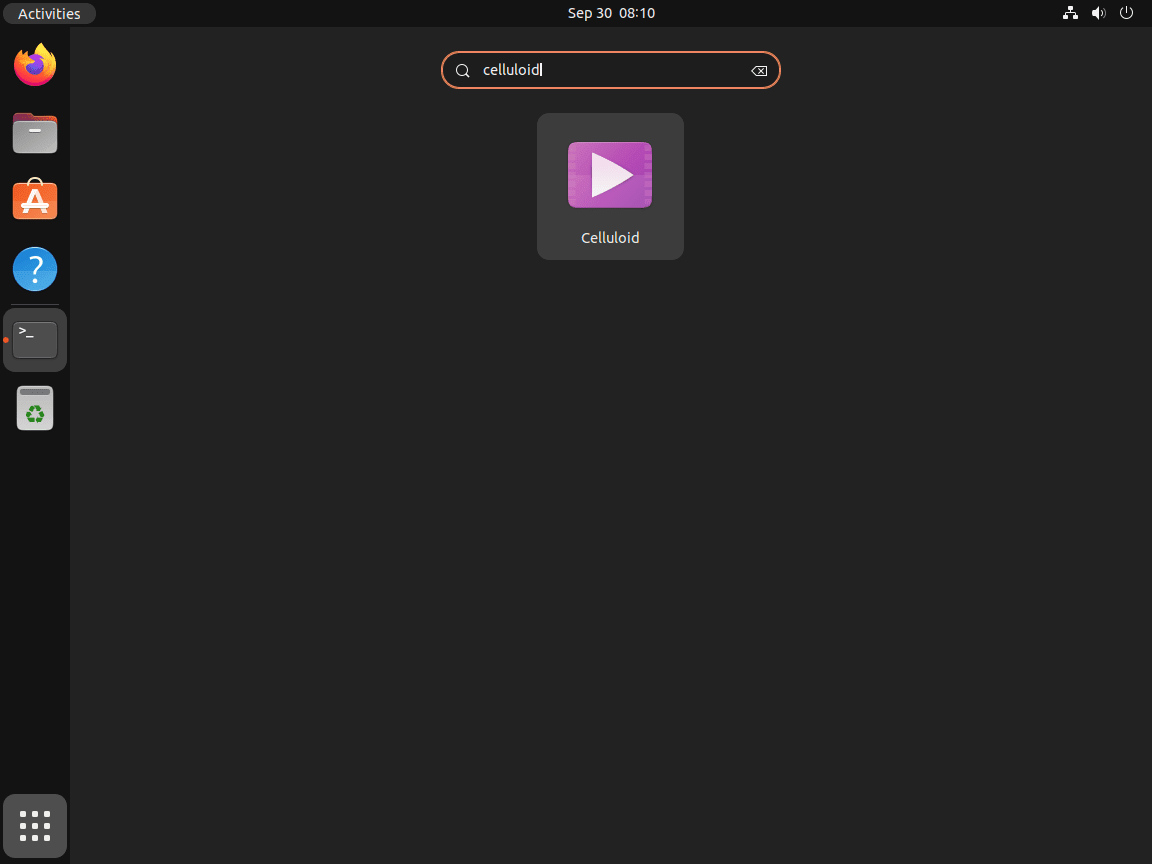
Ubuntu desktop users can also open Celluloid from the application grid.
Activities > Show Applications > Celluloid
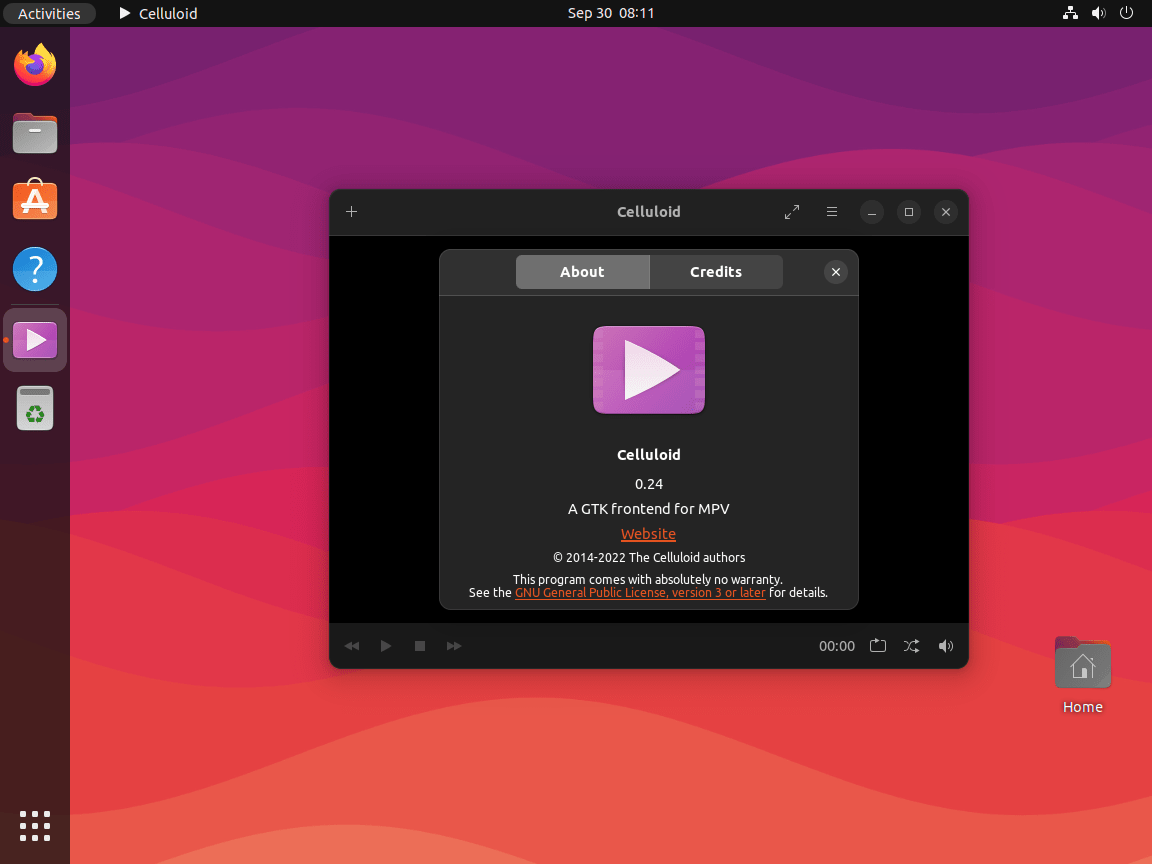
Celluloid can also load external mpv.conf and input.conf files from Preferences > Config Files. If you already keep input.conf under ~/.config/mpv/, point Celluloid to that file from the preferences dialog instead of assuming it will be loaded automatically. Celluloid is a libmpv front end, so playback tweaks usually belong in mpv configuration rather than a separate GStreamer or Celluloid plugin package. The official Celluloid configuration notes cover that workflow in more detail.
Update Celluloid on Ubuntu
Updates stay tied to the package format you picked during installation.
Update an APT Build of Celluloid on Ubuntu
APT users only need a metadata refresh plus a package-only upgrade command.
sudo apt update
sudo apt install --only-upgrade celluloid
Update the Celluloid Snap on Ubuntu
Snap refreshes itself automatically, but you can force the check immediately.
sudo snap refresh celluloidUpdate the Flathub Build of Celluloid on Ubuntu
System-scope Flatpak installs should stay on the same system scope for updates.
sudo flatpak update io.github.celluloid_player.CelluloidIf you prefer, sudo flatpak update refreshes every installed Flatpak app instead of only Celluloid.
Troubleshoot Celluloid on Ubuntu
Most install problems on Ubuntu come down to package-source mismatches or sandbox permissions.
Fix Celluloid Flatpak Drive Access on Ubuntu
The Flathub build already ships with Pictures and GVFS access, so it can see many user-mounted locations without extra overrides. Check the current sandbox permissions first before you add broader filesystem access.
flatpak info --show-permissions io.github.celluloid_player.Celluloid[Context] shared=network;ipc; sockets=x11;wayland;pulseaudio;fallback-x11; devices=all; filesystems=xdg-run/pipewire-0:ro;xdg-pictures;xdg-run/gvfsd;xdg-run/gvfs;
If files mounted directly under /media still do not appear, add a user-scope override for that path. Overrides are stored per user, so the --user flag is intentional even when the app itself was installed system-wide.
flatpak override --user --filesystem=/media io.github.celluloid_player.CelluloidFix Celluloid Snap Access to Removable Media on Ubuntu
The Snap build needs the removable-media interface before it can browse files on external drives mounted outside your home directory.
sudo snap connect celluloid:removable-media :removable-mediaConfirm that the interface is connected before testing playback again.
snap connections celluloid | grep removable-mediaremovable-media celluloid:removable-media :removable-media manual
Remove Celluloid on Ubuntu
Use the removal path that matches the package format you installed. The verification step matters here too, because it confirms Ubuntu is no longer using the package source you removed.
Remove an APT or PPA Build of Celluloid on Ubuntu
Remove the package first.
sudo apt remove celluloidPreview orphaned dependencies before removing them, especially on desktops where media libraries can be shared by other players.
sudo apt autoremove --dry-runContinue only if the preview lists packages you no longer need.
sudo apt autoremoveIf you installed the xuzhen666 PPA build, remove that source separately and refresh APT so Ubuntu falls back to its own archive again.
sudo add-apt-repository --remove ppa:xuzhen666/gnome-mpv -y
sudo apt update
Check the package state afterward. On Ubuntu 24.04, the PPA version disappears and the candidate drops back to the distro package.
apt-cache policy celluloidcelluloid:
Installed: (none)
Candidate: 0.26-1build2
Version table:
0.26-1build2 500
500 http://au.archive.ubuntu.com/ubuntu noble/universe amd64 Packages
Ubuntu 26.04 shows 0.29-3 as the remaining candidate after removal, and Ubuntu 22.04 shows 0.20-2.
Remove the Celluloid Snap on Ubuntu
Use --purge so the remove step does not create a fresh automatic snapshot.
sudo snap remove --purge celluloidConfirm that Snap no longer lists Celluloid.
snap list celluloiderror: no matching snaps installed
Remove the Flathub Build of Celluloid on Ubuntu
Uninstall the Flatpak app from the same system scope used during installation.
sudo flatpak uninstall io.github.celluloid_player.Celluloid -yVerify that Flatpak no longer sees the app afterward.
flatpak info io.github.celluloid_player.Celluloiderror: io.github.celluloid_player.Celluloid/*unspecified*/*unspecified* not installed
These commands do not touch your media files. Snap stores per-user data under
~/snap/celluloid/, and Flatpak stores sandbox data under~/.var/app/io.github.celluloid_player.Celluloid/. Remove those directories only when you want to erase saved preferences and recent history as well.
Conclusion
Celluloid is installed on Ubuntu and ready for everyday playback, with mpv doing the heavy lifting behind the GTK interface. If you want the raw player underneath, install mpv media player on Ubuntu. If you want a broader codec-focused desktop alternative, install VLC media player on Ubuntu.


Sorry my english. I only speak swedish and german. 83 years ago born in East-Germany, in school we had to learn russian instead of english. So this is my best english learned by watching swedish TV with subtitles.
Until now my PC was on 32 bit. My new one is 64 bit with Ubuntu mate 24.04. Earlier i used VLC for videos but there is VO1 not visible. I installed Celluloid which work fine but there is no time scale.
What can i do? Waiting for updates or convert VO1 to old format with ffmpeg?
73 Christian
Thanks for sharing your experience, Christian. Your English is perfectly clear, and welcome to 64-bit Ubuntu MATE 24.04.
Regarding the VLC issue on your new system, the VO problem you mention could relate to how VLC handles video output on 64-bit systems with different graphics drivers. Since Celluloid is working for you, that is a solid choice.
For the missing time scale in Celluloid, this is likely the floating control bar. In newer versions, the playback controls (including the seek bar and timeline) only appear when you move your mouse cursor over the video area. Try moving your mouse while a video is playing, and the controls should appear at the bottom of the window.
If the controls still do not appear, open Celluloid’s Preferences menu and check for any display or interface options. You can also verify your Celluloid version is current by running:
No need to convert files with ffmpeg. The player should handle your videos directly. 73 and best of luck with the new system.