SMPlayer is useful when you want a traditional desktop media player that remembers where each file stopped, keeps subtitle and audio-track choices per video, and still gives you direct control over the MPlayer or mpv backend underneath. You can install SMPlayer on Ubuntu from the Universe repository, the official SMPlayer PPA for older LTS releases, Flathub, or Snap, but the best choice depends on whether you want native packages, the newest upstream build, or a store-managed app. For nearby media-player options, see how to install VLC on Ubuntu or how to install MPV on Ubuntu.
Install SMPlayer on Ubuntu
The native Ubuntu package is the cleanest path on Ubuntu 26.04, while older LTS releases need the SMPlayer PPA, Snap, or Flatpak for current upstream builds. Use the table below to choose a method before you copy commands.
| Method | Channel | Release Track | Updates | Best For |
|---|---|---|---|---|
| APT (Ubuntu repos) | Ubuntu Universe | Ubuntu release package | sudo apt upgrade | Most users, native system integration |
| APT (PPA) | Official SMPlayer PPA | Current stable on 24.04 and 22.04 | sudo apt upgrade | Ubuntu 24.04 and 22.04 users who want newer native packages |
| Flatpak | Flathub | Current stable Flatpak | sudo flatpak update | Users who specifically want a Flathub-managed app |
| Snap | Snap Store | Current stable Snap | Automatic / sudo snap refresh | Auto-updating install from SMPlayer publisher rvm |
For the native APT package, Ubuntu 26.04 LTS (Resolute) currently installs SMPlayer 25.6.x, Ubuntu 24.04 LTS (Noble) installs 23.12.x, and Ubuntu 22.04 LTS (Jammy) installs 21.10.x. The rvm PPA publishes current SMPlayer packages for Noble and Jammy only, so skip the PPA on Resolute and use the Ubuntu repository, Snap, or Flatpak there.
Install SMPlayer on Ubuntu via APT
Update Ubuntu Before SMPlayer Installation
Update your system package list and upgrade any pending packages before installing SMPlayer:
sudo apt update && sudo apt upgradeNew to
sudo? See our guide on how to add a user to sudoers on Ubuntu if the commands below return permission errors.
Install SMPlayer via APT Command
Install SMPlayer from the Ubuntu Repository
Installing from the Ubuntu Universe repository is the simplest native method. The package version depends on your Ubuntu release; Ubuntu 26.04 ships a current 25.6.x build, while Ubuntu 24.04 and 22.04 carry older release packages.
SMPlayer is in Ubuntu’s Universe component. Standard desktop installs usually have Universe enabled already. If APT cannot locate the package on a minimal or customized system, enable Universe first with the guide to enable Universe and Multiverse on Ubuntu, then rerun the install command.
sudo apt install smplayer smplayer-themes -yConfirm the installed version:
apt-cache policy smplayersmplayer:
Installed: 25.6.0+ds-1
Candidate: 25.6.0+ds-1
Version table:
*** 25.6.0+ds-1 500
500 http://archive.ubuntu.com/ubuntu resolute/universe amd64 Packages
Install SMPlayer via PPA on Ubuntu 24.04 or 22.04
The official SMPlayer PPA from rvm provides SMPlayer 25.6.x for Ubuntu 24.04 (Noble) and 22.04 (Jammy). Use this method when you want a native APT package that tracks the upstream SMPlayer stable release on those older LTS releases.
Ubuntu 26.04 users should skip this PPA because it does not publish Resolute packages. The Ubuntu 26.04 Universe package already provides SMPlayer 25.6.x, so the repository method is the simpler native path on that release.
Add the PPA:
sudo add-apt-repository ppa:rvm/smplayer -yRefresh the package list to include the new PPA index:
sudo apt updateInstall SMPlayer, themes, and the additional skins package from the PPA:
sudo apt install smplayer smplayer-themes smplayer-skins -yConfirm the installed version with apt-cache policy:
apt-cache policy smplayerRelevant output on Ubuntu 24.04 should show the rvm PPA candidate ahead of Ubuntu’s older Universe package:
smplayer:
  Installed: 25.6.0-1~noble1
  Candidate: 25.6.0-1~noble1
  Version table:
 *** 25.6.0-1~noble1 500
        500 https://ppa.launchpadcontent.net/rvm/smplayer/ubuntu noble/main amd64 Packages
     23.12.0+ds0-1build2 500
        500 http://archive.ubuntu.com/ubuntu noble/universe amd64 Packages
Install SMPlayer on Ubuntu via Flatpak and Flathub
Flatpak installs SMPlayer from Flathub with the app ID info.smplayer.SMPlayer. It works across Ubuntu releases once Flatpak is set up, but Flathub currently shows a safety warning because the app has broad host file access. The install can also warn that the KDE Platform 5.15-24.08 runtime is end-of-life, so use the Ubuntu repository or Snap if you do not specifically need the Flathub build.
Flatpak is not installed by default on Ubuntu. Follow the guide to install Flatpak on Ubuntu before continuing with the commands below.
Enable Flathub on Ubuntu for SMPlayer
Add Flathub as a Flatpak remote if it is not already configured:
sudo flatpak remote-add --if-not-exists flathub https://dl.flathub.org/repo/flathub.flatpakrepoConfirm the Flathub remote exists at system scope:
flatpak remotes --columns=name,options | grep "^flathub"flathub system
Install SMPlayer on Ubuntu via Flatpak Command
Install SMPlayer from Flathub using its app ID info.smplayer.SMPlayer:
sudo flatpak install flathub info.smplayer.SMPlayer -yConfirm the installed Flatpak reference:
flatpak info --show-ref info.smplayer.SMPlayerapp/info.smplayer.SMPlayer/x86_64/stable
Install SMPlayer on Ubuntu via Snap
Snap is pre-installed on Ubuntu. Install SMPlayer directly from the Snap Store:
sudo snap install smplayerConfirm the installation:
snap list smplayerName Version Rev Tracking Publisher Notes smplayer 25.6.0 111 latest/stable rvm -
Snap packages refresh automatically in the background, so no manual update step is required under normal use.
Launch SMPlayer on Ubuntu
Launch SMPlayer from the Terminal
For APT installs, launch SMPlayer with:
smplayerFor Flatpak or Snap installs, use the command that matches your installation method:
flatpak run info.smplayer.SMPlayersnap run smplayerTo open a specific media file from the terminal, append the file path to the command that matches your install method:
smplayer /path/to/video.mp4
flatpak run info.smplayer.SMPlayer /path/to/video.mp4
snap run smplayer /path/to/video.mp4
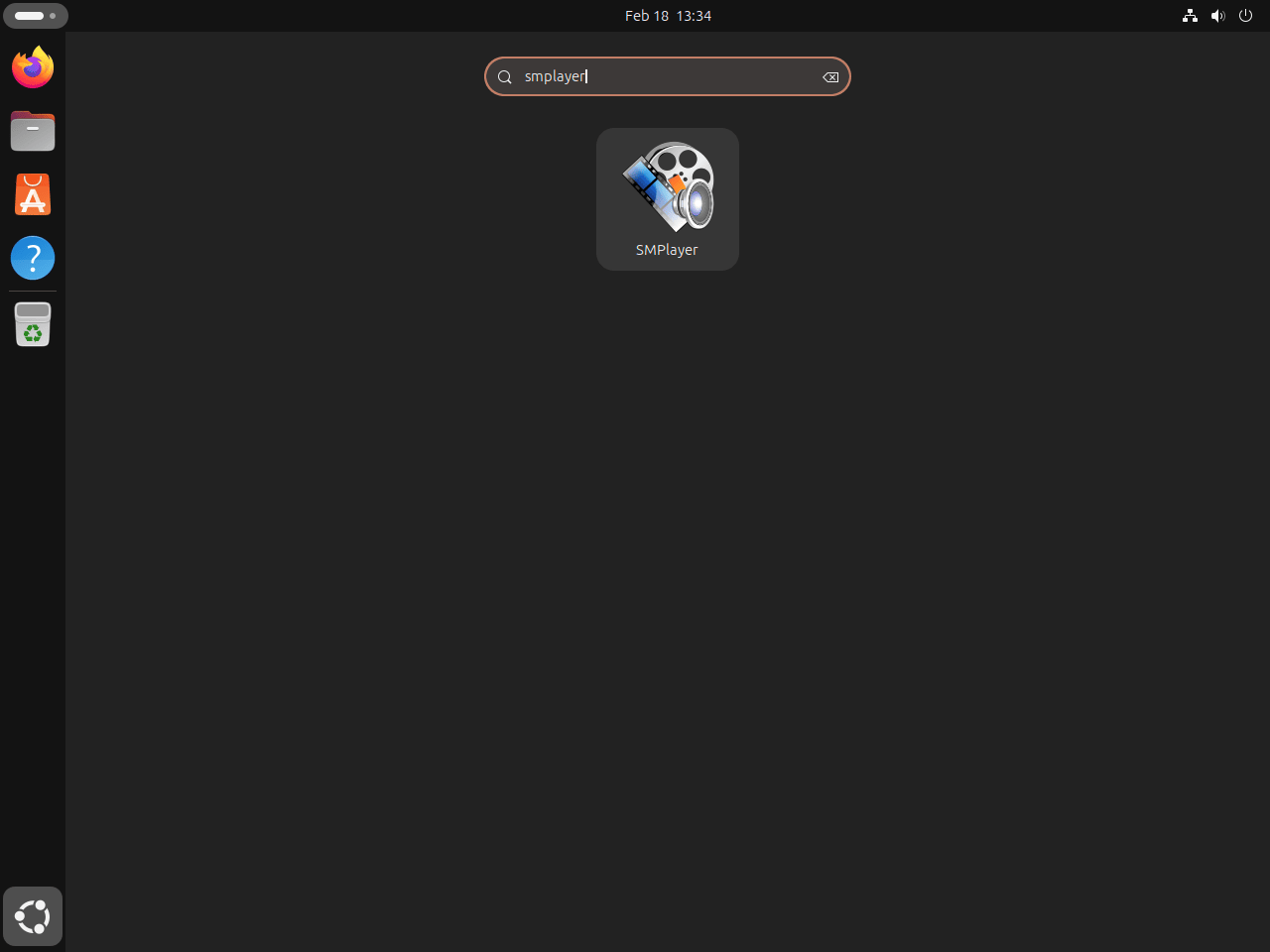
Launch SMPlayer from the Applications Menu
On GNOME, open the Activities overlay and search for SMPlayer, or navigate to:
Activities > Show Applications > SMPlayer
First-Time Tips with SMPlayer on Ubuntu
General SMPlayer Tips for New Users
- Explore Preferences: Go to
Options>Preferencesto adjust video, audio, subtitle, and interface settings all in one place. - Set Interface Language: Under
Options>Preferences>Interface, choose your display language from a long list of supported locales. - Adjust Playback on the Fly: Right-click the video during playback to switch audio tracks, adjust subtitle timing, or change the aspect ratio without opening Preferences.
Customizing SMPlayer on Ubuntu
- Change Themes and Icons: Go to
Options>Preferences>Interfaceto select different themes and icon sets. If you installedsmplayer-themes, additional options appear here. - Configure Output Drivers: Under
Options>Preferences>General>Video, choose an output driver that matches your graphics stack. NVIDIA systems often use VDPAU, while Intel and AMD systems commonly use VA-API when the needed driver packages are installed. - Remap Keyboard Shortcuts: Visit
Options>Preferences>Keyboard and mouseto assign custom bindings for any action. - Tune Subtitles: In
Options>Preferences>Subtitles, adjust font, size, and color so text stays readable over any video background.
SMPlayer Keyboard Shortcuts
- Toggle Fullscreen: Press
Fto switch between fullscreen and windowed mode. - Pause / Play: Press the spacebar.
- Adjust Volume: Use the
UpandDownarrow keys. - Seek Through Video: Use the
LeftandRightarrow keys to jump backward or forward in small increments.
Other Useful SMPlayer Tips
- Audio Equalizer: Go to
Audio>Equalizerto adjust frequency bands for a custom sound profile. - Play YouTube Videos: Use
Open>URLand paste a YouTube link. SMPlayer streams it directly. - Capture Screenshots: Press
Sduring playback to save a still image. Configure the output directory underOptions>Preferences>General>Screenshot. - Advanced Backend Options: Add custom MPlayer/mpv flags under
Options>Preferences>Advancedfor granular playback control.
Manage SMPlayer on Ubuntu
Update SMPlayer on Ubuntu
APT – Update SMPlayer
To update only SMPlayer without upgrading the entire system, use the targeted install command:
sudo apt install --only-upgrade smplayer smplayer-themesPPA users who installed the optional skins package can upgrade that package separately:
sudo apt install --only-upgrade smplayer-skinsFlatpak – Update SMPlayer
Update only the SMPlayer Flatpak from the system-scope Flathub install:
sudo flatpak update info.smplayer.SMPlayer -ySnap – Update SMPlayer
Snap refreshes automatically in the background. To trigger a manual update:
sudo snap refresh smplayerRemove SMPlayer from Ubuntu
APT – Remove SMPlayer
Remove the common native packages first:
sudo apt remove smplayer smplayer-themesIf you installed the optional skins package from the rvm PPA, remove it while the PPA source is still configured:
sudo apt remove smplayer-skinsNative SMPlayer packages can leave per-user settings under ~/.config/smplayer/. To remove saved preferences, playback history, and per-file settings for your account:
The next command deletes SMPlayer preferences, playback history, and per-file resume settings for your account. Skip it if you plan to reinstall SMPlayer later and want to keep those settings.
rm -rf ~/.config/smplayerIf you added the rvm PPA and no longer need it, remove the source and refresh APT metadata:
sudo add-apt-repository --remove ppa:rvm/smplayer -y
sudo apt update
For more detail on repository cleanup, see the guide to remove a PPA from Ubuntu.
Confirm the native packages no longer show an installed status:
dpkg-query -W -f='${db:Status-Abbrev} ${binary:Package}\n' smplayer smplayer-themes smplayer-skins 2>/dev/null | grep '^ii' || echo "SMPlayer native packages not installed"SMPlayer native packages not installed
Flatpak – Remove SMPlayer
Remove the system-scope Flatpak app, then confirm it no longer appears in the installed app list:
sudo flatpak remove info.smplayer.SMPlayer -ysudo flatpak list --app --columns=application | grep -Fx info.smplayer.SMPlayer || echo "info.smplayer.SMPlayer not installed"info.smplayer.SMPlayer not installed
Remove unused Flatpak runtimes only after confirming no other installed Flatpak app needs them:
sudo flatpak uninstall --unused -yFlatpak user settings can remain under ~/.var/app/info.smplayer.SMPlayer/.
The next command deletes SMPlayer settings saved inside the Flatpak sandbox for your account. Skip it if you want to keep Flatpak preferences for a later reinstall.
rm -rf ~/.var/app/info.smplayer.SMPlayerSnap – Remove SMPlayer
Use --purge when you want to remove the Snap without keeping snapd’s automatic recovery snapshot:
sudo snap remove --purge smplayerConfirm the Snap is gone:
snap list smplayer 2>/dev/null || echo "smplayer not installed"smplayer not installed
Conclusion
SMPlayer is ready on Ubuntu once you choose the package source that matches your release and update preference. Ubuntu 26.04 users can stay with the Universe package, while Ubuntu 24.04 and 22.04 users can use the rvm PPA, Snap, or Flatpak for the current stable release. For media player alternatives with a different feature set, explore VLC on Ubuntu for broad format support or MPV on Ubuntu for a minimalist player.


Formatting tips for your comment
You can use basic HTML to format your comment. Useful tags currently allowed in published comments:
<code>command</code>command<strong>bold</strong><em>italic</em><a href="https://example.com">link</a><blockquote>quote</blockquote>