
LightZone is an open-source photo editor built around the Zone System for exposure and tonal control. Unlike layer-based editors like GIMP, LightZone uses a non-destructive tool stack where you can reorder, toggle, or remove adjustments without affecting your original files. This guide covers installing LightZone on Ubuntu via the official LightZone PPA, which provides the latest 5.0 beta releases from the development team on GitHub.
These steps cover Ubuntu 22.04 LTS and 24.04 LTS. The LightZone PPA does not currently provide packages for Ubuntu 26.04 LTS. Steps are the same across both supported releases, though the version numbers differ slightly (beta2 on 22.04, beta3 on 24.04).
Install LightZone via APT PPA
Step 1: Update Package Lists
Before adding the PPA, refresh your package index to ensure you have the latest repository metadata. Running apt update first ensures your system has current information about available packages and can properly resolve the new repository when you add it:
sudo apt updateStep 2: Import the LightZone PPA
Next, add the official LightZone PPA to your system. The add-apt-repository command automatically imports the repository’s signing key and updates your package lists:
sudo add-apt-repository ppa:lightzone-team/lightzone -yThe LightZone project maintains this PPA and provides the latest releases directly from the development team. The -y flag automatically confirms the addition, which is useful for scripted deployments.
On minimal Ubuntu installations or containers, you may need to install
software-properties-commonfirst to access theadd-apt-repositorycommand. Runsudo apt install software-properties-commonif APT cannot find the command.
Step 3: Install LightZone
With the PPA added, install LightZone using APT:
sudo apt install lightzoneThe installation pulls in required Java dependencies automatically. LightZone is a Java-based application, so expect the download to include OpenJDK components if your system does not already have them. The total download size is typically around 50-80 MB depending on existing dependencies.
Step 4: Verify the Installation
After the installation completes, confirm that LightZone installed correctly by checking the package status. This verification step confirms APT installed the package from the PPA:
apt-cache policy lightzoneExpected output on Ubuntu 24.04 LTS:
lightzone:
  Installed: 5.0.0~beta3+202505261334+1126~ubuntu24.04.1
  Candidate: 5.0.0~beta3+202505261334+1126~ubuntu24.04.1
  Version table:
 *** 5.0.0~beta3+202505261334+1126~ubuntu24.04.1 500
        500 https://ppa.launchpadcontent.net/lightzone-team/lightzone/ubuntu noble/main amd64 Packages
        100 /var/lib/dpkg/status
Expected output on Ubuntu 22.04 LTS:
lightzone:
  Installed: 5.0.0~beta2-0~202309261425~ubuntu22.04.1
  Candidate: 5.0.0~beta2-0~202309261425~ubuntu22.04.1
  Version table:
 *** 5.0.0~beta2-0~202309261425~ubuntu22.04.1 500
        500 https://ppa.launchpadcontent.net/lightzone-team/lightzone/ubuntu jammy/main amd64 Packages
        100 /var/lib/dpkg/status
Expect this version difference between releases because the PPA maintains separate builds for each Ubuntu version. Both versions provide the same core functionality.
Launch LightZone
After installation, you can start LightZone using either the terminal or your desktop environment’s application menu. Both methods launch the same application.
Launch from Terminal
To start LightZone from the terminal, run the following command:
lightzoneRunning from the terminal is useful for troubleshooting since any error messages or Java exceptions will appear in the terminal output. If LightZone fails to start when launched from the menu, try this method to see what errors occur.
Launch from Applications Menu
For graphical desktop users, follow these steps to launch LightZone:
- Click on Activities in the top-left corner of your screen (GNOME) or open your application launcher.
- Search for LightZone.
- Click the LightZone icon to launch the application.

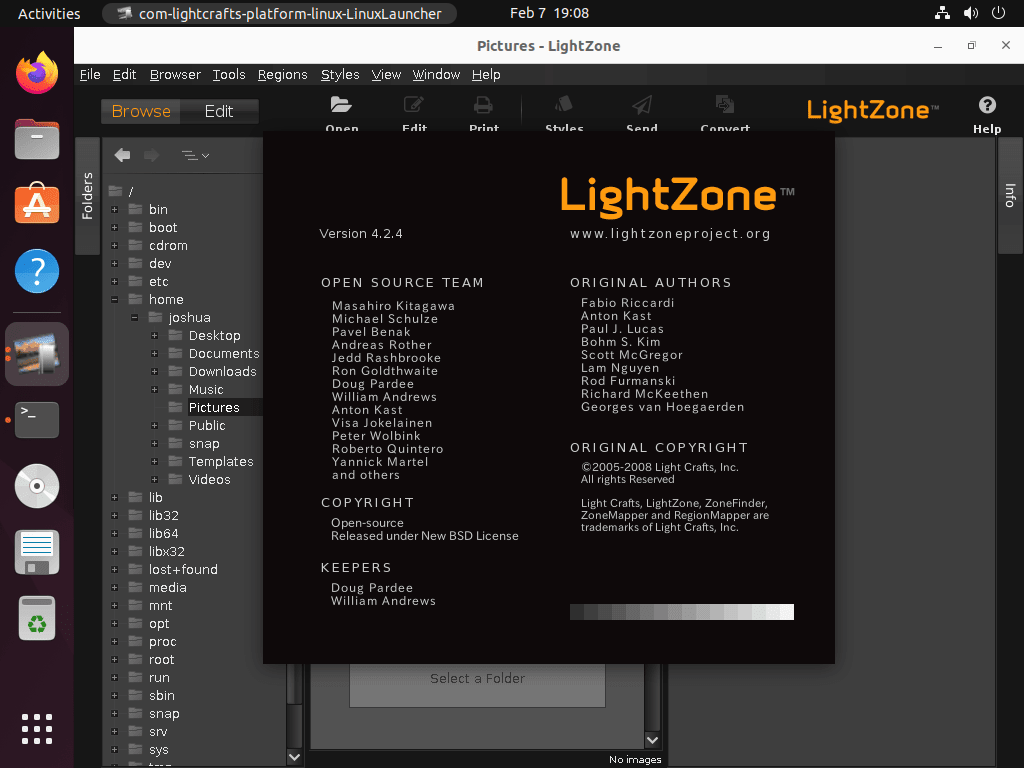
Getting Started with LightZone
Once LightZone is running, the following tips will help you get productive quickly. The interface may look different from traditional photo editors because of its unique tool-based approach.
Understanding the Tool Stack
LightZone’s tool stack differs from traditional layer-based editing found in applications like GIMP or Photoshop. Each tool you add sits on top of previous tools, and the order matters since tools process the image from bottom to top. You can drag tools to reorder them, toggle individual tools on and off, or remove them entirely without affecting other adjustments. This approach makes it easy to experiment with different combinations of adjustments while maintaining full control over your editing history.
Essential Keyboard Shortcuts
These shortcuts speed up the editing workflow and help you work more efficiently:
Ctrl+Z: Undo the last change.Ctrl+Shift+Z: Redo a previously undone action.Spacebar: Temporarily show the original image without edits (release to see the edited version). This is particularly useful for comparing your adjustments to the original.
Working with Styles
The Styles panel on the right side contains pre-built adjustment combinations that you can apply with a single click. To apply a style, click any style name to apply it to your current image. If you create adjustments you want to reuse across multiple photos, select Styles → Save Style to create a custom preset that you can apply to other photos with a single click. This feature is especially valuable when you want to create a consistent look across a series of images.
Batch Processing Multiple Images
To apply the same edits to multiple photos from the same shoot, use the Browser view to select multiple images, then right-click and choose a style or copy adjustments from an already-edited image. This approach saves considerable time when processing event photography or any series where lighting conditions remained consistent. The batch processing feature is one of LightZone’s strongest capabilities for photographers who need to process large volumes of images quickly.
Saving and Exporting
LightZone stores edits in separate metadata files (with an .lzn extension) alongside your original images. Your original files remain completely untouched, which means you can always go back to the unedited version. When you are ready to share or print, use File → Export to create a new JPEG or TIFF file with all adjustments baked in. The export dialog allows you to choose the output format, quality level, and dimensions for your final image.
Troubleshoot LightZone
If you encounter problems launching or using LightZone, the following solutions address the most common issues users experience.
LightZone Fails to Start or Shows Java Errors
LightZone requires Java to run. If the application fails to launch or shows Java-related errors, first verify that Java is installed and accessible:
java -versionYou should see output similar to the following (version numbers may vary):
openjdk version "17.0.x" 2024-xx-xx
OpenJDK Runtime Environment (build 17.0.x+xx-Ubuntu-xxxxx)
OpenJDK 64-Bit Server VM (build 17.0.x+xx-Ubuntu-xxxxx, mixed mode, sharing)
If Java is missing or the command returns an error, the LightZone package installation should have included Java as a dependency. Reinstalling the package typically resolves this issue:
sudo apt reinstall lightzoneLightZone Window Appears Blank or Displays Incorrectly
On some systems with older graphics drivers or unusual display configurations, Java applications may have rendering issues. This is particularly common on Wayland sessions or with certain window managers. Running LightZone with a different graphics pipeline can help:
_JAVA_AWT_WM_NONREPARENTING=1 lightzoneIf this resolves the issue, you can make the workaround permanent by adding the environment variable to your shell configuration:
echo 'export _JAVA_AWT_WM_NONREPARENTING=1' >> ~/.bashrc
source ~/.bashrc
Alternatively, open a new terminal window for the change to take effect automatically in future sessions.
RAW Files Not Opening or Camera Not Recognized
LightZone uses the LibRaw library for RAW file processing. If LightZone does not recognize your camera model, the installed version of LibRaw may lack support for newer cameras. Check the installed version by running the appropriate command for your Ubuntu release:
Ubuntu 24.04 LTS:
apt-cache policy libraw23t64Ubuntu 22.04 LTS:
apt-cache policy libraw20For newer cameras not yet supported by your LibRaw version, you have two options. First, you can wait for an updated LibRaw version in the Ubuntu repositories, which typically happens with regular system updates. Second, you can export your RAW files to DNG format using a tool like Adobe DNG Converter before opening them in LightZone. DNG is an open standard that LightZone handles well regardless of the original camera model.
Manage LightZone
Update LightZone
Because you installed LightZone via APT from the PPA, it updates automatically with your regular system updates through Ubuntu’s Software Updater. To check for updates manually, run the following command:
sudo apt update && sudo apt install --only-upgrade lightzoneThe --only-upgrade flag ensures the command only upgrades LightZone if you already have it, rather than installing it fresh if you previously removed it. This approach is safer than using apt upgrade, which would upgrade all packages on your system.
Remove LightZone
If you no longer need LightZone, remove the package and its unused dependencies with the following commands:
sudo apt remove lightzone
sudo apt autoremove
The autoremove command cleans up Java dependencies and other packages that APT automatically installed for LightZone but no other application on your system needs.
Next, remove the PPA to prevent your system from checking for updates from a repository you no longer use. For more details on PPA management, see our guide on removing a PPA from Ubuntu:
sudo add-apt-repository --remove ppa:lightzone-team/lightzone -y
sudo apt update
Running apt update after removing the PPA refreshes your package cache and confirms the system no longer references that repository.
Your edited photos and
.lznmetadata files remain in your image folders after uninstalling LightZone. These files do not affect your system and can be safely left in place if you might reinstall LightZone later. To remove all LightZone configuration data if you want a completely clean uninstall, delete the~/.config/LightZonefolder withrm -rf ~/.config/LightZone.
Conclusion
LightZone provides a focused photo editing experience built around non-destructive adjustments and the Zone System approach to exposure control. With the PPA installation complete, you can import RAW files from most camera manufacturers, apply batch edits across photo sets, and create reusable style presets for consistent processing. The tool stack approach offers a different workflow from layer-based editors that many photographers find more intuitive for exposure and tonal work. For more complex compositing or pixel-level manipulation, consider pairing LightZone with GIMP or exploring Darktable for an alternative RAW workflow.

Formatting tips for your comment
You can use basic HTML to format your comment. Useful tags currently allowed:
<code>command</code>command<strong>bold</strong><em>italic</em><blockquote>quote</blockquote>