FileZilla remains a practical way to move files between an Ubuntu desktop and remote servers when you need FTP, FTPS, or SFTP in one graphical client. You can install FileZilla on Ubuntu from the default universe repository for the lowest-maintenance path, or use Flatpak when you want the current Flathub build on older LTS releases.
FileZilla Client is the desktop transfer app covered here. FileZilla Server is a separate server application; Ubuntu users who need encrypted file access for other users usually start with OpenSSH and SFTP on Ubuntu, while traditional FTP hosting requires a dedicated FTP server package.
Install FileZilla on Ubuntu
Quick FileZilla Install Commands for Ubuntu
The default APT package is the simplest quick path on Ubuntu 26.04 LTS, 24.04 LTS, and 22.04 LTS. It installs FileZilla Client from Ubuntu’s community-maintained universe component.
sudo apt update
sudo apt install filezilla
These commands use
sudofor tasks that need root privileges. If your user is not in the sudoers file yet, run the commands as root or follow the guide on how to add a sudo user on Ubuntu.
Choose a FileZilla Package Source
A separate FileZilla download is not required for the normal Ubuntu install. APT and Flatpak both download FileZilla from managed repositories, and the FileZilla project site remains useful for release notes, support, and upstream project details.
Default FileZilla versions vary by Ubuntu release. Use the table below to choose the package source that matches your update preference:
| Method | Channel | Current Branch | Updates | Best For |
|---|---|---|---|---|
| APT default package | Ubuntu universe | 26.04: 3.69.x 24.04: 3.66.x 22.04: 3.58.x | sudo apt upgrade | Most users who want a native package with Ubuntu repository updates |
| Flatpak | Flathub | 3.69.x stable ref | sudo flatpak update org.filezillaproject.Filezilla | Ubuntu 24.04 or 22.04 users who want a newer build and accept Flathub’s broad file-access permissions |
| XtraDeb PPA | Unofficial Launchpad PPA | 24.04: newer 3.69.x candidate | sudo apt upgrade | Ubuntu 24.04 users who specifically want a newer APT-managed package |
XtraDeb is optional and release-limited. In the Ubuntu LTS releases covered here, it is useful only on Ubuntu 24.04 because that release gets a newer FileZilla candidate from the PPA. Ubuntu 26.04 already has a 3.69.x build in
universe, and Ubuntu 22.04 users who want a newer branch should use Flatpak instead.
For most users, the default APT repository provides a reliable FileZilla installation with no extra configuration. Choose Flatpak if you want the current Flathub build on Ubuntu 24.04 or 22.04, or use the XtraDeb PPA on Ubuntu 24.04 only when you prefer APT over Flatpak.
Install FileZilla from Ubuntu’s Default Repository
Use this method on any supported Ubuntu LTS release when you want the simplest package-managed install. If you already ran the quick commands above, skip directly to the verification command.
sudo apt install filezillaVerify the installed package with APT metadata instead of filezilla --version. The FileZilla launcher initializes GTK and may show a display error in SSH or other non-graphical shells.
apt-cache policy filezillafilezilla:
Installed: 3.69.6-1
Candidate: 3.69.6-1
Version table:
*** 3.69.6-1 500
500 http://au.archive.ubuntu.com/ubuntu resolute/universe amd64 Packages
100 /var/lib/dpkg/status
The output above is from Ubuntu 26.04. Ubuntu 24.04 currently reports 3.66.5-2build2, while Ubuntu 22.04 reports 3.58.0-1ubuntu0.1. The package name and terminal launch command stay the same.
Install FileZilla from the XtraDeb PPA
The XtraDeb PPA is an unofficial package source for Ubuntu 24.04 users who want a newer FileZilla build while staying with APT. Skip this method on Ubuntu 26.04 and 22.04: 26.04 already selects the Ubuntu 3.69.x build, while 22.04 readers who want a newer branch should use Flatpak.
Use only one APT source for FileZilla. Do not keep switching between the default package and the PPA without checking
apt-cache policy filezilla. The candidate line should match the source you intend to use.
Install the prerequisite package for managing PPAs, then add the repository:
sudo apt install software-properties-common -y
sudo add-apt-repository ppa:xtradeb/apps -y
Refresh the package list and confirm the PPA becomes the FileZilla candidate before installing:
sudo apt update
apt-cache policy filezilla
Continue only when the candidate source points to ppa.launchpadcontent.net/xtradeb/apps. If the candidate remains the Ubuntu repository package, remove the PPA or use the default repository method instead.
sudo apt install filezilla -yAfter installation, verify the installed package still resolves from the PPA. Relevant output includes:
apt-cache policy filezillafilezilla:
Installed: 3.69.6-1xtradeb1.2404.1
Candidate: 3.69.6-1xtradeb1.2404.1
Version table:
*** 3.69.6-1xtradeb1.2404.1 500
500 https://ppa.launchpadcontent.net/xtradeb/apps/ubuntu noble/main amd64 Packages
100 /var/lib/dpkg/status
Install FileZilla with Flatpak
Flatpak is the simplest way to get the current Flathub build on Ubuntu 24.04 or 22.04 without adding a release-specific PPA. The current Flathub app ref is org.filezillaproject.Filezilla/x86_64/stable, and Flatpak installs the required runtime automatically.
Flathub currently labels this FileZilla listing as unverified and potentially unsafe, and the app declares broad host filesystem access for file transfers. Use this method for Flathub’s update cadence, not as a stronger isolation choice than the native APT package.
Flatpak must be installed before proceeding. See how to install Flatpak on Ubuntu for setup instructions.
Enable the Flathub repository and install FileZilla:
sudo flatpak remote-add --if-not-exists flathub https://dl.flathub.org/repo/flathub.flatpakrepo
sudo flatpak install flathub org.filezillaproject.Filezilla -y
Confirm the installed Flatpak record:
flatpak info org.filezillaproject.FilezillaFileZilla - Fast and reliable FTP client
ID: org.filezillaproject.Filezilla
Ref: app/org.filezillaproject.Filezilla/x86_64/stable
Version: 3.69.6
Branch: stable
Launch FileZilla on Ubuntu
FileZilla can be opened from a terminal inside a graphical desktop session or from the application menu. Avoid using the launch commands as version checks in SSH or headless shells because the GUI needs a display session.
Launch FileZilla from the Terminal
APT users launch FileZilla directly:
filezillaFlatpak users launch FileZilla through the Flatpak runtime:
flatpak run org.filezillaproject.FilezillaLaunch FileZilla from the Applications Menu
GNOME desktop users can launch FileZilla through the application launcher. On Kubuntu, Xubuntu, and other Ubuntu flavors, open the application menu and search for FileZilla instead.
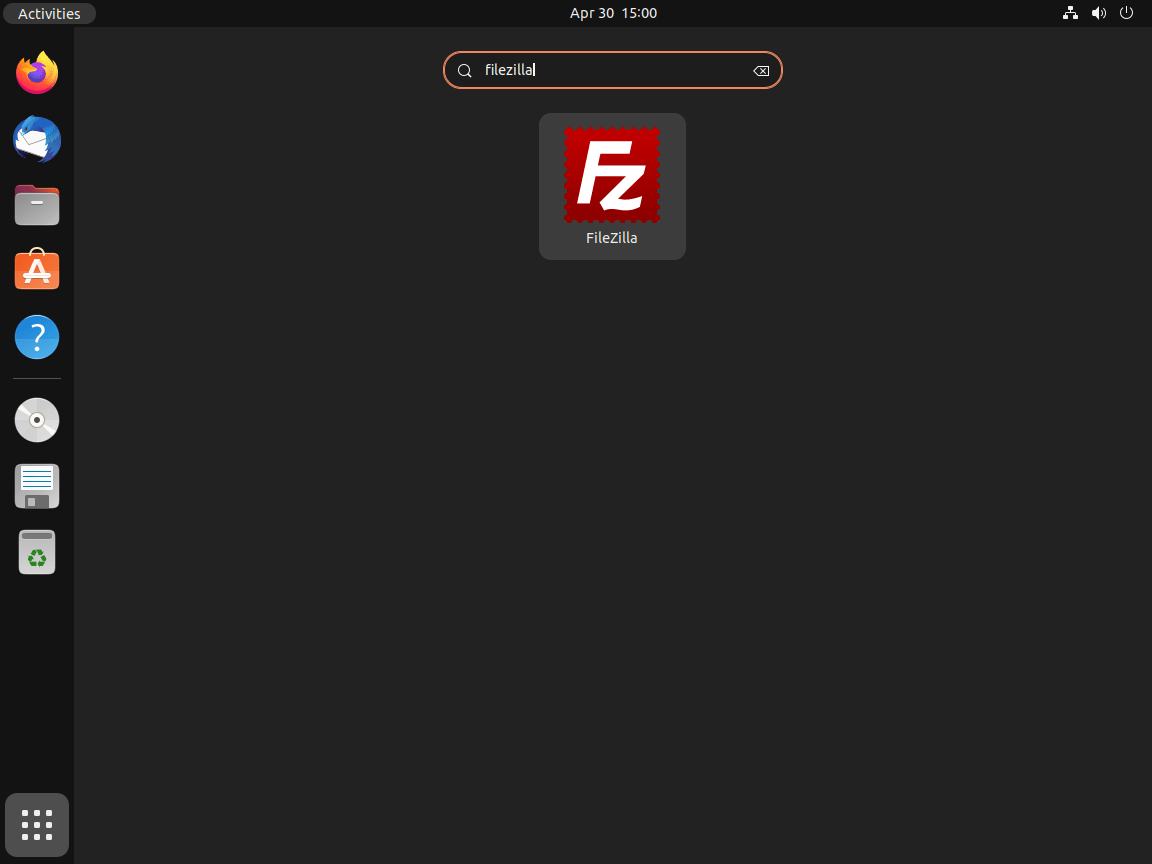
- Click Activities in the top-left corner of your desktop.
- Type FileZilla in the search bar.
- Click the FileZilla icon to launch the application.
Connect to a Remote Server with FileZilla
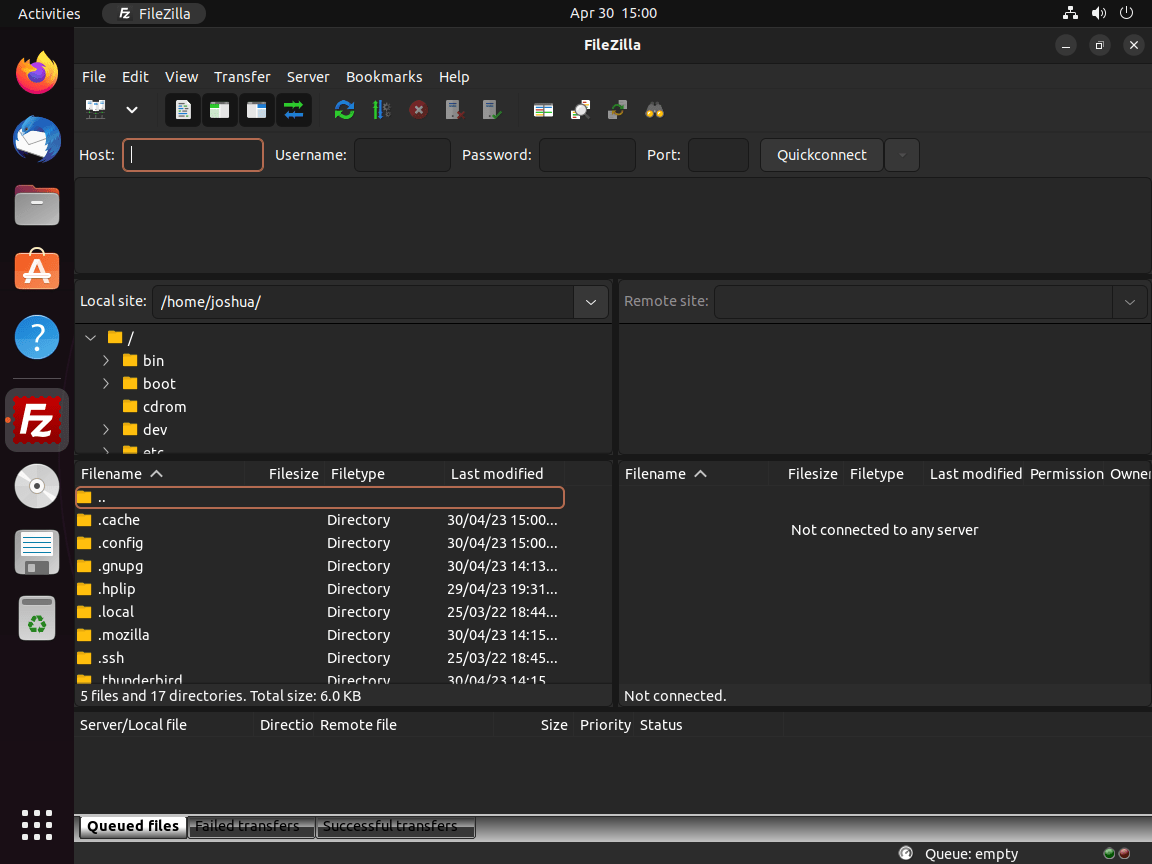
FileZilla provides two ways to connect: the Quickconnect bar for one-off sessions and the Site Manager for saved profiles.
FileZilla Quickconnect Bar
The Quickconnect bar at the top of the FileZilla window connects to a server without saving credentials. Fill in the four fields:
- Host: Server address with protocol prefix (e.g.,
sftp://server.example.comorftp://files.example.com) - Username: Your login username
- Password: Your password (leave blank for SSH key authentication)
- Port: 22 for SFTP, 21 for FTP, or leave blank for the protocol default
Prefix the host with
sftp://for SFTP connections. Without a prefix, FileZilla defaults to plain FTP, which transmits credentials in cleartext.
FileZilla Site Manager
For servers you connect to regularly, the Site Manager stores credentials, protocol settings, and default directories. Open it from File > Site Manager (or press Ctrl+S), then click New Site to create an entry. Key settings include:
- Protocol: Choose SFTP for encrypted transfers or FTP for legacy servers
- Logon Type: Set to Key file for SSH key authentication, or Normal for password-based login
- Default Directories: Set local and remote paths so FileZilla opens the right folders automatically
Saved sites appear in the Site Manager dropdown next to the Quickconnect bar for one-click access.
Update and Remove FileZilla on Ubuntu
Update FileZilla on Ubuntu
Regular updates deliver security patches and protocol improvements. The update command depends on your installation method.
Update FileZilla with APT
Check package metadata, then upgrade FileZilla through APT. This command works for both the default repository package and the XtraDeb PPA package when that PPA is configured:
sudo apt update
sudo apt install --only-upgrade filezilla
Update FileZilla with Flatpak
Flatpak updates FileZilla independently from APT packages and refreshes any required runtimes from Flathub:
sudo flatpak update org.filezillaproject.Filezilla -yRemove FileZilla from Ubuntu
Remove FileZilla Installed with APT
Remove the FileZilla package first:
sudo apt remove filezillaPreview dependency cleanup before running autoremove. Continue only if the preview lists FileZilla-related packages you no longer need, not unrelated desktop components, kernels, or packages from other work:
sudo apt autoremove --dry-runIf the preview is clean, run the real cleanup:
sudo apt autoremoveIf you added the XtraDeb PPA, remove it to keep your APT sources clean:
sudo add-apt-repository --remove ppa:xtradeb/apps -y
sudo apt update
The following command permanently deletes saved server passwords, site entries, and transfer queue history. Export your Site Manager entries from File > Export before proceeding if you want to keep them.
Delete the FileZilla configuration directory to remove saved credentials and connection profiles:
rm -rf "$HOME/.config/filezilla"Verify FileZilla has been removed:
dpkg-query -W -f='${db:Status-Abbrev} ${binary:Package}\n' filezilla 2>/dev/null | grep '^ii ' || echo "not installed"not installed
If the command prints an ii filezilla line instead, FileZilla is still installed.
Remove FileZilla Installed with Flatpak
Flatpak stores app data under the user account that runs FileZilla. Export your Site Manager entries first if you plan to delete saved profiles or passwords.
Remove the FileZilla Flatpak package:
sudo flatpak remove org.filezillaproject.Filezilla -yIf no other Flatpak app needs the leftover runtime packages, clean unused runtimes:
sudo flatpak uninstall --unused -yDelete the current user’s FileZilla Flatpak data only when you no longer need saved site profiles, transfer history, or stored credentials:
rm -rf "$HOME/.var/app/org.filezillaproject.Filezilla"Confirm the Flatpak app ID is gone from the system installation. The command uses grep -Fx for an exact app ID match; the grep command examples explain that filter style in more detail.
sudo flatpak list --app --columns=application | grep -Fx org.filezillaproject.Filezilla || echo "NOT_INSTALLED"NOT_INSTALLED
Troubleshoot FileZilla Connection Issues on Ubuntu
Connection failures in FileZilla typically fall into three categories: network/firewall blocks, FTP passive mode issues, and SFTP authentication errors.
FileZilla Connection Timed Out or Refused
FileZilla displays this error when it cannot reach the remote server:
Error: Connection timed out after 20 seconds of inactivity
Error: Could not connect to server
A firewall blocking the connection or the server not running are the most common causes. Verify your firewall allows outbound connections on the required ports:
- FTP: Port 21 (control) and passive mode ports (typically 49152-65535)
- SFTP: Port 22 (same as SSH)
- FTPS: Port 990 (implicit) or 21 (explicit)
If you use UFW firewall on Ubuntu, check your outbound policy:
sudo ufw status verboseStatus: active Default: deny (incoming), allow (outgoing), disabled (routed)
The default policy allow (outgoing) permits FileZilla connections. If your policy shows deny (outgoing), add explicit allow rules for the ports listed above.
FileZilla Passive Mode Failures
FileZilla connects but fails when listing directories or transferring files:
Status: Retrieving directory listing...
Response: 227 Entering Passive Mode (192,168,1,100,195,80)
Error: Connection timed out
Error: Failed to retrieve directory listing
FTP uses passive mode by default, where the server specifies a port for data transfers. If the server’s passive port range is blocked by a firewall, directory listings and transfers fail.
In FileZilla, navigate to Edit > Settings > Connection > FTP and switch between passive and active mode. Active mode requires your firewall to allow inbound connections, which may not work behind NAT.
FileZilla SFTP Authentication Failures
When SFTP authentication fails, FileZilla returns:
Error: Disconnected: No supported authentication methods available (server sent: publickey)
Error: Could not connect to server
For SFTP connections using SSH keys, confirm FileZilla can access your private key:
- Go to Edit > Settings > Connection > SFTP.
- Click Add key file and select your private key (usually
~/.ssh/id_rsaor~/.ssh/id_ed25519). - FileZilla converts PuTTY-format keys (
.ppk) automatically if needed.
Verify your SSH key works independently before troubleshooting FileZilla. If you need a refresher on options such as -i, see the SSH command examples.
ssh -i ~/.ssh/id_rsa user@server.example.comIf SSH connects successfully, the issue is FileZilla-specific (check key file path in settings). If SSH also fails with a permission denied error, regenerate your SSH keys or verify the public key exists in the server’s ~/.ssh/authorized_keys file.
Conclusion
FileZilla is ready on Ubuntu for FTP, FTPS, and SFTP transfers, with saved connection profiles available through the Site Manager. For regular server work, prefer SFTP over plain FTP so authentication and file data travel through your existing SSH setup on Ubuntu.


Even though FileZilla Server is not distributed with Ubuntu, a .deb package is available for download from the official FileZilla website.