OBS Studio on Debian is mainly a package-source decision: the Debian package is stable and easy to maintain, while the official upstream Linux build now reaches Debian users through Flathub. To install OBS Studio on Debian, use APT when you want the distro-maintained package, Flatpak when you need the current OBS release, or a Debian 13 source build when you deliberately want a local /usr/local build that you rebuild yourself.
Debian 13 (Trixie) ships a much newer OBS package than Debian 12 (Bookworm) or Debian 11 (Bullseye), so the best method depends on whether version freshness matters for your capture workflow. Flatpak is the easiest way to run OBS 32.1.x on supported Debian releases, while the source build stays scoped to Debian 13 because OBS 32.x needs a newer CMake and Qt6 toolchain than older Debian releases provide by default.
Install OBS Studio on Debian
Choose an OBS Studio Installation Method
Choose one method and keep its update and removal commands together. APT and Flatpak can technically coexist because the Flatpak app ID is separate from the obs binary, but most desktops only need one OBS install. Mixing methods makes troubleshooting plugins, settings paths, and launch commands harder than necessary.
| Method | Source or Channel | Current Version Path | Update Behavior | Best For | Trade-offs |
|---|---|---|---|---|---|
| APT | Debian package repositories | Release-fixed Debian package | Updates through APT | Most Debian desktops that value simple maintenance and distro integration | Older OBS branch on Debian 12 and Debian 11 |
| Flatpak | Flathub | Current stable OBS 32.1.x | Updates through Flatpak | Users who need the newest OBS release, Browser Source support, or current Flathub add-ons | Flathub currently lists x86_64 and broad permissions that are normal for screen capture |
| Compile from source | OBS Studio Git tags | Latest stable tag resolved at build time on Debian 13 | Manual rebuild with update-obs-source.sh | Advanced Debian 13 users who want a local upstream build under /usr/local | Long build, manual lifecycle, no Browser Source or NVENC in the documented build flags |
APT is the safest default because Debian maintains the package, dependencies, desktop entry, and plugin package set for your release. Flatpak is the better choice when a streaming service, plugin, or capture feature expects a newer OBS branch than Debian 12 or Debian 11 provides. Source builds are useful only when you specifically want upstream code under /usr/local and accept that you own rebuilds, cleanup, and any feature flags you disable.
Check OBS Studio Versions by Debian Release
The APT package version is tied to the Debian release, not the newest OBS version available upstream. The package candidates in this table reflect current Debian repository metadata.
| Debian or Method | Package or Release Version | Reader Impact |
|---|---|---|
| Debian 13 (Trixie) APT | 30.2.3+dfsg-3 | Good default for stable Debian 13 desktops |
| Debian 12 (Bookworm) APT | 29.0.2+dfsg-1+b1 | Stable, but older than current upstream OBS |
| Debian 11 (Bullseye) APT | 26.1.2+dfsg1-2 | Works for basic X11 workflows, but Wayland and service compatibility can lag |
| Flatpak from Flathub | 32.1.2 current stable | Current upstream OBS package for non-Ubuntu Linux users |
| Debian 13 source build | Latest stable Git tag, currently 32.1.2 | Manual upstream build with explicit feature flags |
The official OBS download page lists Flatpak on Flathub and an Ubuntu 24.04-or-newer PPA as the supported Linux distribution paths. Debian users should not add the Ubuntu OBS PPA to Debian; use Debian’s package, Flathub, or a deliberate source build instead.
Install OBS Studio with APT
The APT method installs obs-studio from Debian’s own repositories. Debian also pulls the matching obs-plugins package through the normal dependency and recommendation chain, so this method keeps the core app and packaged plugins aligned with your release.
Refresh the package index and apply pending package upgrades before installing a desktop media application:
sudo apt update
sudo apt upgrade
These commands use
sudofor package-management tasks that need root privileges. If your user is not configured for sudo yet, follow how to add a user to sudoers on Debian before continuing.
Install OBS Studio from the default Debian repositories:
sudo apt install obs-studioCheck the installed package and candidate source afterward:
apt-cache policy obs-studioIn the output, confirm that Installed is not (none) and that the candidate version matches the Debian release you installed from. Debian 13 should show an OBS 30.2.x package from trixie/main.
Your exact version follows your Debian release. Debian 12 reports an OBS 29.0.x package, and Debian 11 reports an OBS 26.1.x package from the default repository metadata.
Install OBS Studio with Flatpak and Flathub
Flatpak installs the current OBS Project build from Flathub without replacing Debian’s APT package sources. This is the most practical path when Debian’s release-fixed package is too old for a streaming service, Browser Source workflow, or current OBS add-on.
Flatpak is available from Debian’s repositories but may be missing on minimal or customized systems. If the flatpak command is not installed yet, set it up with Install Flatpak on Debian, then return to this section.
Flathub labels OBS Studio as potentially unsafe because screen recording, audio capture, camera input, and plugin workflows need broad desktop and device access. Treat Flatpak here as the official current OBS packaging path for non-Ubuntu Linux users, not as a strict security boundary.
Add Flathub as the system-wide Flatpak remote if it is not already configured:
sudo flatpak remote-add --if-not-exists flathub https://dl.flathub.org/repo/flathub.flatpakrepoInstall OBS Studio from Flathub:
sudo flatpak install flathub com.obsproject.StudioConfirm the Flatpak application ID, branch, version, and installation scope:
flatpak info com.obsproject.StudioIn the output, look for ID: com.obsproject.Studio, the stable branch, Origin: flathub, and the expected installation scope. The version should track the current stable release shown on Flathub.
If flatpak info cannot find the app but the install command succeeded for another user, check whether OBS was installed with --user in that account. System and user Flatpak installs have separate remotes, update commands, and data paths.
Compile OBS Studio from Source on Debian 13
The source method follows the upstream OBS Studio Linux build instructions and installs the result under /usr/local. It is scoped to Debian 13 because Trixie provides CMake 3.31.x and Qt 6.8.x packages, while Debian 12 provides CMake 3.25.x and Debian 11 does not provide qt6-base-dev in the default repositories.
The documented source build disables Browser Source, WebRTC, AJA, and NVIDIA encoder build support so the build stays reproducible with Debian 13 repository packages. Use Flatpak instead if Browser Source, the current OBS plugin ecosystem, or packaged upstream feature parity matters more than having a local build.
Install OBS Studio Source Build Dependencies
Install the Debian 13 build tools, Qt6 packages, FFmpeg development libraries, PipeWire headers, and plugin dependencies needed by the documented build:
sudo apt install ca-certificates cmake extra-cmake-modules ninja-build pkg-config build-essential clang clang-format ccache curl git zsh python3-dev swig \
libavcodec-dev libavdevice-dev libavfilter-dev libavformat-dev libavutil-dev libswresample-dev libswscale-dev libx264-dev \
libcurl4-openssl-dev libmbedtls-dev libgl1-mesa-dev libjansson-dev libluajit-5.1-dev libx11-dev libxcb-randr0-dev \
libxcb-shm0-dev libxcb-xinerama0-dev libxcb-composite0-dev libxcomposite-dev libxinerama-dev libxcb1-dev libx11-xcb-dev \
libxcb-xfixes0-dev libcmocka-dev libxss-dev libglvnd-dev libgles2-mesa-dev libwayland-dev librist-dev libsrt-openssl-dev \
libpci-dev libpipewire-0.3-dev libqrcodegencpp-dev uthash-dev libsimde-dev qt6-base-dev qt6-base-private-dev qt6-svg-dev \
qt6-wayland qt6-image-formats-plugins libasound2-dev libfontconfig-dev libfreetype6-dev libjack-jackd2-dev libpulse-dev \
libsndio-dev libspeexdsp-dev libudev-dev libv4l-dev libva-dev libvlc-dev libvpl-dev libdrm-dev nlohmann-json3-dev \
libwebsocketpp-dev libasio-dev
Debian’s default repositories do not provide every optional OBS build dependency, such as the separate CEF bundle used by Browser Source. That is why the CMake step disables Browser Source instead of pretending the Debian 13 package set builds every upstream feature.
Download the Latest Stable OBS Studio Source
Resolve the newest stable OBS tag from the GitHub API, then print it before cloning. The parser ignores release candidates and beta tags by accepting only plain three-part version tags.
OBS_TAG=$(curl -fsSL https://api.github.com/repos/obsproject/obs-studio/tags?per_page=20 | python3 -c 'import json, re, sys
for tag in json.load(sys.stdin):
    name = tag.get("name", "")
    if re.fullmatch(r"[0-9]+\.[0-9]+\.[0-9]+", name):
        print(name)
        break')
printf '%s\n' "$OBS_TAG"
32.1.2
If the command prints nothing, open the OBS Studio tags page, copy the newest stable tag, and set OBS_TAG manually before cloning.
git clone --recursive --branch "$OBS_TAG" https://github.com/obsproject/obs-studio.git "$HOME/obs-studio-source"
cd "$HOME/obs-studio-source"
Use the Git checkout with submodules, not GitHub’s automatic source archive. OBS source archives do not include all submodule content needed by a normal build.
Configure, Compile, and Install OBS Studio
Configure the Debian 13 build with the Ubuntu CMake preset, override the feature flags used by this workflow, compile with all available CPU cores, install to /usr/local, and refresh the dynamic linker cache:
cmake --preset ubuntu \
  -DCMAKE_BUILD_TYPE=Release \
  -DCMAKE_INSTALL_PREFIX=/usr/local \
  -DOBS_COMPILE_DEPRECATION_AS_WARNING=ON \
  -DENABLE_AJA=OFF \
  -DENABLE_BROWSER=OFF \
  -DENABLE_WEBRTC=OFF \
  -DENABLE_NVENC=OFF \
  -DENABLE_FFMPEG_NVENC=OFF

cmake --build build_ubuntu --parallel "$(nproc)"
sudo cmake --install build_ubuntu
sudo ldconfig
A successful compile ends by linking the OBS frontend executable. Object counts vary by OBS release, enabled features, and compiler output, so treat the final link step and the later version check as the useful success signals.
Verify the OBS Studio Source Build
Check that the active OBS binary comes from /usr/local and reports the newer upstream version:
command -v obs
/usr/local/bin/obs --version
The first command should resolve to /usr/local/bin/obs, and the version should match the stable tag you built.
If
/usr/local/bin/obs --versionstill loads Debian’s olderlibobsafter installation, rerunsudo ldconfig. Source builds install libraries under/usr/local, and the linker cache must see those libraries before the local binary can use them reliably.
Launch OBS Studio on Debian
Launch OBS Studio from Terminal
For the APT package or Debian 13 source build, launch OBS with the normal command name:
obsFor the Flatpak installation, launch the Flathub app ID:
flatpak run com.obsproject.StudioIf both APT and a source build are installed, command -v obs shows which binary your shell will run. A source build installed under /usr/local/bin normally appears before Debian’s /usr/bin/obs on PATH.
Launch OBS Studio from the Applications Menu
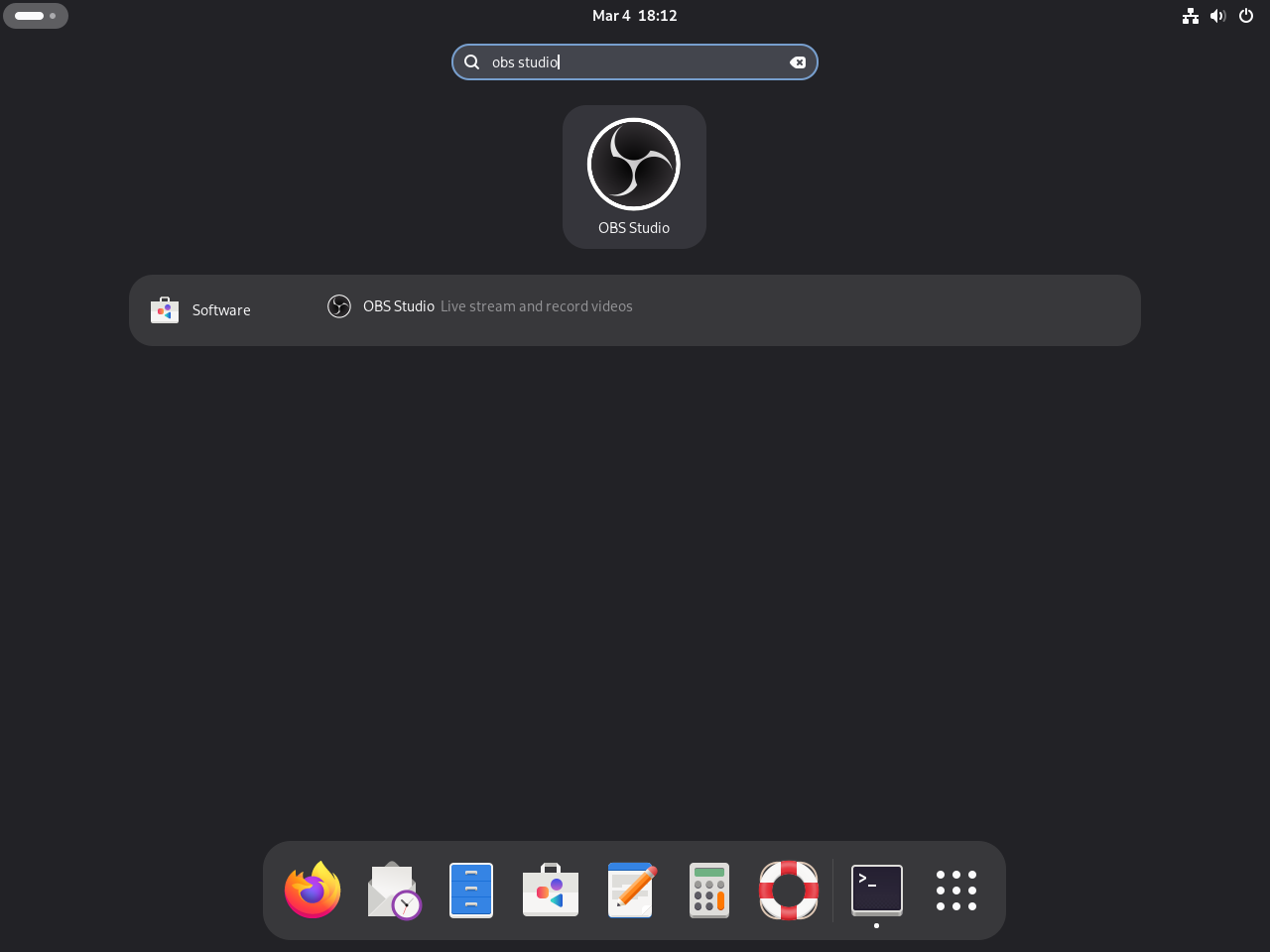
Open Activities, search for “OBS Studio,” and click the launcher. APT, Flatpak, and the Debian 13 source build all install a desktop launcher, although the exact menu layout can differ between GNOME, KDE Plasma, Xfce, Cinnamon, and other Debian desktops.
Get Started with OBS Studio on Debian
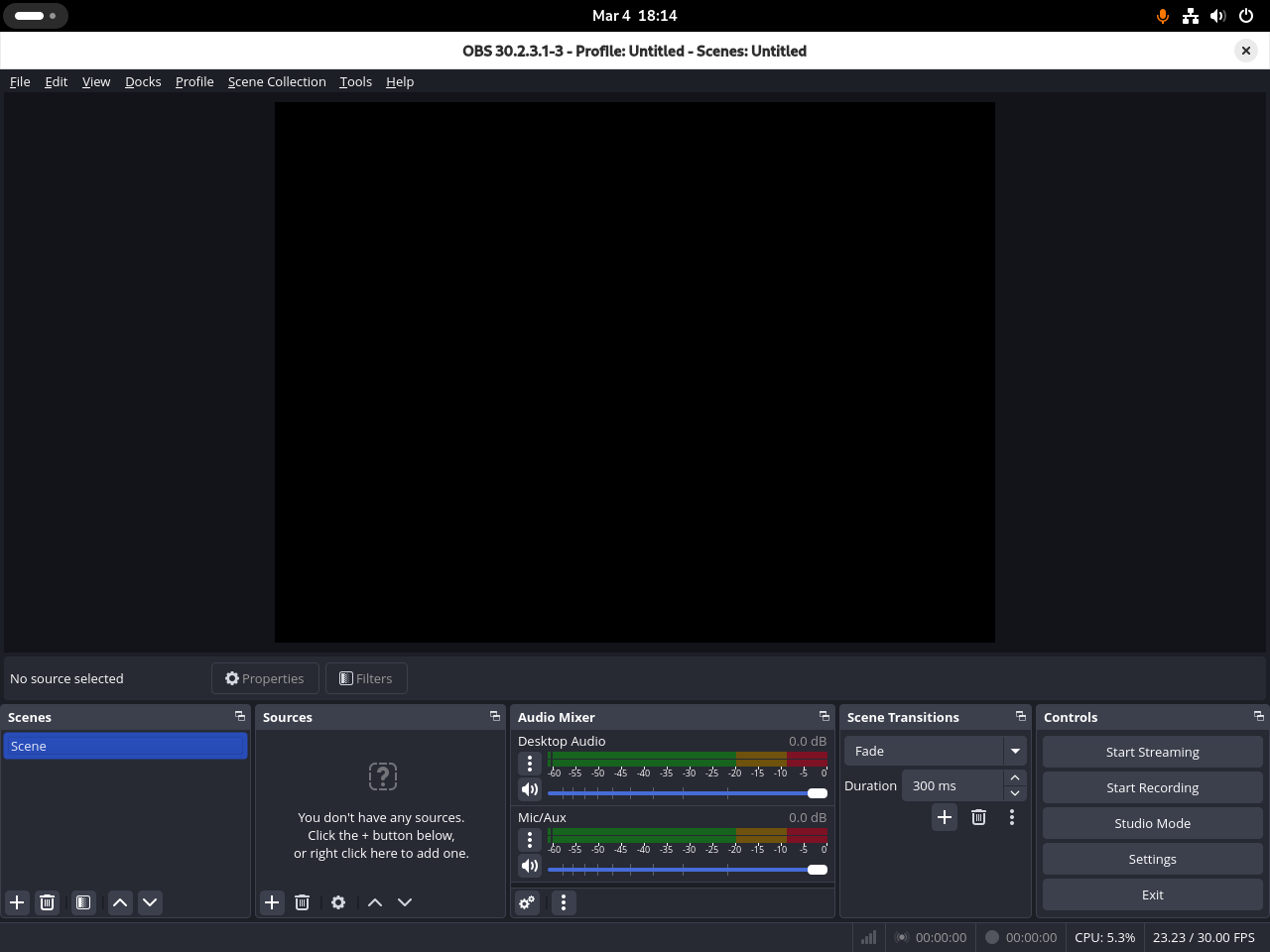
OBS starts with scenes, sources, audio devices, and output settings separated on purpose. A scene is the layout you record or stream, while sources are the pieces inside that scene, such as a display capture, window capture, browser source, image, camera, or microphone.
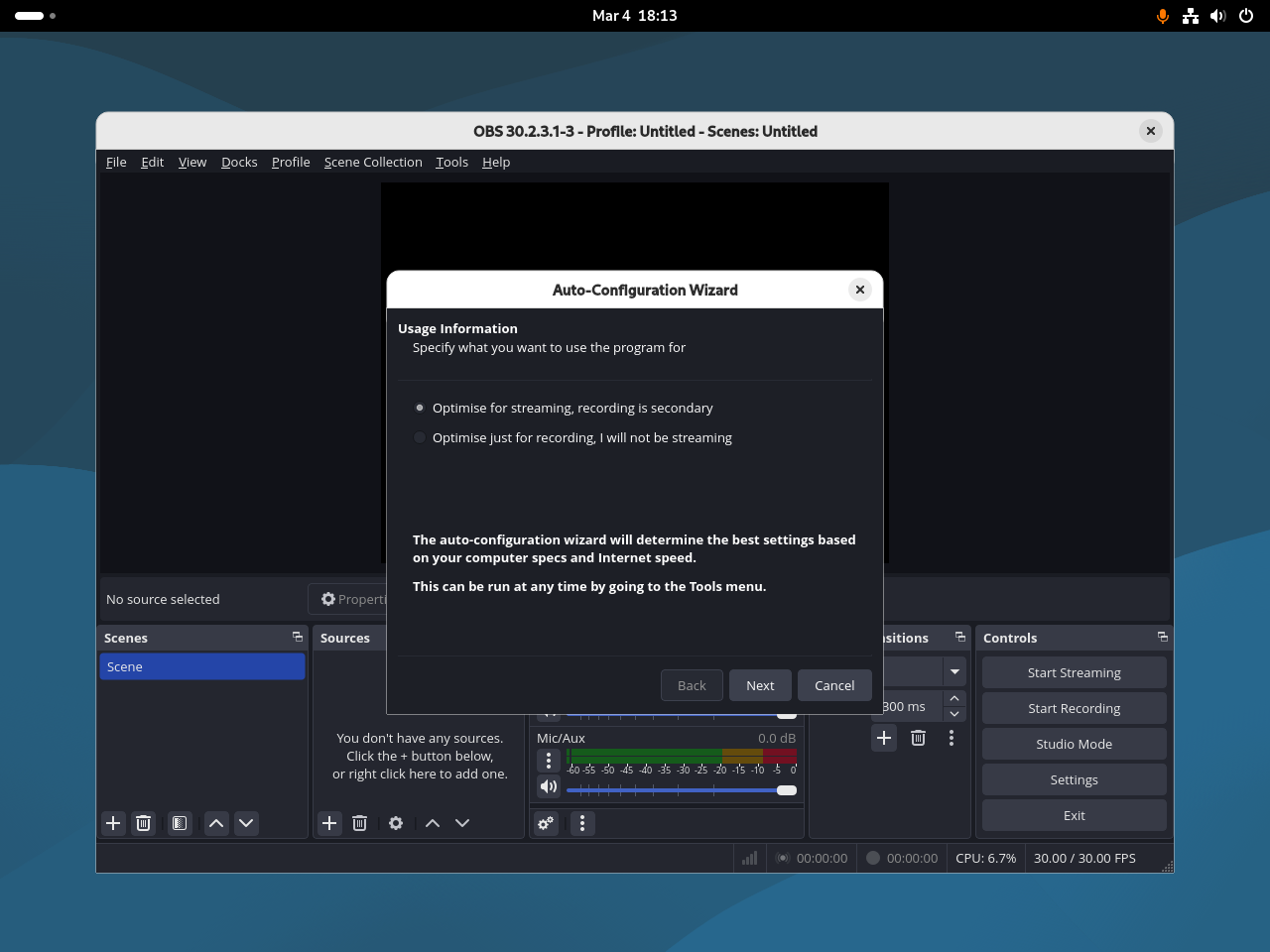
On first launch, use the auto-configuration wizard to choose whether your priority is streaming or local recording. Accepting the suggested settings is a good starting point because OBS checks your hardware and target workflow before choosing baseline video and encoder settings.
Create a First Recording Scene
A simple first recording setup is enough to confirm that OBS can capture your desktop and microphone before you tune stream keys, bitrate, scenes, and plugins.
- In the
Scenespanel, create a scene namedDesktop Recordingor another name that describes the layout. - In the
Sourcespanel, addScreen Capture (PipeWire)on Wayland orScreen Capture (XSHM)on X11. Window capture is useful when you only want one application. - Use the
Audio Mixermeters to confirm the microphone and desktop audio move when you speak or play audio. - Open
Settings>Outputand use MKV for recordings. MKV is safer during crashes, and OBS can remux the file to MP4 fromFile>Remux Recordings. - Press
Start Recording, record a short clip, stop recording, then play the file back before building a larger scene collection.
Tune Practical OBS Settings
These early settings prevent common recording and streaming mistakes without turning the first launch into a full production workflow.
- Video canvas: Use
Settings>Videoto set the base canvas to your monitor resolution, then choose an output resolution that matches your recording or streaming target. - Frame rate: Start with 30 FPS for basic desktop recording and 60 FPS only when motion quality matters and your hardware can encode it without dropped frames.
- Hotkeys: Set start and stop hotkeys under
Settings>Hotkeysso you do not need to switch windows while recording or streaming. - Stats dock: Enable
View>Docks>Statsto watch skipped frames, missed frames, CPU usage, and encoding lag while testing. - Plugin expectations: APT uses Debian-packaged OBS plugins, Flatpak works best with Flathub add-ons, and the source build only includes features enabled at compile time.
Manage OBS Studio on Debian
Update OBS Studio on Debian
Use the update command that matches the installation method. APT updates Debian’s package, Flatpak updates the Flathub app and runtimes, and the source build needs a rebuild from the newer Git tag.
For the APT installation, refresh package metadata and upgrade OBS if Debian publishes a package update:
sudo apt update
sudo apt install --only-upgrade obs-studio
For the Flatpak installation, update OBS Studio from Flathub:
sudo flatpak update com.obsproject.StudioTo update every system-wide Flatpak app and runtime, run sudo flatpak update without an app ID.
Create a Source Build Update Script
If you used the Debian 13 source method, install a reusable update script that checks the distro, checks the CMake version, resolves the newest stable OBS tag, rebuilds with the same feature flags, installs under /usr/local, and runs ldconfig.
sudo tee /usr/local/bin/update-obs-source.sh > /dev/null << 'SCRIPT'
#!/usr/bin/env bash
set -euo pipefail

# Keep local OBS source and update logs in the current user's home directory.
SOURCE_DIR="$HOME/obs-studio-source"
BUILD_DIR="$SOURCE_DIR/build_ubuntu"
OBS_BIN="/usr/local/bin/obs"
MIN_CMAKE="3.28.0"
LOG_FILE="$HOME/obs-studio-source-update.log"
TAGS_API="https://api.github.com/repos/obsproject/obs-studio/tags?per_page=20"

log() {
  printf "%s\n" "$1"
}

fail() {
  printf "Error: %s\n" "$1" >&2
  exit 1
}

version_ge() {
  [ "$(printf "%s\n%s\n" "$2" "$1" | sort -V | head -n 1)" = "$2" ]
}

latest_stable_tag() {
  curl -fsSL "$TAGS_API" | python3 -c 'import json, re, sys
for tag in json.load(sys.stdin):
    name = tag.get("name", "")
    if re.fullmatch(r"[0-9]+\.[0-9]+\.[0-9]+", name):
        print(name)
        break'
}

if [ "$(id -u)" -eq 0 ]; then
  fail "Run this script as a regular user. It uses sudo only for the install step."
fi

for cmd in awk cmake curl git grep head ninja nproc python3 sort sudo; do
  command -v "$cmd" >/dev/null 2>&1 || fail "$cmd is required but not installed."
done

# shellcheck disable=SC1091
. /etc/os-release
if [ "${ID:-}" != "debian" ] || [ "${VERSION_CODENAME:-}" != "trixie" ]; then
  fail "This script is written for Debian 13 (Trixie). OBS 32.x needs Debian 13's CMake and Qt6 toolchain."
fi

CMAKE_VERSION="$(cmake --version | awk 'NR==1 {print $3}')"
version_ge "$CMAKE_VERSION" "$MIN_CMAKE" || fail "CMake $MIN_CMAKE or newer is required. Installed version: $CMAKE_VERSION"

CURRENT_VERSION="$($OBS_BIN --version 2>/dev/null | grep -m1 -oE '[0-9]+\.[0-9]+\.[0-9]+' || true)"
CURRENT_VERSION="${CURRENT_VERSION:-none}"
LATEST_TAG="$(latest_stable_tag)"
[ -n "$LATEST_TAG" ] || fail "Could not detect the latest stable OBS Studio tag from GitHub."

log "Current installed version: $CURRENT_VERSION"
log "Latest available version: $LATEST_TAG"

if [ "$CURRENT_VERSION" = "$LATEST_TAG" ]; then
  log "OBS Studio is already up to date."
  exit 0
fi

read -r -p "Continue with the OBS Studio update? [y/N] " REPLY
case "$REPLY" in
  [Yy]|[Yy][Ee][Ss]) ;;
  *)
    log "Update canceled."
    exit 0
    ;;
esac

printf "%s Starting OBS Studio update to %s\n" "$(date '+%F %T')" "$LATEST_TAG" >> "$LOG_FILE"

if [ -e "$SOURCE_DIR" ] && [ ! -d "$SOURCE_DIR/.git" ]; then
  fail "$SOURCE_DIR exists but is not a Git checkout. Move it out of the way and rerun the script."
fi

if [ ! -d "$SOURCE_DIR/.git" ]; then
  log "Cloning the OBS Studio source tree..."
  git clone --recursive https://github.com/obsproject/obs-studio.git "$SOURCE_DIR"
else
  log "Refreshing the OBS Studio source tree..."
  git -C "$SOURCE_DIR" fetch --tags --force origin
fi

log "Checking out OBS Studio $LATEST_TAG..."
git -C "$SOURCE_DIR" checkout "$LATEST_TAG"
git -C "$SOURCE_DIR" submodule sync --recursive
git -C "$SOURCE_DIR" submodule update --init --recursive

log "Removing the previous build directory..."
rm -rf "$BUILD_DIR"

log "Configuring OBS Studio..."
(
  cd "$SOURCE_DIR"
  cmake --preset ubuntu \
    -DCMAKE_BUILD_TYPE=Release \
    -DCMAKE_INSTALL_PREFIX=/usr/local \
    -DOBS_COMPILE_DEPRECATION_AS_WARNING=ON \
    -DENABLE_AJA=OFF \
    -DENABLE_BROWSER=OFF \
    -DENABLE_WEBRTC=OFF \
    -DENABLE_NVENC=OFF \
    -DENABLE_FFMPEG_NVENC=OFF
)

log "Compiling OBS Studio. This can take several minutes..."
cmake --build "$BUILD_DIR" --parallel "$(nproc)"

log "Installing OBS Studio to /usr/local..."
sudo cmake --install "$BUILD_DIR"

log "Refreshing the dynamic linker cache..."
sudo ldconfig

NEW_VERSION="$($OBS_BIN --version 2>/dev/null | grep -m1 -oE '[0-9]+\.[0-9]+\.[0-9]+' || true)"
[ -n "$NEW_VERSION" ] || fail "OBS Studio installed, but the version check failed."

printf "%s Finished OBS Studio update to %s\n" "$(date '+%F %T')" "$NEW_VERSION" >> "$LOG_FILE"
log "OBS Studio is now updated to $NEW_VERSION"
log "Binary path: $OBS_BIN"
SCRIPT
sudo chmod +x /usr/local/bin/update-obs-source.sh
Run the helper from any directory:
update-obs-source.shWhen the installed version already matches the newest stable tag, the script prints the current and latest versions, then exits without rebuilding. When an update is available, it asks for confirmation before cloning, rebuilding, and installing.
Avoid running source-build updates from cron. If a dependency changes, the compile fails, or GitHub rate-limits the tag lookup, you want to see the failure while you are watching the terminal.
Remove OBS Studio from Debian
Use the removal command that matches the method you installed. Package removal does not delete your OBS profiles, scene collections, recordings, or plugins under your home directory unless you run the optional user-data cleanup command later.
Remove the APT-installed package and then remove unused dependencies if APT reports any:
sudo apt remove obs-studio
sudo apt autoremove
Remove the Flatpak app and then remove unused Flatpak runtimes if Flatpak reports any:
sudo flatpak uninstall com.obsproject.Studio
sudo flatpak uninstall --unused
If you used the Debian 13 source build, remove files listed in the install manifest first, then remove the local helper, common OBS install paths, source tree, update log, and refreshed linker cache. The cleanup loop detects Debian multiarch library directories instead of assuming one CPU architecture:
The next commands remove the source-built OBS binary, libraries, plugins, desktop file, build tree, and update log. Keep
~/obs-studio-sourceuntil you are certain you no longer need the exact build files orinstall_manifest.txtrecord.
if [ -f "$HOME/obs-studio-source/build_ubuntu/install_manifest.txt" ]; then
  sudo xargs -r -a "$HOME/obs-studio-source/build_ubuntu/install_manifest.txt" rm -f
fi
sudo rm -f /usr/local/bin/obs /usr/local/bin/obs-ffmpeg-mux /usr/local/bin/update-obs-source.sh
sudo rm -rf /usr/local/share/obs /usr/local/include/obs /usr/local/share/applications/com.obsproject.Studio.desktop /usr/local/share/metainfo/com.obsproject.Studio.metainfo.xml /usr/local/share/icons/hicolor/*/apps/com.obsproject.Studio.*
for libdir in /usr/local/lib/*-linux-gnu; do
  [ -d "$libdir" ] || continue
  sudo rm -rf "$libdir"/libobs* "$libdir"/obs-plugins "$libdir"/obs-scripting "$libdir"/pkgconfig/libobs.pc "$libdir"/pkgconfig/obs-frontend-api.pc "$libdir"/cmake/libobs "$libdir"/cmake/obs-frontend-api "$libdir"/cmake/obs-websocket-api
done
sudo ldconfig
rm -rf "$HOME/obs-studio-source"
rm -f "$HOME/obs-studio-source-update.log"
If the source build was the only OBS install, command -v obs returns no output afterward. If Debian’s APT package is still installed, the command falls back to /usr/bin/obs.
The next commands permanently delete OBS Studio profiles, scene collections, plugin data, and local settings. Back up anything you might need before removing user data.
rm -rf "$HOME/.config/obs-studio"
rm -rf "$HOME/.var/app/com.obsproject.Studio"
Troubleshoot OBS Studio on Debian
Fix Wayland Screen Capture in OBS Studio
Debian GNOME sessions normally use Wayland, and OBS captures Wayland desktops through PipeWire and the desktop portal. If the source list is missing Screen Capture (PipeWire), or the preview stays black after you pick a screen, install the portal packages for your desktop and restart the session.
For GNOME on Debian 12 or Debian 13, install the GNOME portal backend with PipeWire:
sudo apt install xdg-desktop-portal xdg-desktop-portal-gnome pipewireFor KDE Plasma, use KDE’s portal backend instead:
sudo apt install xdg-desktop-portal xdg-desktop-portal-kde pipewireLog out and back in after installing portal packages. Inside OBS, add a new source, choose Screen Capture (PipeWire), and select the screen or window from the desktop permission prompt.
Debian 11 ships OBS 26.1.x and older desktop portal packages. If Wayland capture is unreliable on Bullseye, switch to an X11 session at the login screen or use the Flatpak build for a newer OBS stack.
Resolve Missing Encoder Options in OBS Studio
If OBS shows “Failed to open video encoder” or only offers software encoding, start by checking the graphics driver stack. AMD and Intel systems usually need VA-API driver packages, while NVIDIA systems need the proprietary driver stack for NVENC.
Install the common VA-API driver and inspection tool for AMD or Intel graphics:
sudo apt install mesa-va-drivers vainfoThen inspect the encoder profiles exposed by the driver:
vainfo | grep -E 'VAProfile.*EntrypointEnc'If the command prints no encoder profiles, the graphics driver is not exposing hardware encode support through VA-API. Install the correct GPU driver package, restart the session, and run the check again before changing OBS output settings.
For NVIDIA GPUs, install the proprietary driver before expecting NVENC options in OBS. Use Install NVIDIA drivers on Debian for the driver setup path.
After changing graphics drivers, restart OBS and check Settings > Output > Encoder. APT and Flatpak can expose different plugin and codec surfaces, so verify the method you actually launch.
Handle Streaming Service Version Warnings
If Twitch or another service warns that your OBS version is no longer supported, check the OBS version first and compare it with the method table. This can happen when an older Debian package still launches correctly but the service expects a newer client branch.
obs --versionFlatpak is usually the cleanest fix on Debian 12 or Debian 11 because it provides the current upstream OBS release without mixing Ubuntu PPA packages into Debian. On Debian 13, try the APT package first unless the warning specifically requires OBS 32.x or a plugin that Debian’s package does not provide.
Fix OBS Studio Launch Failures on Debian
When OBS fails to open, launch it from a terminal so the first error appears in text instead of disappearing behind the desktop launcher.
For the APT package or source build:
obs --verbose 2>&1 | head -50For the Flatpak build:
flatpak run com.obsproject.Studio --verbose 2>&1 | head -50Common causes include missing OpenGL drivers, incompatible plugin files, stale scene collections, or a profile created by a different OBS branch. Temporarily rename the configuration directory to test whether user settings are the problem.
For APT or source builds:
if [ -d "$HOME/.config/obs-studio" ]; then
  mv "$HOME/.config/obs-studio" "$HOME/.config/obs-studio.bak.$(date +%F-%H%M%S)"
fi
obs
For Flatpak:
if [ -d "$HOME/.var/app/com.obsproject.Studio/config/obs-studio" ]; then
  mv "$HOME/.var/app/com.obsproject.Studio/config/obs-studio" "$HOME/.var/app/com.obsproject.Studio/config/obs-studio.bak.$(date +%F-%H%M%S)"
fi
flatpak run com.obsproject.Studio
If OBS opens after the rename, restore only the profiles, scenes, or plugins you still need instead of moving the entire old directory back at once.
Conclusion
OBS Studio is installed on Debian with the method that matches your maintenance needs: APT for the distro package, Flatpak for the current OBS release, or a Debian 13 source build for local upstream control. Add FFmpeg on Debian for post-recording conversion work, and keep GPU drivers current when hardware encoding matters.


Formatting tips for your comment
You can use basic HTML to format your comment. Useful tags currently allowed in published comments:
<code>command</code>command<strong>bold</strong><em>italic</em><a href="https://example.com">link</a><blockquote>quote</blockquote>