Recording a Wayland desktop, streaming a game window, or mixing microphone and desktop audio all depend on the OBS Studio build you choose on Ubuntu. You can install OBS Studio on Ubuntu 26.04, 24.04, and 22.04 from Ubuntu’s repository, the OBS Project PPA, or Flathub, with each path trading release speed, system integration, and sandboxing differently.
The official OBS Linux download page points Ubuntu 24.04 and newer users to the OBS Project PPA and points Linux users generally to Flathub; it does not provide a separate Ubuntu .deb download or AppImage. Snapcraft also lists an OBS Studio snap, but the listing is labeled unofficial and community-supported by Snapcrafters, so the maintained paths below stay with Ubuntu packages, the OBS PPA, and Flathub.
Install OBS Studio on Ubuntu
Update Ubuntu Packages
Refresh your package index and apply available updates before installing OBS Studio. This keeps dependency resolution clean when APT pulls audio, video, PipeWire, and encoder-related libraries.
sudo apt update
sudo apt upgrade
These commands use
sudofor administrative privileges. If your user is not in the sudoers file, run commands as root or follow the guide on how to add and manage sudo users on Ubuntu.
Install OBS Studio from Ubuntu Repository
Use the Ubuntu repository when you want the simplest APT-managed install. The package comes from Ubuntu’s universe component, which is usually enabled on desktop installs; if APT cannot locate the package on a minimal system, enable it with the Ubuntu Universe and Multiverse repository guide.
sudo apt install obs-studioCheck the installed version after APT finishes:
obs --versionOBS Studio - 32.1.0-0ubuntu3
The example output reflects Ubuntu 26.04. Ubuntu 24.04 currently reports the 30.0.x branch from the default repository, and Ubuntu 22.04 reports the older 27.2.x branch. Choose the PPA or Flatpak method if you need a newer OBS branch on those releases.
| Ubuntu Release | Ubuntu Repository Branch | OBS Project PPA Channel | Flathub Channel | Best Fit |
|---|---|---|---|---|
| Ubuntu 26.04 LTS | 32.1.x | Stable PPA channel | Flathub stable | Repository package is already close to upstream; use Flatpak for sandboxing. |
| Ubuntu 24.04 LTS | 30.0.x | Stable PPA channel | Flathub stable | PPA or Flatpak gives a newer OBS build than the default repository. |
| Ubuntu 22.04 LTS | 27.2.x | Older Jammy PPA branch | Flathub stable | Flatpak is the newest option; the PPA is newer than the repository but not current upstream. |
The OBS Project’s current download page highlights the PPA for Ubuntu 24.04 and newer, while Launchpad still publishes Jammy packages for Ubuntu 22.04. Currently, the PPA tracks OBS 32.1.x on Ubuntu 26.04 and 24.04, but only 30.2.x on Ubuntu 22.04. For most users, start with the Ubuntu repository on 26.04, choose the PPA on 24.04 when you want upstream APT packages, and choose Flatpak on 22.04 when release freshness matters most.
| Method | Update Path | Strength | Tradeoff |
|---|---|---|---|
| Ubuntu repository | apt upgrades | Smallest setup and normal Ubuntu integration | Older branch on 24.04 and 22.04 |
| OBS Project PPA | apt upgrades from Launchpad | Developer-published stable builds through APT | Third-party repository and release-dependent branches |
| Flatpak | flatpak update | Current upstream build with sandboxing | Separate runtime and Flatpak permissions model |
Install OBS Studio from OBS Project PPA
Use the OBS Project PPA when you want developer-published stable builds that still update through APT. On Ubuntu 26.04 and 24.04, this currently means the 32.1.x branch; on Ubuntu 22.04, the Jammy PPA branch is older.
Install the repository helper if needed, enable Ubuntu’s multiverse component, then add the stable OBS Project PPA:
sudo apt install software-properties-common
sudo add-apt-repository --yes --no-update multiverse
sudo add-apt-repository --yes ppa:obsproject/obs-studio
sudo apt update
Confirm that APT sees the OBS Project PPA before installing. This is useful if you previously installed OBS from another source:
apt-cache policy obs-studioThe policy output should list obsproject/obs-studio before the Ubuntu archive entry. If it still shows only Ubuntu’s repository, rerun the repository commands and check sudo apt update for connection or signing errors.
sudo apt install obs-studioobs --versionOn Ubuntu 26.04 and 24.04, the version should report an OBS 32.x build from the PPA. On Ubuntu 22.04, expect the older Jammy PPA branch. If the command still reports Ubuntu’s default repository branch, recheck the apt-cache policy output before continuing.
Only add the stable OBS Project PPA shown above. Nightly or unstable OBS builds are for testing and can break existing scenes, plugins, or encoder behavior after routine updates.
Install OBS Studio from Flathub with Flatpak
Use Flathub when you want the current OBS Studio stable build in a sandboxed application runtime. This is the strongest freshness option on Ubuntu 22.04 and a clean alternative on 24.04 or 26.04.
If Flatpak is not installed on your system, follow our guide on how to install Flatpak on Ubuntu before continuing.
Add the Flathub remote if it is not already configured:
sudo flatpak remote-add --if-not-exists flathub https://dl.flathub.org/repo/flathub.flatpakrepoVerify that the remote is available before installing OBS Studio:
flatpak remotesflathub system
sudo flatpak install flathub com.obsproject.StudioVerify the Flatpak installation:
flatpak info com.obsproject.StudioOBS Studio - Free and open source software for live streaming and screen recording
ID: com.obsproject.Studio
Branch: stable
Installation: system
Launch OBS Studio on Ubuntu
After installation, launch OBS Studio from the terminal or your desktop environment’s application menu.
Launch OBS Studio from Terminal
Launch OBS Studio from a terminal:
obsUse the Flatpak application ID when OBS Studio was installed from Flathub:
flatpak run com.obsproject.StudioLaunch OBS Studio from Applications Menu
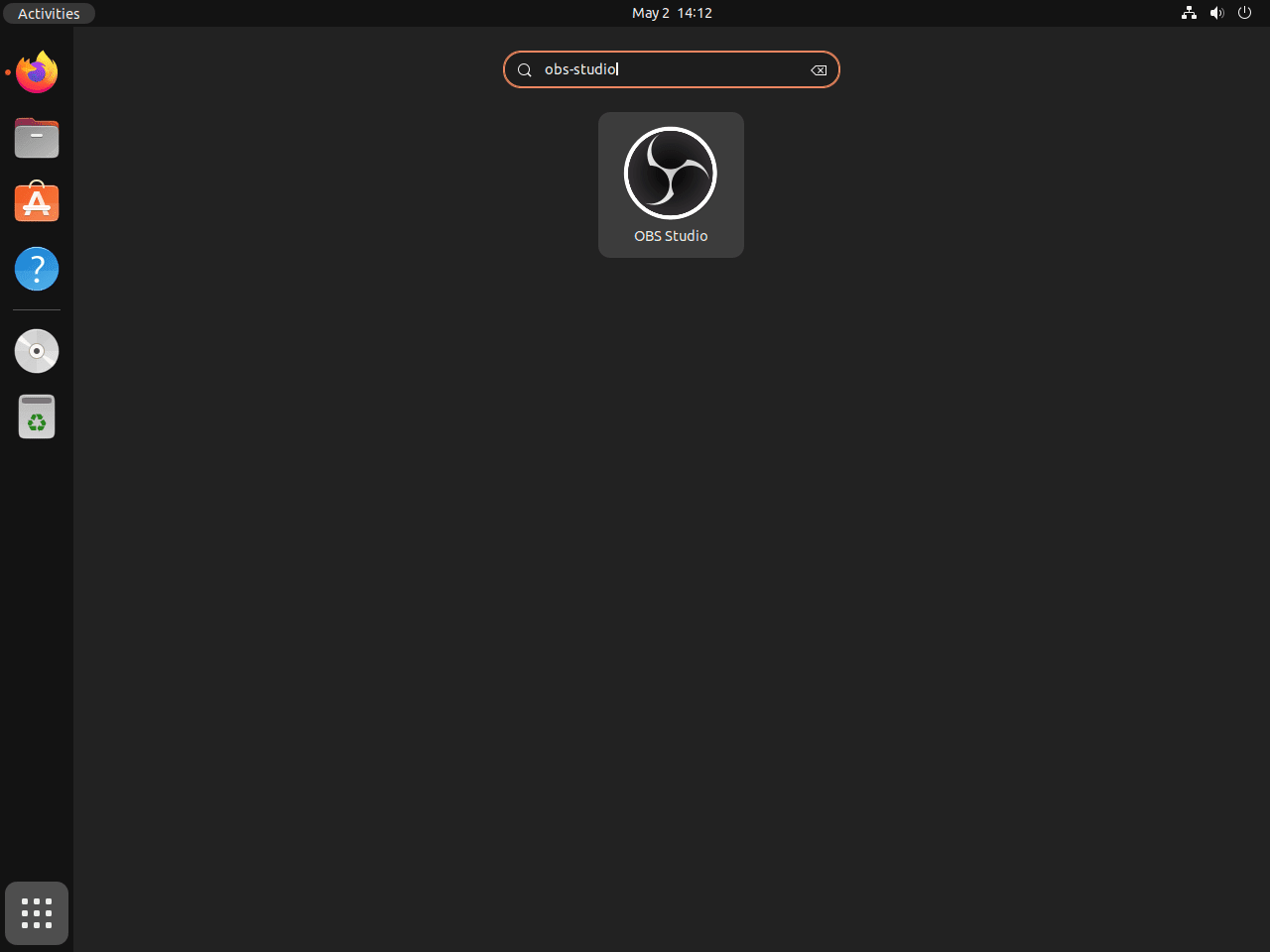
Alternatively, launch OBS Studio from the application menu:
- Click on Show Applications or Activities (depending on your desktop environment).
- Search for OBS Studio in the search bar.
- Click on the OBS Studio icon to start the application.
Complete OBS Studio First-Time Setup on Ubuntu
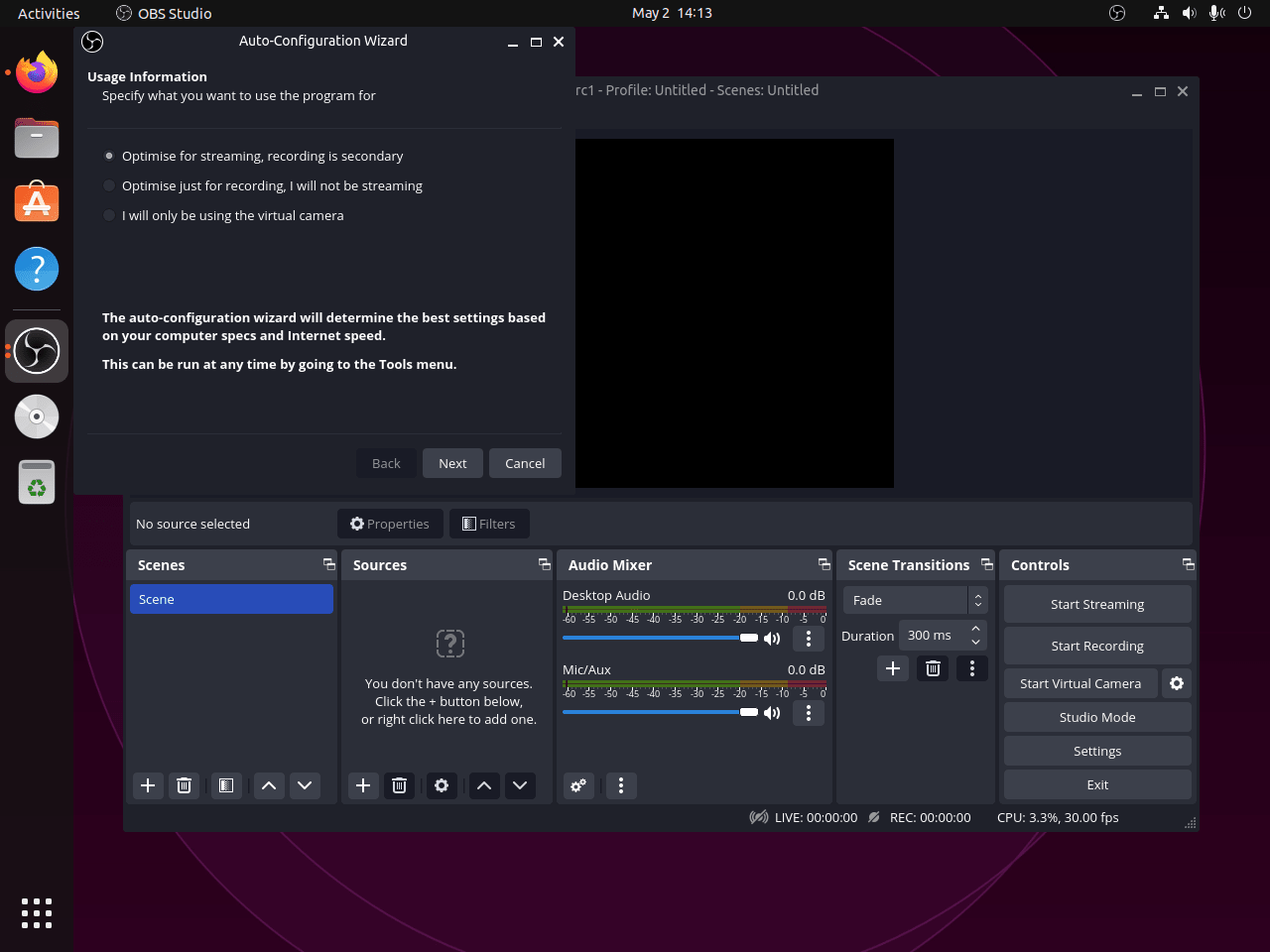
When you launch OBS Studio for the first time, the Auto-Configuration Wizard appears. This wizard optimizes settings based on your hardware and intended use:
- Select your primary use case: streaming, recording, or both.
- Choose your streaming service (Twitch, YouTube, etc.) or skip if recording only.
- Allow OBS to run hardware tests to determine optimal encoding settings.
- Review the suggested settings and apply them.
After setup, add your first source by clicking the plus icon under Sources. Common sources include Display Capture for screen recording, Window Capture for specific applications, and Video Capture Device for webcams.
Manage OBS Studio on Ubuntu
Update OBS Studio
For APT installations, refresh the package index and upgrade OBS Studio:
sudo apt update
sudo apt install --only-upgrade obs-studio
For Flatpak installations, update only the OBS Studio application unless you want to refresh every Flatpak runtime and app on the system:
sudo flatpak update com.obsproject.StudioRemove OBS Studio
Remove APT Installation
Remove the APT package first:
sudo apt remove obs-studioRemove any PPAs you added. For detailed PPA management options, see our guide on how to remove a PPA from Ubuntu:
sudo add-apt-repository --yes --remove ppa:obsproject/obs-studio
sudo apt update
If you previously added the unstable OBS PPA from an older workflow, remove it too:
sudo add-apt-repository --yes --remove ppa:obsproject/obs-studio-unstable
sudo apt update
Preview dependency cleanup before removing anything else. Continue only when the preview lists packages you no longer need:
sudo apt autoremove --dry-runsudo apt autoremoveVerify that the package is no longer installed:
dpkg -l obs-studio 2>/dev/null | grep '^ii' || echo "obs-studio is not installed"obs-studio is not installed
Remove Flatpak Installation
sudo flatpak remove com.obsproject.StudioCheck that the Flatpak app ID no longer appears:
flatpak list --app 2>/dev/null | grep com.obsproject.Studio || echo "OBS Studio Flatpak is not installed"OBS Studio Flatpak is not installed
Remove OBS Studio Configuration Files
OBS Studio stores your scene collections, streaming profiles, hotkeys, and preferences in
~/.config/obs-studio/. Flatpak installations also write to~/.var/app/com.obsproject.Studio/. These directories are not removed automatically. Delete them only if you no longer need your recording configuration. This action is permanent and cannot be undone.
rm -rf "$HOME/.config/obs-studio"
rm -rf "$HOME/.var/app/com.obsproject.Studio"
Troubleshoot Common OBS Studio Issues on Ubuntu
Screen Capture Shows Black Screen on Wayland
OBS Studio requires PipeWire for screen capture on Wayland sessions. If Display Capture shows only a black rectangle, first verify you are running Wayland:
echo $XDG_SESSION_TYPEwayland
If the output confirms Wayland, check that the PipeWire package is installed:
sudo apt install pipewireVerify PipeWire is running:
systemctl --user status pipewirepipewire.service - PipeWire Multimedia Service
Loaded: loaded
Active: active (running)
In OBS, remove the existing Display Capture source and add a new Screen Capture (PipeWire) source instead. A portal dialog will appear asking which screen or window to share. The Flatpak version includes PipeWire support by default and handles this automatically.
Enable Hardware Encoding for Better Performance
If OBS Studio uses excessive CPU during recording or streaming, hardware encoding offloads the work to your GPU. First, check which encoders OBS detects by navigating to Settings, Output, and switching Output Mode to Advanced. The Encoder dropdown shows available options.
For NVIDIA GPUs, verify your driver supports NVENC:
nvidia-smi --query-gpu=name,driver_version --format=csvname, driver_version NVIDIA GeForce RTX 3070, 535.154.05
If the command fails, install the NVIDIA drivers on Ubuntu. For advanced GPU compute features, optionally add the CUDA toolkit. Once drivers are installed, select NVENC H.264 or NVENC HEVC in the OBS encoder dropdown.
For AMD and Intel GPUs, the VA-API encoder provides hardware acceleration. Verify VA-API is available:
vainfo 2>&1 | head -5vainfo: VA-API version: 1.20 (libva 2.20.1)
vainfo: Driver version: Intel iHD driver for Intel(R) Gen Graphics - 24.1.5
vainfo: Supported profile and entrypoints
VAProfileH264Main : VAEntrypointVLD
VAProfileH264Main : VAEntrypointEncSlice
VAProfileH264High : VAEntrypointEncSlice
VAProfileHEVCMain : VAEntrypointEncSlice
Select VA-API H.264 in the OBS encoder settings. If vainfo returns an error or shows no encoding profiles, install the appropriate Mesa driver package for your GPU (intel-media-va-driver for Intel, mesa-va-drivers for AMD). Hardware encoding significantly reduces CPU usage and maintains consistent frame rates during intensive recordings.
Fix Missing Audio Sources
If OBS does not detect your microphone or desktop audio, first verify your audio server is running:
pactl info | grep "Server Name"Server Name: PulseAudio (on PipeWire 0.3.65)
If the command returns an error or shows no server, restart the PipeWire services:
systemctl --user restart pipewire pipewire-pulseList available audio sources to find the correct device names:
pactl list sources short46 alsa_input.usb-Blue_Microphones-00.analog-stereo PipeWire s32le 2ch 48000Hz RUNNING 47 alsa_output.pci-0000_00_1f.3.analog-stereo.monitor PipeWire s32le 2ch 48000Hz IDLE
In OBS Studio, navigate to Settings > Audio and set Desktop Audio to the .monitor source, which is the loopback device that captures whatever audio your system is outputting (game sounds, music, browser audio). Set Mic/Auxiliary Audio to your microphone input. Click Apply and verify levels appear in the Audio Mixer panel.
Conclusion
OBS Studio is ready on Ubuntu with the package source that fits your release: Ubuntu packages for the lowest-maintenance install, the OBS Project PPA for upstream APT builds, or Flathub for the current sandboxed release. For smoother recording, pair OBS with NVIDIA drivers on Ubuntu when your system uses NVIDIA graphics, or use HandBrake on Ubuntu to compress finished videos.


Formatting tips for your comment
You can use basic HTML to format your comment. Useful tags currently allowed in published comments:
<code>command</code>command<strong>bold</strong><em>italic</em><a href="https://example.com">link</a><blockquote>quote</blockquote>