
Installing PhotoFlare on Ubuntu is mostly a package-source choice: Ubuntu’s Universe package gives you a lightweight editor for crops, color adjustments, text overlays, batch conversion, and quick retouching, while the PhotoFlare developer PPAs expose newer builds only where their package indexes currently publish them. Ubuntu ships the photoflare package for Ubuntu 26.04, 24.04, and 22.04, so the main decision is whether to stay with the distro package or use a scoped PPA for the current PhotoFlare branch.
Install PhotoFlare on Ubuntu
Choose one package source and keep future updates inside the same source. If you are not sure which Ubuntu release is running, check it first with the Ubuntu version command guide.
| Method | Supported Ubuntu Releases | Source or Channel | Update Behavior | Best For |
|---|---|---|---|---|
| Ubuntu repository | Ubuntu 26.04, 24.04, and 22.04 | Ubuntu Universe package | APT updates from Ubuntu | Most users who want the distro-managed package |
| PhotoFlare stable PPA | Ubuntu 26.04 and 22.04 currently; no usable 24.04 package | PhotoFlare stable PPA | APT-managed updates from the developer PPA | Ubuntu 26.04 users who want PhotoFlare 1.7.0 or Ubuntu 22.04 users who want a newer package than Jammy’s archive build |
| PhotoFlare daily PPA | Ubuntu 26.04 and 22.04 currently; no usable 24.04 package | PhotoFlare daily PPA | APT-managed development snapshots | Testing available PPA snapshots instead of stable PPA builds |
Use only one PhotoFlare PPA channel at a time. The stable and daily PPAs publish the same
photoflarepackage name, so enabling both can make the active candidate harder to reason about.
The official PhotoFlare downloads page also lists a standalone DEB for Ubuntu 26.04 and newer. The APT methods stay easier to maintain because Ubuntu or the PPA keeps the package visible to normal update and removal commands, while a direct DEB install depends on rechecking and reinstalling the upstream asset manually.
Update Ubuntu Before Installing PhotoFlare
Refresh APT metadata before installing or comparing package candidates:
sudo apt updateThese commands use
sudofor package-management tasks that need root privileges. If your account cannot use sudo yet, follow add a new user to sudoers on Ubuntu before continuing.
The -y flag accepts APT’s confirmation prompt. Omit it if you prefer to review the package list before approving the transaction.
Install PhotoFlare from Ubuntu Repositories
The Ubuntu repository method is the safest default. It uses the package already available in Ubuntu’s Universe component, keeps dependencies aligned with your release, and needs no third-party source.
sudo apt install photoflare -yCheck the installed package and source with APT:
apt-cache policy photoflareRelevant output on Ubuntu 26.04:
photoflare:
  Installed: 1.6.13-1build3
  Candidate: 1.6.13-1build3
  Version table:
 *** 1.6.13-1build3 500
        500 http://archive.ubuntu.com/ubuntu resolute/universe amd64 Packages
        100 /var/lib/dpkg/status
Ubuntu 24.04 currently ships 1.6.13-1build2, while Ubuntu 22.04 ships 1.6.9-2. If APT reports Unable to locate package photoflare, enable the Universe component with the Ubuntu Universe and Multiverse guide, refresh APT, and retry the install.
Prepare Ubuntu for PhotoFlare PPAs
Both PhotoFlare PPA methods use add-apt-repository. Install the helper once before using either PPA channel if your system does not already have it:
sudo apt install software-properties-common -yInstall PhotoFlare from the Stable PPA
The stable PPA currently publishes photoflare packages for Ubuntu 26.04 and 22.04. It does not currently provide a usable Ubuntu 24.04 package, so Noble users should stay with the Ubuntu repository package unless the PPA later publishes a Noble build.
Add the stable PPA only on releases where the PPA currently publishes the photoflare package. The guard stops before writing a PPA source on unsupported releases:
. /etc/os-release
if [ "$VERSION_CODENAME" = "resolute" ] || [ "$VERSION_CODENAME" = "jammy" ]; then
    sudo add-apt-repository ppa:photoflare/photoflare-stable -y
    sudo apt update
    sudo apt install photoflare -y
else
    printf '%s\n' "The PhotoFlare stable PPA does not currently publish a photoflare package for Ubuntu $VERSION_CODENAME. Use the Ubuntu repository package instead."
fi
Verify that the installed package came from the stable PPA:
apt-cache policy photoflareRelevant output on Ubuntu 26.04:
photoflare:
  Installed: 1.7.0-0+1077~ubuntu26.04.1
  Candidate: 1.7.0-0+1077~ubuntu26.04.1
  Version table:
 *** 1.7.0-0+1077~ubuntu26.04.1 500
        500 https://ppa.launchpadcontent.net/photoflare/photoflare-stable/ubuntu resolute/main amd64 Packages
        100 /var/lib/dpkg/status
     1.6.13-1build3 500
        500 http://archive.ubuntu.com/ubuntu resolute/universe amd64 Packages
Ubuntu 22.04 currently receives 1.6.13-0+964~ubuntu22.04.1 from the stable PPA. The Ubuntu 26.04 stable PPA package recommends gmic, while Ubuntu’s 1.6.x repository package does not include that newer 1.7.0 integration path.
Install PhotoFlare from the Daily PPA
The daily PPA is a development channel. Use it only when you want to test newer snapshots and can tolerate regressions or package changes before they reach the stable PPA.
Add the daily PPA only on releases where the package index currently contains photoflare:
. /etc/os-release
if [ "$VERSION_CODENAME" = "resolute" ] || [ "$VERSION_CODENAME" = "jammy" ]; then
    sudo add-apt-repository ppa:photoflare/photoflare-daily -y
    sudo apt update
    sudo apt install photoflare -y
else
    printf '%s\n' "The PhotoFlare daily PPA does not currently publish a photoflare package for Ubuntu $VERSION_CODENAME. Use the Ubuntu repository package instead."
fi
Confirm that the candidate comes from the daily PPA before you rely on it:
apt-cache policy photoflareRelevant output on Ubuntu 26.04:
photoflare:
  Installed: 1.7.1+git202605191656-0~ubuntu26.04.1
  Candidate: 1.7.1+git202605191656-0~ubuntu26.04.1
  Version table:
 *** 1.7.1+git202605191656-0~ubuntu26.04.1 500
        500 https://ppa.launchpadcontent.net/photoflare/photoflare-daily/ubuntu resolute/main amd64 Packages
        100 /var/lib/dpkg/status
     1.6.13-1build3 500
        500 http://archive.ubuntu.com/ubuntu resolute/universe amd64 Packages
Daily snapshot versions change as new builds publish, so compare the source line and package origin instead of relying only on the exact git timestamp. Ubuntu 22.04 currently receives a 1.6.13+git... build from the daily PPA. Ubuntu 24.04 currently has no usable photoflare package in the daily PPA index, so the guard sends Noble users back to the Ubuntu repository package.
Launch PhotoFlare on Ubuntu
PhotoFlare installs a normal desktop launcher and the photoflare terminal command. The application still needs a graphical session when you open the editor.
Start PhotoFlare from the Terminal
Launch the installed APT or PPA package from a terminal with:
photoflareTerminal launches are useful when the application menu does not open the editor because Qt or display-session errors print directly in the terminal.
Open PhotoFlare from the Ubuntu Application Menu
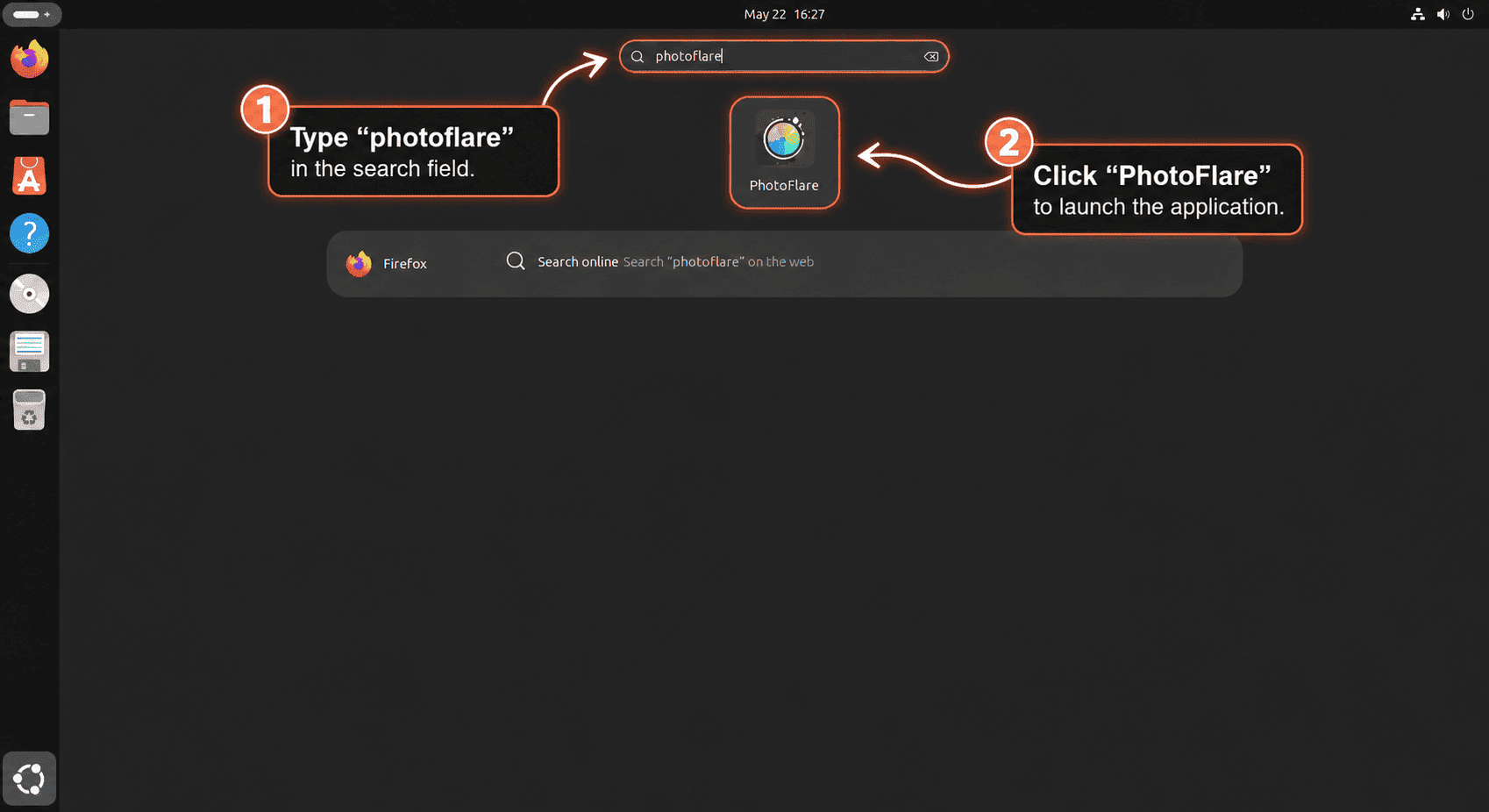
On GNOME desktops, open Activities, search for PhotoFlare, and select the PhotoFlare icon. If the entry does not appear right away after installation, log out and back in so the desktop launcher cache refreshes.
Start Editing with PhotoFlare
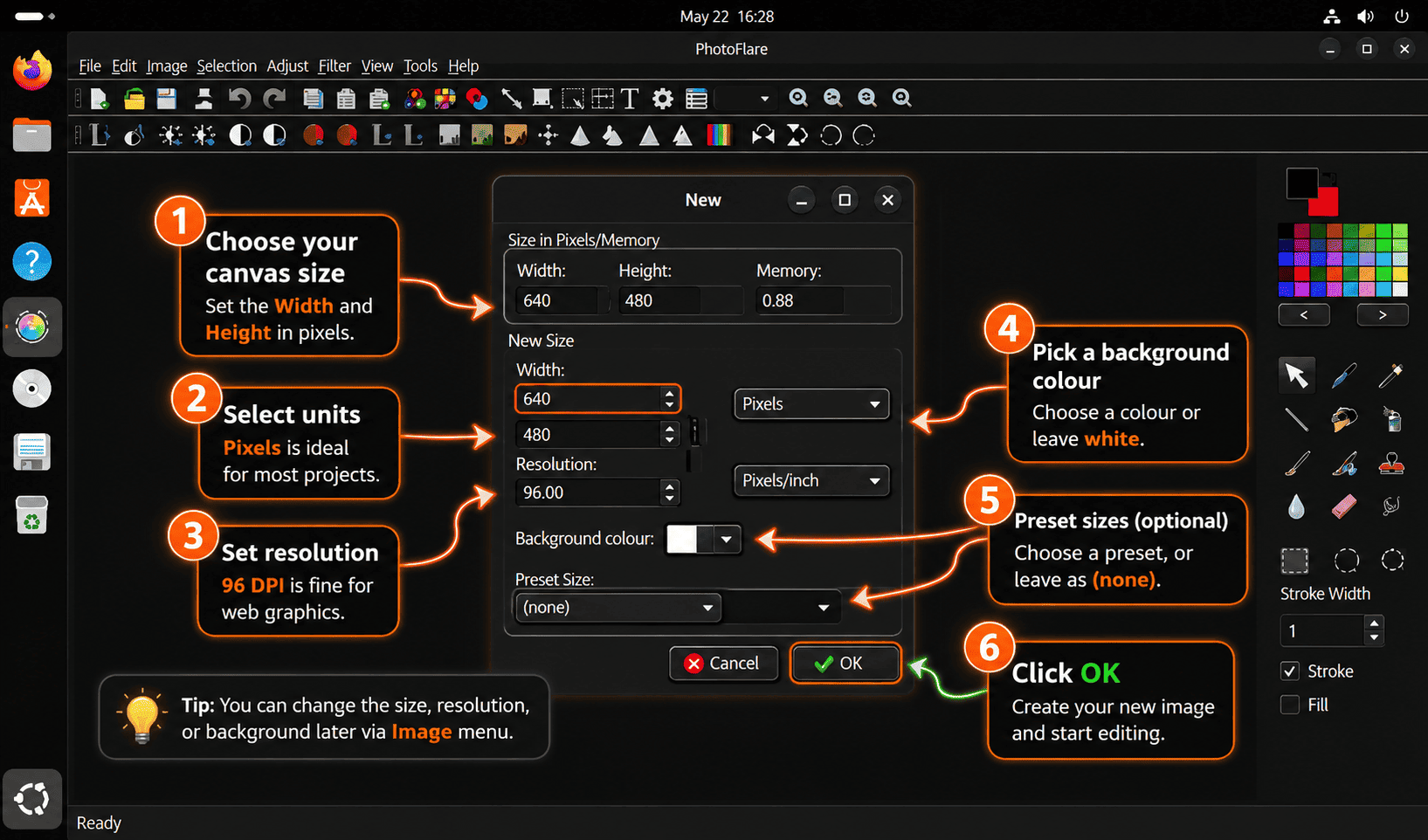
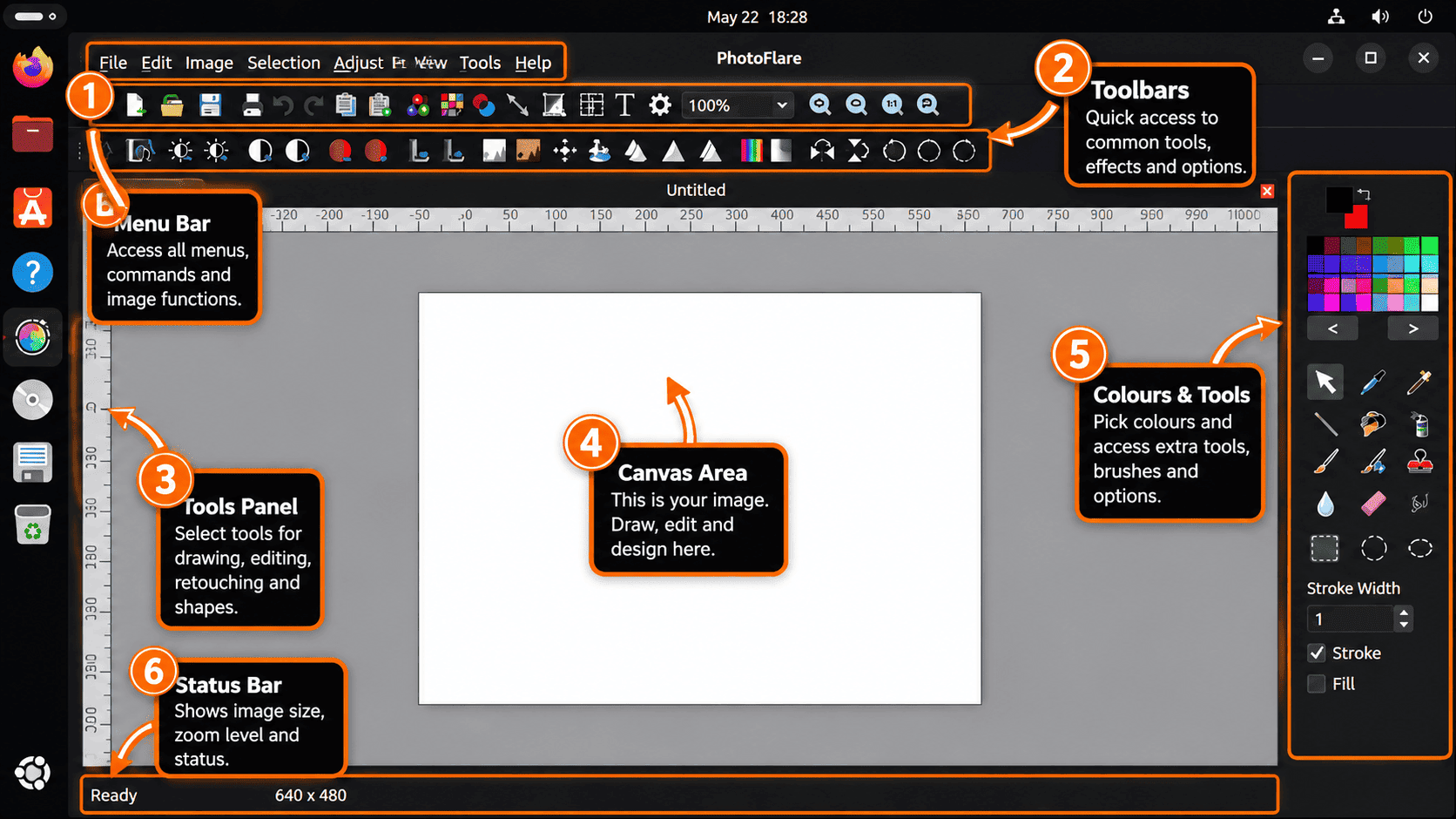
PhotoFlare is best for quick image work: cropping, resizing, rotating, adding text, adjusting colors, applying filters, and running batch conversions. Use File > Open to load an image, then save an edited copy with File > Save As if you do not want to overwrite the original file.
- Use the selection tools before applying color changes or filters when only part of an image should change.
- Use
Image > Resizefor quick web-size exports before uploading screenshots or photos. - Use the batch tools when you need to resize or convert several images with the same settings.
- Choose a fuller editor such as GIMP on Ubuntu when you need advanced layer work, masks, or plug-ins beyond PhotoFlare’s simpler editing model.
The upstream PhotoFlare 1.7.0 release notes identify Qt 6, G’MIC integration, canvas and filter updates, and other feature work for that branch. Ubuntu’s 1.6.x repository packages remain useful for straightforward editing, but they do not expose the newer 1.7.0 feature set.
Update or Remove PhotoFlare
Update PhotoFlare
APT owns updates for the Ubuntu repository package and both PPA channels. Refresh metadata, then upgrade only the installed PhotoFlare package:
sudo apt update
sudo apt install --only-upgrade photoflare
If you installed from the daily PPA and want to return to the stable PPA or Ubuntu package, remove the daily source first. Keeping both PPA channels enabled is unnecessary because both publish the same package name.
Remove the Ubuntu Repository Package
For the default Ubuntu package, remove PhotoFlare with APT:
sudo apt remove photoflareRemove the Stable PPA Package
If you added the stable PPA only for PhotoFlare, remove the package and source together:
sudo apt remove photoflare
sudo add-apt-repository --remove ppa:photoflare/photoflare-stable -y
sudo apt update
Remove the Daily PPA Package
For the daily PPA, remove the matching source instead:
sudo apt remove photoflare
sudo add-apt-repository --remove ppa:photoflare/photoflare-daily -y
sudo apt update
Confirm that the package is no longer installed:
dpkg-query -W -f='${db:Status-Abbrev} ${binary:Package}\n' photoflare 2>/dev/null | grep '^ii' || echo "photoflare not installed"photoflare not installed
APT removal does not delete per-user PhotoFlare settings or recent-file history from your home directory. Keep those files unless you have a separate, verified reset reason; the cleanup here removes package-managed files and sources.
Preview dependency cleanup before removing unused packages. Continue only when the list contains packages you no longer need for other desktop applications.
sudo apt autoremove --dry-runRun the cleanup interactively after reviewing the preview:
sudo apt autoremoveTroubleshoot PhotoFlare on Ubuntu
Fix Unable to Locate Package photoflare
The Ubuntu package lives in the Universe component. Check the package candidate first:
apt-cache policy photoflareA working Ubuntu 26.04 package source shows a real candidate from resolute/universe:
photoflare:
  Installed: (none)
  Candidate: 1.6.13-1build3
If the candidate is (none), enable Universe, refresh APT, and check again:
sudo add-apt-repository universe -y
sudo apt update
apt-cache policy photoflare
The PPA Does Not Work on Ubuntu 24.04
The current PhotoFlare PPA package indexes do not provide a usable Noble package. The stable PPA lacks a Noble release endpoint, while the daily PPA has no photoflare package for Noble. Remove the PPA and use the Ubuntu repository package on Ubuntu 24.04:
sudo add-apt-repository --remove ppa:photoflare/photoflare-stable -y
sudo add-apt-repository --remove ppa:photoflare/photoflare-daily -y
sudo apt update
sudo apt install photoflare -y
PhotoFlare Opens from Terminal but Not from the Menu
First confirm that the package installed the desktop entry:
dpkg-query -L photoflare | grep '/usr/share/applications/photoflare.desktop'/usr/share/applications/photoflare.desktop
If the desktop entry exists but the menu has not refreshed, log out and back in. If terminal launch also fails, reinstall the package from the same source so APT restores the launcher, icons, and Qt dependencies:
sudo apt install --reinstall photoflareCheck Which PhotoFlare Package Source Is Active
When several package sources have been tried, use APT policy to confirm which source currently wins:
apt-cache policy photoflareThe active package is the Candidate. If it comes from the wrong PPA channel, remove that PPA, refresh APT, and reinstall PhotoFlare from the source you intend to use. The broader remove a PPA on Ubuntu workflow is useful when a stale PPA file or disabled source remains after switching package channels.
Conclusion
PhotoFlare installs cleanly on Ubuntu from the Universe package for routine image editing, with the stable and daily PhotoFlare PPAs available only on the Ubuntu releases where their package indexes currently publish photoflare. Use Ubuntu’s package for the lowest-maintenance setup, the stable PPA for supported releases where you need the newer branch, and the daily PPA only for development snapshots. For adjacent graphics work, install Pinta on Ubuntu for another lightweight editor or install Inkscape on Ubuntu for SVG and vector graphics.


Formatting tips for your comment
You can use basic HTML to format your comment. Useful tags currently allowed in published comments:
<code>command</code>command<strong>bold</strong><em>italic</em><a href="https://example.com">link</a><blockquote>quote</blockquote>