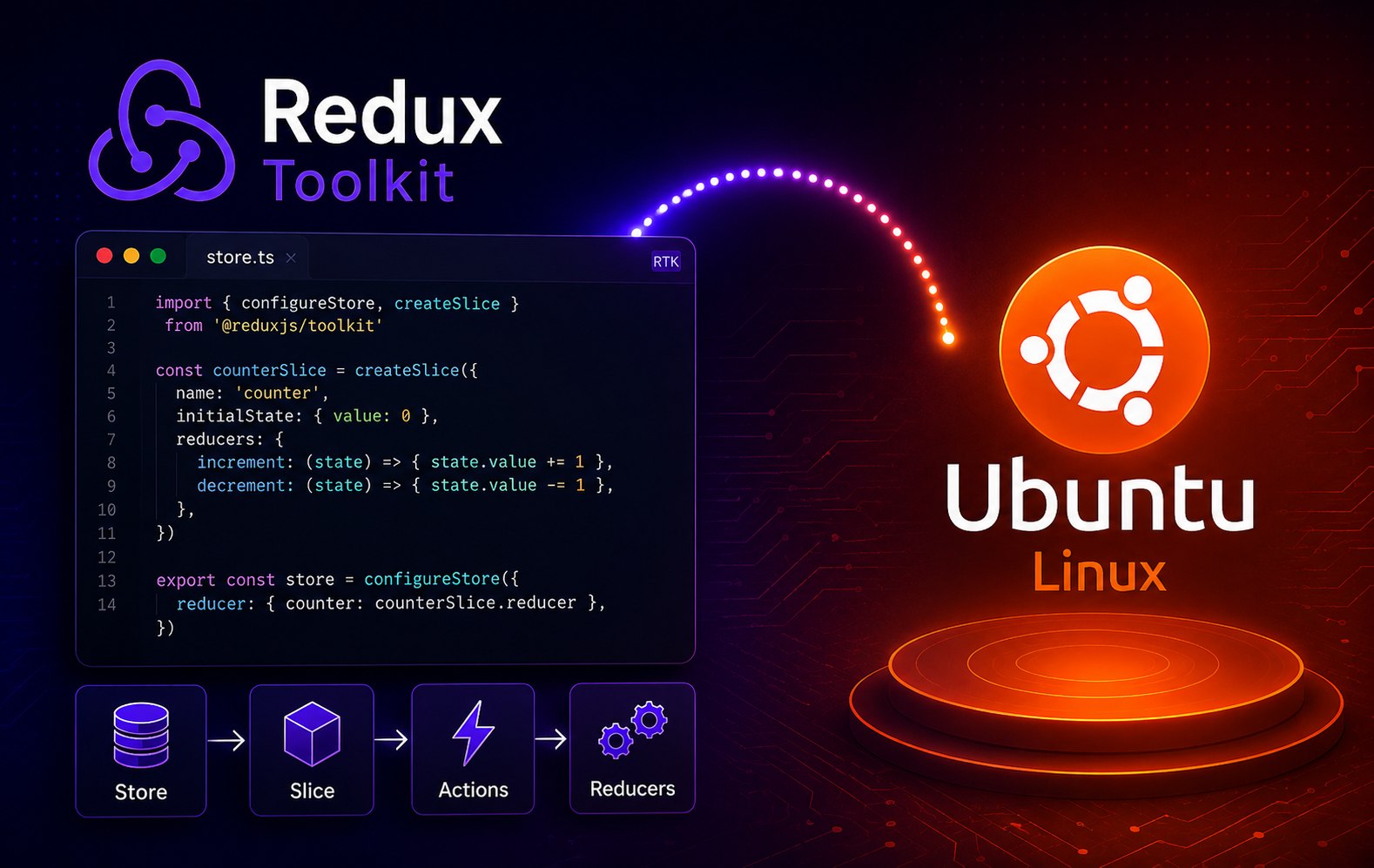
Redux Toolkit installs into a JavaScript project, not into Ubuntu as a system package. To install Redux Toolkit on Ubuntu, set up a supported Node.js toolchain first, then add @reduxjs/toolkit with the package manager your project already uses.
React projects usually need react-redux alongside Redux Toolkit because the React bindings live in a separate package. Non-React projects can install only @reduxjs/toolkit.
Install Redux Toolkit on Ubuntu
Prepare Node.js Before Installing Redux Toolkit
Redux Toolkit comes from the npm registry, so Ubuntu needs Node.js plus a JavaScript package manager before the install command can work. If Node.js is not installed yet, use the dedicated guide to install Node.js on Ubuntu before adding project dependencies.
Check the active runtime from inside the terminal you will use for the project. Both commands should work before you install project dependencies:
node --version
npm --version
Current React tooling and direct Redux Toolkit ESM imports need a maintained Node.js runtime. Ubuntu 26.04 provides Node.js 22 from the archive, and Ubuntu 24.04 provides Node.js 18. Ubuntu 22.04’s archive package is Node.js 12, which is too old for the Redux Toolkit ESM import check. On Ubuntu 22.04, use NodeSource or NVM from the Node.js guide before adding Redux Toolkit to a project.
Keep node and npm from the same toolchain. Ubuntu archive installs can use separate nodejs and npm packages, while NodeSource and NVM normally provide npm through the selected Node.js setup. If node --version works but npm --version fails, fix the Node.js and npm source first instead of switching the project to Yarn or pnpm.
Choose a Redux Toolkit Package Manager
The package source is the same for each project package manager: @reduxjs/toolkit is published to the npm registry. Choose the command that matches the lockfile and package-manager policy already used by your application. Check both the lockfile and the packageManager field in package.json; modern package managers can reject commands from a different manager when that field is pinned. The React commands include react-redux; omit that package in non-React projects.
| Method | Command Pattern | Best Fit | Ubuntu Role |
|---|---|---|---|
| npm | npm install @reduxjs/toolkit react-redux | Default Node.js projects and apps with package-lock.json | Use the npm command supplied by your selected Node.js source; Ubuntu archive installs may need the separate npm package |
| Yarn | yarn add @reduxjs/toolkit react-redux | Projects with yarn.lock or a pinned Yarn setup | Use your existing Yarn install, or see the Ubuntu Yarn guide |
| pnpm | pnpm add @reduxjs/toolkit react-redux | Projects with pnpm-lock.yaml and a compatible pnpm setup | Install pnpm separately and choose a pnpm release that supports your active Node.js version |
| APT | Not available for @reduxjs/toolkit | Node.js, npm, and some package-manager prerequisites only | APT manages system packages, not npm registry dependencies |
Do not try
sudo apt install redux-toolkitorsudo apt install @reduxjs/toolkit. Ubuntu’s package manager does not install npm-scoped project dependencies. Use APT for Node.js and package-manager prerequisites, then run npm, Yarn, or pnpm inside the project directory.
Install Redux Toolkit with npm
Use npm when the project already has package-lock.json, when Node.js and npm were installed for a new project, or when the project has not chosen another package manager yet. Enter the application directory first:
cd ~/my-appInstall Redux Toolkit and the React bindings:
npm install @reduxjs/toolkit react-reduxFor a non-React project, install only the toolkit package:
npm install @reduxjs/toolkitFor the React install, confirm npm added both top-level packages to the project. Non-React projects should check only @reduxjs/toolkit.
npm list @reduxjs/toolkit react-redux --depth=0 --unicode=falseRelevant output includes the installed top-level dependencies:
+-- @reduxjs/toolkit@2.x.x
`-- react-redux@9.x.x
Run a small import smoke test when the project uses npm’s normal node_modules layout:
node --input-type=module -e "import { configureStore, createSlice } from '@reduxjs/toolkit'; console.log(typeof configureStore, typeof createSlice)"Expected output shows both Redux Toolkit APIs loaded as functions:
function function
Install Redux Toolkit with Yarn
Use Yarn when the project already has yarn.lock or a packageManager field pinned to Yarn. If Yarn itself is missing, install it first with the guide to install Yarn on Ubuntu.
Enter the project directory:
cd ~/my-appAdd Redux Toolkit and React-Redux with Yarn:
yarn add @reduxjs/toolkit react-reduxIf you installed Ubuntu’s yarnpkg package and your shell does not have a yarn command, use the same arguments with yarnpkg:
yarnpkg add @reduxjs/toolkit react-reduxCheck the dependency entries that Yarn wrote to package.json:
node -e "const deps=require('./package.json').dependencies||{}; console.log(deps['@reduxjs/toolkit']); console.log(deps['react-redux'])"The exact point releases will move, but the top-level dependency lines should show Redux Toolkit 2.x and React-Redux 9.x:
^2.x.x
^9.x.x
Use pnpm for Existing pnpm Projects
pnpm is a good fit when the application already uses pnpm-lock.yaml or a workspace managed by pnpm. Install the pnpm CLI first with the guide to install pnpm on Ubuntu, then run the normal pnpm dependency command inside the project:
pnpm add @reduxjs/toolkit react-reduxUse pnpm only when the project is already set up for it. pnpm release lines can require a newer Node.js runtime than Redux Toolkit itself, so installing pnpm is a separate toolchain decision from installing Redux Toolkit. For example, the current pnpm 11 line requires Node.js 22.13 or newer; Ubuntu 24.04’s archive Node.js 18 should use a compatible pnpm 10.x release or a newer Node.js toolchain.
Set Up Redux Toolkit in a React Project
The package install only adds dependencies. A React app still needs a store and a provider before components can read Redux state; add slices when you introduce application state. If the app is not created yet, set up the project first with the guide to install React.js on Ubuntu. The official Redux Toolkit Quick Start uses this same setup pattern.
Create a store file under src/app/store.js:
import { configureStore } from '@reduxjs/toolkit'

export const store = configureStore({
  reducer: {},
})
Wrap the React application with the React-Redux provider near the root component:
import { Provider } from 'react-redux'
import { store } from './app/store'

root.render(
  <Provider store={store}>
    <App />
  </Provider>,
)
For a new app, the official Redux docs recommend starting from their Redux Toolkit and TypeScript Vite template or Next.js with-redux template because those projects already include Redux Toolkit and React-Redux wiring. See the official Redux Toolkit getting started page before hand-building the same boilerplate.
Update or Remove Redux Toolkit on Ubuntu
Update and removal belong to the same project package manager that installed the dependency. Run these commands from the application directory that contains package.json. The examples include react-redux for React projects; omit it if the project only installed @reduxjs/toolkit.
| Package Manager | Update Command | Remove Command |
|---|---|---|
| npm | npm update @reduxjs/toolkit react-redux | npm uninstall @reduxjs/toolkit react-redux |
| Yarn 2 or newer | yarn up @reduxjs/toolkit react-redux | yarn remove @reduxjs/toolkit react-redux |
| Yarn Classic 1.x | yarn upgrade @reduxjs/toolkit react-redux | yarn remove @reduxjs/toolkit react-redux |
| pnpm | pnpm update @reduxjs/toolkit react-redux | pnpm remove @reduxjs/toolkit react-redux |
After removal, check package.json if you need to confirm both dependencies are gone:
node -e "const deps=require('./package.json').dependencies||{}; if (deps['@reduxjs/toolkit'] || deps['react-redux']) process.exit(1); console.log('Redux Toolkit dependencies removed')"Redux Toolkit dependencies removed
Troubleshoot Redux Toolkit on Ubuntu
APT Cannot Locate Redux Toolkit
APT cannot install @reduxjs/toolkit because the package is not an Ubuntu archive package. Install Node.js and a package manager first, then run the npm, Yarn, or pnpm command from the project directory.
Node.js Throws an Unexpected Token Error
If a Redux Toolkit import fails with a syntax error around optional chaining, check the active Node.js version:
node --versionIf Node.js reports v12.x, replace the runtime before troubleshooting Redux Toolkit itself. Ubuntu 22.04’s default Node.js 12 package is too old for the Redux Toolkit ESM import check, so install a supported Node.js LTS release with NodeSource or NVM, open a new terminal if needed, then rerun node --version, npm --version, and the import smoke test.
npm Is Missing After Installing Node.js
If node --version works but npm --version returns a command-not-found error, identify the active runtime before installing another package manager:
command -v node
command -v npm || echo "npm missing"
node --version
On Ubuntu 26.04 or 24.04 systems using Ubuntu’s archive Node.js package, install the separate npm package:
sudo apt install npmRecheck npm before returning to the Redux Toolkit install command:
npm --versionOn Ubuntu 22.04, do not use the archive npm package to patch around archive Node.js 12 for this workflow. Choose NodeSource or NVM first, then use the npm command from that selected runtime so dependency installs, updates, and troubleshooting all follow one toolchain.
React-Redux Shows Peer Dependency Warnings
react-redux 9.x expects React 18 or 19 in the same project. Check the dependency set before changing package managers or reinstalling everything:
node -e "const pkg=require('./package.json'); const deps={...(pkg.dependencies||{}),...(pkg.devDependencies||{})}; for (const name of ['react','react-dom','@reduxjs/toolkit','react-redux']) console.log(name + ': ' + (deps[name] || 'missing'))"In a React app, add missing React packages with the same package manager that owns the lockfile. For npm-managed projects, use:
npm install react react-dom @reduxjs/toolkit react-reduxFor Yarn or pnpm projects, use the same package list with yarn add or pnpm add. In a non-React project, remove react-redux and keep only @reduxjs/toolkit; for npm-managed projects, use:
npm uninstall react-reduxThe Project Uses a Different Package Manager
Look for the lockfile and package-manager pin before adding dependencies to an existing app:
for file in package-lock.json yarn.lock pnpm-lock.yaml; do
  [ -e "$file" ] && printf '%s\n' "$file"
done
node -p "require('./package.json').packageManager || 'no packageManager field'"
Use npm for package-lock.json, Yarn for yarn.lock or a Yarn packageManager pin, and pnpm for pnpm-lock.yaml or a pnpm pin. If Yarn or pnpm reports that the project is configured for a different package manager, treat that as a project policy signal instead of forcing the command. If you already ran the wrong command, review the changed lockfiles before deleting anything; do not keep duplicate lockfiles unless the project intentionally supports multiple package managers.
Conclusion
Redux Toolkit is installed in the Ubuntu project directory with the matching package manager for that app. npm is the default path, Yarn fits Yarn-managed projects, and pnpm belongs in pnpm workspaces. Keep Node.js on a supported release, especially on Ubuntu 22.04, then continue with the official Redux Toolkit tutorials once the dependencies are present.


Formatting tips for your comment
You can use basic HTML to format your comment. Useful tags currently allowed in published comments:
<code>command</code>command<strong>bold</strong><em>italic</em><a href="https://example.com">link</a><blockquote>quote</blockquote>