
Package guides, release upgrades, and repository instructions are easier to follow when you know both the Ubuntu version number and codename. To check Ubuntu version from the terminal, start with lsb_release -a; for minimal systems or scripts, read /etc/os-release because it exists even when helper commands are missing.
The same checks apply to Ubuntu 26.04, 24.04, and 22.04 on Desktop, Server, cloud VMs, and WSL. None of the read-only version checks require sudo; only the graphical Settings path requires a desktop session.
Check Ubuntu Version in the Terminal with lsb_release
For most interactive Ubuntu sessions, the main Ubuntu version command is lsb_release -a. It prints the release number and codename in one readable block.
lsb_release -aRelevant output on Ubuntu 26.04 includes:
Release:	26.04
Codename:	resolute
Use the Release line for the numbered Ubuntu version and the Codename line for repository names such as resolute, noble, or jammy.
Print Only the Ubuntu Version Number or Codename
If a repository command, support page, or script only needs the release number or codename, add -s to suppress labels:
lsb_release -rs
lsb_release -cs
26.04 resolute
On Ubuntu 24.04, the same commands print 24.04 and noble. On Ubuntu 22.04, lsb_release -cs prints jammy.
Check Ubuntu Version from /etc/os-release
The /etc/os-release file is present on every normal Ubuntu install, which makes it especially useful on stripped-down server images, cloud instances, containers, and Ubuntu on WSL. Use grep to print the fields most package guides need:
grep -E '^(VERSION_ID|VERSION_CODENAME)=' /etc/os-releaseVERSION_ID="26.04" VERSION_CODENAME=resolute
This is the most reliable copy-and-paste option when you only need exact release fields for a repository, support matrix, or script. If you want the full operating system record instead, run cat /etc/os-release. For more filtering patterns, see the grep command guide.
Check Ubuntu Version with hostnamectl
Use hostnamectl when you want more than the Ubuntu release. It shows the operating system, kernel, architecture, and virtualization details in one command, which is handy on workstations, virtual machines, and remote servers.
hostnamectlFor Ubuntu version checks, the important line is:
Operating System: Ubuntu 26.04 LTS
Other hostnamectl lines show the kernel, architecture, and virtualization state, but those values can change with updates or the host environment. On WSL, prefer lsb_release or /etc/os-release because they report the Ubuntu user space directly and with less host-side noise.
Check Ubuntu Version on WSL and Ubuntu Server
The same Ubuntu commands work across desktop installs, headless servers, and WSL sessions. The main difference is where you run them.
Check Ubuntu Version in WSL
Open the Ubuntu shell itself, then run lsb_release -a or read /etc/os-release there. Those commands report the Ubuntu release inside WSL, not the Windows host version. PowerShell’s wsl -l -v command can show registered distributions and whether they use WSL 1 or WSL 2, but the Ubuntu release number still comes from inside the Ubuntu environment.
Check Ubuntu Version on a Headless Server or Cloud VM
Once you are logged in over SSH, the commands stay the same. On lean server images, /etc/os-release is usually the safest first check because it is always available and does not depend on extra helper packages. After you confirm the release, keep the system current with our guide to update packages via Ubuntu command line or automate security patches with configure unattended upgrades on Ubuntu.
Check Ubuntu Version from the Desktop Settings App
If you are already in a graphical Ubuntu Desktop session, the Settings app can confirm the release without opening a terminal.
- Open Settings.
- Select System in the sidebar.
- Open About.
- Read the Ubuntu release shown in the operating system details.
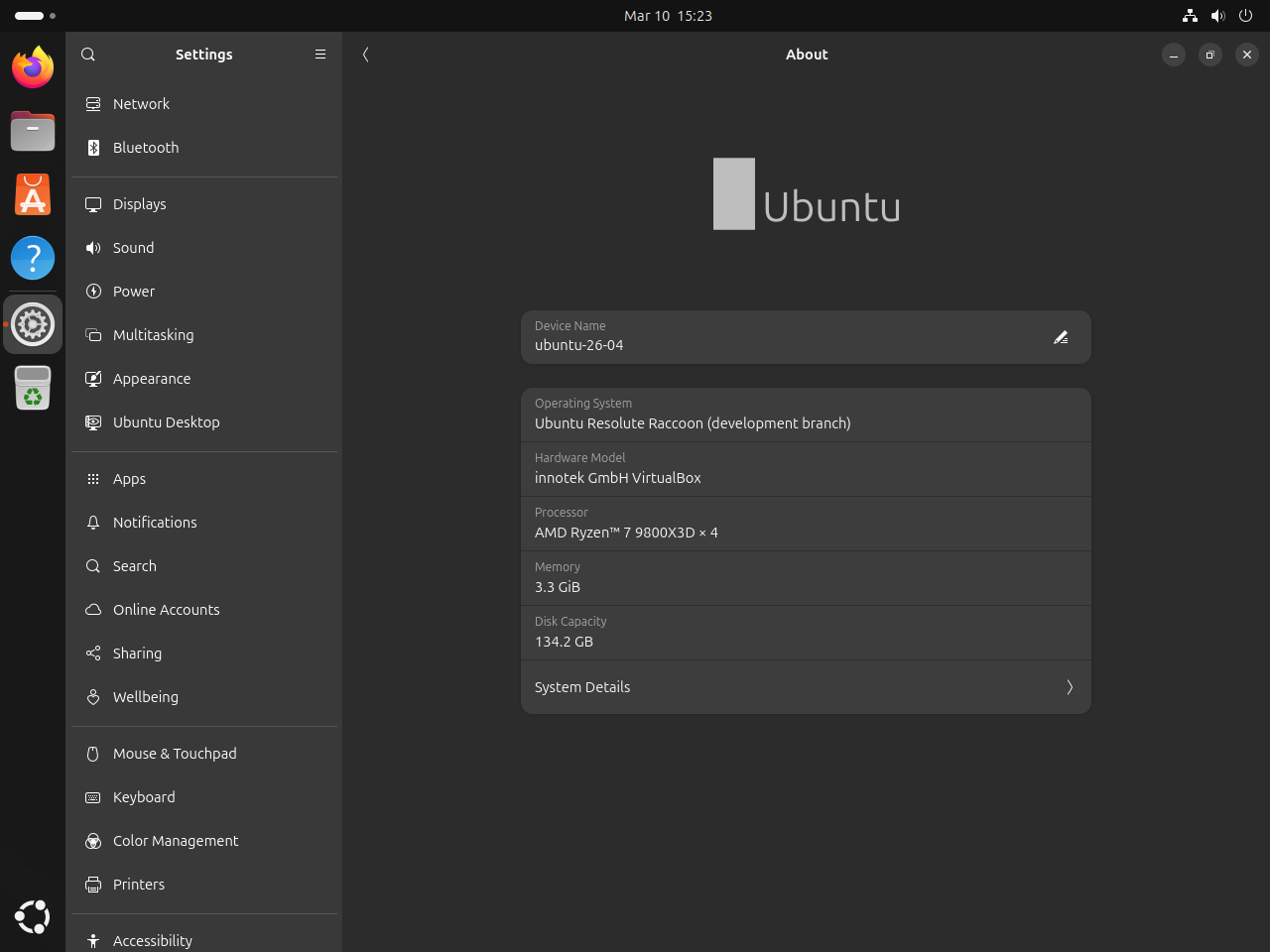
This path is desktop-only. It does not apply to headless Ubuntu Server installs, most cloud images, or standard terminal-only WSL sessions.
Choose the Right Ubuntu Version Check Method
Each method answers a slightly different need. Pick the one that matches the environment you are checking.
| Method | Best For | What It Shows | Environment Fit |
|---|---|---|---|
lsb_release -a | Readable terminal output on most Ubuntu systems | Release, codename, and descriptive release name | Desktop, server, and WSL when the utility is installed |
grep -E '^(VERSION_ID|VERSION_CODENAME)=' /etc/os-release | Minimal images, scripts, SSH sessions, and WSL | Exact release number and codename fields | Best all-around fallback for server and WSL |
hostnamectl | System summaries and troubleshooting | Operating system, kernel, architecture, and virtualization | Full desktop or server installs with systemd |
| Settings > System > About | Desktop users who prefer a graphical path | Ubuntu release in the Settings app | Desktop only |
Troubleshoot Ubuntu Version Checks
lsb_release Command Is Missing
Minimal containers and stripped images may not include lsb_release. If the shell says the command is not found, use /etc/os-release instead because it is part of the base operating system metadata.
lsb_release: command not found
grep -E '^(VERSION_ID|VERSION_CODENAME)=' /etc/os-releaseVERSION_ID="26.04" VERSION_CODENAME=resolute
No LSB Modules Are Available
Some Ubuntu 22.04 systems print this informational line alongside the normal lsb_release -a output:
No LSB modules are available.
The release data after that line is still correct. Read the Release and Codename lines, or switch to /etc/os-release for cleaner script-friendly output.
hostnamectl Shows Extra Host Details
WSL, containers, and virtual machines can add kernel, host, or virtualization details that are not the Ubuntu release you need. Use lsb_release or /etc/os-release when the goal is only the Ubuntu user-space version.
Conclusion
Once you know the Ubuntu release and codename, package instructions, repository names, and upgrade paths are easier to verify. Use that information before installing release-specific packages, planning upgrades, or setting routine update automation for the machine.


Formatting tips for your comment
You can use basic HTML to format your comment. Useful tags currently allowed in published comments:
<code>command</code>command<strong>bold</strong><em>italic</em><a href="https://example.com">link</a><blockquote>quote</blockquote>