

Slack combines team chat, voice calls, video meetings, and file sharing into a unified workspace. Whether you coordinate software development, manage customer support channels, or run daily standups, Slack organizes conversations into channels and threads that keep context intact.
This guide covers three ways to install Slack on Debian: extrepo for simplified repository management, the manual APT repository for direct control, and Flatpak for sandboxed isolation. By the end, you will have Slack running with automatic updates and complete removal procedures.
Choose Your Slack Installation Method
Slack offers three installation paths on Debian, each with different configuration complexity and isolation levels. Before proceeding, review the comparison table to choose the method that best fits your workflow and system preferences.
| Method | Channel | Version | Updates | Best For |
|---|---|---|---|---|
| extrepo (Recommended) | Packagecloud via extrepo | Latest stable | Automatic via APT | Most users; quick setup with minimal configuration |
| Manual APT Repository | Packagecloud direct | Latest stable | Automatic via APT | Scripted deployments or learning APT internals |
| Flatpak | Flathub | Latest stable | Automatic via Flatpak | Sandboxed isolation, cross-distro compatibility |
For most users, the extrepo method is recommended because it handles GPG key management automatically and requires fewer commands. The manual APT method provides more control for scripted deployments or when you need to understand the underlying repository configuration. Flatpak offers sandboxed isolation at the cost of slightly higher disk usage.
Slack publishes desktop builds for 64-bit (amd64/x86_64) Debian systems only. Raspberry Pi, ARM servers, and 32-bit hardware lack native packages. Use Slack’s web interface on unsupported architectures.
Method 1: Install Slack via extrepo (Recommended)
The extrepo tool is Debian’s official solution for managing external repositories. It handles GPG key downloads, repository configuration, and version detection automatically, making it the simplest approach for most users.
Install extrepo on Debian
First, install the extrepo package if it is not already present on your system:
sudo apt update
sudo apt install extrepo
Enable Non-Free Policy for Slack
Slack uses a non-free license, so you must enable the non-free policy in extrepo’s configuration before enabling the repository. Open the configuration file and uncomment the non-free policy line:
sudo nano /etc/extrepo/config.yamlLocate the enabled_policies section and modify it to include non-free:
enabled_policies:
- main
- contrib
- non-free
Finally, save the file and exit the editor. This configuration change allows extrepo to enable repositories that host proprietary software.
Enable Slack Repository with extrepo
With the non-free policy enabled, add the Slack repository using a single command:
sudo extrepo enable slackAs a result, this command downloads the GPG key to /var/lib/extrepo/keys/ and creates the repository configuration at /etc/apt/sources.list.d/extrepo_slack.sources.
Install Slack from extrepo Repository
Next, update your package lists and install Slack:
sudo apt update
sudo apt install slack-desktop
Once the installation completes, verify the repository was configured correctly by checking the package source:
apt-cache policy slack-desktopExpected output:
slack-desktop:
  Installed: 4.x.x
  Candidate: 4.x.x
  Version table:
 *** 4.x.x 500
        500 https://packagecloud.io/slacktechnologies/slack/debian jessie/main amd64 Packages
        100 /var/lib/dpkg/status
The version numbers shown are placeholders. Your output will display the actual installed version. The
jessiesuite name is expected even on current Debian releases because Slack uses a universal repository.
Method 2: Install Slack via Manual APT Repository
Alternatively, the manual APT repository method provides native package integration and automatic updates through your standard system upgrade workflow. This approach uses the modern DEB822 repository format with scoped GPG key verification, giving you direct control over the repository configuration.
Configure Slack APT Repository on Debian
First, remove any legacy repository files to avoid duplicate entry warnings, then configure the repository using DEB822 format. The Packagecloud suite name remains jessie for Slack, which is expected even on current Debian releases:
sudo rm -f /etc/apt/sources.list.d/slack.list
sudo install -m 0755 -d /etc/apt/keyrings
curl -fsSL https://packagecloud.io/slacktechnologies/slack/gpgkey | gpg --dearmor | sudo tee /etc/apt/keyrings/slacktechnologies_slack-archive-keyring.gpg > /dev/null
sudo tee /etc/apt/sources.list.d/slack.sources > /dev/null <<'EOF'
Types: deb
URIs: https://packagecloud.io/slacktechnologies/slack/debian/
Suites: jessie
Components: main
Architectures: amd64
Signed-By: /etc/apt/keyrings/slacktechnologies_slack-archive-keyring.gpg
EOF
Verify Repository Configuration
After adding the repository, refresh your package lists and verify APT recognizes the new source:
sudo apt update
apt-cache policy slack-desktop
Expected output confirming the repository is active:
slack-desktop:
  Installed: (none)
  Candidate: 4.x.x
  Version table:
     4.x.x 500
        500 https://packagecloud.io/slacktechnologies/slack/debian jessie/main amd64 Packages
Install Slack from APT Repository on Debian
After confirming the repository is active, install Slack directly:
sudo apt install slack-desktopAs a result, the slack.sources file points to Slack’s Packagecloud repository, so updates arrive automatically through your regular apt upgrade workflow. This approach eliminates manual version tracking entirely.
Method 3: Install Slack via Flatpak and Flathub
Flatpak provides sandboxed isolation and automatic updates through Flathub. This method runs Slack in a contained environment, isolating it from system libraries for better security. Before proceeding, verify Flatpak is available on your system.
If Flatpak is missing from your system, follow the How to Install Flatpak on Debian guide before proceeding with Slack.
Verify Flatpak Installation on Debian
First, check if Flatpak is installed:
flatpak --versionExpected output:
Flatpak 1.x.x
The version number varies depending on your Debian release. Any successful version output confirms Flatpak is ready.
Add Flathub Repository on Debian
First, add the Flathub repository to access Slack and thousands of other applications:
sudo flatpak remote-add --if-not-exists flathub https://flathub.org/repo/flathub.flatpakrepoThe --if-not-exists flag safely skips this step if you have already added Flathub previously.
Install Slack via Flatpak on Debian
Next, install Slack from Flathub:
sudo flatpak install -y flathub com.slack.SlackAs a result, this command installs Slack system-wide with the -y flag to skip confirmation prompts. Flatpak runs Slack in a sandboxed environment, isolating it from the rest of your system for improved security.
Launching Slack on Debian
Once installed, launch Slack from the terminal using the APT installation:
slackAlternatively, for Flatpak installations, use the application ID:
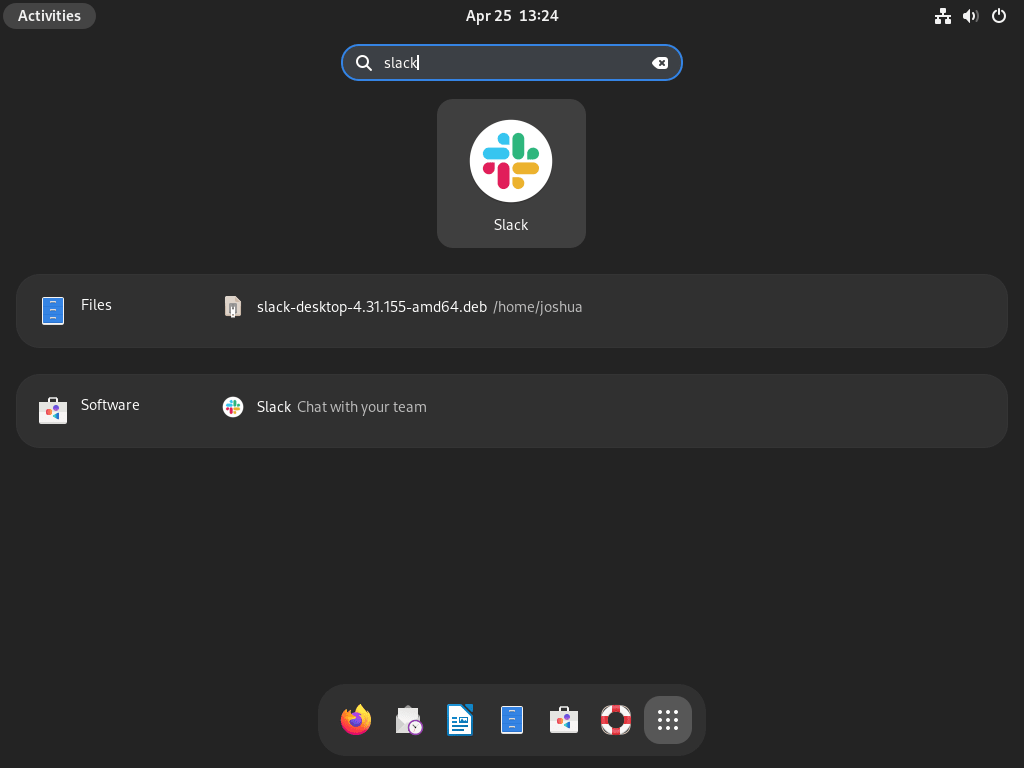
flatpak run com.slack.SlackTo use the graphical interface instead, open the application menu in your desktop environment. Search for “Slack” in the menu’s search bar or locate the Slack icon in the list of installed applications, then click the icon to launch the application.
Finally, log in to your workspace or create a new account at first launch.

Updating Slack on Debian
Keeping Slack up to date gives you the latest features and security patches. Therefore, the update method depends on how you installed Slack.
For APT installations (both extrepo and manual repository methods), refresh your package lists and upgrade Slack directly:
sudo apt update
sudo apt install --only-upgrade slack-desktop
The repository configuration ensures updates arrive through your standard APT workflow.
Flatpak installations update with:
sudo flatpak updateThis command updates all system-wide Flatpak applications including Slack.
Regular updates keep Slack performing well and give you access to new features as they are released. If you manage team communication alongside remote access, secure your Debian system with SSH key-based authentication and UFW firewall rules to protect network services. Development teams often pair Slack with Docker for containerized development environments or GitHub Desktop for version control workflows. For enhanced system monitoring, consider Fail2Ban to automatically block suspicious login attempts. If you need additional communication tools, explore Discord for gaming communities or Zoom for video conferencing.
Removing Slack from Debian
When you no longer need Slack, removal methods vary by installation type. Follow the section below that matches how you installed the application.
Remove APT Installation (extrepo or Manual)
First, remove the Slack package and any orphaned dependencies:
sudo apt remove slack-desktop
sudo apt autoremove
This leaves system configuration files in /etc. For complete removal including configuration files:
sudo apt purge slack-desktop
sudo apt autoremove
Next, remove the repository configuration based on which method you used.
For extrepo installations:
sudo extrepo disable slack
sudo rm -f /etc/apt/sources.list.d/extrepo_slack.sources
sudo apt update
The
extrepo disablecommand addsEnabled: noto the sources file rather than deleting it. Thermcommand completes the removal by deleting the file entirely.
For manual APT repository installations:
sudo rm -f /etc/apt/sources.list.d/slack.sources /etc/apt/sources.list.d/slack.list
sudo rm -f /etc/apt/keyrings/slacktechnologies_slack-archive-keyring.gpg
sudo apt update
Specifically, the command removes both .sources and .list files to clean up any legacy configurations that may exist.
Remove Flatpak Installation
If you used Flatpak, remove the system-wide Flatpak app and its sandboxed data:
sudo flatpak uninstall --delete-data com.slack.SlackAs a result, the --delete-data flag cleans up ~/.var/app/com.slack.Slack so cached data does not linger after removal.
Remove User Data Directories
Regardless of installation method, Slack stores workspace configurations, cached data, and local files in your home directory. Remove these manually if you want a complete cleanup.
Warning: The commands below permanently delete your Slack workspace data, including saved passwords, workspace configurations, downloaded files, and cached messages. If you need to preserve any workspace data, export it from Slack’s web interface before removing these directories.
rm -rf ~/.config/Slack
rm -rf ~/.cache/Slack
For Flatpak installations, the sandboxed data lives in a separate location that the --delete-data flag already removes.
Conclusion
You now have Slack installed on Debian with automatic updates configured through extrepo, manual APT repository, or Flatpak. The extrepo method provides the simplest setup with automatic GPG key management, while the manual repository approach offers more control for advanced configurations. Flatpak delivers sandboxed isolation with cross-distro compatibility. All three methods include desktop launcher access and complete removal procedures for clean uninstallation when needed.

What do you keep reïnstalling with `sudo apt install ./slack-desktop-*.*.*-amd64.deb`?
Just do `sudo apt update -y && sudo apt upgrade -y` as part of your normal update process. The deb install will also add an aptitude source in `/etc/apt/sources.list.d/slack.list` which will be used to update.
Thanks for catching that, Hendrik. You were absolutely right. The previous version of this guide incorrectly showed reinstalling the .deb file for updates, even though the Slack repository was already configured to handle updates automatically through the standard APT workflow.
I have updated the guide to use the official APT repository as the primary installation method with proper DEB822 configuration. Updates now arrive through your regular system upgrade process without any manual intervention needed.
Thanks for pointing this out so we could improve the guide for other readers.