

Tailscale turns WireGuard into a zero-config mesh VPN: every Ubuntu machine you add gets a private IP, encrypted peer-to-peer tunnels, and NAT traversal without opening inbound firewall ports. You can install Tailscale on Ubuntu from the official APT repository for the fastest stable updates, or through the Snap stable channel for a simpler setup with automatic background refreshes. Both paths work on Ubuntu 26.04, 24.04, and 22.04.
Install Tailscale on Ubuntu
Tailscale offers two installation methods on Ubuntu. The official APT repository tracks upstream releases faster, while Snap stable gives a simpler flow with automatic refreshes.
| Method | Channel | Version | Updates | Best For |
|---|---|---|---|---|
| Official APT Repository | Tailscale Package Server | Latest stable | sudo apt update && sudo apt upgrade | Most users who want the newest stable builds |
| Snap (Stable Channel) | Snapcraft | Stable channel release | Automatic background refresh | Users who prefer a quick install and auto-updates |
Both methods work on Ubuntu 26.04 LTS, 24.04 LTS, and 22.04 LTS. The APT repository publishes codename-specific packages, while Snap stable stays available across all supported Ubuntu releases. Commands are identical on all three LTS versions.
For production systems, the APT method is the stronger default because it gives you full CLI feature parity and faster updates. Snap stable suits quick setups where you prefer fewer repository management steps.
Update Ubuntu Before Installing Tailscale
Start by refreshing package metadata and installing any pending upgrades:
sudo apt update && sudo apt upgradeThis guide uses
sudofor commands that need elevated privileges. If your account does not have sudo access yet, follow how to add a sudo user on Ubuntu first.
Install Tailscale with the Official APT Repository
This method adds Tailscale’s signed repository as a DEB822 .sources file, imports the signing key, and installs the tailscale package.
Install prerequisites and store your Ubuntu codename in a shell variable. The -y flag auto-confirms the installation prompt:
sudo apt install curl gpg lsb-release ca-certificates -y
CODENAME=$(lsb_release -cs)
sudo mkdir -p --mode=0755 /usr/share/keyrings
Download and store the Tailscale repository signing key using the curl command:
curl -fsSL https://pkgs.tailscale.com/stable/ubuntu/${CODENAME}.noarmor.gpg | sudo tee /usr/share/keyrings/tailscale-archive-keyring.gpg >/dev/nullTailscale publishes a pre-dearmored
.noarmor.gpgkey, so piping throughteestores it directly. Nogpg --dearmorstep is needed.
Create the Tailscale DEB822 source file:
cat <<EOF | sudo tee /etc/apt/sources.list.d/tailscale.sources >/dev/null
Types: deb
URIs: https://pkgs.tailscale.com/stable/ubuntu
Suites: ${CODENAME}
Components: main
Signed-By: /usr/share/keyrings/tailscale-archive-keyring.gpg
EOF
Refresh APT and install Tailscale:
sudo apt update
sudo apt install tailscale -y
The $(lsb_release -cs) command inserts your Ubuntu codename automatically (resolute, noble, or jammy), so you do not need to edit repository lines by hand. The tee command writes the file with root privileges because a regular redirect (>) does not inherit sudo.
Verify the package source and installed version:
apt-cache policy tailscaletailscale:
Installed: 1.94.2
Candidate: 1.94.2
Version table:
*** 1.94.2 500
500 https://pkgs.tailscale.com/stable/ubuntu resolute/main amd64 Packages
100 /var/lib/dpkg/status
The tailscale package automatically enables and starts the tailscaled daemon during installation. Confirm the service is running:
systemctl is-active tailscaledactive
Install Tailscale with Snap Stable Channel
If you prefer Snap packaging, install the stable channel explicitly:
Ubuntu includes Snap on standard desktop and server installs. If snap is missing on a minimal or customized system, install it first with sudo apt install snapd.
sudo snap install tailscale --channel=stableVerify the installed Snap release:
snap list tailscaleName Version Rev Tracking Publisher Notes tailscale 1.92.5 154 1/stable canonical** -
The Snap package is strictly confined (sandboxed with limited system access). Canonical’s documentation currently lists
tailscale sshas unsupported under this model. If you need full CLI feature parity, use the official APT method. See the Tailscale Snap security reference for details.
Authenticate Tailscale on Ubuntu
With the daemon running, authenticate this device to your tailnet:
sudo tailscale up --reset --accept-dns=falseThe flags used above:
--resetclears all previously saved non-default settings so you start from a known state.--accept-dns=falsekeeps your existing system DNS resolver instead of switching to Tailscale’s MagicDNS. Remove this flag if you want Tailscale to manage DNS.
To authenticate, visit:

        https://login.tailscale.com/a/xxxxxxxxxxxx
Open that URL in your browser, sign in with your identity provider, and approve the device. Then verify connection status and the installed version:
tailscale status100.111.172.80 ubuntu-26-04 linuxcapable@ linux -
tailscale version | head -n 11.94.2
Connect a Second Ubuntu Device to Tailscale
Tailscale is a mesh network, so you need at least two nodes to verify peer-to-peer connectivity. On a second Ubuntu machine (physical or VM), repeat the install and auth steps from above, then sign in with the same tailnet account.
If your tailnet uses device approval, approve the new node from the Tailscale Machines page before testing connectivity.
After authenticating the second device, verify both systems from either node:
tailscale status100.111.172.80 ubuntu-26-04 linuxcapable@ linux - 100.66.45.21 ubuntu-24-04 joshua@ linux active
Test direct peer connectivity using the hostname shown in tailscale status:
tailscale ping ubuntu-24-04pong from ubuntu-24-04 (100.66.45.21) via DERP(syd) in 45ms
A via DERP response means traffic is initially relayed through a Tailscale coordination server. After a few seconds, Tailscale usually establishes a direct WireGuard path and subsequent pings drop the DERP label.
You can also open the Tailscale Machines view to confirm both Ubuntu nodes are online from the admin console.
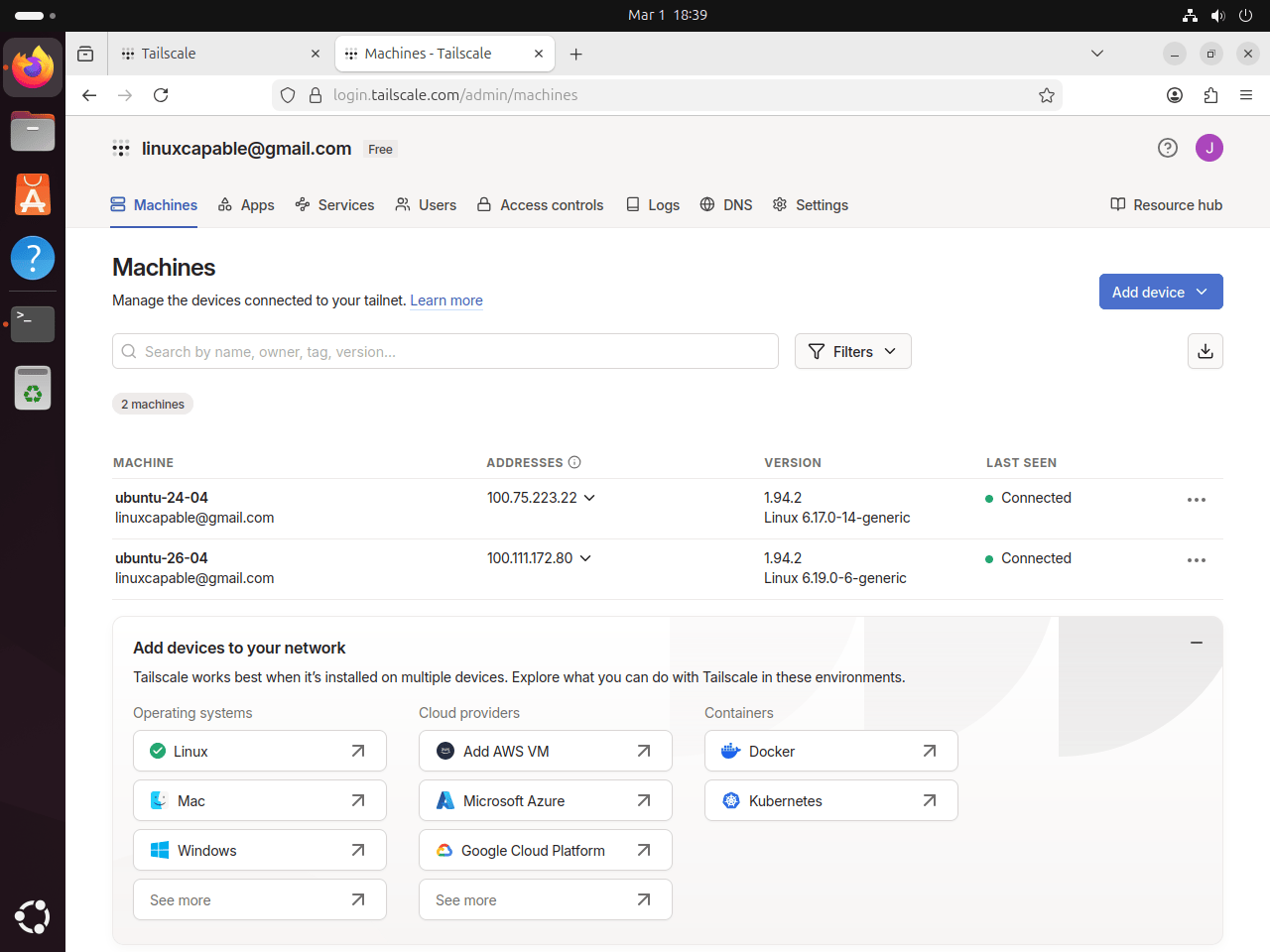
Access Tailscale on Ubuntu with Browser or Systray
Tailscale on Linux is primarily CLI-driven, but you can use a local browser interface and a systray helper on desktop systems.
Open Tailscale Web Interface on Ubuntu
Start the local web interface on http://localhost:8088:
sudo tailscale web --listen=localhost:8088The command stays attached to your terminal session. In a second terminal tab, confirm the endpoint is responding:
curl -I http://localhost:8088 | head -n 1HTTP/1.1 200 OK
Then open http://localhost:8088 in Firefox or Chrome on that Ubuntu machine. Use Ctrl+C in the original terminal to stop the web interface when you finish.
Run Tailscale Systray on Ubuntu Desktop
Desktop users can run the systray helper. If your user cannot manage Tailscale from the tray menu, set your Ubuntu account as an operator first:
sudo tailscale set --operator=$USERThe $USER variable resolves to your current logged-in username. After setting operator access, start systray normally without sudo:
tailscale systrayIf you run this command over SSH or on a headless server, systray integration usually fails because no desktop notification watcher is active. Launch
tailscale systrayfrom a logged-in graphical desktop session instead.
Tailscale CLI Quick Reference on Ubuntu
The tailscale CLI handles most day-to-day management. For the full subcommand list, see the Tailscale CLI reference.
| Command | Purpose |
|---|---|
tailscale up | Connect to your tailnet (triggers login if not authenticated) |
tailscale down | Disconnect from the tailnet without removing the node |
tailscale status | List connected peers and their Tailscale IPs |
tailscale ping <host> | ICMP-style ping over the Tailscale network |
tailscale ip | Print this node’s Tailscale IP address |
tailscale set --operator=$USER | Allow your desktop user to manage Tailscale without sudo |
tailscale ssh <host> | SSH to another tailnet node (APT install only) |
tailscale version | Print the installed Tailscale version |
tailscale netcheck | Analyze local network conditions and DERP relay latency |
tailscale logout | Disconnect and expire the current node key |
Update and Remove Tailscale on Ubuntu
Update Tailscale Installed with APT on Ubuntu
Refresh the Tailscale repository and upgrade to the latest stable release:
sudo apt update
sudo apt install --only-upgrade tailscale
Confirm the updated version:
tailscale version | head -n 11.94.2
Update Tailscale Installed with Snap on Ubuntu
Snap refreshes automatically, but you can trigger a manual check:
sudo snap refresh tailscale --channel=stable
snap list tailscale
Name Version Rev Tracking Publisher Notes tailscale 1.92.5 154 1/stable canonical** -
Remove Tailscale Installed with APT on Ubuntu
Stop the daemon, purge the package and configuration files, then remove the repository:
sudo systemctl disable --now tailscaled
sudo apt purge --autoremove tailscale -y
sudo rm -f /etc/apt/sources.list.d/tailscale.sources /usr/share/keyrings/tailscale-archive-keyring.gpg
sudo apt update
Tailscale stores node keys and state in /var/lib/tailscale/. Remove that directory if you want a fully clean slate:
This deletes all Tailscale node keys and network state. The device will need to re-authenticate after a fresh install.
sudo rm -rf /var/lib/tailscaleVerify removal:
apt-cache policy tailscaletailscale: Installed: (none) Candidate: (none) Version table:
Remove Tailscale Installed with Snap on Ubuntu
Remove the Tailscale Snap package and its stored data:
sudo snap remove tailscaleVerify the Snap package is removed:
snap list tailscaleerror: no matching snaps installed
Troubleshoot Tailscale on Ubuntu
Most Tailscale issues on Ubuntu trace back to a stopped daemon, an expired login session, or a missing operator permission.
Fix Tailscale Daemon Not Running on Ubuntu
If CLI commands fail with a daemon connection error, start the service:
failed to connect to local tailscaled; it doesn't appear to be running
sudo systemctl enable --now tailscaled
systemctl is-active tailscaled
active
Fix Tailscale Login Flow Stuck on Ubuntu
If tailscale up prints a login URL and then exits, that behavior is expected until authentication completes in the browser.
sudo tailscale upIf your browser session expired or the URL timed out, run sudo tailscale up again to generate a fresh login link. After completing the browser flow, confirm the node is connected:
tailscale status100.x.y.z your-ubuntu-hostname your-user@ linux -
Fix Tailscale Up Non-Default Flags Error on Ubuntu
If Tailscale was previously configured with non-default options, rerunning tailscale up with only one flag can fail with this message:
Error: changing settings via 'tailscale up' requires mentioning all non-default flags.
Reset prior options and apply your current preference in one command:
sudo tailscale up --reset --accept-dns=falseVerify your node is still connected after resetting flags:
tailscale statusFix Systray No Permission to Manage Tailscale on Ubuntu
If systray starts but actions fail with a permissions error, your desktop user is not configured as a Tailscale operator yet.
no permission to manage tailscale
sudo tailscale set --operator=$USER
tailscale systray
Do not run systray with sudo. Start it as your normal desktop user after applying the operator setting.
Fix Tailscale Systray StatusNotifier Error on Ubuntu
If you start systray from SSH or from a shell without an active desktop session, you can see notifier errors like this:
systray error: failed to register: The name org.kde.StatusNotifierWatcher was not provided by any .service files
Launch systray from your Ubuntu desktop session after logging in graphically, not from a remote SSH-only shell.
Fix Missing Tailscale SSH Feature on Ubuntu Snap
The Snap package runs in a restricted sandbox and currently does not support tailscale ssh. If you need that feature, remove the Snap package and install Tailscale from the official APT repository instead.
Frequently Asked Questions About Tailscale on Ubuntu
Yes. Tailscale installs on Ubuntu 26.04 LTS, 24.04 LTS, and 22.04 LTS. The official APT repository and Snap stable channel both work on these supported releases.
Use the official APT repository if you want faster access to new stable releases and full CLI feature coverage. Use Snap stable if you prefer a quick setup with automatic background updates.
Install Tailscale on the second Ubuntu system, run sudo tailscale up --reset --accept-dns=false, and authenticate with the same tailnet account. Then run tailscale status or check the Machines page in the admin console to confirm both devices are online.
tailscale up ask me to mention all non-default flags?
That message appears when your node already has non-default Tailscale settings. Run sudo tailscale up --reset --accept-dns=false to apply a clean configuration update with your current preference.
tailscale up show a login URL and stop?
That output is normal for first-time authentication. Open the URL in your browser, sign in, and approve the device. After authorization, run tailscale status to confirm the node is connected.
That message means your Linux user is not configured as an operator for tailscaled. Run sudo tailscale set --operator=$USER, then launch tailscale systray again as your normal user, not with sudo.
tailscale ssh?
Not currently. The canonical tailscale Snap is strictly confined and documents tailscale ssh as unsupported. If you need tailscale ssh, install Tailscale using the official APT repository method.
Conclusion
Tailscale is running on your Ubuntu system and connected to your private WireGuard-based mesh. The APT method gives you full CLI features with manual upgrade control, while the Snap stable channel handles updates automatically in the background. For deeper configuration like ACLs, subnet routing, and exit nodes, see the Tailscale documentation. On internet-facing machines, configure UFW firewall on Ubuntu and install OpenSSH on Ubuntu for tighter access control.

Formatting tips for your comment
You can use basic HTML to format your comment. Useful tags currently allowed:
<code>command</code>command<strong>bold</strong><em>italic</em><blockquote>quote</blockquote>