To install Telegram on Ubuntu with a current desktop build, choose the package source before running commands. Ubuntu 26.04 and 24.04 do not include the old telegram-desktop package in the default APT repositories, while Ubuntu 22.04 still offers an older Universe build. Flatpak, Snap, and the third-party atareao PPA currently cover Ubuntu 26.04, 24.04, and 22.04.
Flatpak and Snap are the lowest-maintenance choices for most desktop users because they track Telegram Desktop outside Ubuntu’s archive package. The atareao PPA keeps Telegram under APT management, but it is maintained by a Launchpad PPA owner rather than Ubuntu or Telegram. The official Telegram Linux download also exists, but it is a standalone archive instead of a package-manager source.
Install Telegram on Ubuntu: Release Availability
Telegram package availability differs by Ubuntu release and package source. Use the table to avoid mixing the PPA package name with the older Ubuntu archive package:
| Ubuntu Release | Flatpak | Snap | atareao PPA | Default APT |
|---|---|---|---|---|
| Ubuntu 26.04 LTS | Available | Available | Available as telegram | Not available |
| Ubuntu 24.04 LTS | Available | Available | Available as telegram | Not available |
| Ubuntu 22.04 LTS | Available | Available | Available as telegram | telegram-desktop 3.6.1+ds-2build1 |
The PPA package is named telegram. Ubuntu 22.04’s default repository package is named telegram-desktop. Do not swap those names between methods, because apt install telegram-desktop fails on Ubuntu 26.04 and 24.04 unless another source provides that package.
Compare Telegram Installation Methods on Ubuntu
Pick one installation method and stay with its matching update, launch, and removal commands. Installing Telegram from multiple sources can leave duplicate launchers and different profile locations.
| Method | Source | Updates | Best Fit |
|---|---|---|---|
| Flatpak | Flathub app ID org.telegram.desktop | flatpak update | Current Telegram release with sandboxing across all supported Ubuntu LTS releases |
| Snap | Snap Store package telegram-desktop, published by Telegram FZ-LLC | Automatic Snap refreshes | Current Telegram release with the standard Ubuntu Snap workflow |
| atareao PPA | Third-party Launchpad PPA package telegram | APT upgrades after PPA packages are published | APT-managed install for users who accept a community PPA |
| Default APT repository | Ubuntu 22.04 Universe package telegram-desktop | Ubuntu archive updates | Ubuntu 22.04 only, older packaged version, no third-party source |
Official Telegram Download for Ubuntu
Telegram’s desktop site offers an official Linux x64 tar.xz download. That file is a standalone upstream archive, not a DEB package, PPA, or APT repository. Use it only when you specifically need Telegram’s portable archive; the managed Flatpak, Snap, and PPA methods below are easier to update, remove, and verify on normal Ubuntu desktops.
Update Ubuntu Before Installing Telegram
Refresh package metadata before installing prerequisites, adding the PPA, or using the Ubuntu 22.04 archive package:
sudo apt updateIf your account cannot run
sudo, configure administrator access first. The Ubuntu sudoers guide covers that prerequisite before you continue with package installation commands.
Method 1: Install Telegram on Ubuntu via Flatpak
Flatpak works across Ubuntu 26.04, 24.04, and 22.04 and installs Telegram as the Flathub app ID org.telegram.desktop. This method keeps the install sandboxed and independent from Ubuntu’s older archive package.
Install Flatpak on Ubuntu
Install the Flatpak framework if your system does not already have it. For a fuller setup walkthrough, see the Flatpak installation guide for Ubuntu.
sudo apt install flatpak -yEnable Flathub for Telegram on Ubuntu
Add Flathub at system scope, then confirm the remote exists before installing Telegram:
sudo flatpak remote-add --if-not-exists flathub https://dl.flathub.org/repo/flathub.flatpakrepo
flatpak remotes --columns=name,url
The remote list should include Flathub:
flathub https://dl.flathub.org/repo/
Install Telegram from Flathub
Install Telegram from Flathub using the system-wide Flatpak scope:
sudo flatpak install flathub org.telegram.desktop -yThe first Flatpak app on a fresh Ubuntu install may also download a GNOME runtime. Later Flatpak apps that share the same runtime reuse those files instead of downloading them again.
Verify the Telegram Flatpak
Check the installed app metadata:
flatpak info org.telegram.desktopRelevant output includes the app ID, stable branch, Flathub origin, and system installation scope. The version number may be newer than the example:
          ID: org.telegram.desktop
         Ref: app/org.telegram.desktop/x86_64/stable
      Branch: stable
     Version: 6.7.8
      Origin: flathub
Installation: system
Method 2: Install Telegram on Ubuntu via Snap
Snap is already available on standard Ubuntu desktop installations. Use this method if you want Telegram installed from the Snap Store with automatic background refreshes through snapd.
Verify Snap on Ubuntu
Confirm the snap command is available:
snap versionIf the command is missing on a minimal or customized Ubuntu installation, install snapd first:
sudo apt install snapd -yInstall Telegram from the Snap Store
Install the Telegram Desktop Snap package:
sudo snap install telegram-desktopThe Snap Store listing is published by Telegram FZ-LLC, and the latest/stable channel tracks current Telegram Desktop releases.
Verify the Telegram Snap
Check the Snap publisher and stable channel:
snap info telegram-desktopRelevant output should show the Telegram FZ-LLC publisher and the stable channel. The exact version and revision will change as Telegram publishes updates:
name:      telegram-desktop
publisher: Telegram FZ-LLC (telegram-desktop**)
store-url: https://snapcraft.io/telegram-desktop
channels:
  latest/stable:    6.7.8 2026-04-24 (6968) 89.9MB -
Method 3: Install Telegram on Ubuntu via atareao PPA
The atareao PPA currently publishes Telegram packages for Ubuntu 26.04, 24.04, and 22.04. It is useful when you want APT-managed updates and a package named telegram, but it is not an official Ubuntu repository and it is not Telegram’s own repository.
Only use the PPA if you are comfortable trusting that third-party package source. Normal
apt upgraderuns can update the package after the PPA is enabled, but Ubuntu security maintenance does not make the PPA an Ubuntu-supported package.
Add the atareao Telegram PPA
Add the PPA with Ubuntu’s repository helper:
sudo add-apt-repository ppa:atareao/telegram -yRefresh package metadata after adding the source:
sudo apt updateInstall Telegram from the PPA
Install the PPA package. Use telegram, not telegram-desktop, for this method:
sudo apt install telegram -yThe PPA package installs a desktop launcher and package-owned Telegram files. Confirm the package-owned paths before relying on a terminal shortcut:
dpkg -L telegram | grep -E '(/Telegram$|/telegram.desktop$)'If the output includes /opt/telegram/Telegram, that is the direct binary path for the PPA build. The grep command guide explains the filtering syntax used in this package-path check.
Verify the Telegram PPA Package
Check that APT sees the package from the atareao PPA:
apt-cache policy telegramThe version may be newer than the example, and the codename changes to noble on Ubuntu 24.04 or jammy on Ubuntu 22.04:
telegram:
  Installed: 6.7.8-0ubuntu0
  Candidate: 6.7.8-0ubuntu0
  Version table:
 *** 6.7.8-0ubuntu0 500
        500 https://ppa.launchpadcontent.net/atareao/telegram/ubuntu resolute/main amd64 Packages
        100 /var/lib/dpkg/status
Method 4: Install Telegram on Ubuntu 22.04 via APT
Ubuntu 22.04 includes telegram-desktop in the Universe repository. This method avoids third-party package sources, but it installs an older 3.6.1 package and does not apply to Ubuntu 26.04 or 24.04.
Enable Universe on Ubuntu 22.04
Universe is usually enabled on Ubuntu desktop systems. If your 22.04 system cannot find telegram-desktop, enable Universe first or review the Ubuntu Universe and Multiverse guide for more detail:
sudo add-apt-repository universe -y
sudo apt update
Install Telegram from Ubuntu Universe
Install the Ubuntu 22.04 package:
sudo apt install telegram-desktop -yVerify the Ubuntu APT Package
Check the installed package source and version:
apt-cache policy telegram-desktopExpected output on Ubuntu 22.04 shows the package from Universe:
telegram-desktop:
  Installed: 3.6.1+ds-2build1
  Candidate: 3.6.1+ds-2build1
  Version table:
 *** 3.6.1+ds-2build1 500
        500 http://archive.ubuntu.com/ubuntu jammy/universe amd64 Packages
        100 /var/lib/dpkg/status
Launch Telegram on Ubuntu
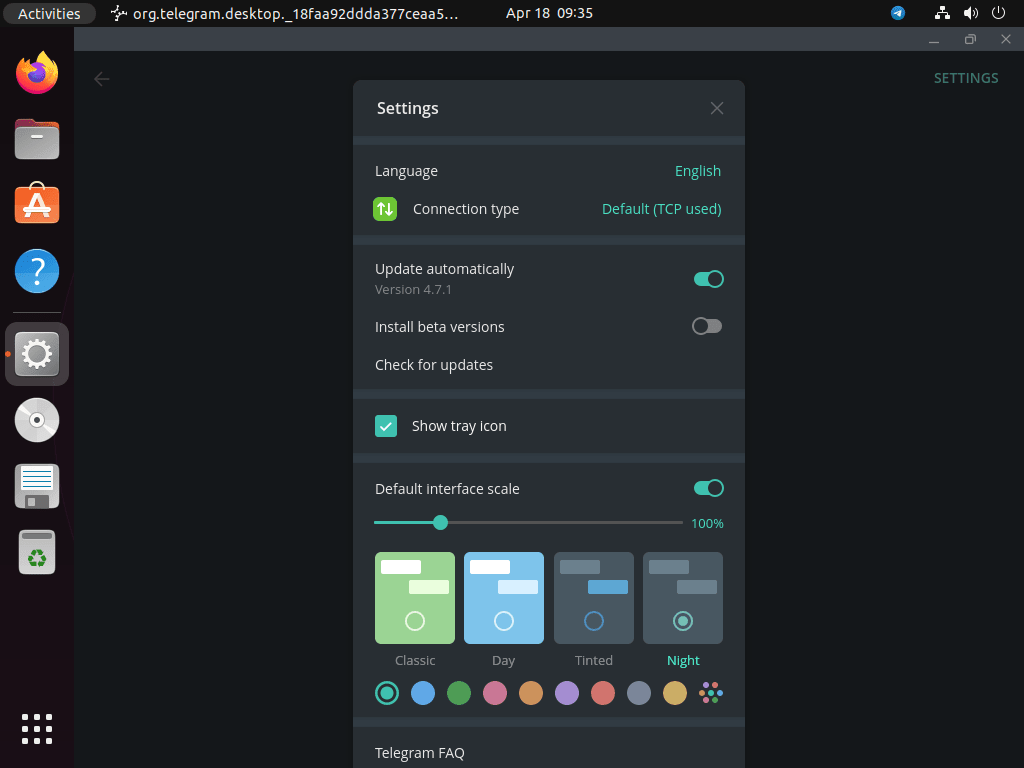
After installation, open the Activities menu, search for “Telegram,” and select the Telegram Desktop launcher. Terminal launch commands differ by installation method.
Launch the Telegram Flatpak
Use the Flatpak app ID:
flatpak run org.telegram.desktopLaunch the Telegram Snap
Use snap run for the Snap package:
snap run telegram-desktopLaunch the Ubuntu APT Package
Use this command only for the Ubuntu 22.04 telegram-desktop package:
telegram-desktopLaunch the atareao PPA Package
Use the package-owned binary path after confirming it with dpkg -L telegram:
/opt/telegram/Telegram

Update Telegram on Ubuntu
Use the update command that matches your installation source.
Update the Telegram Flatpak
Refresh Telegram from Flathub:
sudo flatpak update org.telegram.desktop -yUpdate the Telegram Snap
Snap refreshes automatically, but you can request an immediate refresh:
sudo snap refresh telegram-desktopUpdate the Telegram PPA Package
Upgrade only the PPA package after refreshing APT metadata:
sudo apt update
sudo apt install --only-upgrade telegram -y
Update the Ubuntu APT Package
On Ubuntu 22.04, upgrade only the default repository package:
sudo apt update
sudo apt install --only-upgrade telegram-desktop -y
Remove Telegram from Ubuntu
Remove the package with the command that matches the original installation method. Keep user-data deletion separate so you can decide whether to preserve local downloads, cached media, and login state.
Remove the Telegram Flatpak
Remove the Flatpak application:
sudo flatpak remove org.telegram.desktop -yConfirm the app ID no longer appears. No output means the Flatpak app is not installed at system scope:
sudo flatpak list --app --columns=application | grep -Fx org.telegram.desktopRemove the Telegram Snap
Remove the Snap package without saving snapd’s automatic recovery snapshot:
sudo snap remove --purge telegram-desktopRemove the Telegram PPA Package
Remove the PPA package, remove the PPA source, then refresh package metadata. The Ubuntu PPA removal guide covers additional repository cleanup options when needed.
sudo apt remove telegram
sudo add-apt-repository --remove ppa:atareao/telegram -y
sudo apt update
Remove the Ubuntu APT Package
On Ubuntu 22.04, remove the default repository package:
sudo apt remove telegram-desktopIf APT reports orphaned dependencies after removal, review them before deleting anything:
sudo apt autoremove --dry-runDelete Telegram User Data on Ubuntu
Check for local Telegram profile paths before deleting data:
find "$HOME" -maxdepth 4 \( -path "$HOME/.local/share/TelegramDesktop" -o -path "$HOME/.var/app/org.telegram.desktop" -o -path "$HOME/snap/telegram-desktop" \) -printOnly remove these paths if you want a clean reset. Deleting them can remove local cache, downloaded media, login state, and app settings for that Ubuntu account.
rm -rf "$HOME/.local/share/TelegramDesktop" "$HOME/.var/app/org.telegram.desktop" "$HOME/snap/telegram-desktop"Troubleshoot Telegram on Ubuntu
Fix Unable to Locate Package telegram-desktop
On Ubuntu 26.04 and 24.04, this error is expected when you try the default repository package:
E: Unable to locate package telegram-desktop
Use Flatpak, Snap, or the atareao PPA instead. On Ubuntu 22.04, enable Universe and refresh package metadata if telegram-desktop is missing.
Fix Telegram PPA Package Name Confusion
The atareao PPA installs telegram. The Ubuntu 22.04 Universe package installs telegram-desktop. If you add the PPA and then run sudo apt install telegram-desktop, APT will still fail on Ubuntu 26.04 and 24.04 because that is not the PPA package name.
Fix Missing Flathub Remote for Telegram
If Flatpak cannot find Telegram, confirm the Flathub remote exists:
flatpak remotes --columns=name,urlIf flathub is missing, rerun the remote-add command from the Flatpak method and then repeat the install command.
Fix Missing Snap Command for Telegram
If snap is not found on a minimal Ubuntu installation, install snapd and open a new terminal session before retrying the Telegram Snap install:
sudo apt install snapd -yTelegram on Ubuntu Conclusion
Telegram on Ubuntu is simplest when the package source matches your release and update preference. Flatpak and Snap provide current builds across Ubuntu 26.04, 24.04, and 22.04, while the atareao PPA gives APT-managed current packages for users who accept a third-party source. The default telegram-desktop package remains a 22.04-only fallback for users who prefer Ubuntu’s archive over the newest Telegram Desktop release.


I see the screen saying “start messaging”, but, when I click on this, I see another screen with a QR code which changes every few minutes. It says :
Scan From Mobile Telegram
1. Open Telegram on your phone
2. Go to Settings > Devices > Link Desktop
3. Scan this image to Log In
Or log in using your phone number
NOW THE WHOLE POINT of trying to get telegram on the Ubuntu pc IS THAT I NEITHER HAVE NOR WANT A *** SMARTPHONE!
Thanks for reporting this, Alain. You’re seeing Telegram’s QR code login screen, which appears by default but isn’t required. To bypass the QR code and register without a smartphone, look for the “Or log in using your phone number” option at the bottom of that screen and click it. This opens the classic login form where you can enter your phone number directly.
Telegram will then send a verification code via SMS or an automated voice call, depending on whether you use a mobile phone or a landline. After entering the code, you can use Telegram Desktop on Ubuntu without needing a mobile app.
What do you need to create an account on telegram ?
Thanks for your question, John. To create a Telegram account, you only need a valid phone number (mobile or landline). During registration, Telegram sends a verification code via SMS to confirm your number. Once you enter the code, you can set your display name and optionally add a username, profile photo, and bio. No email address is required, though you can add one later for account recovery purposes.
After installing Telegram using any of the methods covered in this guide, launch the application and follow the on-screen registration prompts to get started.