Calibre gives Ubuntu one place to organize EPUB, MOBI, PDF, AZW3, and other e-book formats, clean up metadata, convert books for Kindle or Kobo devices, and share a library through its built-in content server. To install Calibre on Ubuntu 26.04, 24.04, or 22.04, choose the package source that matches how current you need Calibre to be and how you want updates handled.
Choose a Calibre Installation Method on Ubuntu
Ubuntu’s repository package is the simplest managed option, while Calibre’s official binary installer follows upstream’s preferred Linux path and ships the newest release. Flatpak is available through Flathub, but it should be treated as a packaging choice rather than a tight sandbox because the current Flathub listing is unverified and requests broad host access.
| Method | Source | Update Track | Best For |
|---|---|---|---|
| Ubuntu Repository (APT) | Ubuntu universe package | Ubuntu package updates through apt upgrade | Readers who prefer package-manager integration and distro packages |
| Official Binary Installer | Calibre upstream download | Current upstream release through update-calibre-official | Readers who want Calibre’s recommended Linux build and latest features |
| Flatpak | Flathub | Flathub stable release through flatpak update | Readers who already use Flatpak or want a bundled app/runtime path |
The older Xtradeb PPA path is not listed as a main method. Xtradeb currently publishes Calibre packages for Ubuntu 24.04 and 22.04, but not Ubuntu 26.04, and the official installer provides a newer upstream release across all three supported Ubuntu LTS versions. Snap is also omitted because a current snap find calibre search did not return the upstream Calibre desktop app.
Install Calibre from Ubuntu Repositories
The Ubuntu package keeps Calibre inside the normal APT workflow and is the easiest option to maintain on desktops where the distro package version is good enough.
Check Ubuntu Repository Versions
Calibre comes from Ubuntu’s universe component, and the default version depends on the Ubuntu release.
| Ubuntu Release | APT Package Series | Component |
|---|---|---|
| Ubuntu 26.04 LTS | 9.2.x | universe |
| Ubuntu 24.04 LTS | 7.6.x | universe |
| Ubuntu 22.04 LTS | 5.37.x | universe |
Update APT Before Installing Calibre
Refresh package metadata before installing Calibre so APT uses the latest repository state.
sudo apt update && sudo apt upgradeCommands that use
sudoneed an administrator account. If your user cannot run privileged commands yet, add the account with the Ubuntu sudoers guide before continuing.
Install Calibre with APT
Install the Ubuntu repository package with APT.
sudo apt install calibreAPT installs Calibre plus its required GUI, Python, conversion, and e-reader support packages from Ubuntu’s repositories.
Verify the APT Installation
Confirm that the host command is available and report the installed Calibre version.
calibre --versionOn Ubuntu 26.04, the repository package currently reports output in this series.
calibre (calibre 9.2.x)
Install Calibre with the Official Binary Installer
Calibre upstream recommends the official binary installer for Linux when you want the current release. This installer places Calibre in /opt/calibre, creates command symlinks such as /usr/bin/calibre and /usr/bin/calibre-server, and bundles most Calibre dependencies instead of relying on Ubuntu’s packaged Python and Qt stack.
Install Official Installer Prerequisites
Install the native tools and libraries the upstream installer checks before it extracts Calibre. The libxcb-cursor0 and libopengl0 packages satisfy the installer library checks on current Ubuntu 26.04, 24.04, and 22.04 systems.
sudo apt install wget xdg-utils xz-utils python3 libxcb-cursor0 libopengl0The installer is downloaded with wget; the wget command examples reference explains the download flags used in the upstream command.
Run the Official Calibre Installer
Use Calibre’s published Linux installer command to install or upgrade the official build.
sudo -v && wget -nv -O- https://download.calibre-ebook.com/linux-installer.sh | sudo sh /dev/stdinRelevant output includes the release tarball, the symlink creation step, and the final installation directory. The exact version changes as upstream publishes new releases.
Will download and install calibre-9.x.x-x86_64.txz
Creating symlinks...
Run "calibre" to start calibre
Installing to /opt/calibre
Add an Official Calibre Updater Command
Create a short updater command so future official-installer updates use one memorable command instead of a long installer pipeline. The helper still downloads Calibre’s current upstream installer each time it runs.
sudo tee /usr/local/bin/update-calibre-official > /dev/null <<'EOF'
#!/usr/bin/env bash
set -euo pipefail

if ! sudo -n true 2>/dev/null; then
    sudo -v
fi

wget -nv -O- https://download.calibre-ebook.com/linux-installer.sh | sudo sh /dev/stdin
EOF
Make the helper executable and confirm the shell can find it.
sudo chmod 755 /usr/local/bin/update-calibre-official
command -v update-calibre-official
/usr/local/bin/update-calibre-official
Verify the Official Installer
Check the installed version and confirm that both the launcher and official uninstaller are in your command path.
calibre --version
command -v calibre
command -v calibre-uninstall
Current upstream installs report the active Calibre branch and the system symlinks created by the installer.
calibre (calibre 9.x)
/usr/bin/calibre
/usr/bin/calibre-uninstall
Install Calibre from Flathub
The Flathub build is useful when you already manage desktop apps through Flatpak. It currently supports x86_64 and aarch64, but the Flathub page marks the app as unverified and potentially unsafe, and the manifest grants access to the host filesystem and all devices. Use this method for its packaging and update model, not as a stronger isolation boundary.
Flatpak is not pre-installed on Ubuntu. If it is not set up yet, install it with
sudo apt install flatpak, restart your session, and add Flathub. The Flatpak installation guide for Ubuntu covers the complete setup.
Enable Flathub for Calibre
Add Flathub as a system remote if it is not already configured.
sudo flatpak remote-add --if-not-exists flathub https://flathub.org/repo/flathub.flatpakrepoInstall the Calibre Flatpak
Install the Calibre app ID from Flathub. Flatpak may ask you to review runtime downloads and permissions before it proceeds.
sudo flatpak install flathub com.calibre_ebook.calibreVerify the Flatpak Installation
Inspect the installed Flatpak metadata to confirm the app ID and branch.
flatpak info com.calibre_ebook.calibreRelevant output includes the application name, app ID, and stable branch.
calibre
Application ID: com.calibre_ebook.calibre
Branch: stable
Launch Calibre on Ubuntu
APT and official binary installs expose the normal calibre command, while Flatpak uses the Flatpak launcher.
Launch Calibre from the Terminal
Start Calibre directly after an APT or official binary install.
calibreStart the Flathub build through Flatpak.
flatpak run com.calibre_ebook.calibreLaunch Calibre from Applications
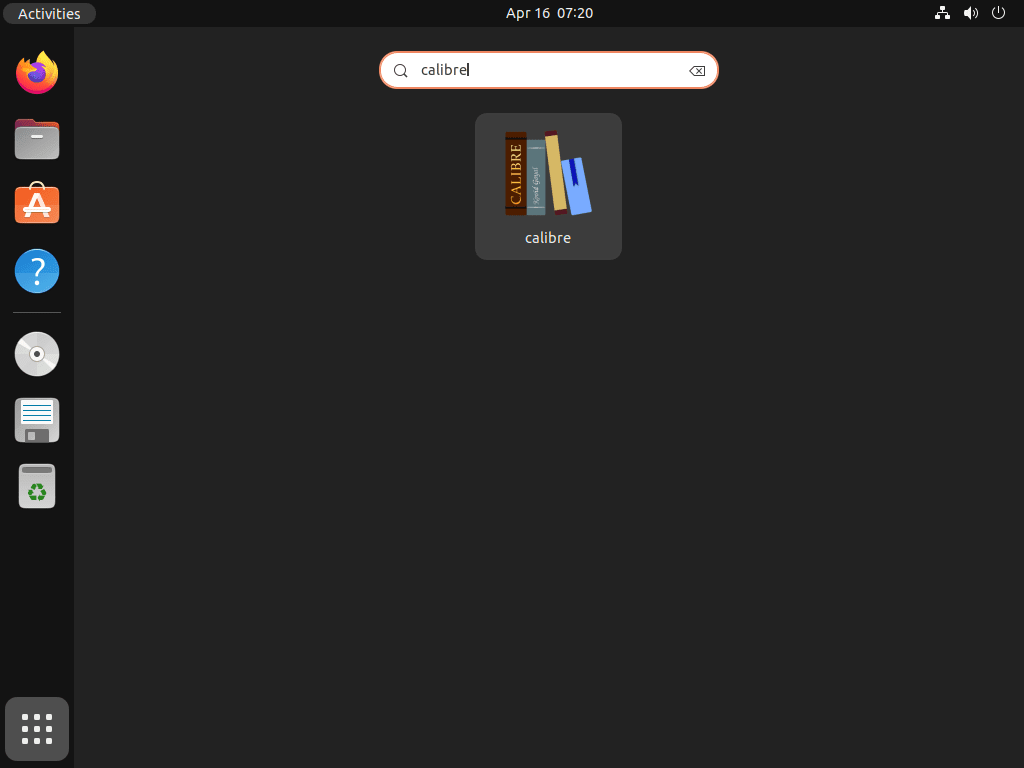
On the default Ubuntu desktop, open Activities, search for Calibre, and launch the e-book manager from the application grid.
Use Calibre Terminal Tools
APT and official binary installs also expose Calibre’s companion tools in PATH, including ebook-convert, ebook-viewer, calibredb, and calibre-server. Calibre-Web is a separate web front end and is not required for the built-in Calibre content server.
Complete the Calibre Setup Wizard on Ubuntu
The first launch opens a setup wizard that asks where to store the library and which e-reader profile to use.
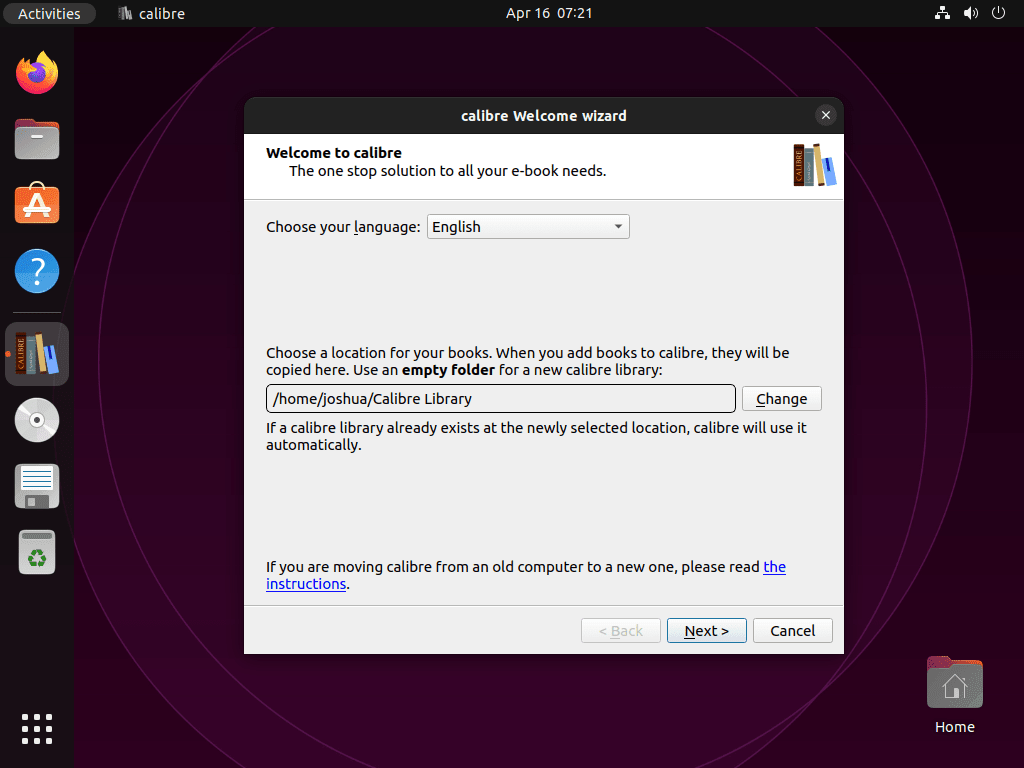
Choose the Calibre Library Location
The default library folder is ~/Calibre Library. Keep that location for the simplest setup, or choose an existing library folder if you are moving Calibre from another computer. When transferring a library, copy the entire folder, including metadata.db, instead of importing only individual book folders.
Select an E-Reader Profile
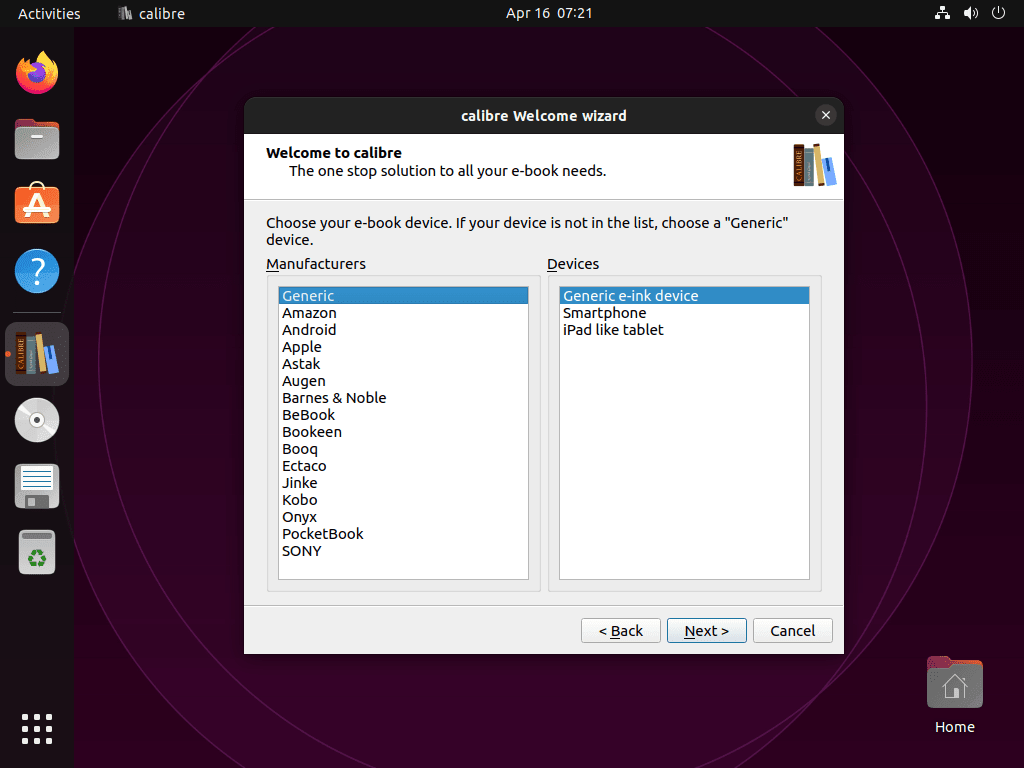
Pick your main e-reader model so Calibre can choose sensible conversion defaults. Select Generic if you read on multiple devices, use a phone or tablet, or mainly manage EPUB and PDF files on the computer.
Finish the First Launch
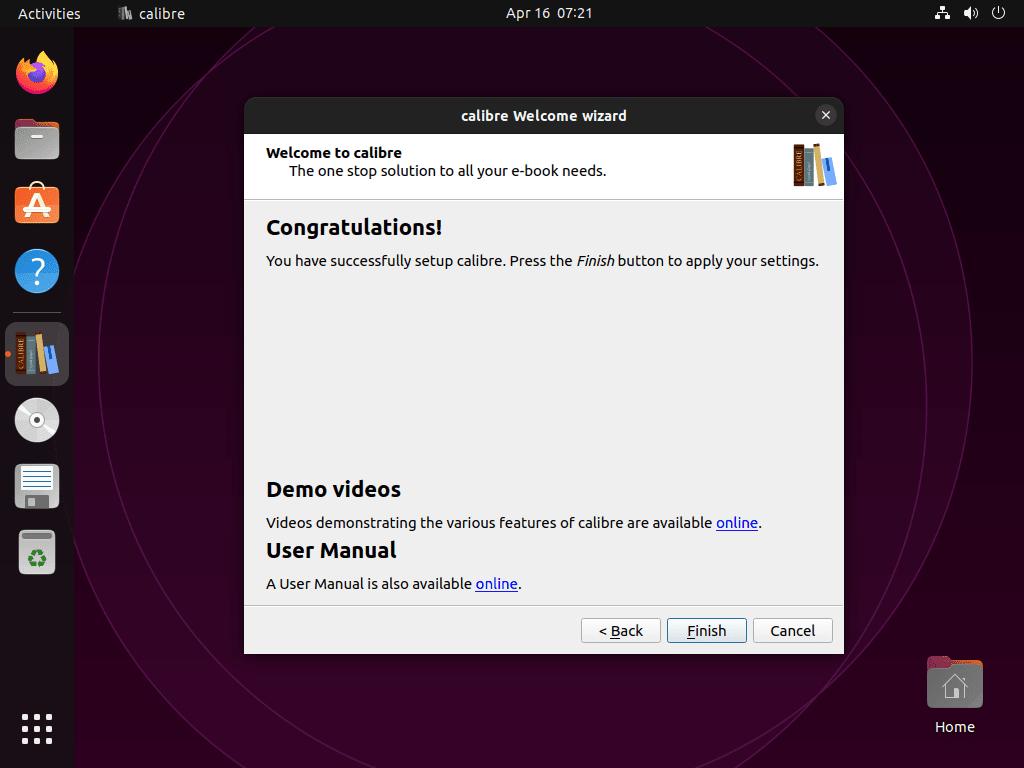
Finish the wizard to open the library view. From there, use Add books to import files, edit metadata from the toolbar, convert formats, or send books to a connected device.
The main window starts with an empty library unless you selected an existing one. The toolbar handles adding books, editing metadata, converting formats, and sending titles to e-readers, while the sidebar filters by author, series, tags, and other saved metadata.
Update Calibre on Ubuntu
Update Calibre through the same source you used for installation.
Update the APT Package
APT upgrades Calibre with the rest of your Ubuntu packages.
sudo apt update && sudo apt upgradeUpdate the Official Binary Install
Run the helper created during the official installer method. It replaces the current /opt/calibre build with the latest upstream release.
update-calibre-officialUpdate the Flatpak Build
Flatpak updates the Calibre app and any required runtimes from Flathub.
sudo flatpak update com.calibre_ebook.calibreRemove Calibre from Ubuntu
Use the removal path that matches the installation method. Application removal does not automatically delete your e-book library unless you remove that folder separately.
Remove the APT Package
Remove the Ubuntu package first.
sudo apt remove calibrePreview orphaned dependency cleanup before removing anything else. Continue only if the preview contains packages you are comfortable removing.
sudo apt autoremove --dry-runAfter reviewing the preview, run the cleanup command if the listed packages belong to software you no longer need.
sudo apt autoremoveRemove the Official Binary Install
Run the upstream uninstaller from a normal interactive terminal. The uninstaller opens its confirmation through the terminal device, so non-interactive SSH pipes may not answer the prompt correctly.
sudo calibre-uninstallRemove the article-created updater helper, clear the shell command cache, and confirm the launcher and helper have been removed.
sudo rm -f /usr/local/bin/update-calibre-official
hash -r
command -v calibre || echo "calibre command removed"
command -v update-calibre-official || echo "updater command removed"
Remove the Flatpak Build
Remove the Flathub app and its Flatpak sandbox data.
sudo flatpak uninstall --delete-data com.calibre_ebook.calibreFlatpak may leave unused runtimes that other apps no longer need. Review and remove them separately.
sudo flatpak uninstall --unusedRemove Calibre Library and Settings
These commands permanently delete Calibre data, including imported books, metadata, covers, and local settings. Back up any library folder you want to keep before running them.
Remove the default library and native Calibre settings only when you no longer need them.
rm -rf "$HOME/Calibre Library"
rm -rf "$HOME/.config/calibre"
rm -rf "$HOME/.cache/calibre"
If you chose a custom library location in the setup wizard, remove that folder instead of the default ~/Calibre Library path.
Troubleshoot Calibre on Ubuntu
APT Cannot Locate the Calibre Package
Calibre is in Ubuntu’s universe component. If a minimal or customized system cannot locate the package, enable Universe and refresh package metadata.
sudo apt install software-properties-common
sudo add-apt-repository universe
sudo apt update
The Universe and Multiverse guide for Ubuntu explains repository components in more detail.
Official Installer Reports a Missing Library
If the official installer reports libxcb-cursor.so.0 or libOpenGL.so.0, install the prerequisite libraries and rerun the installer.
sudo apt install libxcb-cursor0 libopengl0Flatpak Install Does Not Add the calibre Command
Flatpak applications do not add the native calibre command to your shell. Use the Flatpak launcher instead.
flatpak run com.calibre_ebook.calibreIf the desktop icon does not appear after installation, log out and back in so the desktop session reloads Flatpak application entries.
Calibre Cannot Import or Convert Books
First check that your Calibre version is current for the method you installed. If the issue affects one library folder, verify that your user owns the library directory.
ls -ld "$HOME/Calibre Library"Fix ownership only if the directory belongs to another user or root.
sudo chown -R "$USER":"$USER" "$HOME/Calibre Library"Conclusion
Calibre on Ubuntu can stay fully package-managed through APT, track upstream through the official binary installer, or run through Flathub if that fits your desktop workflow. Keep the update and removal commands aligned with the method you chose, and back up the full Calibre library folder before moving or deleting books so the metadata database stays with the collection.


Formatting tips for your comment
You can use basic HTML to format your comment. Useful tags currently allowed in published comments:
<code>command</code>command<strong>bold</strong><em>italic</em><a href="https://example.com">link</a><blockquote>quote</blockquote>