
This guide shows how to install Thunderbird on Ubuntu using APT with the Mozilla Team PPA, Flatpak, or snap packages. Thunderbird is a free and open-source email client developed by Mozilla for managing multiple email accounts, calendars, and contacts. You can use Thunderbird to consolidate personal email from providers like Gmail and Outlook into a single interface, manage work email with IMAP configurations, or secure correspondence with OpenPGP encryption. The installation covers traditional .deb packages via the Mozilla Team PPA for users who prefer manual update control, Flatpak for sandboxed cross-distro compatibility, and snap for Ubuntu’s default automatic update path on newer releases.
Ubuntu 24.04 and 26.04 LTS both use a transitional package that installs the snap version, while Ubuntu 22.04 still provides the traditional .deb package from the main repository. For users who prefer the traditional package format with the latest features and updates, the Mozilla Team PPA offers the newest Thunderbird builds as .deb packages across all supported Ubuntu LTS releases.
Choose Your Thunderbird Installation Method
Each installation method offers different trade-offs between update frequency, package format, and system integration. The comparison below helps you select the approach that matches your needs.
| Method | Channel | Version | Updates | Best For |
|---|---|---|---|---|
| Ubuntu Repository (22.04) | Ubuntu Repos | ESR (Extended Support) | Security updates via apt | Users who prefer stable LTS versions integrated with system package management |
| Ubuntu Repository (24.04/26.04) | Ubuntu Repos | Latest (via snap) | Automatic snap updates | Users comfortable with snap packages and automatic background updates |
| Mozilla Team PPA | Mozilla Team PPA | Latest stable | Frequent updates via apt | Users who want the newest features in traditional .deb format with manual update control |
| Flatpak | Flathub | Latest stable | Automatic flatpak updates | Users who prefer sandboxed applications with cross-distro compatibility |
| Snap | Snapcraft | Latest stable | Automatic snap updates | Users who want Mozilla’s official snap package with automatic updates |
This guide covers Ubuntu 22.04 LTS, 24.04 LTS, and 26.04 LTS. The Mozilla Team PPA provides packages for all supported LTS releases, while Flatpak and snap remain compatible across all Ubuntu versions. Commands shown work identically on all supported LTS releases unless noted otherwise.
For most users, the Mozilla Team PPA is recommended because it provides the latest stable Thunderbird releases in traditional .deb format with full system integration. On Ubuntu 24.04 and 26.04, the default repository installs a snap transitional package rather than a traditional .deb package, so PPA installation requires APT pinning to override this behavior.
Method 1: Install Thunderbird via APT
Update Ubuntu Before Thunderbird Installation
Update your package list to ensure you have the latest repository information:
sudo apt updateInstall Thunderbird via Ubuntu Repository or Mozilla Team PPA
There are two options for installing Thunderbird using APT. The sections below cover both methods.
Option 1: Install Thunderbird with Ubuntu Repository
Thunderbird is available in the official Ubuntu repository. This method installs the version provided by Ubuntu, which may lag behind the latest Mozilla release.
To install the Ubuntu version, run the following command:
sudo apt install thunderbirdUbuntu 24.04 and 26.04 behavior: On these releases, this command installs a transitional package that depends on snapd and installs the snap version of Thunderbird rather than the traditional .deb package. Ubuntu 22.04 still installs the traditional .deb package directly. If you prefer the .deb format on Ubuntu 24.04 or 26.04, use the Mozilla Team PPA method below with APT pinning to ensure the PPA version takes priority over the snap transitional package.
Option 2: Install Thunderbird via Mozilla Team PPA
For the most current Thunderbird version in traditional .deb format, use the Mozilla Team PPA. This method delivers updates closer to Mozilla’s upstream release cycle and provides the latest stable releases directly from the Mozilla team.
First, import the Mozilla Team PPA with the following command:
sudo add-apt-repository ppa:mozillateam/ppa -yThe add-apt-repository command registers the Mozilla Team PPA in your APT sources and imports the repository’s GPG signing key for package verification. Additionally, the -y flag automatically confirms the addition without prompting. Next, update your package list to reflect the new PPA:
sudo apt updateFor Ubuntu 24.04 and 26.04 users, you must configure APT pinning to prioritize the PPA over the snap transitional package. After updating your package list, create a preference file that ensures the PPA version installs instead of the snap wrapper:
cat <<EOF | sudo tee /etc/apt/preferences.d/thunderbird-ppa
Package: thunderbird
Pin: release o=LP-PPA-mozillateam
Pin-Priority: 1001

Package: thunderbird
Pin: release o=Ubuntu
Pin-Priority: -1
EOF
The heredoc syntax creates an APT preferences file assigning priority 1001 to Thunderbird packages from the Mozilla Team PPA (higher than the default 500) and priority -1 to Ubuntu’s snap transitional package (which prevents installation entirely). As a result, APT will now exclusively install and upgrade Thunderbird from the PPA. Note that Ubuntu 22.04 users can skip this step since the snap transitional package does not exist on that release.
Verify the pinning configuration worked by checking APT’s package priorities:
apt-cache policy thunderbirdthunderbird:
Installed: (none)
Candidate: 1:140.6.0+build2-0ubuntu0.24.04.1~mt1
Version table:
2:1snap1-0ubuntu3 -1
500 http://archive.ubuntu.com/ubuntu noble/main amd64 Packages
1:140.6.0+build2-0ubuntu0.24.04.1~mt1 1001
500 https://ppa.launchpadcontent.net/mozillateam/ppa/ubuntu noble/main amd64 Packages
As shown above, the output confirms the PPA version (priority 1001) will install instead of the snap transitional package (priority -1).
Once APT priorities are configured, proceed to install the latest stable version of Thunderbird from the Mozilla PPA:
sudo apt install thunderbird -yVerify the installation completed successfully by checking the Thunderbird version:
thunderbird --versionMozilla Thunderbird 140.6.0
The version output confirms Thunderbird installed successfully from the Mozilla PPA. Should you later decide to remove the PPA, follow the PPA removal guide.
Method 2: Install Thunderbird via Flatpak and Flathub
The Flathub repository hosts the official Thunderbird Flatpak maintained by Mozilla.
Flatpak is not pre-installed on Ubuntu. If you have not set it up yet, follow our Flatpak installation guide for Ubuntu to install the Flatpak framework and add the Flathub repository. This setup process typically takes under five minutes and only needs to be done once.
Add Flathub Repository for Thunderbird
Before installing Thunderbird through Flatpak, you must enable the Flathub repository, a primary source for Flatpak applications. To enable Flathub, execute the following command in your terminal:
sudo flatpak remote-add --if-not-exists --system flathub https://flathub.org/repo/flathub.flatpakrepoThe remote-add command registers Flathub as a system-wide repository, while --if-not-exists prevents duplicate entries and --system makes applications available to all users rather than only your account.
Install Thunderbird via Flatpak Command
With Flathub enabled, you can now install Thunderbird using the “flatpak install” command. Run the following command in your terminal:
sudo flatpak install --system flathub org.mozilla.Thunderbird -yVerify the installation by checking the Thunderbird version:
flatpak run org.mozilla.Thunderbird --versionMozilla Thunderbird 140.6.0
The output confirms Thunderbird installed successfully from Flathub.
Method 3: Install Thunderbird via Snap
Ubuntu 24.04 and 26.04 default to the snap version through a transitional package in the main repository, while Ubuntu 22.04 users can manually install the snap package. The snap package is maintained by Mozilla and receives automatic updates.
Install Thunderbird on Ubuntu via Snap Command
Snap requires the snapd daemon to be installed. While most Ubuntu installations include snapd by default, minimal installations may require manual installation. Installing snapd automatically initializes snap core.
sudo apt install snapdInstall Thunderbird as a snap package:
sudo snap install thunderbirdThe snap daemon downloads the Thunderbird package from the Snap Store, creates filesystem mounts for containerization, and registers the application in your system’s launcher.
Verify the snap installation succeeded by checking the installed version:
snap list thunderbirdExpected output example:
Name         Version     Rev   Tracking       Publisher   Notes
thunderbird  140.6.0     591   latest/stable  mozilla✓    -
The output confirms Thunderbird is installed via snap and shows the current version tracking the stable channel. The checkmark (✓) next to the publisher name indicates Mozilla is a verified publisher on Snapcraft.
Launch Thunderbird
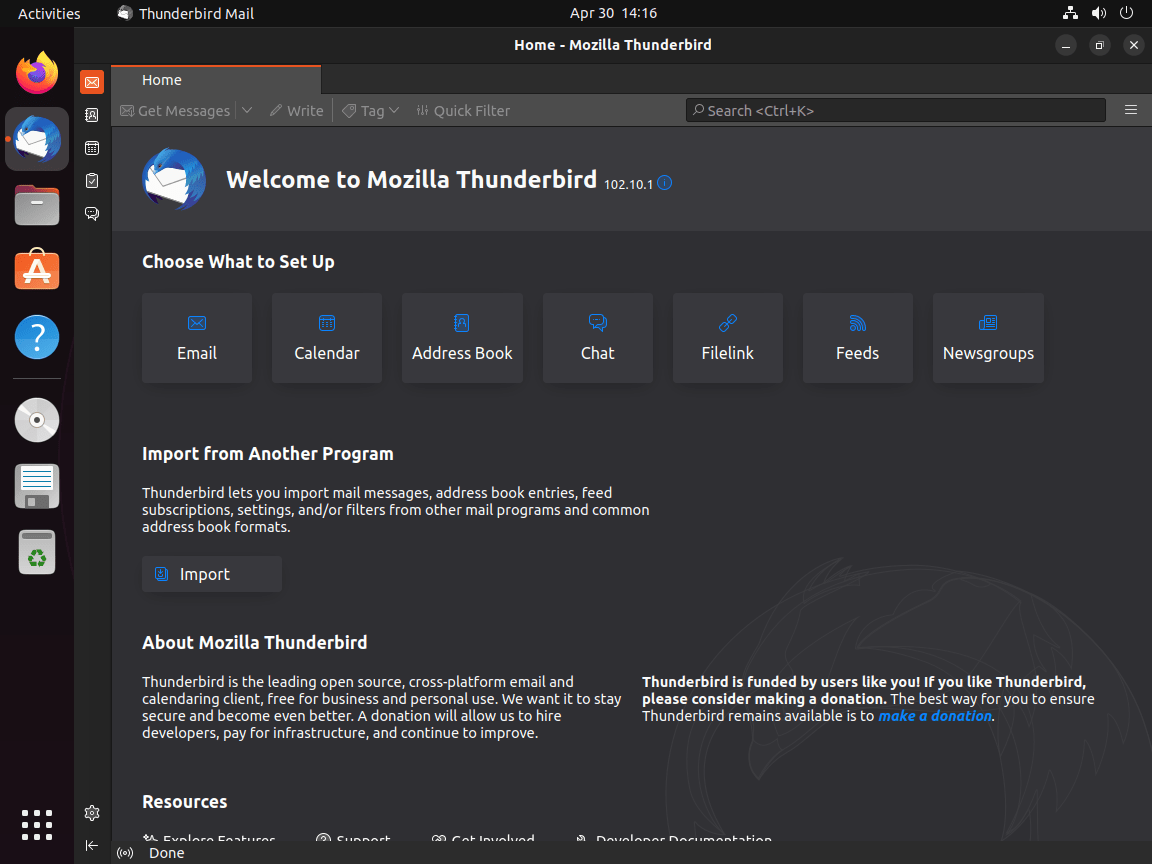
Once installed via any method, Thunderbird appears in your application menu. Importantly, the launch process is identical regardless of whether you installed through APT, Flatpak, or snap.
Launch Thunderbird from Terminal
If you installed Thunderbird using the APT or PPA method, type the following command in your terminal to launch the application:
thunderbirdFor Thunderbird installed via Flatpak, use a different command to start the application. Run the following command in your terminal:
flatpak run org.mozilla.ThunderbirdIf you installed Thunderbird as a snap package, the following command will launch the application:
snap run thunderbirdLaunch Thunderbird from Applications Menu
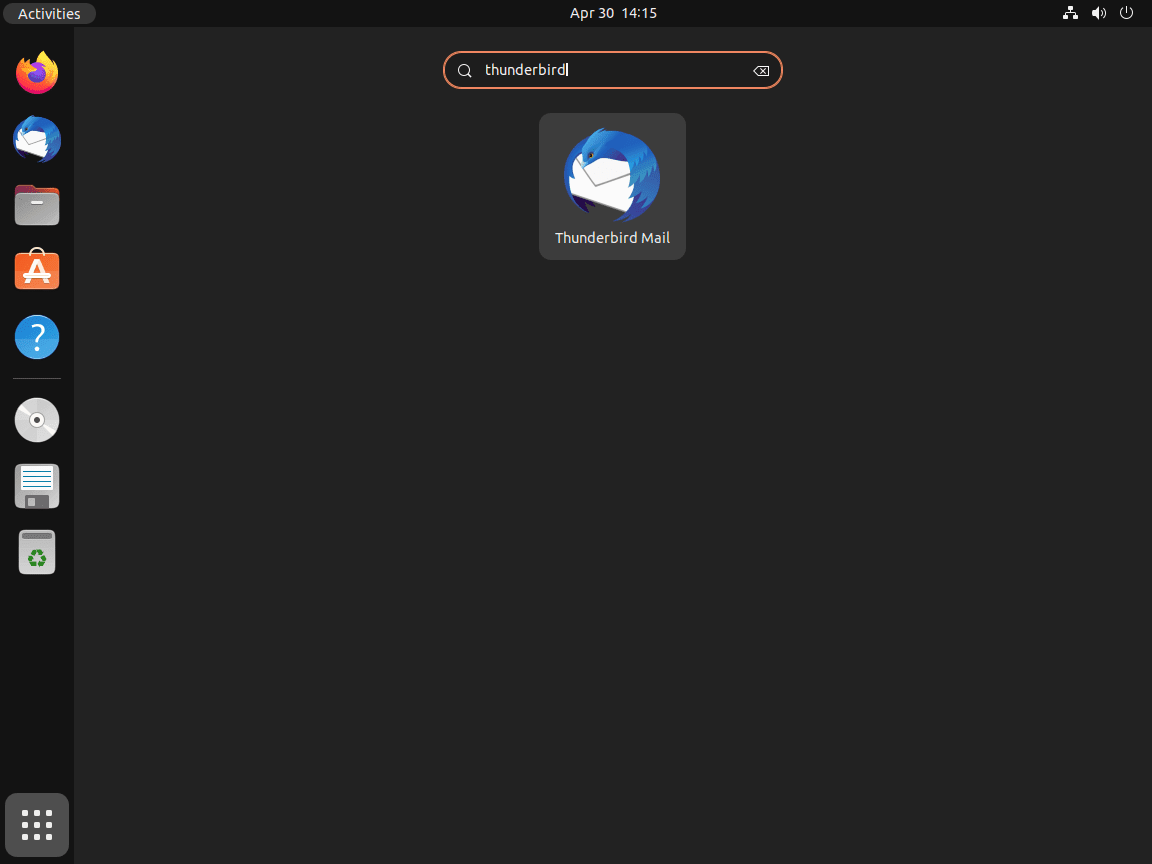
You may prefer to launch Thunderbird using the desktop environment’s application menu. To do this, follow these steps:
- Open the Activities overview from your desktop.
- Click Show Applications (grid icon) to display installed applications.
- Find and click the Thunderbird Mail icon to launch the email client.

Manage Thunderbird
Update Thunderbird
To keep your Thunderbird application up-to-date, use the appropriate command based on your installation method:
APT Update Method For Thunderbird
If you installed Thunderbird using the APT package manager, update it with the following command:
sudo apt update && sudo apt install --only-upgrade thunderbirdFlatpak Update Method For Thunderbird
If you installed Thunderbird via Flatpak, use this command to update all Flatpak applications, including Thunderbird:
sudo flatpak update --systemSnap Update Method For Thunderbird
For those who installed Thunderbird using Snap, update your Snap packages with the following command:
sudo snap refreshRemove Thunderbird
If you no longer need Thunderbird, use the appropriate command based on your installation method to remove it:
APT Remove Method For Thunderbird
For users who installed Thunderbird with the APT package manager, run this command to remove the application:
sudo apt remove --purge thunderbirdUbuntu 24.04 and 26.04 note: If you installed Thunderbird via the default Ubuntu repository (which installs the snap transitional package), the command above only removes the transitional wrapper. Remove the actual snap package with
sudo snap remove thunderbird.
Next, remove orphaned dependencies that were automatically installed:
sudo apt autoremoveAdditionally, to remove the Mozilla Team PPA, first remove the repository configuration:
sudo add-apt-repository --remove ppa:mozillateam/ppa -yFor Ubuntu 24.04 and 26.04 users, you should also remove the APT pinning preference file if it was created during installation:
sudo rm /etc/apt/preferences.d/thunderbird-ppaFinally, update your package list and verify Thunderbird is fully removed:
sudo apt update && apt-cache policy thunderbirdUser data: The
~/.thunderbirddirectory containing your email, contacts, and settings is not removed by the commands above. Delete it manually withrm -rf ~/.thunderbirdonly if you no longer need your email data. Back up this directory first if you want to preserve your email archive.
Flatpak Remove Method For Thunderbird
If you installed Thunderbird using Flatpak, remove the application with this command:
sudo flatpak uninstall --system org.mozilla.Thunderbird -yAfter removing the application, clean up unused runtimes that were automatically installed as dependencies:
sudo flatpak uninstall --system --unusedThe commands above do not delete your email data. To completely remove Thunderbird’s Flatpak application data (including profiles, email, and settings), run
rm -rf ~/.var/app/org.mozilla.Thunderbird. Back up this directory first if you want to preserve your email archive.
Snap Remove Method For Thunderbird
To remove Thunderbird from your system if you installed it with Snap, use this command:
sudo snap remove thunderbirdSnap stores application data separately from the package. After running
snap remove, check~/snap/thunderbirdfor remaining profile data and remove it manually if you no longer need your email archive.
Troubleshoot Thunderbird
If you encounter issues during installation or while running Thunderbird, the following solutions address the most common problems.
PPA Package Not Installing (Snap Installs Instead)
On Ubuntu 24.04 and 26.04, running sudo apt install thunderbird after adding the Mozilla Team PPA may still install the snap transitional package if APT pinning is not configured. Verify your pinning configuration:
apt-cache policy thunderbirdIn the output, the PPA version should show priority 1001, and the Ubuntu repository version should show priority -1. If both show priority 500, the pinning file was not created correctly. Recreate it using the heredoc command from the installation section, then run sudo apt update before attempting to install again.
Thunderbird Fails to Launch
If Thunderbird does not start after installation, launch it from the terminal to see error messages:
thunderbirdCommon causes include a corrupted profile or conflicting add-ons. To start Thunderbird in safe mode with add-ons disabled:
thunderbird --safe-modeIf Thunderbird works in safe mode, disable add-ons one by one to identify the problematic extension.
Clear Thunderbird Cache
Cached data can occasionally cause display issues or slow performance. Close Thunderbird completely, then clear the cache directory based on your installation method:
APT or PPA installation:
rm -rf ~/.cache/thunderbirdFlatpak installation:
rm -rf ~/.var/app/org.mozilla.Thunderbird/cacheSnap installation:
rm -rf ~/snap/thunderbird/common/.cacheAfter clearing the cache, restart Thunderbird. Your email accounts and settings remain intact since these commands only remove temporary cached data.
Flatpak Thunderbird Cannot Access Files
Flatpak applications run in a sandbox with limited filesystem access. If Thunderbird cannot save attachments or access files outside your home directory, grant additional permissions:
flatpak override --user --filesystem=host org.mozilla.ThunderbirdThis grants Thunderbird access to your entire filesystem. For more restrictive permissions, replace host with a specific path like /media or /mnt.
Conclusion
Thunderbird is now installed and ready to manage your email on Ubuntu. Next, configure your email accounts through the initial setup wizard, then import contacts and calendars from previous email clients. Explore the add-on ecosystem for productivity features like calendar integration, task management, and enhanced security. Keep Thunderbird updated using your chosen installation method to receive security patches and new features from Mozilla.

Tried the “Select APT Installation Method”, Option 2. It didn’t work, because apparently the snap repo overrides the mozilla one. So I get:
thunderbird is already the newest version (2:1snap1-0ubuntu3)
Presumably there’s a way to prioritize the Mozilla one, but I don’t know what it is.
You were absolutely right, mcswell. The article was missing the APT pinning configuration when you commented in October. Ubuntu 24.04 changed the default repository package to a snap transitional wrapper, and without pinning, the snap version takes priority over the PPA.
The article now includes the complete APT pinning setup. After adding the Mozilla PPA, create the preference file:
This assigns priority 1001 to the PPA version and blocks the snap transitional package with priority -1. You can verify it worked with
apt-cache policy thunderbird, which should show the PPA version (1:140.x.x) as the candidate instead of the snap wrapper (2:1snap1-0ubuntu3).Your feedback directly drove this update. Thank you for reporting it.
Somthing has gone wrong with my comment above. It should read:
Good article , thank you, but sudo snap update does not work for me. I think it should be sudo snap refresh
Hi William,
Thanks for the positive comment. I’ll fix the small mistake with the command; it should be
sudo snap refresh. When using multiple methods, small things can get overlooked. Appreciate your message!Thanks for pointing out the mistype on the update command. This has been fixed.
Good article , thank you, but does not work for me. I think it should be