

Want to install Firefox on Debian for daily browsing, cross-device sync, or web development with built-in developer tools? This guide uses Mozilla’s official APT repository so you get the latest stable release with automatic updates. You can choose the recommended extrepo method or a manual repository setup if you want full control. By the end, Firefox is installed, verified, and ready to launch.
By default, Debian includes Firefox ESR (package
firefox-esr) for long-term stability. This guide installs Mozilla’s current Firefox package (firefox) from the official repository.
Choose Your Firefox Installation Method
In general, Mozilla publishes a single APT repository that works across supported Debian releases. Use extrepo if you want the shortest, lowest-maintenance setup, or choose the manual method if you prefer explicit key storage and pinning.
| Method | Channel | Version | Updates | Best For |
|---|---|---|---|---|
| extrepo (Recommended) | Debian extrepo catalog | Latest stable | Automatic via apt upgrade | Most users who want the simplest setup |
| Manual Mozilla repository | Mozilla Linux install docs | Latest stable | Automatic via apt upgrade | Scripted deployments or custom pinning |
For most users, the extrepo method is recommended because it adds the repository and key automatically with fewer steps. Use the manual method if you need explicit control over key placement, pinning, or scripted configuration.
Method 1: Install Firefox with extrepo (Recommended)
Step 1: Install extrepo
First, update the package index and install extrepo, Debian’s official tool for managing external repositories.
sudo apt update
sudo apt install extrepo
Step 2: Enable the Mozilla repository
Next, enable the Mozilla repository entry. extrepo writes a DEB822 sources file and stores the signing key under /var/lib/extrepo/keys/.
sudo extrepo enable mozillaStep 3: Install Firefox
With the repository enabled, refresh APT and install Firefox.
sudo apt update
sudo apt install firefox
Step 4: Verify installation
Then, confirm the package source and version.
apt-cache policy firefoxFor example, expected output (file name varies by method):
firefox:
  Installed: 1xx.x~build1
  Candidate: 1xx.x~build1
  Version table:
 *** 1xx.x~build1 500
        500 https://packages.mozilla.org/apt mozilla/main amd64 Packages
        100 /var/lib/dpkg/status
In practice, you should see https://packages.mozilla.org/apt as the source. A priority of 500 is normal for extrepo-managed repositories.
firefox --versionFor example, you should see:
Mozilla Firefox 1xx.x
The version numbers above are placeholders. Your output will show the current Firefox version available for your Debian release.
Method 2: Install Firefox from the Mozilla APT Repository (Manual)
Step 1: Install required packages
To begin, update the package index and install the tools needed to fetch and verify the Mozilla signing key.
sudo apt update
sudo apt install ca-certificates curl gnupg
Specifically, these packages provide HTTPS validation (ca-certificates), downloads (curl), and key handling (gnupg).
Step 2: Download and store the Mozilla signing key
Next, download the signing key and store it in /usr/share/keyrings/ as a binary keyring file.
curl -fsSL https://packages.mozilla.org/apt/repo-signing-key.gpg | sudo gpg --dearmor -o /usr/share/keyrings/packages.mozilla.org.gpgStep 3: Verify the key fingerprint
Then, verify that the fingerprint matches Mozilla’s official key.
gpg --show-keys --with-fingerprint /usr/share/keyrings/packages.mozilla.org.gpg | head -n 2For example, expected output:
pub   rsa2048 2021-05-04 [SC]
      35BA A0B3 3E9E B396 F59C  A838 C0BA 5CE6 DC63 15A3
In other words, match the digits exactly; spaces in the fingerprint are normal.
Step 4: Add the Mozilla repository (DEB822)
After that, create a DEB822 sources file that points to Mozilla’s repository.
cat <<'EOF' | sudo tee /etc/apt/sources.list.d/mozilla.sources
Types: deb
URIs: https://packages.mozilla.org/apt
Suites: mozilla
Components: main
Signed-By: /usr/share/keyrings/packages.mozilla.org.gpg
EOF
Step 5: Update APT
Next, refresh your package index so APT can read the new repository metadata.
sudo apt updateStep 6: Confirm Origin and set APT priority (Optional)
Before pinning, check the repository metadata to confirm the Origin string you should use.
grep -E '^Origin:|^Label:|^Suite:|^Codename:' /var/lib/apt/lists/*mozilla*_InReleaseFor example, expected output:
Origin: namespaces/moz-fx-productdelivery-pr-38b5/repositories/mozilla
Label: namespaces/moz-fx-productdelivery-pr-38b5/repositories/mozilla
Suite: mozilla
Codename: mozilla
If your Origin line differs, use the exact value shown by your system in the pin file below.
Next, create an APT preference that prioritizes Mozilla’s Firefox packages.
cat <<'EOF' | sudo tee /etc/apt/preferences.d/mozilla
Package: firefox*
Pin: release o=namespaces/moz-fx-productdelivery-pr-38b5/repositories/mozilla
Pin-Priority: 1000
EOF
In practice, this pin targets only packages that start with firefox. If you skip the pin, APT still installs Firefox correctly because Debian does not ship a firefox package by default.
To double-check, verify the pin file content:
cat /etc/apt/preferences.d/mozillaFor example, expected output:
Package: firefox*
Pin: release o=namespaces/moz-fx-productdelivery-pr-38b5/repositories/mozilla
Pin-Priority: 1000
Step 7: Install Firefox
Now, install Firefox from Mozilla’s repository.
sudo apt install firefoxStep 8: Verify installation
Finally, confirm the package source and version.
apt-cache policy firefoxFor example, expected output:
firefox:
  Installed: 1xx.x~build1
  Candidate: 1xx.x~build1
  Version table:
 *** 1xx.x~build1 1000
        500 https://packages.mozilla.org/apt mozilla/main amd64 Packages
        100 /var/lib/dpkg/status
If you skipped the pin, the priority number may show 500 instead of 1000, which is expected.
firefox --versionFor example, you should see:
Mozilla Firefox 1xx.x
The version numbers above are placeholders. Your output will show the current Firefox version available for your Debian release.
Install Language Packs (Optional)
Additionally, Mozilla provides language packs as firefox-l10n- packages. Install the one that matches your preferred language.
sudo apt install firefox-l10n-de
sudo apt install firefox-l10n-fr
sudo apt install firefox-l10n-ja
sudo apt install firefox-l10n-ko
In practice, replace the suffix with your language code (for example, -de for German or -fr for French).
Find available language packs
If you want a full list, search the package index for all language packs available from the Mozilla repository.
apt search firefox-l10nFor example, you might see:
Sorting...
Full Text Search...
firefox-l10n-de/mozilla 1xx.x~build1 all
  Mozilla Firefox - Firefox Language Pack for German (de)

firefox-l10n-fr/mozilla 1xx.x~build1 all
  Mozilla Firefox - Firefox Language Pack for French (fr)
Version numbers are placeholders, and language names may appear in their native form in your output.
Launch Firefox
Launch from Terminal
At this point, Firefox is installed on your Debian system. You can start it using the terminal or the application menu.
For a quick launch from the terminal:
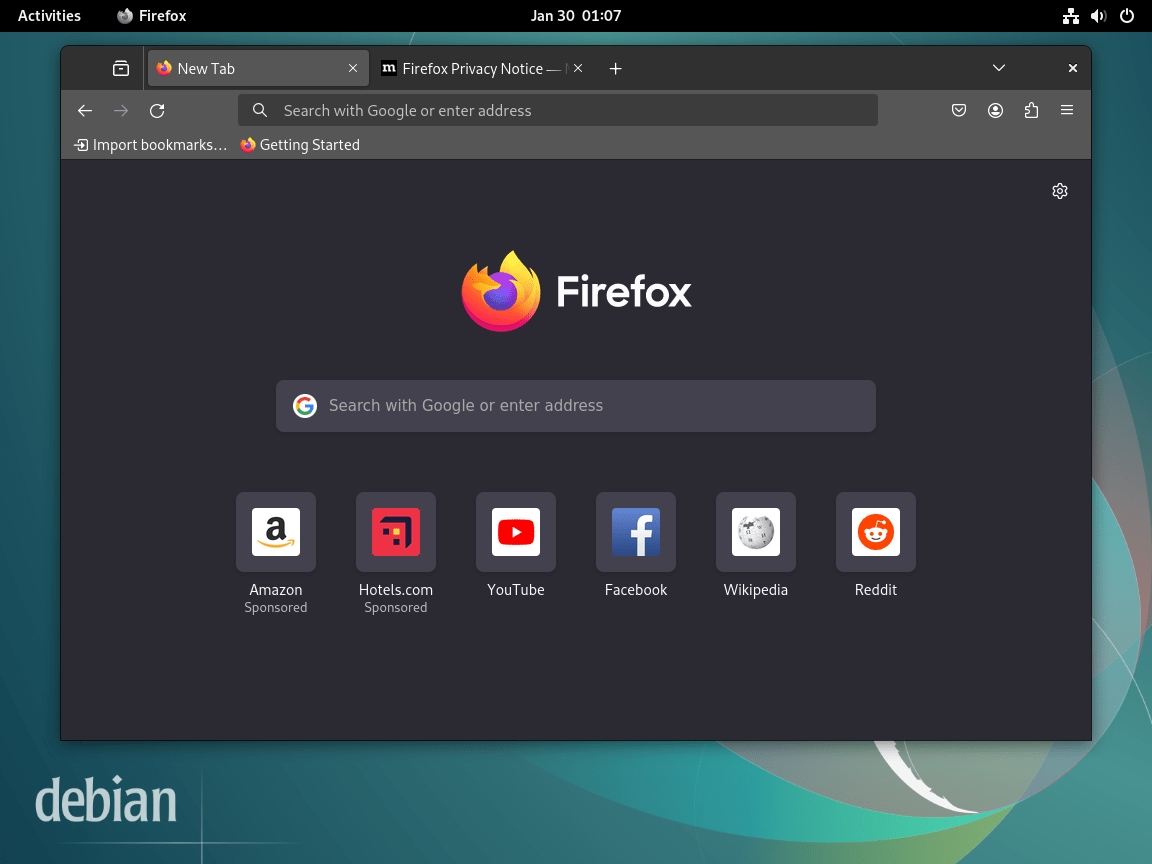
firefoxLaunch from Application Menu
Alternatively, you can launch Firefox from the application menu:
- Click Activities in the top-left corner of your screen
- Select Show Applications to view all installed applications
- Click the Firefox icon to start the browser
Update Firefox
By default, Firefox receives automatic updates through APT when you update your system. Run these commands to check for and install updates:
sudo apt update
sudo apt upgrade
As a result, the Mozilla repository provides updates as soon as new versions are released, keeping your browser secure with the latest patches. To update Firefox individually without upgrading other packages:
sudo apt update
sudo apt install --only-upgrade firefox
Remove Firefox
If you need to remove Firefox later, you can completely remove it and the Mozilla repository from your system. Follow the steps that match the method you used.
Uninstall Firefox package
First, remove Firefox and clean up unused dependencies:
sudo apt remove firefox
sudo apt autoremove
Remove Mozilla repository configuration
Next, if you used extrepo, disable the entry and remove its sources file:
sudo extrepo disable mozilla
sudo rm -f /etc/apt/sources.list.d/extrepo_mozilla.sources
Then, to remove the cached extrepo key as well:
sudo rm -f /var/lib/extrepo/keys/mozilla.ascAlternatively, if you used the manual repository method, remove the sources file, key, and pin:
sudo rm -f /etc/apt/sources.list.d/mozilla.sources /usr/share/keyrings/packages.mozilla.org.gpg /etc/apt/preferences.d/mozillaHowever, if you installed Firefox Beta from this repository, skip the repository removal step (see Install Firefox Beta on Debian).
Verify removal
Finally, refresh APT and confirm the Mozilla repository is no longer active:
sudo apt update
apt-cache policy firefox
For example, expected output:
firefox:
  Installed: (none)
  Candidate: (none)
  Version table:
     1xx.x~build1 -1
        100 /var/lib/dpkg/status
As a final check, you should not see any packages.mozilla.org entries in the Version table.
Remove user data (Optional)
Additionally, Firefox stores your profile data separately from the application. To remove bookmarks, history, passwords, and cached data:
Warning: The following commands permanently delete your Firefox profile including bookmarks, saved passwords, browsing history, and extensions. Before proceeding, export your bookmarks (Bookmarks > Manage Bookmarks > Import and Backup > Export Bookmarks to HTML) and back up any important data you wish to keep.
rm -rf ~/.mozilla/firefox
rm -rf ~/.cache/mozilla/firefoxTroubleshooting
APT update fails to verify the Mozilla repository
If apt update reports a keyring error, the Mozilla key file is missing or unreadable.
Err:4 https://packages.mozilla.org/apt mozilla InRelease
  Sub-process /usr/bin/sqv returned an error code (1), error message is: Error: Failed to parse keyring "/usr/share/keyrings/packages.mozilla.org.gpg"
In that case, check whether the key file exists:
ls -la /usr/share/keyrings/packages.mozilla.org.gpgFor reference, expected output if the file exists:
-rw-r--r-- 1 root root 695 Dec 27 00:00 /usr/share/keyrings/packages.mozilla.org.gpg
If the file is missing, re-download the key:
curl -fsSL https://packages.mozilla.org/apt/repo-signing-key.gpg | sudo gpg --dearmor -o /usr/share/keyrings/packages.mozilla.org.gpgAfter that, refresh APT to confirm the error is gone:
sudo apt updateFirefox package has no installation candidate
If apt install firefox fails, the Mozilla repository is not enabled or APT was not refreshed after adding it.
Package firefox is not available, but is referred to by another package.
This may mean that the package is missing, has been obsoleted, or
is only available from another source

Error: Package 'firefox' has no installation candidate
In that case, check that the Mozilla repository file exists:
grep -R "packages.mozilla.org/apt" /etc/apt/sources.list.dFor example, expected output:
/etc/apt/sources.list.d/extrepo_mozilla.sources:Uris: https://packages.mozilla.org/apt
/etc/apt/sources.list.d/mozilla.sources:URIs: https://packages.mozilla.org/apt
Next, if you used extrepo, re-enable the repository:
sudo extrepo enable mozillaOtherwise, if you used the manual method, recreate the mozilla.sources file from Step 4 and run:
sudo apt updateFinally, verify that APT now sees the repository:
apt-cache policy firefoxFor example, expected output:
firefox:
  Installed: (none)
  Candidate: 1xx.x~build1
  Version table:
     1xx.x~build1 500
        500 https://packages.mozilla.org/apt mozilla/main amd64 Packages
Conclusion
At this point, you have Firefox installed from Mozilla’s official repository on Debian, verified with APT and version checks, and ready to update through normal system upgrades. For the fastest setup, use extrepo, or choose the manual method for explicit key and pin control. If you want a different browser, see our guides to install Brave Browser on Debian or install Chromium Browser on Debian.
Useful Links
Finally, for more information about Firefox and related guides:
- Firefox official website: Features, release notes, and download options.
- Mozilla Linux installation guide: Official documentation for installing Firefox on Linux.
- Install Firefox Beta on Debian: Try upcoming features before they reach stable.
- Install Flatpak on Debian: Set up Flatpak for sandboxed application installation.

Formatting tips for your comment
You can use basic HTML to format your comment. Useful tags currently allowed:
<code>command</code>command<strong>bold</strong><em>italic</em><blockquote>quote</blockquote>