
Markdown notes are easier to keep long term when the app stores them in a portable format and can sync them across desktops, phones, and private cloud storage. To install Joplin on Debian, use the upstream installer script for the desktop AppImage, the official GitHub .deb package when you want a native package-format install, or the Flathub build when you prefer Flathub-managed app and runtime updates.
Debian 13 (Trixie), Debian 12 (Bookworm), and Debian 11 (Bullseye) use the same Joplin desktop choices, except for the AppImage FUSE package name on Debian 13. The upstream script and GitHub .deb asset are amd64 Linux paths, while Flathub lists net.cozic.joplin_desktop for x86_64 and aarch64.
Install Joplin on Debian
Check your Debian architecture before choosing a method:
dpkg --print-architectureExample output on a Debian amd64 system:
amd64
If the command prints amd64, any method in the table can work. If it prints arm64, use Flatpak because Flathub labels that architecture as aarch64 and the current AppImage installer and .deb package do not provide ARM Linux builds.
Choose one Joplin method from the table, then follow only that section unless you intentionally want to compare package formats.
| Method | Source | Architecture | Update Behavior | Best For |
|---|---|---|---|---|
| Official installer script | Joplin Linux install script | Debian amd64 | Rerun the same script | Most desktop users who want the upstream-recommended AppImage setup and desktop launcher |
| Official DEB package | Joplin GitHub Releases | Debian amd64 | update-joplin-deb helper | Users who want a package database entry and joplin launcher without adding an APT repository |
| Flatpak | Flathub | x86_64 or aarch64 | sudo flatpak update | Users who want Flathub packaging, runtime-managed updates, or an aarch64 build |
Some older Debian Joplin walkthroughs use a community APT repository or an extrepo entry. Those paths are not included here because the official script and official GitHub
.debpackage cover the same desktop app without adding a community-maintained APT source. If you already used a repository-based method, remove or disable that source before switching methods so APT does not see duplicate Joplin entries.
If you choose the official script or official .deb package, refresh APT and install the downloader, JSON parser, and release-detection helper before continuing. Flatpak users can skip to the Flatpak section, where Flatpak is installed separately.
sudo apt update
sudo apt install -y ca-certificates wget jq lsb-release
These commands use
sudofor system changes. If your account cannot run sudo yet, use a root shell or follow the guide to add a user to sudoers on Debian before continuing.
Install Joplin with the Official Script
The official script downloads the current stable Joplin AppImage, stores it under ~/.joplin/, installs the icon, and creates a desktop launcher for your user account. The lsb-release package from the prerequisite step lets the script detect Debian and write its Debian-specific launcher flags when needed.
Install the AppImage FUSE library for Debian 13 (Trixie):
sudo apt install -y libfuse2t64On Debian 12 (Bookworm) and Debian 11 (Bullseye), install the older package name instead:
sudo apt install -y libfuse2Run the installer from Joplin’s GitHub repository:
wget -O - https://raw.githubusercontent.com/laurent22/joplin/dev/Joplin_install_and_update.sh | bashThis command downloads and runs Joplin’s upstream installer script. Review the script first if you do not run remote shell installers by policy.
The wget command examples explain the download options used by the installer command and the GitHub package helper.
Verify that the AppImage exists and that the installer recorded a version:
test -x "$HOME/.joplin/Joplin.AppImage" && test -s "$HOME/.joplin/VERSION" && printf 'Joplin AppImage installed\n'Expected output:
Joplin AppImage installed
On Debian, the generated desktop entry can include an upstream Electron sandbox workaround in its Exec= line. Keep the generated launcher intact unless you are troubleshooting a confirmed desktop startup issue.
Install Joplin from the Official DEB Package
The GitHub release package installs Joplin under /opt/Joplin/, registers /usr/bin/joplin through update-alternatives, and adds a system desktop launcher. Use this method only when the earlier architecture check prints amd64.
Create a reusable helper that resolves the latest Joplin .deb asset with jq, downloads it to a temporary directory, checks the package metadata, and installs it through APT. The latest Joplin release publishes an AppImage checksum file but not a separate downloadable checksum or signature for the .deb asset, so the helper uses the official release URL and verifies the package name and architecture before installation.
mkdir -p "$HOME/.local/bin"
helper_path="$HOME/.local/bin/update-joplin-deb"

if [ -e "$helper_path" ] && ! grep -Fq 'LinuxCapable Joplin DEB updater' "$helper_path"; then
  printf 'Refusing to overwrite %s because it is not the LinuxCapable Joplin helper.\n' "$helper_path" >&2
  return 1 2>/dev/null || false
else
  cat > "$helper_path" <<'EOF'
#!/usr/bin/env bash
set -euo pipefail
# LinuxCapable Joplin DEB updater

for cmd in apt-get dpkg dpkg-deb dpkg-query jq mktemp sudo wget; do
  if ! command -v "$cmd" >/dev/null 2>&1; then
    printf 'Missing required command: %s\n' "$cmd" >&2
    exit 1
  fi
done

tmp_dir="$(mktemp -d)"
cleanup() {
  rm -rf -- "$tmp_dir"
}
trap cleanup EXIT

release_json="$(wget -qO- https://api.github.com/repos/laurent22/joplin/releases/latest)"
deb_url="$(jq -r 'first(.assets[]? | select((.name | startswith("Joplin-")) and (.name | endswith(".deb"))) | .browser_download_url) // empty' <<<"$release_json")"

if [ -z "$deb_url" ]; then
  printf 'No Joplin .deb asset found in the latest release.\n' >&2
  exit 1
fi

deb_file="$tmp_dir/joplin-latest.deb"
wget -q -O "$deb_file" "$deb_url"

package_name="$(dpkg-deb -f "$deb_file" Package)"
package_arch="$(dpkg-deb -f "$deb_file" Architecture)"
package_version="$(dpkg-deb -f "$deb_file" Version)"
system_arch="$(dpkg --print-architecture)"

if [ "$package_name" != "joplin" ]; then
  printf 'Downloaded package name was %s, not joplin.\n' "$package_name" >&2
  exit 1
fi

if [ "$package_arch" != "$system_arch" ]; then
  printf 'Downloaded package architecture %s does not match this system (%s).\n' "$package_arch" "$system_arch" >&2
  exit 1
fi

installed_version="$(dpkg-query -W -f='${Version}' joplin 2>/dev/null || true)"

printf 'Resolved Joplin package for %s.\n' "$package_arch"

if [ "$installed_version" = "$package_version" ]; then
  printf 'Joplin is already current.\n'
  exit 0
fi

printf 'Installing or updating Joplin with APT.\n'
sudo apt-get install "$deb_file"
EOF
  chmod +x "$helper_path"
fi
Make the helper available in your current terminal session, then confirm the friendly command resolves from your PATH:
case ":$PATH:" in
  *":$HOME/.local/bin:"*) ;;
  *) export PATH="$HOME/.local/bin:$PATH" ;;
esac

command -v update-joplin-deb
Expected output uses your Linux username:
/home/username/.local/bin/update-joplin-deb
Run the helper to install the current package:
update-joplin-debExpected helper status lines before the APT transaction:
Resolved Joplin package for amd64.
Installing or updating Joplin with APT.
Verify the installed package state with dpkg-query rather than launching the GUI from a non-graphical terminal:
dpkg-query -W -f='${db:Status-Abbrev} ${Package} ${Architecture}\n' joplinii joplin amd64
Install Joplin with Flatpak
Flatpak keeps Joplin and its runtime separate from Debian’s system packages. The Flathub record lists x86_64 and aarch64 builds, but it is community-built, unverified, and flagged as potentially unsafe because it grants home-directory access and uses legacy or non-portal integration. Treat this method as Flathub packaging rather than stricter file isolation. Install Flatpak first, or use the dedicated guide to install Flatpak on Debian if you need a fuller setup walkthrough.
sudo apt install -y flatpakAdd Flathub at system scope and verify that the remote exists:
sudo flatpak remote-add --if-not-exists flathub https://dl.flathub.org/repo/flathub.flatpakrepo
flatpak remotes --columns=name,options | grep '^flathub'
flathub system
Install the Joplin Flatpak app ID:
sudo flatpak install flathub net.cozic.joplin_desktopCheck the installed Flatpak metadata:
flatpak info net.cozic.joplin_desktop | sed -n '/^[[:space:]]*ID:/p; /^[[:space:]]*Ref:/p; /^[[:space:]]*Arch:/p; /^[[:space:]]*Branch:/p; /^[[:space:]]*Origin:/p; /^[[:space:]]*Installation:/p'Example output on x86_64:
          ID: net.cozic.joplin_desktop
         Ref: app/net.cozic.joplin_desktop/x86_64/stable
        Arch: x86_64
      Branch: stable
      Origin: flathub
Installation: system
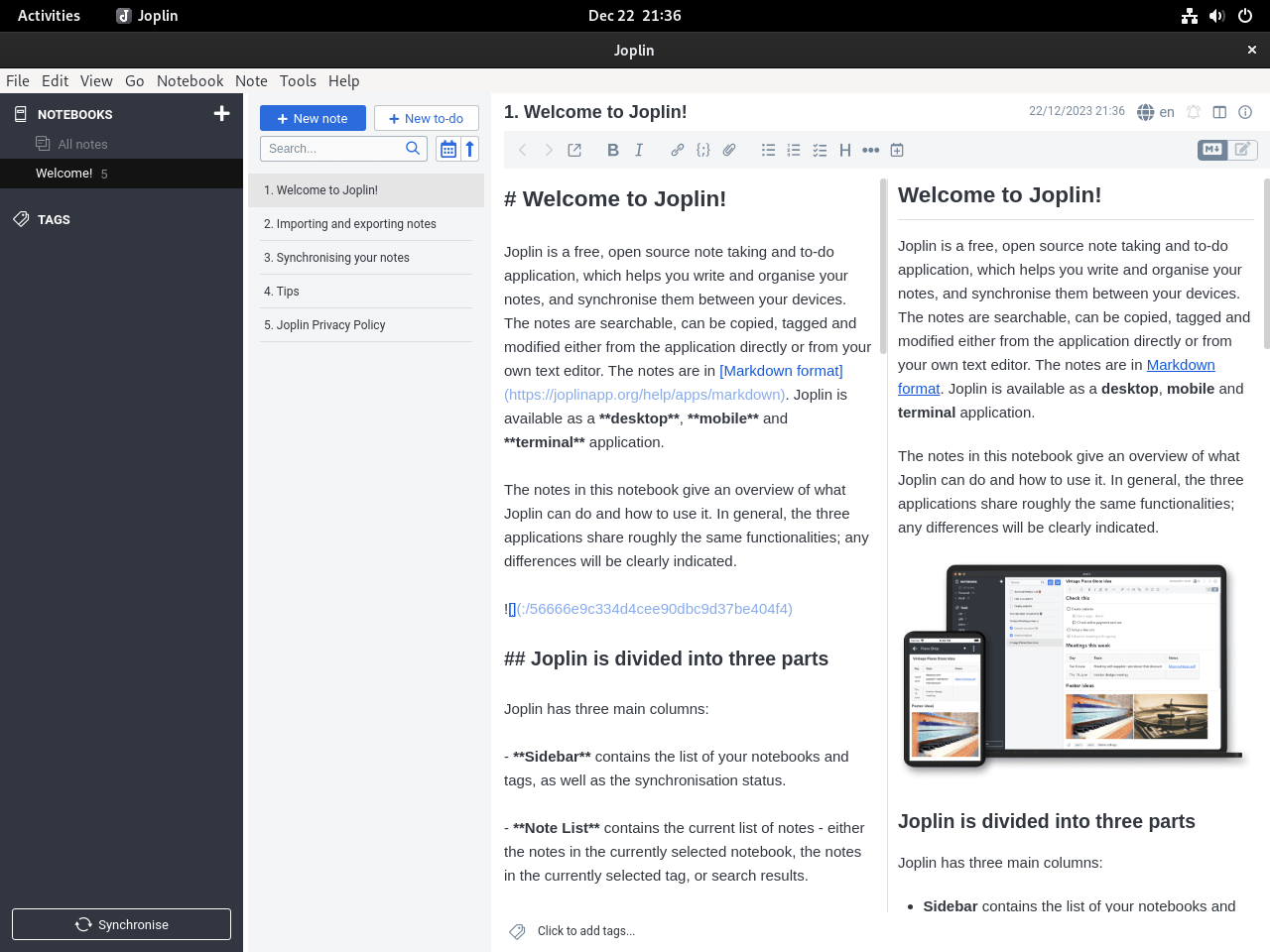
Launch Joplin on Debian
Open your applications menu or Activities overview, search for Joplin, and start the desktop app from there. Joplin Desktop needs a graphical session; terminal launch commands still open the same GUI application.
For terminal launches, use the command that matches your installation method:
| Install Method | Terminal Launch Command |
|---|---|
| Official script | ~/.joplin/Joplin.AppImage |
| Official DEB package | joplin |
| Flatpak | flatpak run net.cozic.joplin_desktop |
The Joplin terminal application is a separate CLI app from Joplin Desktop. This Debian desktop workflow does not install the npm-based terminal client.
Update Joplin on Debian
Use the update command for the method you installed. The official script and .deb package track the latest stable GitHub release, while Flatpak refreshes from Flathub.
Update the Official Script Install
Rerun the same installer command. The script compares the installed version in ~/.joplin/VERSION against the latest stable release before replacing the AppImage.
wget -O - https://raw.githubusercontent.com/laurent22/joplin/dev/Joplin_install_and_update.sh | bashUpdate the Official DEB Package
The .deb method does not add an APT repository, so run the helper created during installation whenever you want to check for a newer GitHub release:
update-joplin-debIf the installed package already matches the latest release, the helper exits without reinstalling Joplin:
Resolved Joplin package for amd64.
Joplin is already current.
Update the Flatpak Install
Update only Joplin with:
sudo flatpak update net.cozic.joplin_desktopTo update every Flatpak app and runtime on the system, run:
sudo flatpak updateTroubleshoot Joplin on Debian
Fix AppImage FUSE Errors
If the official script stops during the dependency check, the AppImage FUSE library is missing.
Error: Can't get libfuse2 on system, please install libfuse2
Install the package name that matches your Debian release:
# Debian 13
sudo apt install -y libfuse2t64

# Debian 12 and Debian 11
sudo apt install -y libfuse2
Verify that the compatibility library is visible to the dynamic linker:
ldconfig -p | grep 'libfuse.so.2'libfuse.so.2 (libc6,x86-64) => /lib/x86_64-linux-gnu/libfuse.so.2
Fix an Empty DEB Download URL
If update-joplin-deb reports that no .deb asset was found, check whether the GitHub API response still lists a Debian package asset.
wget -qO- https://api.github.com/repos/laurent22/joplin/releases/latest | jq -r 'first(.assets[]? | select((.name | startswith("Joplin-")) and (.name | endswith(".deb"))) | .browser_download_url) // "NO_DEB_ASSET_FOUND"'https://github.com/laurent22/joplin/releases/download/v3.6.14/Joplin-3.6.14.deb
Check Flatpak Permissions
The current Joplin Flatpak already grants home-directory access, so do not add broad overrides unless you are solving a specific path problem outside your home directory.
flatpak info --show-permissions net.cozic.joplin_desktop[Context] shared=network;ipc; sockets=x11;wayland;pulseaudio;fallback-x11;cups; devices=dri; filesystems=home;
Find the Joplin Profile Directory
After first launch, Joplin stores the native desktop profile in ~/.config/joplin-desktop on Linux and can also create ~/.config/Joplin for Electron desktop state. Back up the profile before destructive cleanup or major profile work because it can contain local notes, attachments, plugins, settings, and sync configuration.
ls -ld ~/.config/joplin-desktop ~/.config/Joplin 2>/dev/nulldrwx------ 2 username username 4096 Apr 27 10:00 /home/username/.config/Joplin drwx------ 2 username username 4096 Apr 27 10:00 /home/username/.config/joplin-desktop
Remove Joplin from Debian
Use the removal block that matches your install method. Keep local profile cleanup separate so you do not delete notes by accident.
Remove the Official Script Install
Remove the AppImage, desktop launcher, and icon created by the installer script:
rm -rf -- "$HOME/.joplin"
rm -f -- "$HOME/.local/share/applications/appimagekit-joplin.desktop"
rm -f -- "$HOME/.local/share/applications/joplin.desktop"
rm -f -- "$HOME/.local/share/icons/hicolor/512x512/apps/joplin.png"
Remove the Official DEB Package
Remove the native package with APT:
sudo apt remove joplinConfirm the package is no longer installed:
dpkg -l joplin | grep '^ii' || echo "joplin is not installed"joplin is not installed
Remove the updater helper only when it is the helper created by this method:
if [ -f "$HOME/.local/bin/update-joplin-deb" ] && grep -Fq 'LinuxCapable Joplin DEB updater' "$HOME/.local/bin/update-joplin-deb"; then
  rm -f -- "$HOME/.local/bin/update-joplin-deb"
fi

hash -r 2>/dev/null || true
command -v update-joplin-deb >/dev/null 2>&1 || echo "update-joplin-deb removed"
Expected output:
update-joplin-deb removed
If APT later suggests
sudo apt autoremove, review the removal list before confirming. The command can include stale kernels or unrelated desktop packages from earlier system history.
Remove the Flatpak Install
Remove Joplin and then clean up Flatpak runtimes no remaining app needs:
sudo flatpak uninstall net.cozic.joplin_desktop
sudo flatpak uninstall --unused
Verify the app ID no longer appears in the system Flatpak app list:
flatpak list --system --app --columns=application | grep -Fx net.cozic.joplin_desktop || echo "NOT_INSTALLED"NOT_INSTALLED
Delete Local Joplin Data
The next commands permanently delete local Joplin notes, attachments, plugins, sync settings, Electron desktop state, and Flatpak sandbox data for this Linux account. Export your notes or confirm sync is complete before removing these directories.
Print the candidate data paths first. Remove any path from the cleanup command if you want to keep that profile or sandbox data.
find "$HOME/.config/joplin-desktop" "$HOME/.config/Joplin" "$HOME/.var/app/net.cozic.joplin_desktop" -maxdepth 0 -print 2>/dev/nullrm -rf -- "$HOME/.config/joplin-desktop" "$HOME/.config/Joplin" "$HOME/.var/app/net.cozic.joplin_desktop"Conclusion
Joplin is ready on Debian through the upstream amd64 AppImage installer, the official amd64 .deb package, or the Flathub build for x86_64 and aarch64. The first sync setup happens inside Joplin, and the Web Clipper pairs naturally with Firefox on Debian when you want to save web pages into your notebooks.


Formatting tips for your comment
You can use basic HTML to format your comment. Useful tags currently allowed in published comments:
<code>command</code>command<strong>bold</strong><em>italic</em><a href="https://example.com">link</a><blockquote>quote</blockquote>