
Browser-based readers are convenient until a service changes, a sync account disappears, or you simply want your subscriptions stored locally. Install Akregator on Ubuntu 26.04, 24.04, or 22.04 when you want a desktop RSS reader that keeps news sites, blogs, podcasts, and YouTube channels in one application with offline access and tight KDE integration.
Akregator does not ship with Ubuntu’s default GNOME desktop, so you install it either from Ubuntu’s repository or from Flathub. The repository gives you the distro-packaged build with standard system updates, while Flatpak tracks a newer upstream release. Akregator installs from a terminal on all three supported Ubuntu LTS releases, but it still needs an active graphical session to launch.
Install Akregator on Ubuntu
Choose the repository build if you want the version that matches your Ubuntu release, or use Flatpak if you want KDE’s newer upstream package.
| Method | Channel | Version | Updates | Best For |
|---|---|---|---|---|
| APT repository | Ubuntu universe | Distribution default | apt upgrades | Smaller dependency set and tighter Ubuntu integration |
| Flatpak | Flathub | Latest upstream stable build | flatpak update | Newer Akregator releases and sandboxed app delivery |
Ubuntu 26.04, 24.04, and 22.04 all provide an APT package for Akregator. The Flatpak method also works across these releases. If you install from SSH or on a minimal image, remember that Akregator is still a desktop application and needs a graphical session to open.
Update Ubuntu Before Installing Akregator
Refresh the package index and install pending upgrades first so Akregator pulls against current repository metadata.
sudo apt update
sudo apt upgrade -y
These commands use
sudofor tasks that need administrator privileges. If your account does not have sudo access yet, follow the guide on how to add a new user to sudoers on Ubuntu.
Install Akregator from Ubuntu Repository
The Ubuntu package is the best fit if you want Akregator to track your release’s KDE libraries and update with the rest of the system.
sudo apt install akregator -yFor a headless-safe verification, query the package state with APT instead of running the GUI binary from SSH or a text console.
apt-cache policy akregatorakregator:
Installed: 4:25.12.3-0ubuntu1
Candidate: 4:25.12.3-0ubuntu1
Version table:
*** 4:25.12.3-0ubuntu1 500
500 http://au.archive.ubuntu.com/ubuntu resolute/universe amd64 Packages
100 /var/lib/dpkg/status
Ubuntu 24.04 reports 4:23.08.5-0ubuntu4.1 after installation, and Ubuntu 22.04 reports 4:21.12.3-0ubuntu1.
Install Akregator with Flatpak on Ubuntu
Flatpak is the better fit when you want the newest Akregator build without waiting for Ubuntu’s KDE stack to move.
If the
flatpakcommand is missing on your system, follow the guide to install Flatpak on Ubuntu before continuing.
Add the Flathub remote first. The --if-not-exists flag prevents duplicate-remote errors if you rerun the command later.
sudo flatpak remote-add --if-not-exists flathub https://dl.flathub.org/repo/flathub.flatpakrepoConfirm that Flathub is available at system scope before you install the application.
flatpak remotesflathub system
Install Akregator from Flathub:
sudo flatpak install flathub org.kde.akregator -yVerify the Flatpak package metadata after installation.
flatpak info org.kde.akregatorAkregator - Keep up with your feeds
ID: org.kde.akregator
Ref: app/org.kde.akregator/x86_64/stable
Arch: x86_64
Branch: stable
Version: 6.6.2
Origin: flathub
Installation: system
Launch Akregator on Ubuntu
Akregator launches from the application menu on GNOME and other Ubuntu desktops once a graphical login is active. If you want the tightest integration with Kontact and KDE widgets, install KDE Plasma on Ubuntu first.
Launch Repository-installed Akregator on Ubuntu
Use the package-provided launcher from a terminal emulator inside your desktop session.
akregatorLaunch Flatpak-installed Akregator on Ubuntu
Use the Flatpak runtime command if you installed Akregator from Flathub.
flatpak run org.kde.akregatorLaunch Akregator from Ubuntu’s Application Menu
Open your desktop’s application menu, search for Akregator, and start it like any other GUI application.
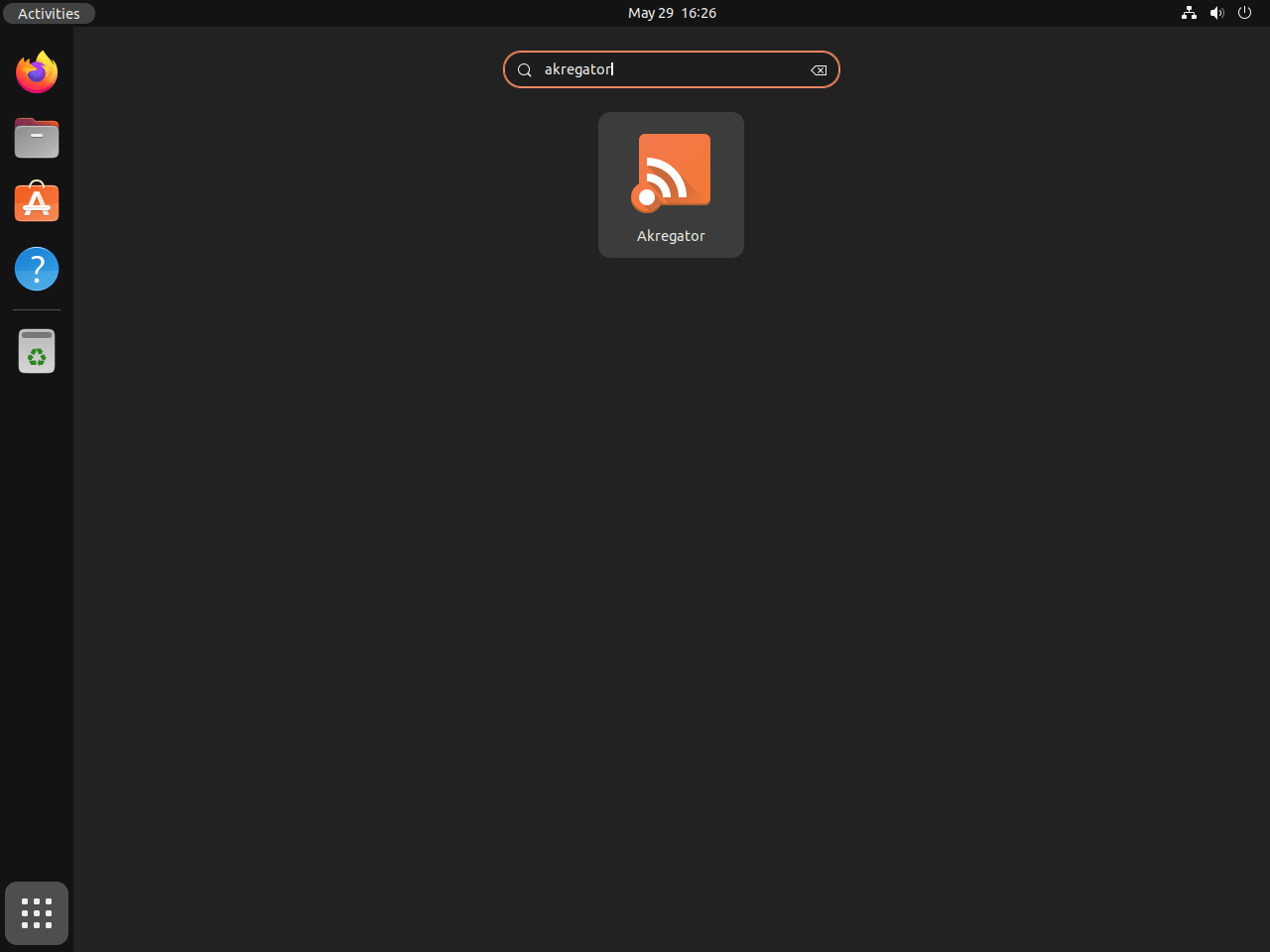
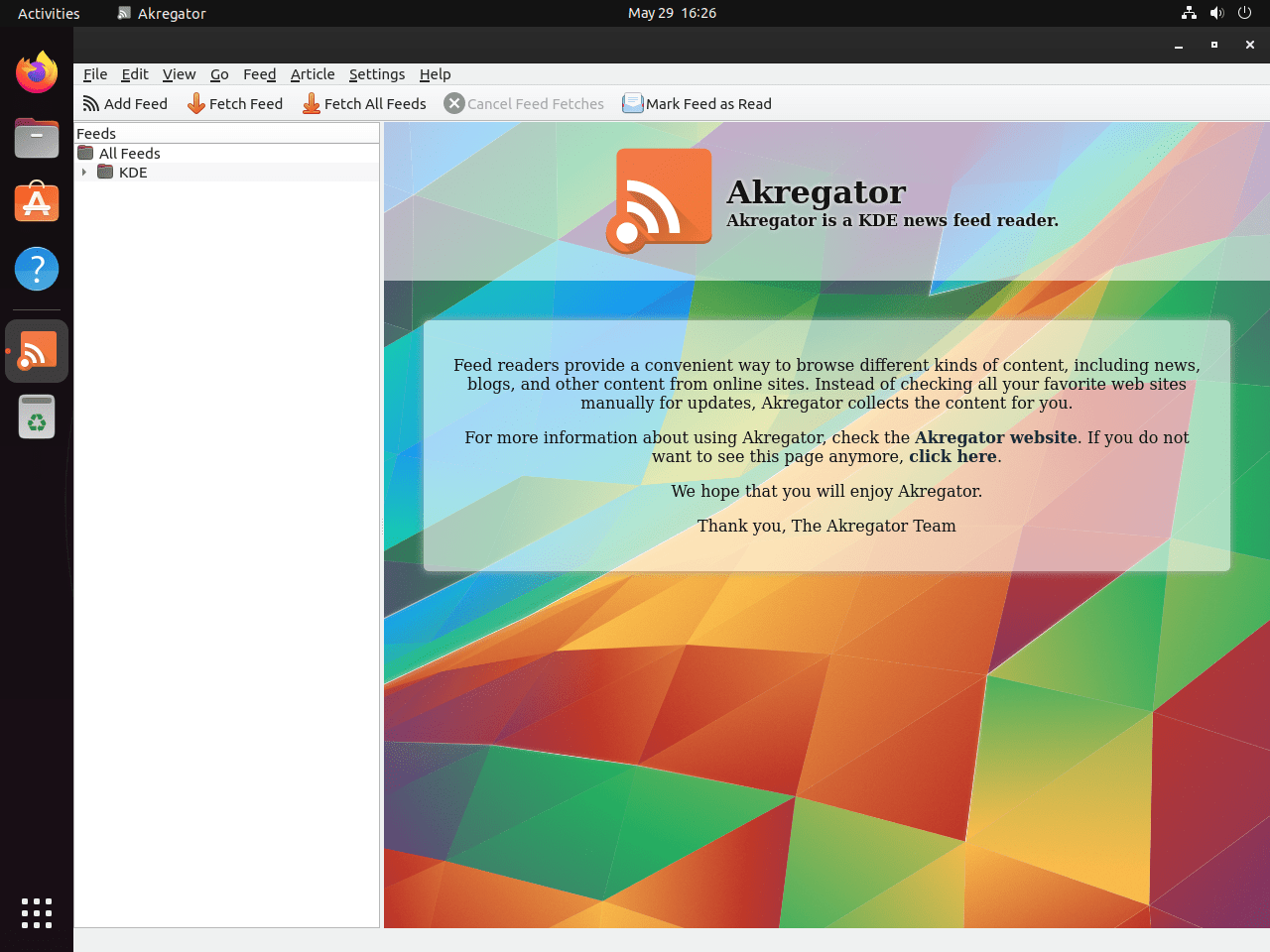
Add RSS Feeds to Akregator on Ubuntu
After Akregator opens, add subscriptions from Feed > Add Feed, then use File > Import Feeds or File > Export Feeds when you want to move OPML subscriptions between readers or keep a backup.
Akregator on Ubuntu can subscribe to standard RSS and Atom URLs, including YouTube channel feeds that use the https://www.youtube.com/feeds/videos.xml?channel_id=CHANNEL_ID format.
- News sites often publish feeds like
https://example.com/tech/rssorhttps://example.com/news/feed. - Blogs commonly use patterns such as
https://blog.example.com/feedorhttps://example.com/rss.xml. - YouTube channels use
https://www.youtube.com/feeds/videos.xml?channel_id=CHANNEL_ID.
Update or Remove Akregator on Ubuntu
Update Repository-installed Akregator on Ubuntu
Use APT when you installed the Ubuntu package.
sudo apt update
sudo apt install --only-upgrade akregator -y
Update Flatpak Akregator on Ubuntu
Update only the Akregator Flatpak when you want to leave other Flatpak applications alone.
sudo flatpak update org.kde.akregator -yRemove Repository-installed Akregator on Ubuntu
Use the Ubuntu package manager to remove Akregator and any libraries that were installed only for this package.
sudo apt remove akregator -y
sudo apt autoremove -y
Confirm that the Ubuntu package is no longer installed.
apt-cache policy akregatorakregator:
Installed: (none)
Candidate: 4:23.08.5-0ubuntu4.1
Version table:
4:23.08.5-0ubuntu4.1 500
Removing the package does not back up your personal feeds for you. Export an OPML copy from Akregator before uninstalling if you want to keep your subscription list for another system or reader.
Remove Flatpak Akregator on Ubuntu
Use --delete-data when you want the Flatpak package and its sandbox data removed together.
sudo flatpak remove --delete-data org.kde.akregator -yVerify that the Flatpak application is gone.
sudo flatpak list --app --columns=application | grep -Fx org.kde.akregator || echo not-installednot-installed
This removal path leaves no ~/.var/app/org.kde.akregator directory behind.
Troubleshoot Akregator on Ubuntu
The most common Akregator issue on Ubuntu is trying to launch it from a shell that has no graphical display attached.
Fix Akregator Launch Failures Without a Graphical Session on Ubuntu
If you start Akregator from SSH or a text-only console, Qt cannot connect to the desktop display and the application aborts with errors like these:
qt.qpa.xcb: could not connect to display
Could not load the Qt platform plugin "xcb"
Return to a local desktop session, then launch Akregator from the Ubuntu application menu or from a terminal emulator inside GNOME or KDE Plasma.
Akregator on Ubuntu FAQ
No. Akregator runs on Ubuntu desktops such as GNOME as long as a graphical session is active. KDE Plasma gives it tighter integration with Kontact and other KDE components, but it is not required.
Use Ubuntu’s repository when you want the release-matched package with standard system updates. Use Flatpak when you want a newer upstream Akregator build from Flathub and do not mind the extra runtime footprint.
Yes. Akregator can import OPML exports from other feed readers, and it can export your current subscriptions the same way. Use File > Import Feeds or File > Export Feeds after the application opens.
Conclusion
Akregator is installed on Ubuntu and ready to collect RSS and Atom feeds without relying on a web service. If you want deeper desktop integration, install KDE Plasma on Ubuntu; if you prefer sandboxed desktop packages more broadly, install Flatpak on Ubuntu and keep the same Flathub workflow for future applications.

Formatting tips for your comment
You can use basic HTML to format your comment. Useful tags currently allowed in published comments:
<code>command</code>command<strong>bold</strong><em>italic</em><blockquote>quote</blockquote>