Resume memory, subtitle timing, and per-file audio settings are the reasons many people stick with SMPlayer once their library gets messy. To install SMPlayer on Fedora, use the Fedora repository package for the simplest desktop integration or the Flathub build when you want a separate app runtime.
Most Fedora desktops should start with the native DNF package. Flatpak is useful only when you deliberately want Flathub packaging, and the extra codec steps only matter when Fedora’s patent-limited multimedia stack still blocks H.264, H.265, or disc playback.
Install SMPlayer on Fedora
SMPlayer is available directly from Fedora’s default repositories, and a Flatpak build is available on Flathub. Use the Fedora package when you want the simplest setup, or use Flatpak when you want a separate app lifecycle.
Update Fedora before installing SMPlayer
Refresh package metadata and install any pending updates first so SMPlayer and its dependencies come from the current Fedora repositories:
sudo dnf upgrade --refreshThese commands use
sudofor tasks that need root privileges. If your account is not in the sudoers file yet, follow the guide on how to add a user to sudoers on Fedora.
Install SMPlayer with DNF
The Fedora package gives you the most direct integration with the desktop, file associations, and normal system updates. It installs SMPlayer with mpv as the playback backend dependency; standalone MPlayer support is a separate backend choice, not a requirement for this install.
sudo dnf install smplayerVerify that Fedora installed SMPlayer correctly:
rpm -q smplayersmplayer-25.6.0-2.fc43.x86_64
The package release suffix can differ from your Fedora release when Fedora carries a build forward. The important part is that rpm reports smplayer as installed.
Install SMPlayer with Flatpak
Use the Flatpak build only when you specifically want SMPlayer from Flathub with its own app runtime. The current Flathub listing reports a runtime end-of-life warning for SMPlayer, so prefer the DNF package unless you need Flathub for a specific workflow.
These commands keep everything at system scope so the remote, install, updates, and removal steps all match.
sudo flatpak remote-add --if-not-exists flathub https://dl.flathub.org/repo/flathub.flatpakrepoNo output usually means the Flathub remote was added successfully. The --if-not-exists flag leaves an existing Flathub setup unchanged.
sudo flatpak install flathub info.smplayer.SMPlayerAfter the install finishes, confirm that SMPlayer is visible to Flatpak:
flatpak info info.smplayer.SMPlayerThe output should list the info.smplayer.SMPlayer app ID, the Flathub origin, the installation scope, and the runtime branch.
Compare SMPlayer Install Methods on Fedora
Both install paths get you the same player, but they fit different maintenance styles.
| Method | Channel | Updates | Best For |
|---|---|---|---|
| DNF | Fedora repositories | With normal system updates | Most users who want the simplest Fedora-native setup |
| Flatpak | Flathub | With Flatpak updates | Users who specifically need Flathub packaging after checking the runtime warning |
The Fedora package is the better default because it is already in the standard repositories and needs less maintenance. Choose Flatpak only when you already manage desktop apps through Flathub and accept the current runtime warning or the warning has cleared by the time you install.
Launch SMPlayer on Fedora
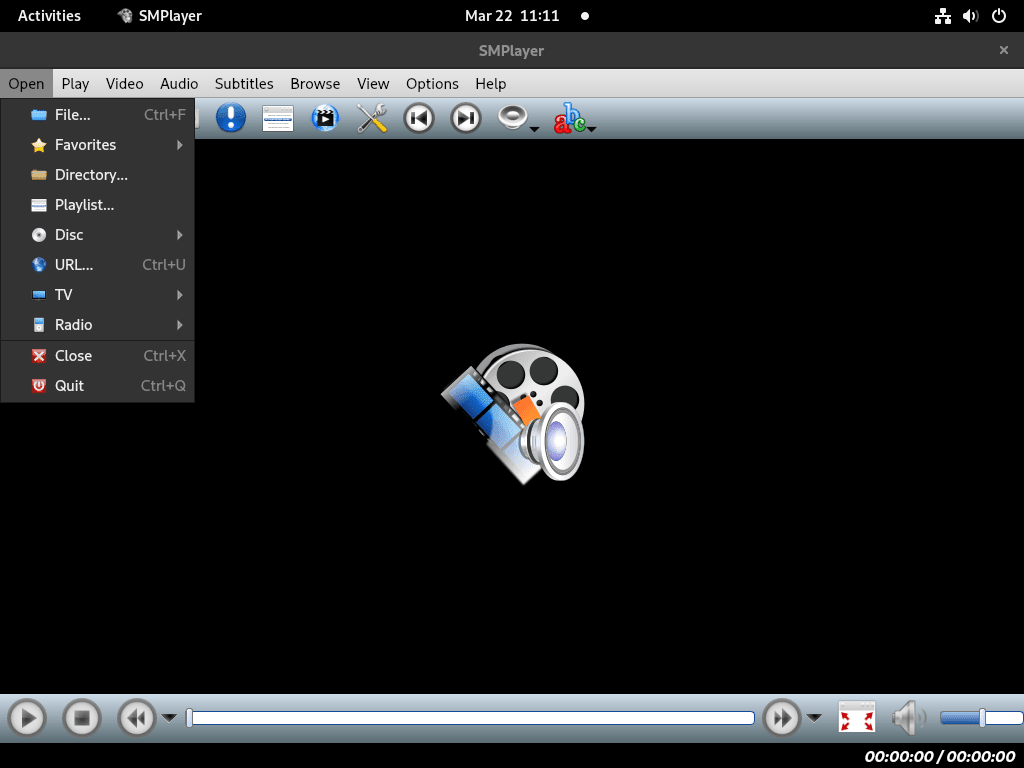
After installation, you can open SMPlayer from a terminal or from Fedora Activities.
Launch SMPlayer from the terminal
Search for Terminal in Activities if you want a shell, then use the command that matches your install method:
smplayerFor the Flatpak build, run:
flatpak run info.smplayer.SMPlayerLaunch SMPlayer from Fedora Activities
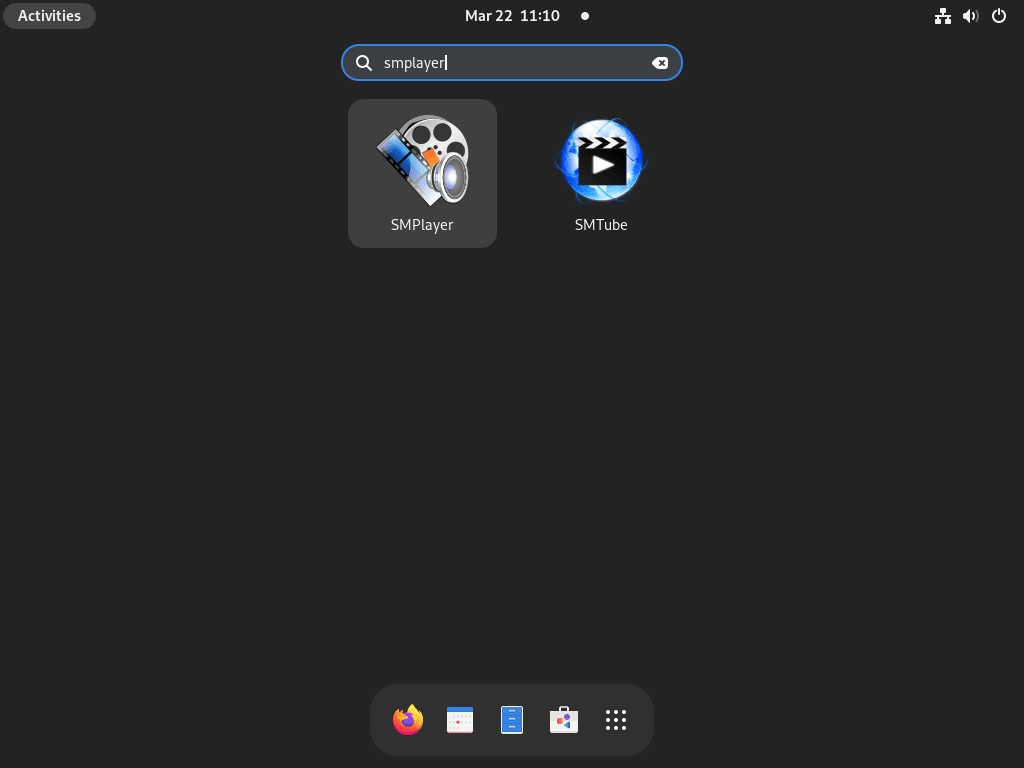
Open Activities, search for SMPlayer, then launch it from the search results or the application grid.
- Open Activities.
- Type SMPlayer in the search bar.
- Click the SMPlayer icon to start the player.
Update SMPlayer on Fedora
Update SMPlayer with DNF
Use DNF when you only want to refresh the Fedora package:
sudo dnf upgrade smplayerIf you prefer to refresh everything on the system at the same time, run:
sudo dnf upgrade --refreshUpdate the SMPlayer Flatpak build
For the system-scoped Flatpak install, update SMPlayer with:
sudo flatpak update info.smplayer.SMPlayerRemove SMPlayer from Fedora
Use the removal command that matches the way you installed the player.
Remove the SMPlayer DNF package
The Fedora package removes cleanly with DNF:
sudo dnf remove smplayerConfirm that the package is gone:
rpm -q smplayerpackage smplayer is not installed
Remove the SMPlayer Flatpak build
Remove the system Flatpak build with:
sudo flatpak uninstall info.smplayer.SMPlayerVerify that the Flatpak app is no longer installed:
flatpak list --system --app --columns=application | grep -Fx info.smplayer.SMPlayer || echo "NOT_INSTALLED"NOT_INSTALLED
Remove SMPlayer user data on Fedora
Removing these directories permanently deletes SMPlayer preferences, playlists, watch history, and cached data. Copy anything you want to keep first, or leave the directories in place if you plan to reinstall the player later.
For the DNF package, list the local configuration and cache directories before deleting them. No output means there is nothing to remove for that account:
for path in "$HOME/.config/smplayer" "$HOME/.cache/smplayer"; do
    [ -e "$path" ] && printf '%s\n' "$path"
done
After reviewing the listed paths, remove them with:
rm -rf "$HOME/.config/smplayer" "$HOME/.cache/smplayer"For the Flatpak build, check the sandboxed application data path first:
if [ -e "$HOME/.var/app/info.smplayer.SMPlayer" ]; then
    printf '%s\n' "$HOME/.var/app/info.smplayer.SMPlayer"
fi
After reviewing that path, remove it with:
rm -rf "$HOME/.var/app/info.smplayer.SMPlayer"Troubleshoot SMPlayer on Fedora
Most playback problems on Fedora come from the display backend, the codec stack, or extra helpers such as yt-dlp. Start with the symptom that matches what SMPlayer is doing, then work through the related fix.
Fix SMPlayer black screen on Fedora
If audio plays but the video area stays black, check which display session your local desktop is using before changing the output driver in SMPlayer.
Run this from a terminal inside your desktop session, not from SSH:
printf '%s\n' "$XDG_SESSION_TYPE"wayland
Fedora Workstation usually reports wayland. Some other desktop environments can still report x11.
Open Options -> Preferences -> General -> Video, then try the driver that matches your session:
- Wayland: Try
gpu-nextoropengl. - X11: Try
xvoropengl. - Fallback: Use
x11for basic software rendering.
If the same file still fails elsewhere, you can also install VLC on Fedora to rule out file corruption or a damaged local media file.
Enable H.265 and HEVC playback for SMPlayer on Fedora
The Fedora package installs SMPlayer itself, but Fedora still ships the patent-limited ffmpeg-free stack by default. If H.264, H.265, AAC, or E-AC3 files refuse to play, add RPM Fusion and replace the limited FFmpeg build.
If RPM Fusion is not enabled yet, start with the Free repository. The $(rpm -E %fedora) expression expands to your Fedora release number automatically. For the full walkthrough, see install RPM Fusion on Fedora.
sudo dnf install "https://mirrors.rpmfusion.org/free/fedora/rpmfusion-free-release-$(rpm -E %fedora).noarch.rpm"Swap Fedora’s limited FFmpeg build for the full RPM Fusion package:
sudo dnf swap ffmpeg-free ffmpeg --allowerasingIf hardware decoding still fails on AMD or Intel graphics, add RPM Fusion’s VA-API package:
sudo dnf install mesa-va-drivers-freeworldVerify that the full FFmpeg package is installed:
rpm -q ffmpegffmpeg-8.0.2-1.fc44.x86_64
The RPM Fusion FFmpeg and VA-API packages update through normal DNF upgrades while RPM Fusion Free remains enabled. If you later reverse the codec change, remove only the packages you added for playback and keep RPM Fusion enabled when other media packages still use it.
The Flatpak build ships with its own runtime, so codec failures usually affect the Fedora DNF package more often than the Flathub build.
Fix SMPlayer YouTube playback on Fedora
SMPlayer can use yt-dlp for video-site URL handling. Fedora may already have the helper after the DNF install, but check it directly when URLs stop opening or SMPlayer reports extractor errors.
sudo dnf install yt-dlpThen confirm that the command is available from your shell:
yt-dlp --versionThe command prints the installed yt-dlp version. Restart SMPlayer after updating the helper so the player picks up the refreshed binary.
Fix DVD or Blu-ray playback in SMPlayer on Fedora
Commercial DVDs and Blu-ray discs need extra libraries for CSS, AACS, and BD+ handling. RPM Fusion Free tainted provides libdvdcss, while the remaining disc libraries come from the enabled Fedora and RPM Fusion package sources.
If RPM Fusion Free is not enabled yet, add it first:
sudo dnf install "https://mirrors.rpmfusion.org/free/fedora/rpmfusion-free-release-$(rpm -E %fedora).noarch.rpm"Enable the tainted repository that provides libdvdcss:
sudo dnf install rpmfusion-free-release-taintedInstall the optical-disc libraries:
sudo dnf install libdvdcss libaacs libbdplus libblurayVerify that all four packages are present:
rpm -q libdvdcss libaacs libbdplus libbluraylibdvdcss-1.5.0-2.fc44.x86_64 libaacs-0.11.1-8.fc44.x86_64 libbdplus-0.2.0-8.fc44.x86_64 libbluray-1.4.0-3.fc44.x86_64
After the packages are in place, open Open -> Disc in SMPlayer and try the drive again. Some Blu-ray titles still need an AACS key database, so encrypted discs can require one extra step beyond these packages.
These disc-support packages update through DNF. If you remove them later, remove only the packages you added for disc playback and keep RPM Fusion enabled when FFmpeg, codec, driver, or other RPM Fusion packages still need it.
Conclusion
SMPlayer is ready on Fedora through either the native DNF package or the Flathub build. Start with the Fedora package for the simplest setup, then add codec or disc support only when a file format actually needs it. For more media workflows, install FFmpeg on Fedora or install OBS Studio on Fedora.


Formatting tips for your comment
You can use basic HTML to format your comment. Useful tags currently allowed in published comments:
<code>command</code>command<strong>bold</strong><em>italic</em><a href="https://example.com">link</a><blockquote>quote</blockquote>